


Assign Internal Users to a case
Overview
Welcome! Let's learn how to assign the internal users to a case to ensure smooth workflow.
1. Introduction
 * click the image to view enlarged
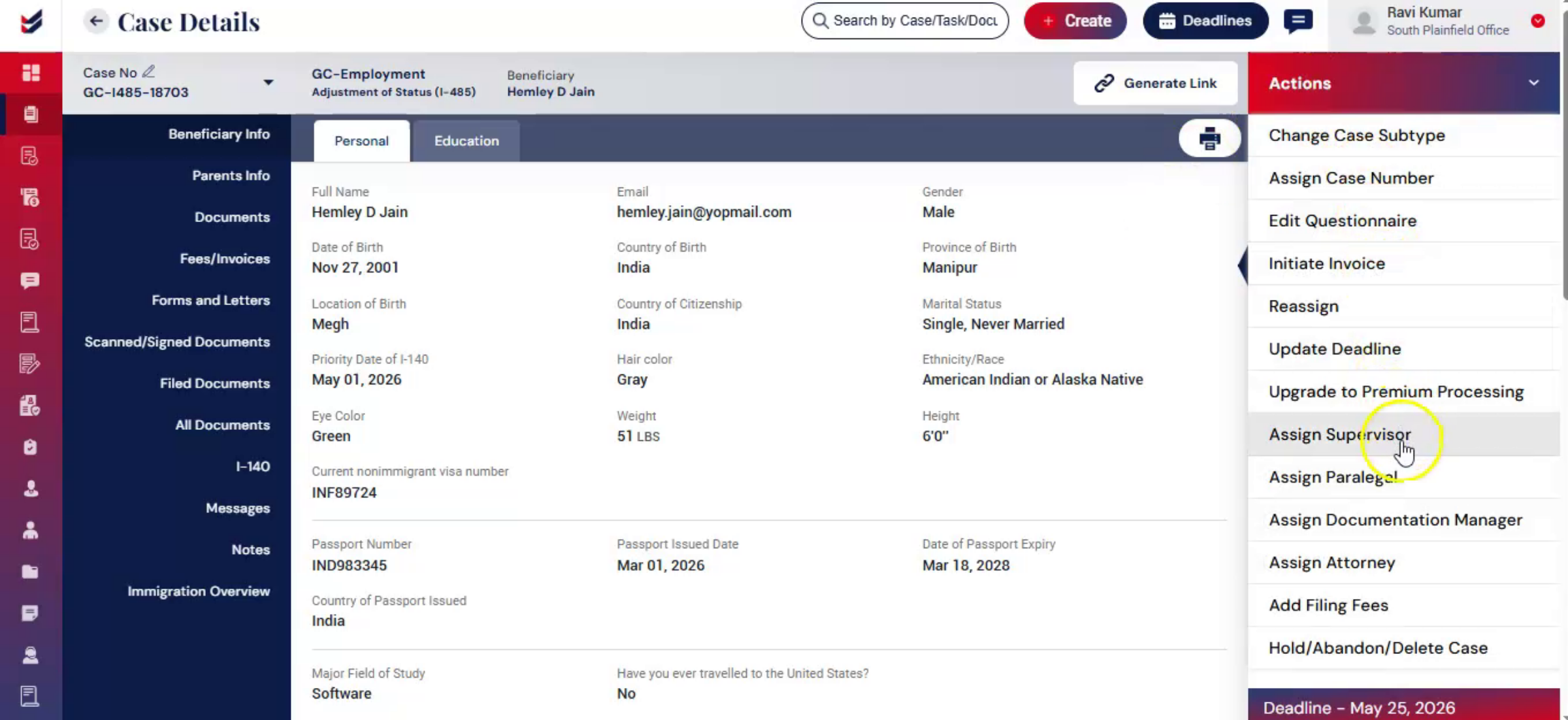
In ImmiBox, internal users can be assigned to cases to manage different stages of processing and review.
The roles and users available under the Actions menu depend on the configured Case Workflow, and User Role permissions.
2. Access Assign Options
 * click the image to view enlarged
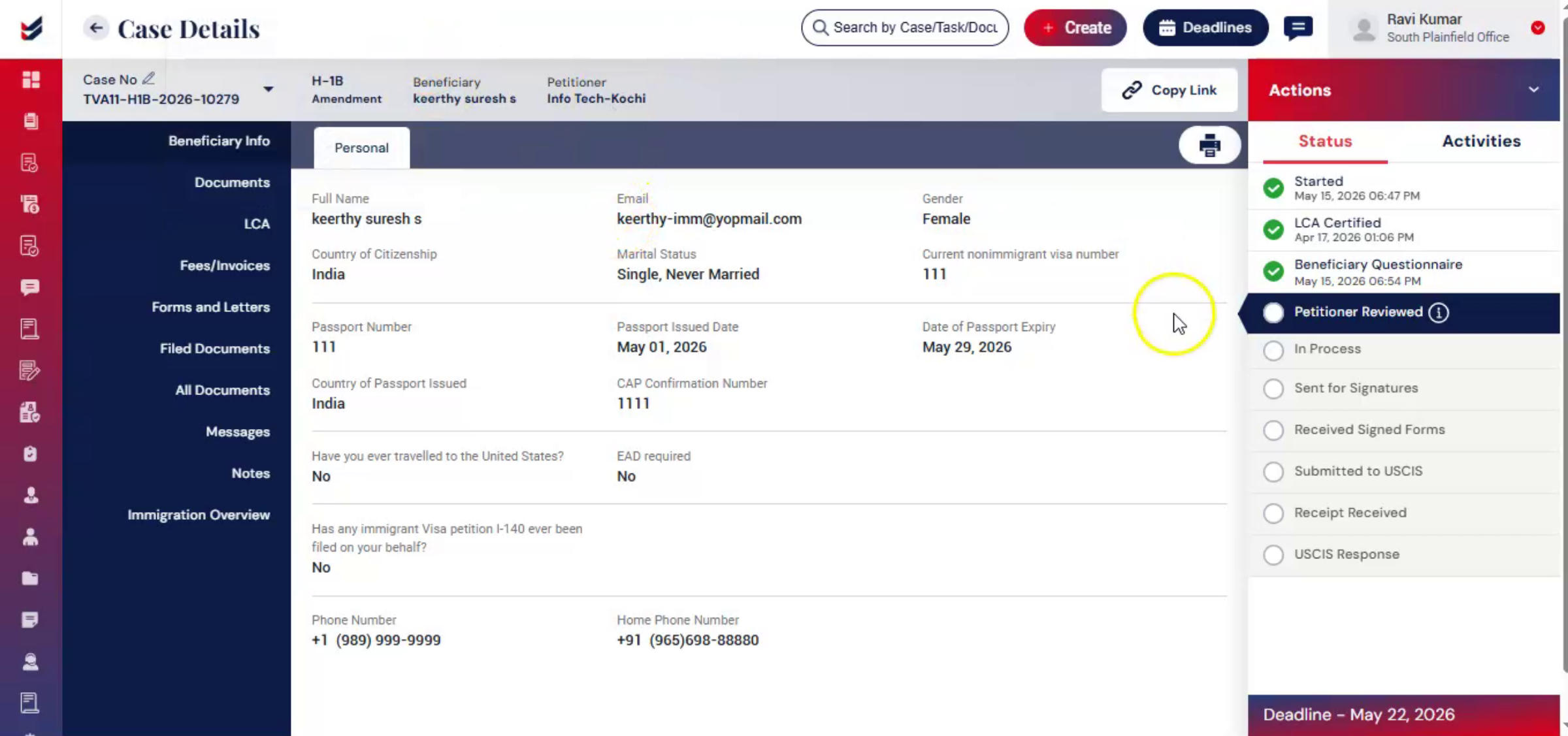
Navigate to the preferred Case Details page. Once the questionnaire is completed, assign options become available under the Actions menu.
3. Assign Internal Users
 * click the image to view enlarged
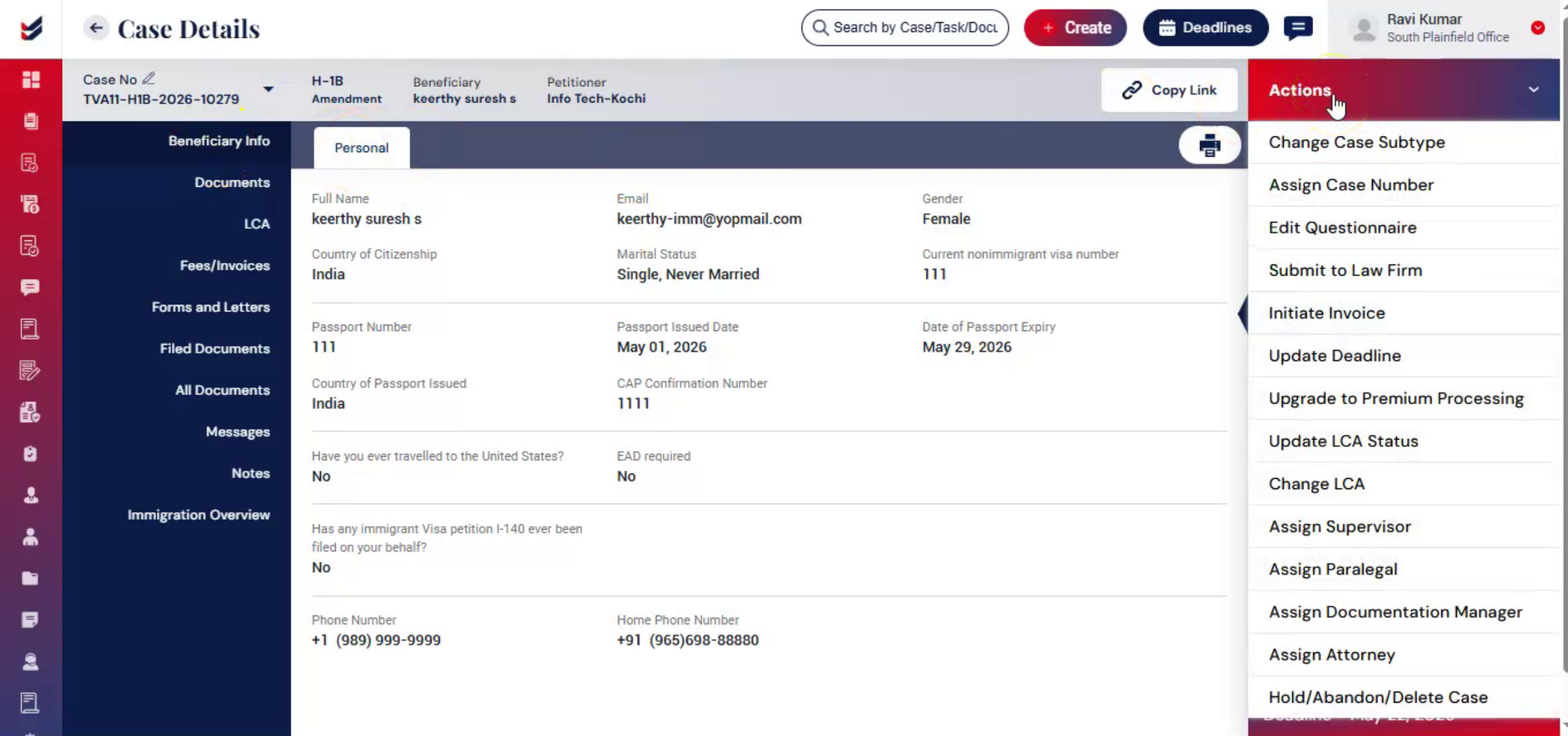
From the actions menu. Users can assign roles such as paralegal, attorney, supervisor, documentation manager, documentation executive. For example, selected Assign Attorney.
4. Assign Attorney Dialog Box
 * click the image to view enlarged
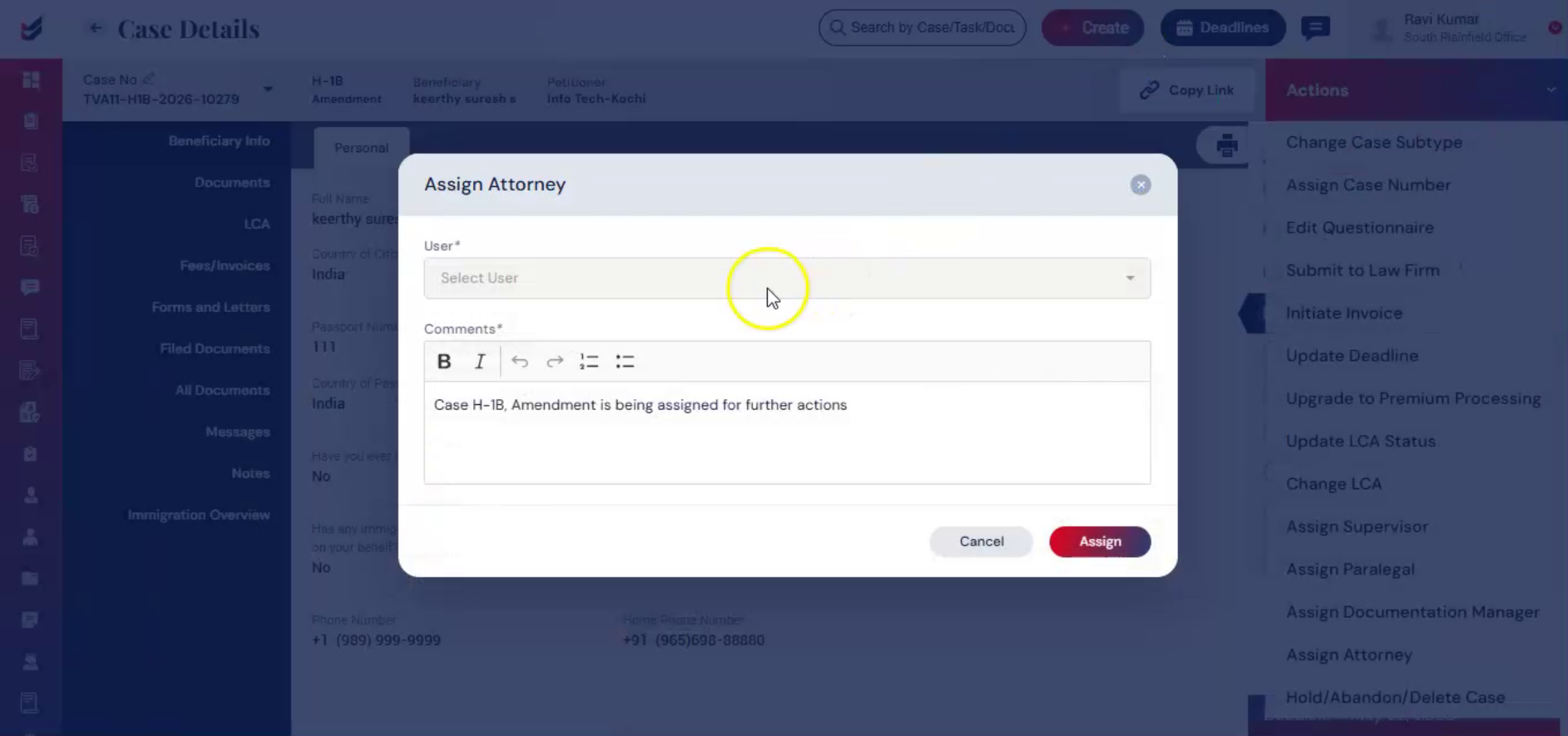
Now, choose the user from the dropdown list, add comments if needed, and click Assign. The available users displayed for assign are based entirely on the configured case workflow and assigned permissions.
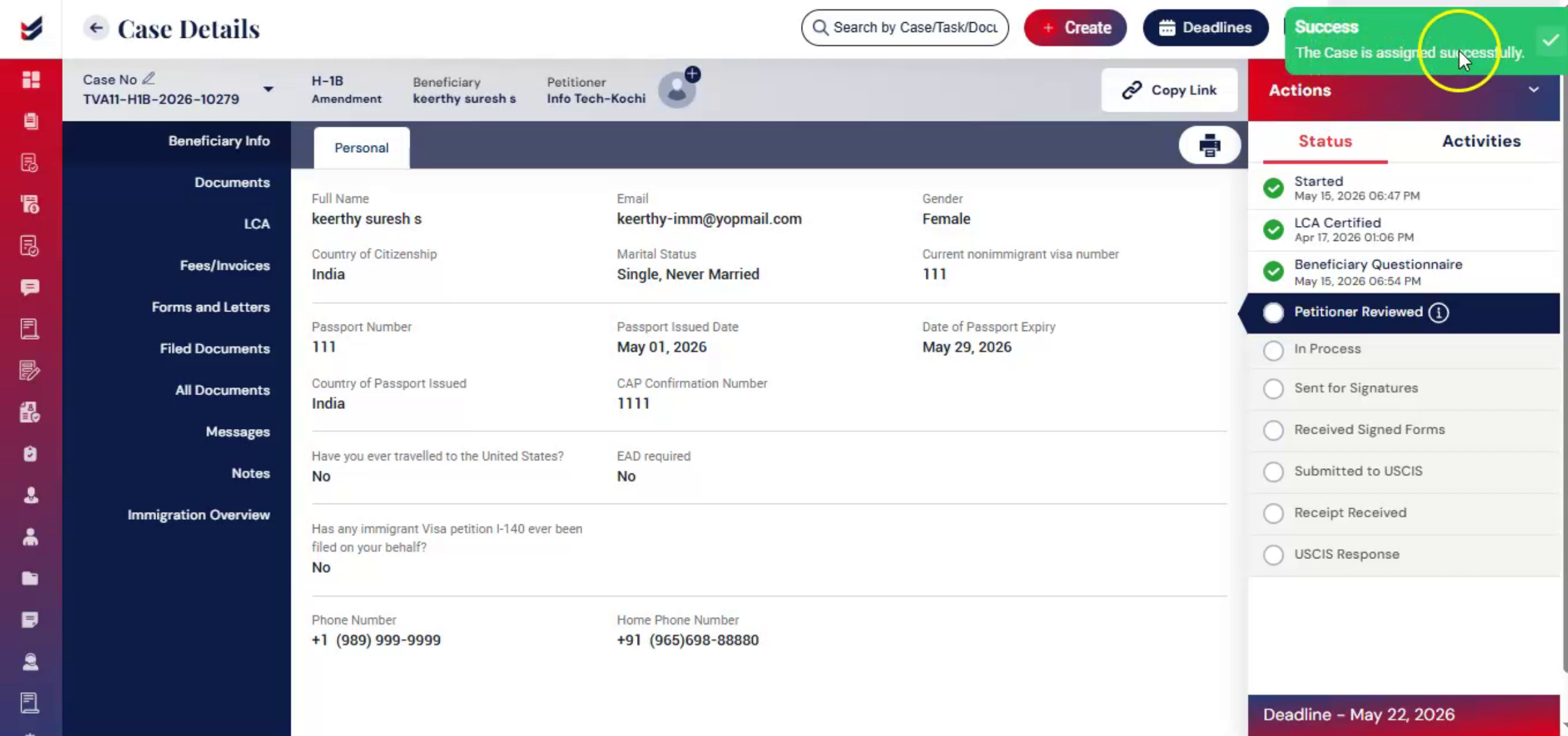
5. Notification of Assigned Attorney
 * click the image to view enlarged
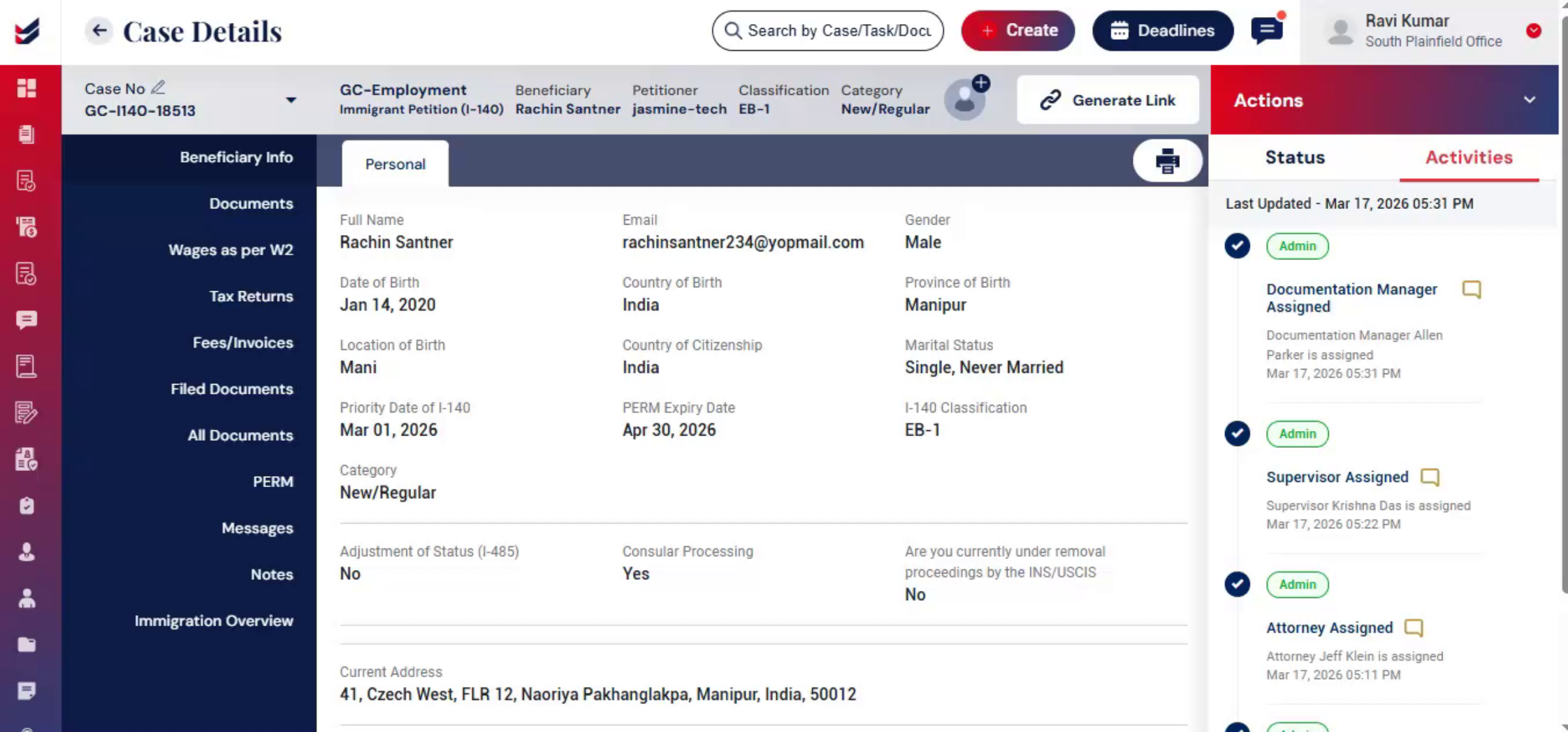
Once assigned, notifications are sent automatically, and all assign activities are recorded under the Activities section for tracking and audit purposes.
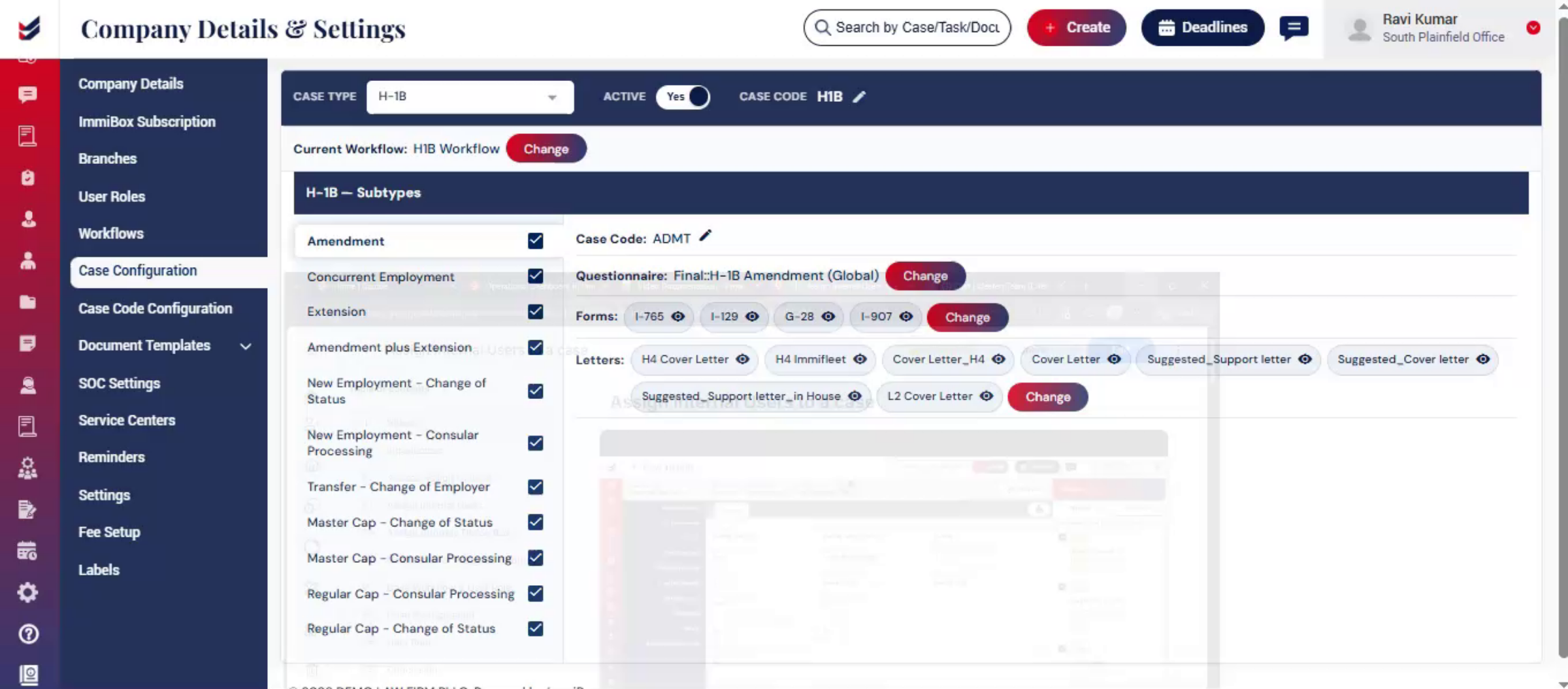
6. Case Workflow & User Role Configuration
 * click the image to view enlarged
Internal user assignments in ImmiBox are workflow-driven. The users and assignment roles displayed under the Actions menu depend on the Case Configuration, and User Role permissions for that Case Type and Subtype.
This allows law firms to distribute responsibilities across multiple users or manage the complete case flow through a single user.
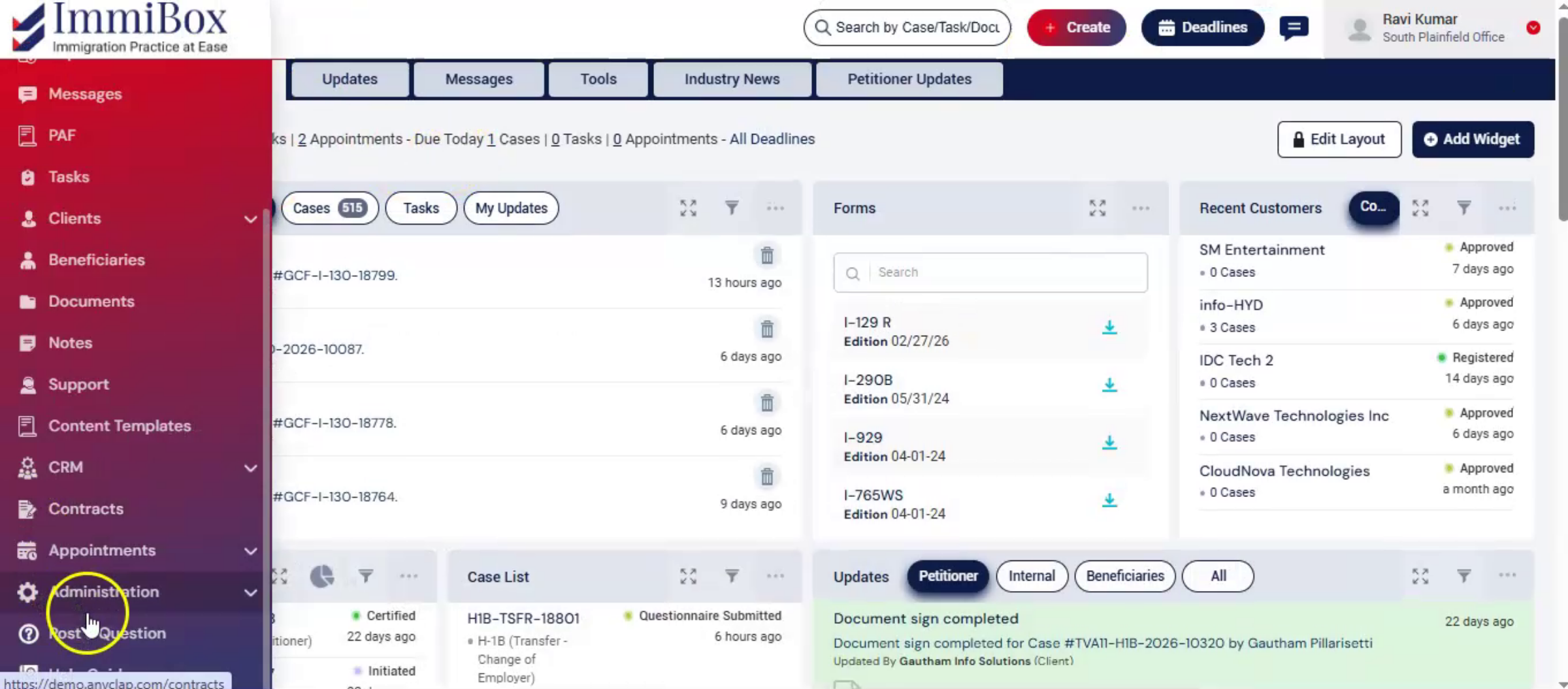
7. Case Configuration
 * click the image to view enlarged
From Administrator, navigate to Settings and click Case Configuration.
Law firms can create and customize workflows based on Case Type and Case Subtypes.
The configured Case Workflow directly controls the assign options and users displayed under the Actions menu during case processing.
This provides flexibility to either distribute responsibilities across multiple users or allow a single user to manage the complete case workflow.
For detailed information, please refer to Case Configuration Guide.
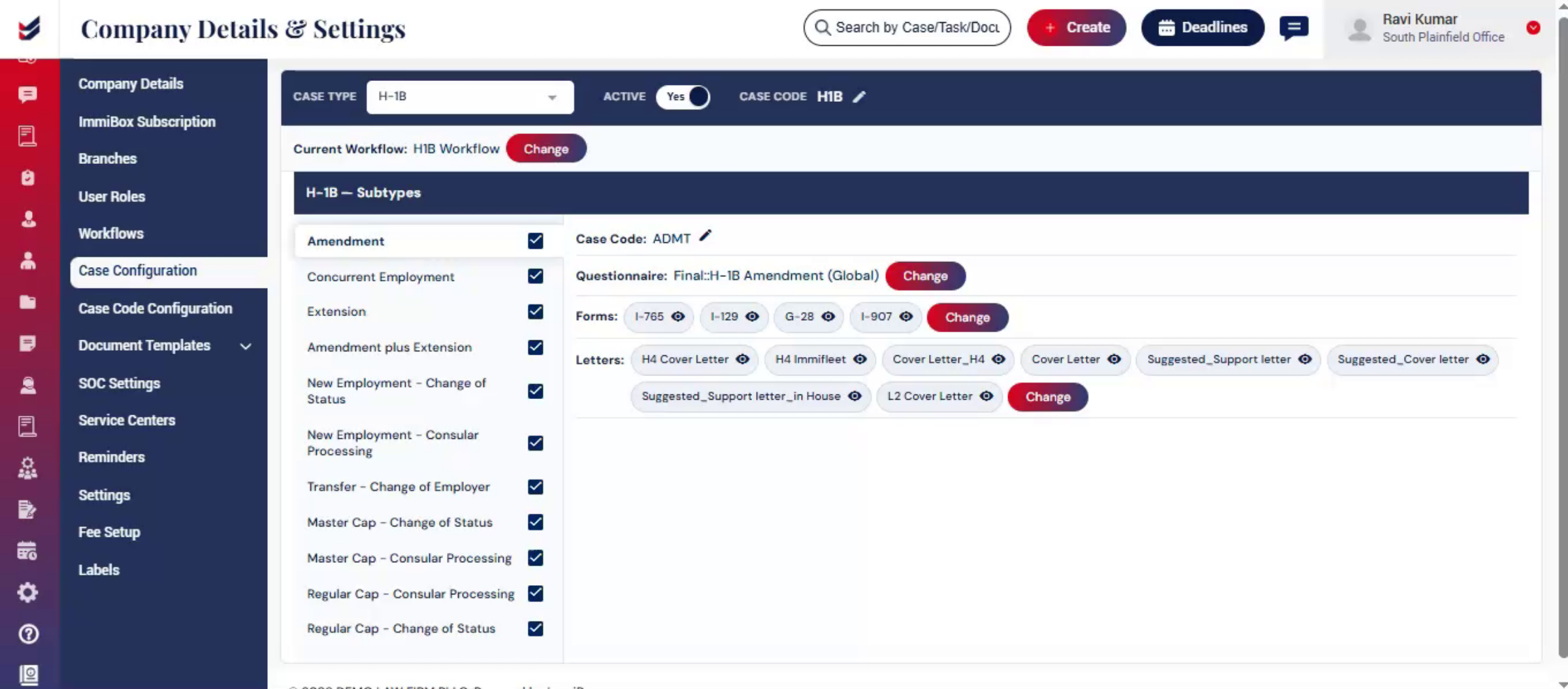
8. User Role
 * click the image to view enlarged
User access and permissions are managed through User Role Configuration, allowing administrators to control access based on user responsibilities and operational requirements.
For detailed setup instructions, please refer to the User Role Configuration Guide.
9. Conclusion
 * click the image to view enlarged
The Internal User Assignment feature helps law firms efficiently manage responsibilities, streamline collaboration, and control case processing through workflow-based assignments.