


Case Submission to Law Firm
Overview
Welcome! In this video, you will learn how users can submit a case to the Law Firm.
1. Introduction
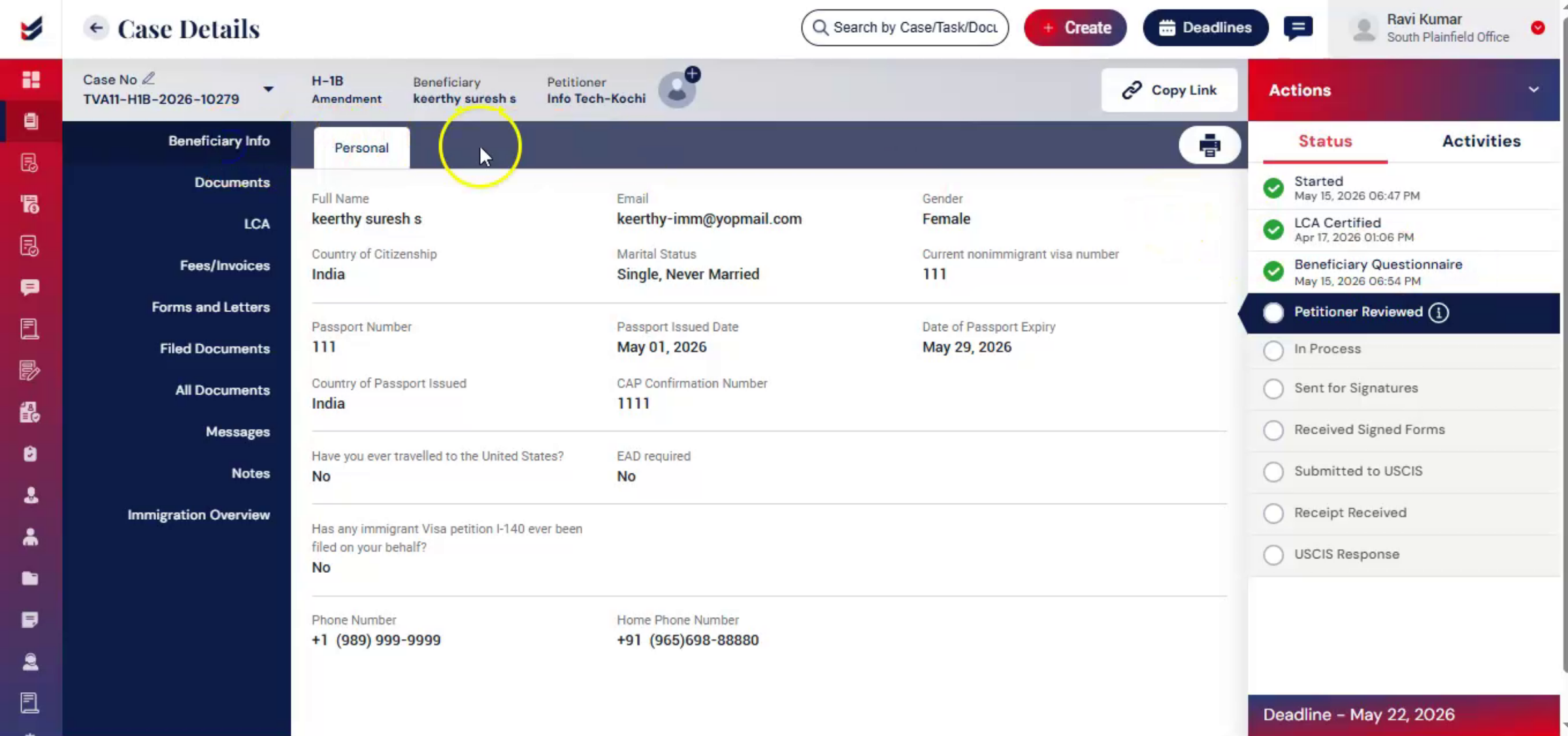 * click the image to view enlarged
In ImmiBox, cases can be submitted to the Law Firm after the questionnaire is completed. The submission process can be configured as either Manual or Automatic based on workflow settings.
2. Complete the Questionnaire
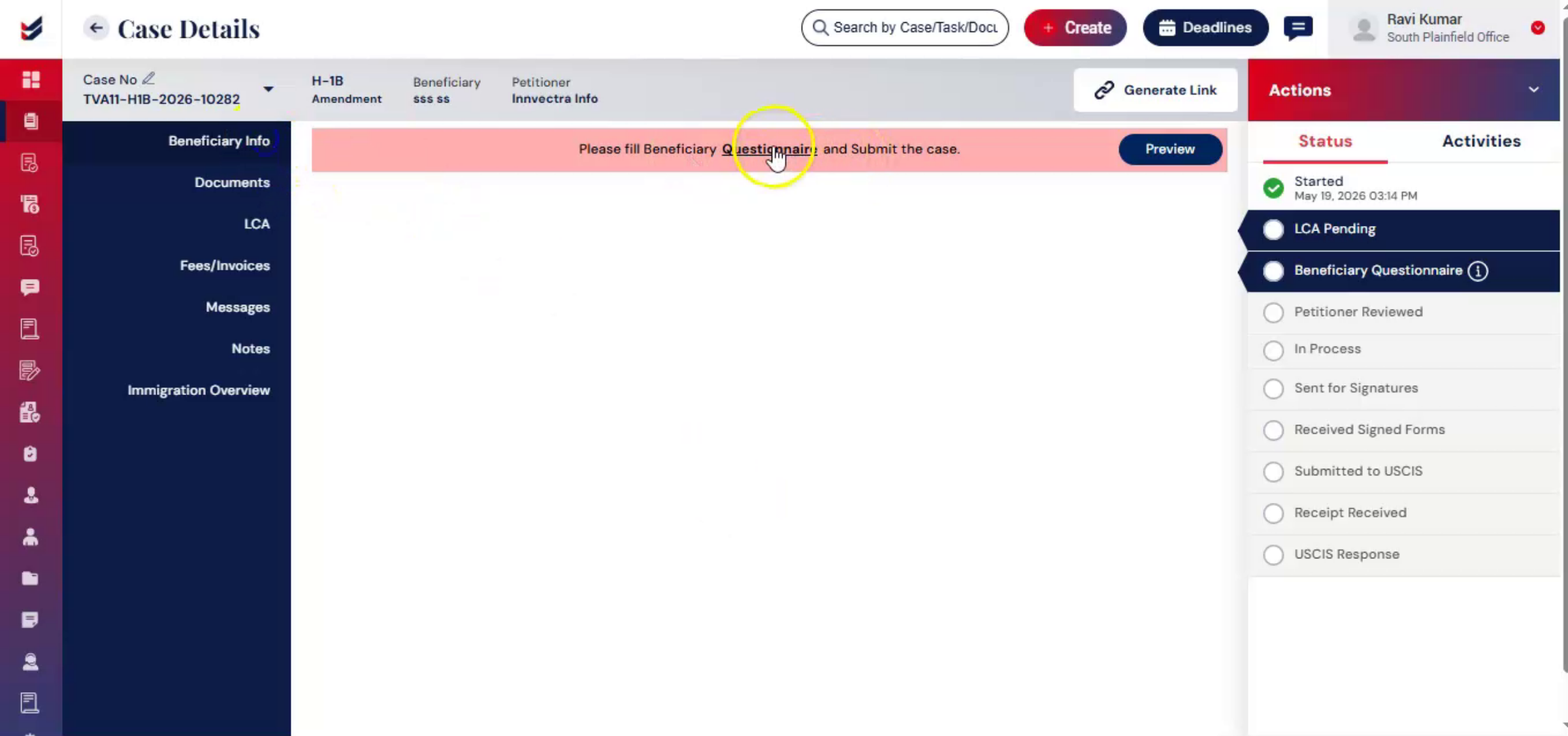 * click the image to view enlarged
The first step is to complete the questionnaire. Fill in the required details. Once completed, click Submit.
3. Case Submission
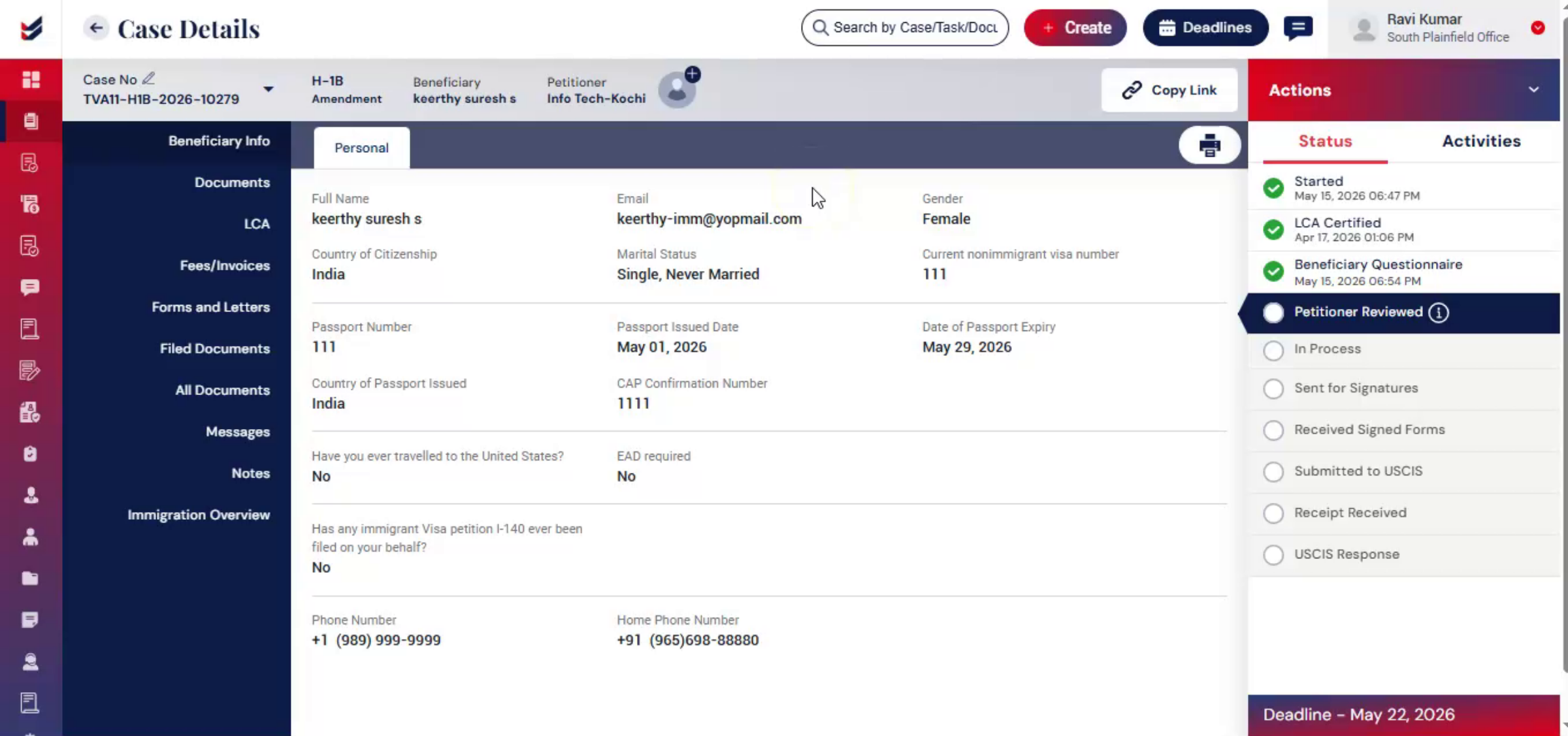 * click the image to view enlarged
For cases that include a Petitioner or Sponsor, there is an additional step called Submit to Law Firm.
This allows the questionnaire details completed by the Beneficiary to be reviewed before the case is submitted for processing.
After completing the questionnaire, click on Actions menu and select Submit to Law Firm.
A dialog box will appear where users can add case-related comments before selecting Submit.
Once submitted, the questionnaire details become locked and can no longer be edited by beneficiary or petitioner.
4. Status
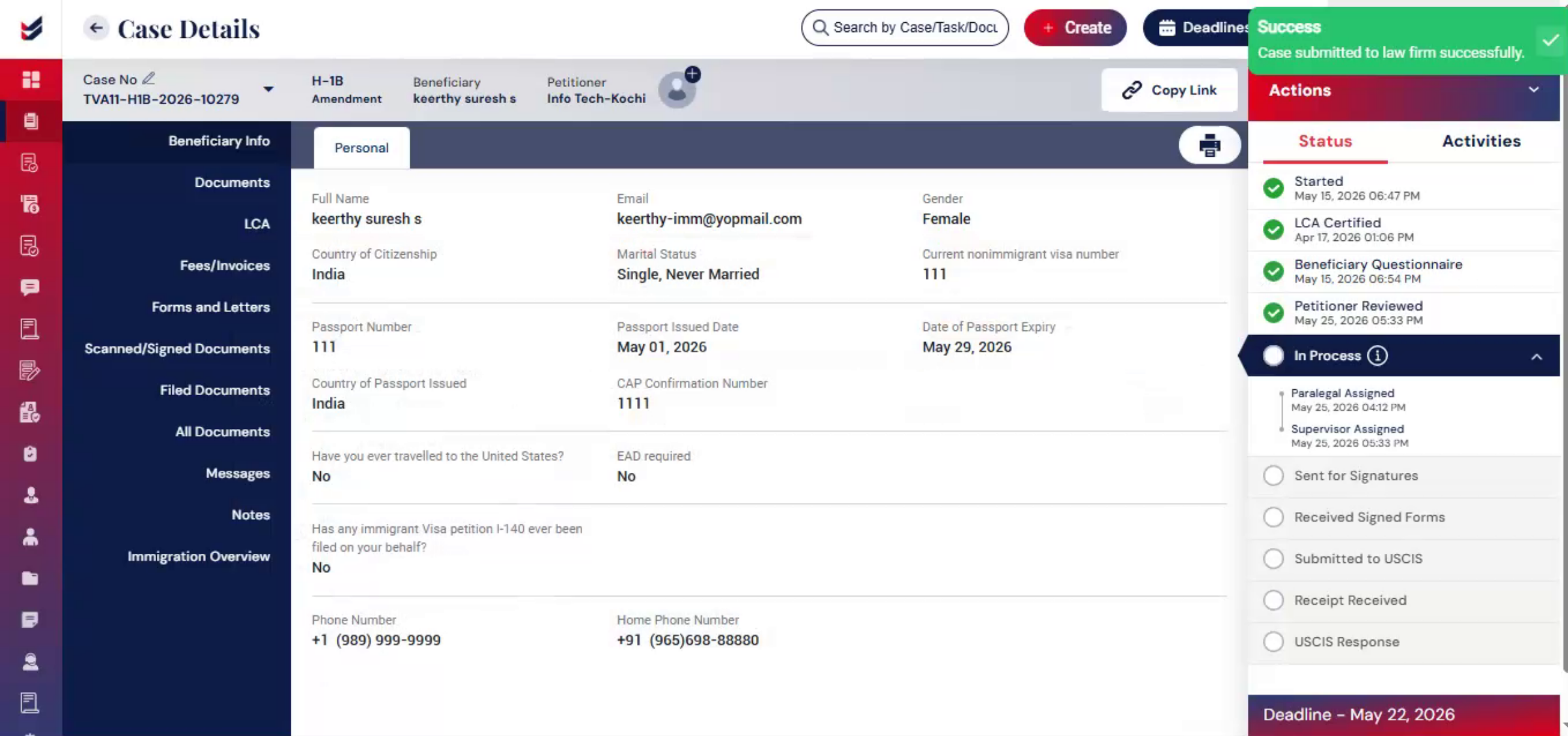 * click the image to view enlarged
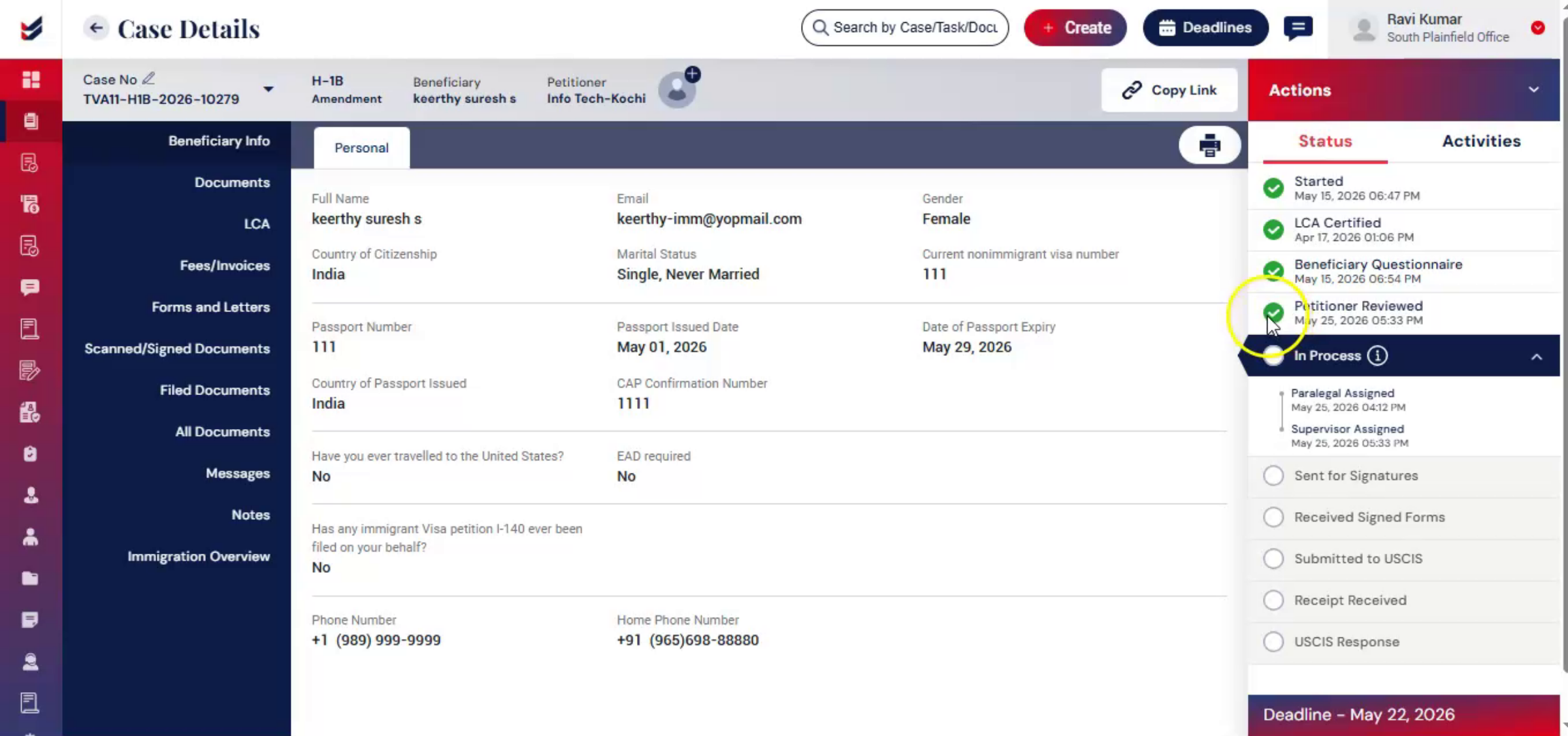
After the case is submitted to the Law Firm, a green tick will appear for Petitioner Reviewed under the Status section below Actions. This indicates that the case has been successfully submitted to the Law Firm.
5. Activites
 * click the image to view enlarged
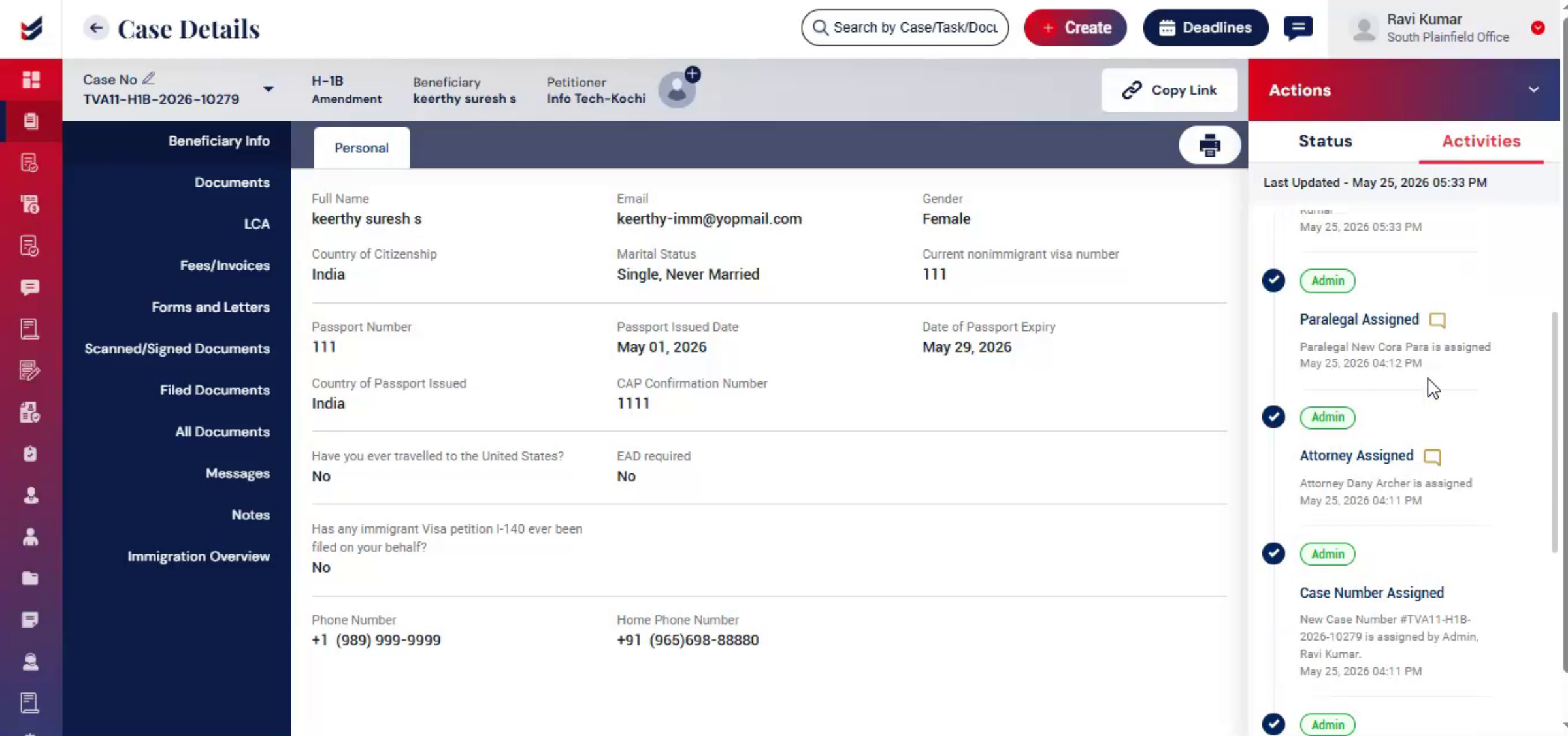
Users can also view the submission details under the Activities section, including the submission date, time, and related activity information.
6. Enable Automatic Submission
 * click the image to view enlarged
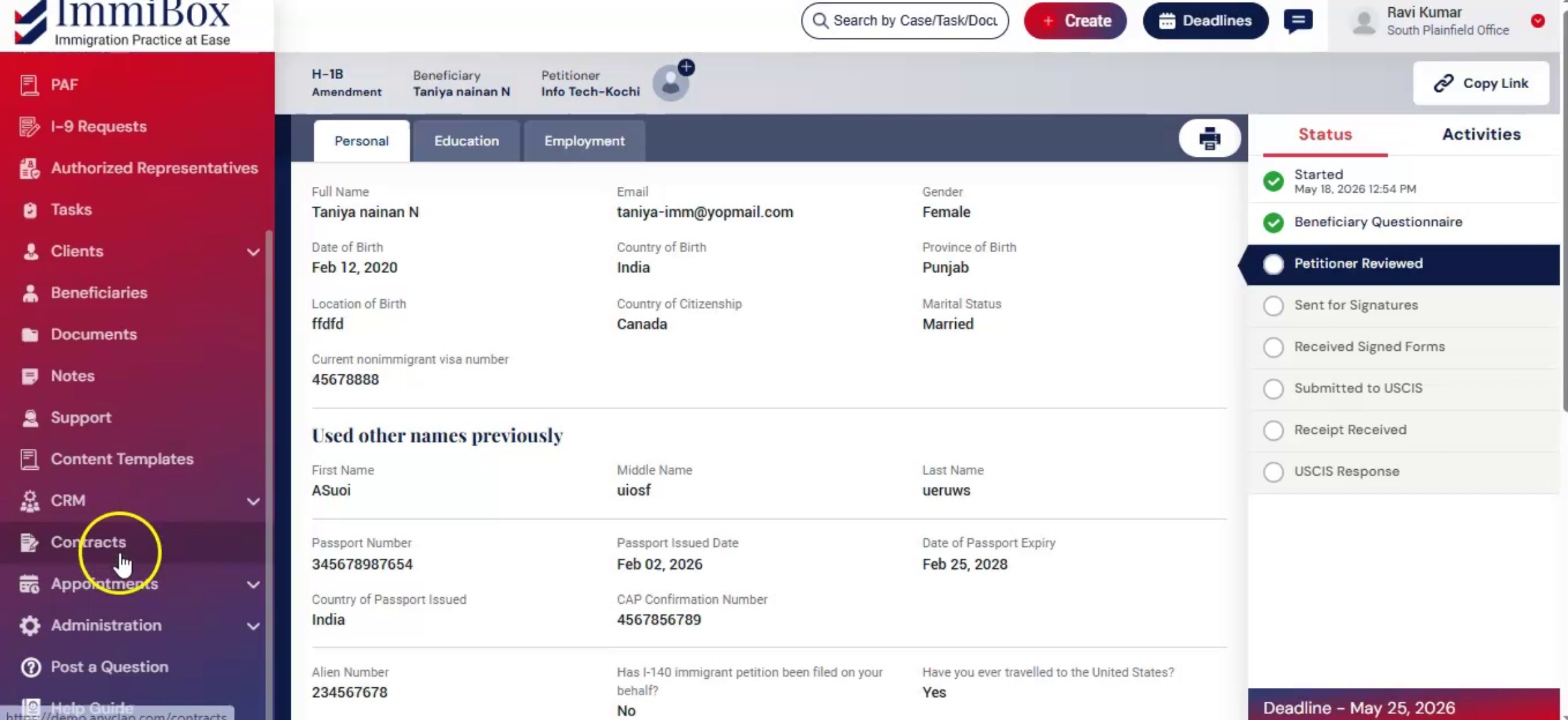
Law firms can enable Automatic Submission through Workflow Configuration under Administrator Settings. Once enabled, the system automatically submits the case to the Law Firm after questionnaire completion, eliminating the need for manual submission. For more information refer to Workflow Configuration Guide.
7. No Petitioner or Sponsor Review
 * click the image to view enlarged
For cases where Petitioner or Sponsor review is not required, the Law Firm will continue processing the case directly based on the configured workflow until it is prepared for filing.
If additional information or documents are required, the case may be reassigned for updates.
8. Conclusion
 * click the image to view enlarged
The Case Submission process in ImmiBox helps streamline questionnaire review, submission tracking, and case processing between users and Law Firms.

