


Completing CAP Registration Efficiently Using ImmiBox
Overview
Welcome! This video demonstrates the complete process of Cap registration using ImmiBox, highlighting key features and compliance requirements. It guides users through data collection, wage validation, and submitting registrations to USCIS for successful case management.
1. Introduction To CAP Registration
 * click the image to view enlarged
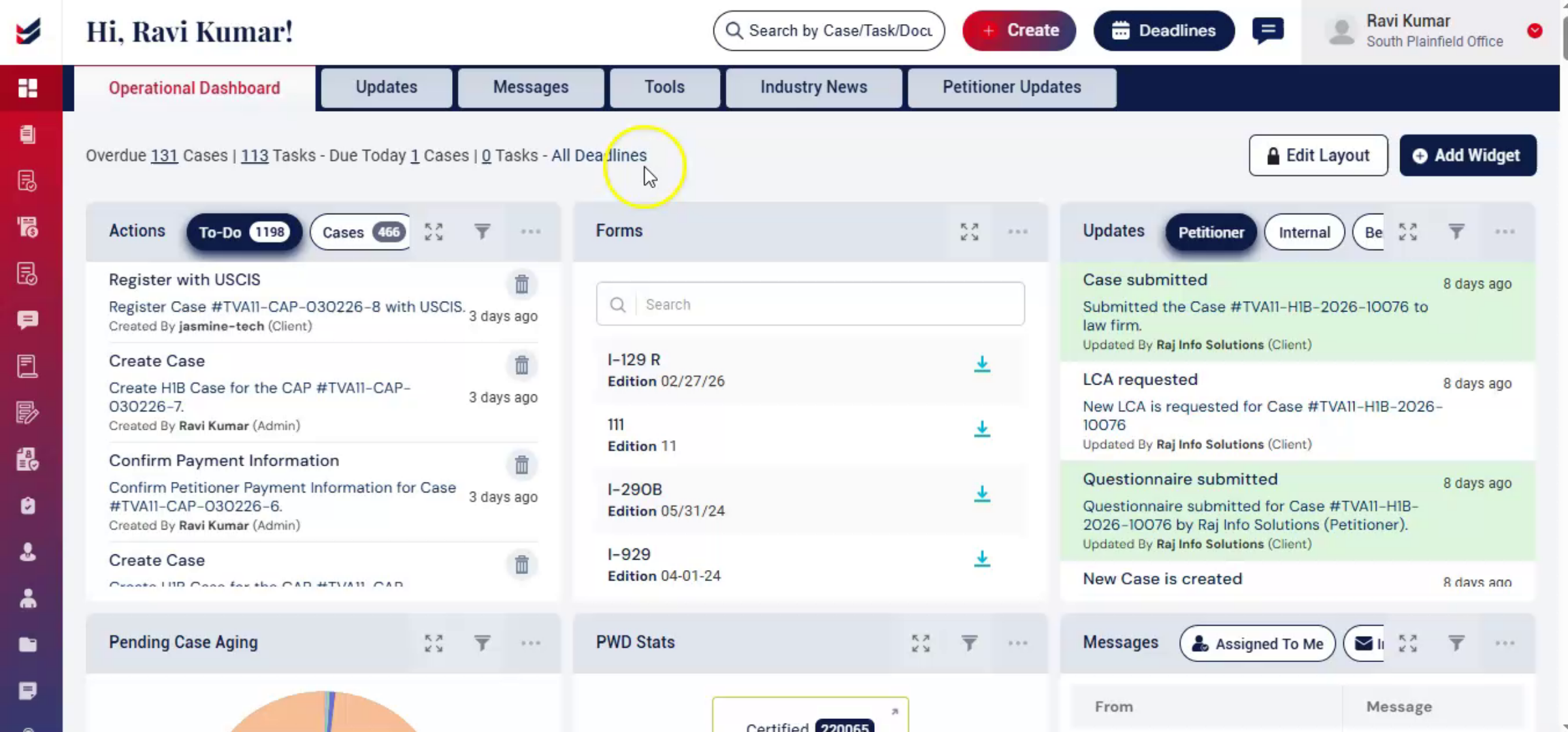
In this video, we'll walk you through how to complete CAP registration using ImmiBox. CAP registration is a structured, time-sensitive process.
2. CAP Registration Requirements Overview
 * click the image to view enlarged
It requires accurate beneficiary information, proper wage validation, law firm oversight and USCIS tracking.
3. ImmiBox Features Overview
 * click the image to view enlarged
ImmiBox is designed to guide, users through each step with built-in checks, Automation and communication tools. Making the process efficient compliant and transparent.
4. CAP Registration Options
 * click the image to view enlarged
ImmiBox allows CAP registration to be completed either by the law firm or directly by the petitioner, while keeping data organized, auditable, and secure.
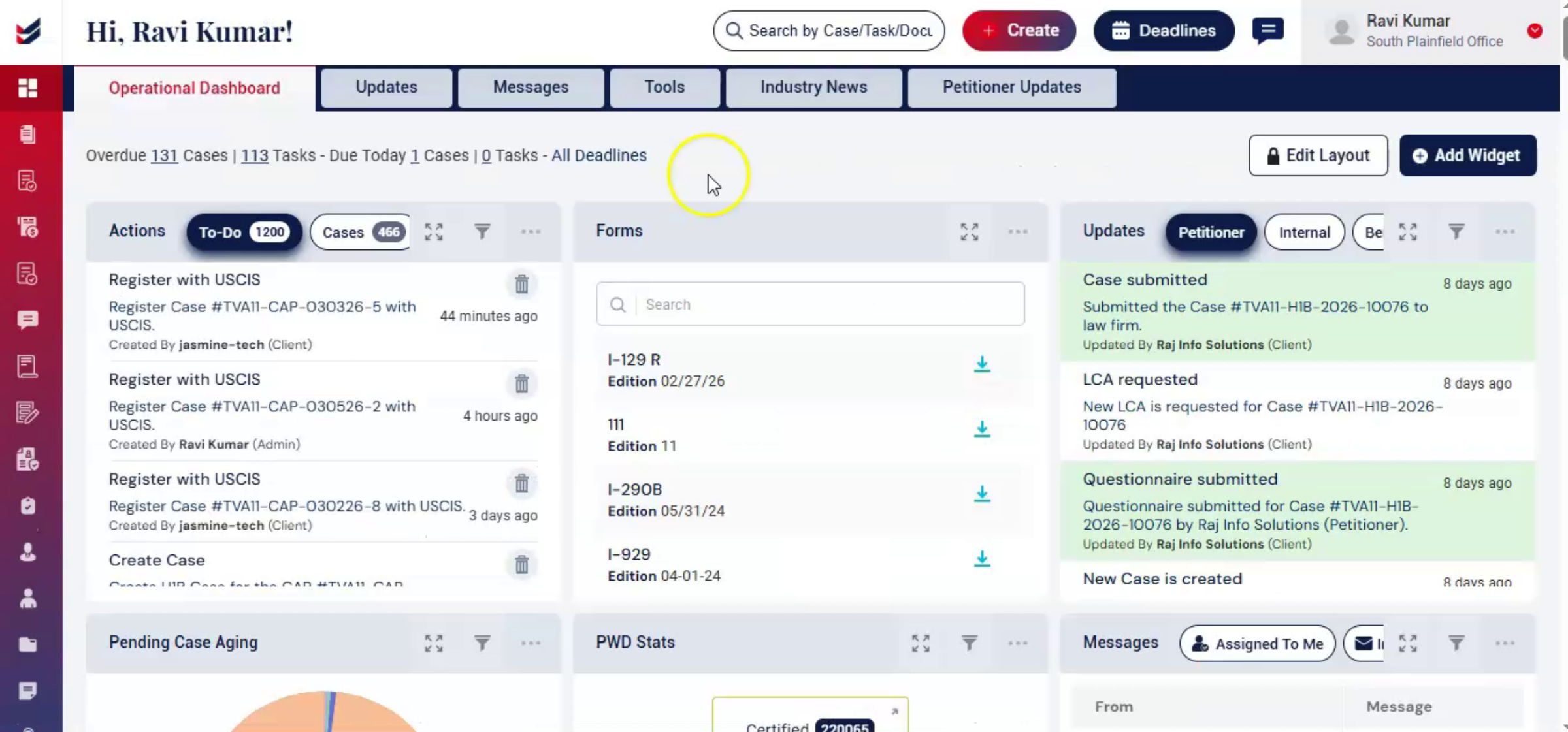
5. Navigating To CAP Registration Tab
 * click the image to view enlarged
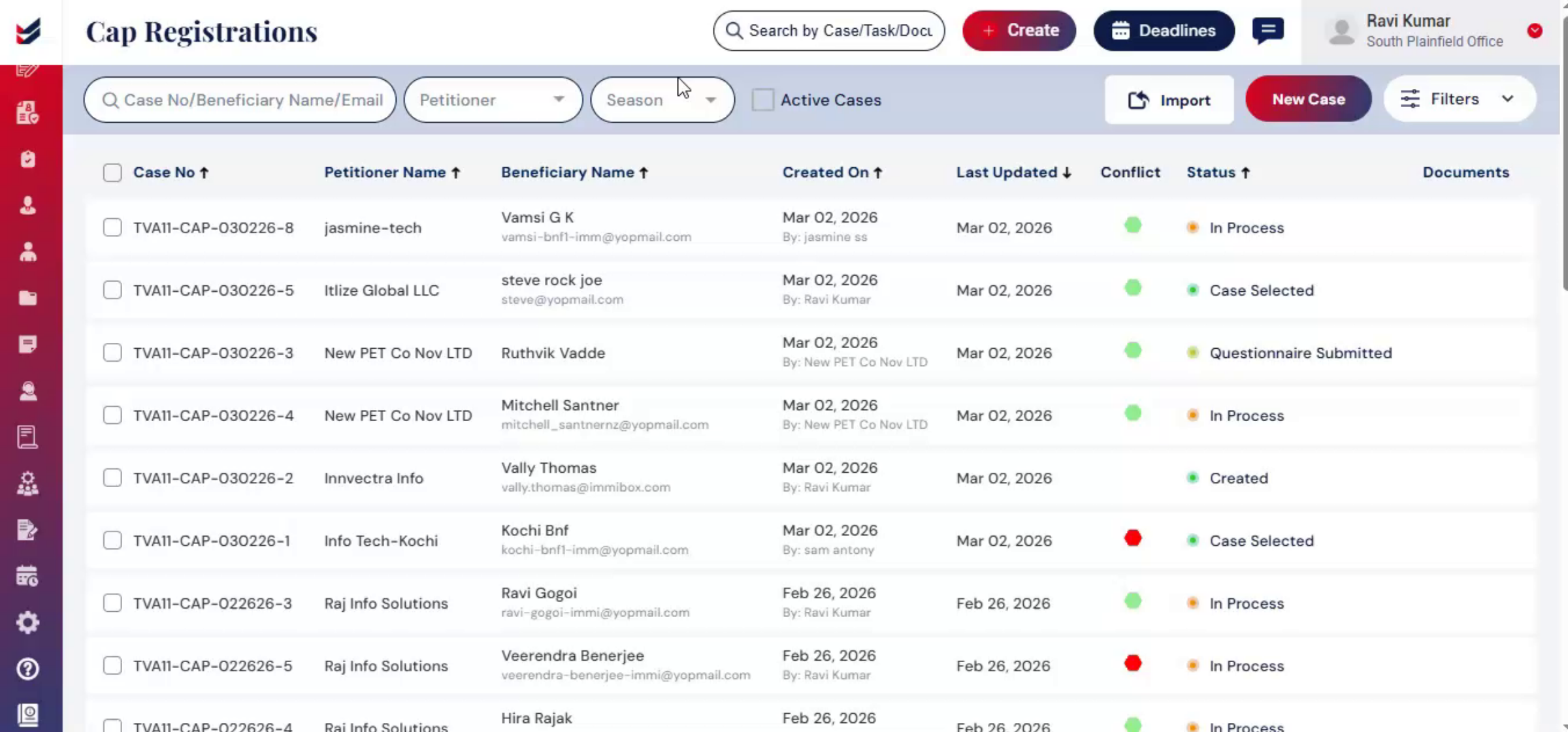
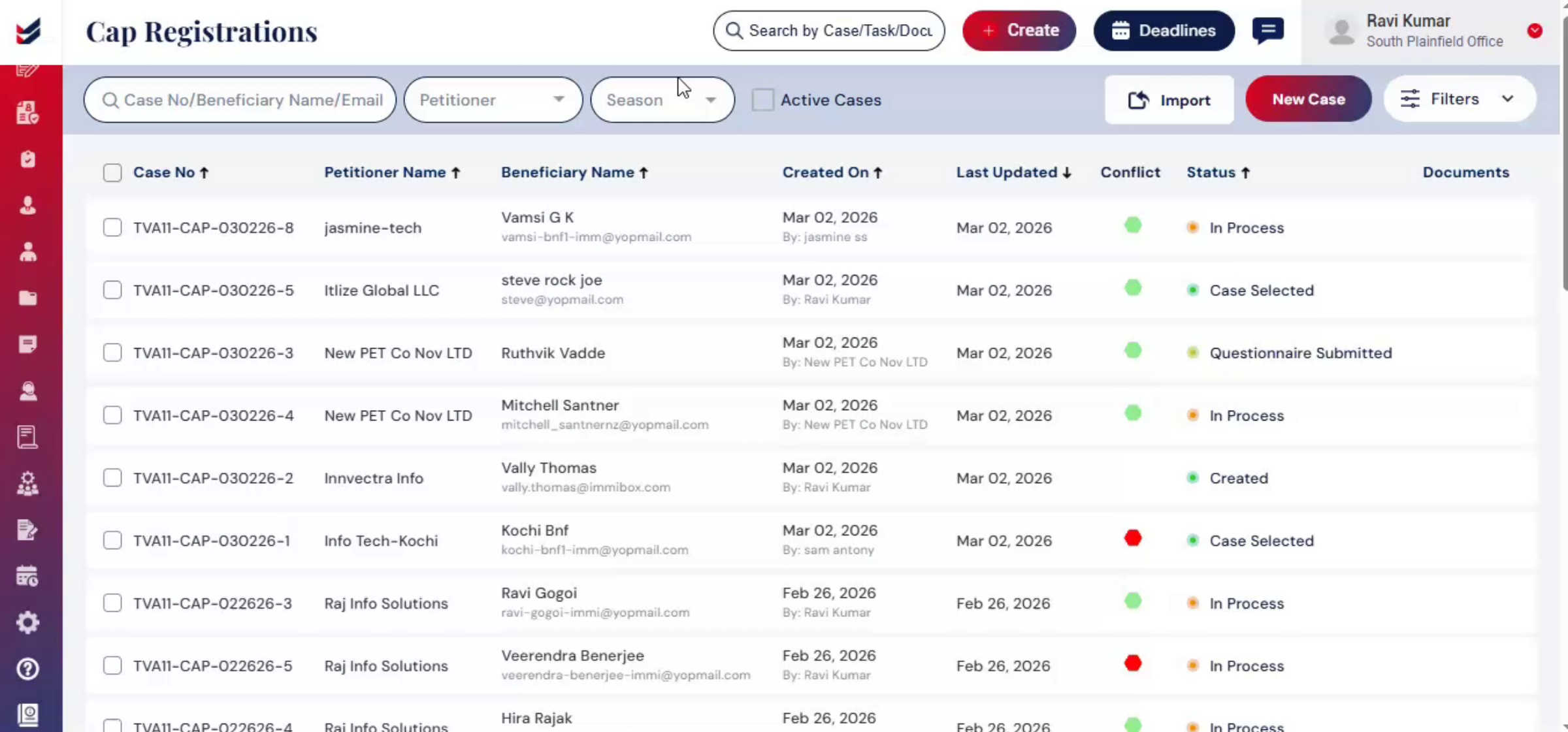
To create a cap registration from a law firm profile from the dashboard, navigate to the cap, registration table.
6. Managing Cases Filters
 * click the image to view enlarged
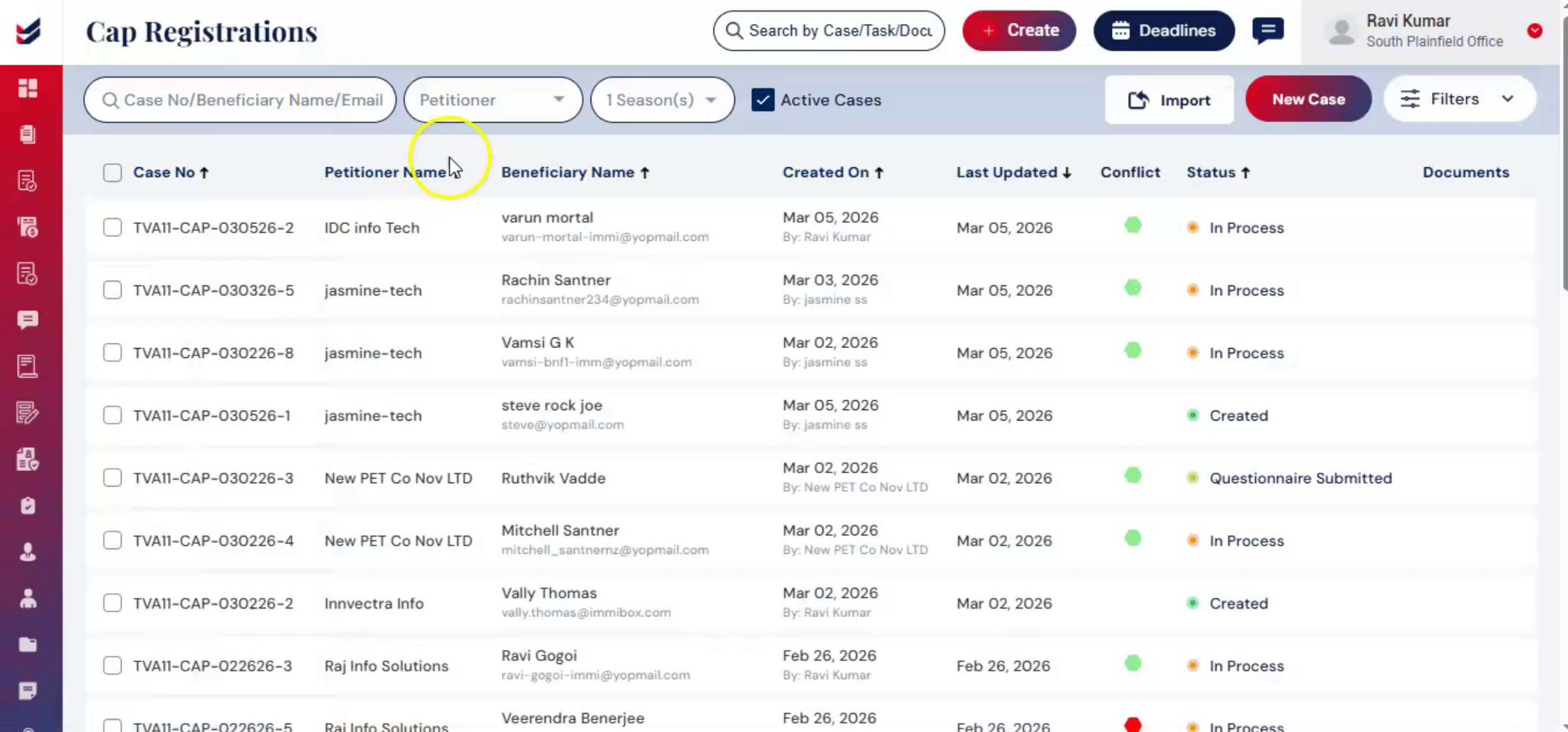
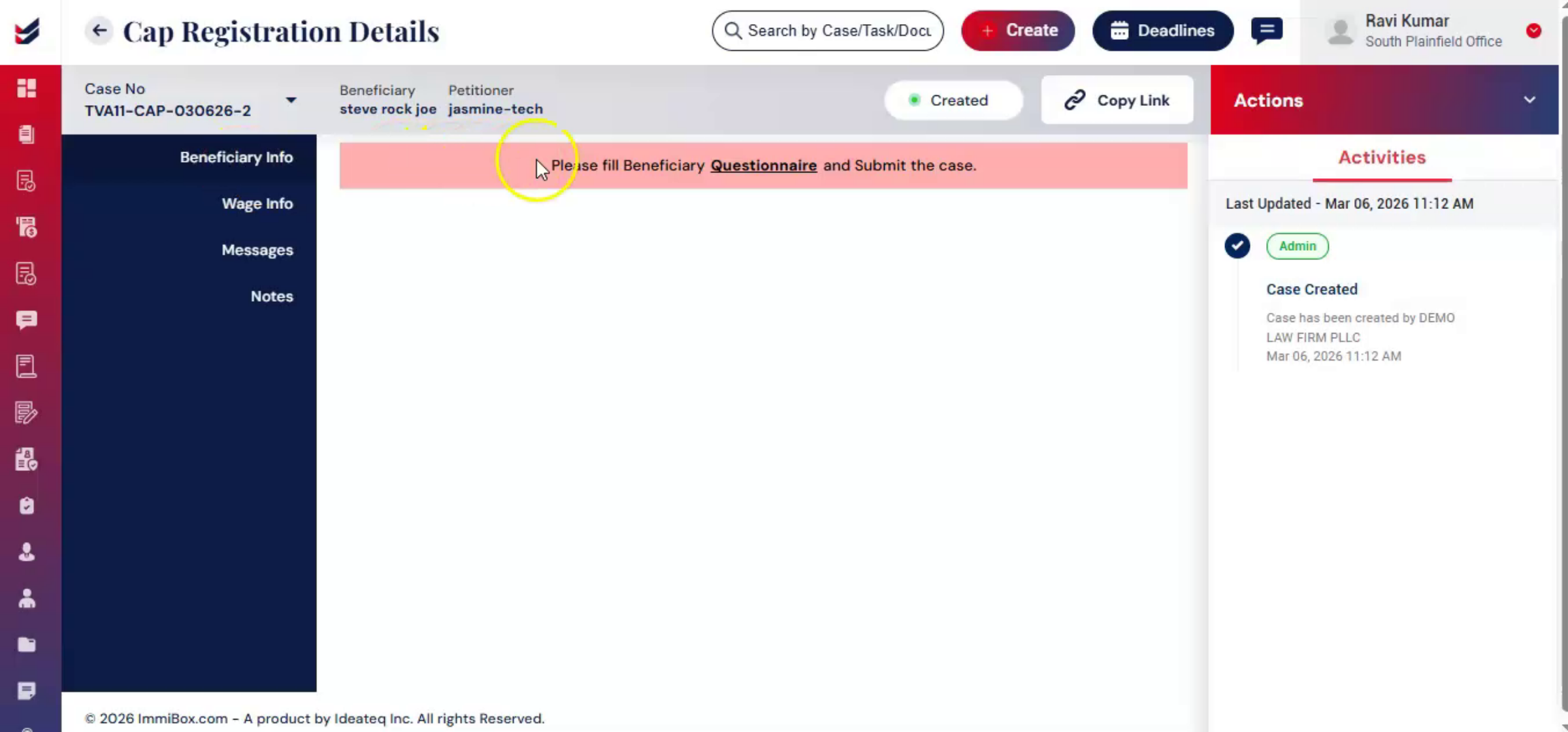
In the CAP Registration section, you will see options to manage cases, including a search bar to search by case number, beneficiary name, or email. The petitioner filter allows you to search and select the petitioner from the drop-down list.
7. Season Filter Usage
 * click the image to view enlarged
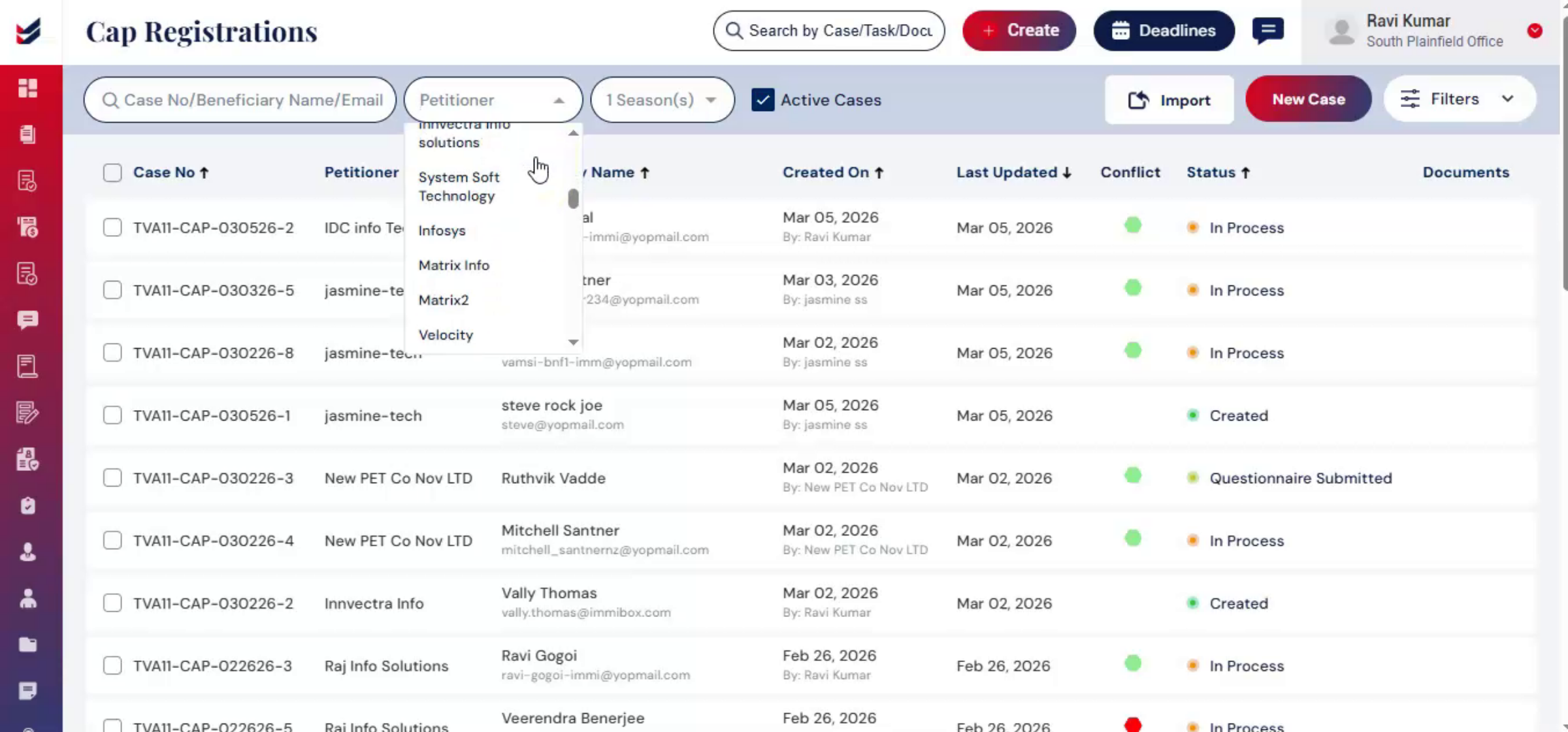
Season filter to select registration years.
8. Importing Beneficiary Information
 * click the image to view enlarged
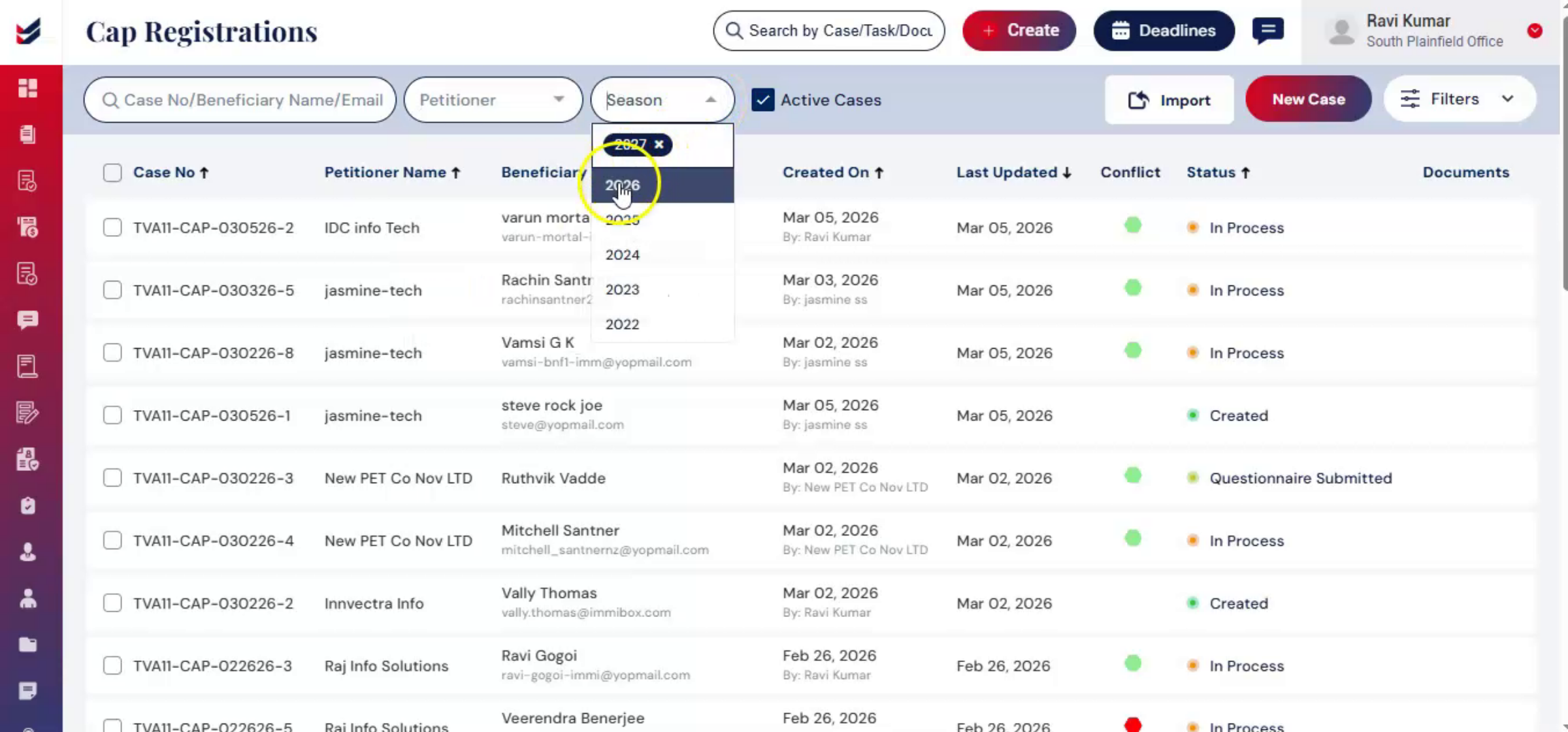
The import option allows you to upload a bulk of beneficiary information using a properly formatted Excel file. To view the required format, click on Download Sample.
9. Beneficiary Data Upload Options
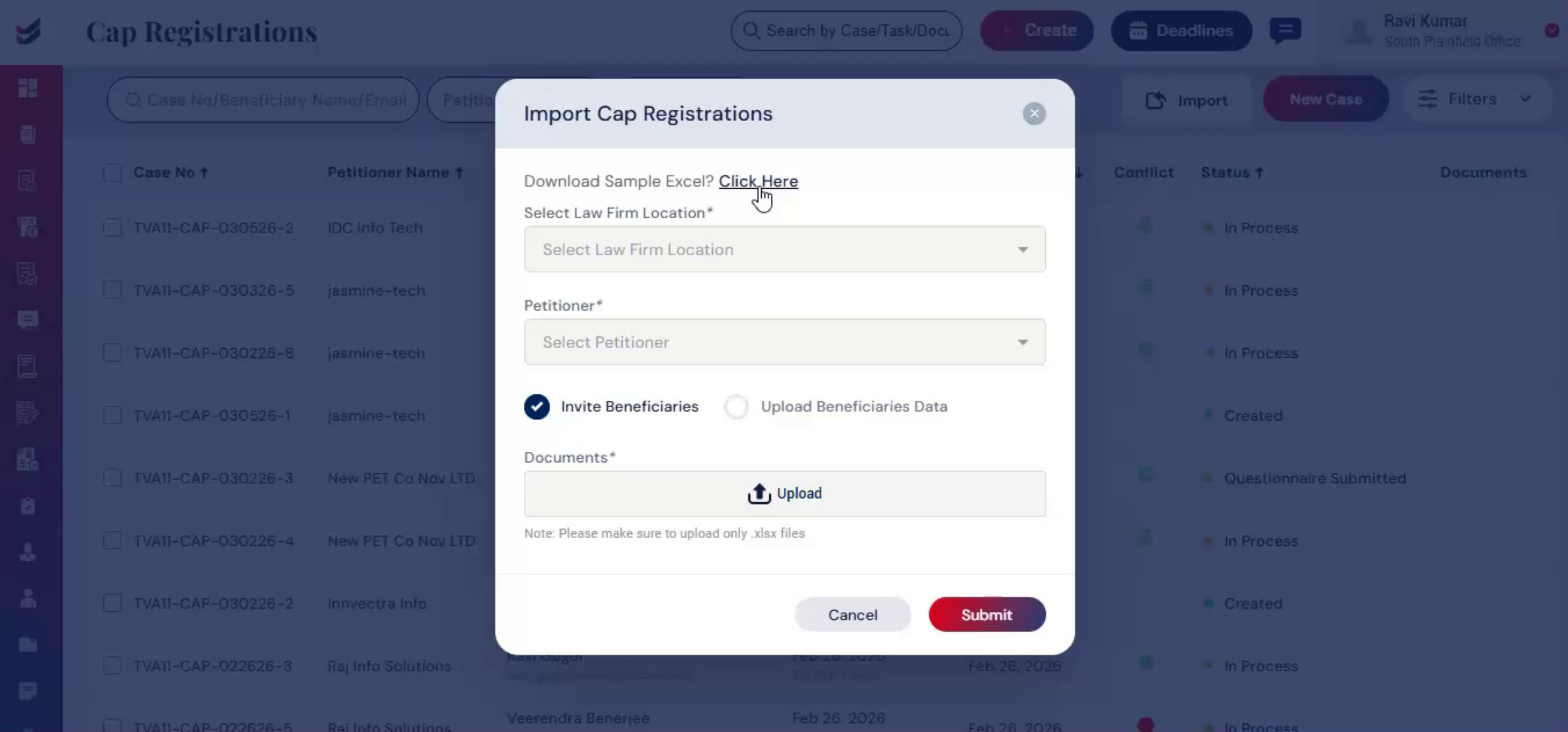 * click the image to view enlarged
There are two options with different formats: invite beneficiaries or upload beneficiaries' data.
10. Invite Beneficiaries Via Excel
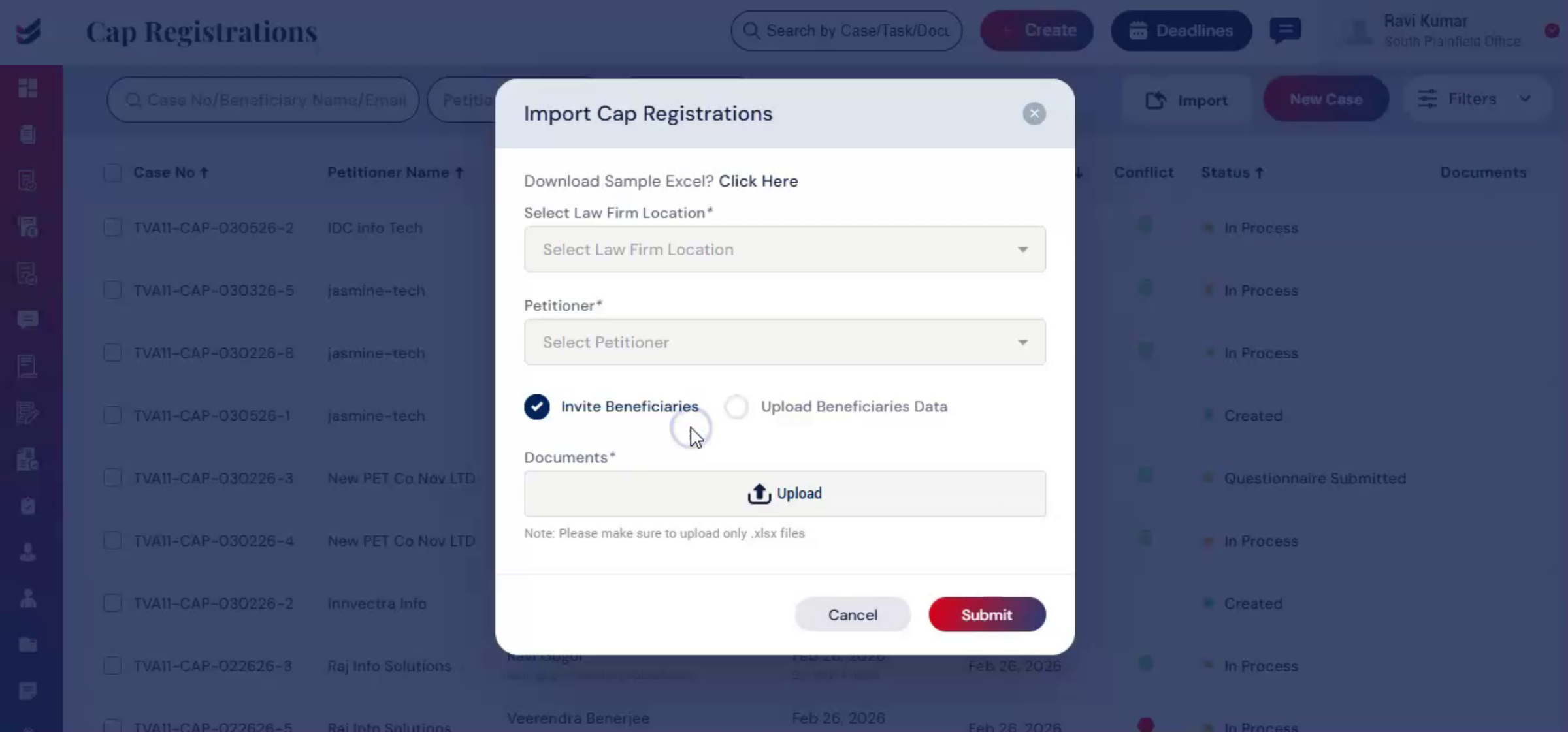
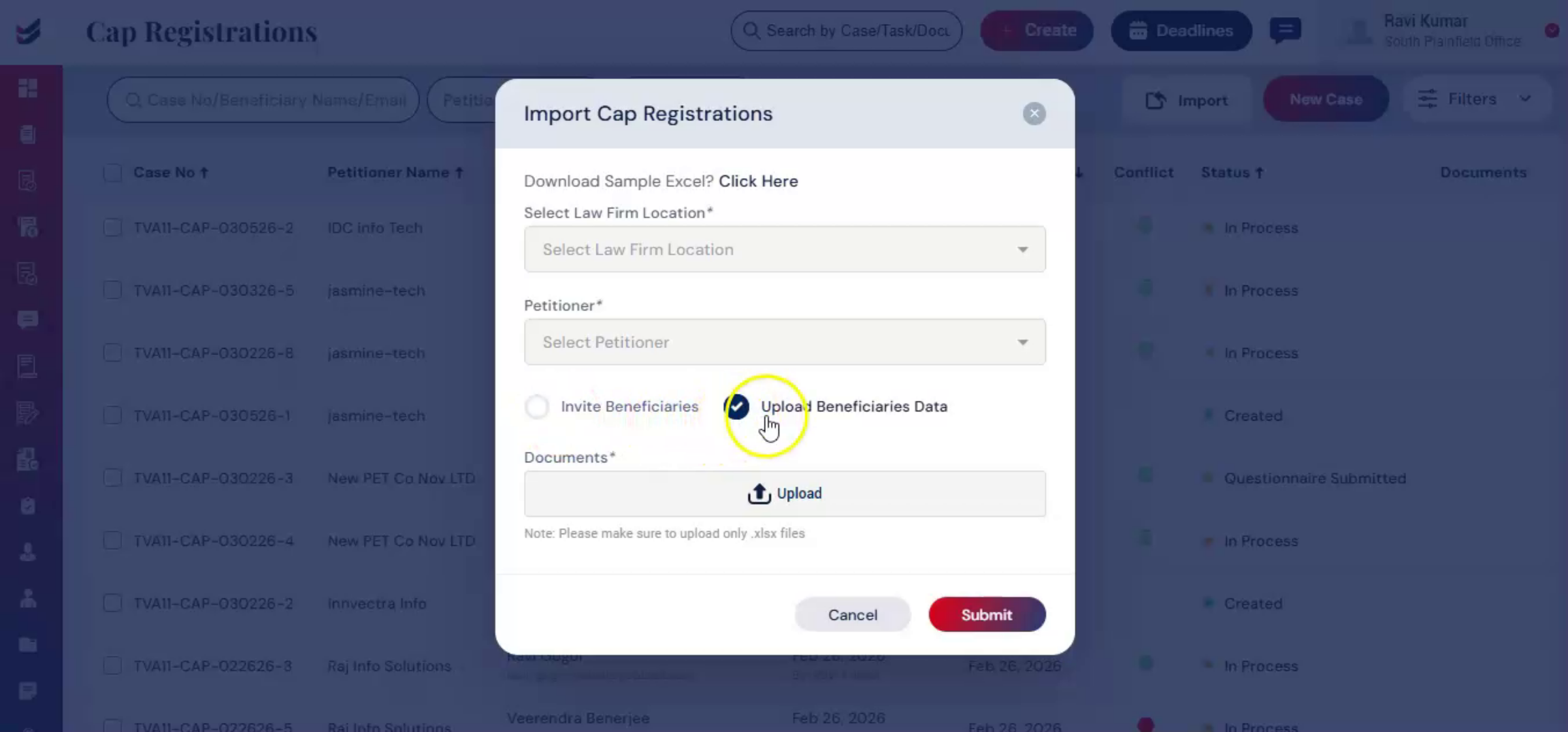 * click the image to view enlarged
For invite beneficiaries, you provide the beneficiary's first and last name, email, and other details in the Excel file.
11. Automatic Questionnaire Email
 * click the image to view enlarged
The beneficiary questionnaire link is then automatically sent to their mail.
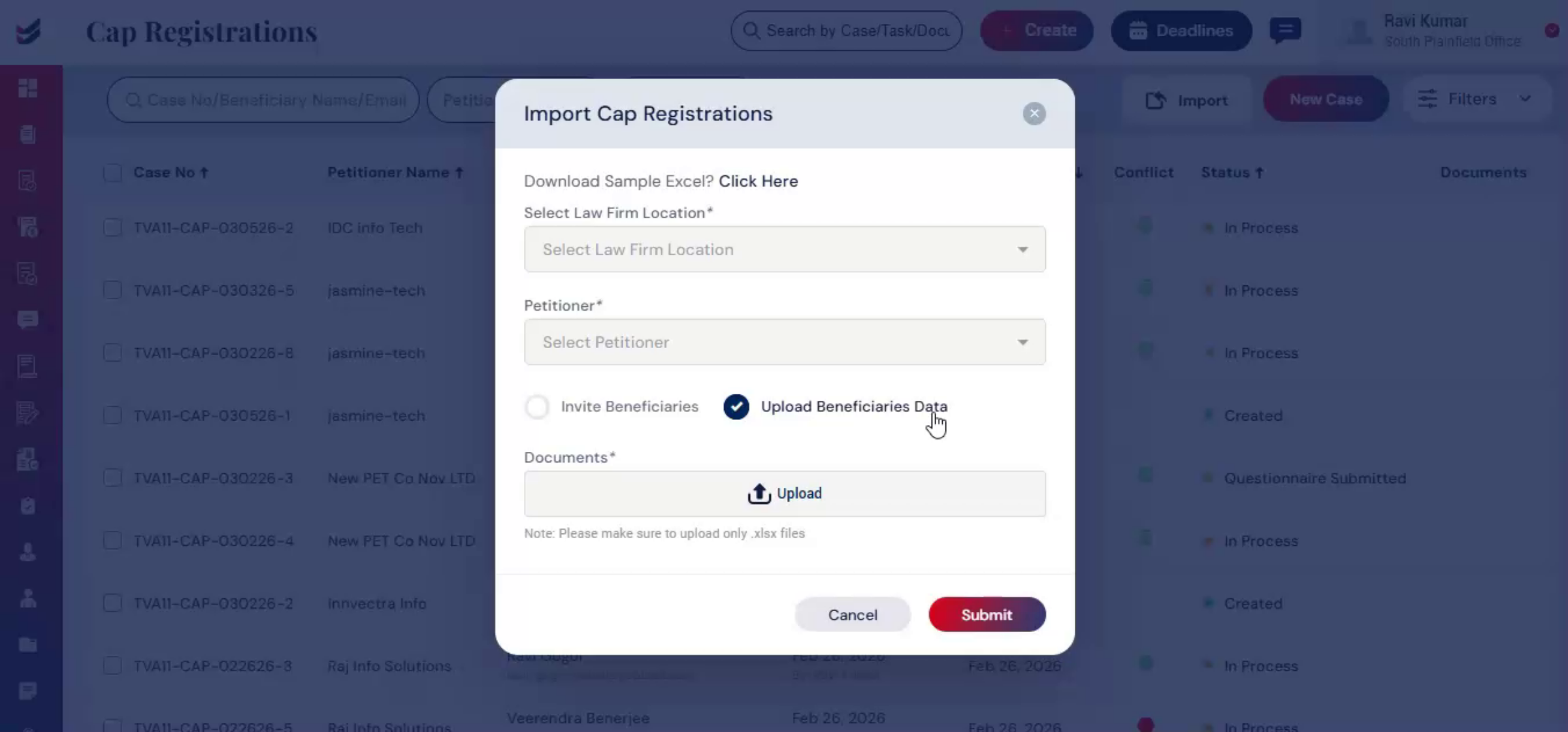
12. Uploading Detailed Beneficiary Data
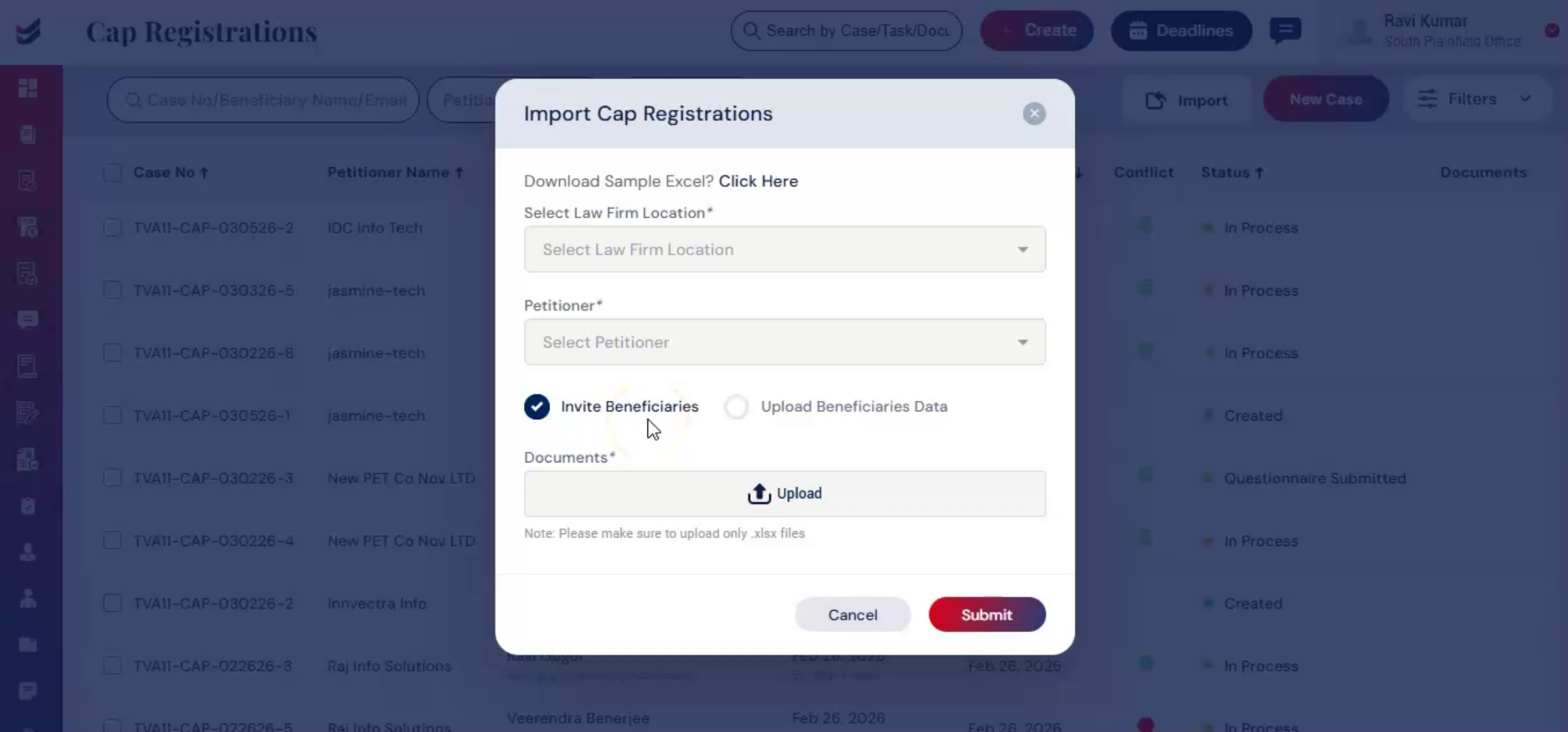 * click the image to view enlarged
For upload beneficiaries data, you enter detailed information in the Excel sheet according to the required format, including first and last name, email, date of birth, country of citizenship, and other details.
13. ImmiBox Data Extraction And Submission
 * click the image to view enlarged
Once submitted, ImmiBox automatically extracts this information and fills out the personal details of beneficiary questionnaires. After uploading the document, click submit to add all beneficiaries to the CAP registration.
14. Creating New CAP Registration Case
 * click the image to view enlarged
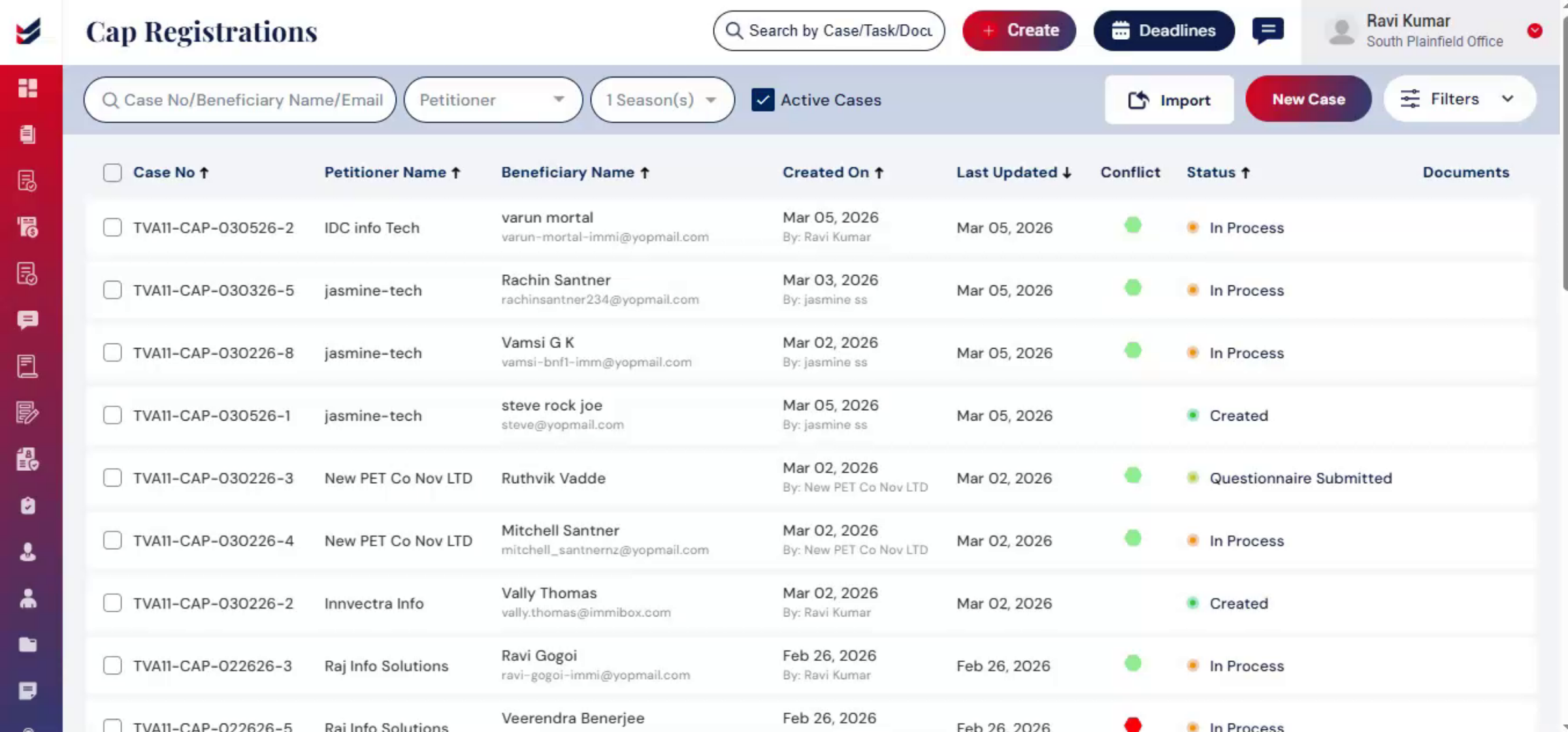
In the CAP registration section, click New Case. Alternatively, click Create from the main menu and select CAP Registration from the drop-down list.
15. CAP Registration Dialog And Petitioner Selection
 * click the image to view enlarged
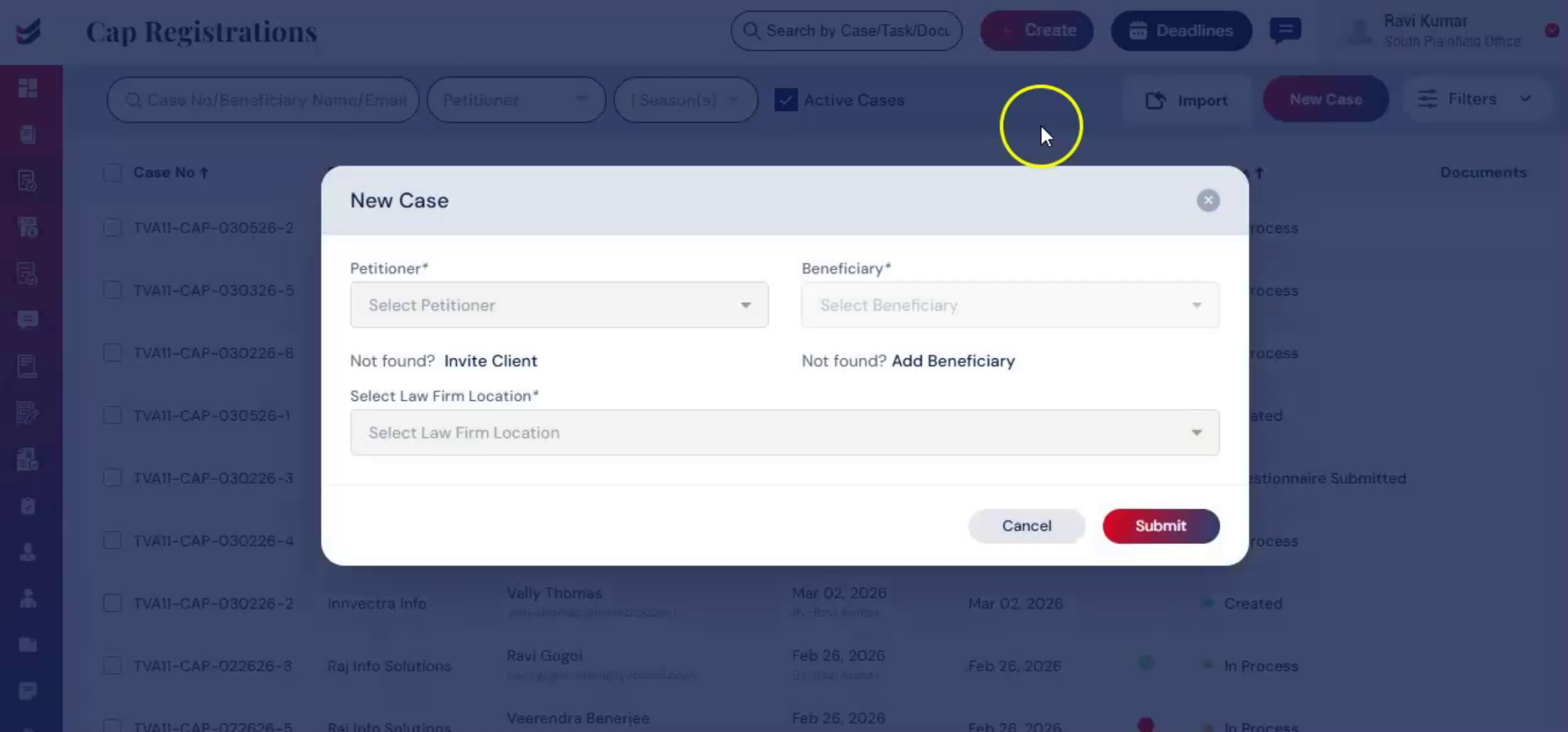
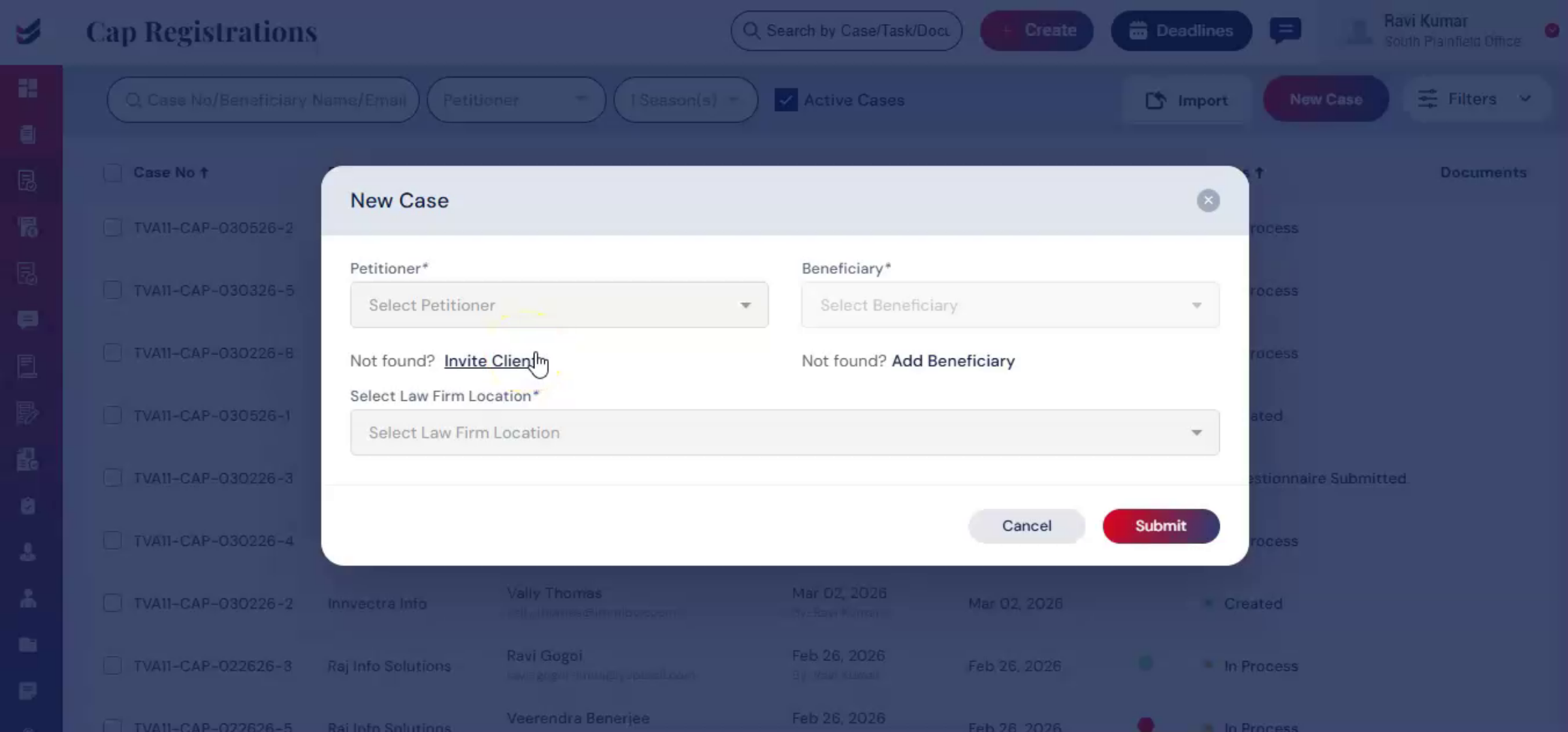
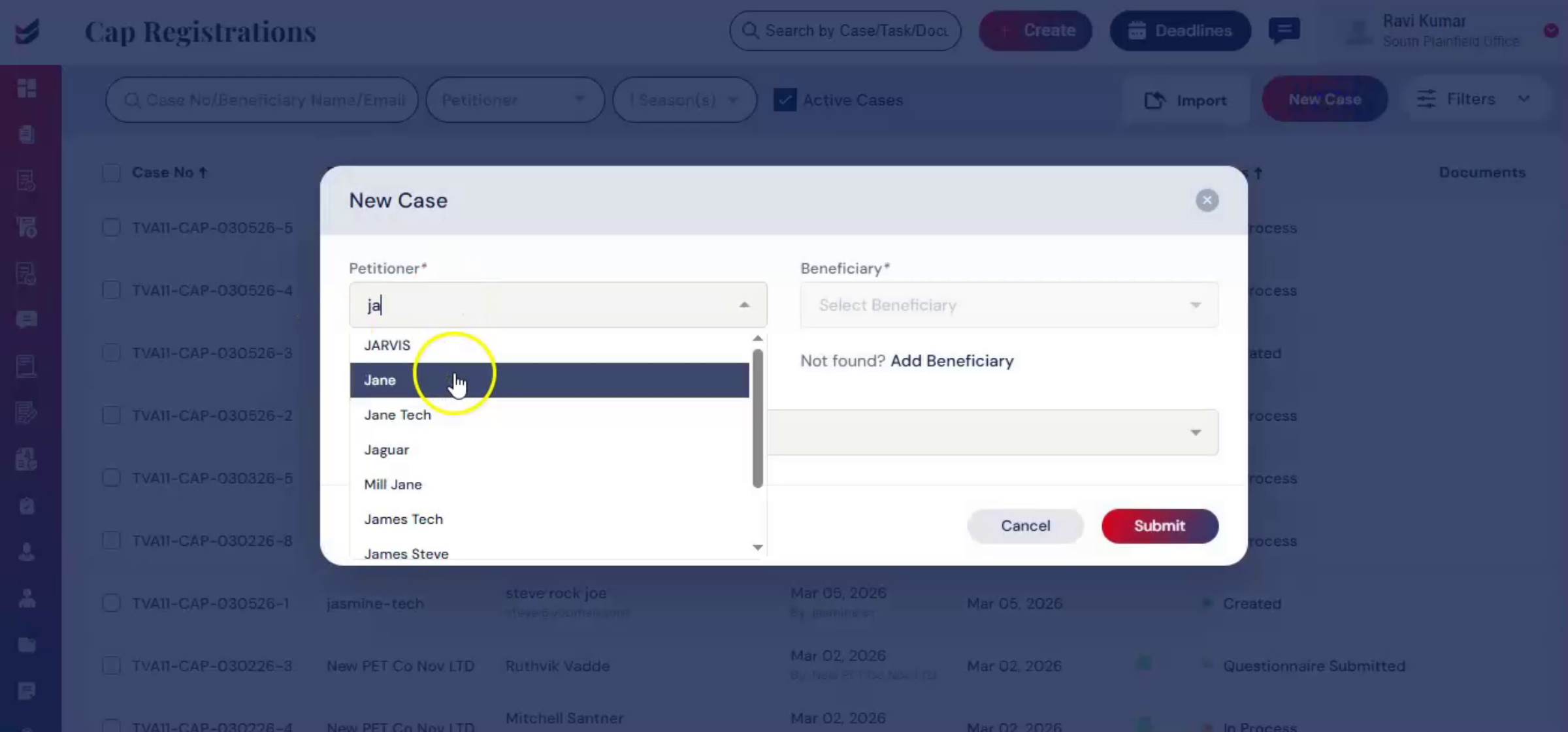
The CAP Registration dialog box will appear on the screen. Select the petitioner. If the petitioner is not listed, refer to the Adding Petitioner Guide to add the petitioner first.
16. Adding Beneficiary And Petitioner Guides
 * click the image to view enlarged
If the beneficiary has not been added, please refer to the Adding Beneficiary Guide.
17. Submitting CAP Registration Case
 * click the image to view enlarged
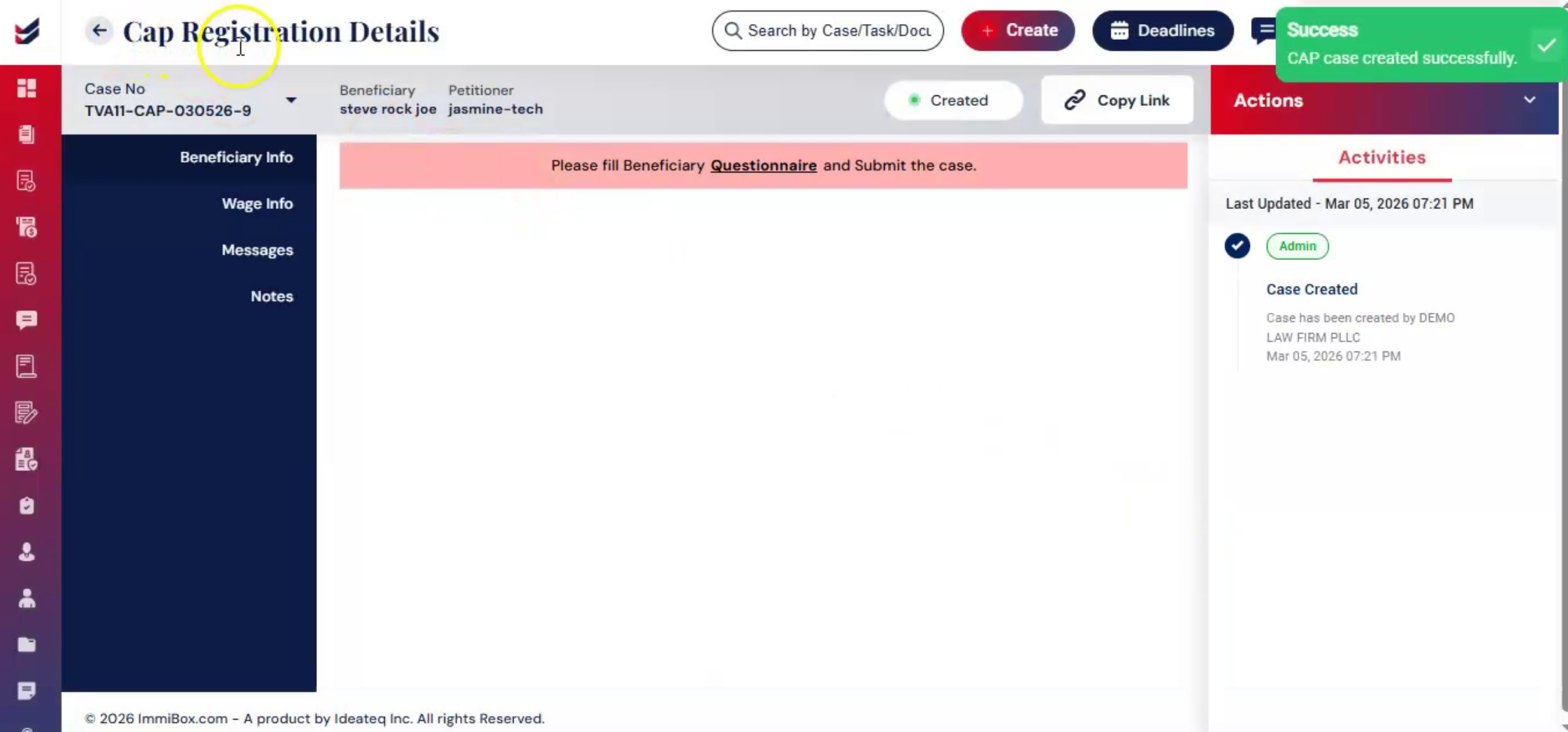
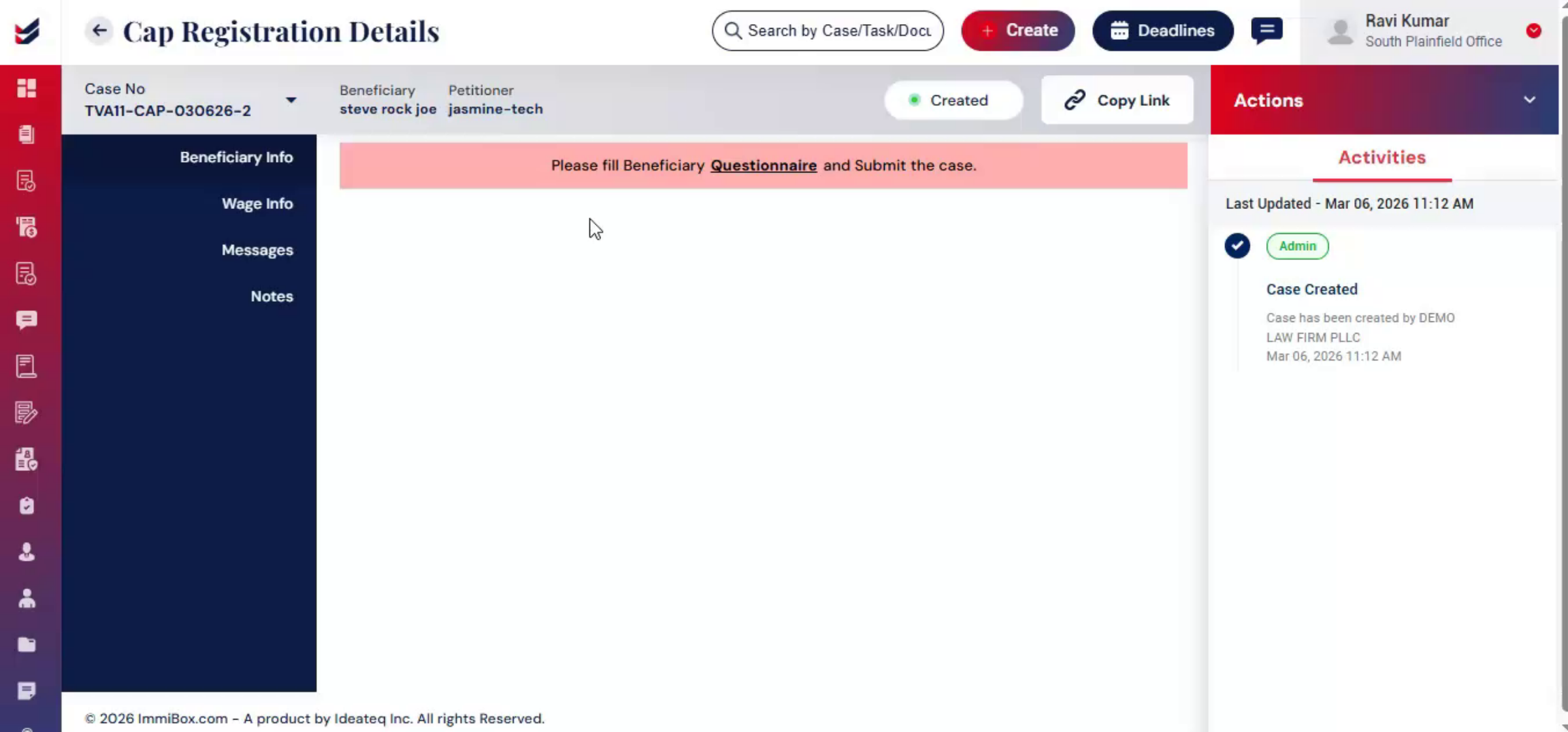
Click Submit. You will be redirected to the CAP Registration Detail page.
18. Importance Of Accurate Data Collection
 * click the image to view enlarged
Collecting accurate personal and educational data is critical to ensure eligibility for CAP. Generally, the beneficiary questionnaire is completed by the beneficiary. Alternatively, the law firm or petitioner may fill out the questionnaire on the beneficiary's behalf, offering flexibility while ensuring accurate and complete data collection.
19. Wage Information Responsibilities
 * click the image to view enlarged
Similarly, the wage information should be provided by the petitioner. Once submitted, the attorney reviews the wage details and may recommend any necessary changes to ensure compliance. This clear division of responsibilities should be communicated to all parties to maintain accuracy and regulatory compliance.
20. Accessing Beneficiary Questionnaire
 * click the image to view enlarged
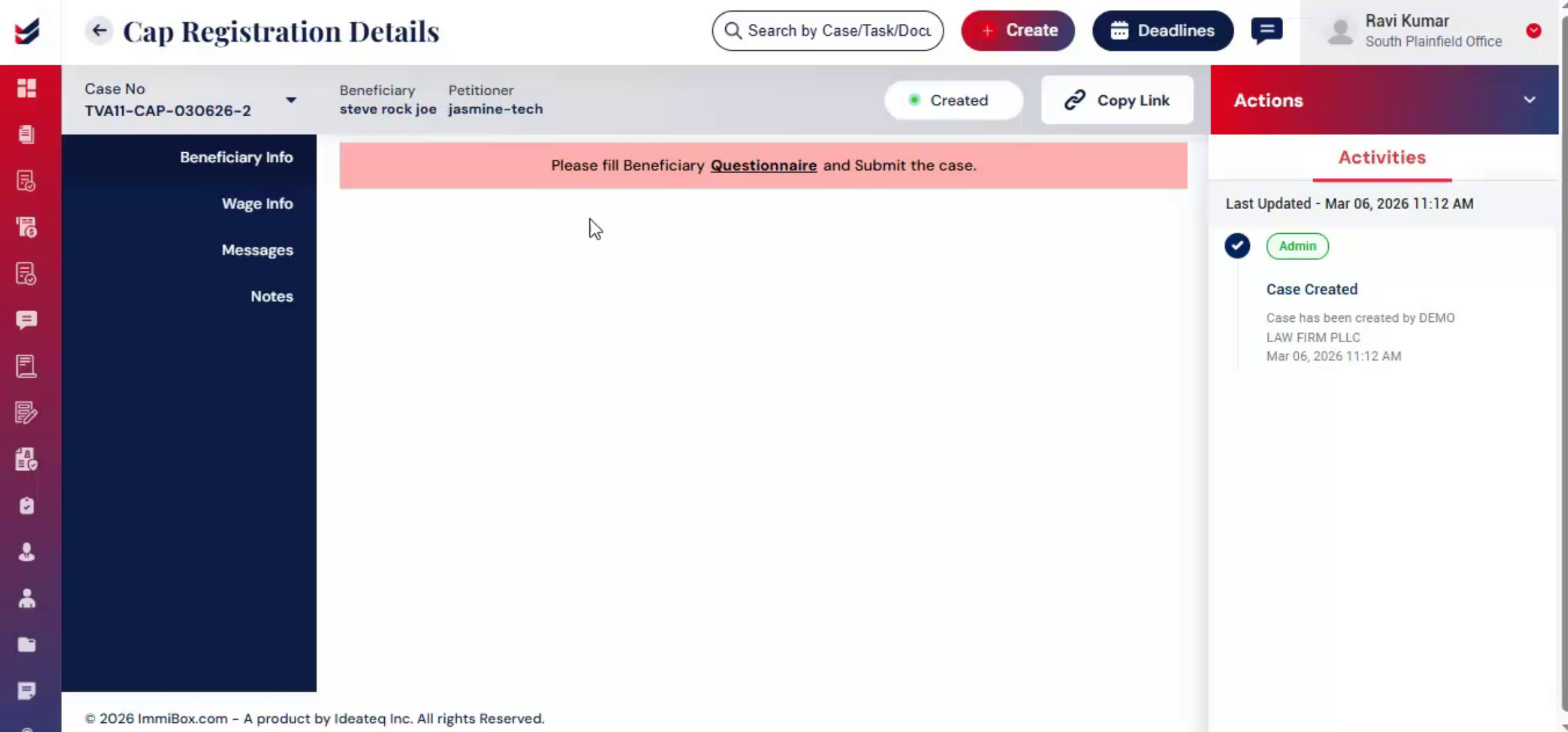
To access the questionnaire, go to Actions, click Edit Questionnaire, or under Beneficiary Info.
21. Completing Personal Information Section
 * click the image to view enlarged
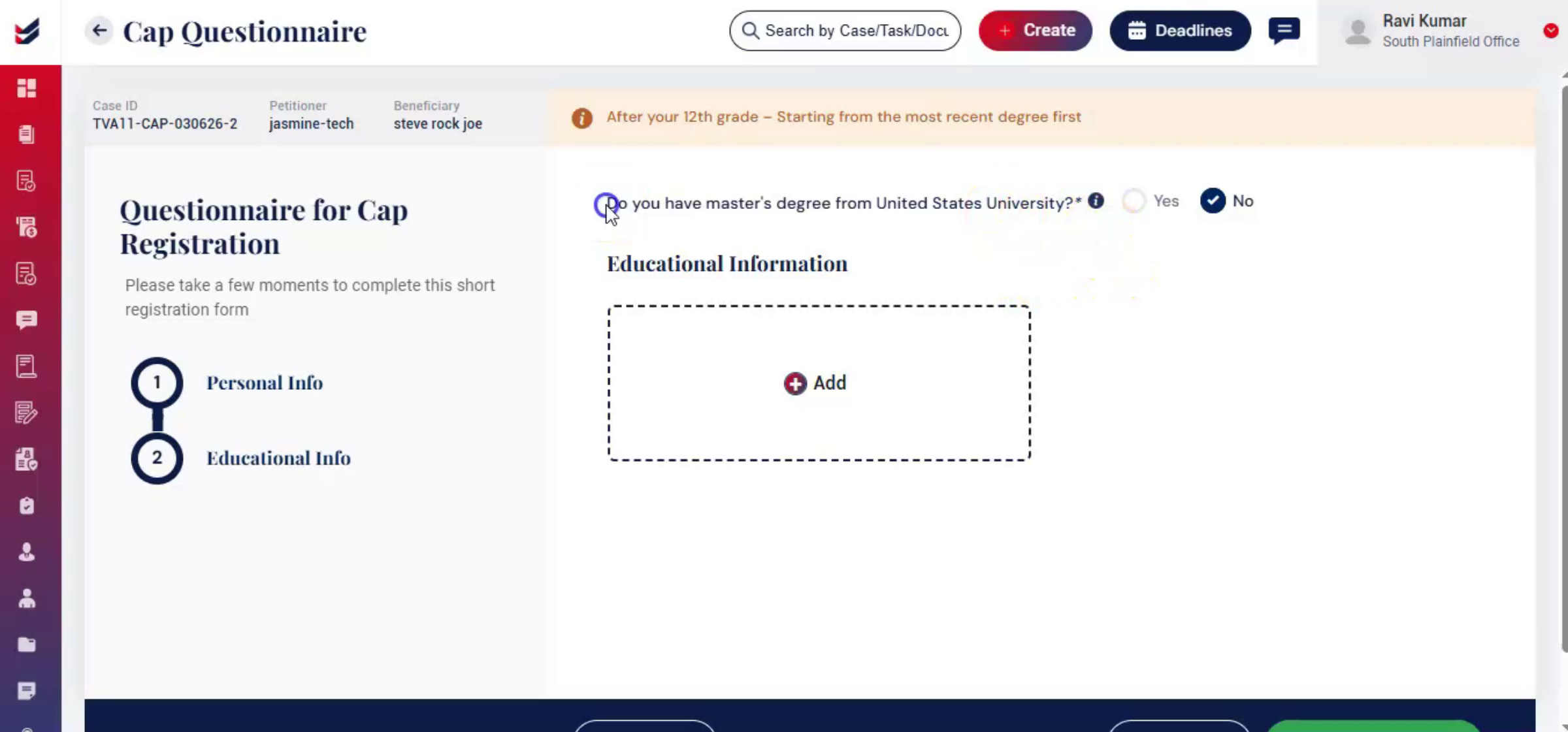
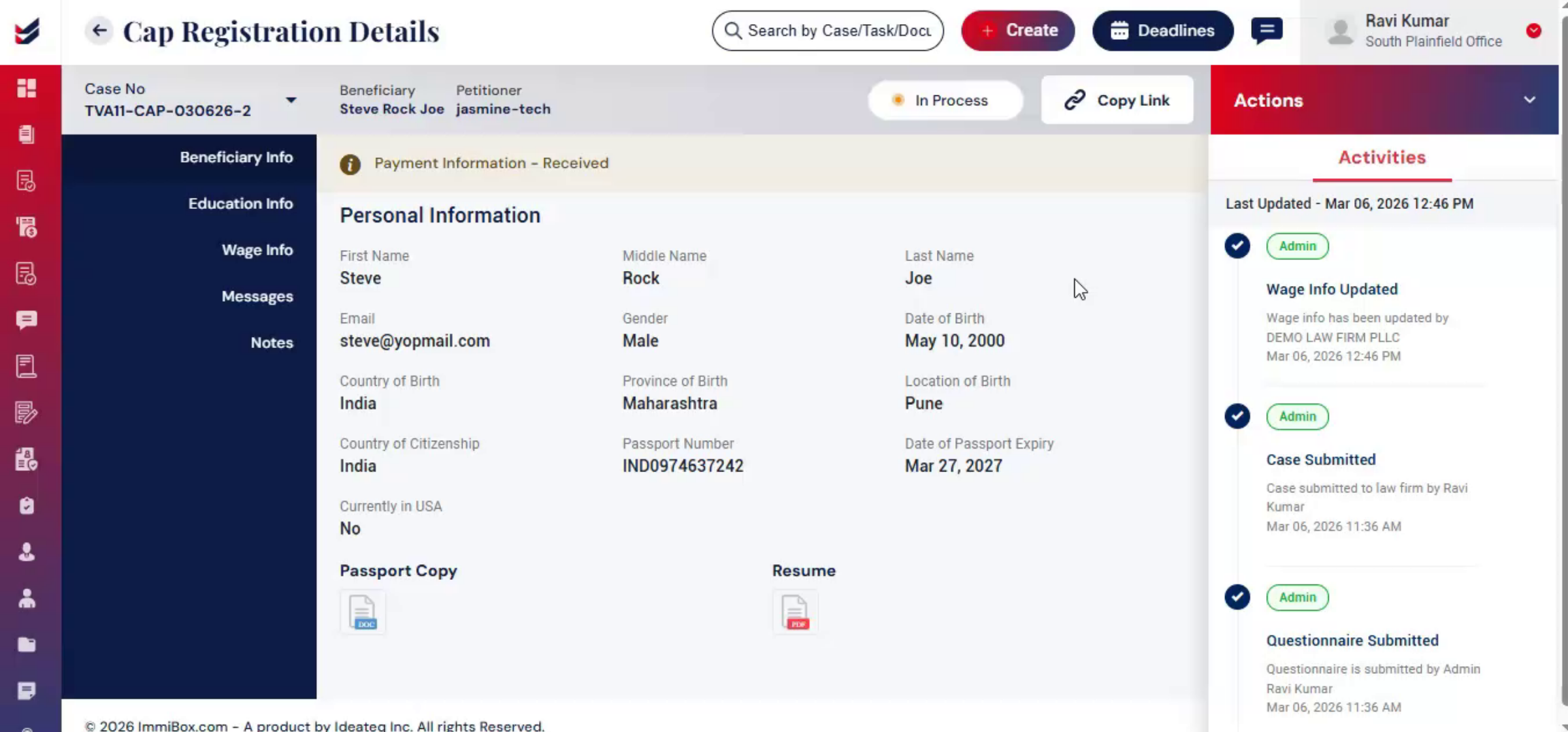
Click the questionnaire link and carefully complete both the Personal Information and Educational Information sections. In the Personal Information section, fill out all the required details, upload the necessary documents, and click Next to proceed. The Educational Information section will then open.
22. Educational Information Section Details
 * click the image to view enlarged
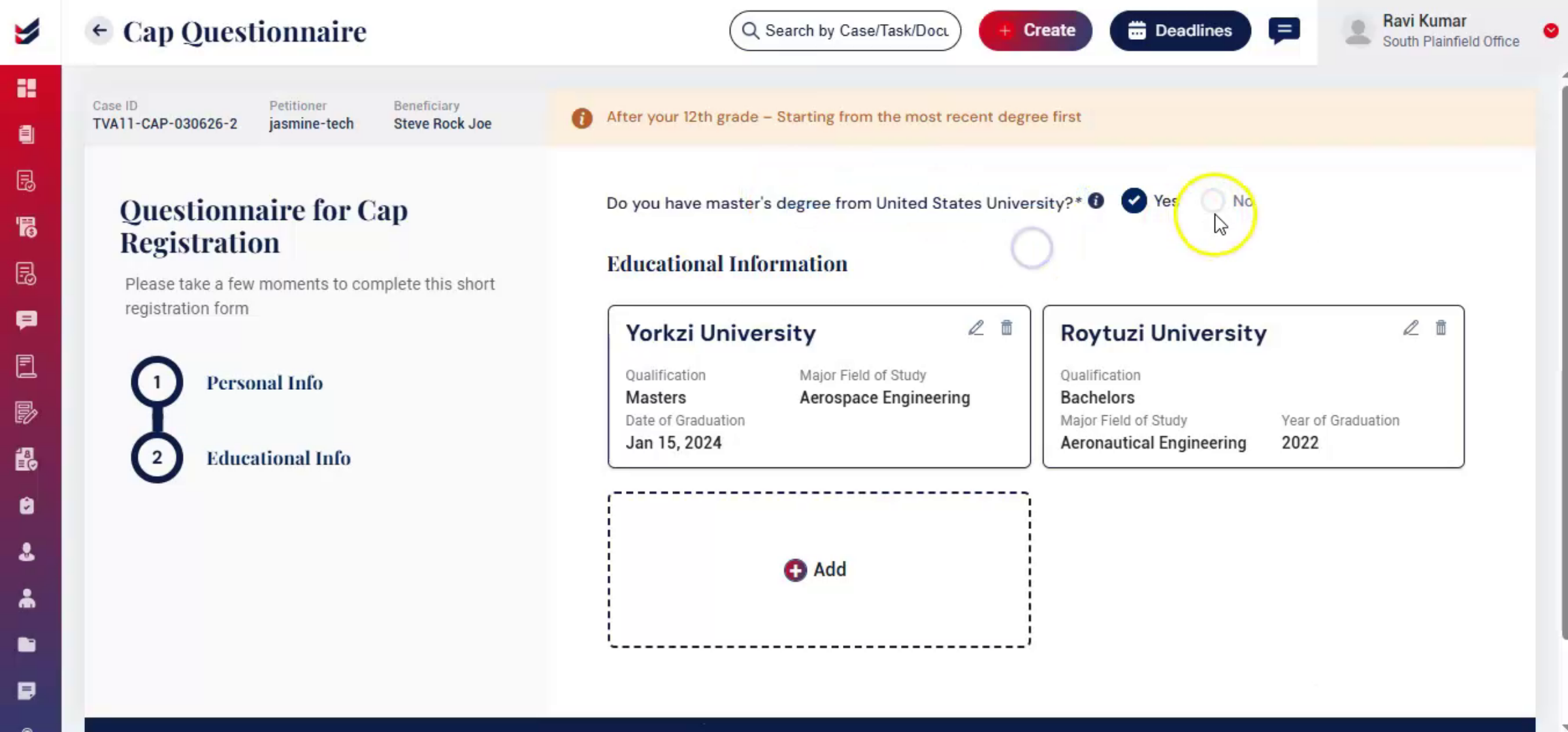
If the beneficiary holds a master's degree from a United States university, select yes. After selecting yes, click add and enter the master's degree information along with the graduation details. If the beneficiary does not have a master's degree from a U. S. university, select no.
23. Master's Degree Entry Exceptions
 * click the image to view enlarged
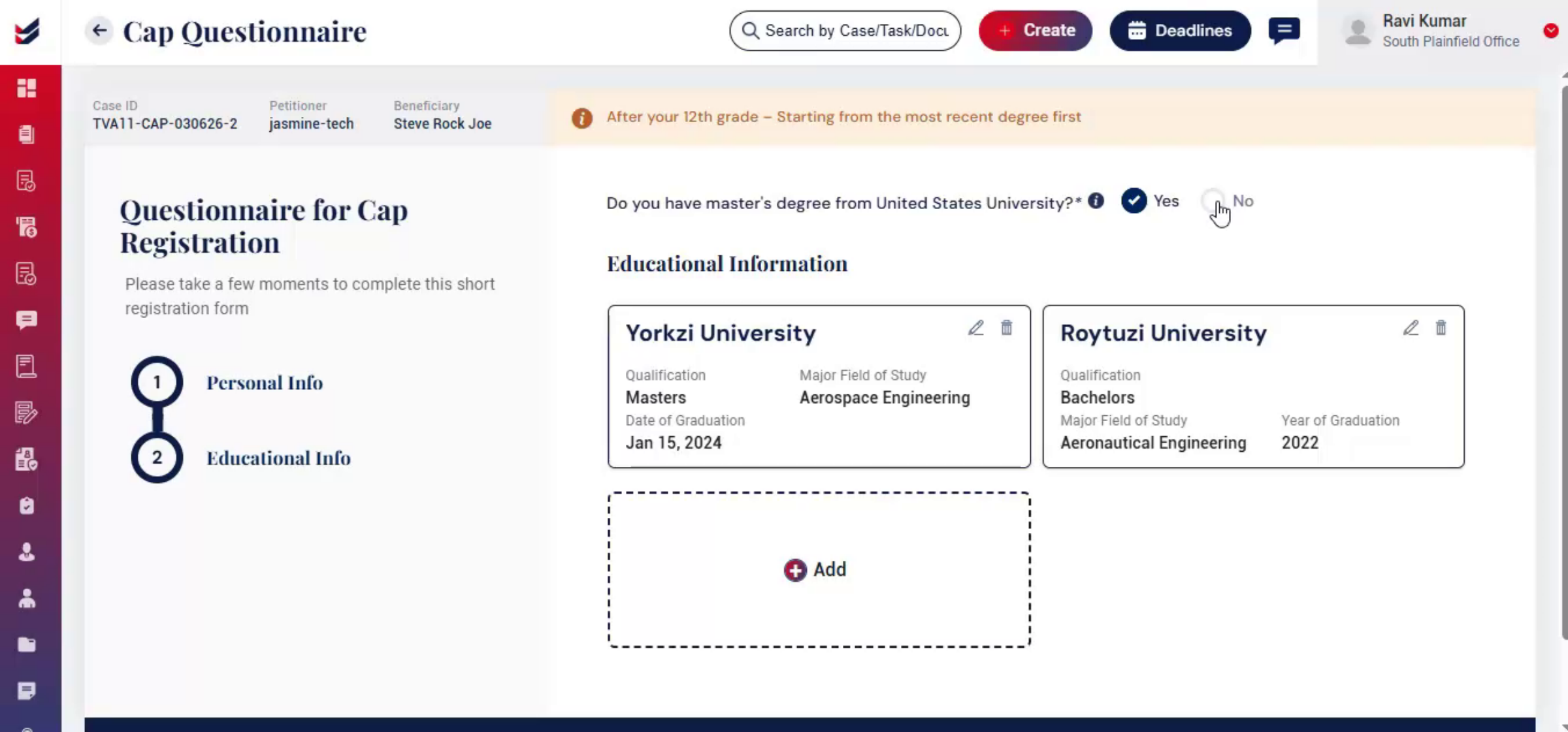
In that case entering masters or graduation information is not mandatory, and you may proceed with the remaining details.
24. Review And Submit Questionnaire
 * click the image to view enlarged
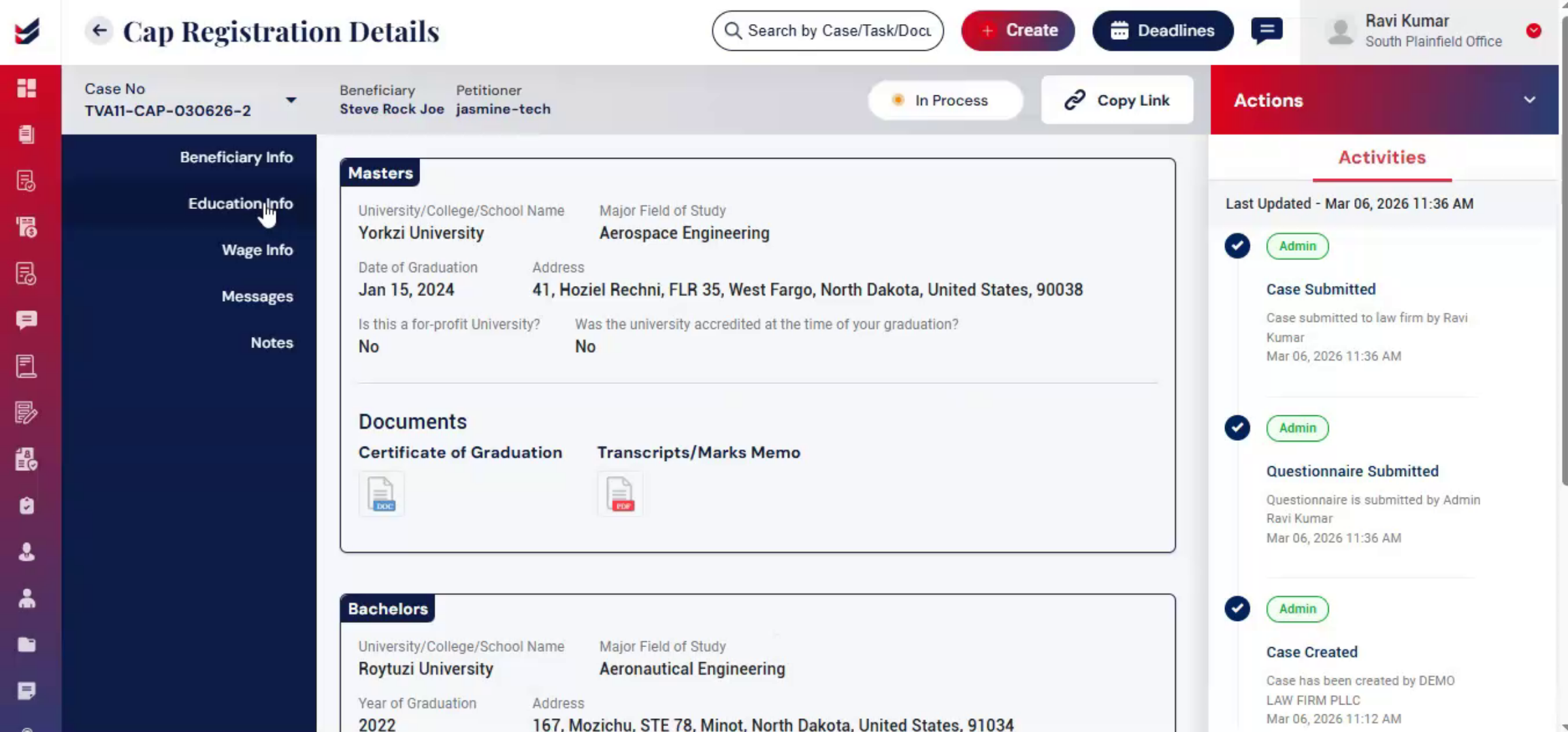
After filling in all the information, review the details and click Submit. Once submitted, the information will be reflected under the Beneficiary Info and Education Info sections.
25. Next Step: Wage Info Section
 * click the image to view enlarged
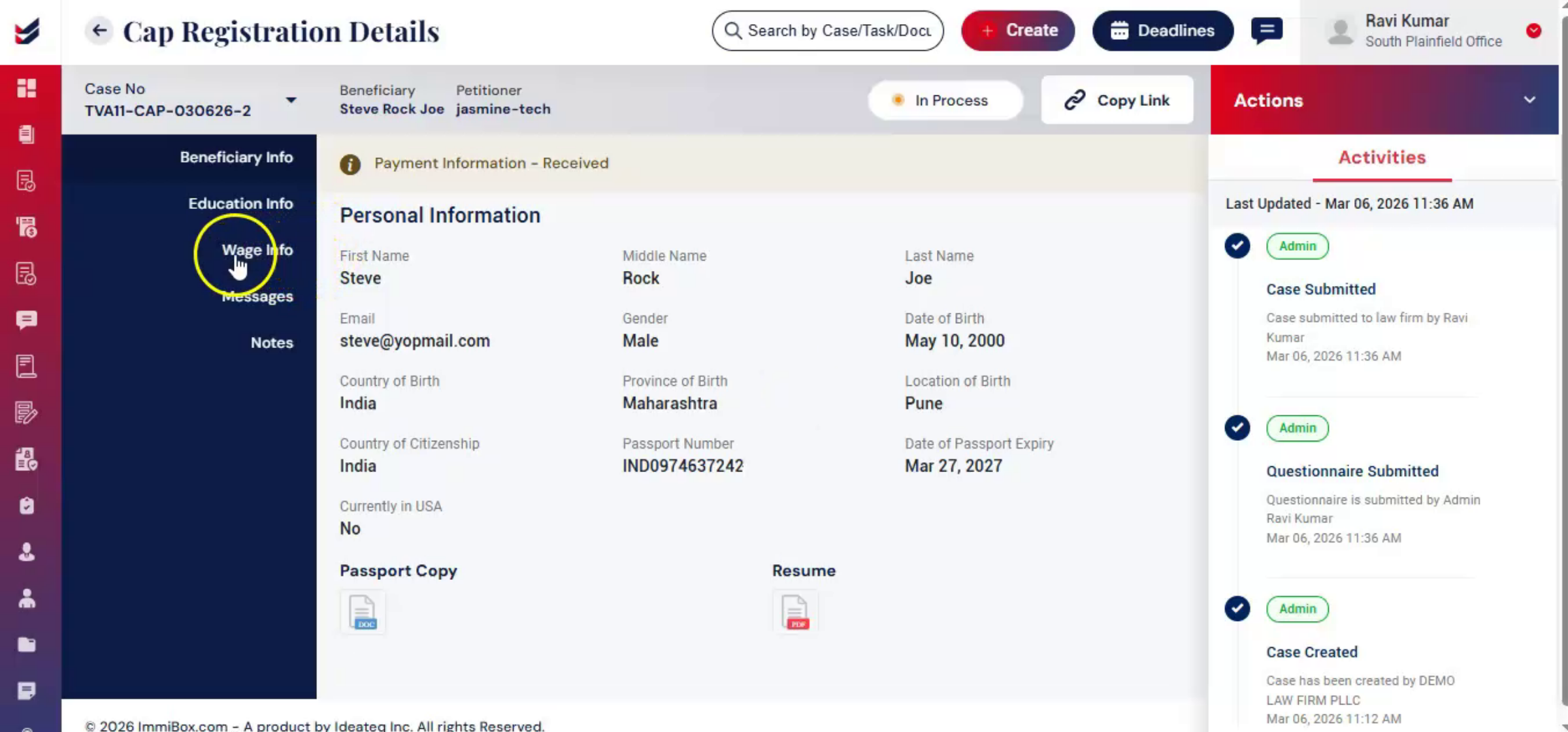
Now, after completing the Beneficiary Questionnaire, the next step is to fill out the Wage Info section.
26. Wage Info Section Purpose
 * click the image to view enlarged
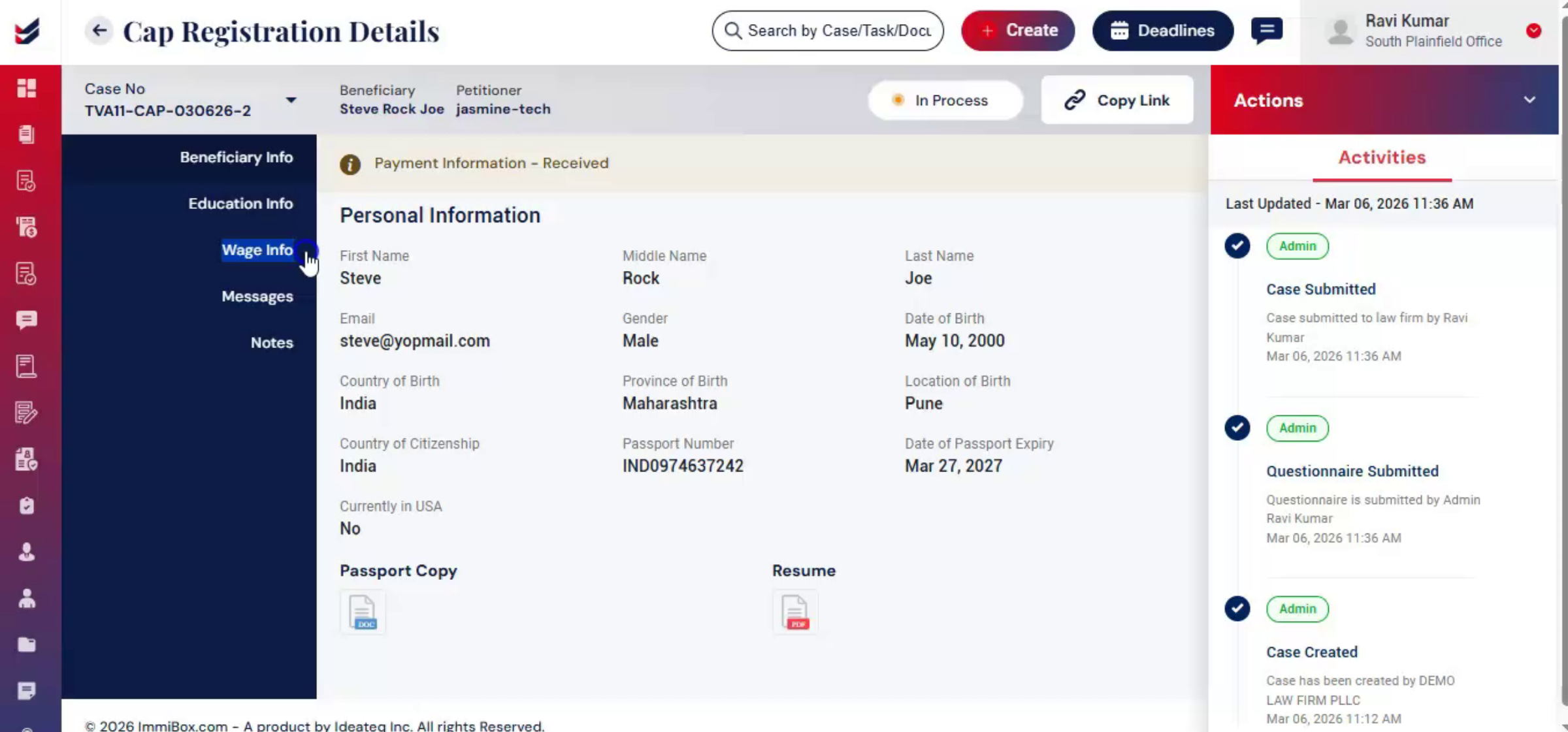
The wage info section captures the beneficiaries work location and offered wage details to ensure the salary meets prevailing wage requirements.
27. Sharing Questionnaire And Wage Info
 * click the image to view enlarged
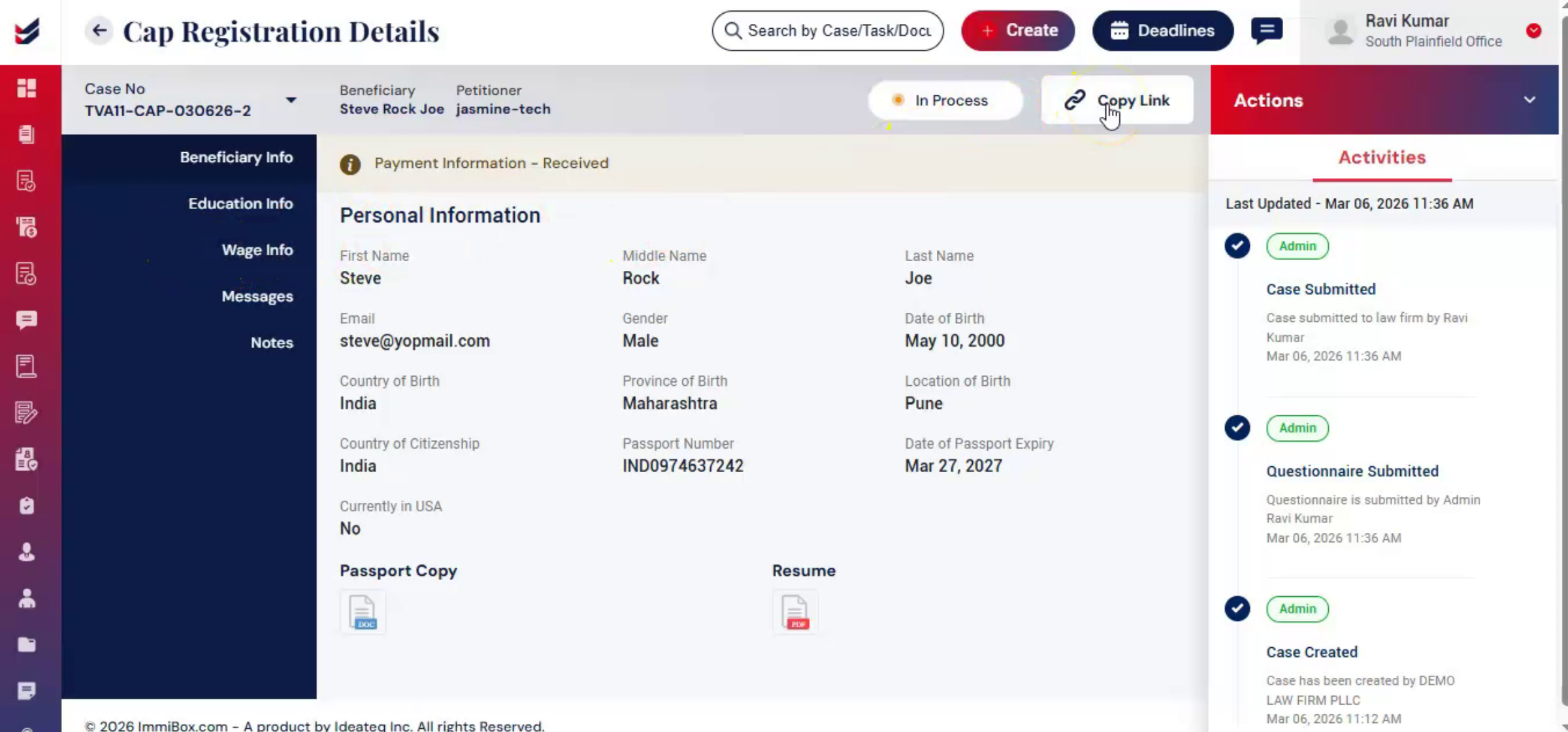
Accurate wage information is important for CAP registration. The beneficiary questionnaire and wage info can also be shared with the petitioner.
28. Copying And Sending Beneficiary Links
 * click the image to view enlarged
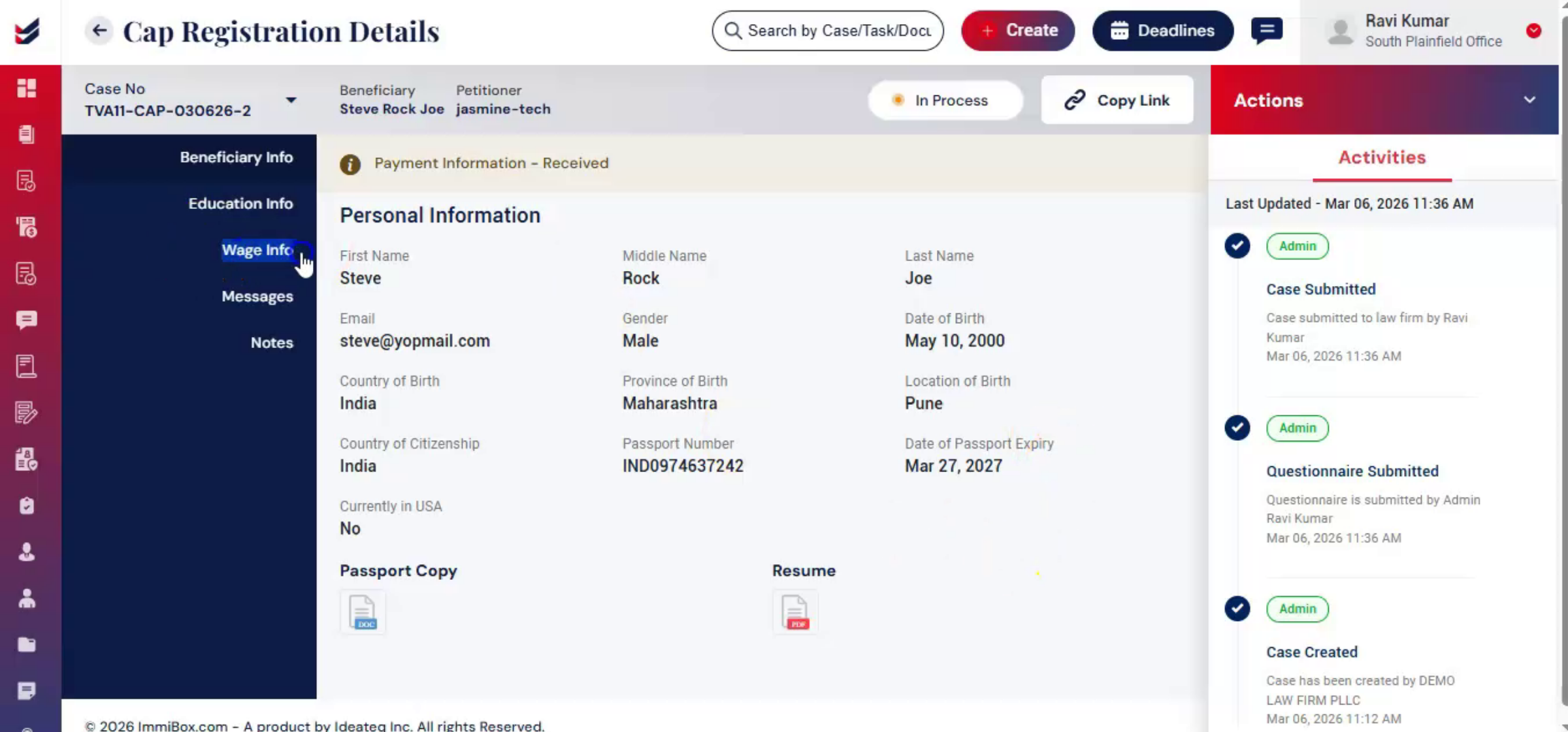
Under the beneficiary info section click copy link. A dialog box will appear, allowing you to either copy the link directly or send it to the petitioner through their email ID. The copy link option is also available in the Wage Info section. To access the Wage Info form,
29. Accessing Wage Info Form
 * click the image to view enlarged
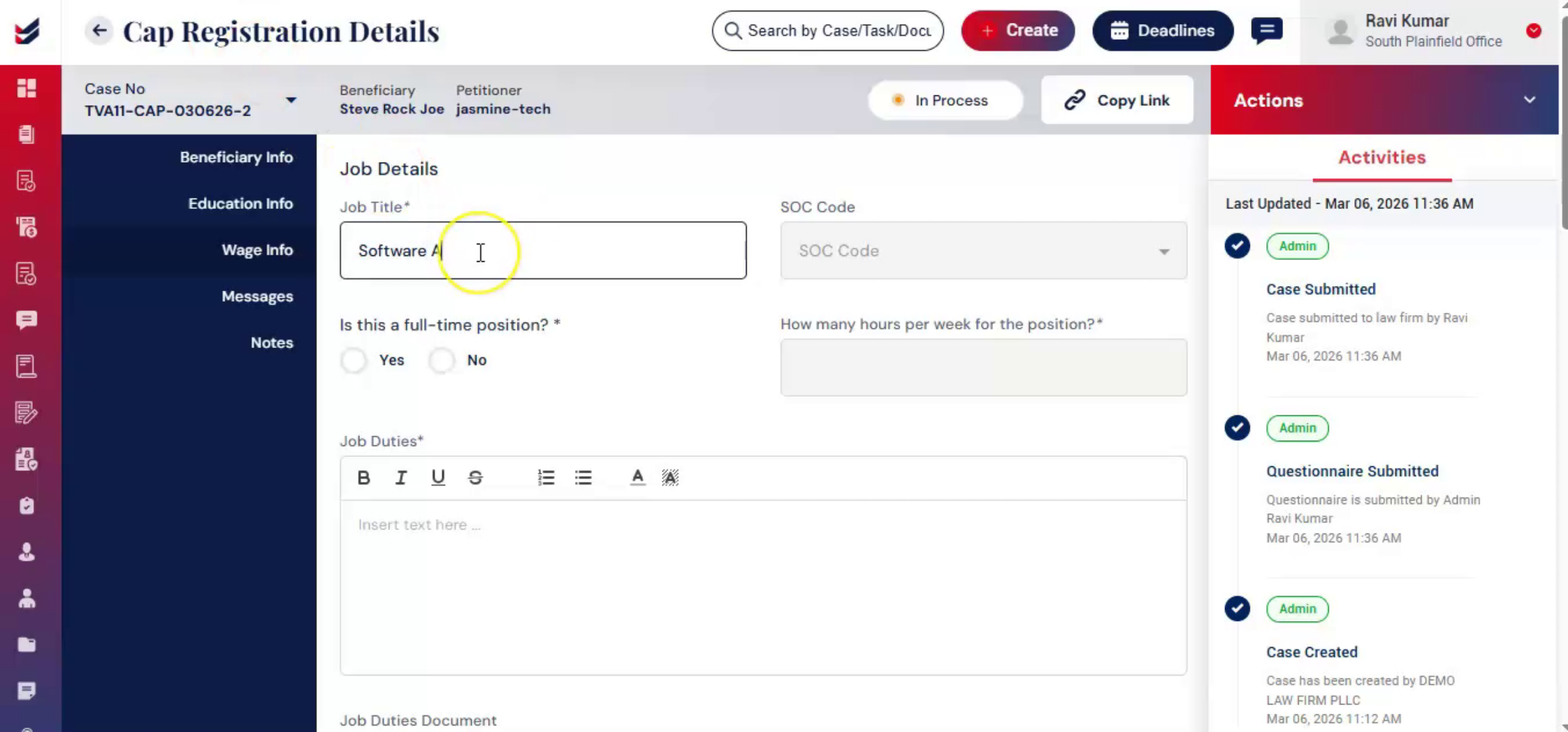
Go to Actions and click Edit Wage or click Wage Info from the left panel. The Wage Info form will appear on your screen.
30. Filling Beneficiary Work Locations
 * click the image to view enlarged
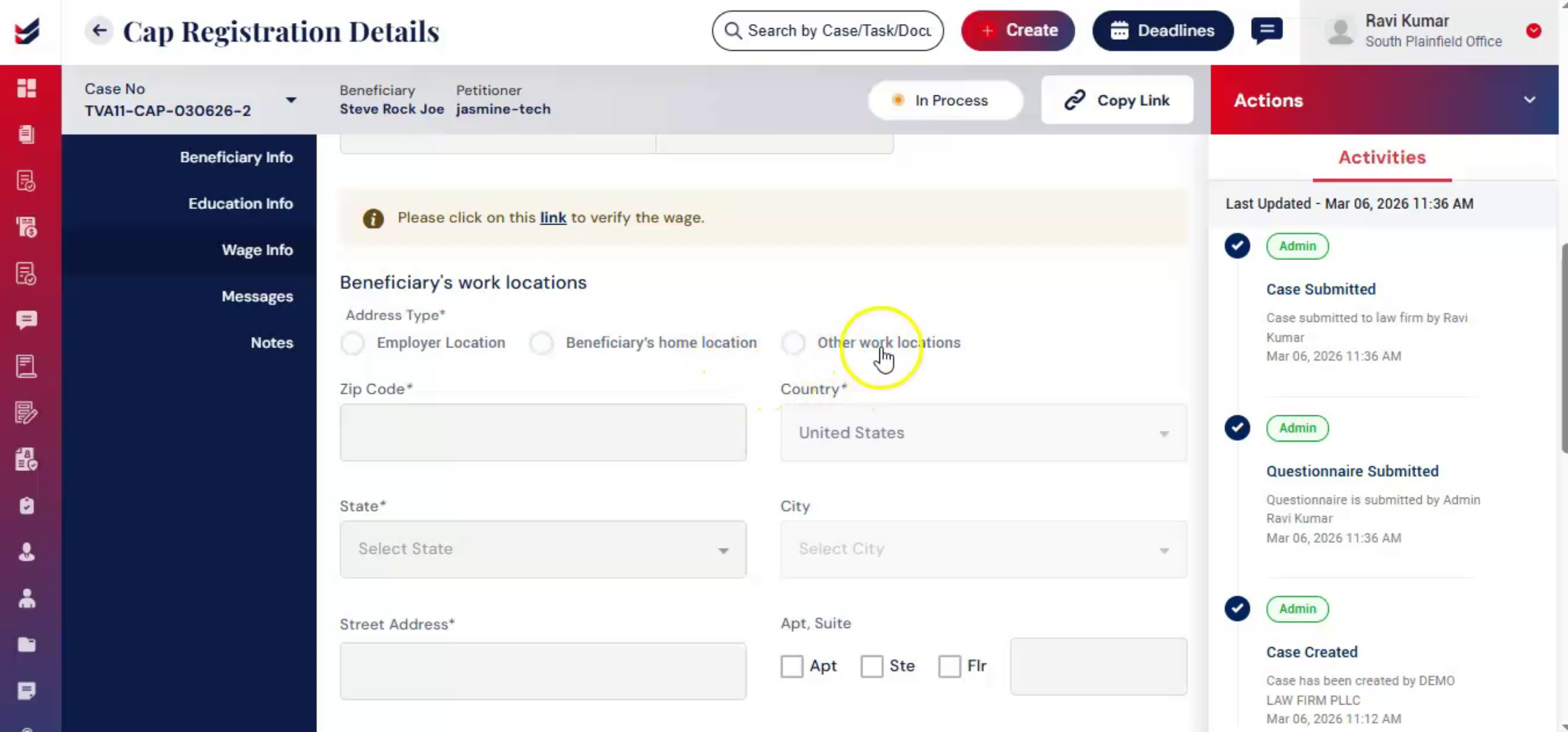
Fill out all the required details carefully. Enter the beneficiary work location, including employer location, beneficiary home location, other work locations.
31. Adding Additional Work Locations
 * click the image to view enlarged
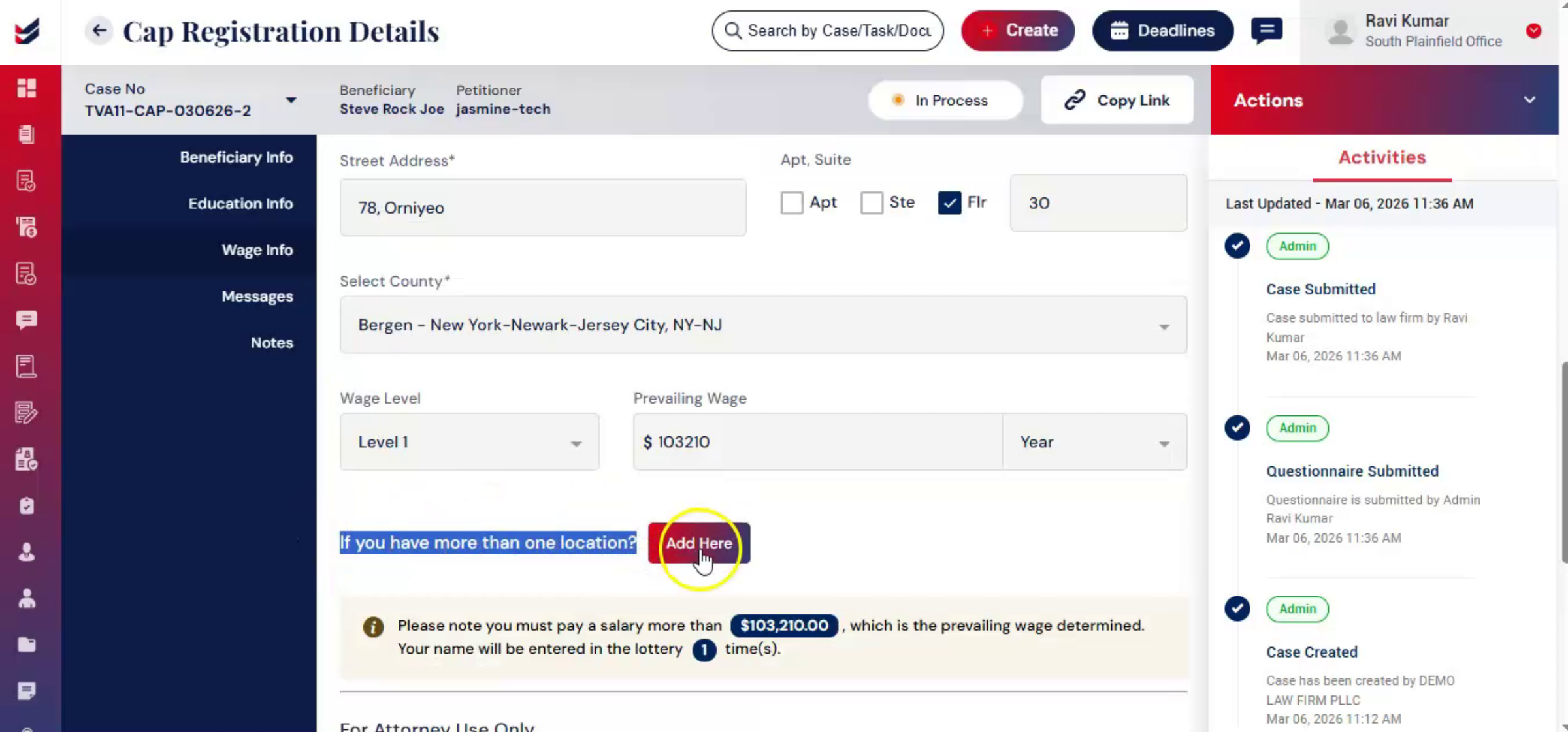
The system automatically fetches the office address and the beneficiary's home address from the stored data. To add additional work locations, click Add and enter the required details.
32. Built-In Wage Determination Feature
 * click the image to view enlarged
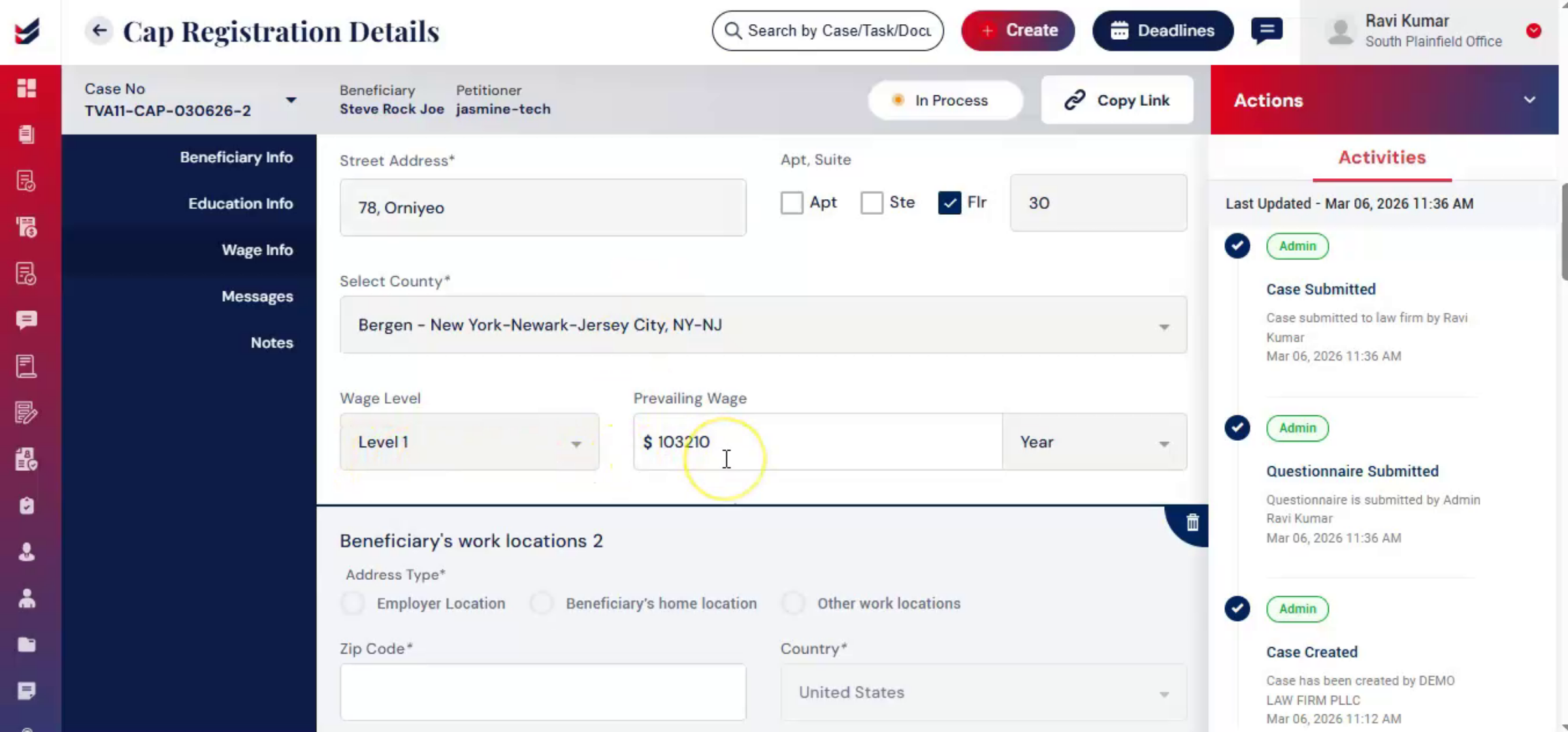
ImmiBox includes a built-in wage determination feature that ensures the offered salary meets US Department of Labor requirements before registration is submitted. When selecting the wage level, the system displays all four official levels along with their corresponding minimum prevailing wage thresholds. As you enter the offered wage, ImmiBox automatically compares it with the required minimum for the selected level.
33. Selecting State County And SOC Code
 * click the image to view enlarged
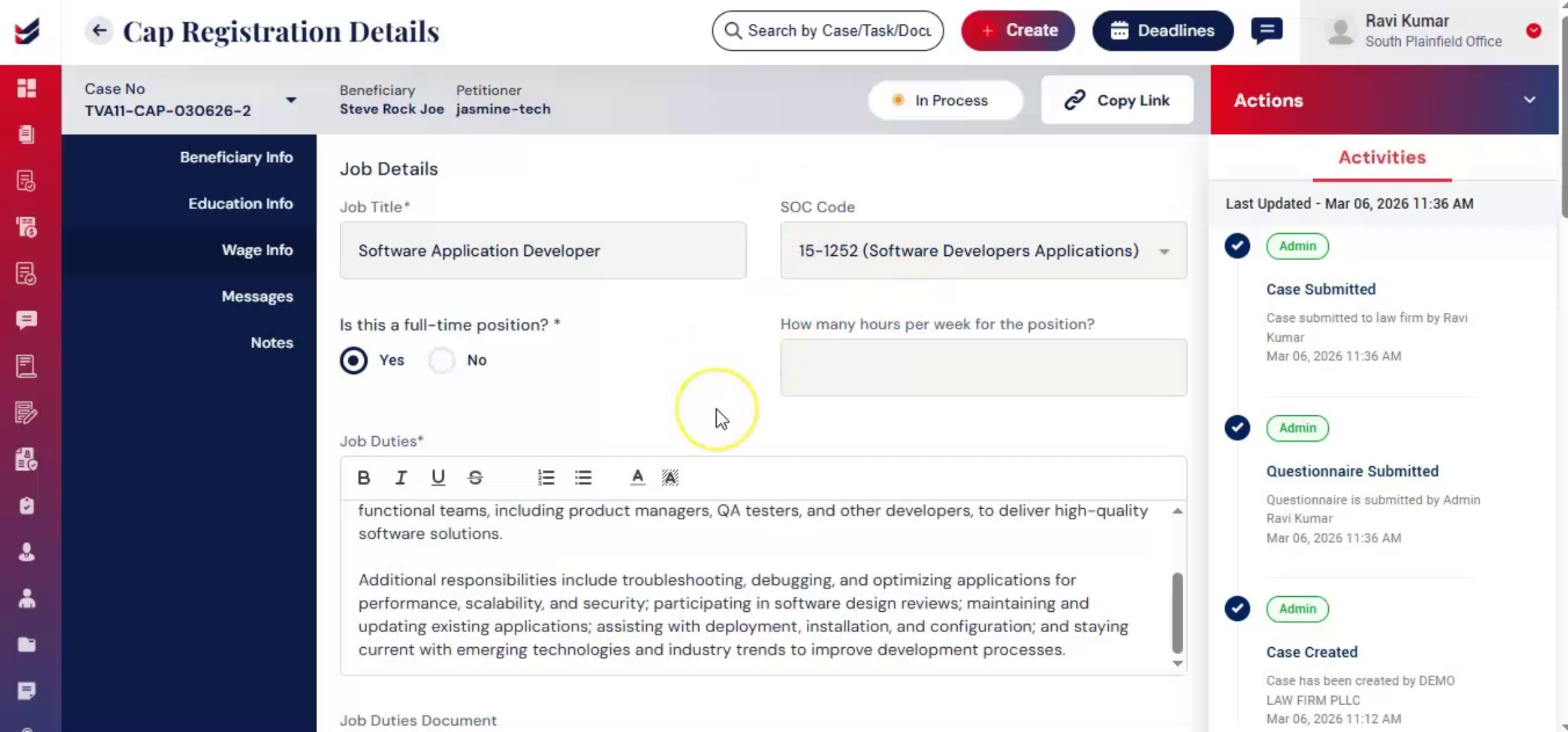
Wage determination in ImmiBox requires selecting the state and the corresponding county from the displayed list. The appropriate SOC code must also be selected.
34. Prevailing Wage Calculation Process
 * click the image to view enlarged
The system then calculates the prevailing wage based on both the selected SOC code and the county, ensuring accurate and localized compliance.
35. Wage Validation And Error Messages
 * click the image to view enlarged
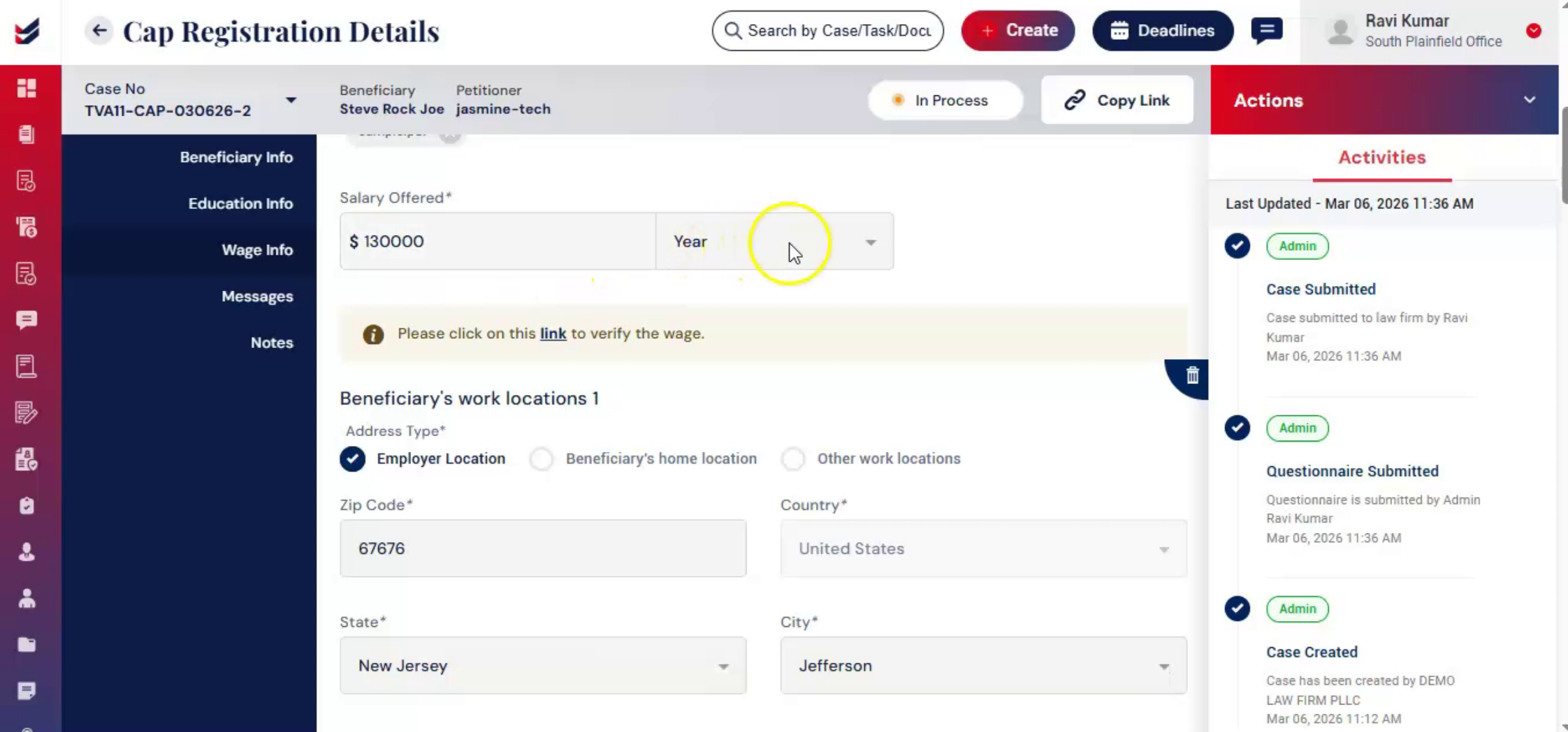
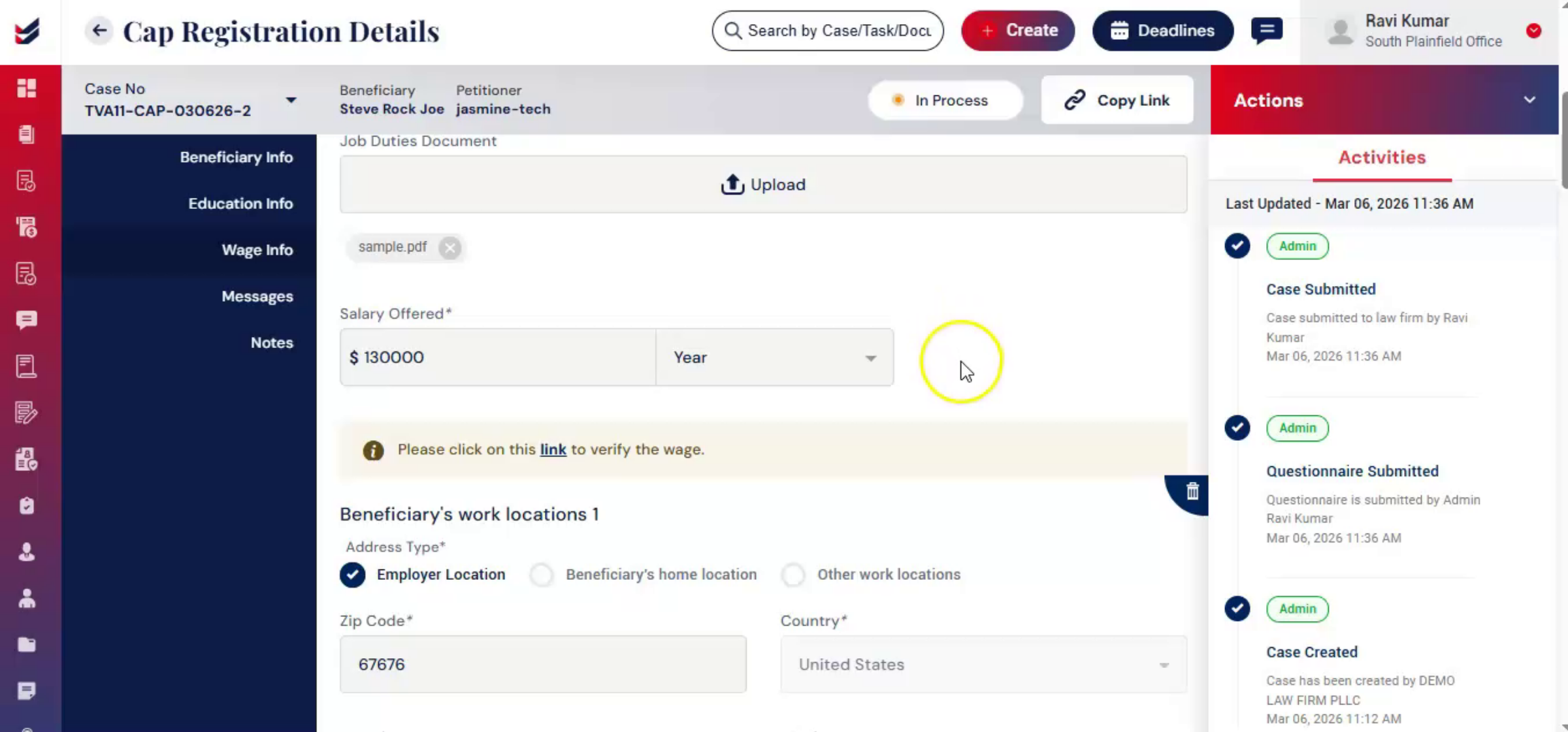
If the entered wage is below the required threshold, a validation message appears on the screen, clearly showing the minimum required wage.
36. Real-Time Wage Compliance Checks
 * click the image to view enlarged
This real-time check helps prevent errors and reduces the risk of non-compliant filings. Complete the wage info form. Additionally, ImmiBox provides a direct verification link to the official Office of Foreign Labor Certification wage search portal for further validation.
37. Attorney Only Wage Verification Section
 * click the image to view enlarged
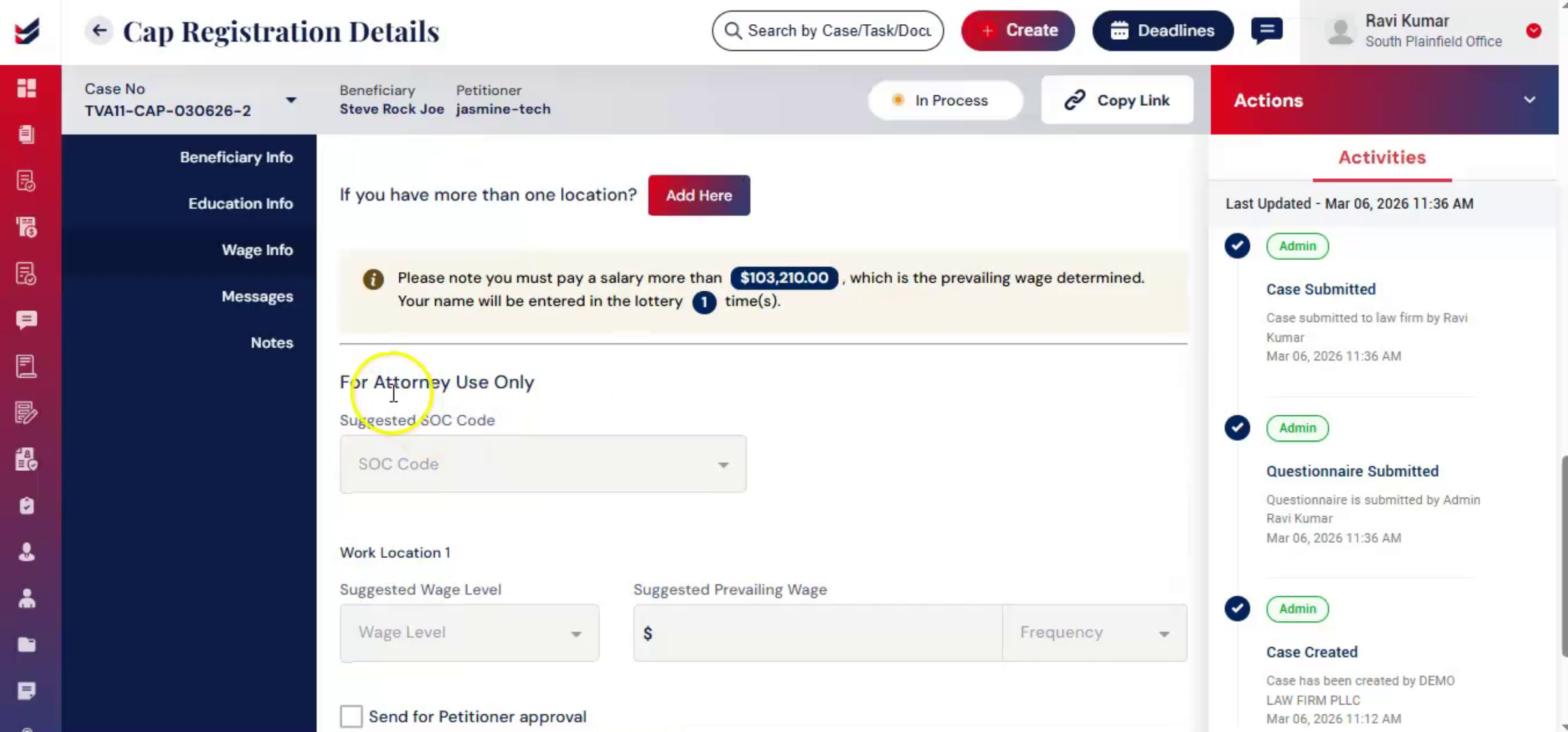
Below the Wage Information Form for Attorney Use Only section is available. This section is visible only to the law firm and is not accessible to petitioners or beneficiaries. Clicking Submit to verify the wage.
38. Editing Questionnaire And Messaging Feature
 * click the image to view enlarged
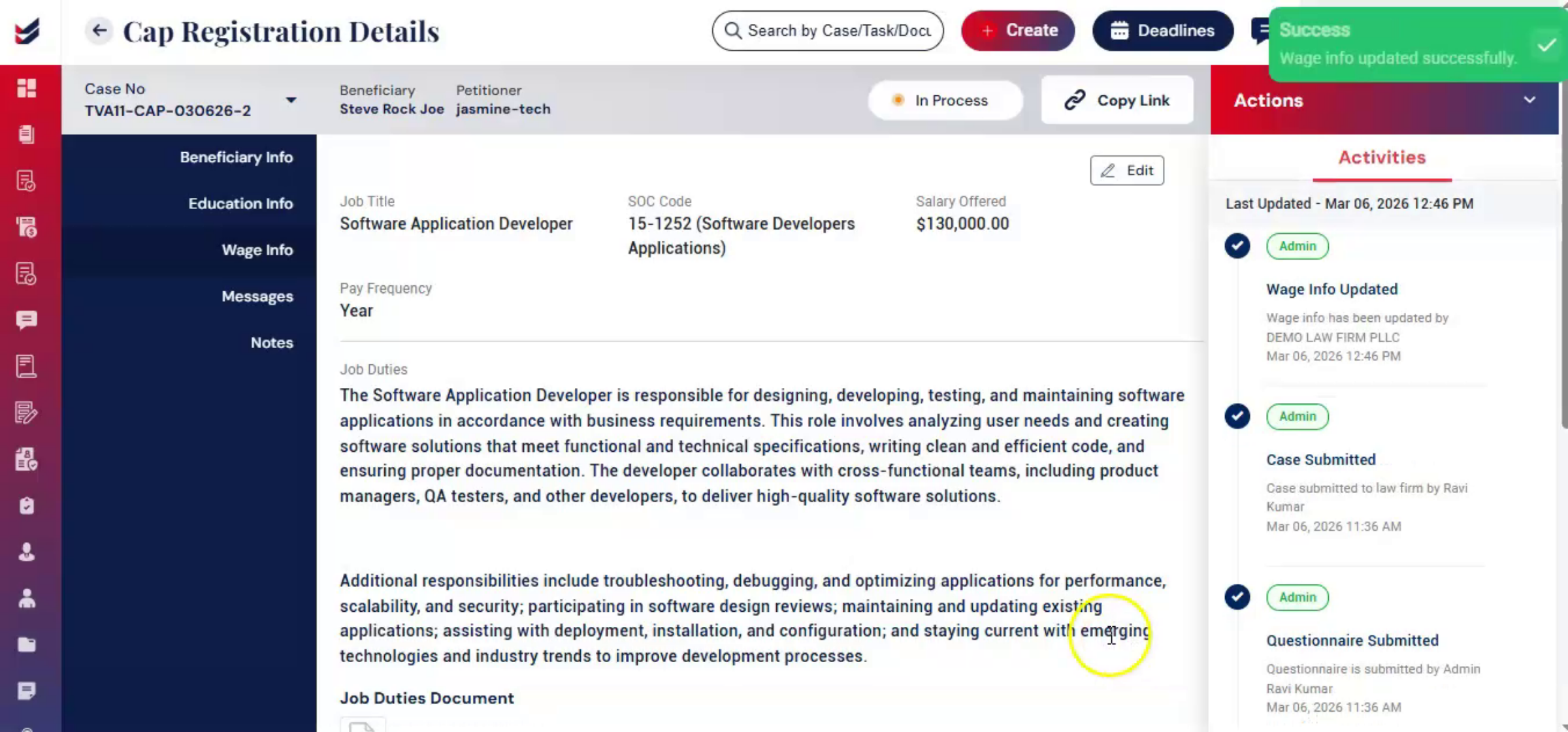
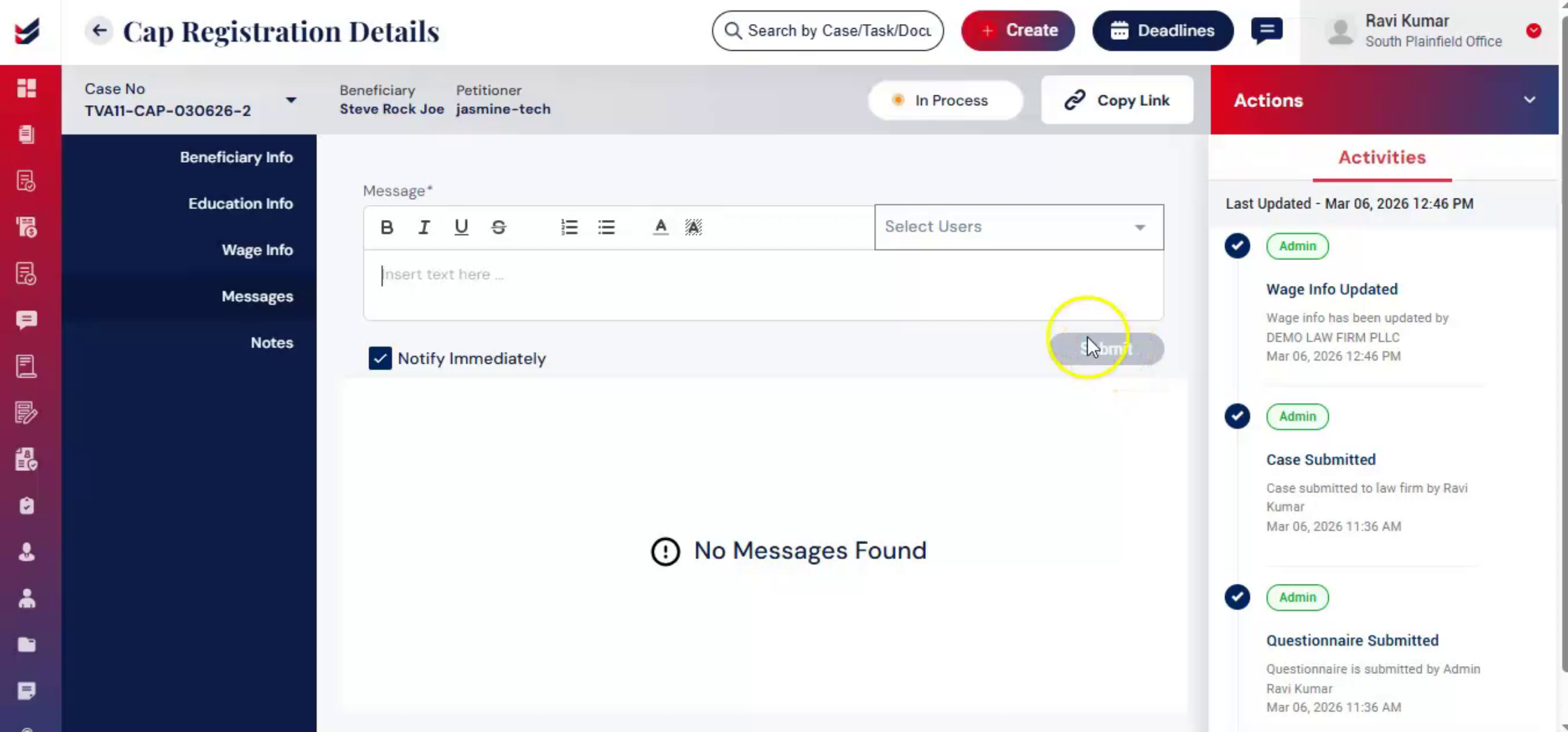
If you need to make edits to the questionnaire or wage info, complete all necessary updates first. Below the Wage Info section, you will find the Messages feature. This allows you to send messages to the petitioner or internal users. Select users from the list. Draft your message. Click Submit.
39. Submitting CAP Registration To USCIS
 * click the image to view enlarged
All submitted information remains stored within the case record. The next step is to register the case with USCIS. Submitting the CAP registration to USCIS is the legal filing step that enters the beneficiary into the lottery or selection pool.
40. Registering Case With USCIS
 * click the image to view enlarged
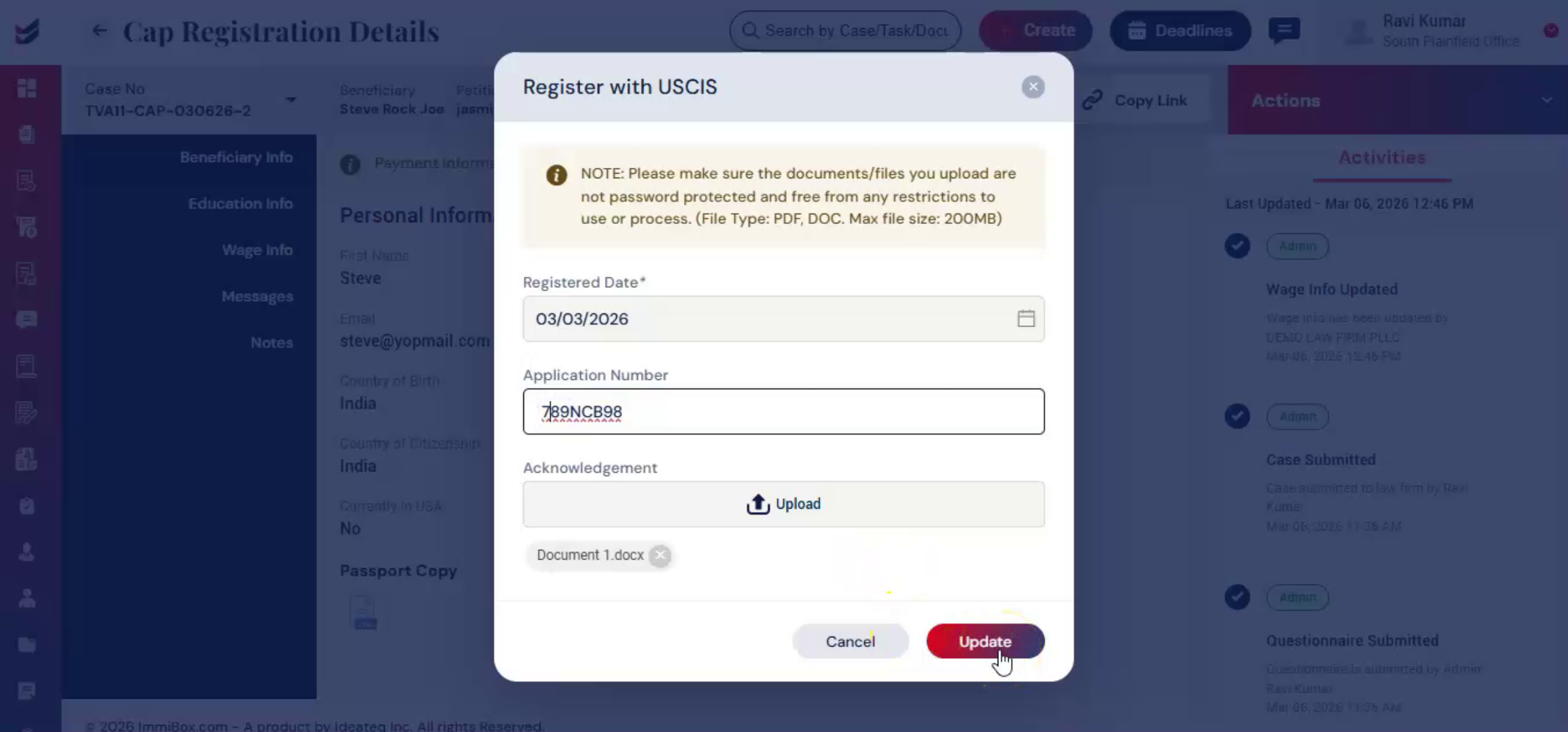
From Actions, select Register with USCIS. Enter case-related details, upload the acknowledgement receipt, and click Send, Submit.
41. Case Update After USCIS Registration
 * click the image to view enlarged
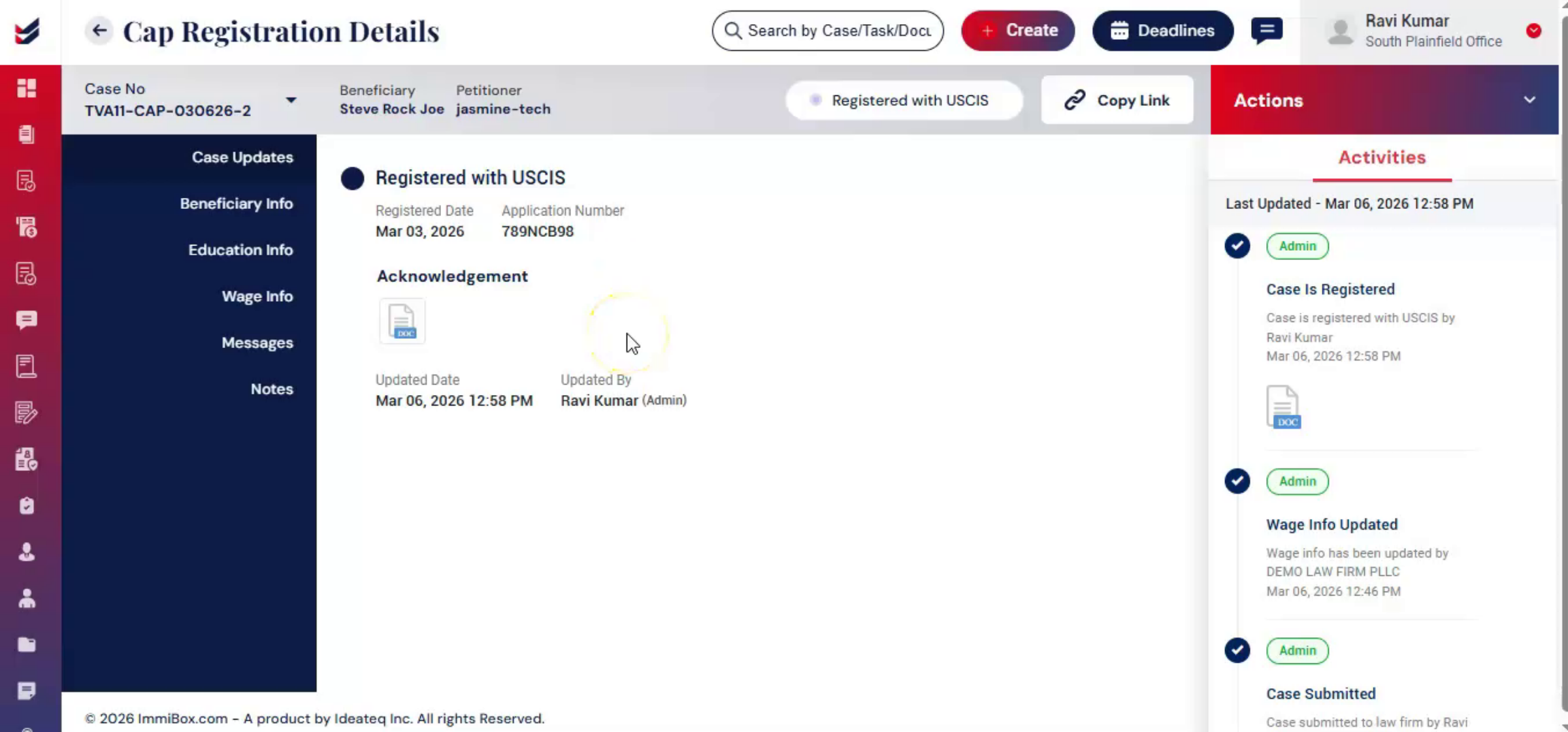
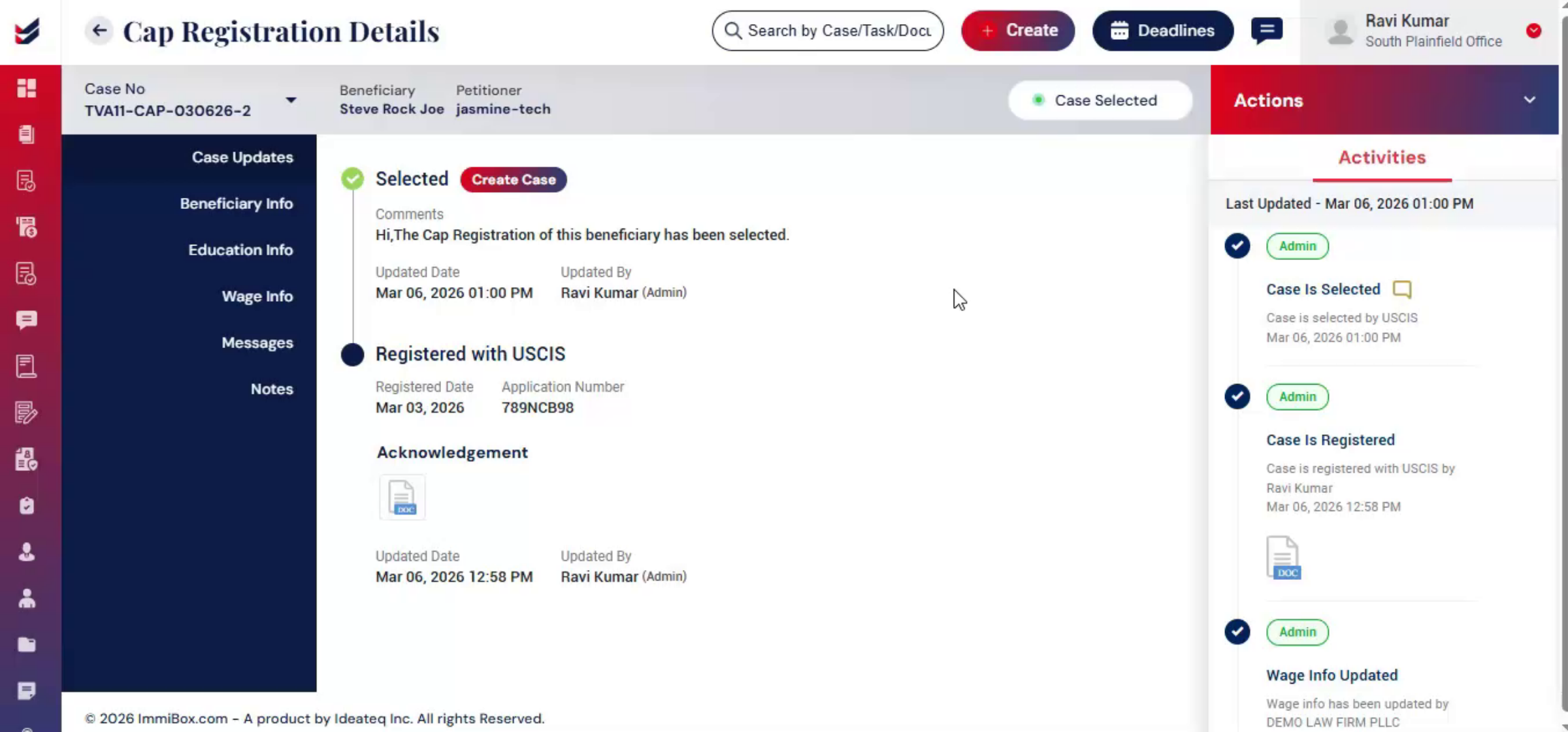
After submission, the Case Update section will display that the case has been registered with USCIS.
42. Updating USCIS Response Status
 * click the image to view enlarged
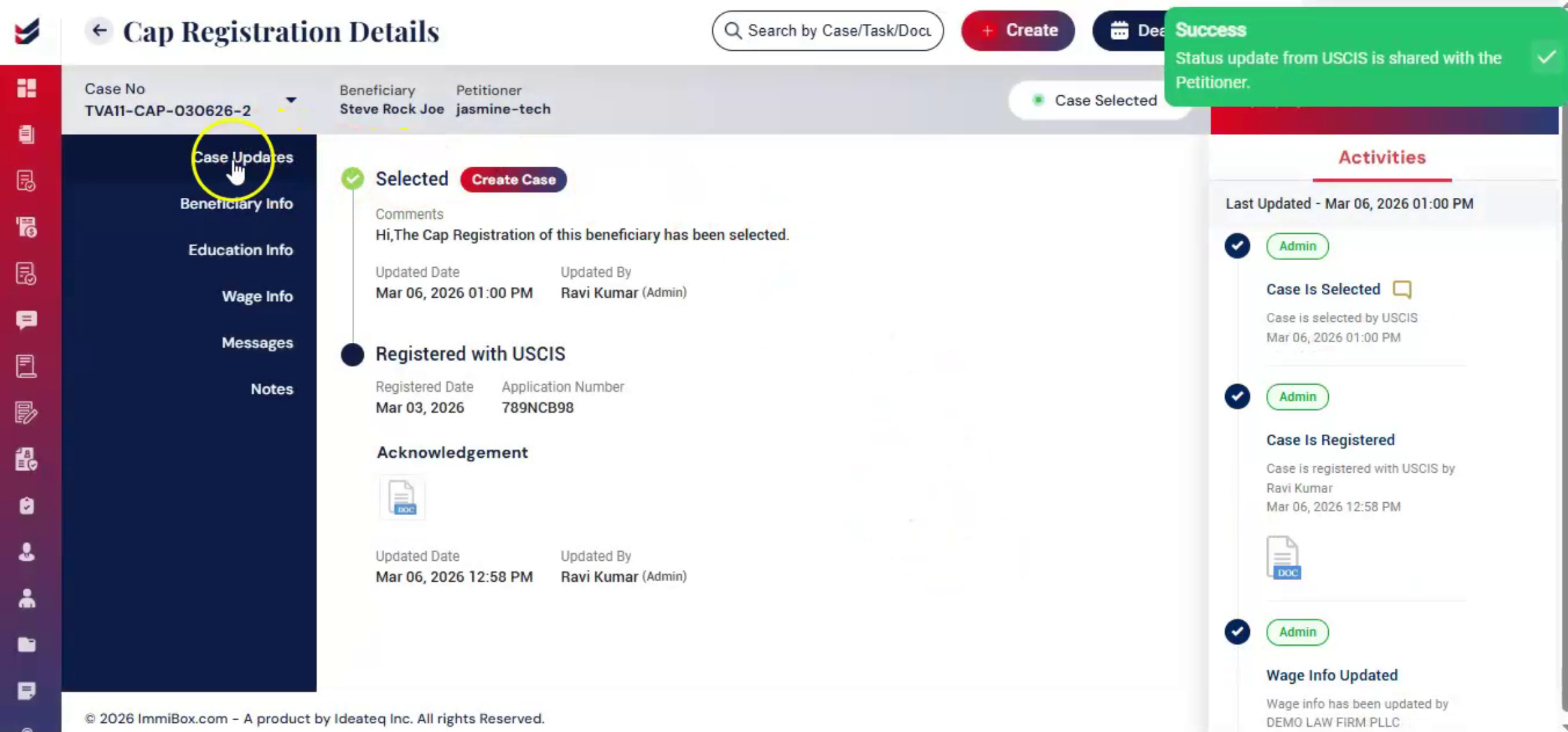
Once USCIS releases results, updating the status in ImmiBox ensures the petitioner and beneficiary have real-time information. Go to Actions, click Update USCIS Response, choose the status, Selected or Not Selected, add relevant information, and click Submit. This update will be reflected in the Case Update section.
43. Next Step After CAP Selection
 * click the image to view enlarged
If the CAP registration is selected, the next step is filing the H-1B petition using the same beneficiary data.
44. Creating H-1B Case From CAP Data
 * click the image to view enlarged
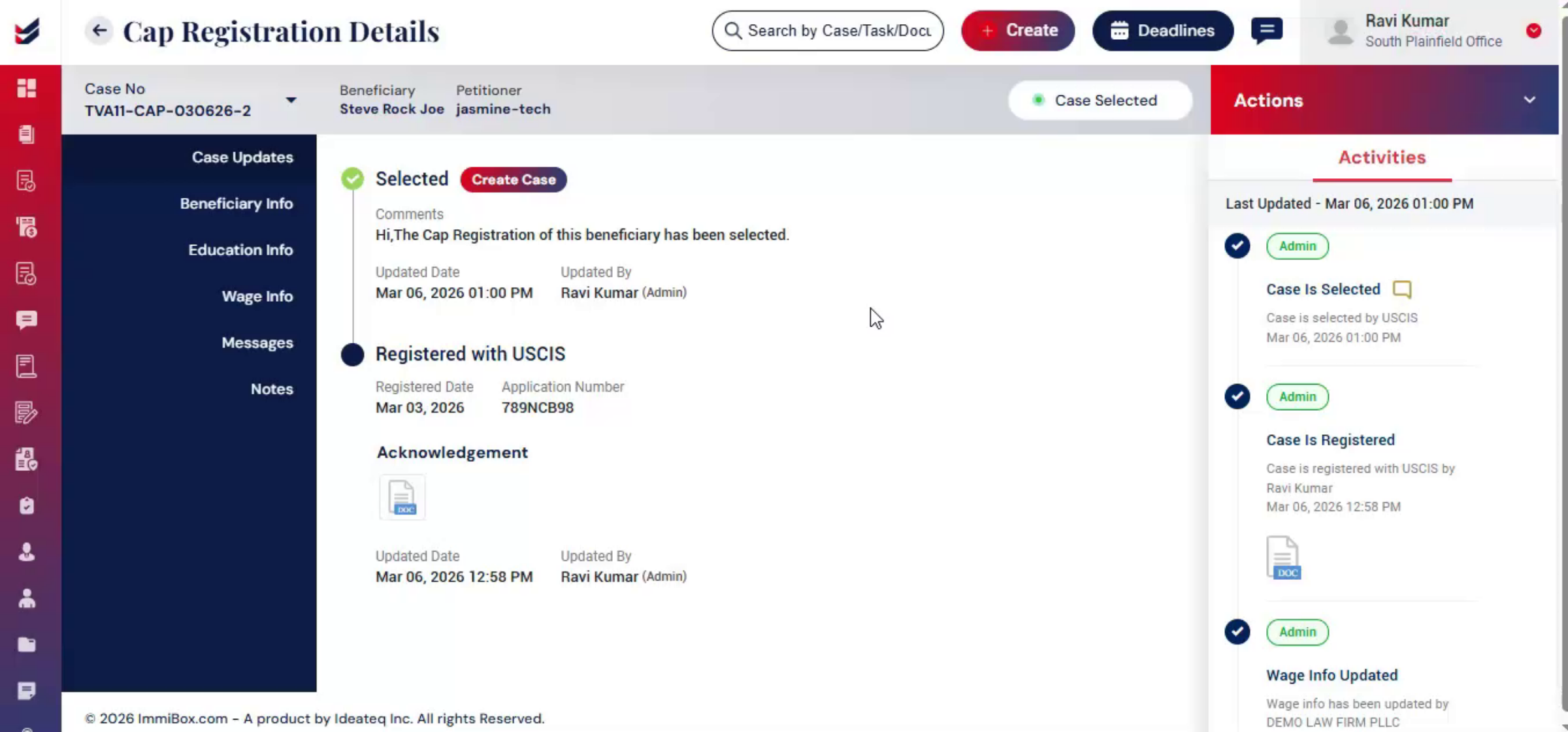
ImmiBox automatically uses collected CAP data to create the H-1B case while maintaining continuity and compliance. Click Create Case from the Case Update section or navigate to Actions, select Create Case. You can then continue the petition process within ImmiBox.
45. Video Closing Remarks
 * click the image to view enlarged
Thank you for watching.

