


Reminder Configuration in ImmiBox
Overview
Welcome! In this video, we'll walk through how to configure reminders in ImmiBox.
1. Introduction
 * click the image to view enlarged
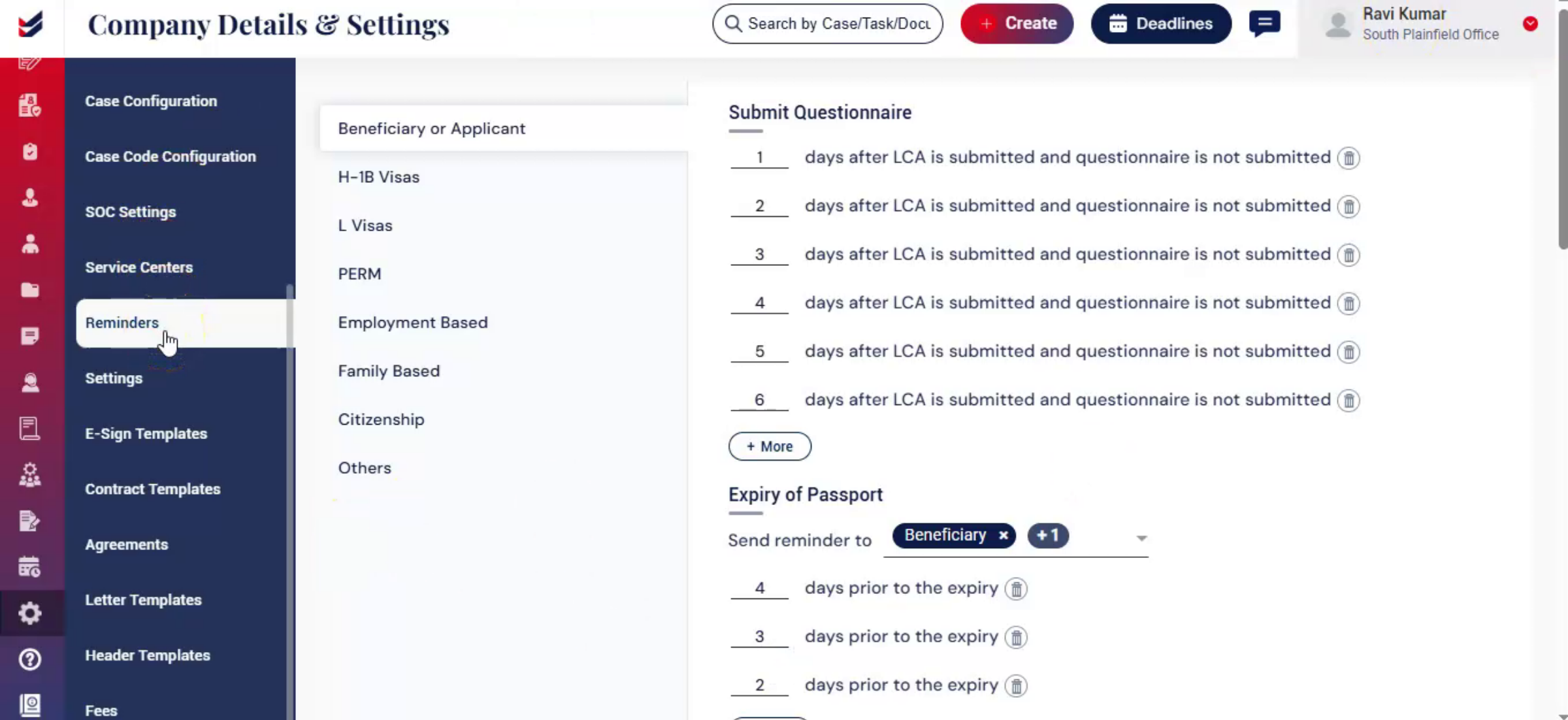
The Reminders module helps automate notifications for important case activities and deadlines, enabling timely actions and improving overall case management.
2. Accessing Reminders
 * click the image to view enlarged
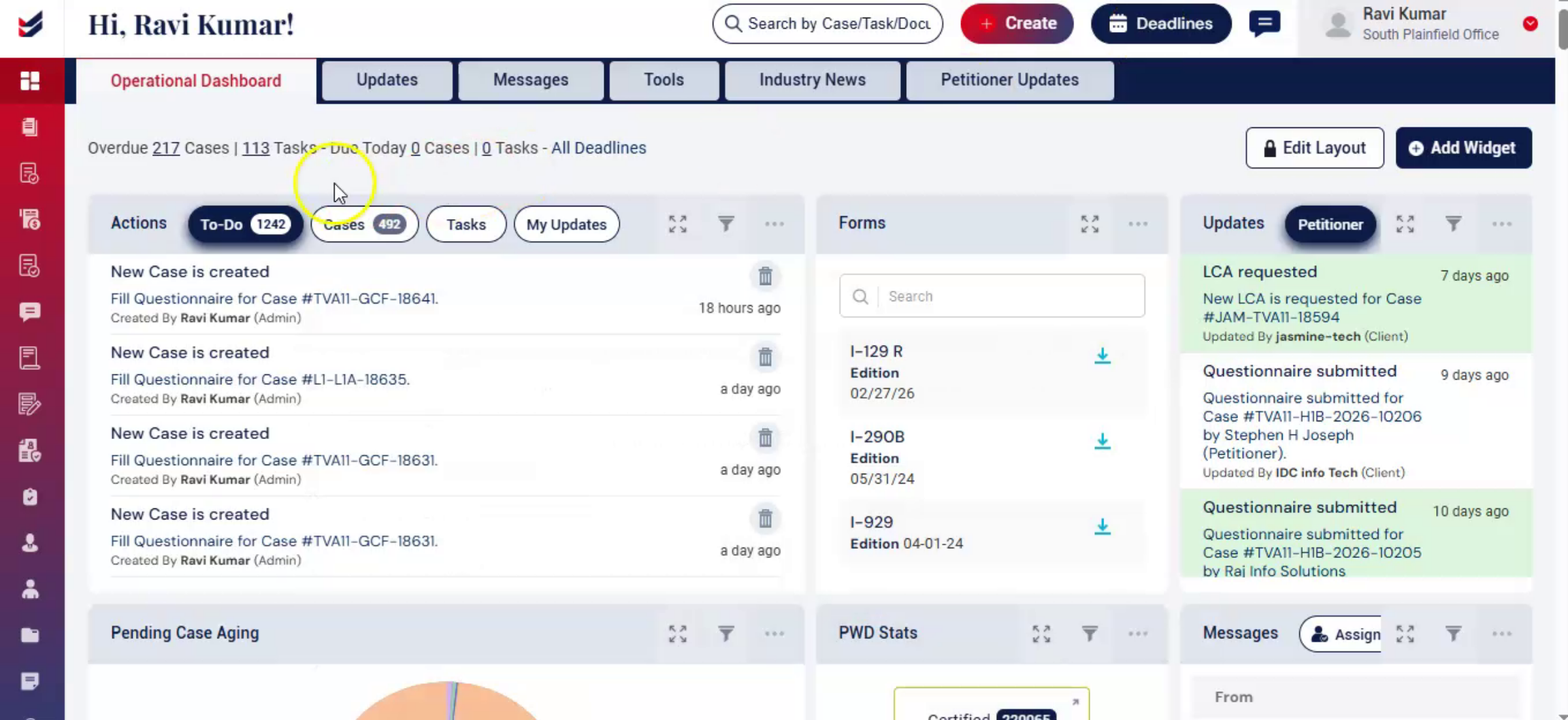
From the Dashboard, navigate to the Administration section.
select Settings, then from the left-hand menu, click on Reminders.
The Reminder Configuration page will open.
3. Reminders Overview
 * click the image to view enlarged
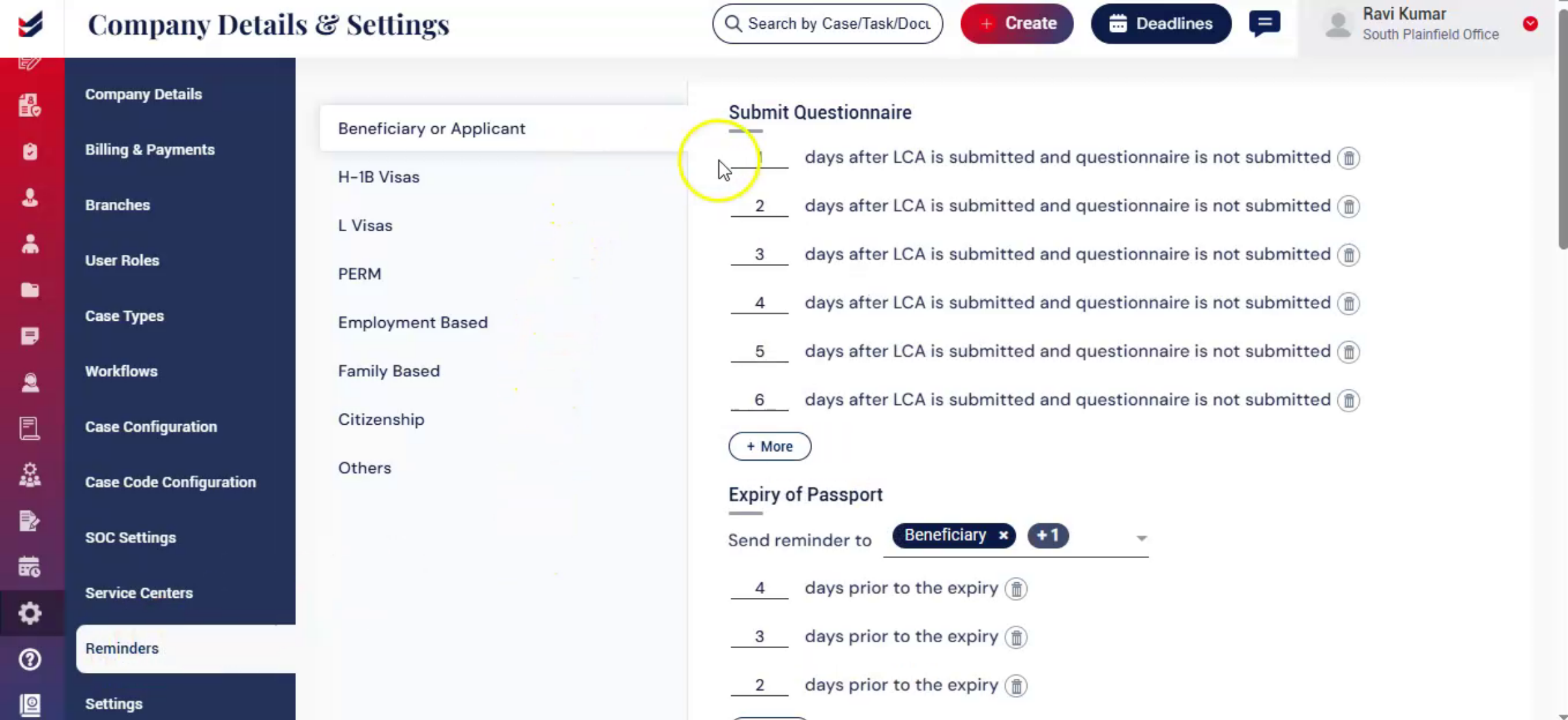
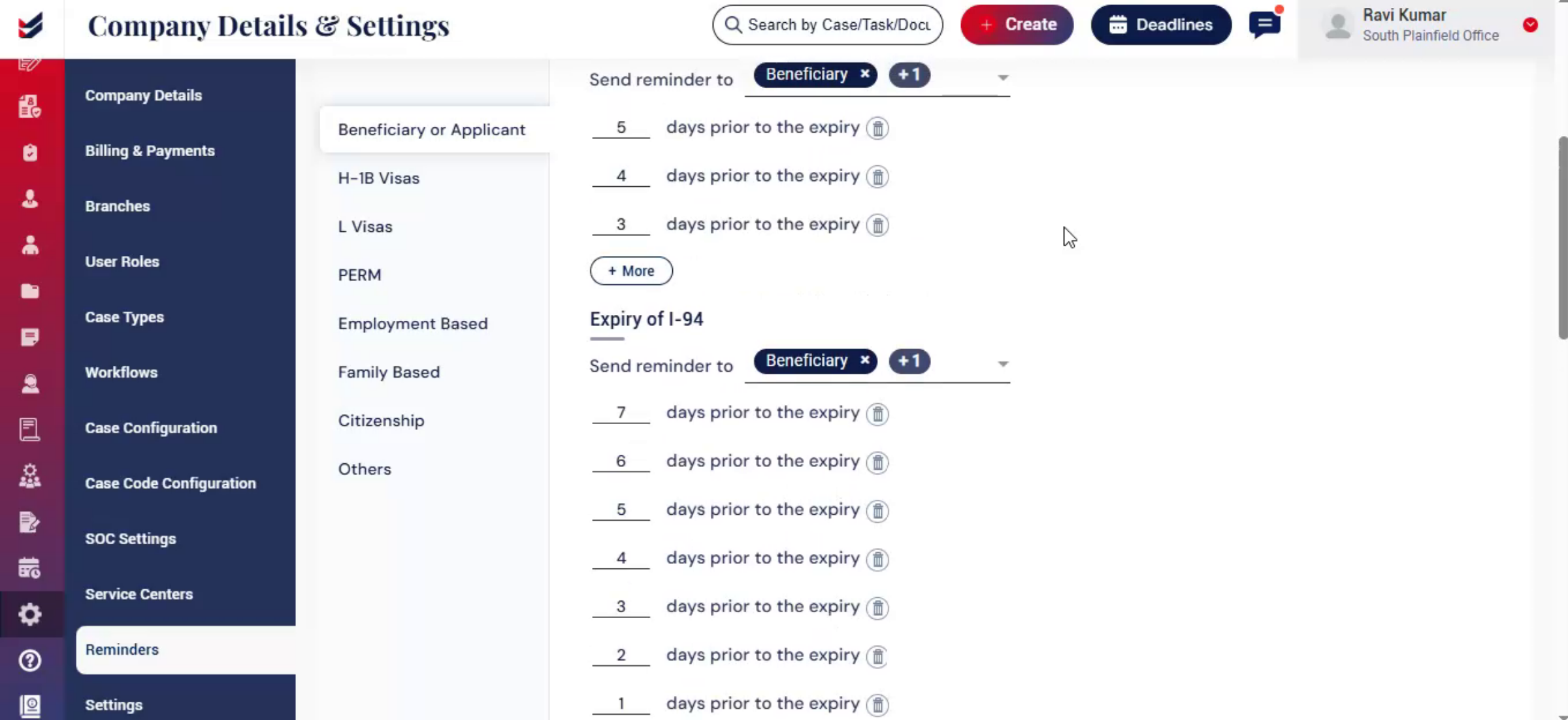
On the left-hand side, you'll find different reminder categories such as Beneficiary or Applicant, H-1B Visas, PERM, and more.
Selecting a category will display configured reminders on the right-hand side.
4. Configuring Reminders
 * click the image to view enlarged
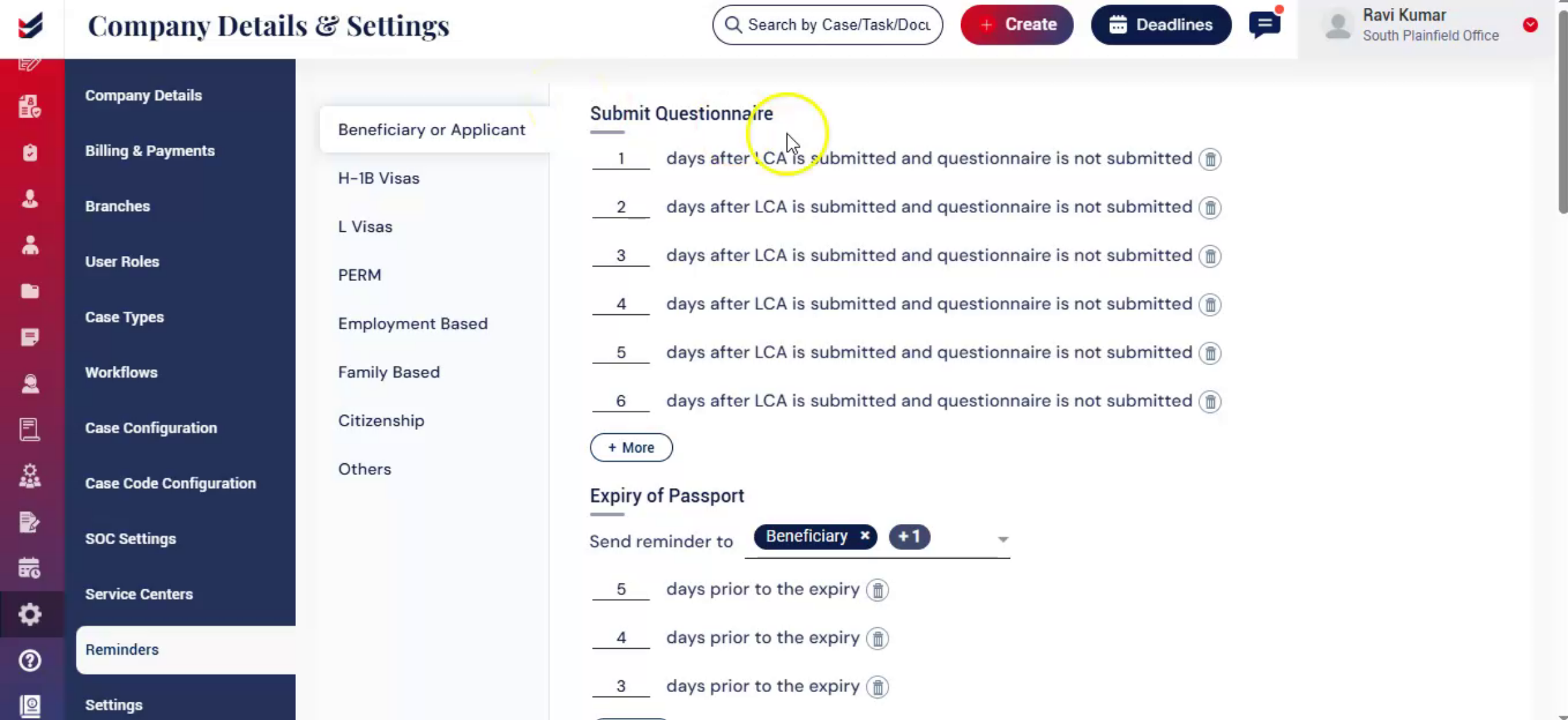
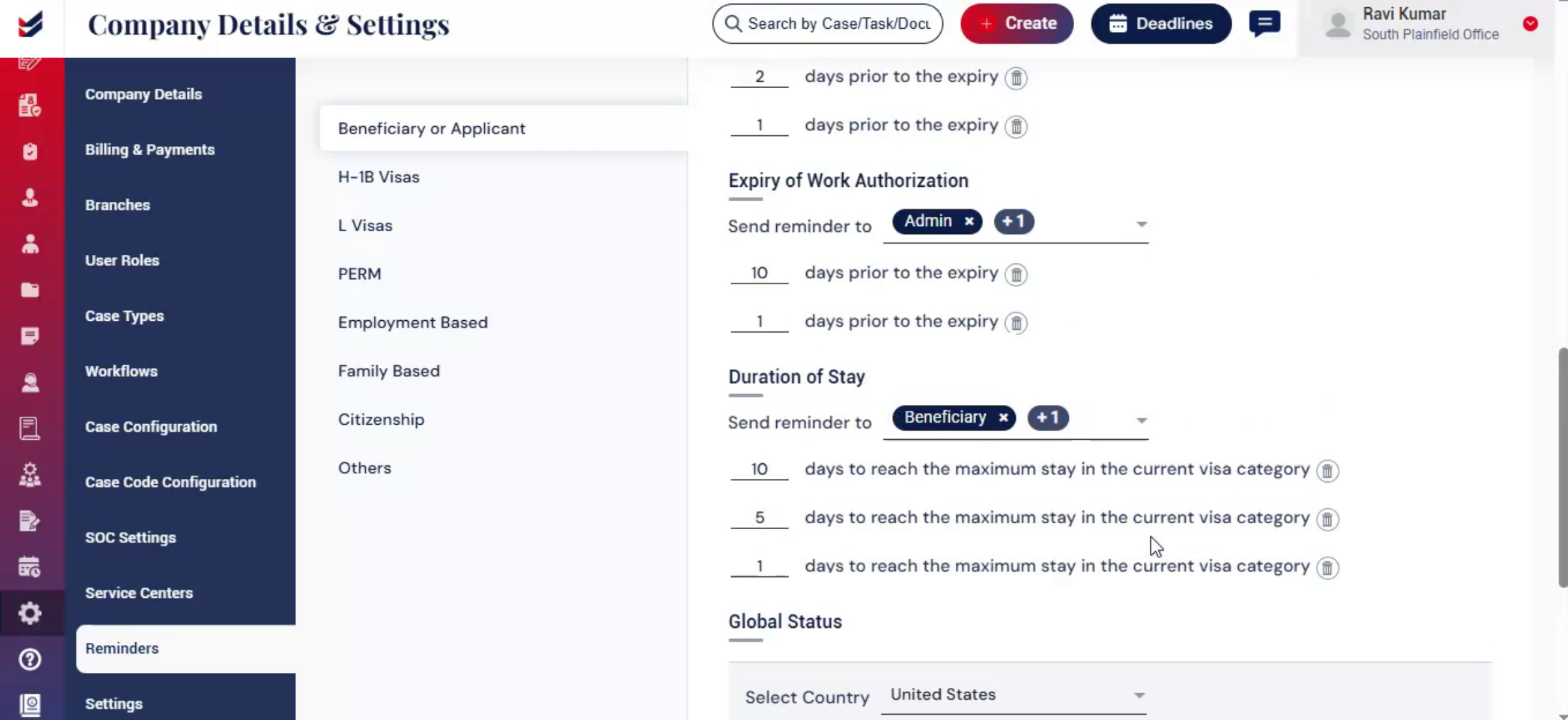
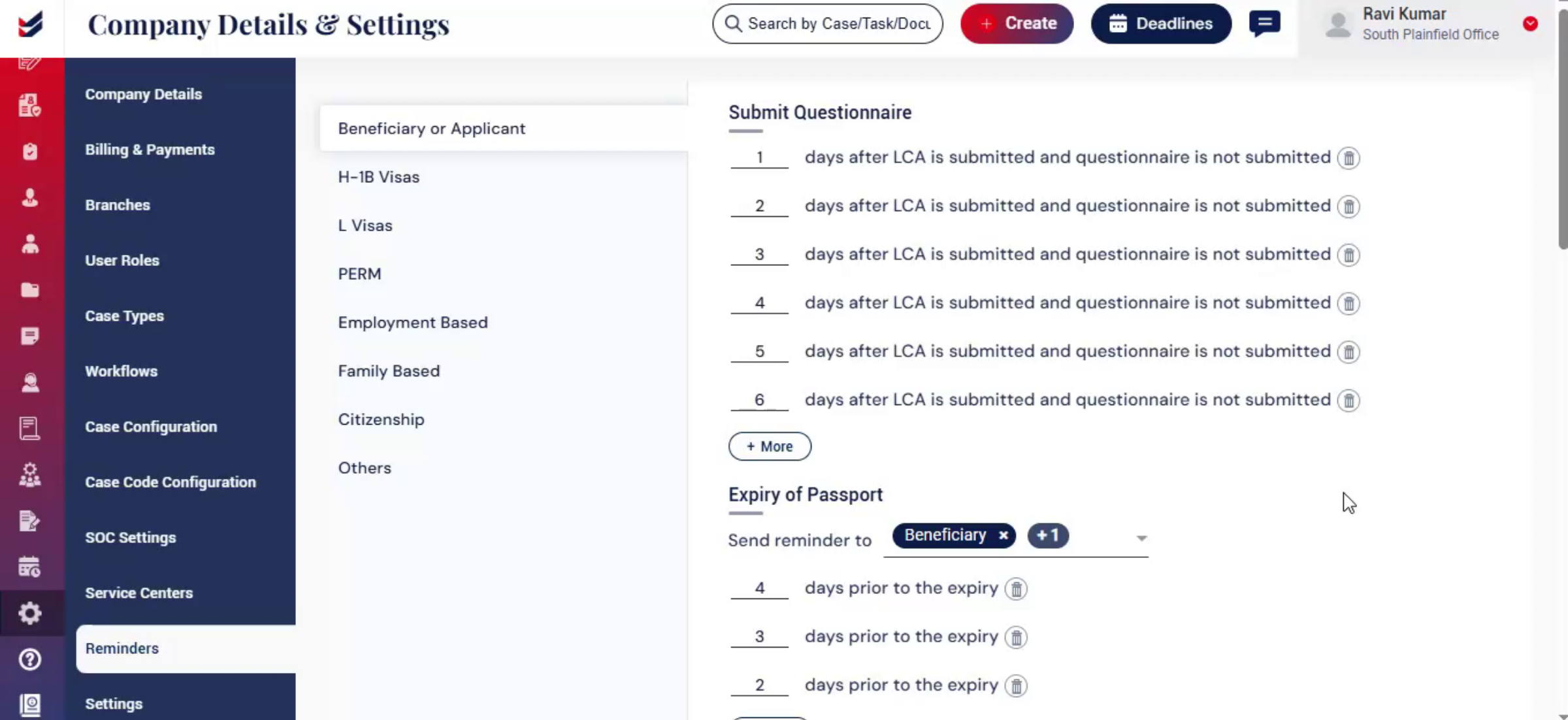
ImmiBox provides the default reminder settings based on common industry practices, helping you get started quickly without manual setup.
You can easily customize these settings by updating: Reminder frequency, Number of reminders, Recipient details.
Within each category, you can define reminder intervals in days based on specific events.
Use the "Plus More" option to add additional reminder intervals as needed.
This will allow ImmiBox to send multiple reminders for the same activity.
While configuring the reminders, you can choose the recipients who should receive reminder notifications.
The recipients can be more than one depending on the nature of the reminder.
5. Global Status Reminder
 * click the image to view enlarged
ImmiBox also helps manage Beneficiary's Visa or Status of other countries they may have. Please review a separate article on how to manage 'Global Status' from the link below.
You can configure these reminders by selecting the country and defining the number of days prior to the expiry. Once configured, the reminder settings will automatically apply to all Beneficiaries associated with that specific country and global status.
6. Save Edit Reminder
 * click the image to view enlarged
You can add, modify, or remove reminder intervals at any time.
After making changes, click Update to save the configuration.
Once configured, reminders are automatically triggered based on the defined conditions.
7. Conclusion
 * click the image to view enlarged
Reminder automation helps streamline follow-ups and ensures that important tasks and deadlines are never missed.

