


Support Ticket Management in ImmiBox
Overview
Welcome! Today, we'll learn how to create, submit, and track support tickets in ImmiBox to resolve technical or operational issues efficiently.
1. Introduction
 * click the image to view enlarged
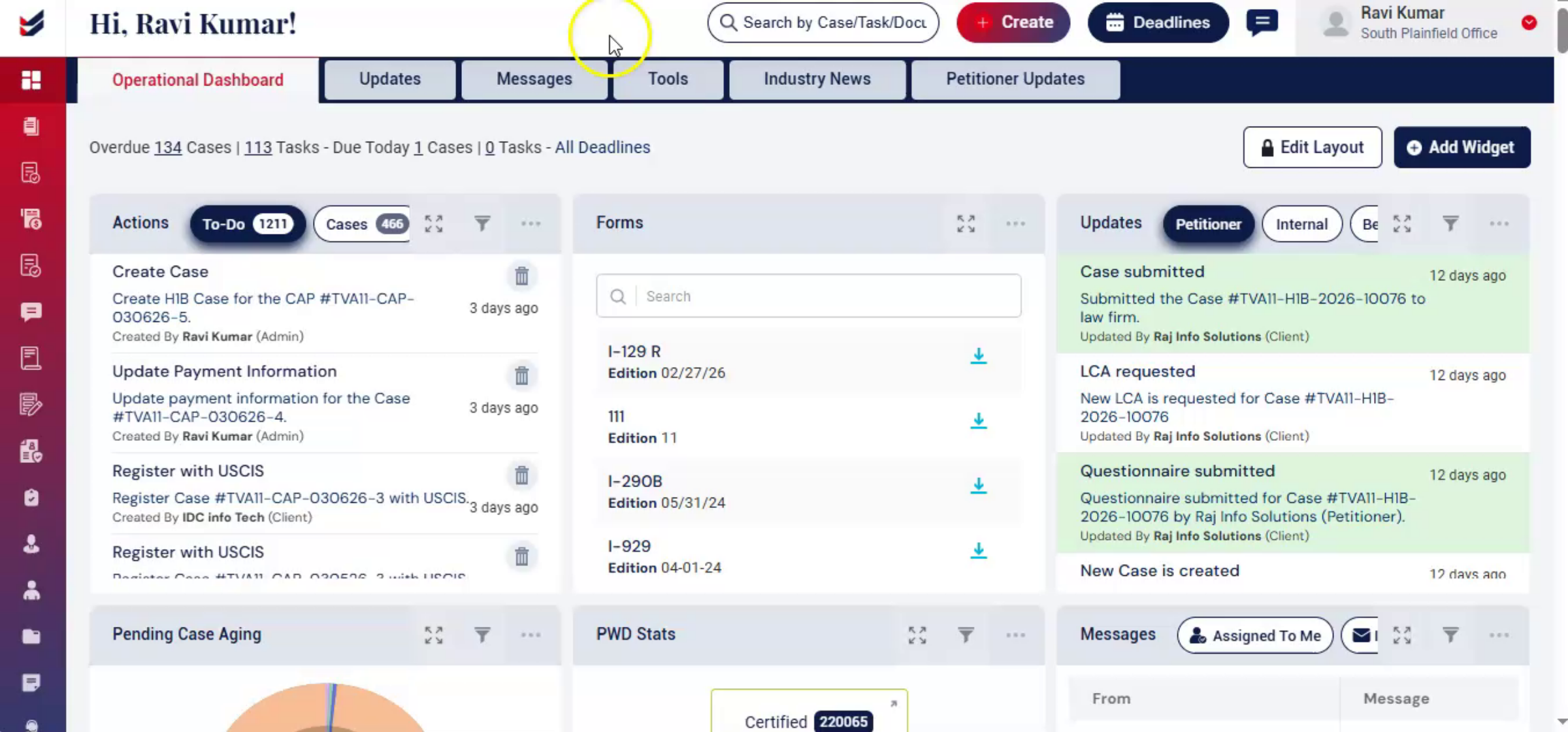
ImmiBox provides a Support System that allows users to report any technical or operational issues directly through the portal.
By submitting a support ticket, users can track issues, collaborate with relevant teams, and receive updates until the problem is resolved.
2. Access the Support Section
 * click the image to view enlarged
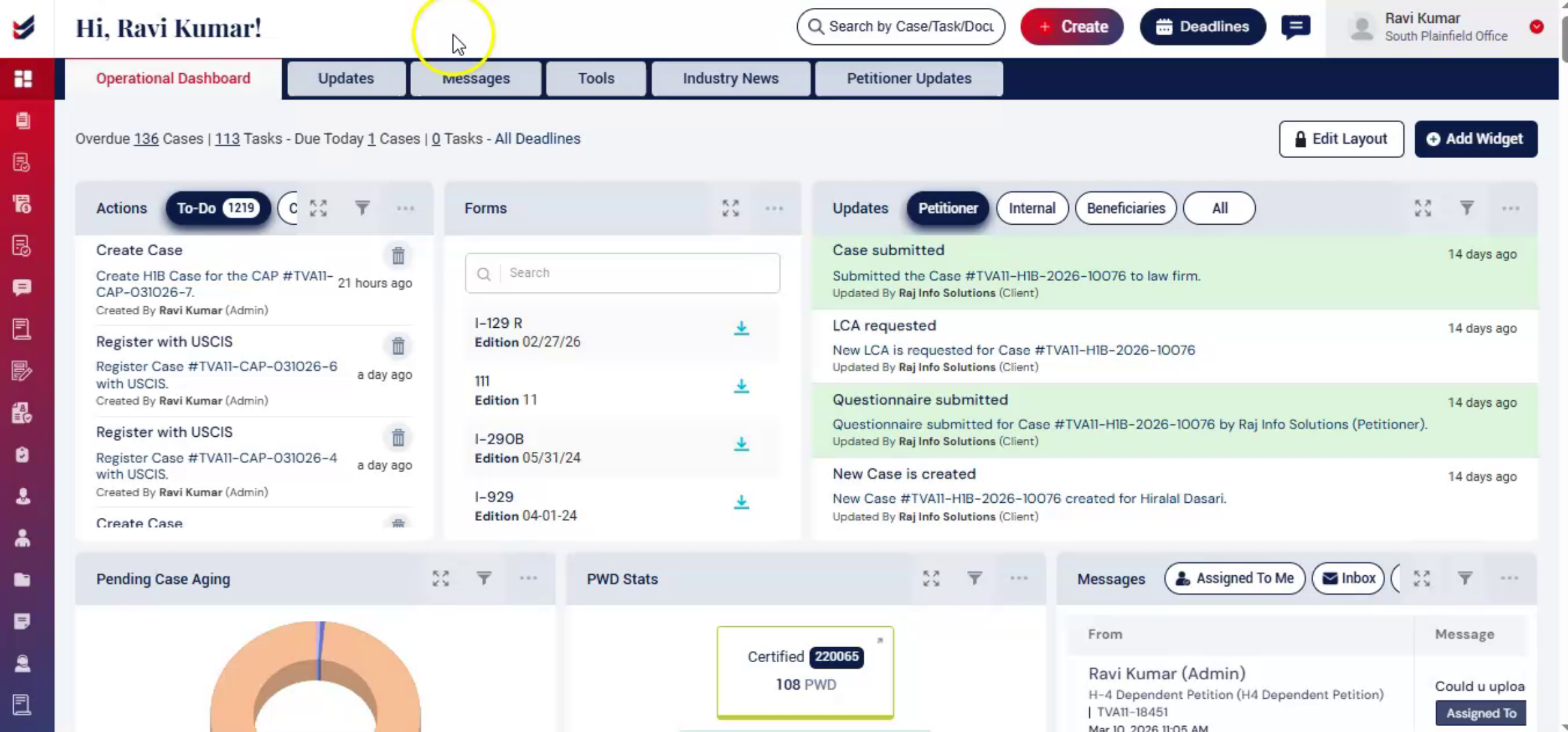
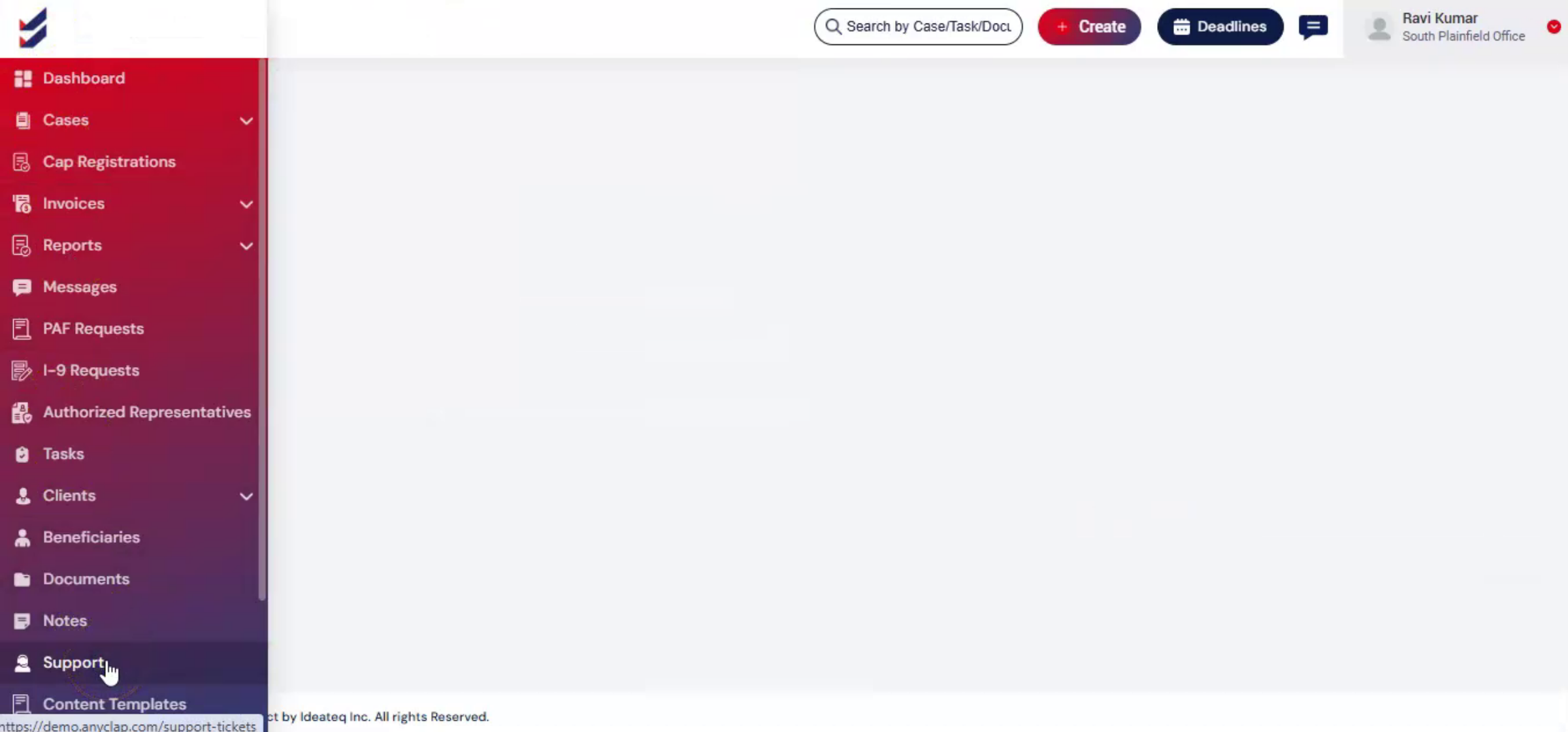
To begin, from the Dashboard navigate to left menu and select Support section.
3. Support Section
 * click the image to view enlarged
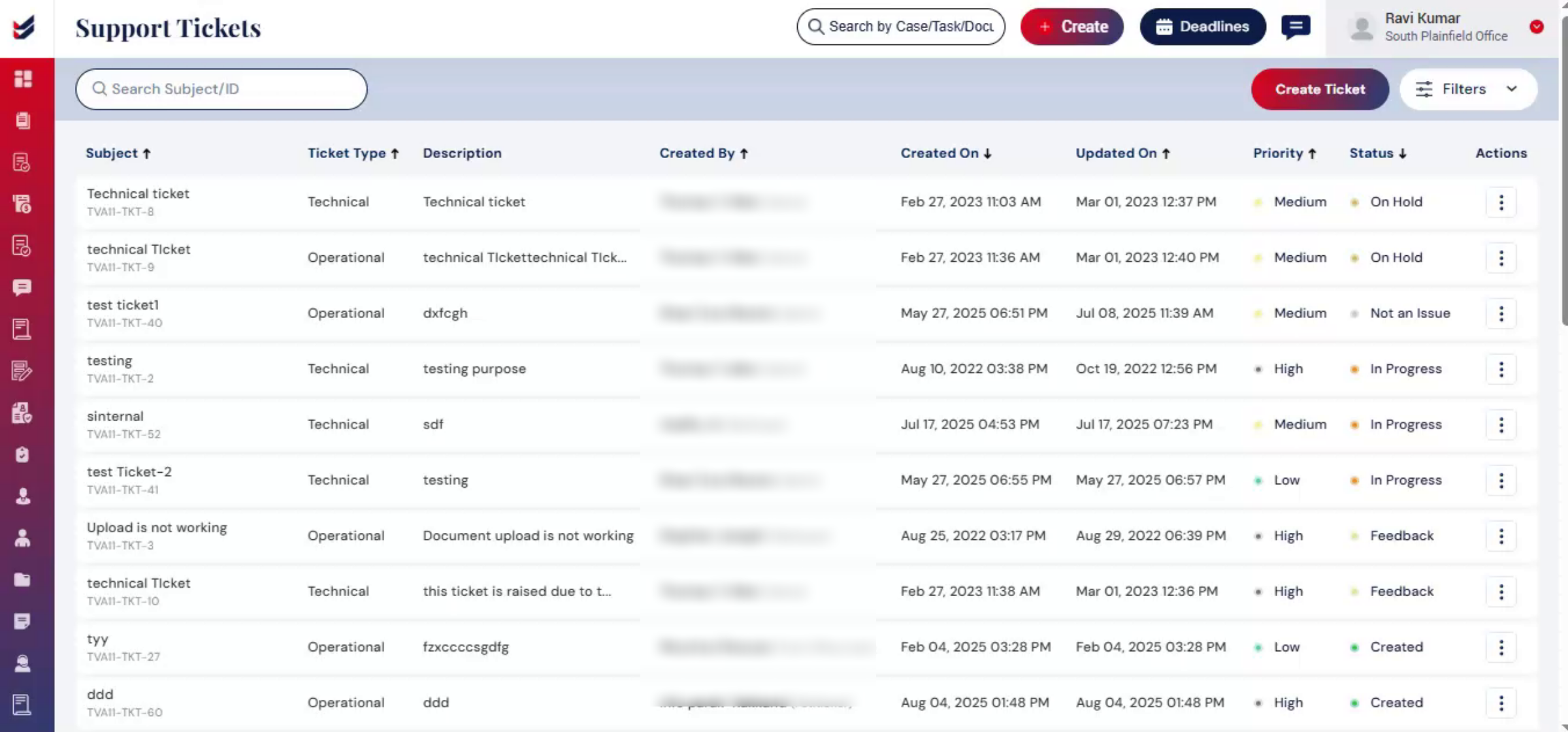
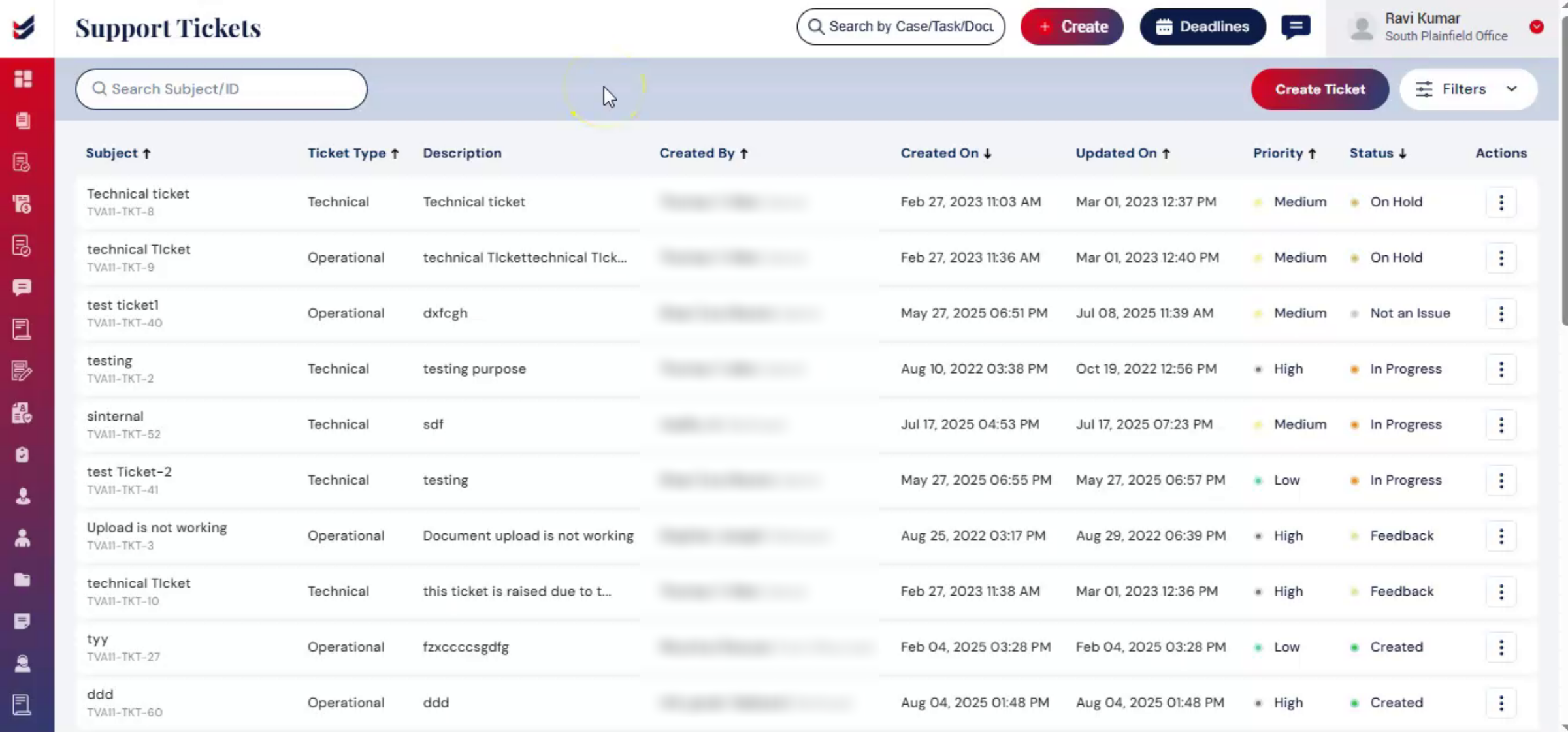
You will be redirected to Support page, where you can view a list of all existing tickets along with their details. At the top, you will see a Search option that allows you to find tickets using the Ticket ID or Subject. Below, the ticket list displays information like subject, ticket type, description, created by, created on, updated on, priority, status, and actions. In the Actions column, you will see vertical ellipsis icon, which indicate additional options for that ticket. Clicking on it will redirect you to the Ticket Details page, where you can view the complete information and edit the ticket.
4. How to Create Support Ticket
 * click the image to view enlarged
To report a new issue, click Create Ticket. Alternatively, click Create and select Support Ticket.
5. Create a Support Ticket
 * click the image to view enlarged
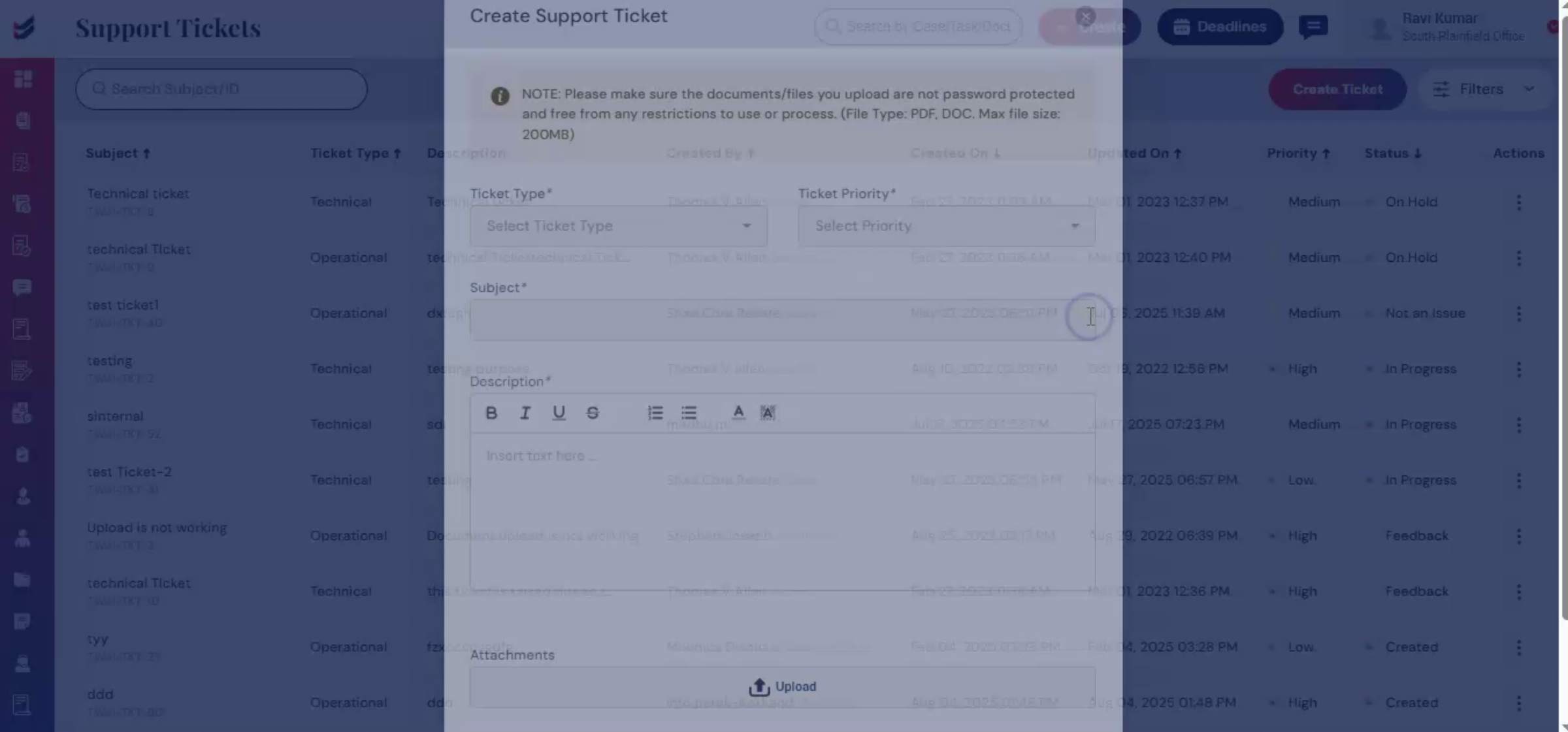
Create Support Ticket dialog box will appear. Select the Ticket Type from the dropdown menu. Technical tickets are used for issues related to the system, server, or portal functionality. Operational tickets are used for questions or clarifications regarding rules, documentation, or intake processes. Next, select the Ticket Priority.
Enter a brief summary in the Subject field.
Provide a detailed explanation of the issue in the Description section. Upload attachments in the upload section.
Once all details are entered, click Save to submit the ticket.
6. Track Tickets
 * click the image to view enlarged
By default, the Support page displays a list of all available tickets along with a brief description. You can use the Filters option at the top right to sort tickets by status, date, or other criteria. Clicking on a ticket will open the Ticket Details page,
7. Manage Tickets
 * click the image to view enlarged
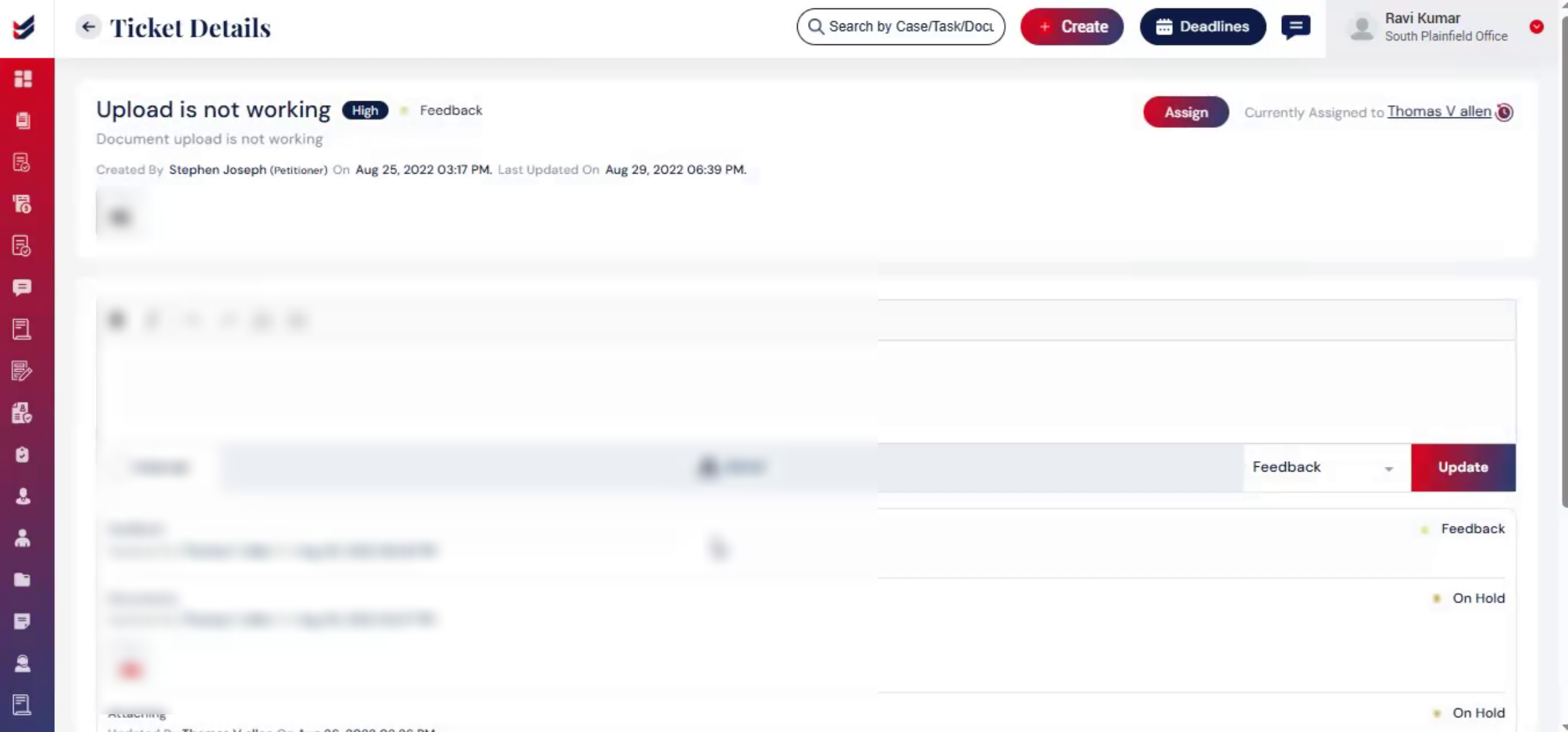
Here you can view updates, comments, and activities related to that issue. For Operational tickets, users can assign the ticket to internal team members within the law firm. Tickets marked as Technical are usually handled by the ImmiBox Tech Support Team. Updates and comments from different users will appear in chronological order within the ticket. Both the ticket creator and responders can update the ticket status and add comments until the ticket is marked as closed. Please note that the original ticket description can only be edited while the status is set to created. Once the status changes, the original content can no longer be modified.
8. Conclusion
 * click the image to view enlarged
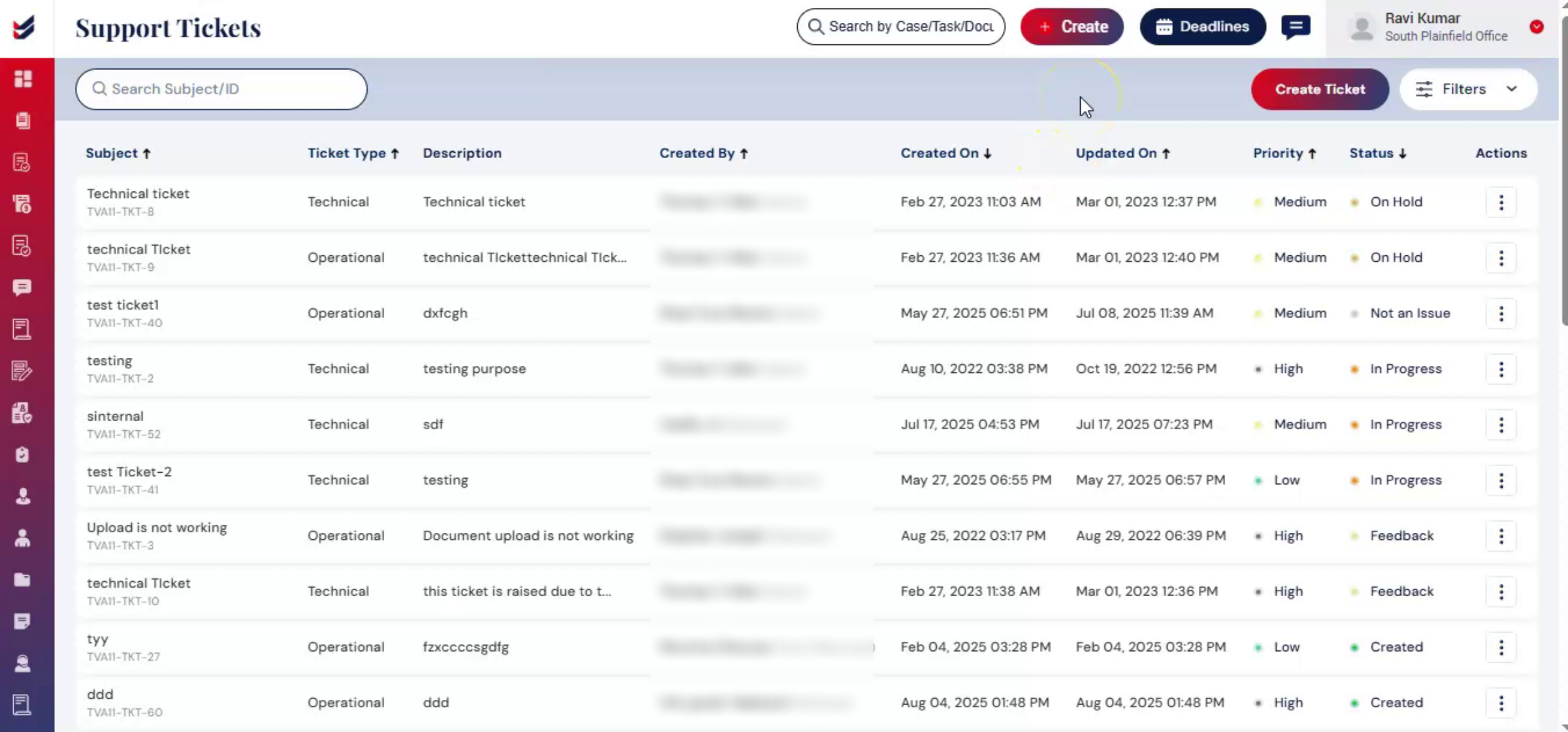
Using the Support Ticket module, users can efficiently report issues, track progress, and collaborate with the appropriate teams for resolution.
With clear status updates, comments, and attachments recorded within each ticket, ImmiBox ensures transparency and organized issue management throughout the process.

