


Configure Forms and Letters for Case Type
Overview
Welcome! In this video, you will learn how administrators can configure the required Forms and Letters for each Case Type and Subtype.
1. Introduction
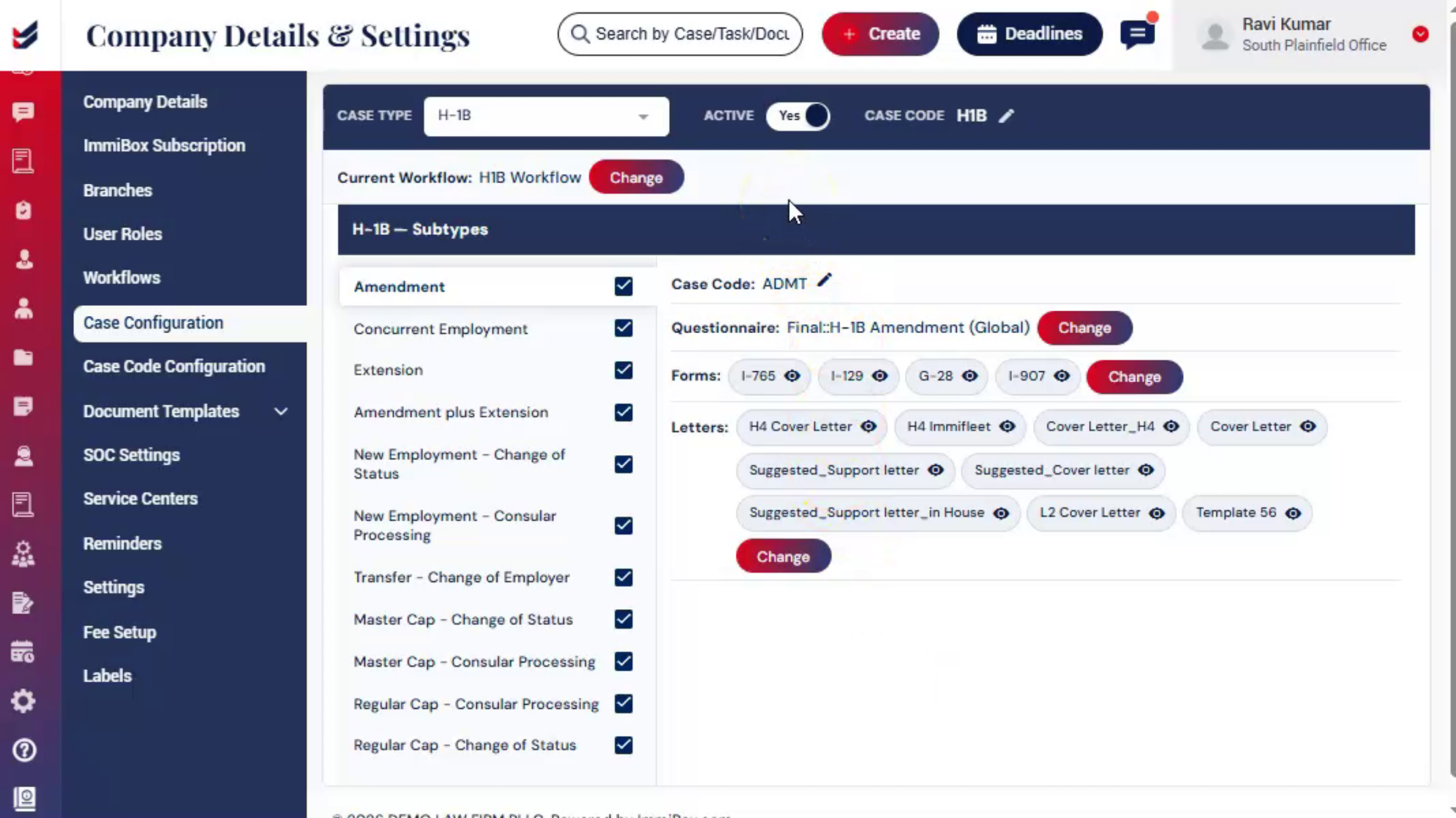 * click the image to view enlarged
ImmiBox allows administrators to configure Forms, Letters, Questionnaires, and Workflows for each Case Type and Subtype, ensuring the required documents and processes are available during case processing.
2. Access Case Configuration
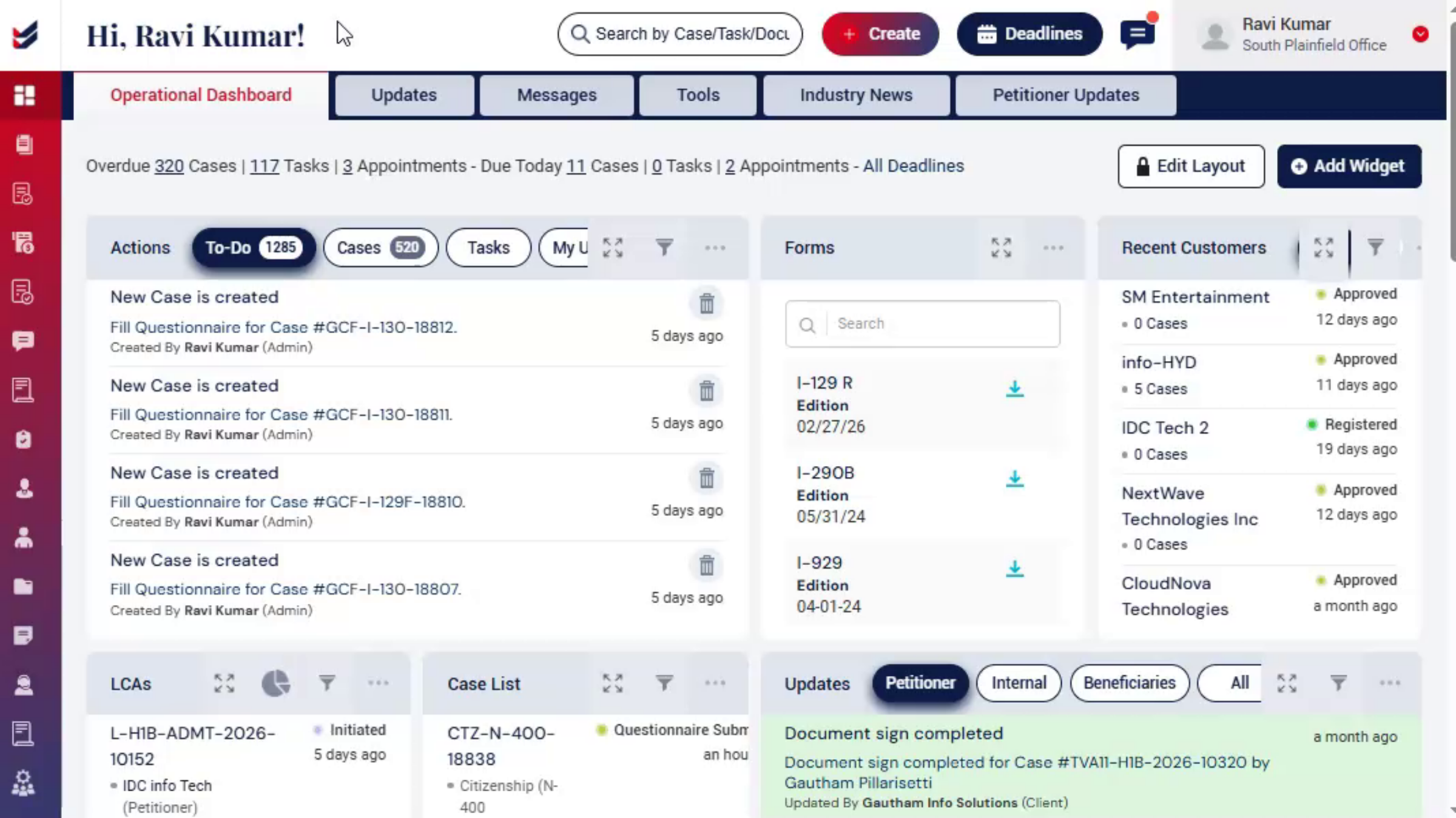 * click the image to view enlarged
From the Dashboard, navigate to the left panel and click Administrator, then select Settings.
From the submenu, choose Case Configuration.
Once the page loads, select the Case Type and Subtype.
The Forms & Letters section becomes visible based on the selected case type and subtype.
3. Forms and Letters in ImmiBox
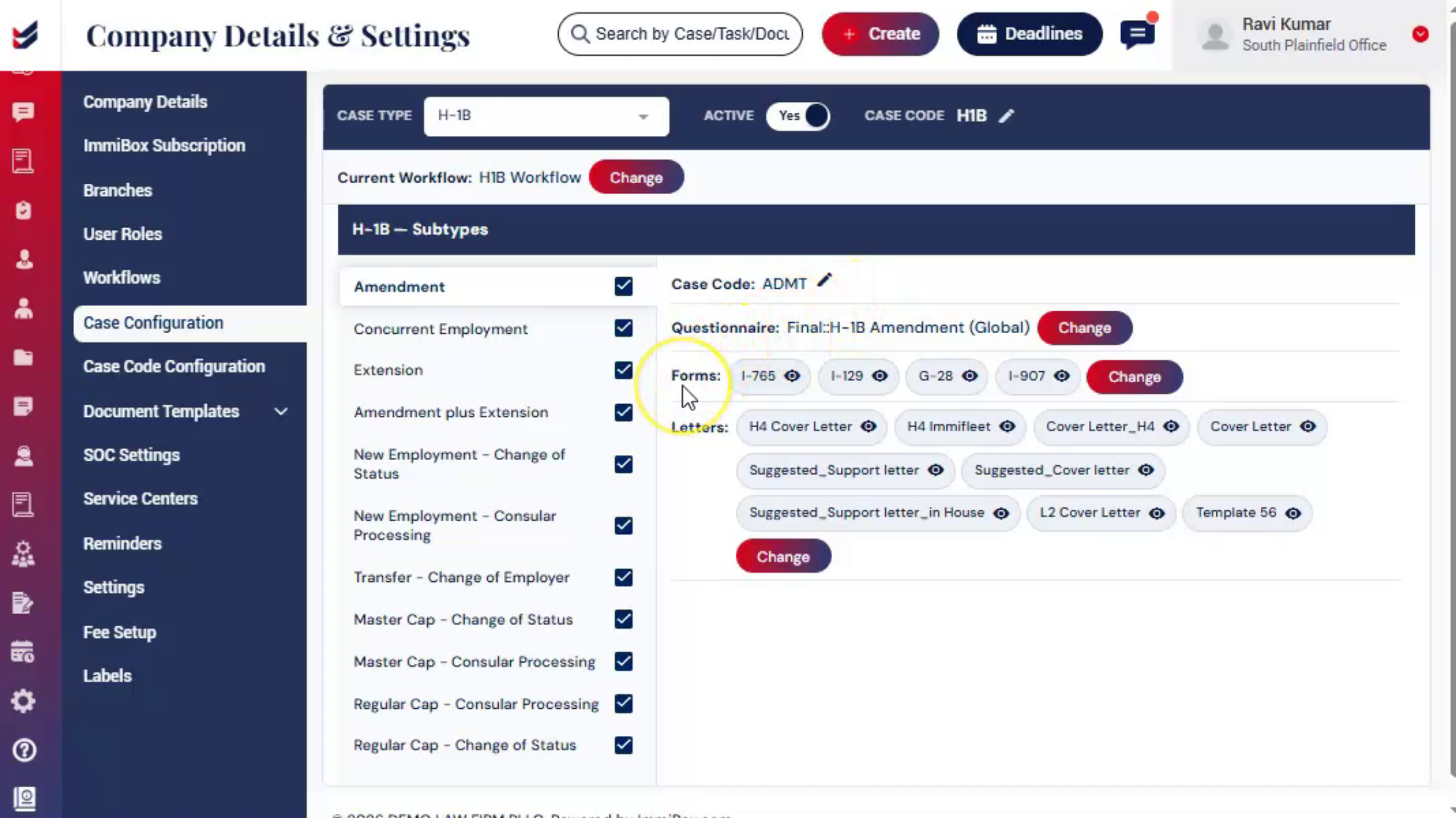 * click the image to view enlarged
Users can view all available Forms and Letters related to the selected Case Type and Subtype.
ImmiBox provides case-related Forms and Letters in a structured order aligned with USCIS requirements.
If needed, users can edit existing templates or add new ones based on their requirements.
4. Edit Forms and Letters
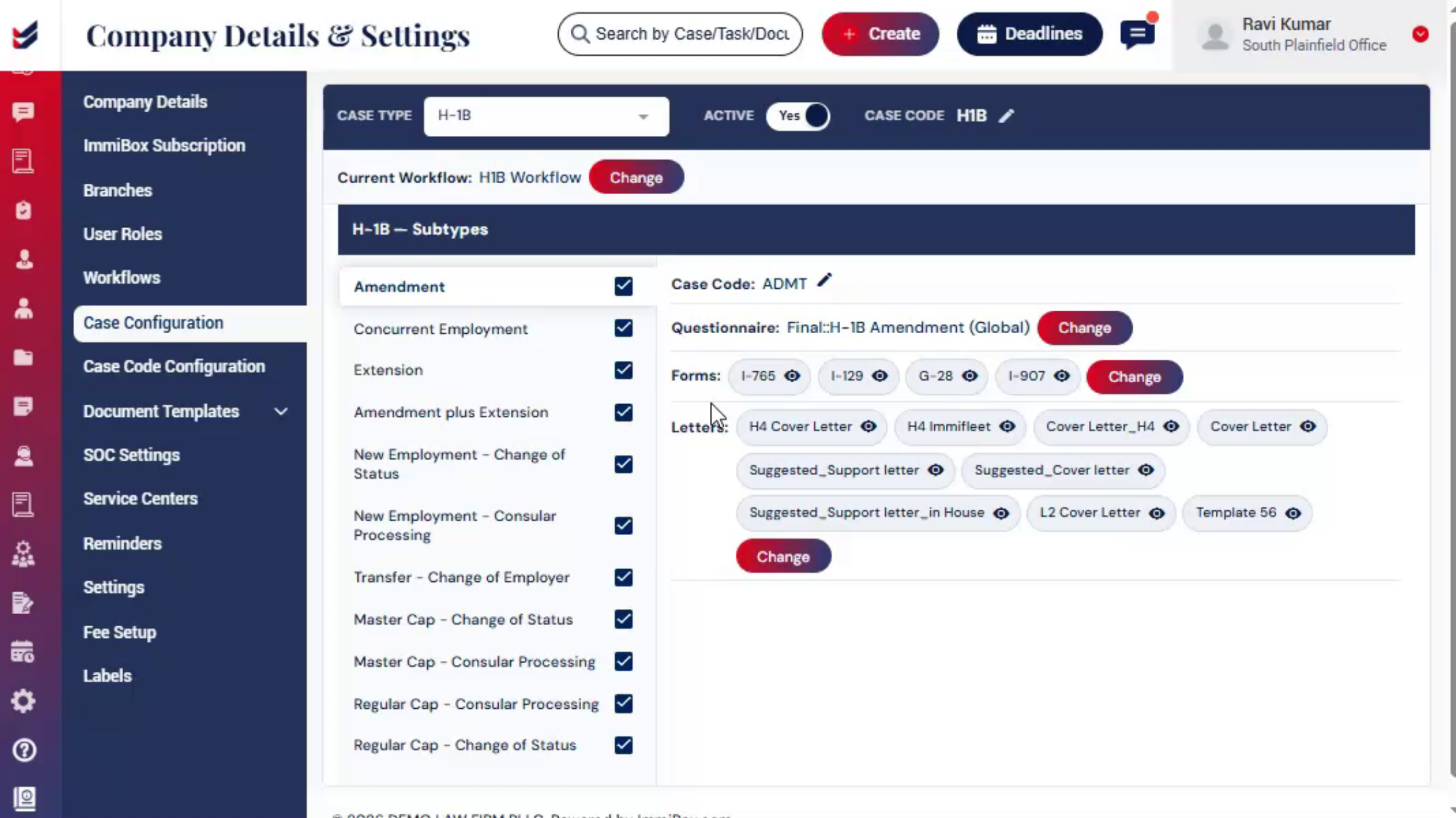 * click the image to view enlarged
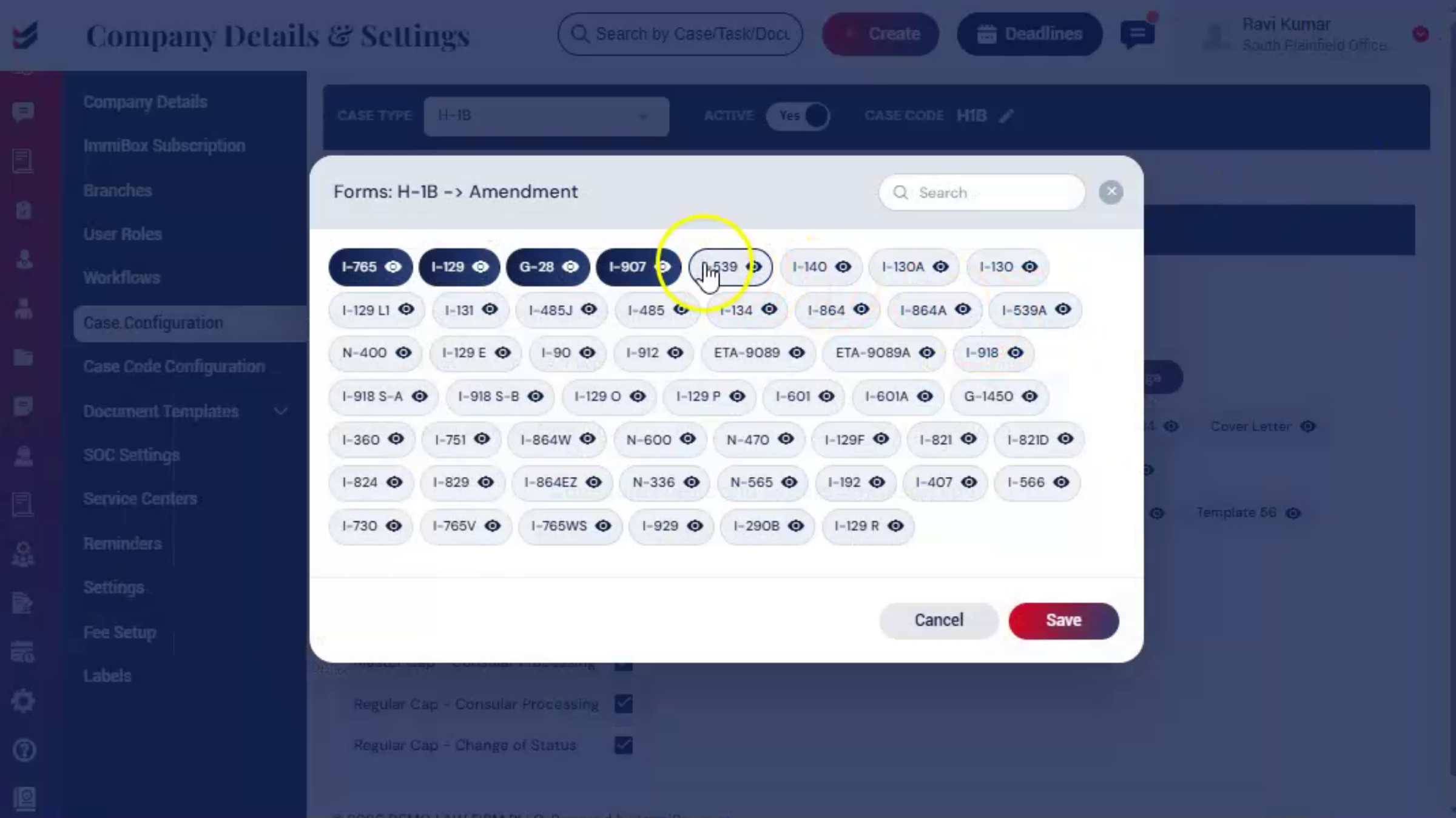
To add Forms or Letters to a specific Case Type and Subtype, click Change and select the required documents from the list.
Beside each template, click the Preview option to view the document on the screen.
The document can be downloaded using the Download option if required.
5. Save the configuration
 * click the image to view enlarged
Once you have selected the required documents, click Save.
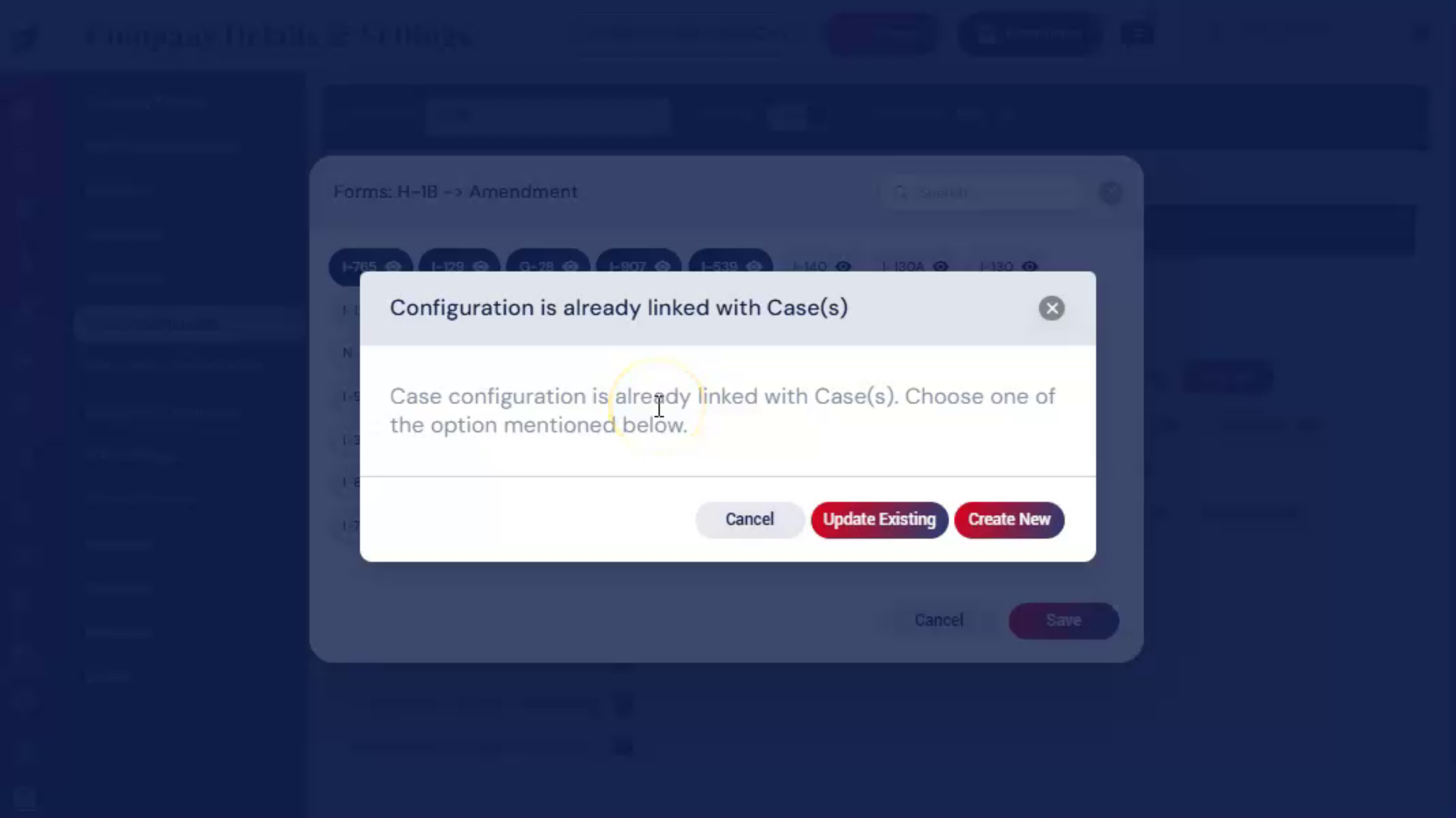
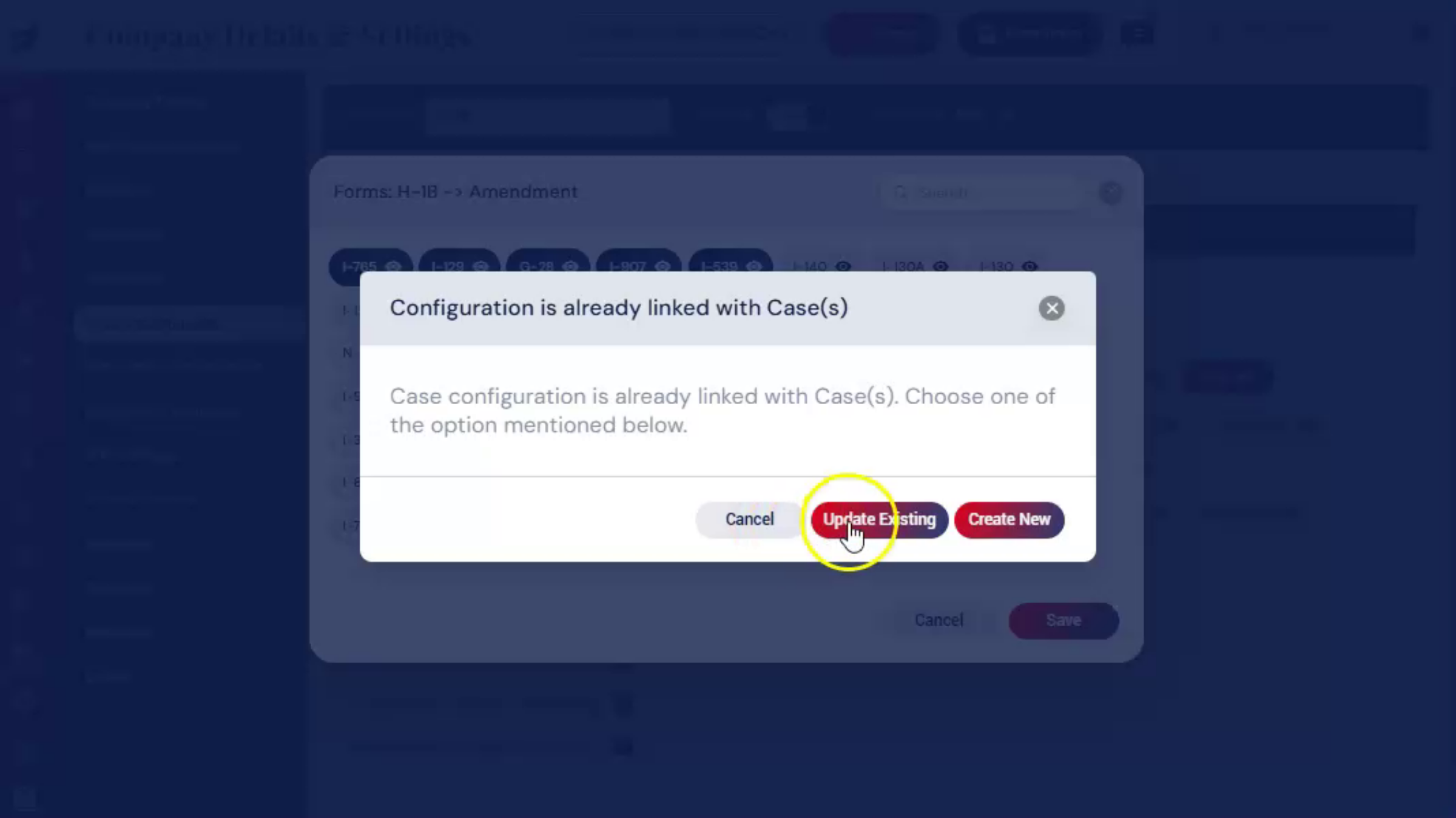
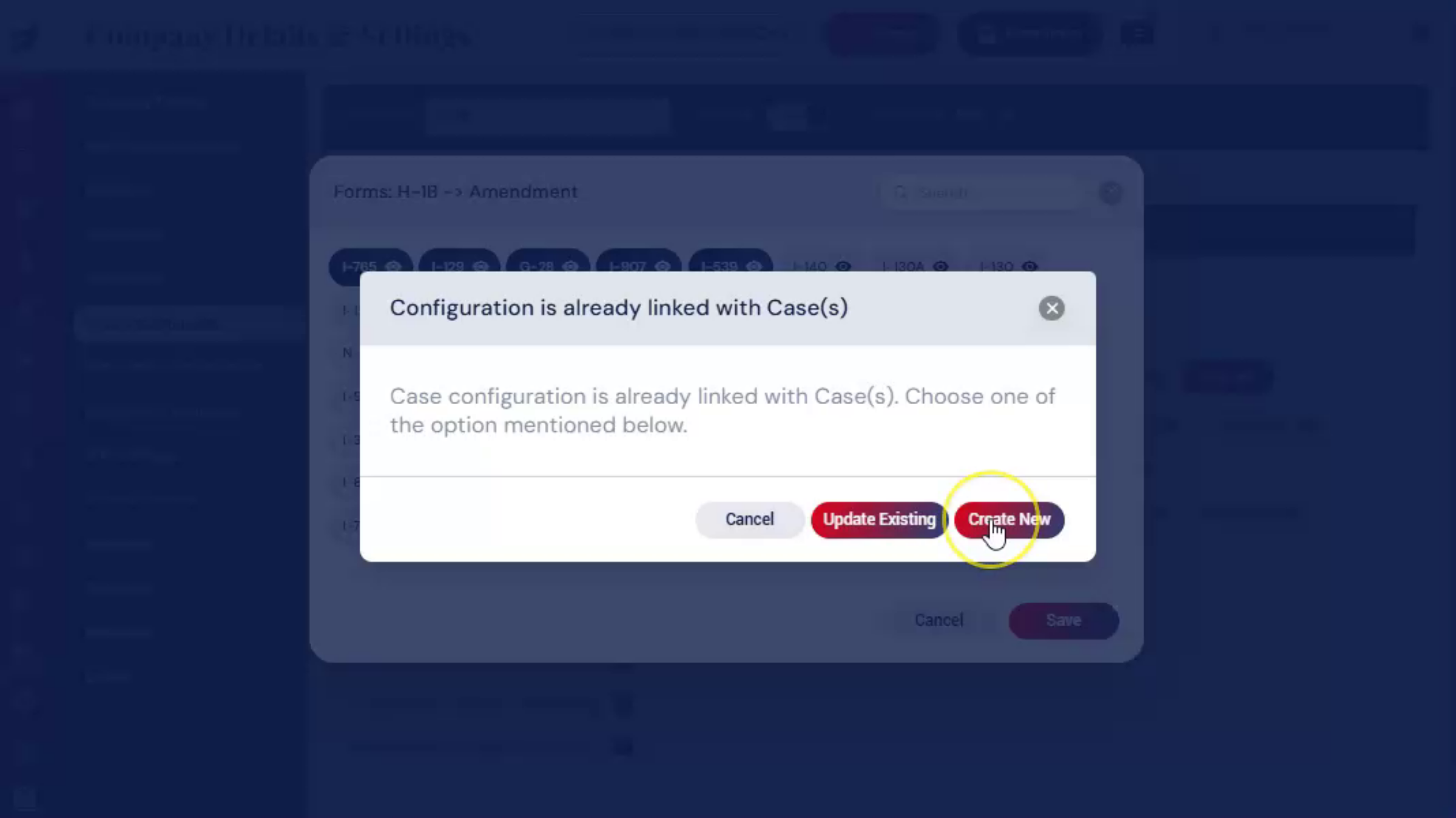
Then a dialog box will appear.
Select one of the following options:
6. Cancel Option
 * click the image to view enlarged
Cancel – Select this option if you do not want to make any changes.
7. Update Existing Option
 * click the image to view enlarged
Update Existing – Select this option to apply the updated Forms or Letters configuration to the existing case configuration.
8. Create New Option
 * click the image to view enlarged
Create New – Select this option to create a new case configuration with the updated Forms or Letters configuration while keeping the existing configuration unchanged.
9. Change Questionnaire
 * click the image to view enlarged
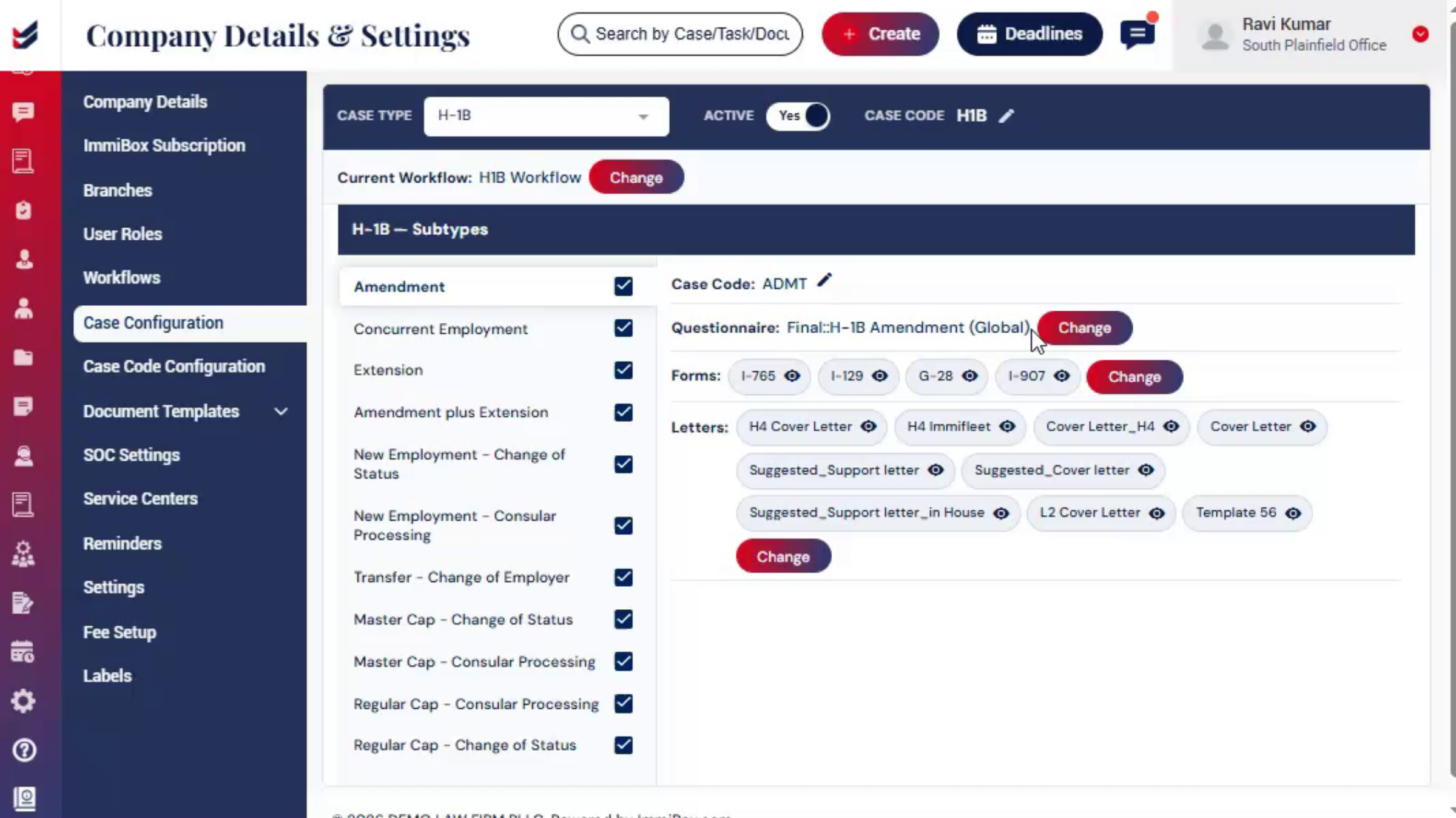
On the page, you can see the Change Questionnaire option at the top. This option is used to update the Questionnaire for the selected Case Type and Subtype.
Click Change Questionnaire, then select the required Questionnaire from the list. You can use the Preview option to review the questions.
Once selected, click Change. A dialog box will appear if the configuration is already linked to existing cases.
Choose Update Existing to apply changes to current and future cases, or
Create New to apply changes only to new cases.
For any queries, contact ImmiBox Helpdesk.
10. Change Workflow
 * click the image to view enlarged
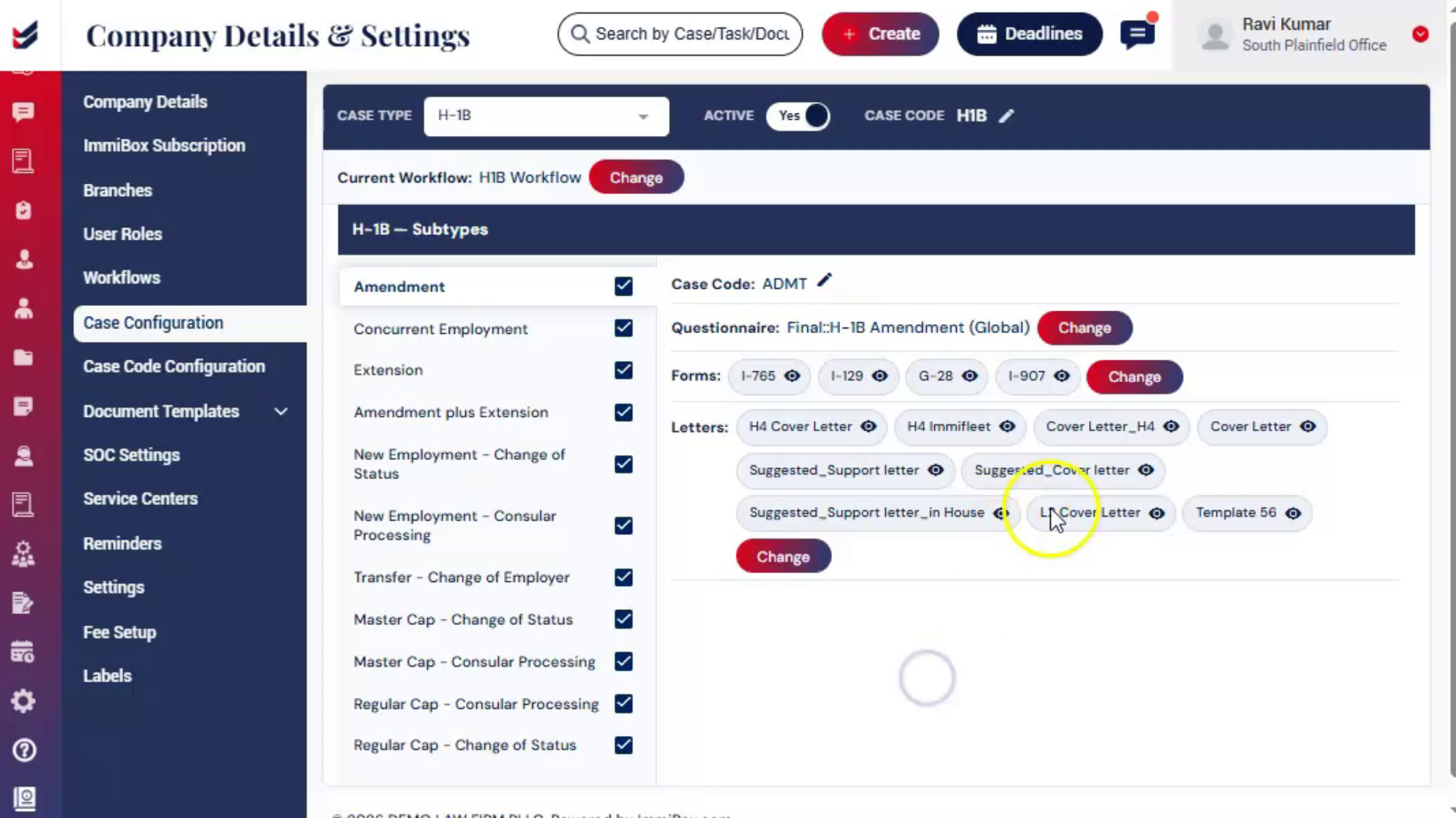
On the same page, you can see the Change Workflow option.
This option is used to update the workflow for the selected Case Type and Subtype.
Click Change to view all available workflows.
You can use the Preview option to review the selected workflow steps.
Once selected, click save to apply the updated workflow to the selected Case Type and Subtype.
11. Conclusion
 * click the image to view enlarged
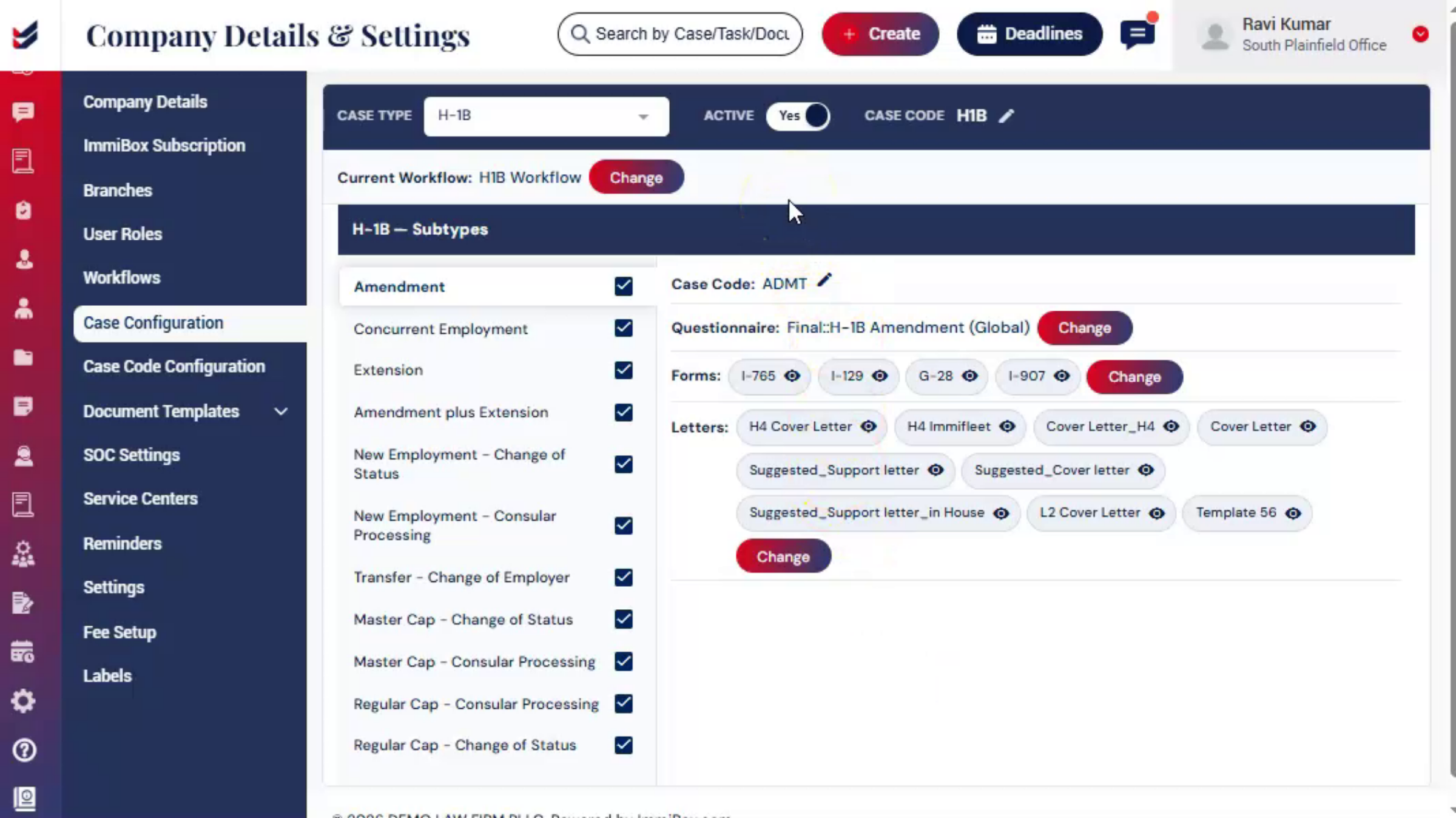
Proper configuration helps maintain a consistent and efficient case management process for both existing and new cases.

