


Fees Management in ImmiBox
Overview
Welcome! In this video, we will understand how to manage fee configurations in ImmiBox.
1. Introduction
 * click the image to view enlarged
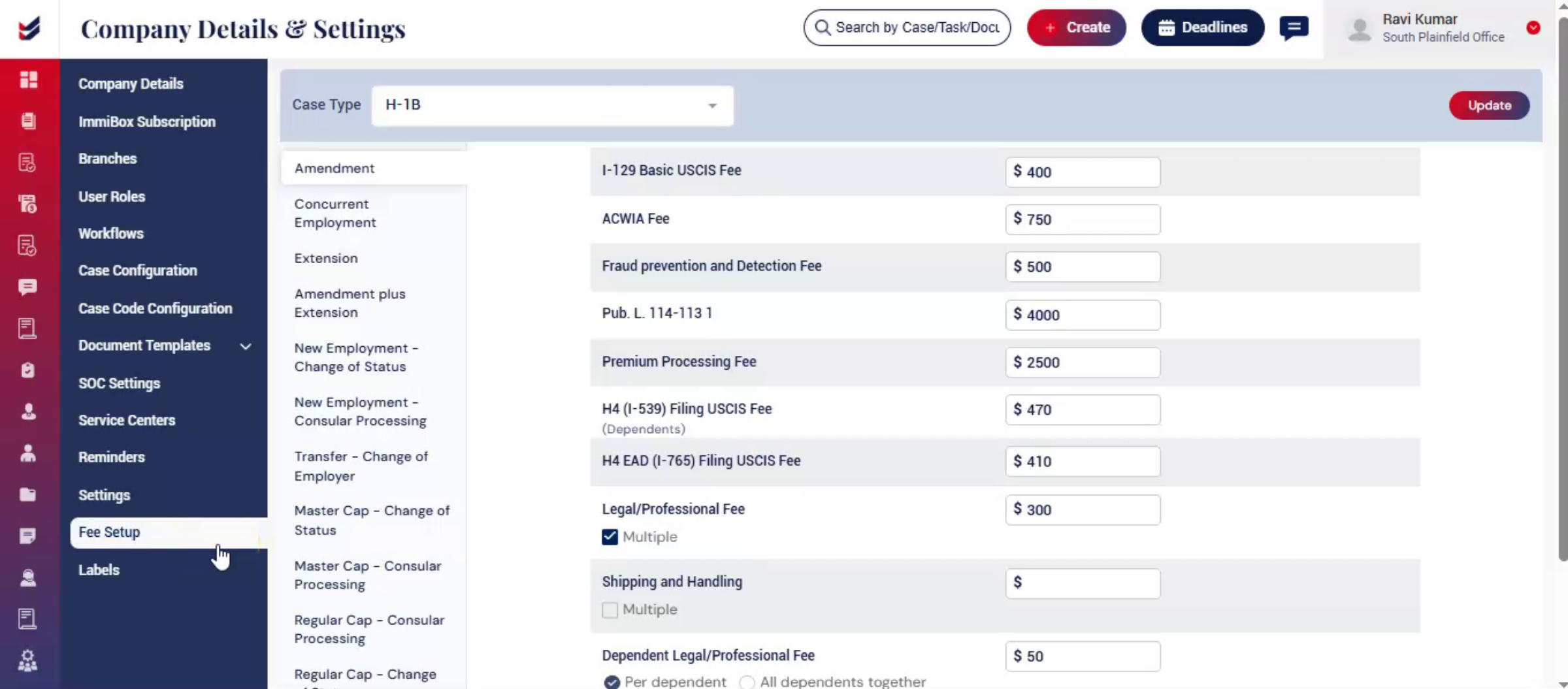
The fees module allows you to Define and manage fee structures for different case, types and other scenarios ensuring the flexibility for law firms to better manage their billing from a central point.
2. Access Fee Configuration
 * click the image to view enlarged
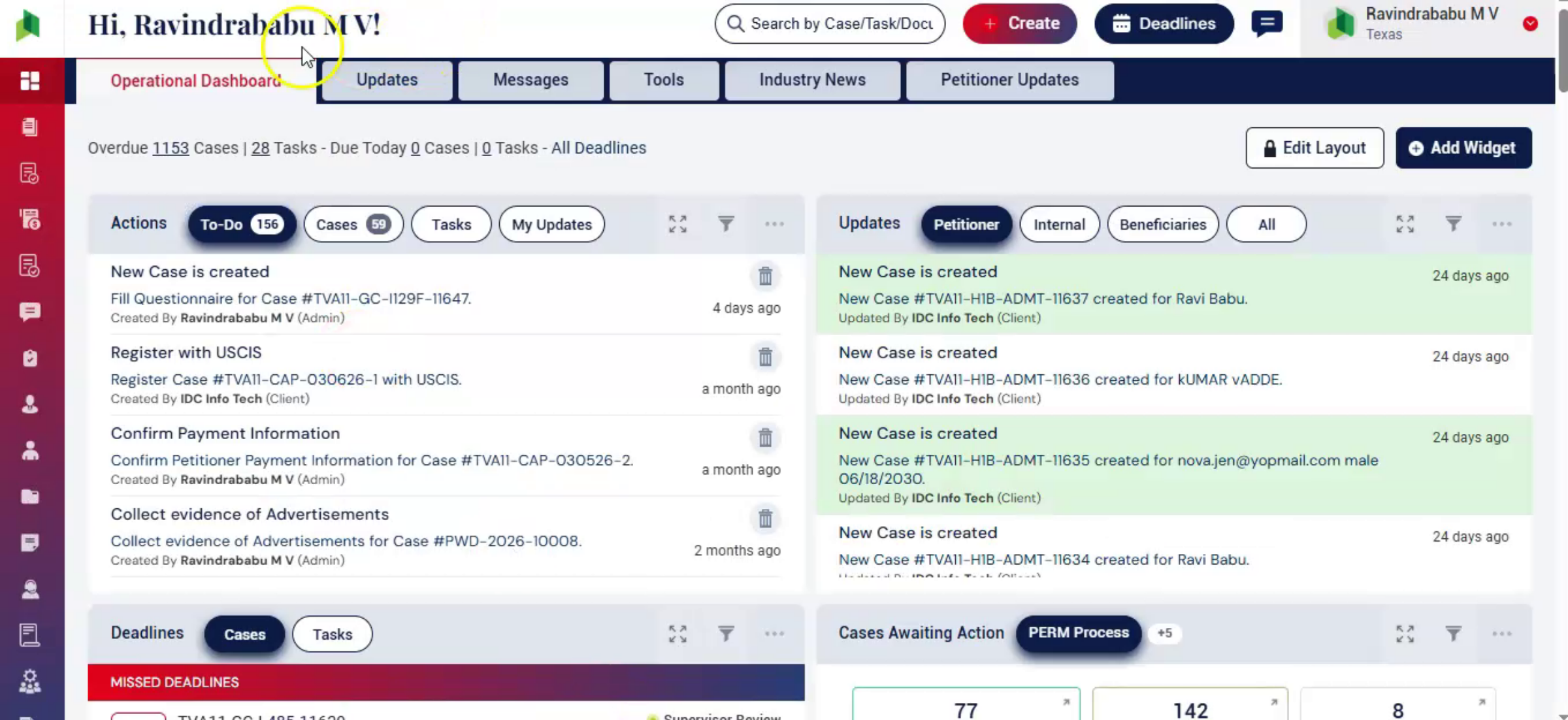
From the Dashboard, navigate to the Administration section.
Select Settings.
3. Fee Setup
 * click the image to view enlarged
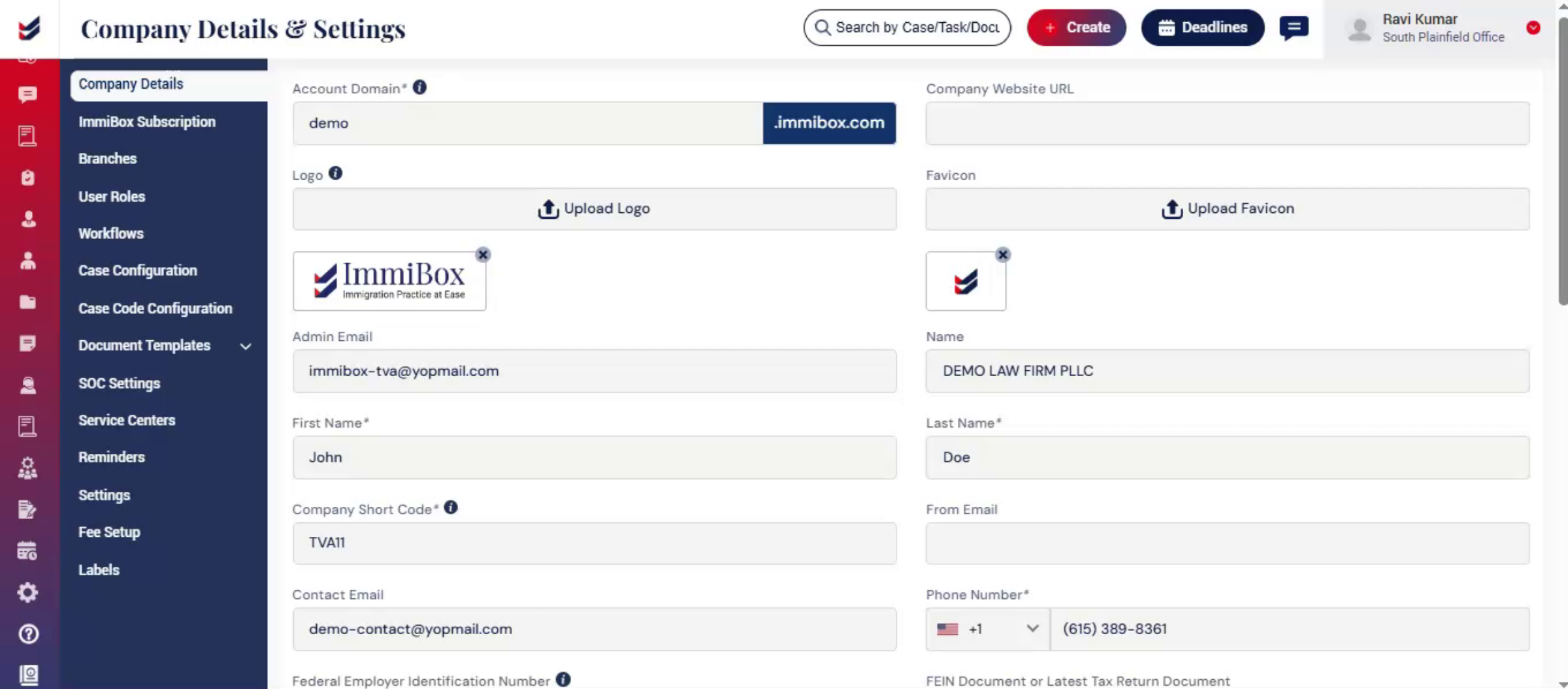
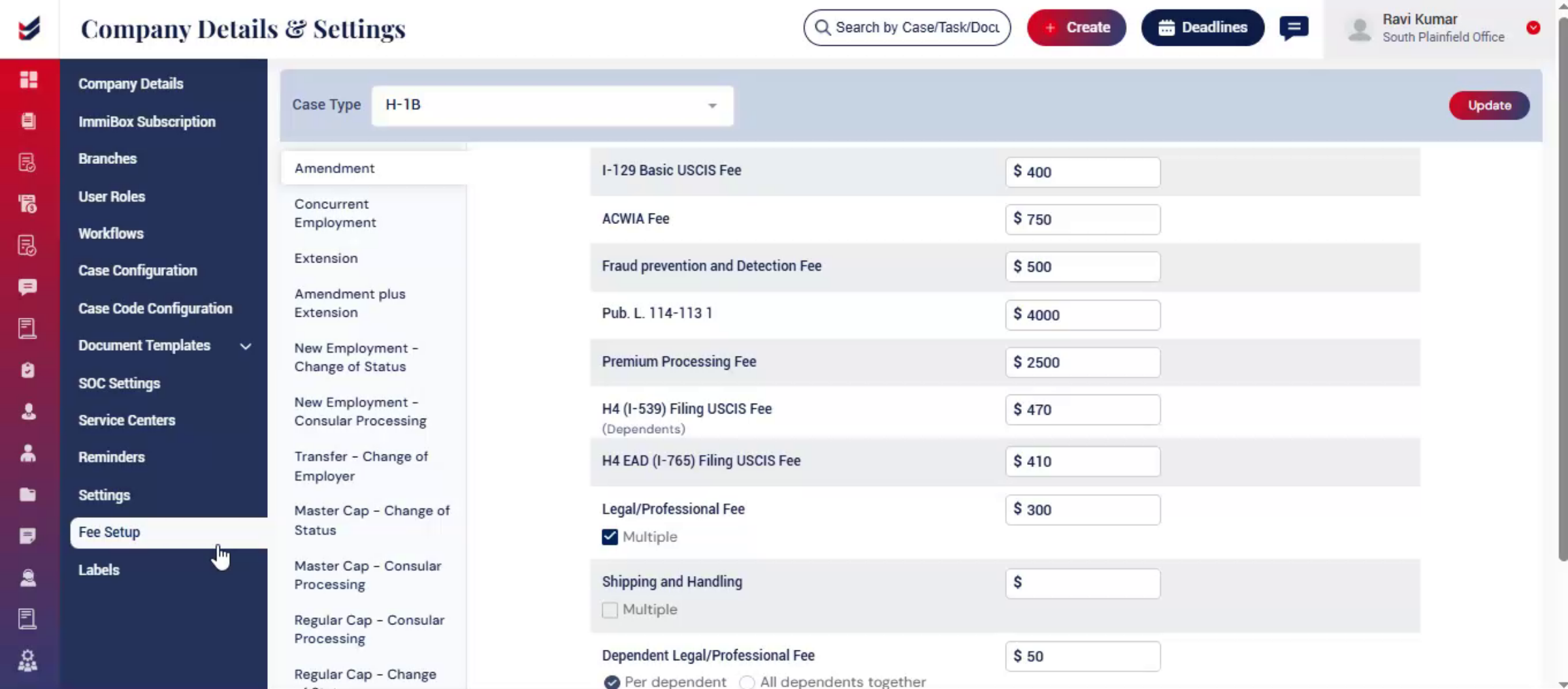
And from the left-hand menu, click Fees.
The Fees Management page will be displayed
4. Fees Configuration Overview
 * click the image to view enlarged
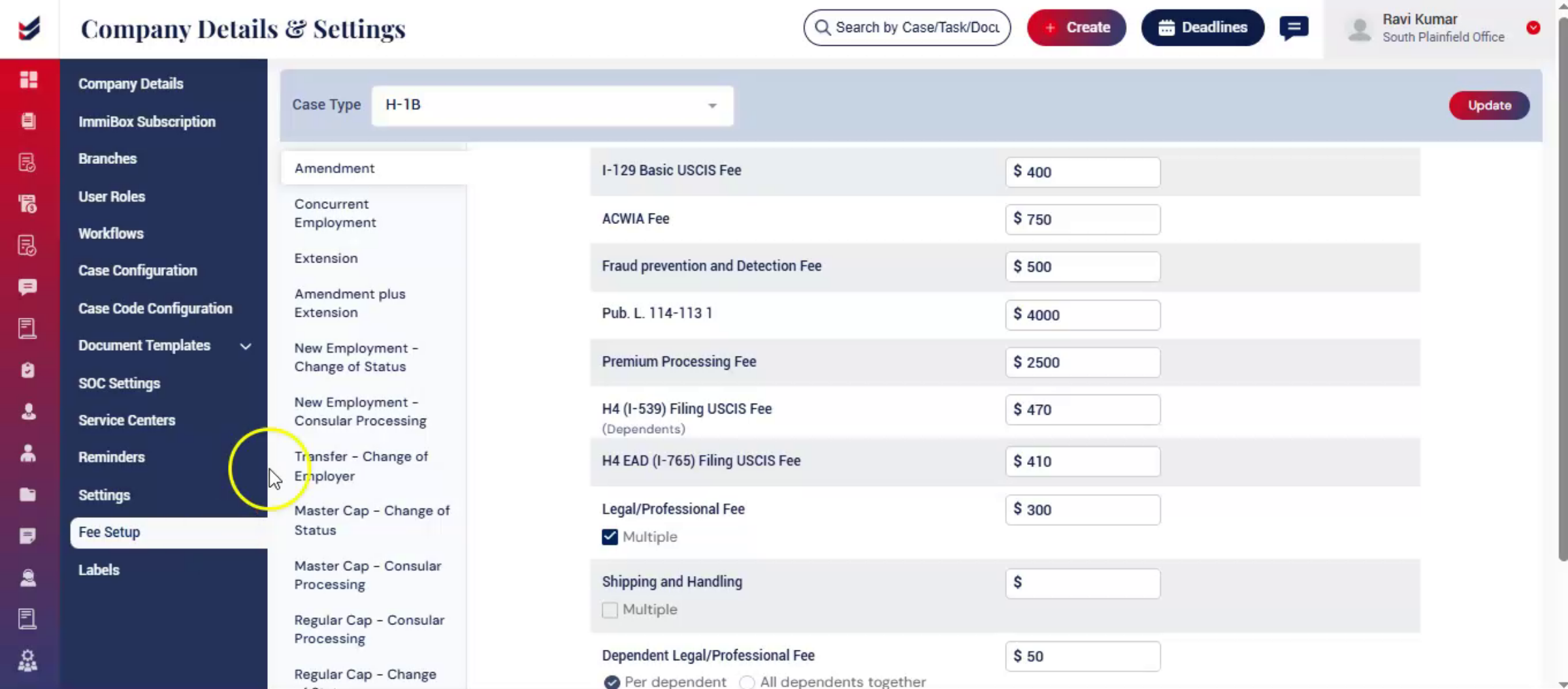
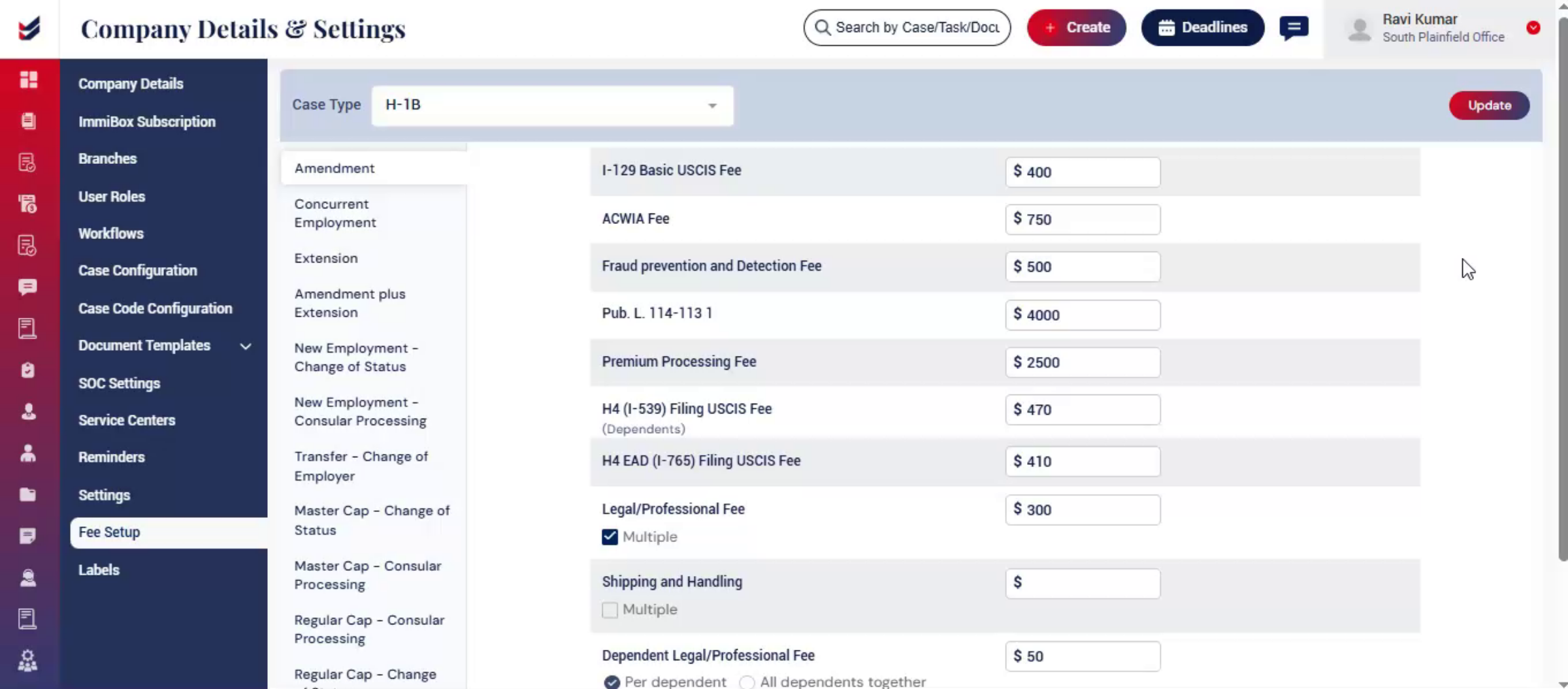
At the top, select the case type from the dropdown.
On the left hand side, you will see a list of case subtypes.
Selecting any subtype will display the corresponding fee structure on the right.
5. Understanding Fee Components
 * click the image to view enlarged
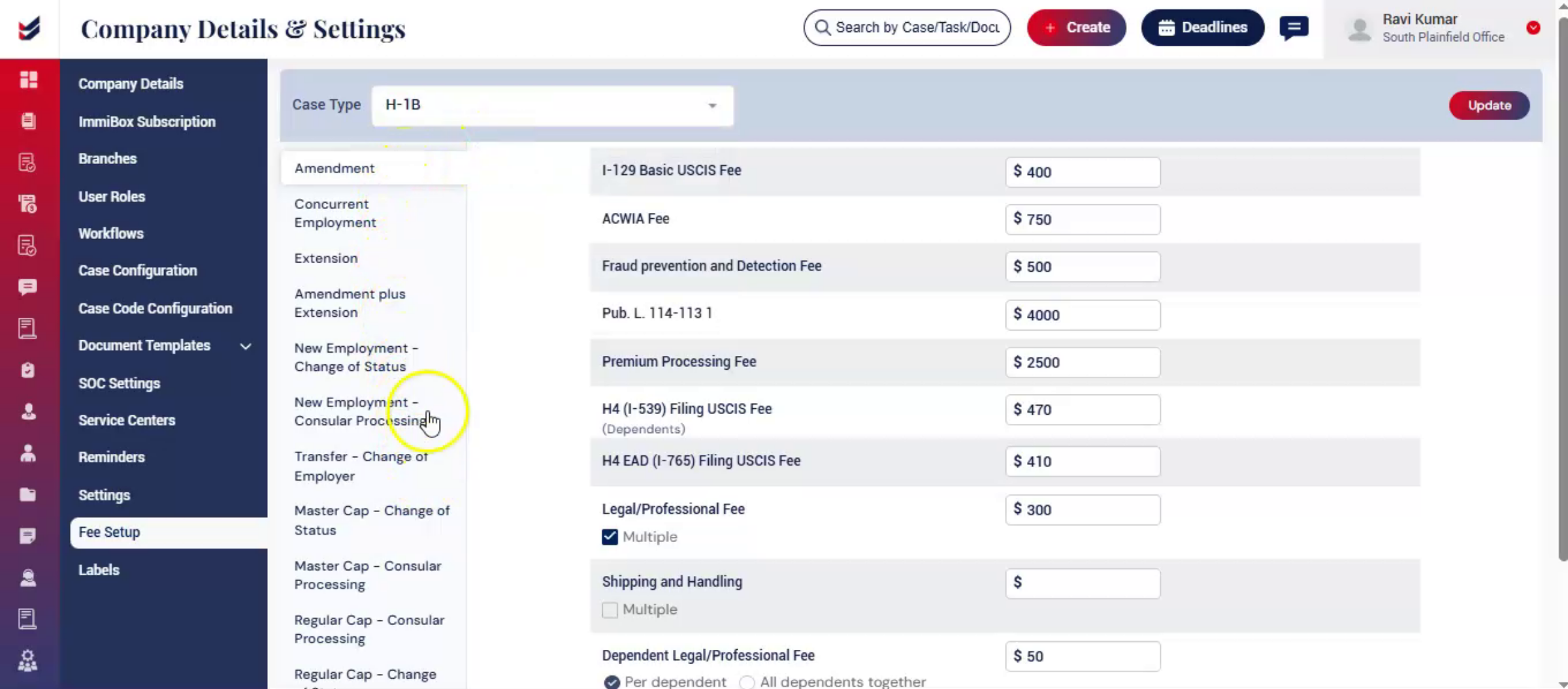
For each case subtype, different fee components are listed.
These may include: USCIS filing fees, ACWIA fees, Fraud Prevention fees, Premium Processing fees, Dependent-related fees.
Each fee is displayed with its corresponding amount, which can be reviewed and updated as needed.
6. Modify Fees
 * click the image to view enlarged
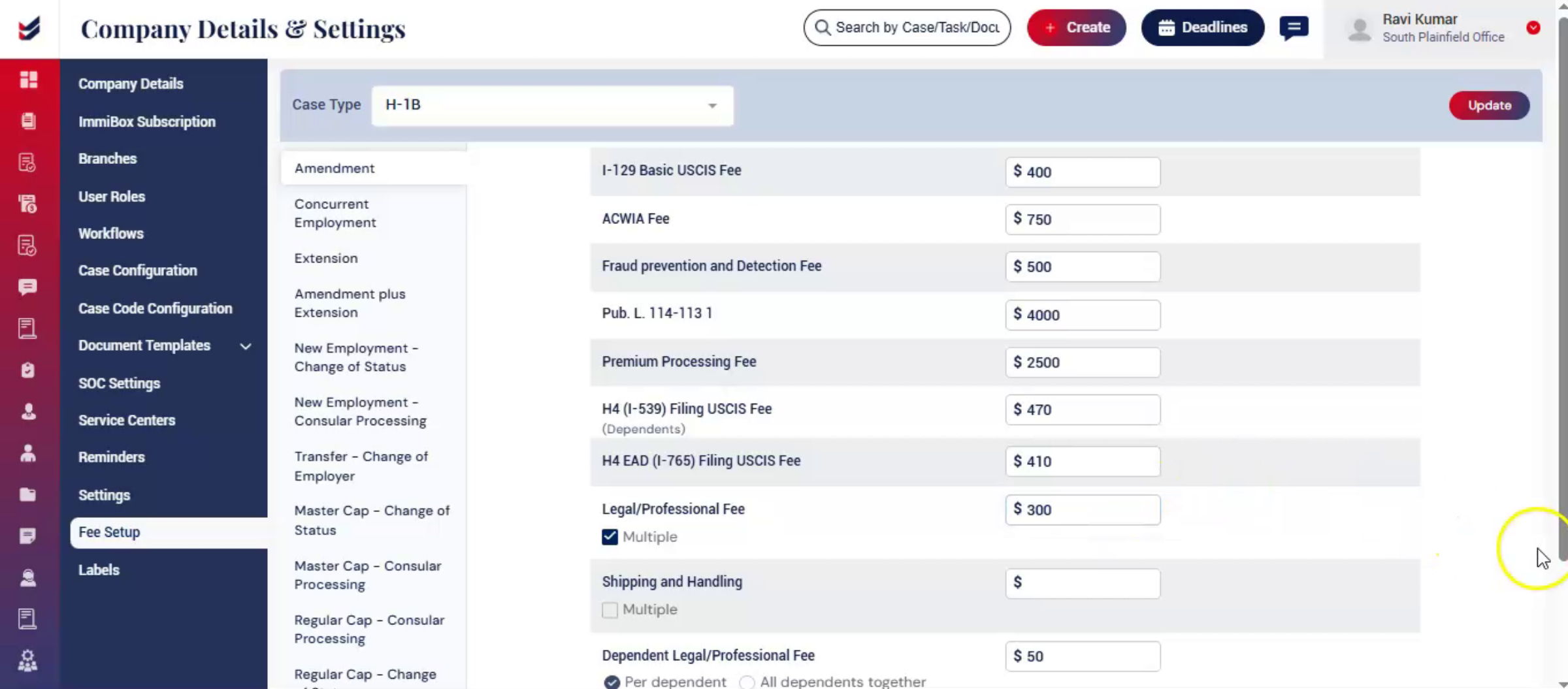
To modify any fee, click on the amount field and enter the updated value.
7. Add Fees
 * click the image to view enlarged
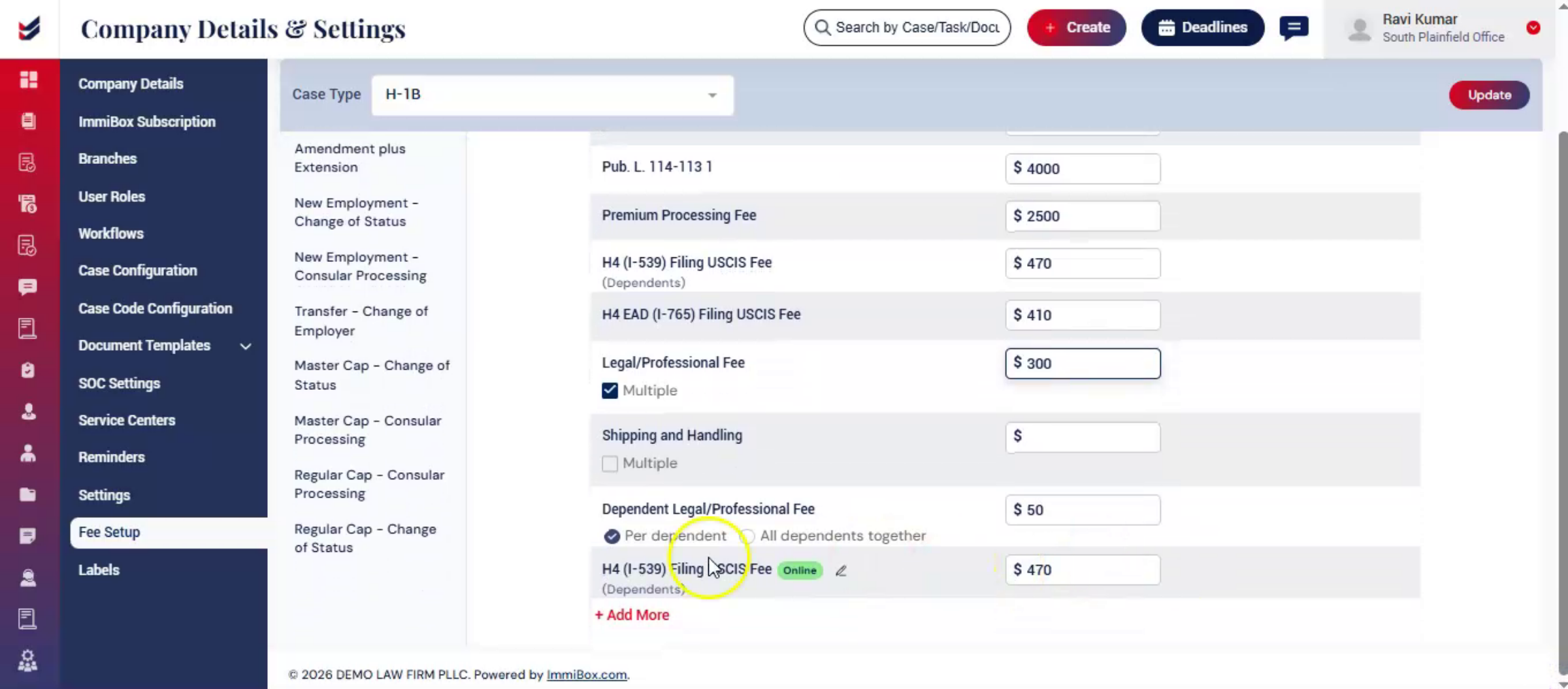
To add a new fee, click on Add More, then enter the fee name and amount.
8. Update Option
 * click the image to view enlarged
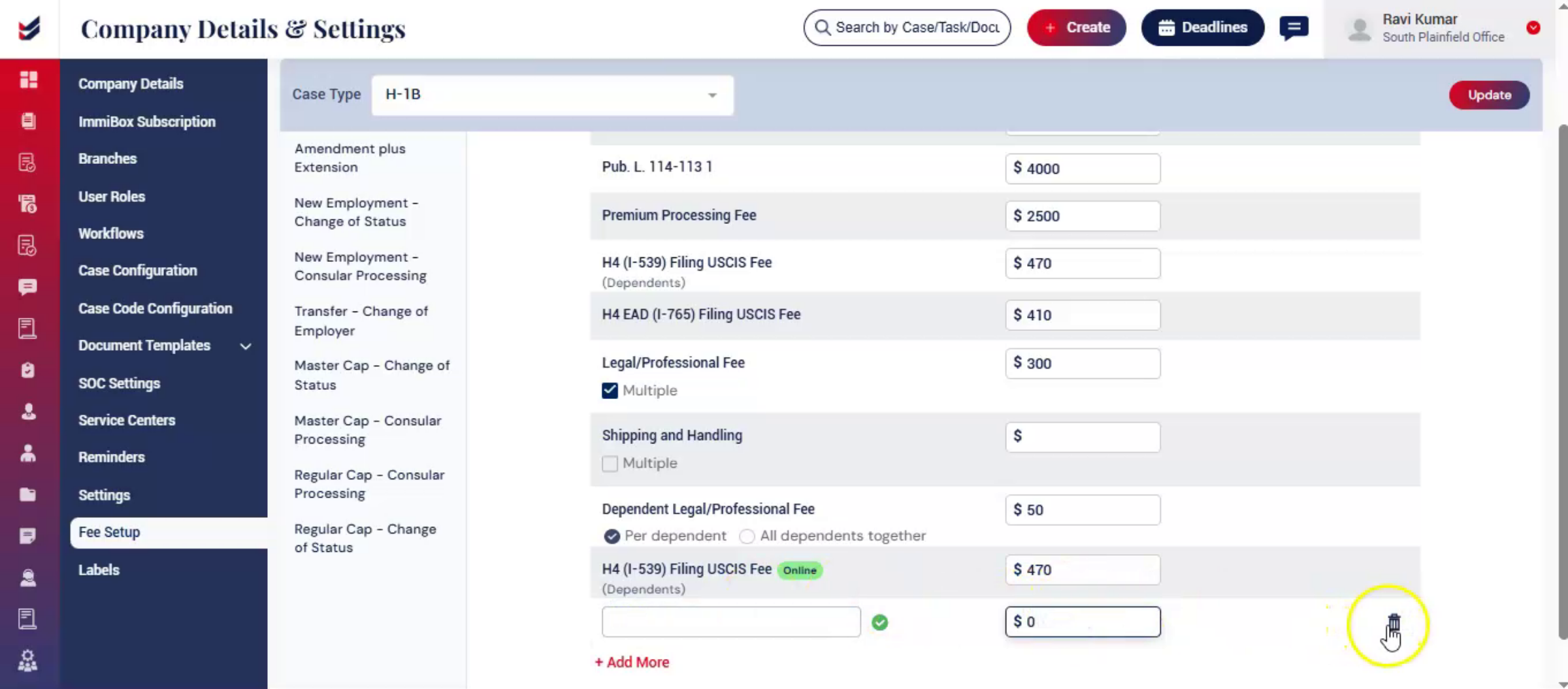
Once all changes are made, click Update to save the configuration.
The updated fees will be applied to all relevant cases going forward.
9. Key Points
 * click the image to view enlarged
Fees in ImmiBox are configured based on the selected Case Type and Case Subtype. Multiple fee components can be centrally managed from one location.
Any updates made to the fee configuration will apply only to newly created cases and will not impact existing cases.
ImmiBox also allows firms to configure customized fee structures for individual clients.
10. Fee Management - Client
 * click the image to view enlarged
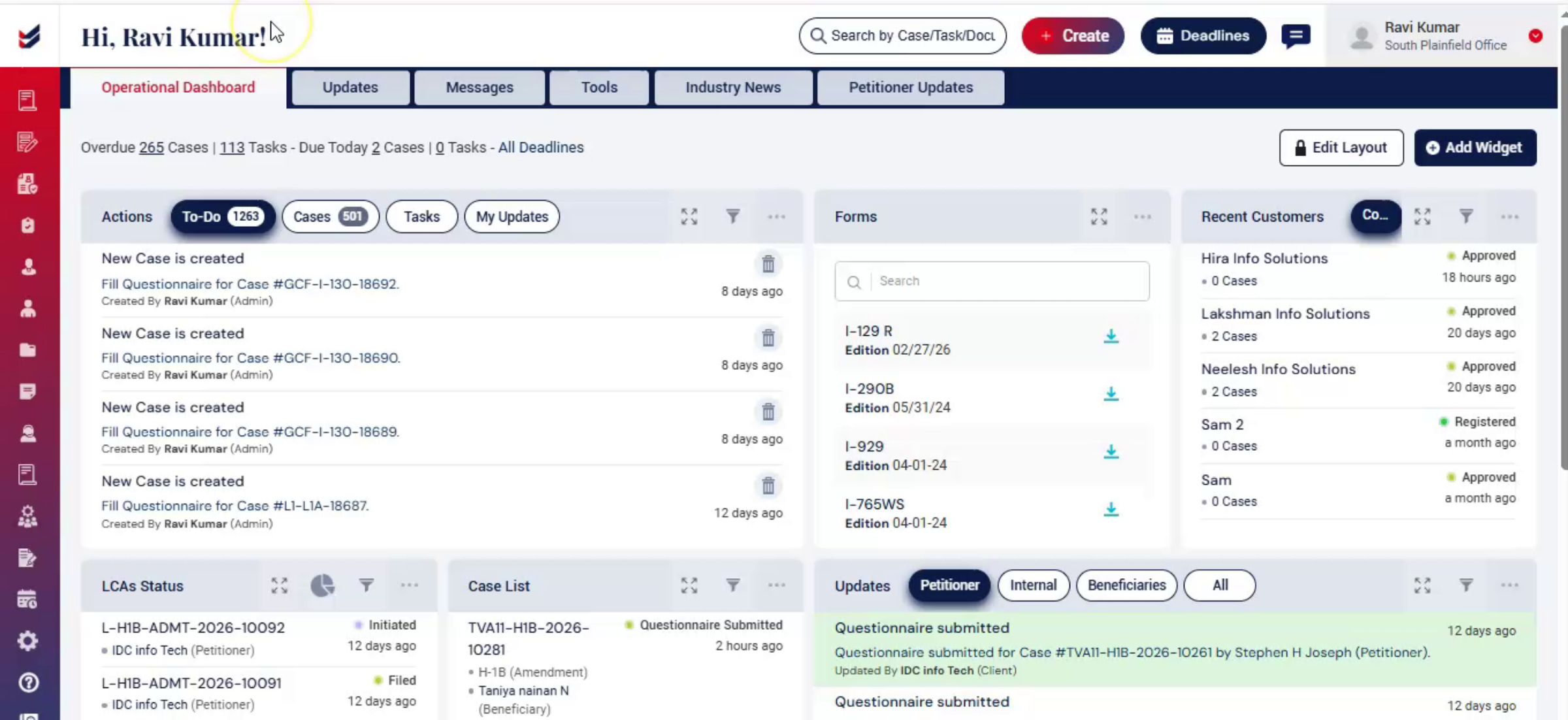
To configure client-specific fee adjustments, navigate to the Clients section from the Dashboard and select Corporations or Individual from the dropdown menu.
The Corporations list will appear on the screen. Select the required client, click on the Actions menu, and choose Details.
On the Client Details page, scroll down to the Fee Adjustment section. Here, users can increase or decrease the Professional Fee by applying a percentage-based adjustment.
Please note that fee adjustments apply only to the Professional Fee and do not affect USCIS Fees or other fee components.
Further down the page, users can configure fee structures based on specific Case Types and Case Subtypes. Select the required Case Type and Subtype to configure: Legal/Professional Fee, Dependent Legal/Professional Fee
Enter the required fee amounts and click Update to save the changes.
Although fees are centrally configured, they can still be modified or overridden at the time of invoice generation.
11. Conclusion
 * click the image to view enlarged
This improves consistency. Reduces manual errors and streamlines invoice generation.

