


Prepare Docket for Filing
Overview
Welcome! In this video, learn how to quickly prepare a complete docket for submission.
1. Introduction
 * click the image to view enlarged
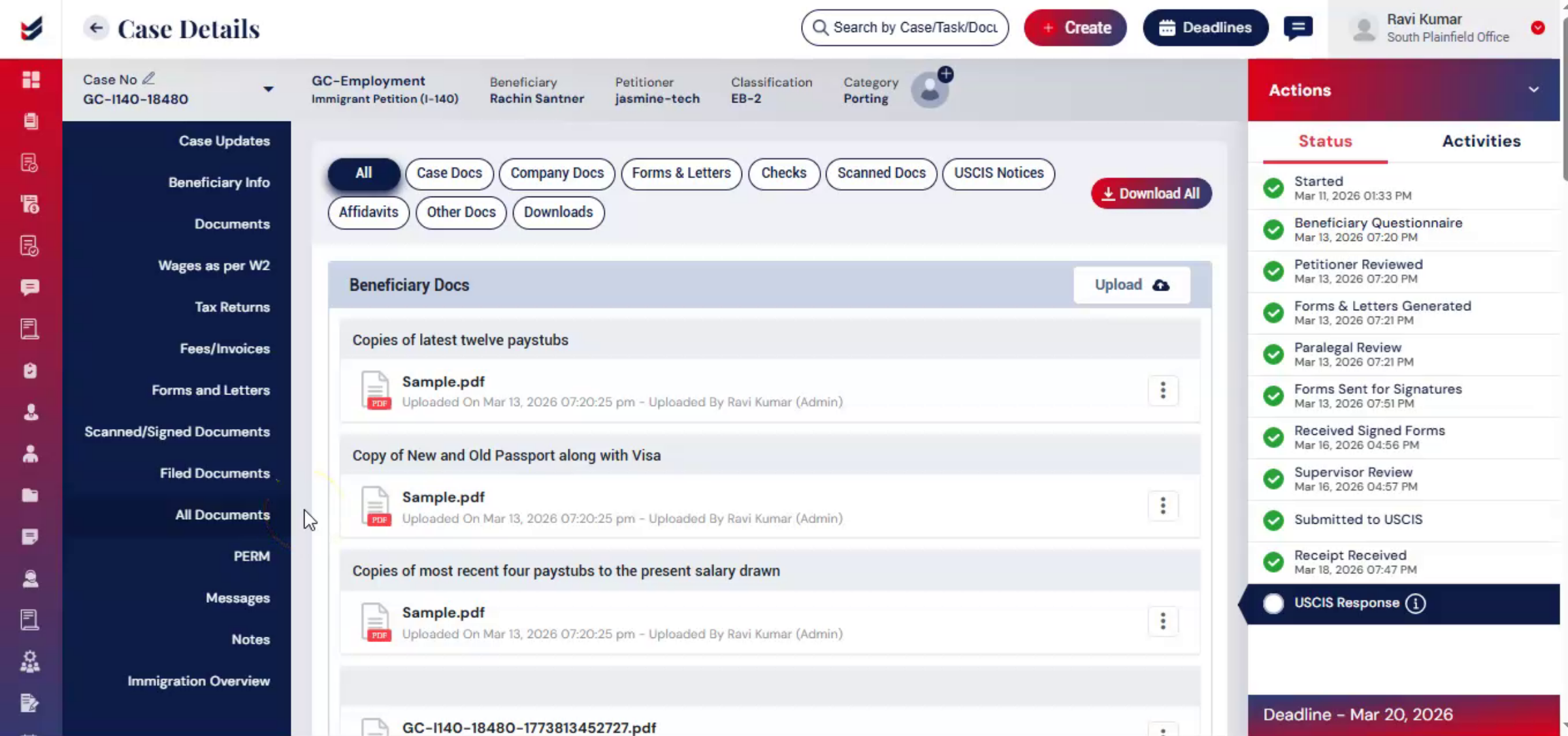
In ImmiBox, you can download all case documents in a single file, organized in the sequence you need.
You can also add headers to separate sections and save the configuration for future use, making docket preparation fast and easy.
2. Document Tab
 * click the image to view enlarged
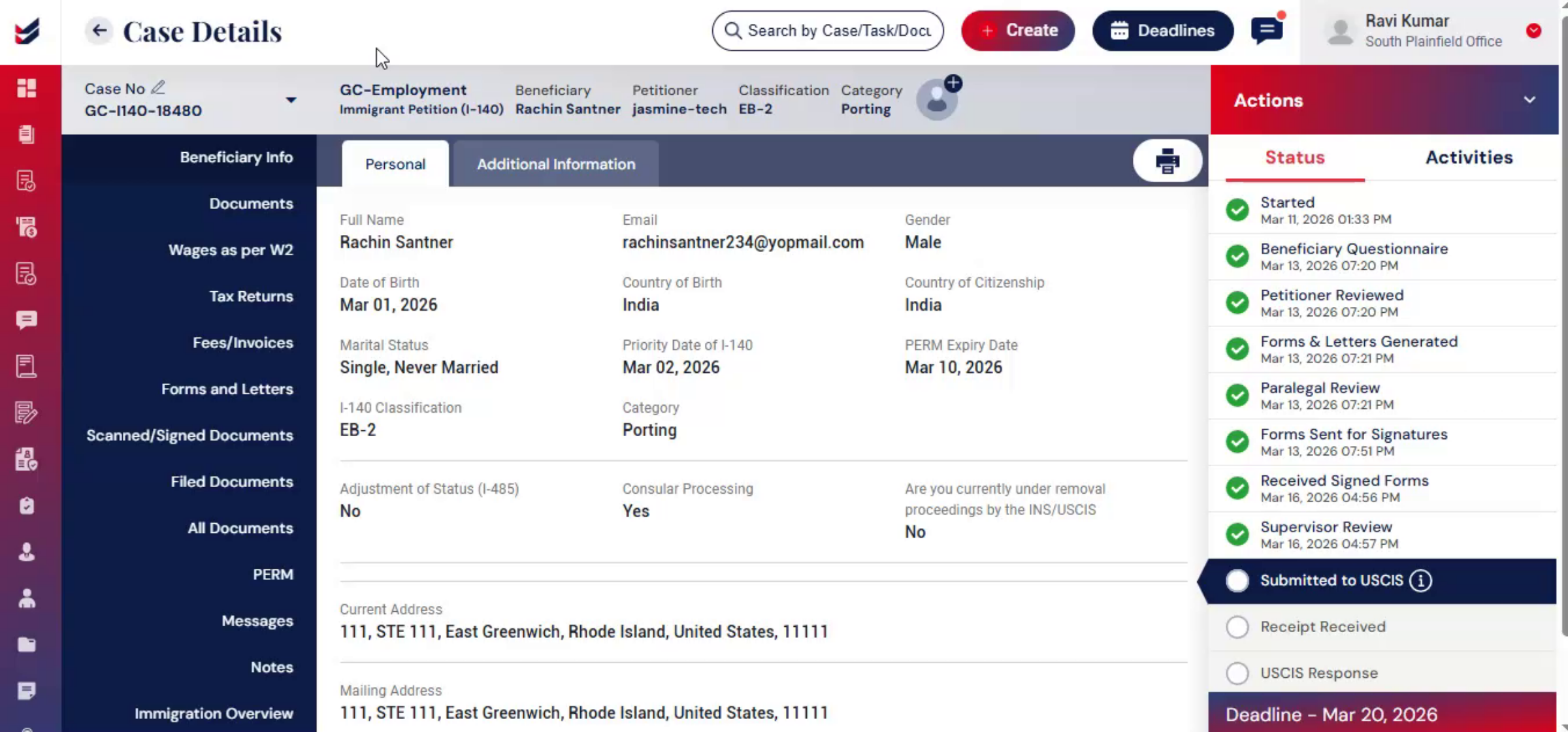
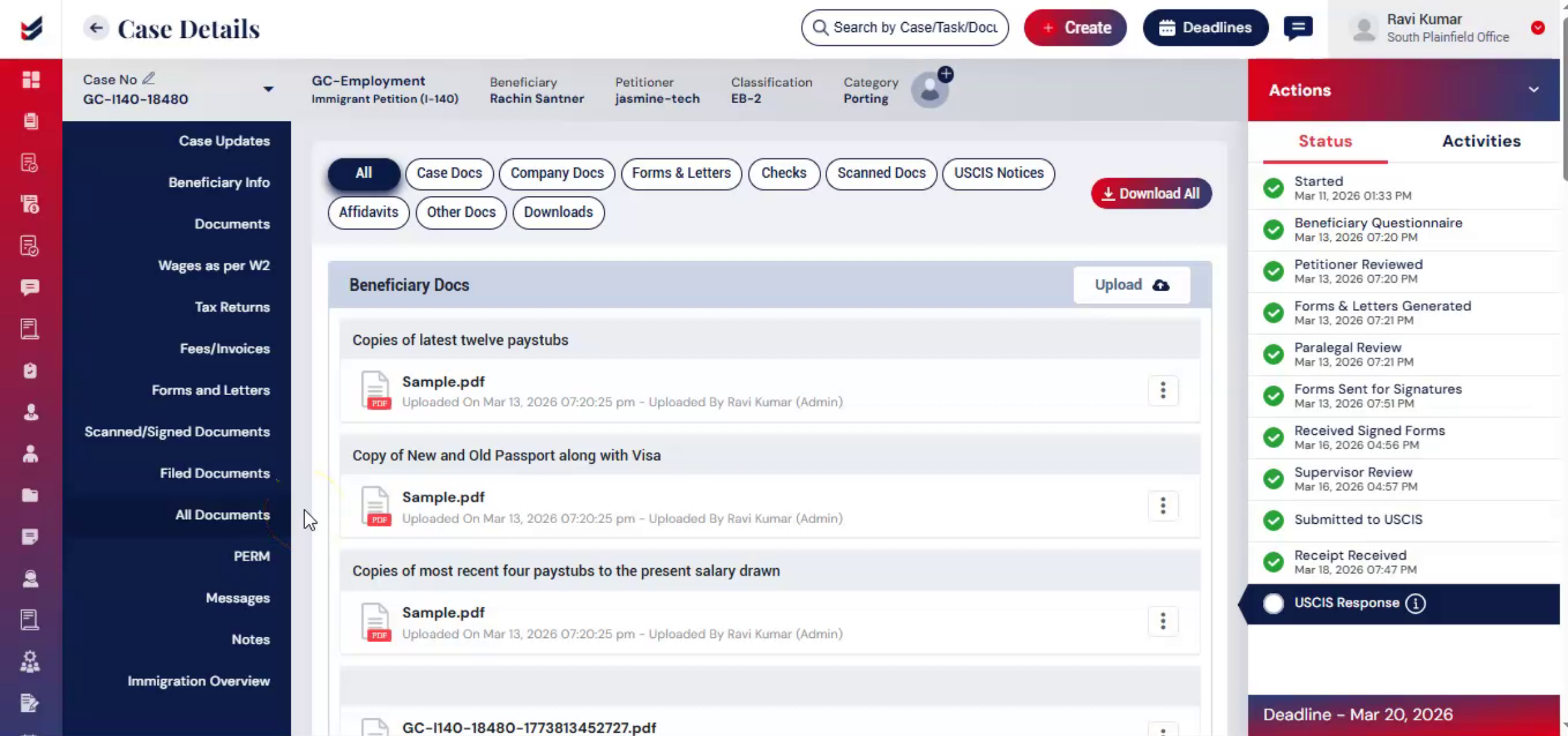
Navigate to the Case Details page and click on the All Documents tab from left hand side.
3. Access All Document
 * click the image to view enlarged
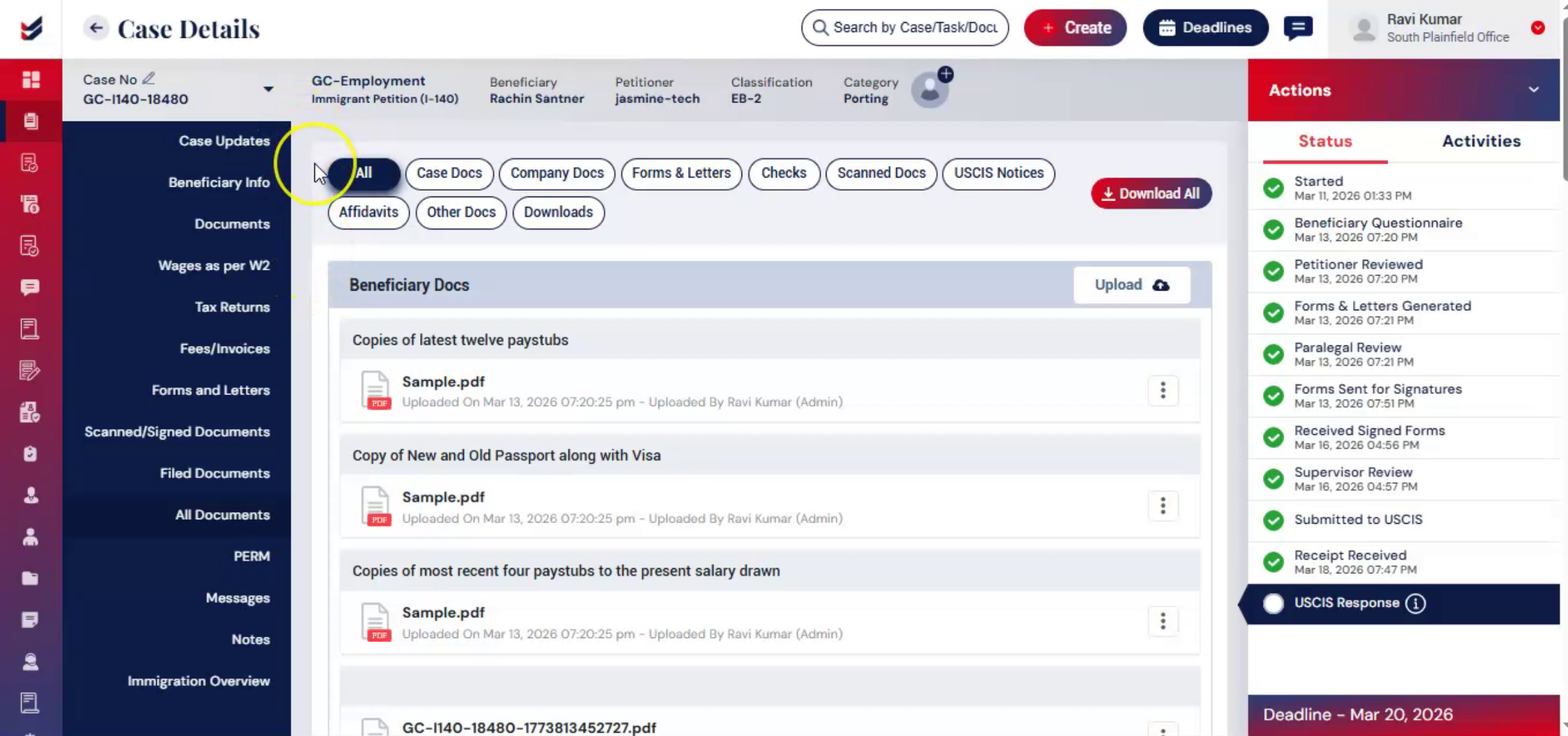
You will see a list of all documents, organized by categories, such as:
All – It shows all documents.
Case Docs – Documents related to the case.
Company Docs – Documents related to the petitioner and company.
Forms & Letters – Relevant forms and letters for the case.
Checks – documents related to Payment.
Scanned Docs – Signed and scanned copies of petitioner or law firm documents.
USCIS Notices – Notices, receipts, and response documents from USCIS, when uploaded.
Affidavits – Documents related affidavits.
Other Docs – Miscellaneous uncategorized documents.
Downloads – Recently downloaded files.
In All Documents section you can view and manage all the files related to your case.
4. Access Download All
 * click the image to view enlarged
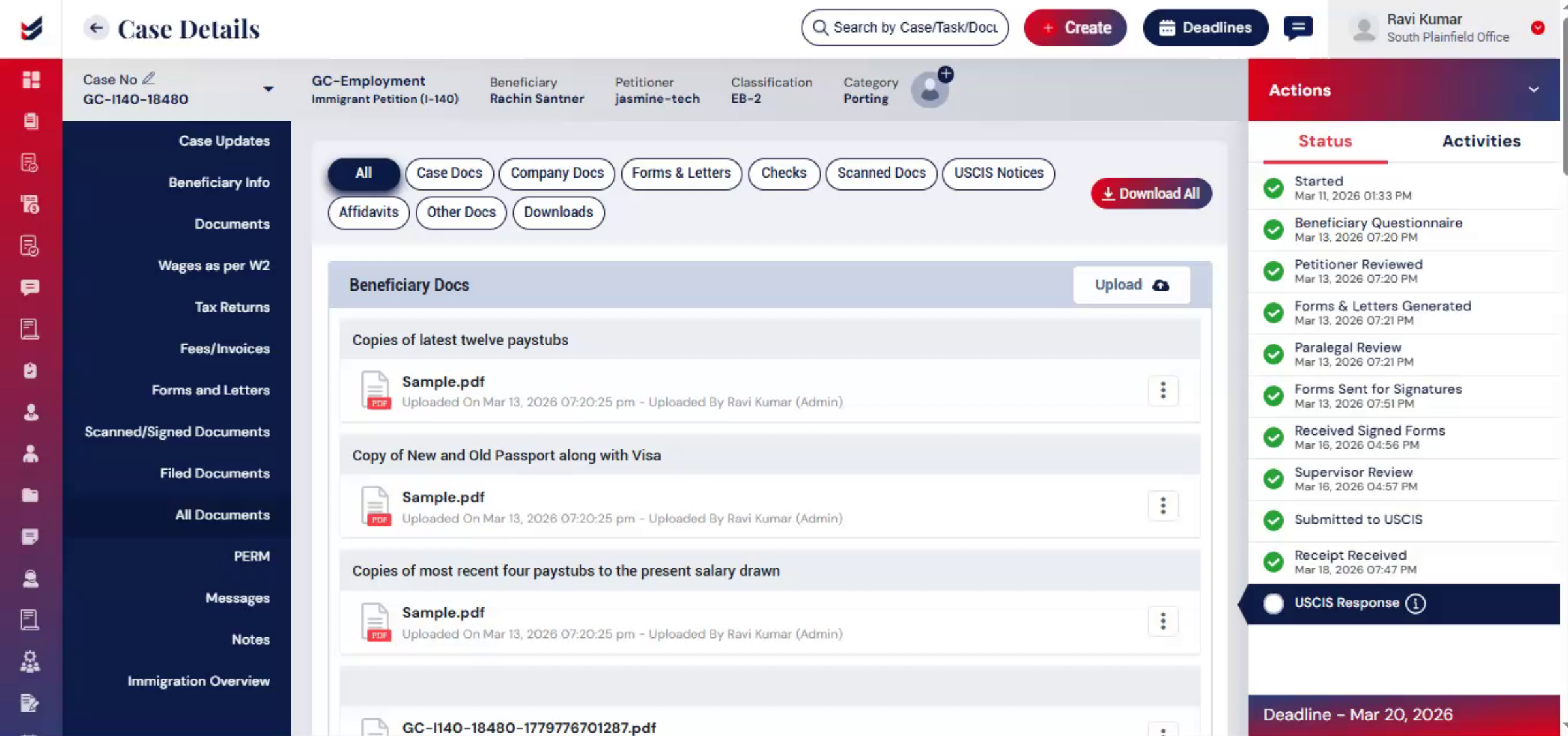
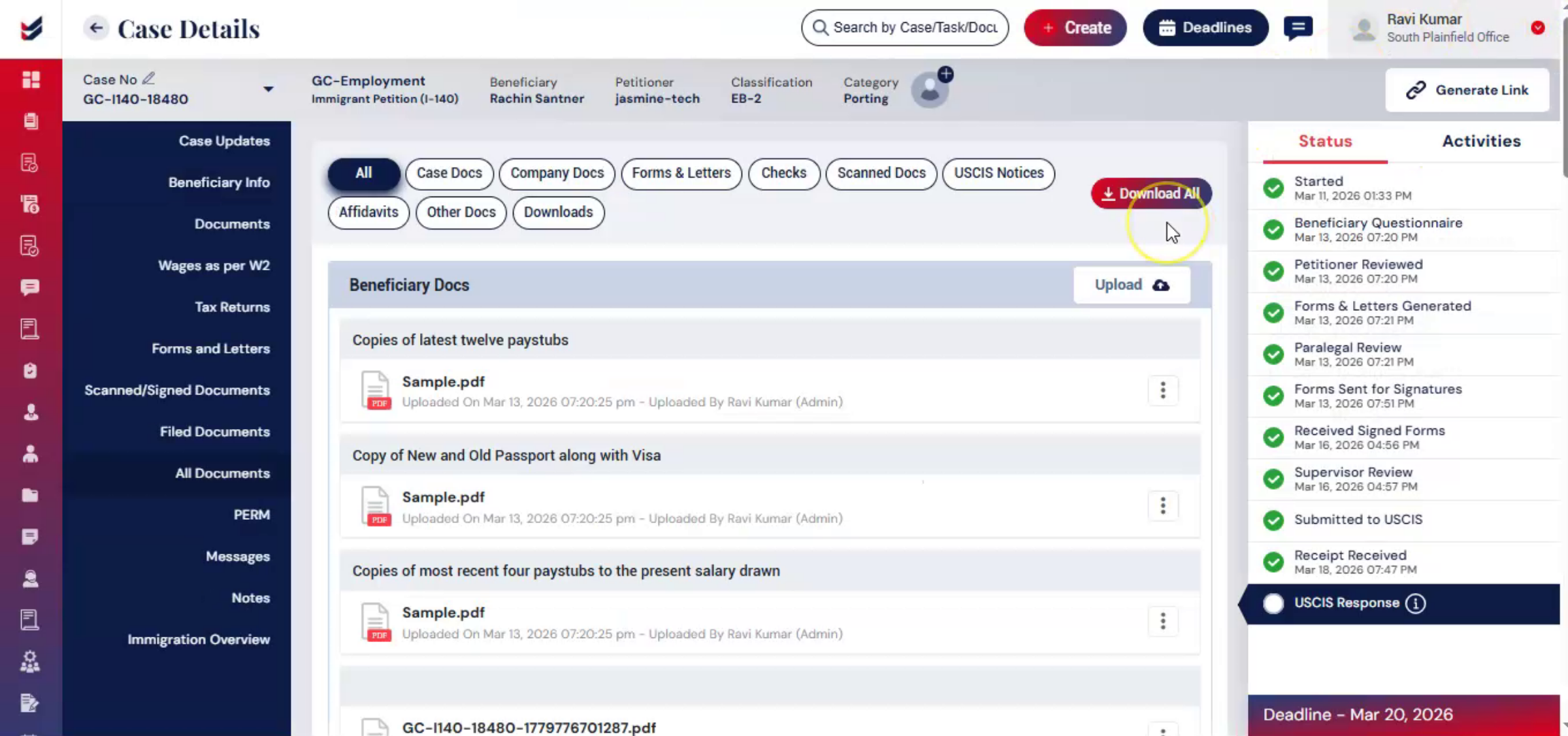
Click download all button to open the download documents window.
5. Download All Option
 * click the image to view enlarged
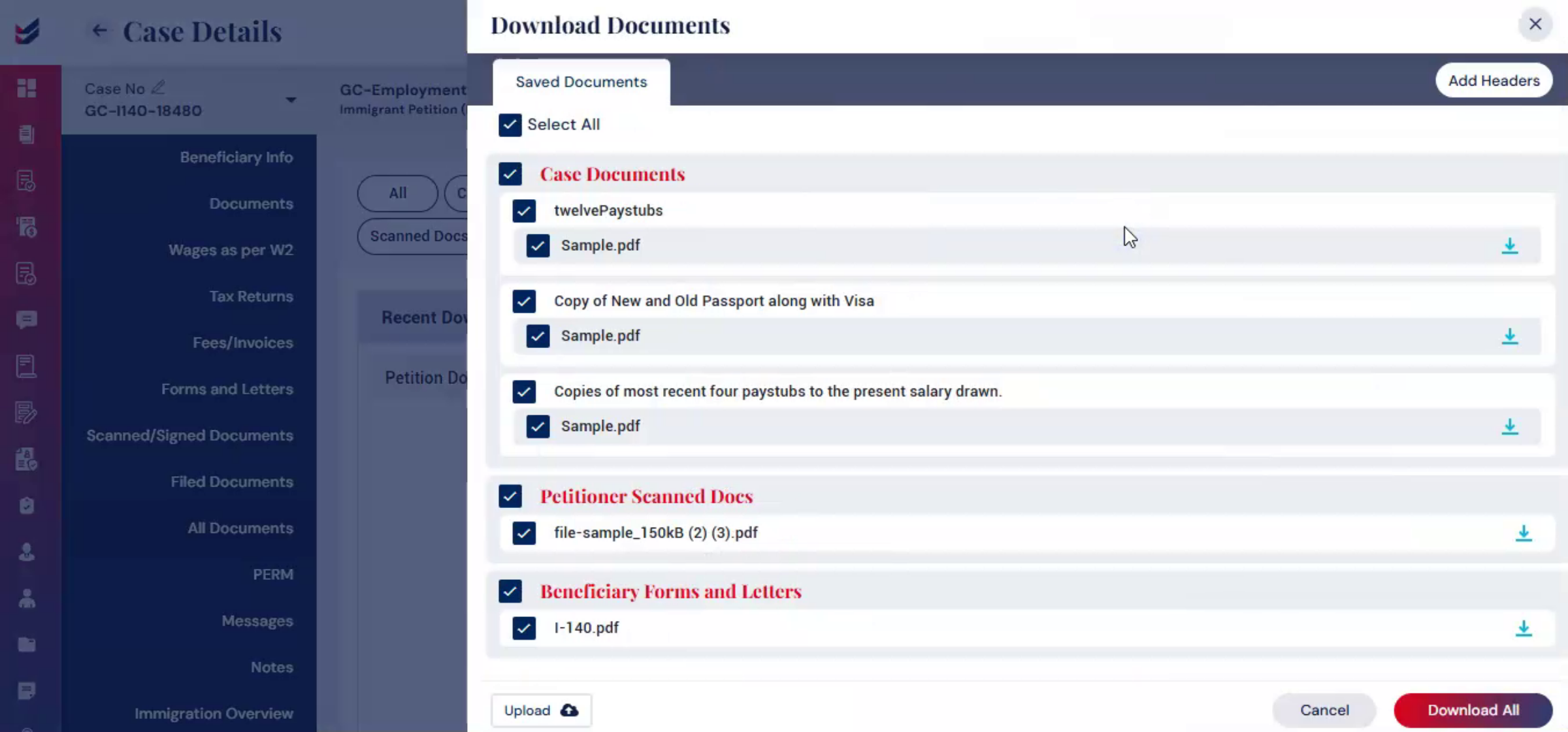
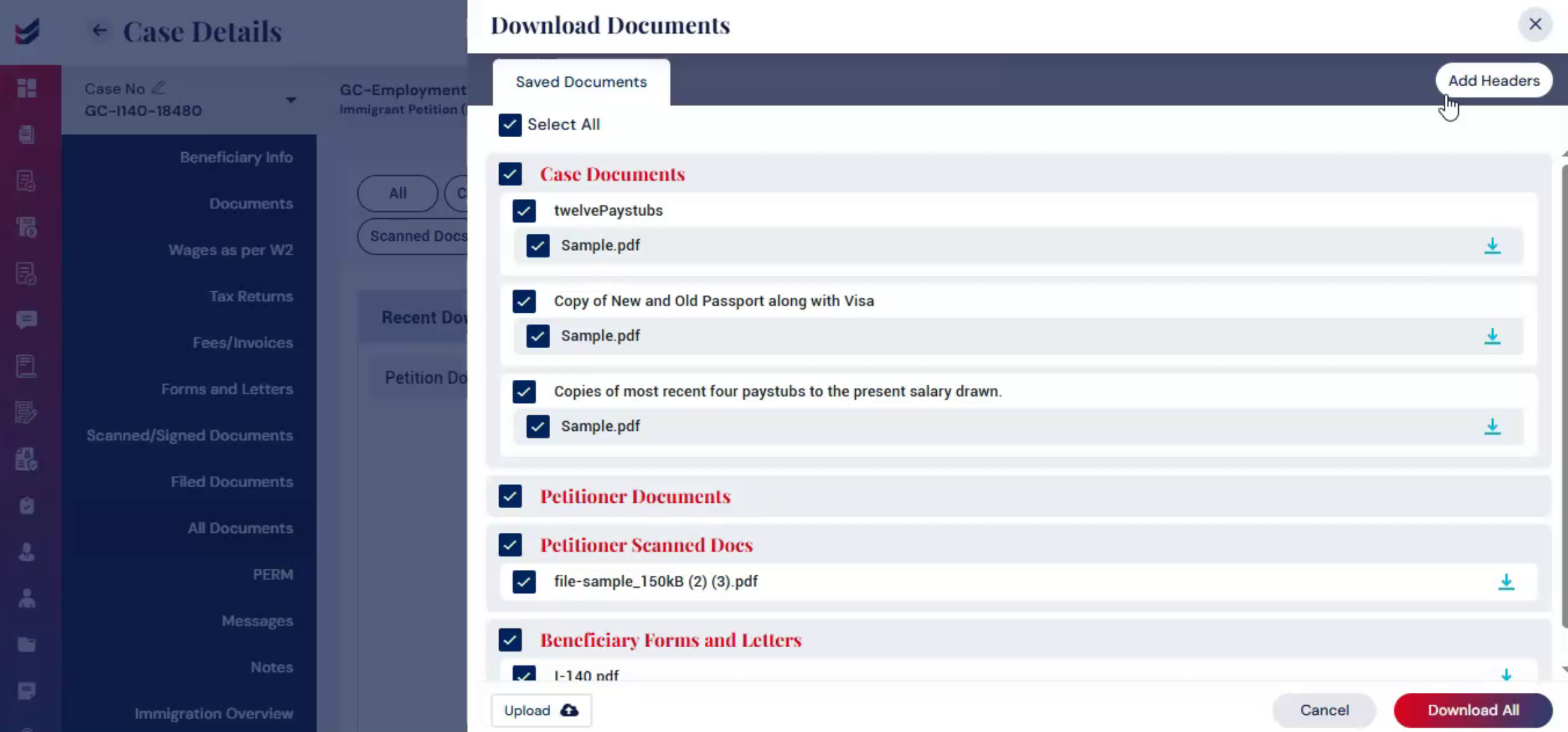
Here, you will see all case-related documents, including petitioner documents and beneficiary Forms & Letters.
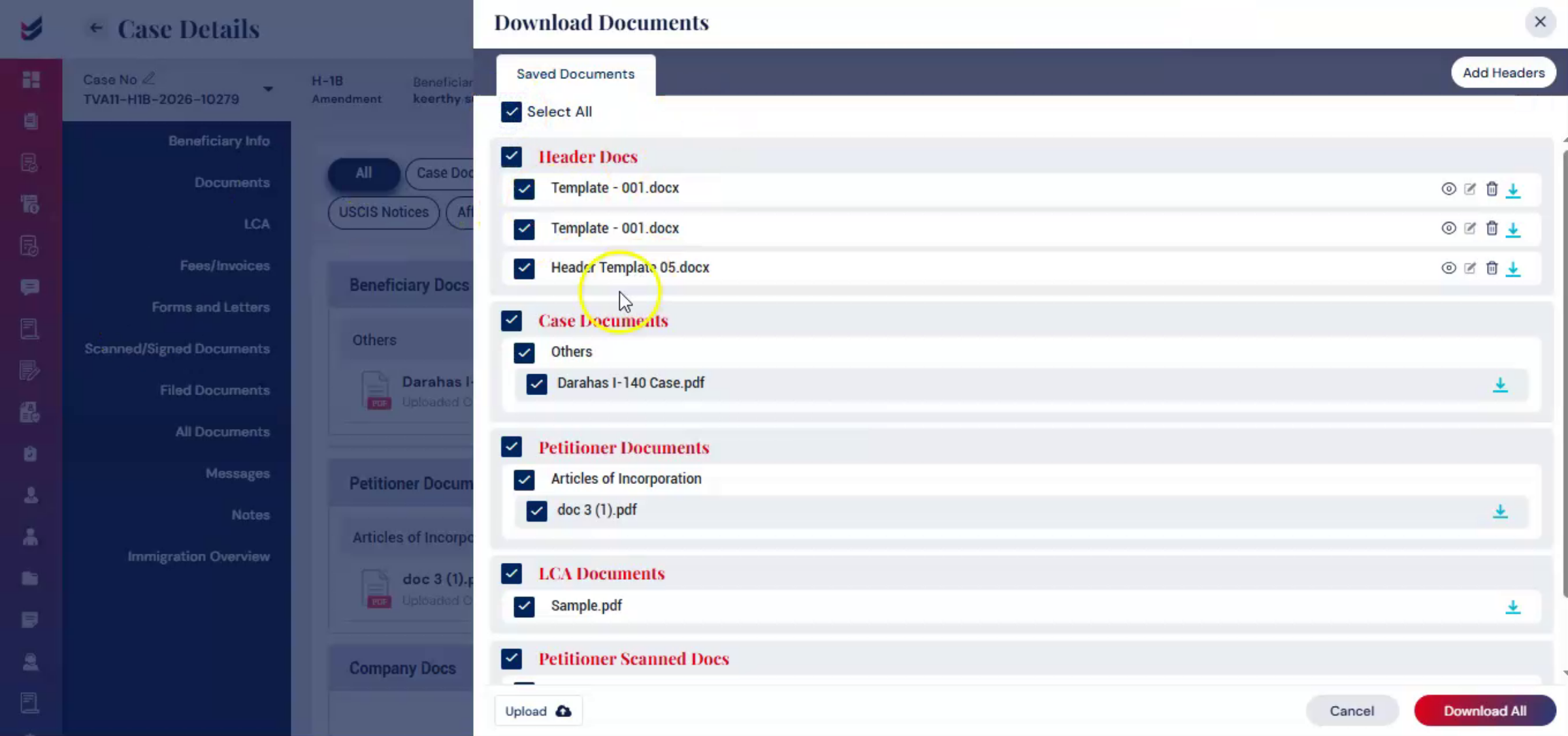
You can reorder sections such as petitioner documents, case documents, or others, by dragging them to the desired sequence.
If you want to reset the order to the original sequence, use the Reset option above the list.
The Add Headers option is also available to separate sections or categories.
6. Add Headers Option
 * click the image to view enlarged
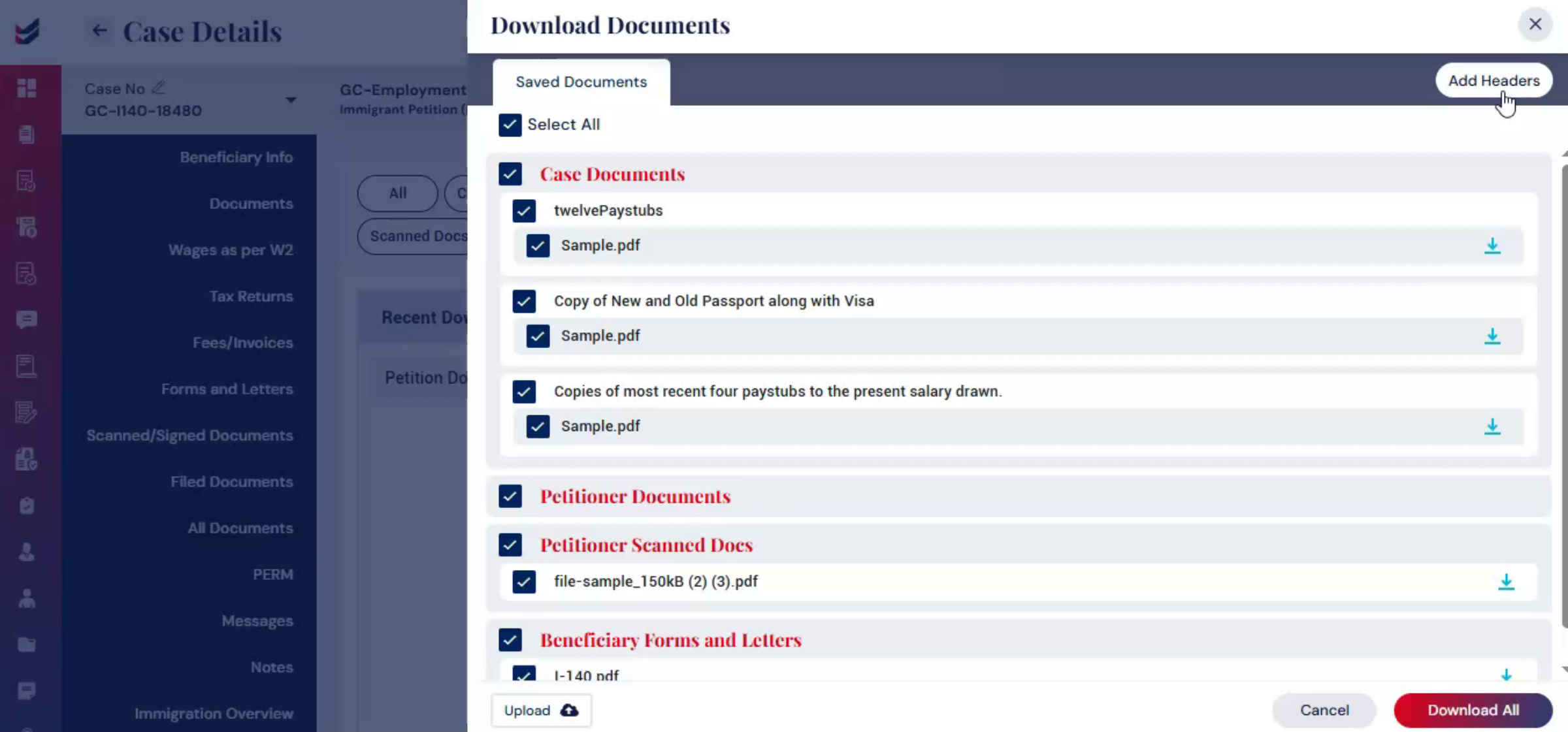
Headers help organize and structure the merged PDF by separating documents into different sections or categories, making the final docket easier to review and navigate.
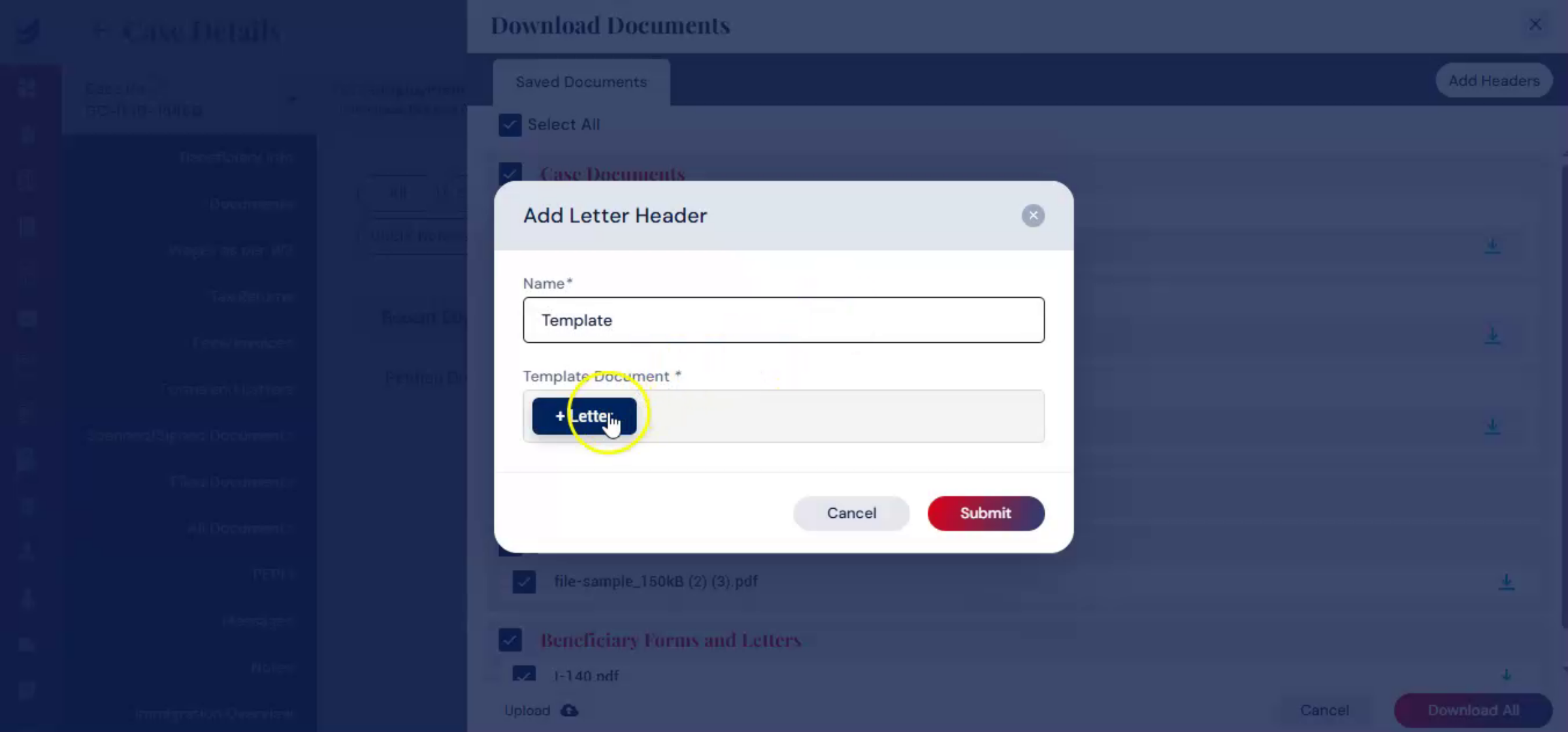
To add a header, click on Add Headers. Enter the appropriate title for the section, such as Forms, Supporting Documents, Client Documents, or any other category required for the filing package.
7. Headers Option
 * click the image to view enlarged
Once added, a blank document page will open. You can: Add text to create a title or section cover page or leave the page blank to use it as a separator between document sections.
8. Use of Headers
 * click the image to view enlarged
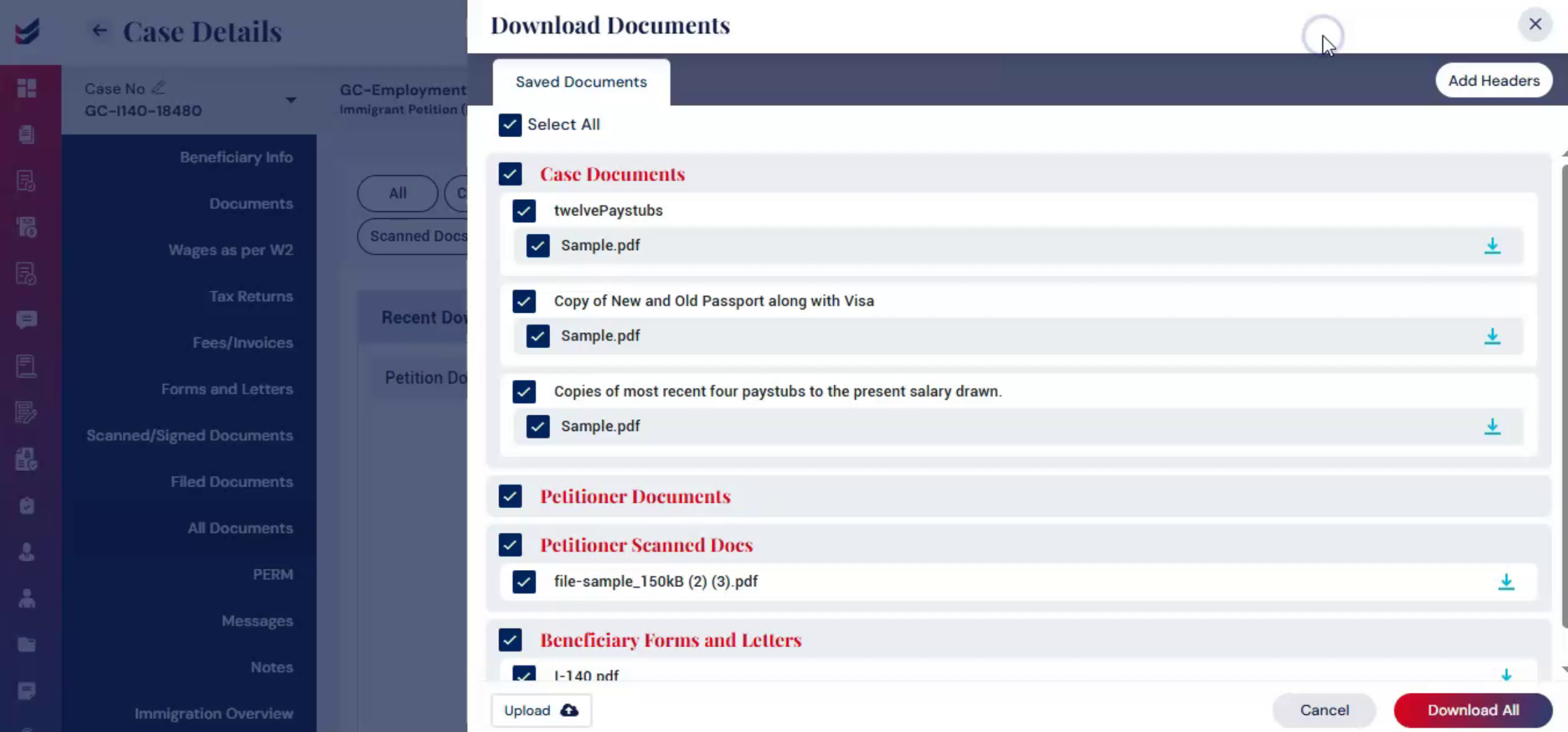
If you want to create a dedicated section for supporting documents, you can insert a header with the title, supporting documents and place it before those files in the merged PDF.
9. Reposition Header
 * click the image to view enlarged
Headers can be repositioned anywhere within the document lists to organize, the filing package in the preferred order. Multiple headers can also be added as needed to create a well-structured and professionally organized docket.
10. Save Configuration & Download
 * click the image to view enlarged
After selecting and organizing all documents and adding headers, click the ‘Download All’ button to generate a single merged PDF.
Now the file is ready to prepare the docket for filing.
11. File is Ready
 * click the image to view enlarged
The configuration you created including file selection, order, and headers will be saved automatically for future use.
You can access the downloaded PDF anytime from the ‘Downloads’ tab in the case.
12. Conclusion
 * click the image to view enlarged
Downloading all case documents as a single merged PDF in ImmiBox helps simplify and streamline docket preparation.
By organizing documents, adding headers, and saving the configuration for future use, users can create a professional, well-structured filing package quickly and efficiently.

