


Managing Appointments in ImmiBox
Overview
Welcome! We’ll learn how to setup availability and manage appointments in ImmiBox.
1. Introduction
 * click the image to view enlarged
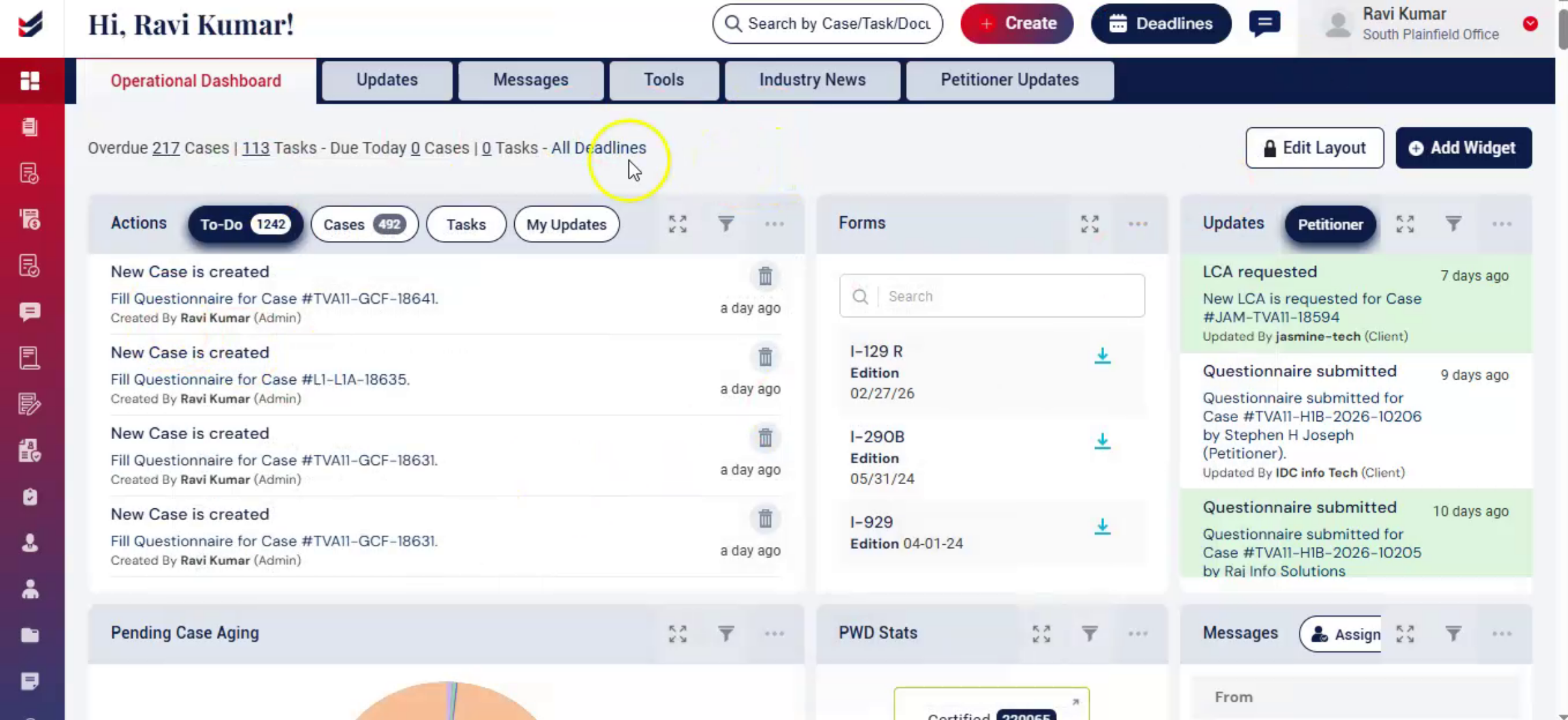
Navigate to Appointments on the left-hand menu to get access to Appointments module. The Appointments feature allows you to configure your availability for meetings for your clients or prospects. This eliminates the need for third-party tools to manage your meetings and appointments. You can set or modify your availability by day, date, and time. Once a meeting is scheduled, you will get an email and it will appear in your Bookings Calendar.
2. Appointments Options
 * click the image to view enlarged
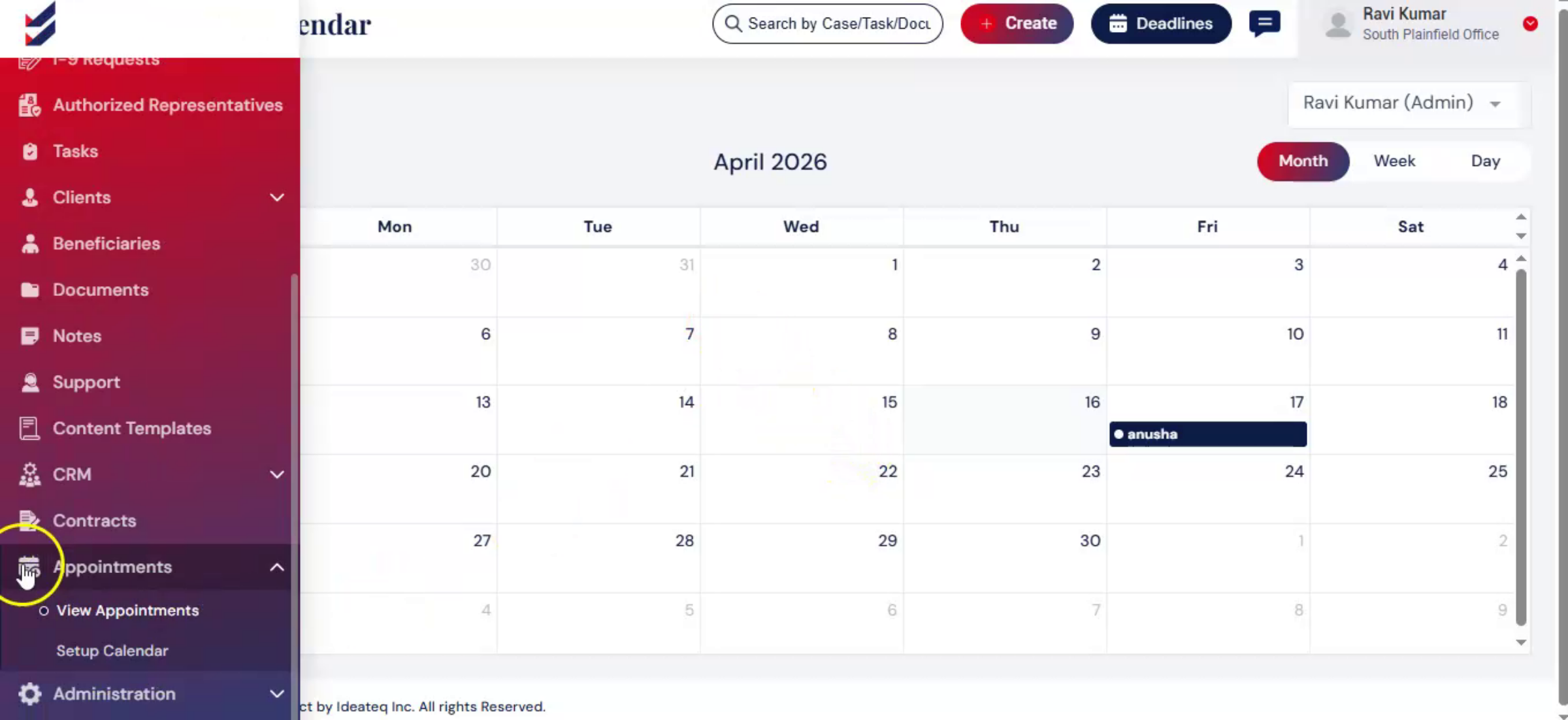
Under Appointments, there are two main options:
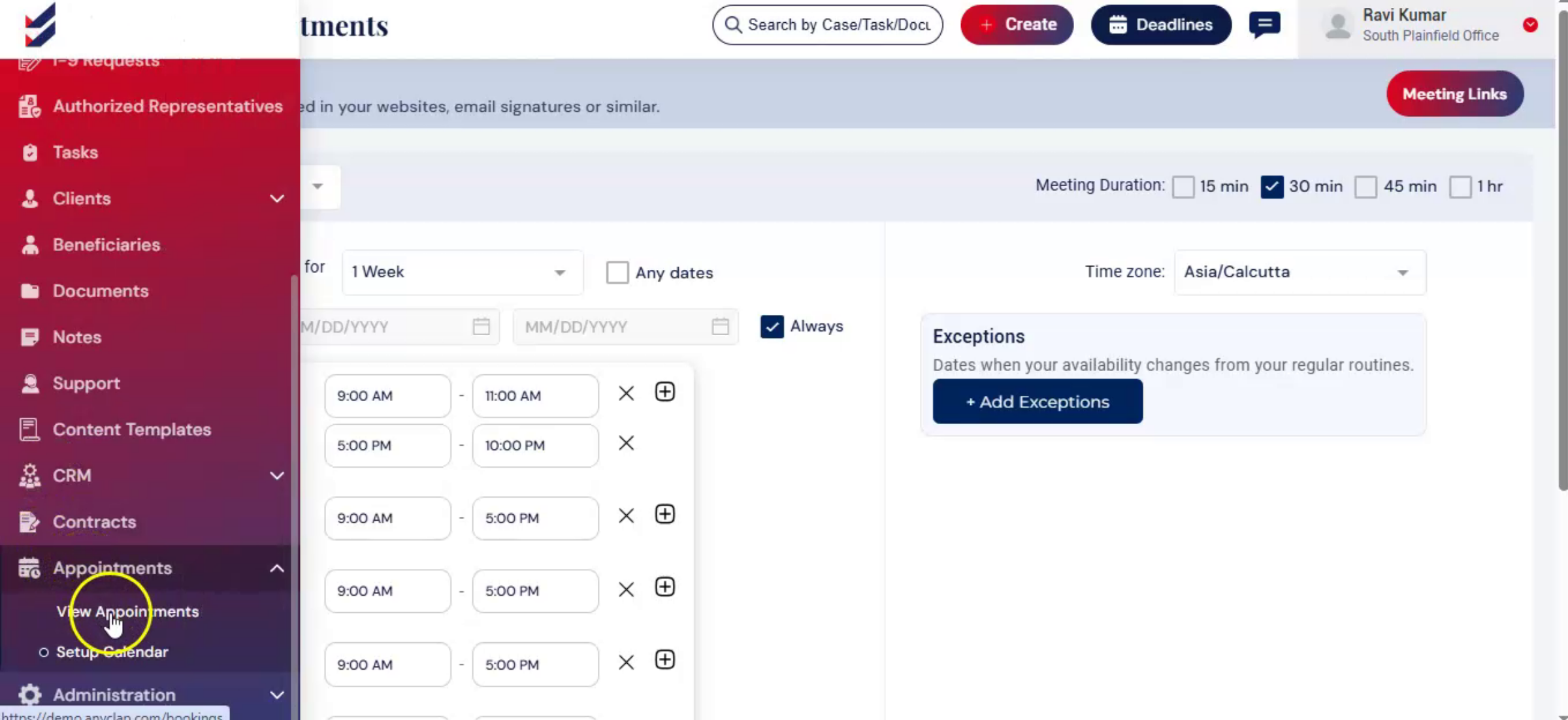
View Appointments – View all booked appointments.
Setup Calendar – Set up your availability.
3. Setup Availability
 * click the image to view enlarged
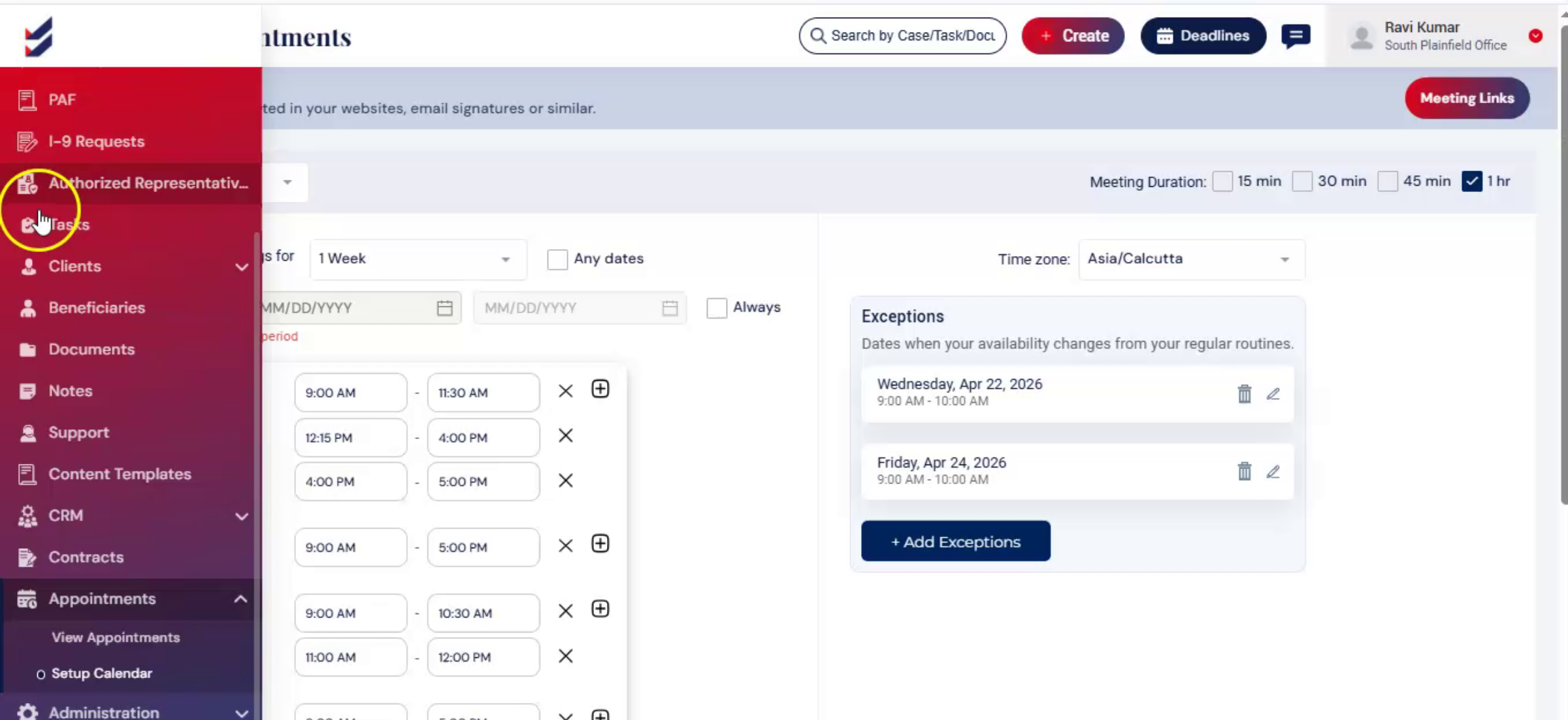
To configure your meeting availability, click on the setup, calendar option. The setup, calendar functionality allows users to define when prospects or clients can schedule meetings based on availability preferences and scheduling rules.
Users can configure their availability using several setup parameters.
Advance Booking – Users can decide how far in advance meetings can be scheduled. The system allows bookings for a specific future period, ranging from 1 week up to 4 weeks in advance.
This helps control how far ahead appointments can be booked.
4. Availability - Any Date
 * click the image to view enlarged
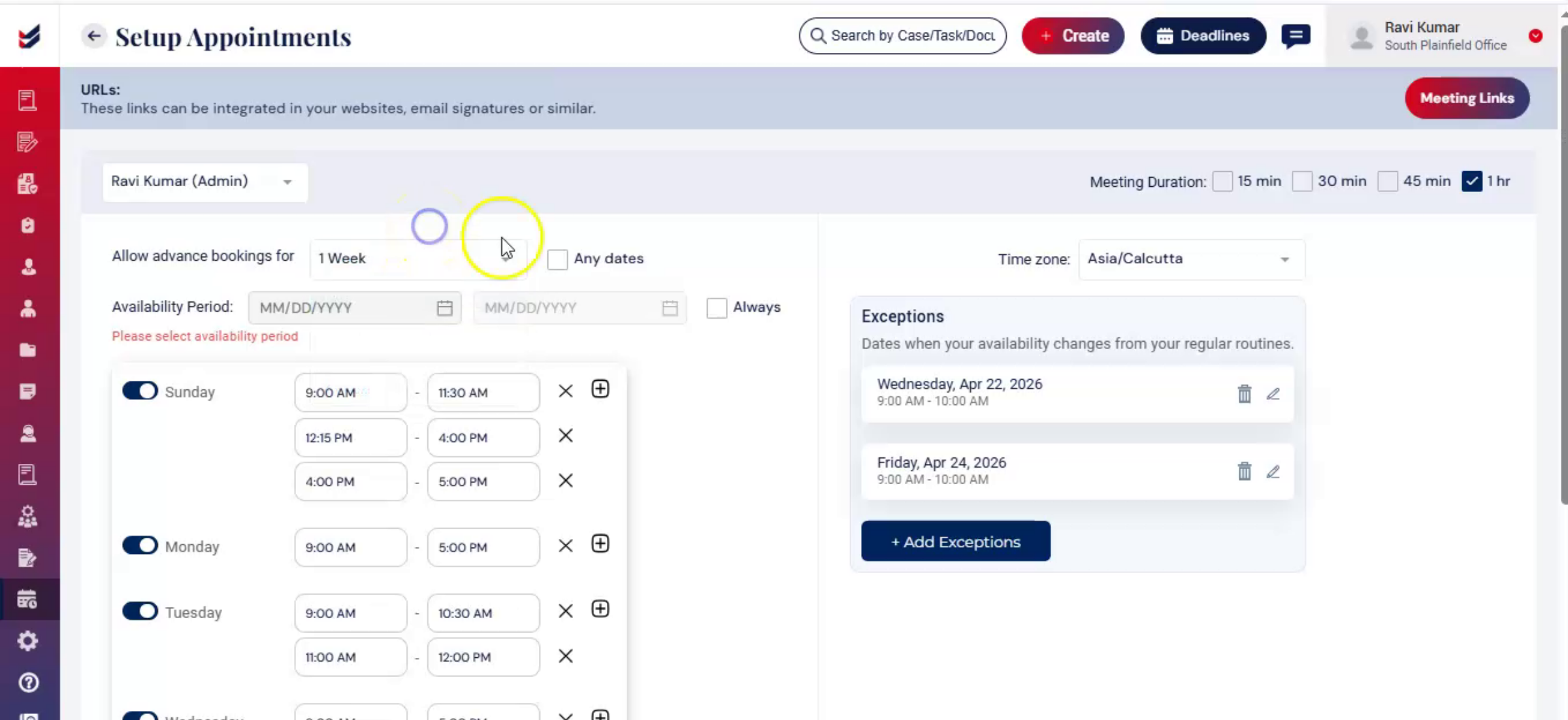
Any Dates option – If users do not want to restrict bookings to a limited future period, they can select the Any Dates option. When enabled, prospects can book meetings for any future date, subject to the configured availability schedule and other calendar settings.
5. Availability Period
 * click the image to view enlarged
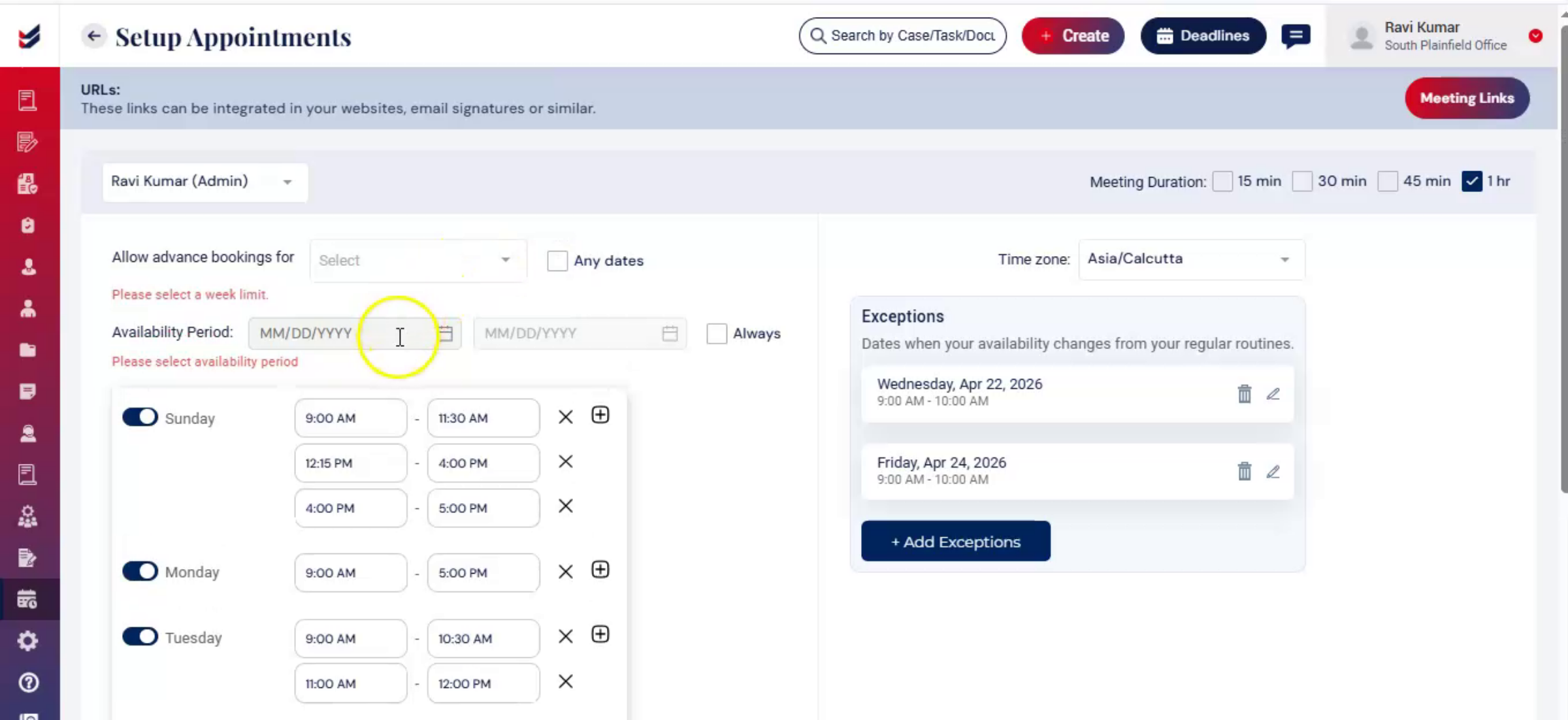
Availability Period – Users can define a specific date range using From and To dates. This allows meetings to be scheduled only during a selected time period. For example, this can be used for temporary schedules, seasonal availability, or project-specific booking periods.
6. Always Option
 * click the image to view enlarged
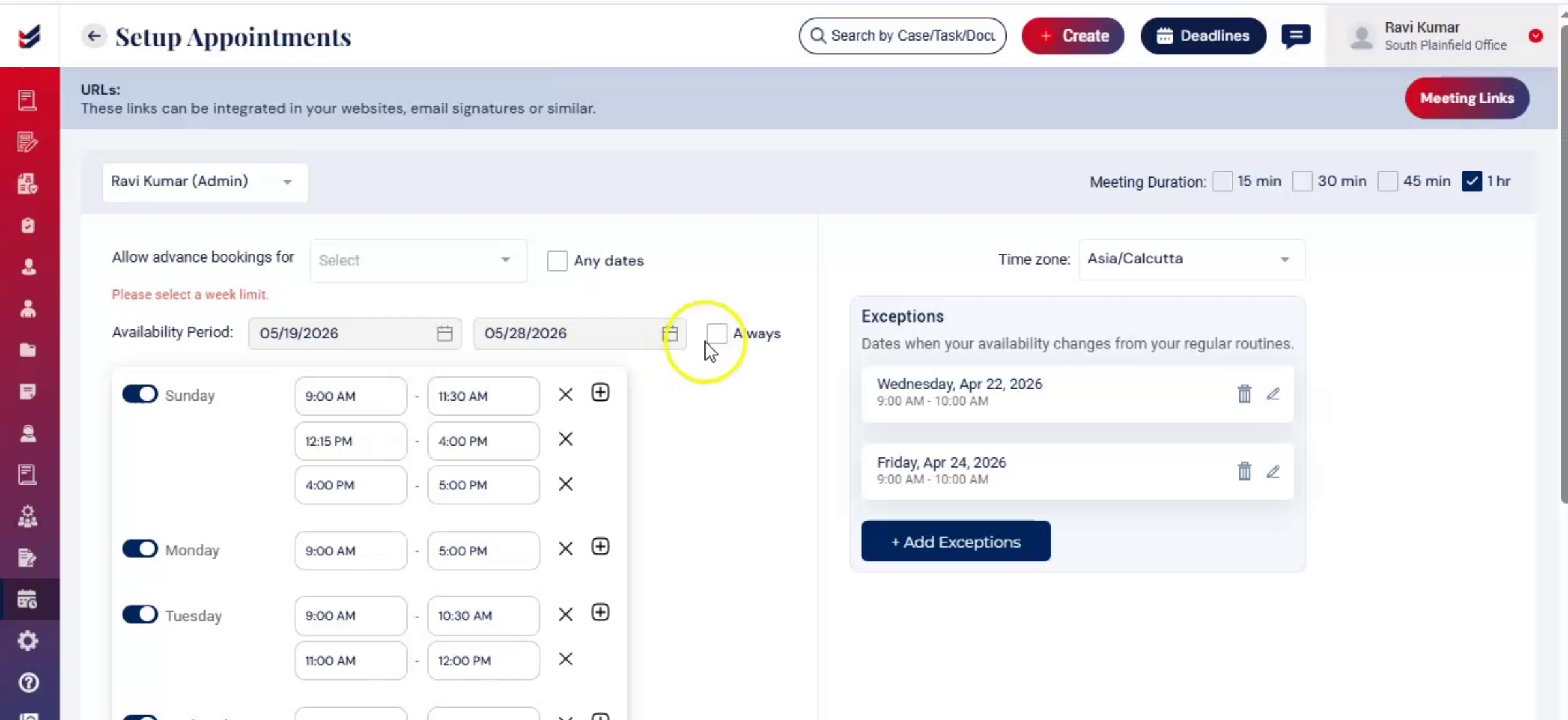
Always Option – If the Always option is selected, there will be no date restrictions, allowing prospects to schedule meetings for any future date based on the configured working hours and availability.
7. Weekly Availability
 * click the image to view enlarged
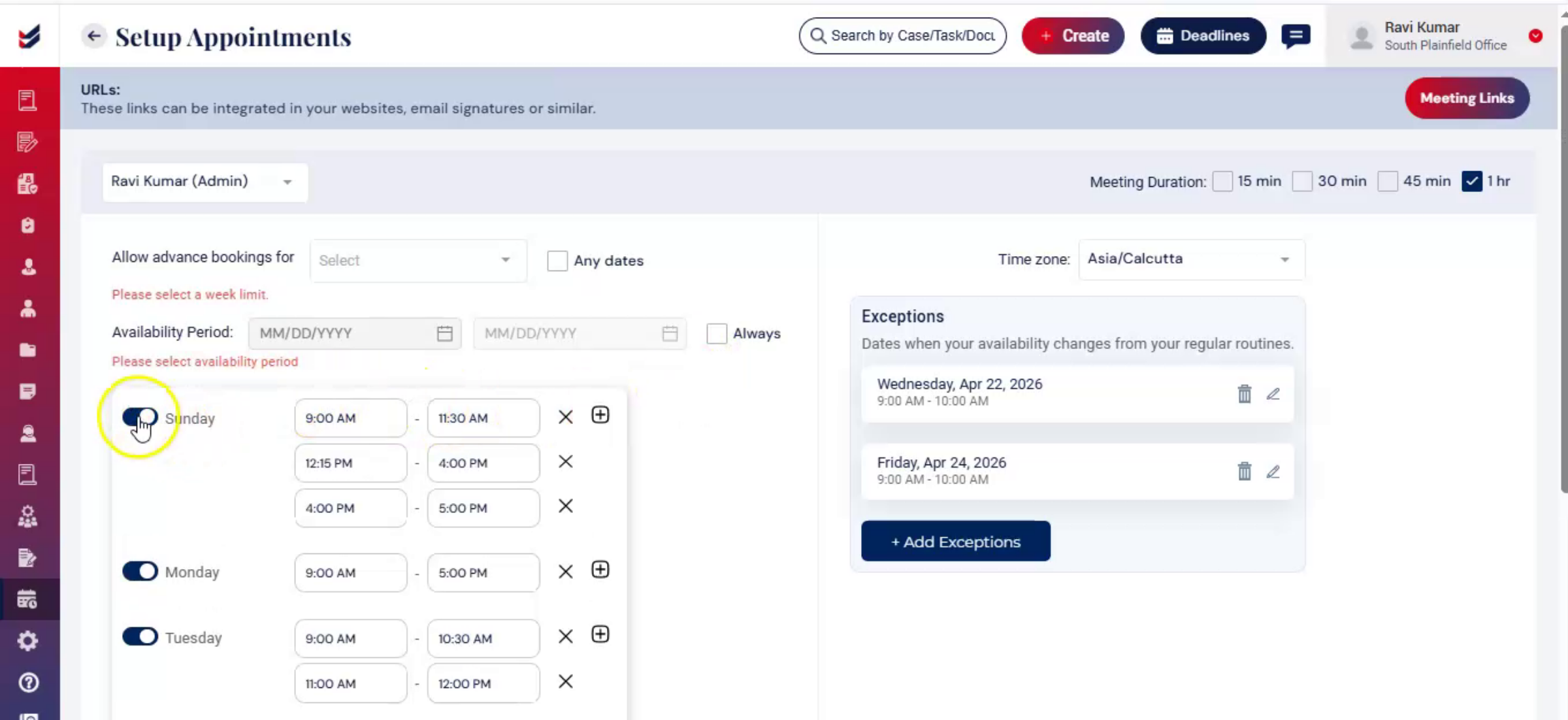
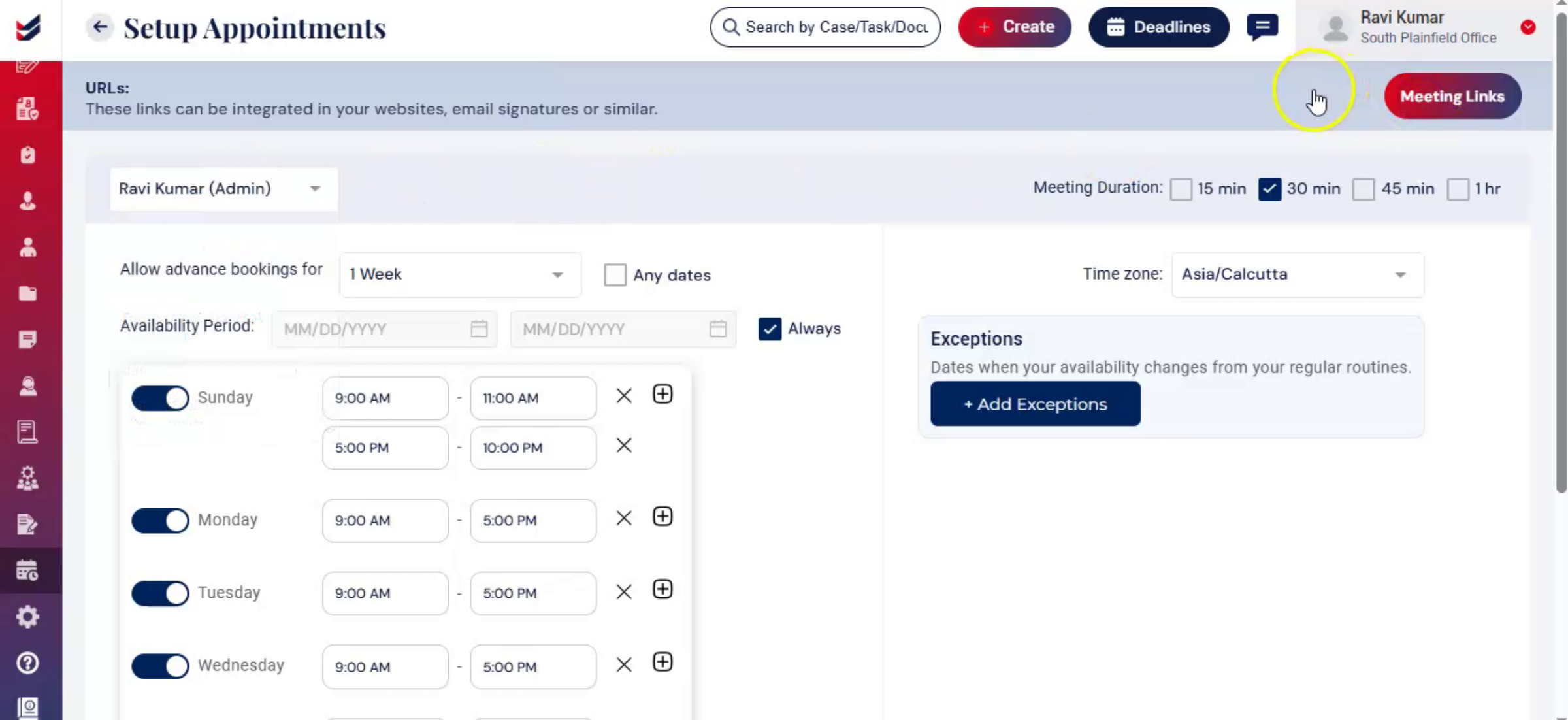
Weekly Availability Setup – Users can configure their availability for each day of the week, from Sunday through Saturday, by enabling or disabling specific days and defining available time slots for each day. Multiple time slots can also be added for a single day to support flexible scheduling.
8. Meeting & Time Zone
 * click the image to view enlarged
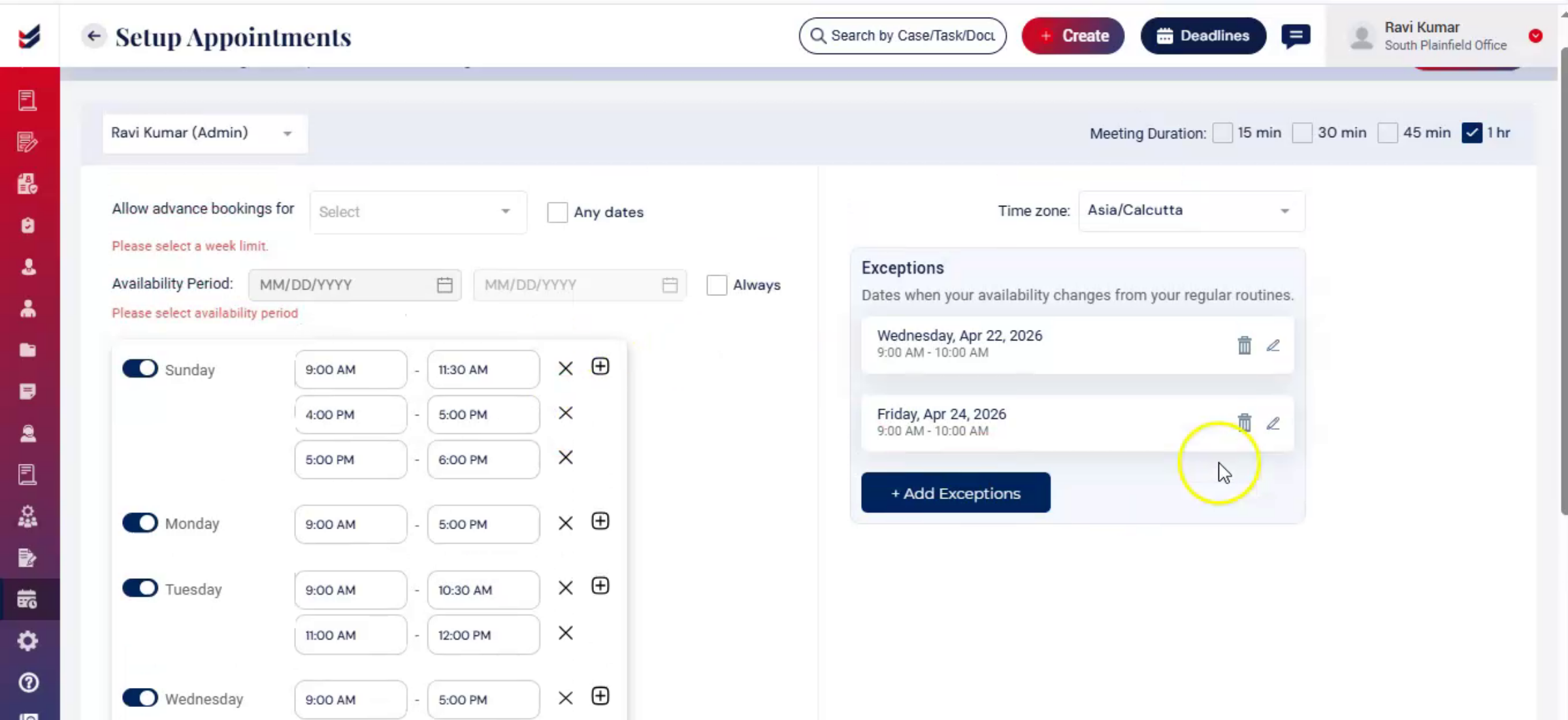
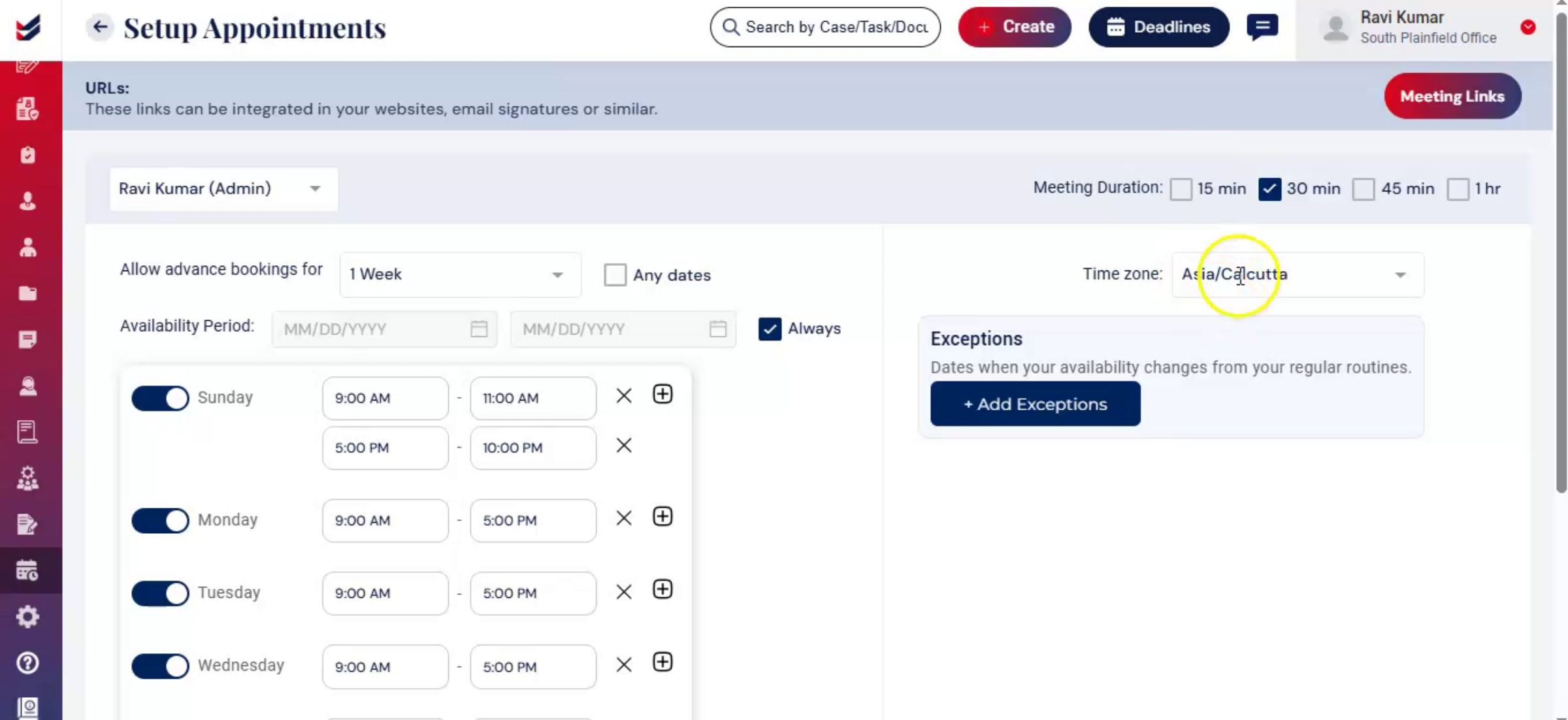
Meeting Duration – Users can define the duration of meetings based on scheduling requirements.Time Zone Configuration – The system allows users to select a preferred time zone. All availability schedules and meeting bookings are automatically adjusted based on the selected time zone to ensure accurate scheduling across different regions.
9. Exception Configuration
 * click the image to view enlarged
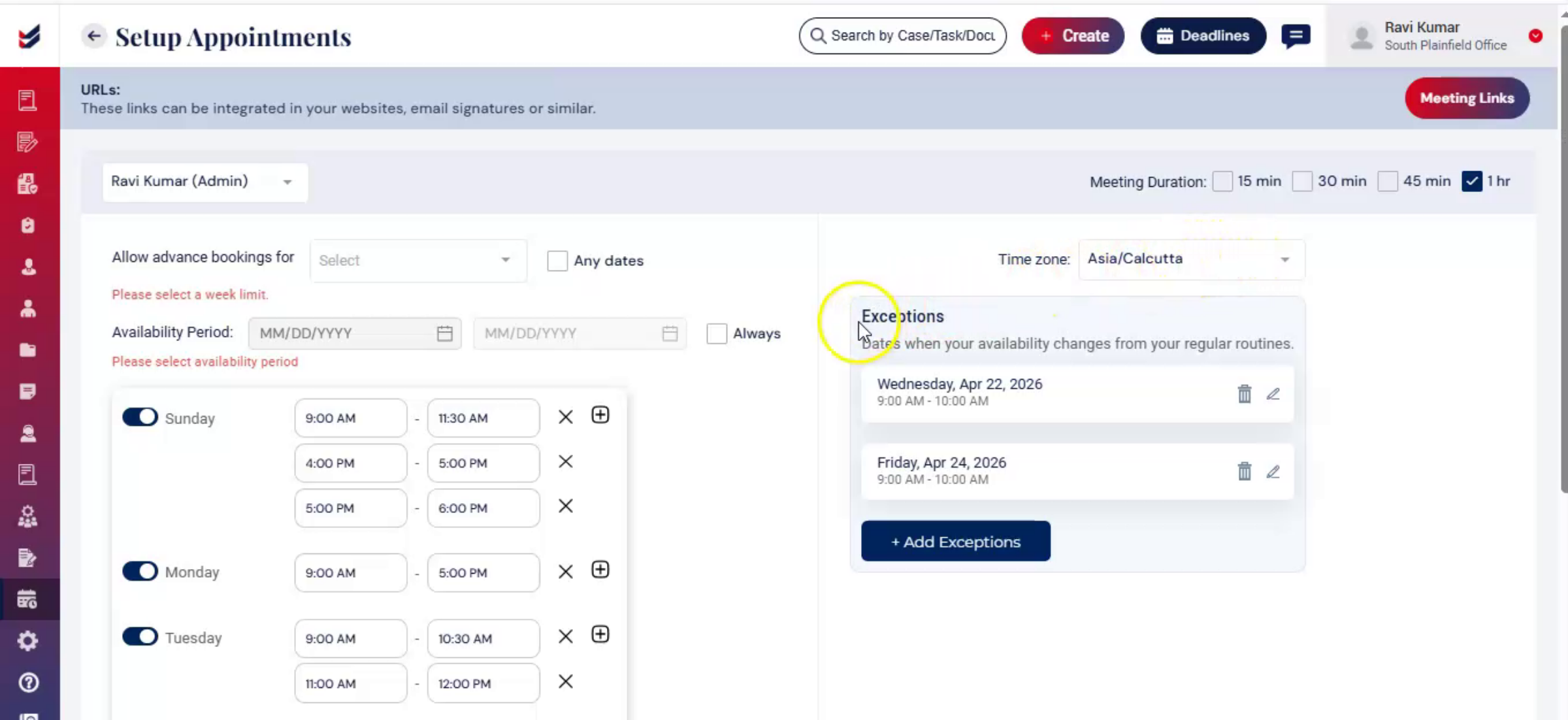
The system also provides an Exceptions option to override the standard availability schedule whenever needed. This feature helps accommodate special situations or temporary schedule changes.
This flexibility ensures that the booking calendar remains accurate and aligned with real-time availability.
10. Meeting Links
 * click the image to view enlarged
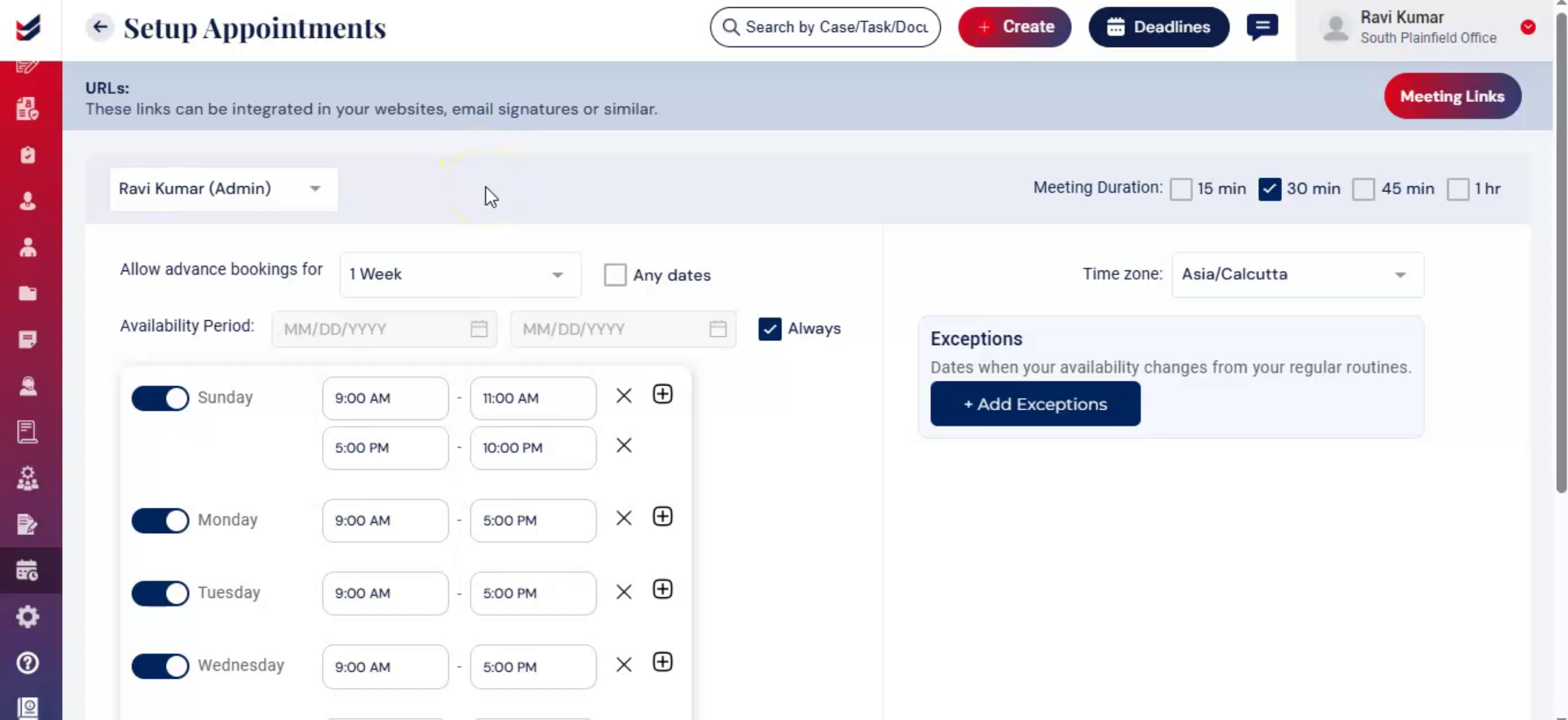
Right of the top bar will have a button ‘Meeting Links’ that will have all the URLs of the entire Organization. Clicking on that will open a popup with all URLs for the entire team along with the organization URL.
11. Organization Schedule
 * click the image to view enlarged
If one logs in as an Administrator, they can see or setup the availability of all their internal team members. Select the name of the individual in the dropdown to setup / view the availability of that user.
12. Accessing the Organization URL
 * click the image to view enlarged
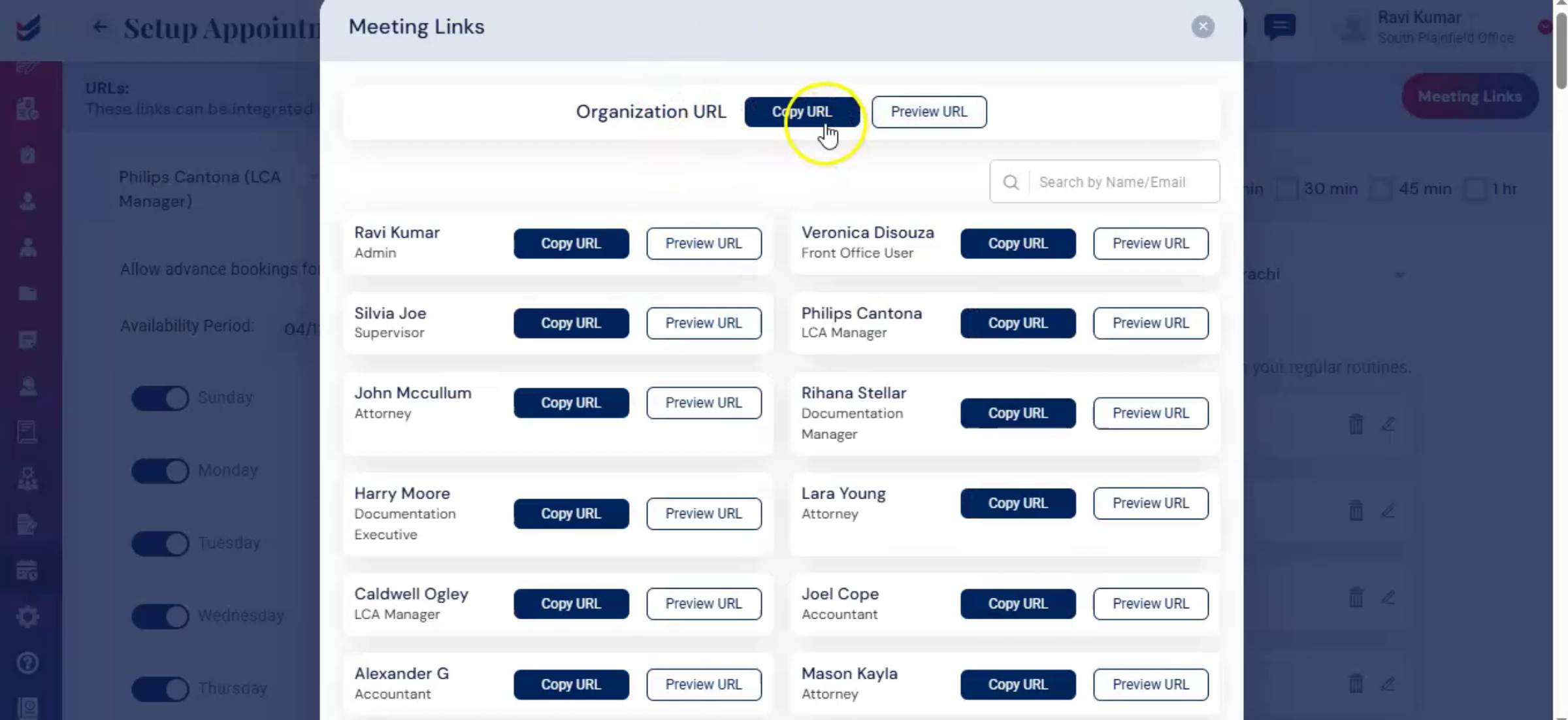
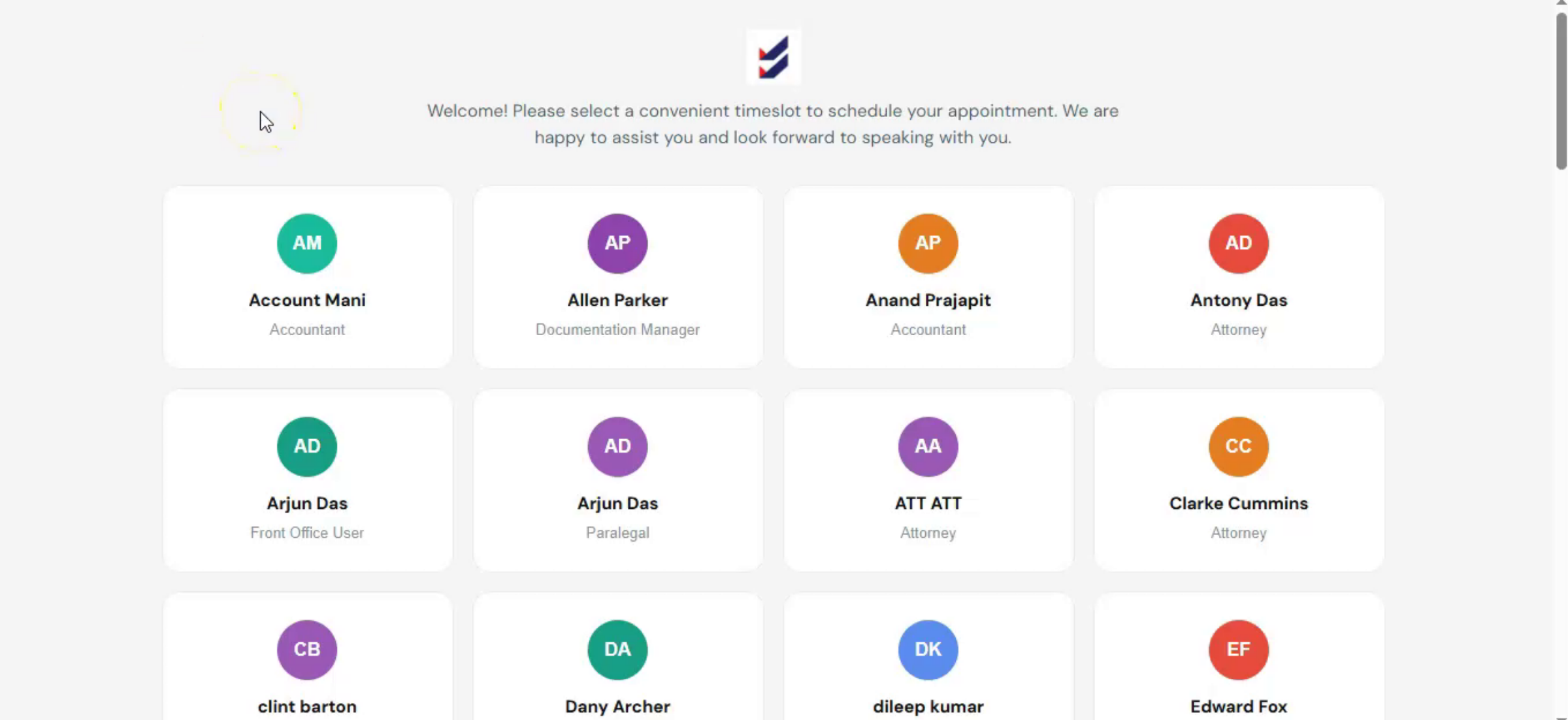
The Organization URL shows the availability of all users in your law firm. Anyone accessing this link can schedule a meeting with the appropriate law firm member depending on their availability. The administrator can share this URL for clients to book meetings directly.
13. Individual Schedule
 * click the image to view enlarged
For Individual Schedule: Beside the name of every individual, a link for their meetings calendar will be available. The link can be copied by clicking the button next to the individual name. The Individual member can use this link to promote their availability. This can be used in their email signatures, social media or other similar ways. Using this link, clients or prospects can schedule meetings directly with them.
14. Scheduling an Appointment
 * click the image to view enlarged
Petitioner view of appointment scheduling for organization url: The client sees all members of the law firm who are available for meetings. They select a member to view their availability on a calendar. Select the date and time, then click Next.
Enter required details, meeting agenda, and click Schedule Meeting. The client enters the OTP sent to their registered email for verification.
Once verified, the appointment is confirmed, and ImmiBox sends a confirmation email to the client. The law firm member receives a notification and email that a meeting was booked. The time slot is blocked automatically. The same can be seen in the Bookings Calendar in the ImmiBox portal.
The client can cancel the meeting using the Cancel link in the confirmation email. The law firm member can also cancel from their calendar if needed.
15. View Appointments
 * click the image to view enlarged
Additionally, the View Appointments section displays all scheduled meetings in monthly, weekly, or daily calendar views. Users can place their cursor over a meeting to quickly view its details. All scheduled meetings are automatically added to the assigned team member’s booking calendar for easier schedule management and coordination. If the user’s email account is integrated with ImmiBox through Outlook or Google, all scheduled meetings will also automatically sync with their Outlook Calendar or Google Calendar. This ensures seamless calendar synchronization, improved scheduling visibility, and better meeting management across platform.

