


Setup Password for an Account
Overview
Welcome! In this video, we will learn how to set up your password.
1. Introduction
 * click the image to view enlarged
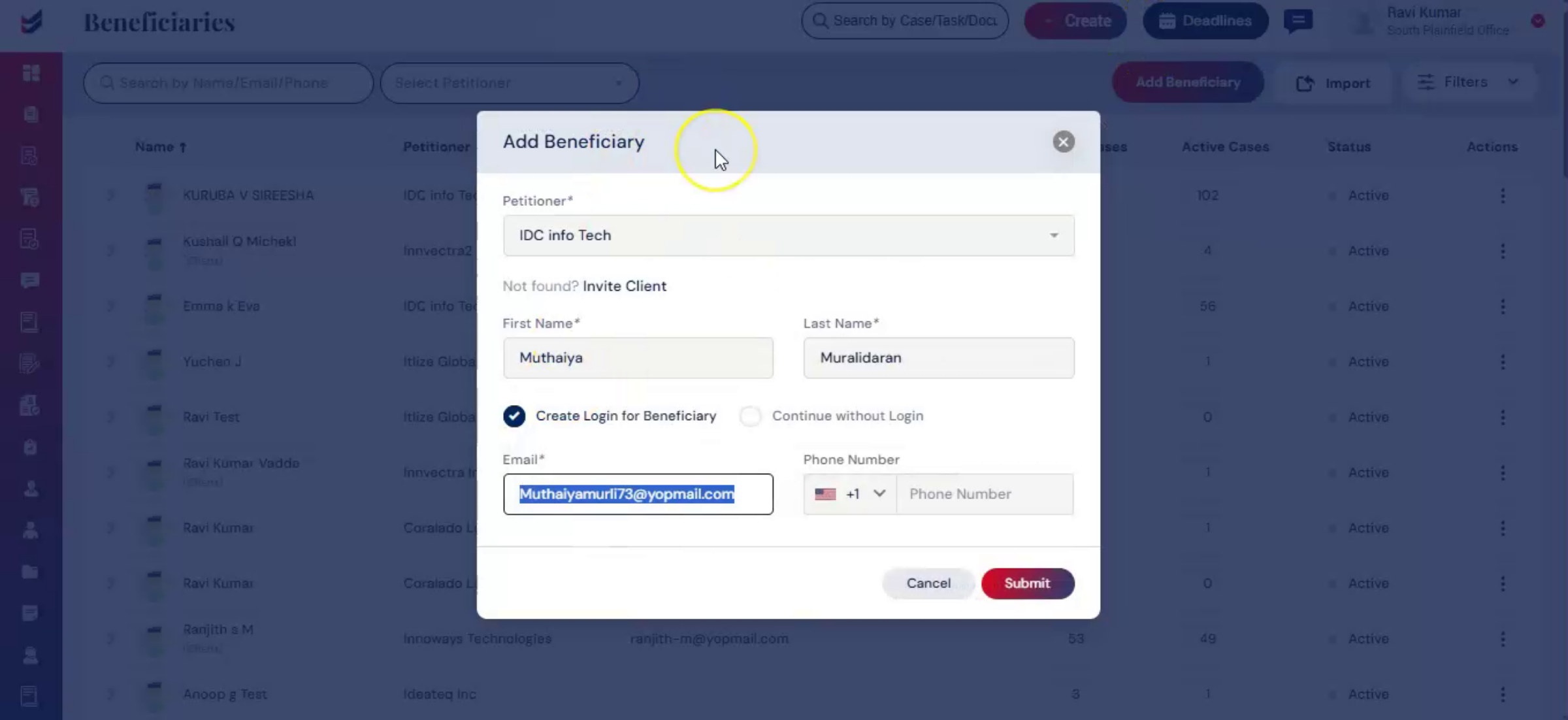
In ImmiBox, once a user is invited, whether a client, beneficiary, or internal user, an email notification is sent to set up a password.
This allows secure access to the platform and connects the user to the respective law firm or petitioner.
2. Receive Invitation Email
 * click the image to view enlarged
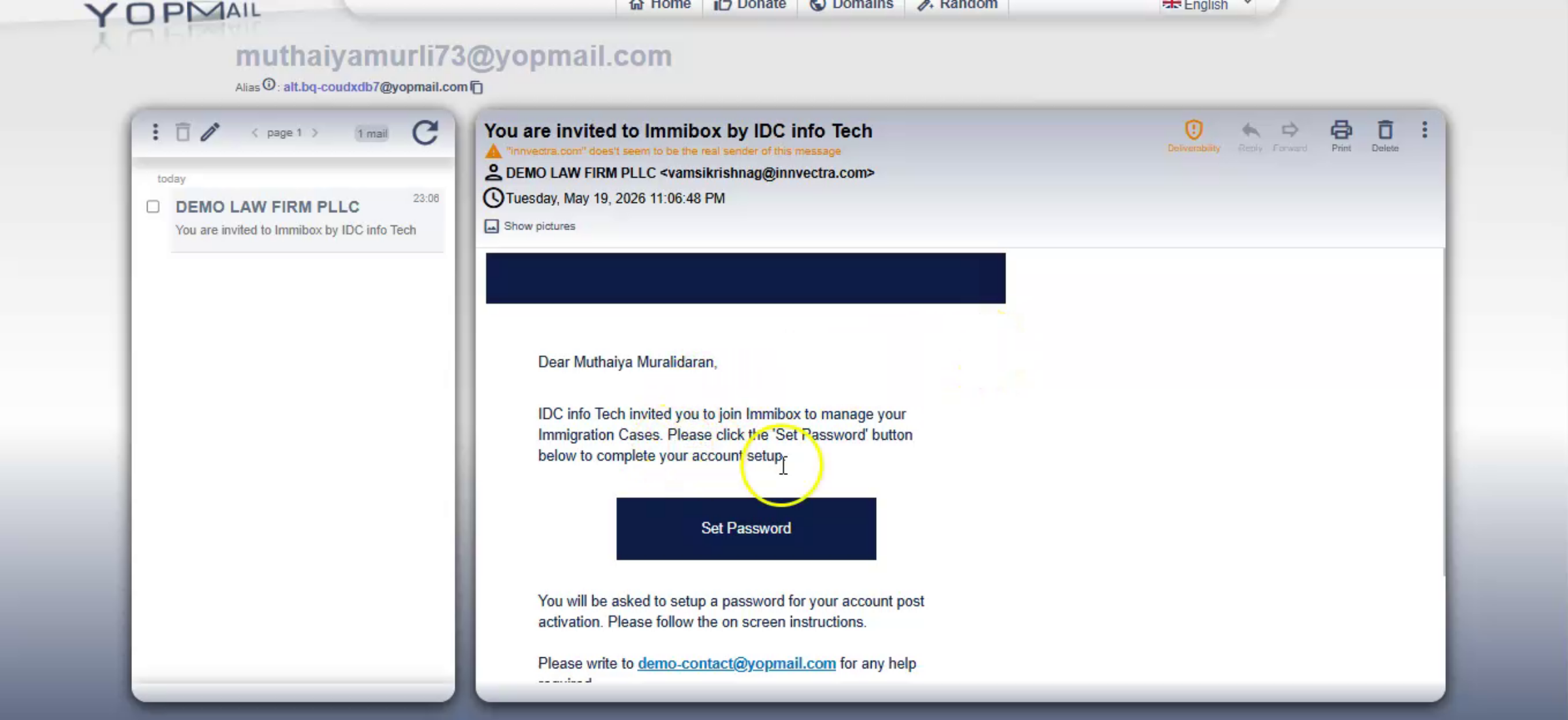
After being invited, the user will receive an email. This email contains a 'Set Password' link. This applies to Corporate Clients, Individuals, Beneficiaries, and Internal Users. Click on the 'Set Password' link received in the email.
3. Set Password
 * click the image to view enlarged
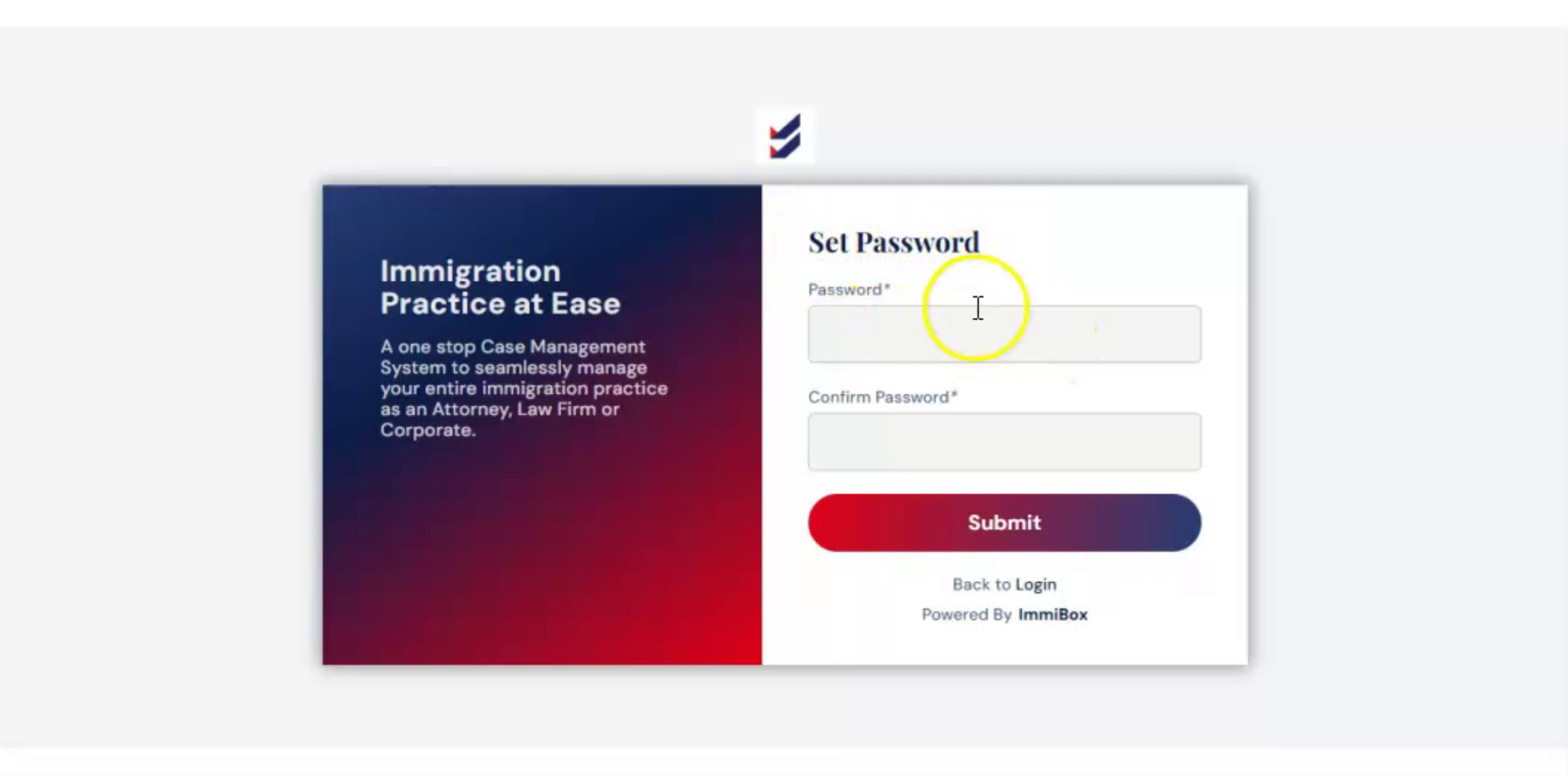
You will be redirected to the set password page. Enter the password and click Submit.
4. Access Your Account
 * click the image to view enlarged
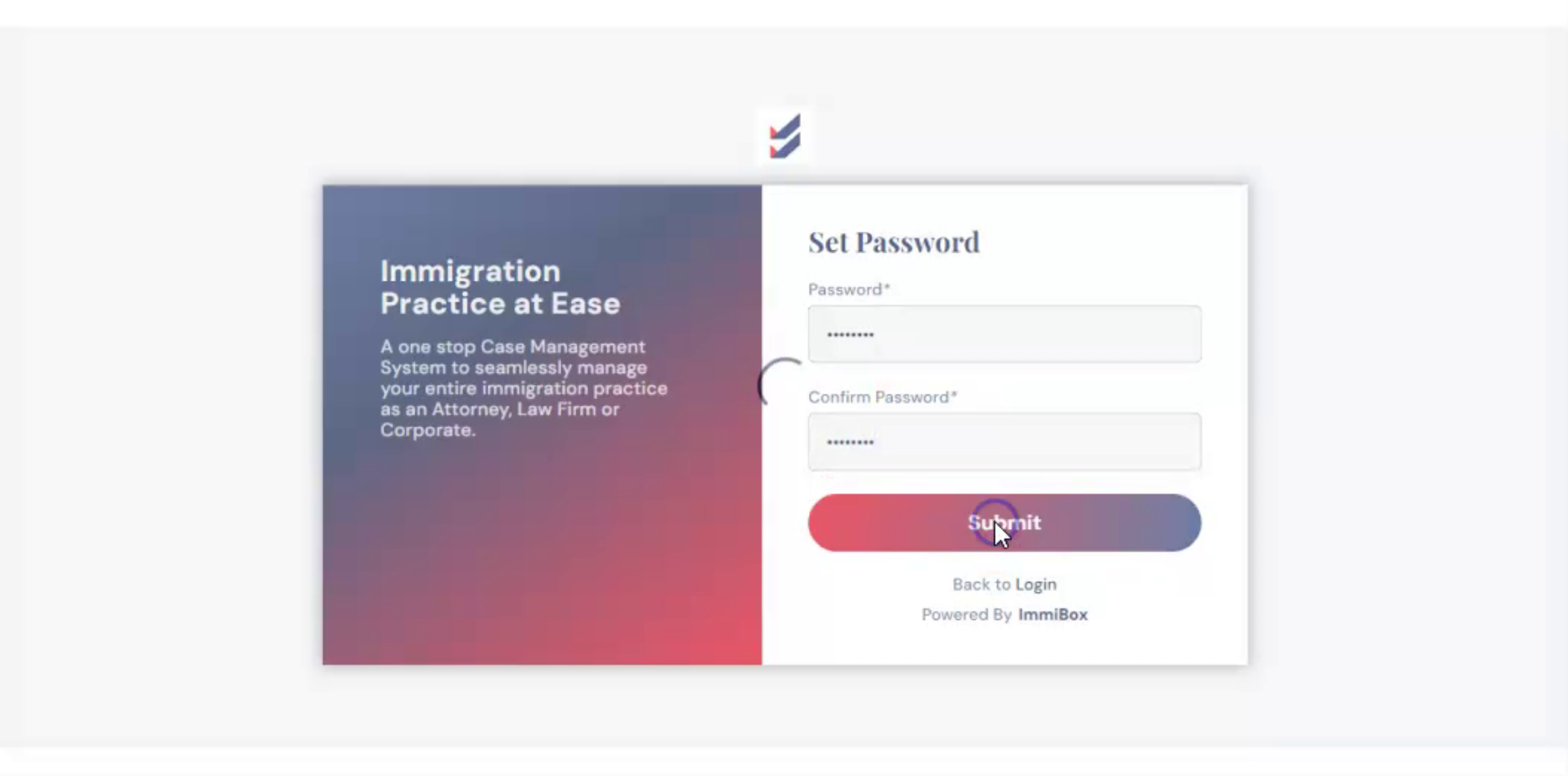
Once the password is set, you will be automatically logged in. Your account is now active and ready to use.
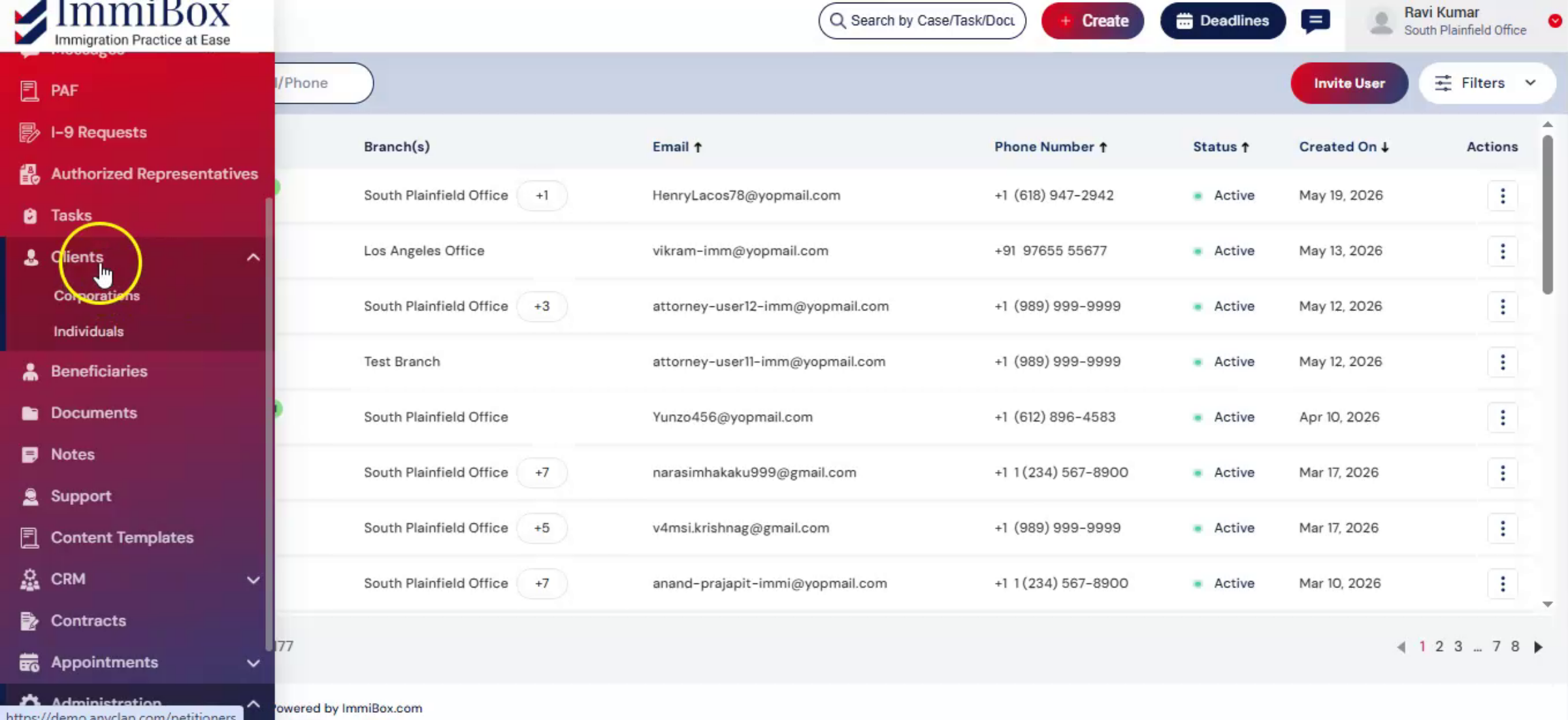
5. Complete Setup Based on User Type
 * click the image to view enlarged
Depending on the user type, the next steps may vary.
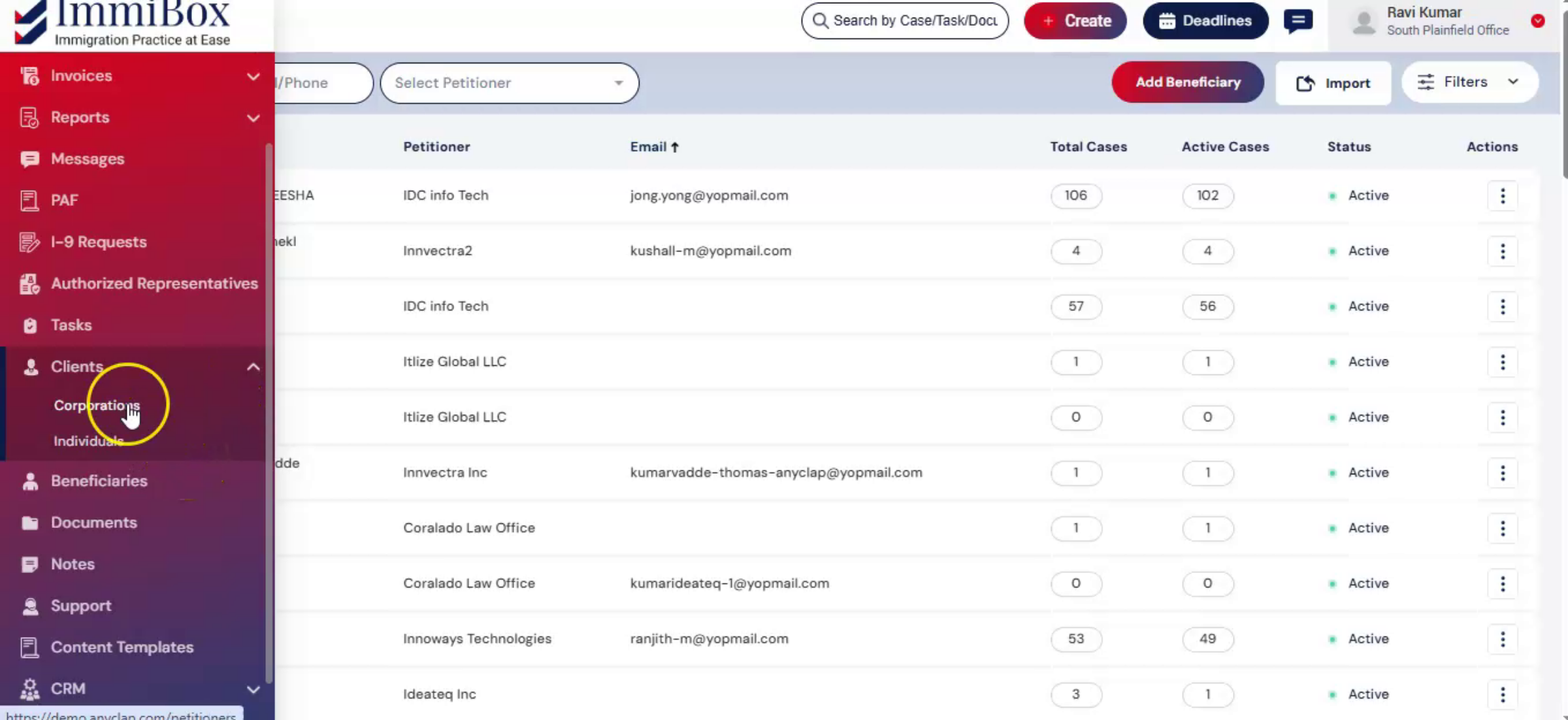
6. Corporate Client
 * click the image to view enlarged
In the case of a corporate client, you will need to fill in company details and update your profile. Once completed, your account will be linked to the law firm.
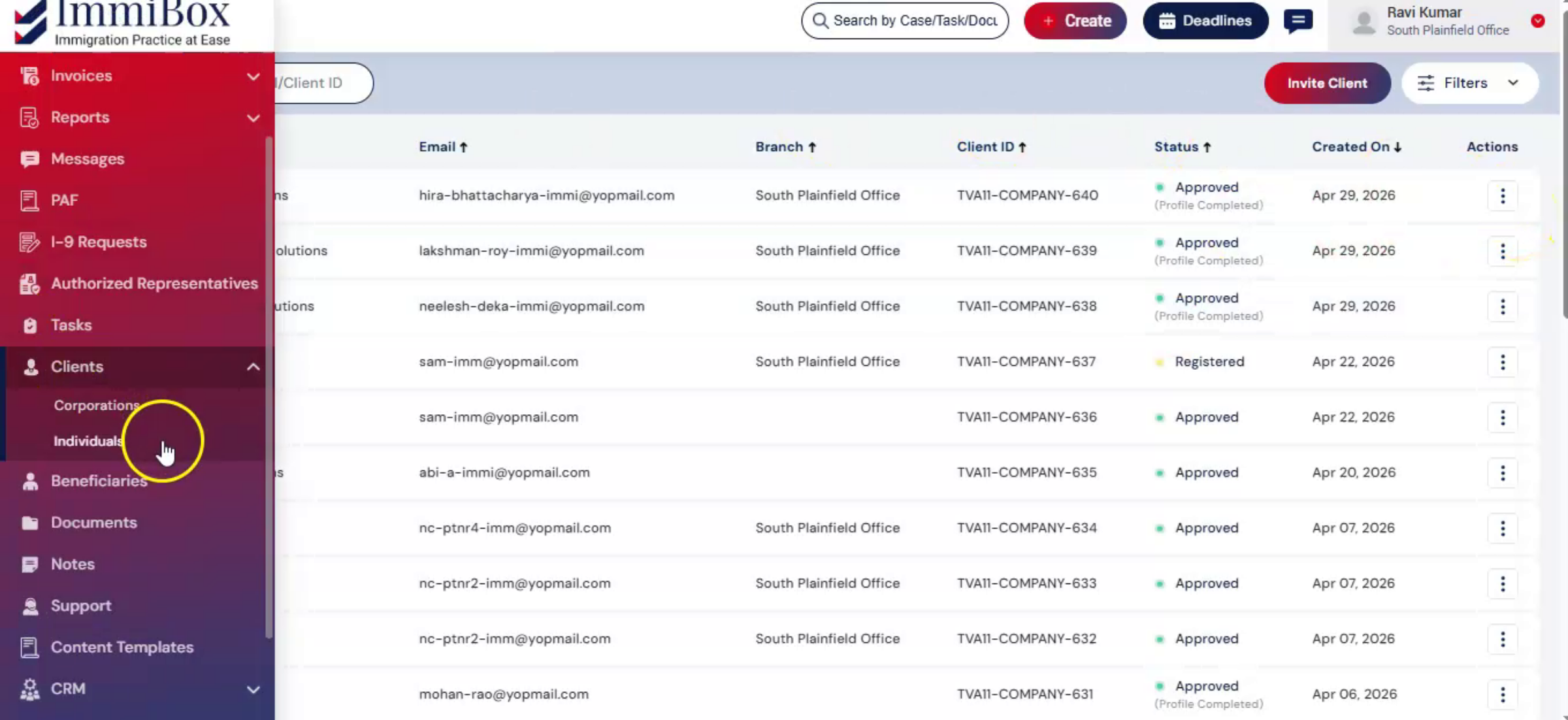
7. Individual User
 * click the image to view enlarged
For an Individual user, you can directly access your account after setting the password.
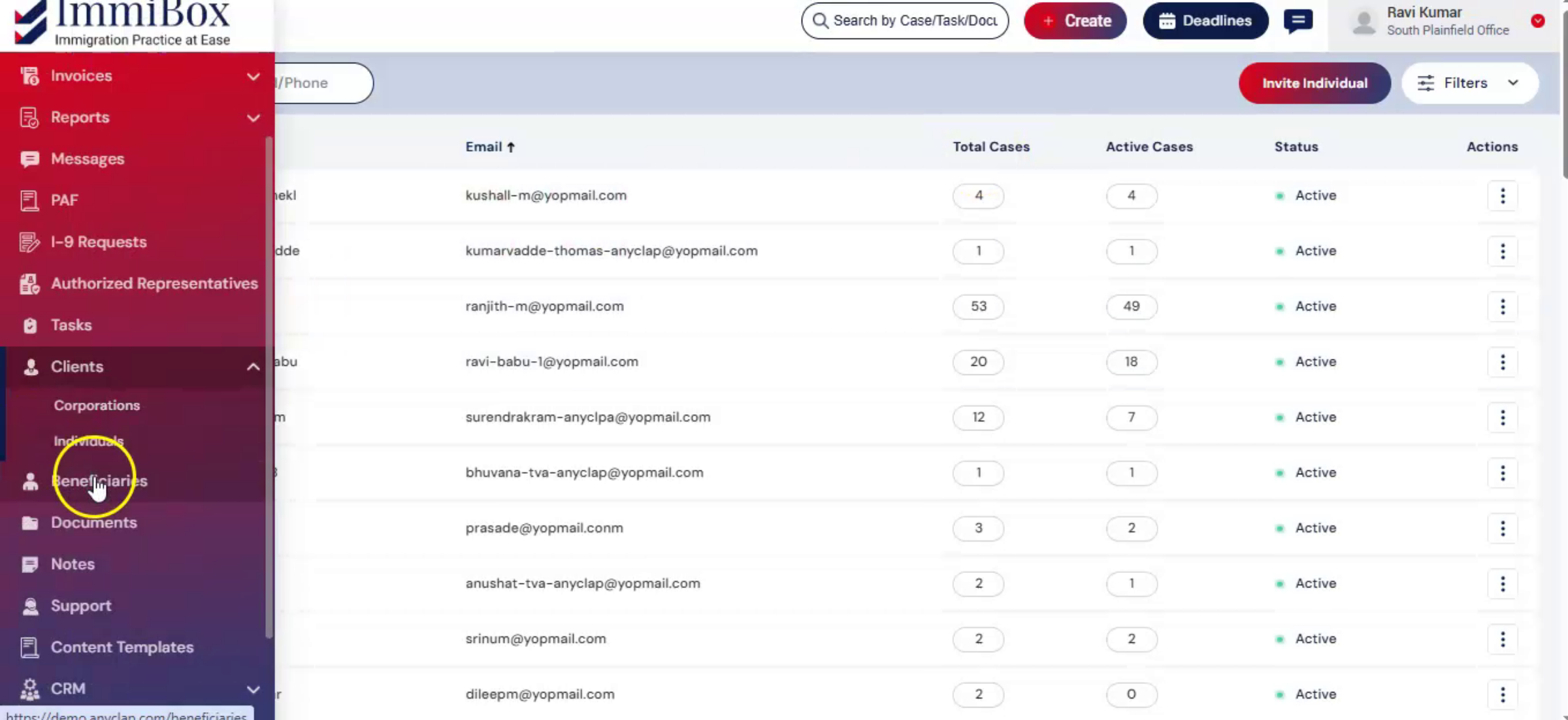
8. Beneficiary
 * click the image to view enlarged
In the case of a Beneficiary, the account will be linked to the respective Petitioner, allowing access to manage case details.
9. Internal User
 * click the image to view enlarged
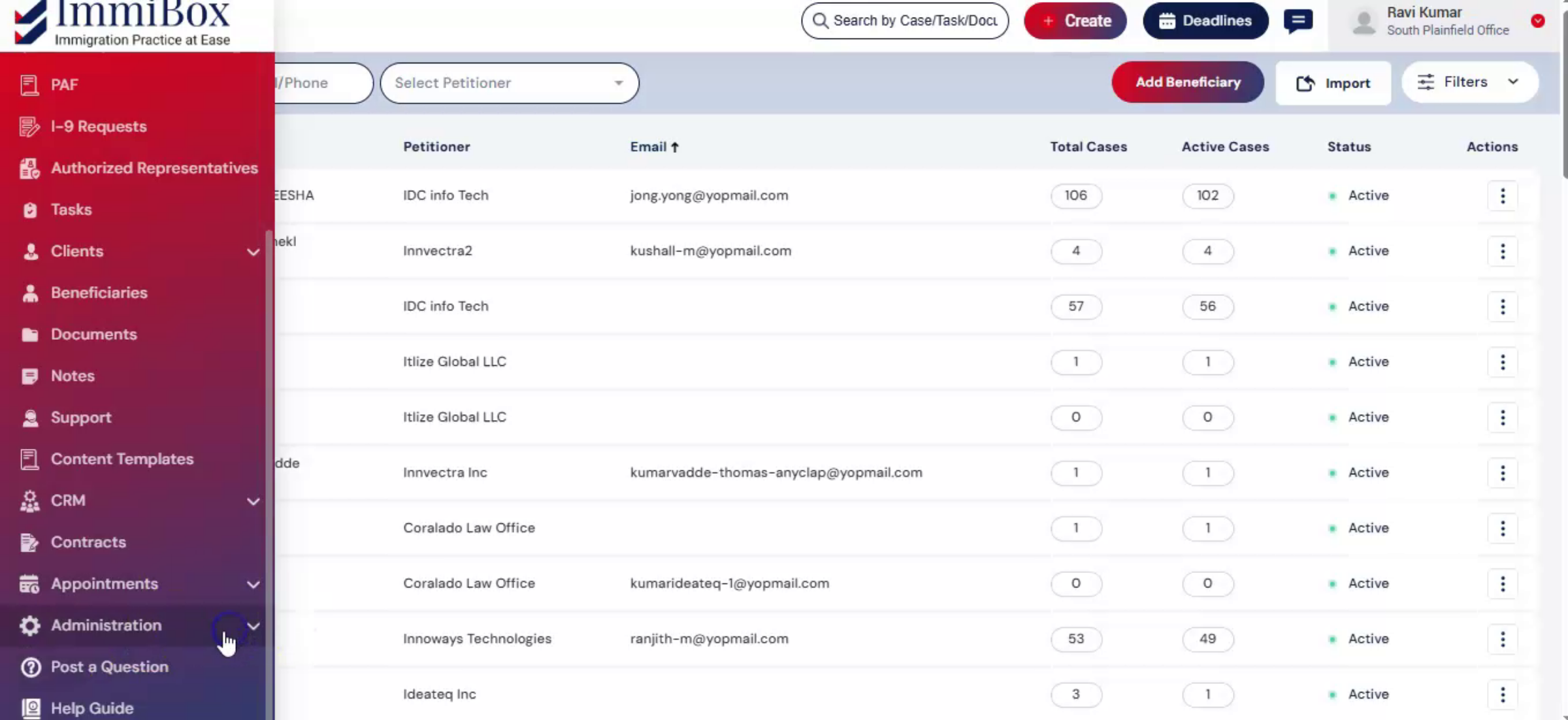
As an Internal User of the Law Firm, access will be provided based on the assigned roles and permissions.
10. Conclusion
 * click the image to view enlarged
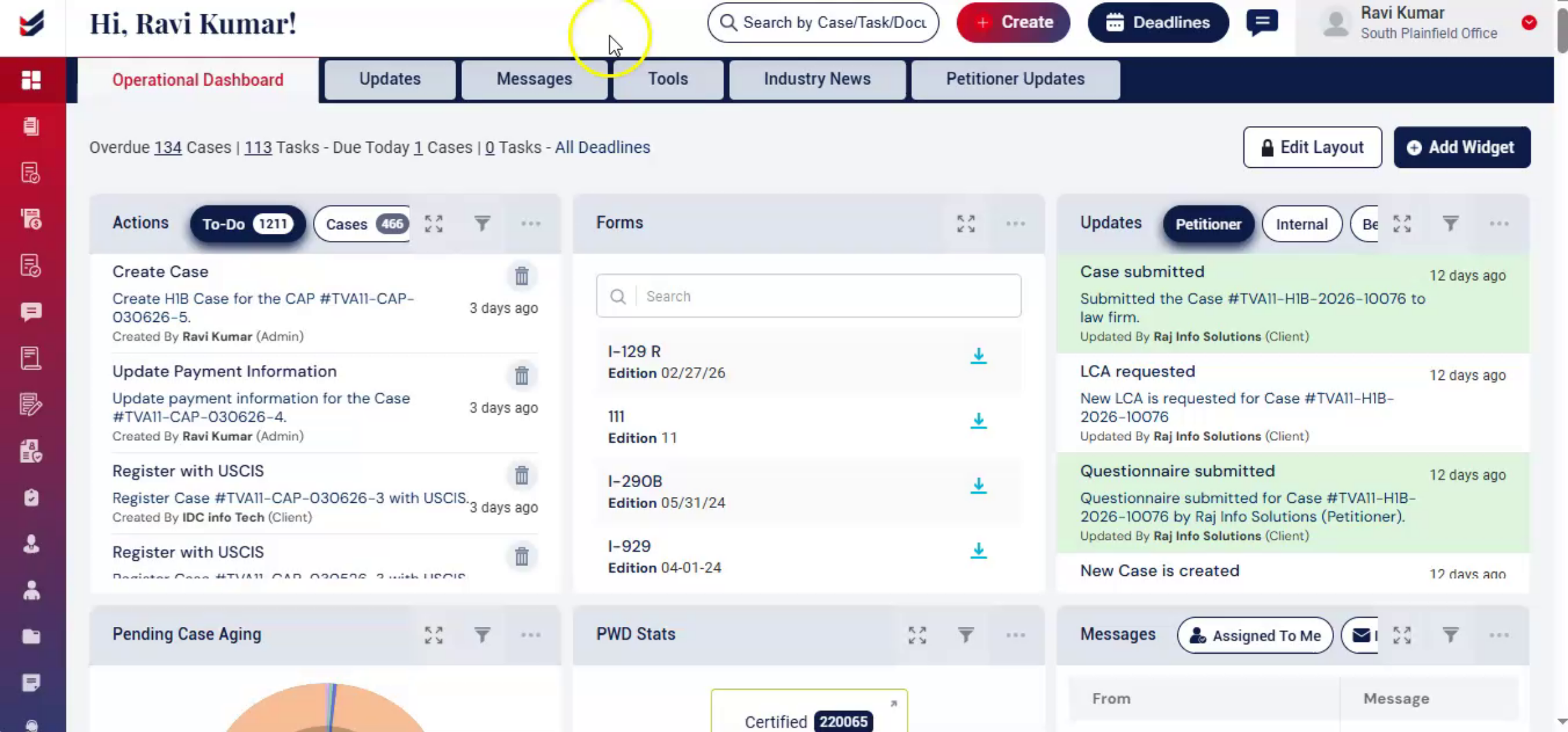
Setting up your password in ImmiBox ensures secure access to your account and connects you to the appropriate law firm or petitioner.
Once completed, you can start accessing your dashboard and performing tasks based on your role.

