


Download USCIS Forms in ImmiBox
Overview
Welcome! In this video, we'll learn how to access and download USCIS forms in ImmiBox.
1. Introduction
 * click the image to view enlarged
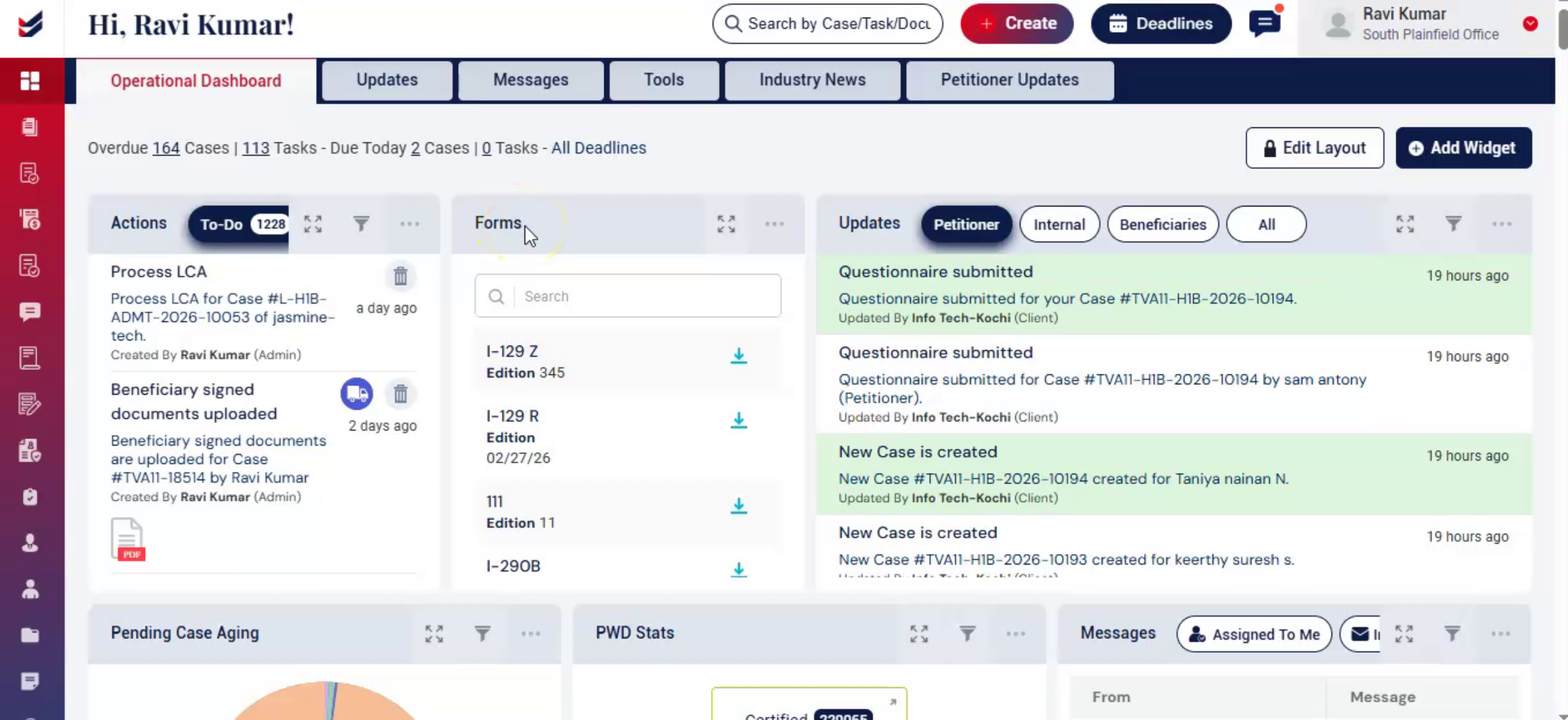
The Forms widget provides all the latest and updated USCIS forms required for external case filing.
You can easily search, view, and download forms directly from the dashboard and use them with any PDF editor to complete the required fields.
2. Navigate to the Forms Widget
 * click the image to view enlarged
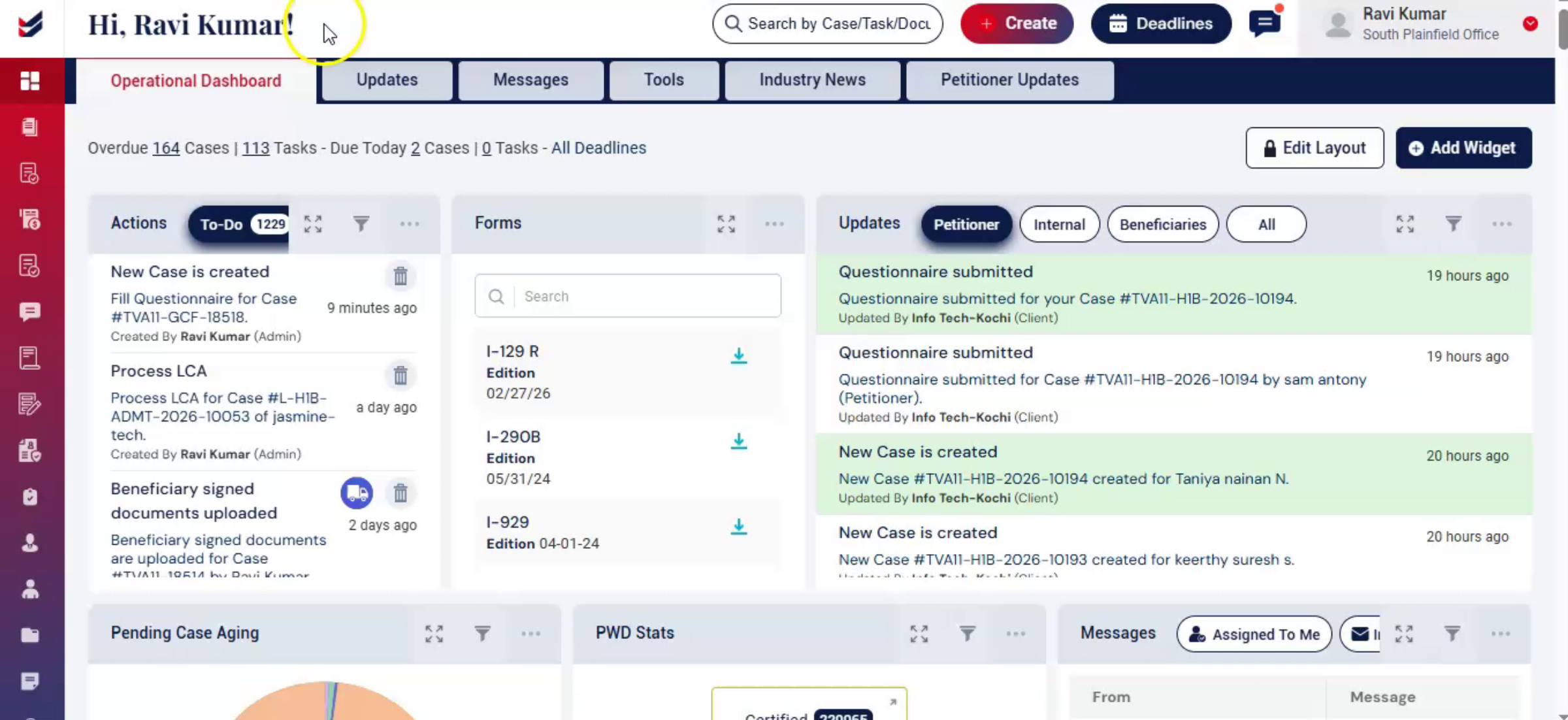
Go to the Dashboard in ImmiBox.
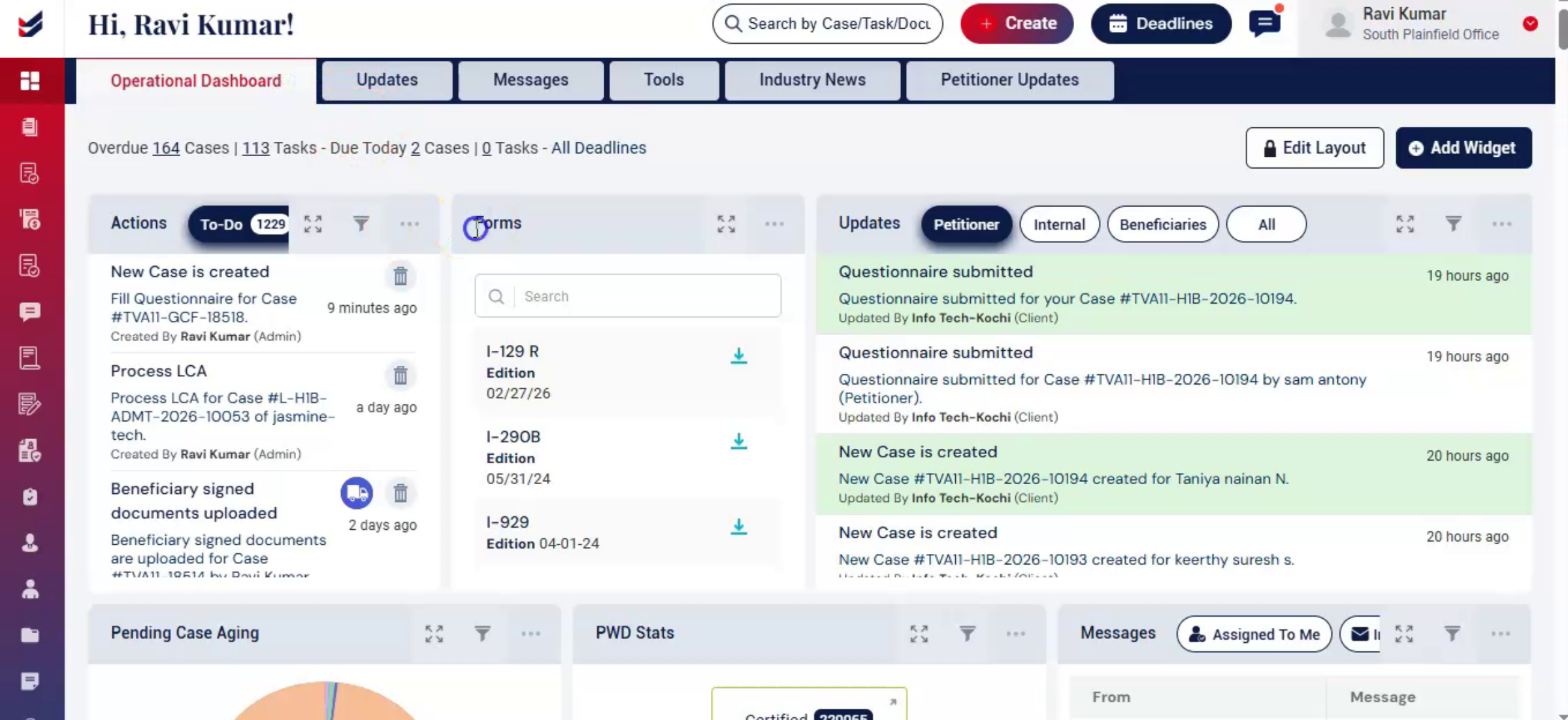
On the Operational dashboard, locate the Forms widget, positioned next to the Actions widget.
Within this widget, you will find a list of all available USCIS forms, which are regularly updated to ensure you have access to the latest versions for case filing.
3. Expand or Adjust the Widget View
 * click the image to view enlarged
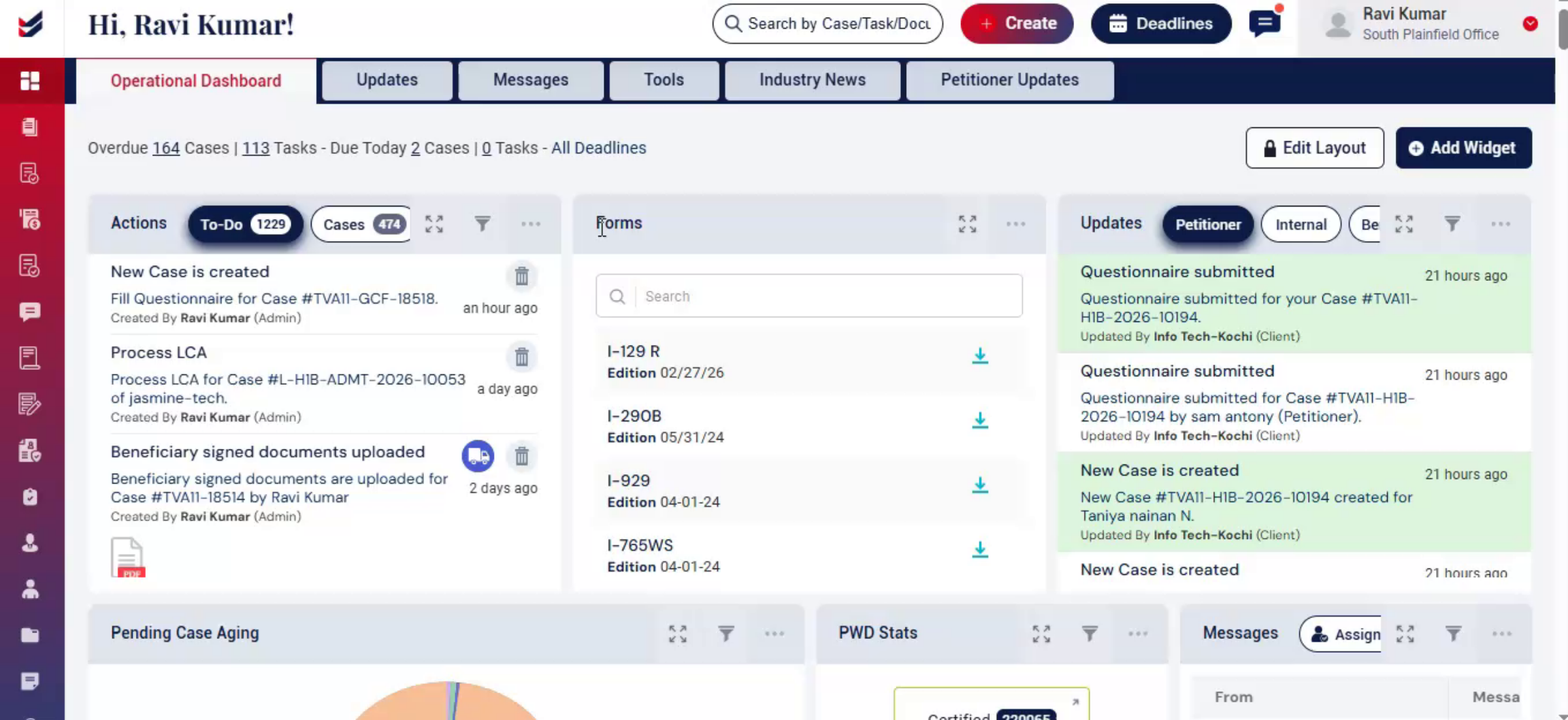
At the top of the Forms widget, you will see:
A maximize or expand icon
A Ellipsis icon
Click the expand icon to view the widget in full-screen mode for better visibility.
You can also drag and reposition the widget using the top tab.
4. Search and Download USCIS Form
 * click the image to view enlarged
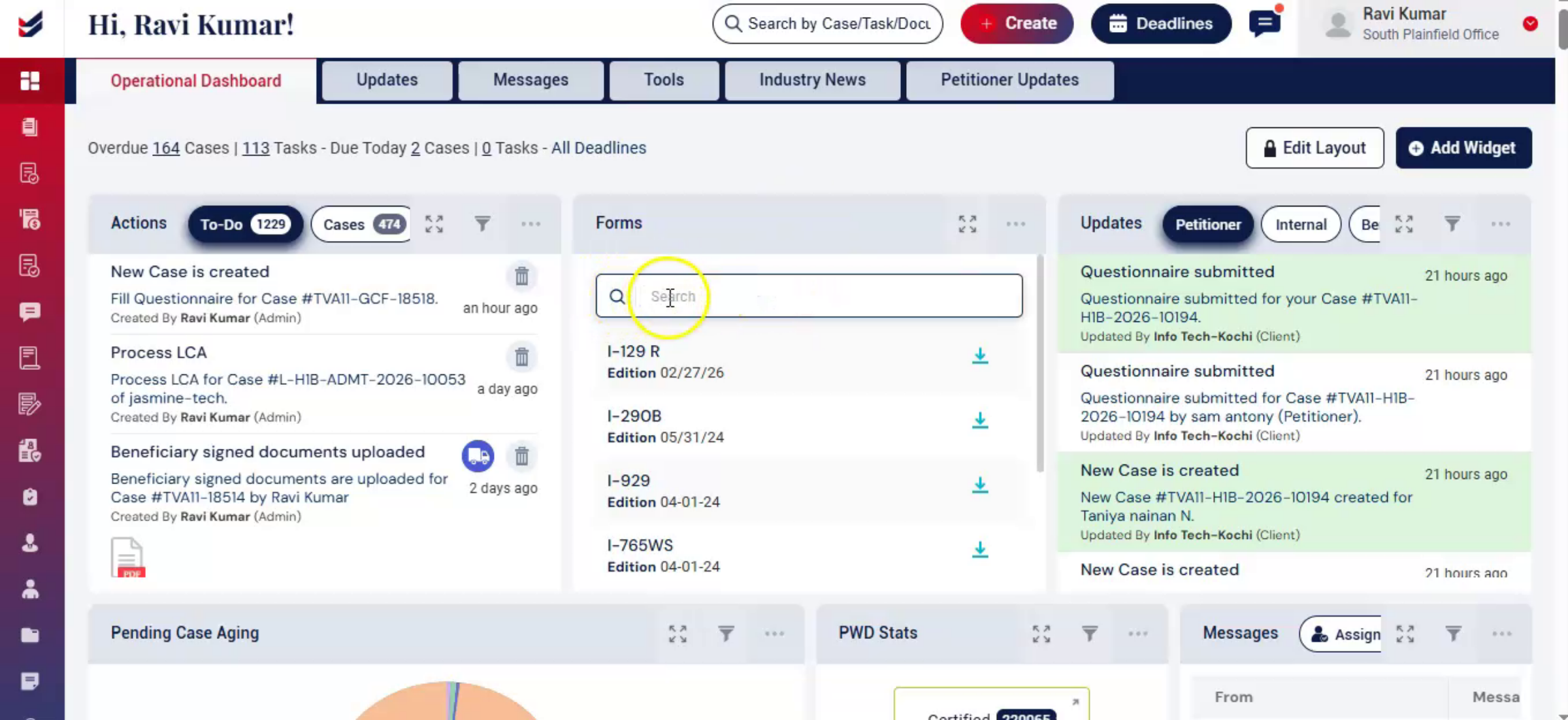
Use the search bar within the widget to quickly find the required USCIS form by name.
Once located, click on the Download icon next to the form to save it to your system.
5. Fill the Form
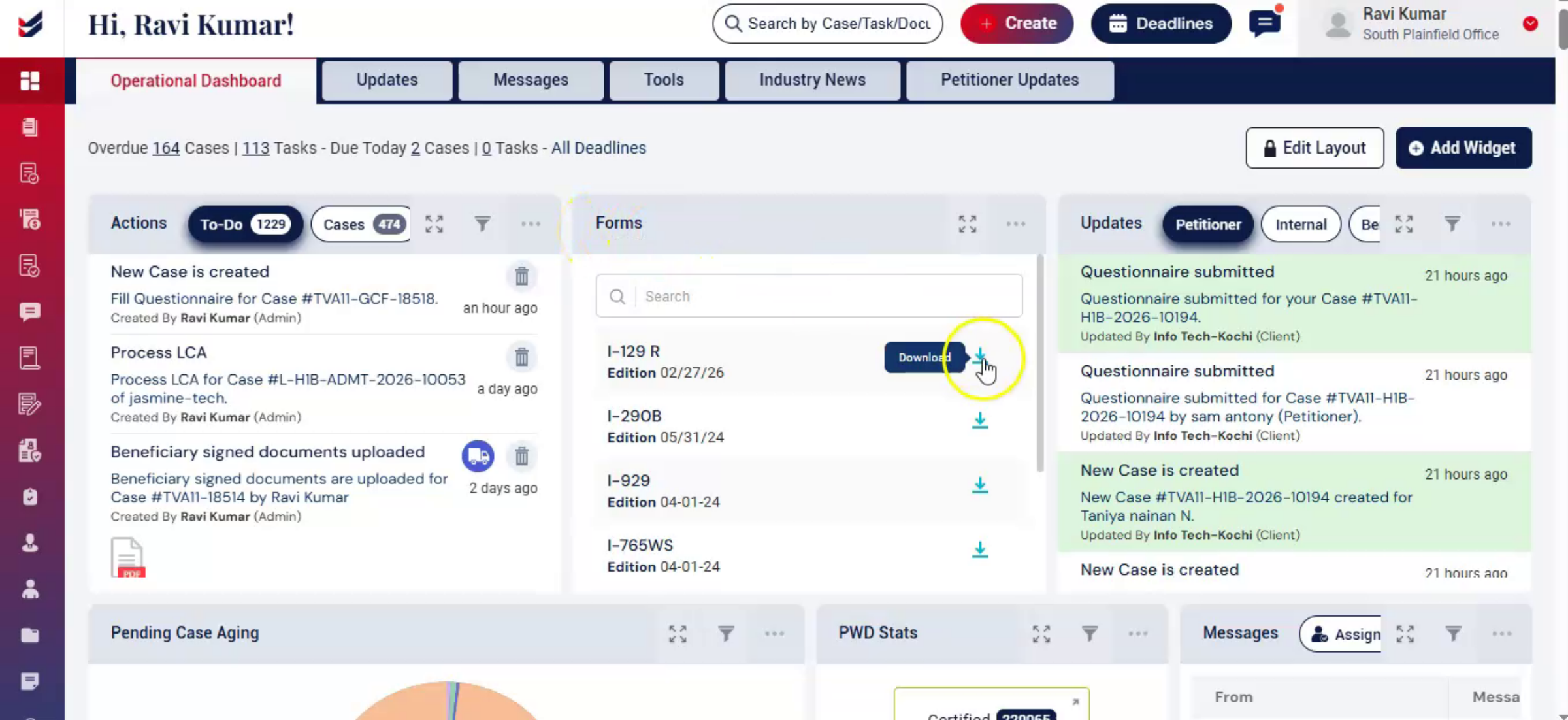 * click the image to view enlarged
After downloading, open the form using any PDF editor.
You can then fill in the required fields digitally or manually as needed for your case filing process.
6. Conclusion
 * click the image to view enlarged
The Forms widget in ImmiBox makes it easy to access and download the latest USCIS forms from a single place.
With quick search, easy navigation, and direct download options, it simplifies the process of preparing forms for external case filing and improves overall efficiency.

