


Adding and Managing Petitioners in ImmiBox
Overview
Welcome! In this video, we will learn multiple methods to register and manage petitioners.
1. Petitioner Addition Overview
 * click the image to view enlarged
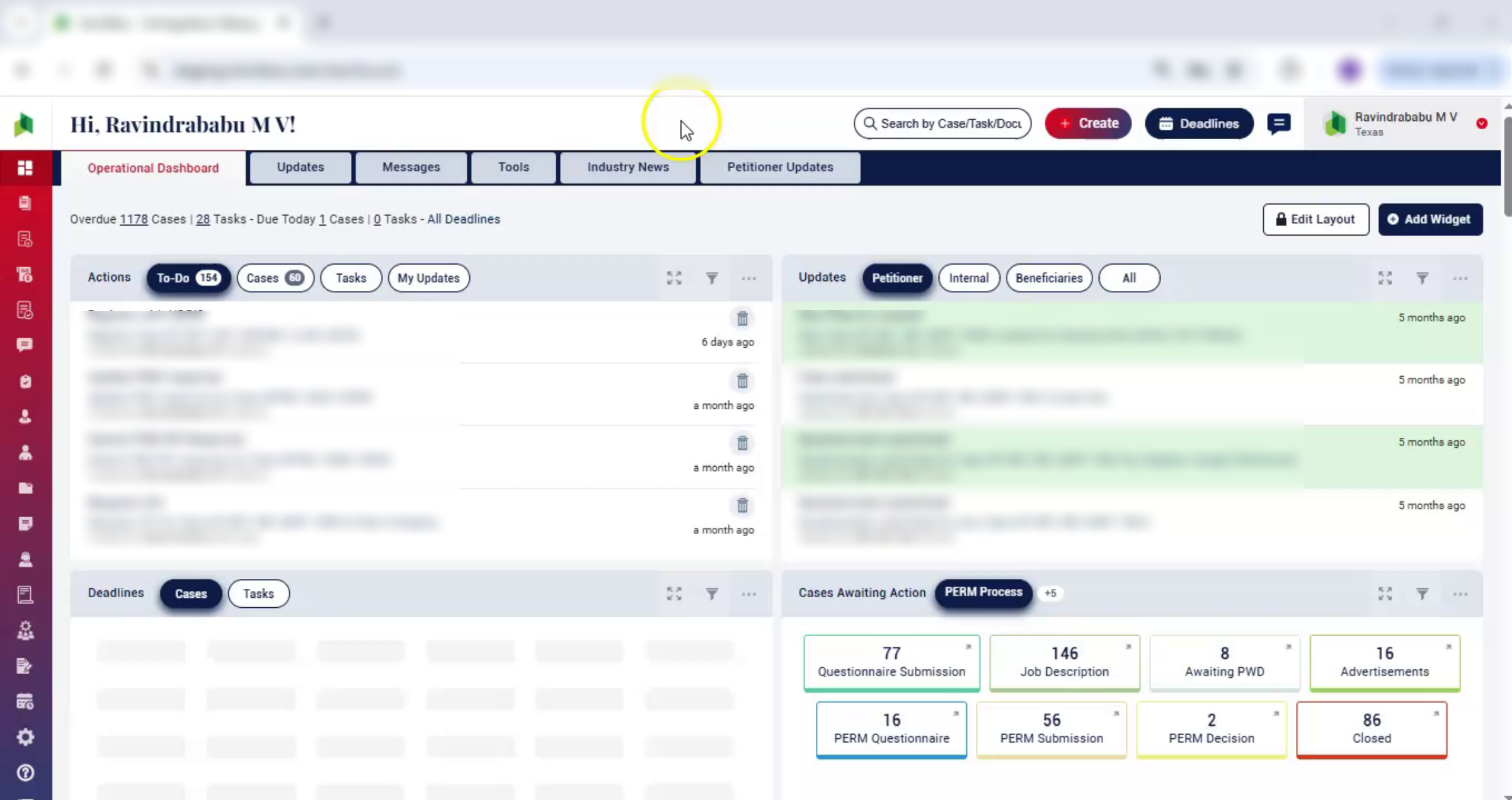
Let's see how easy it is to add a petitioner. There are four ways to do it, depending on your workflow.
2. Register from Login Page
 * click the image to view enlarged
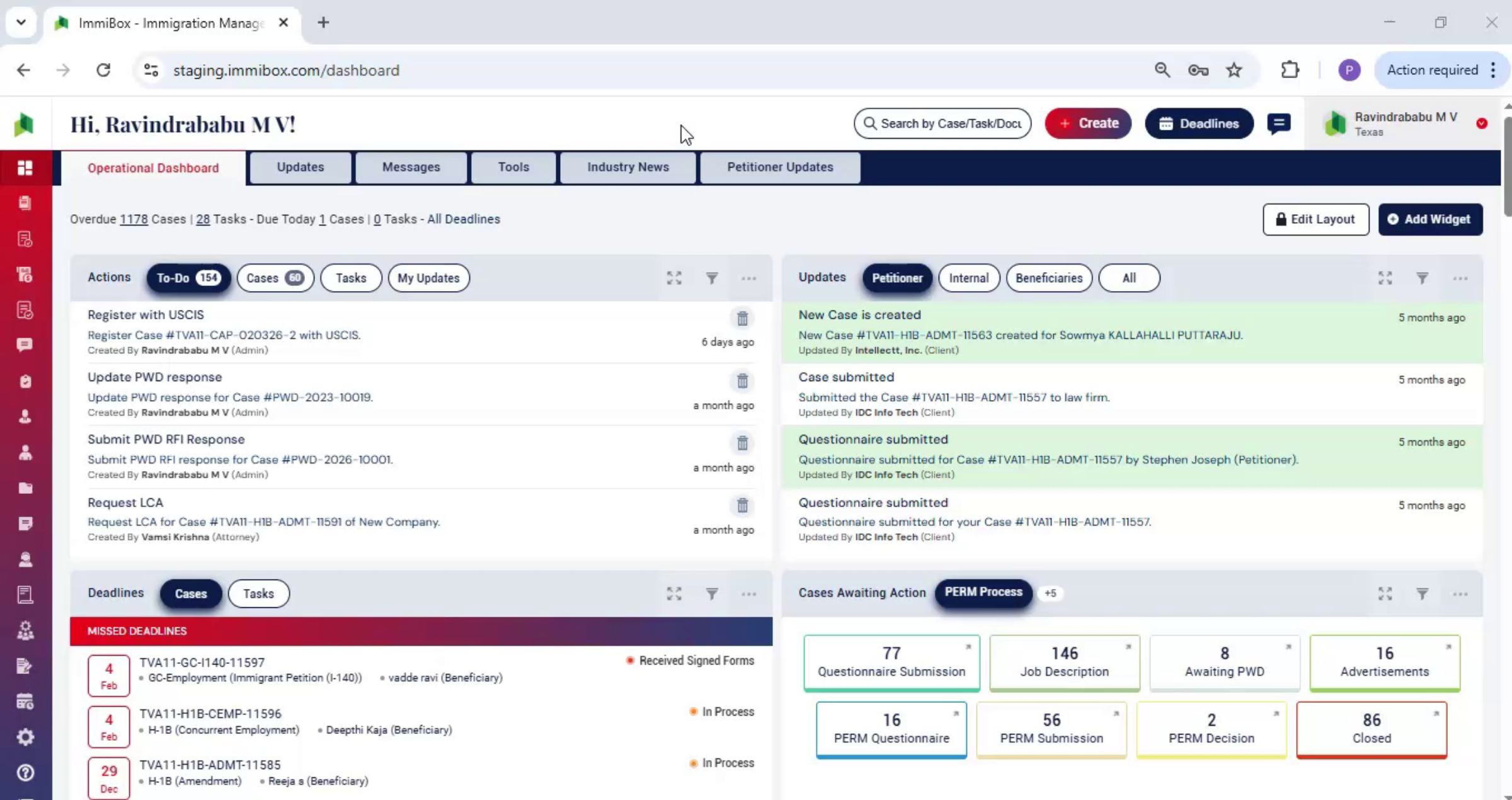
First, from the login page, click Register as a user below the Login button. Then a registration form will open. Enter the client's company name, first and last name, phone number, and email. Select Corporate and click Register.
3. Email and Dashboard Notifications
 * click the image to view enlarged
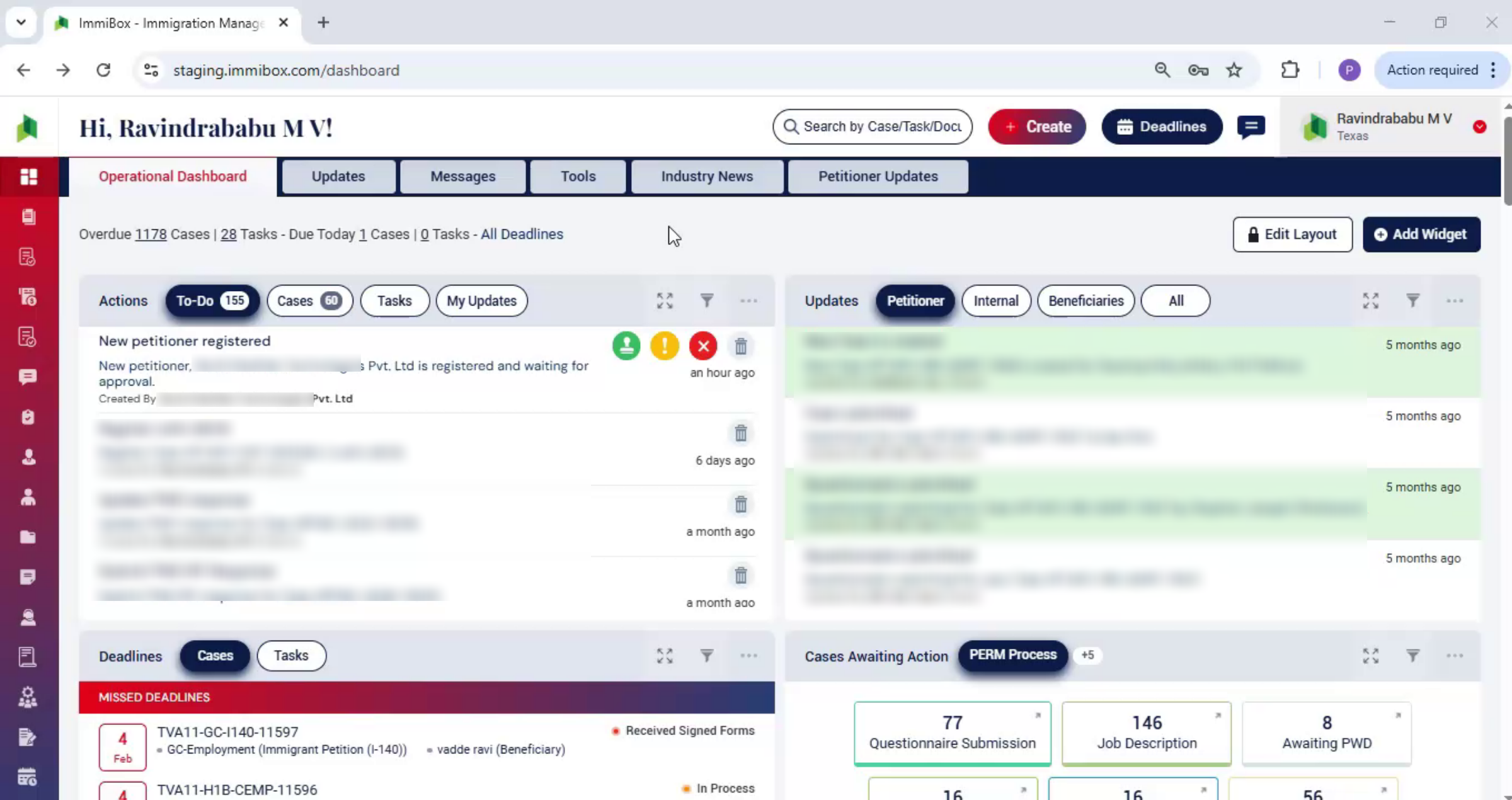
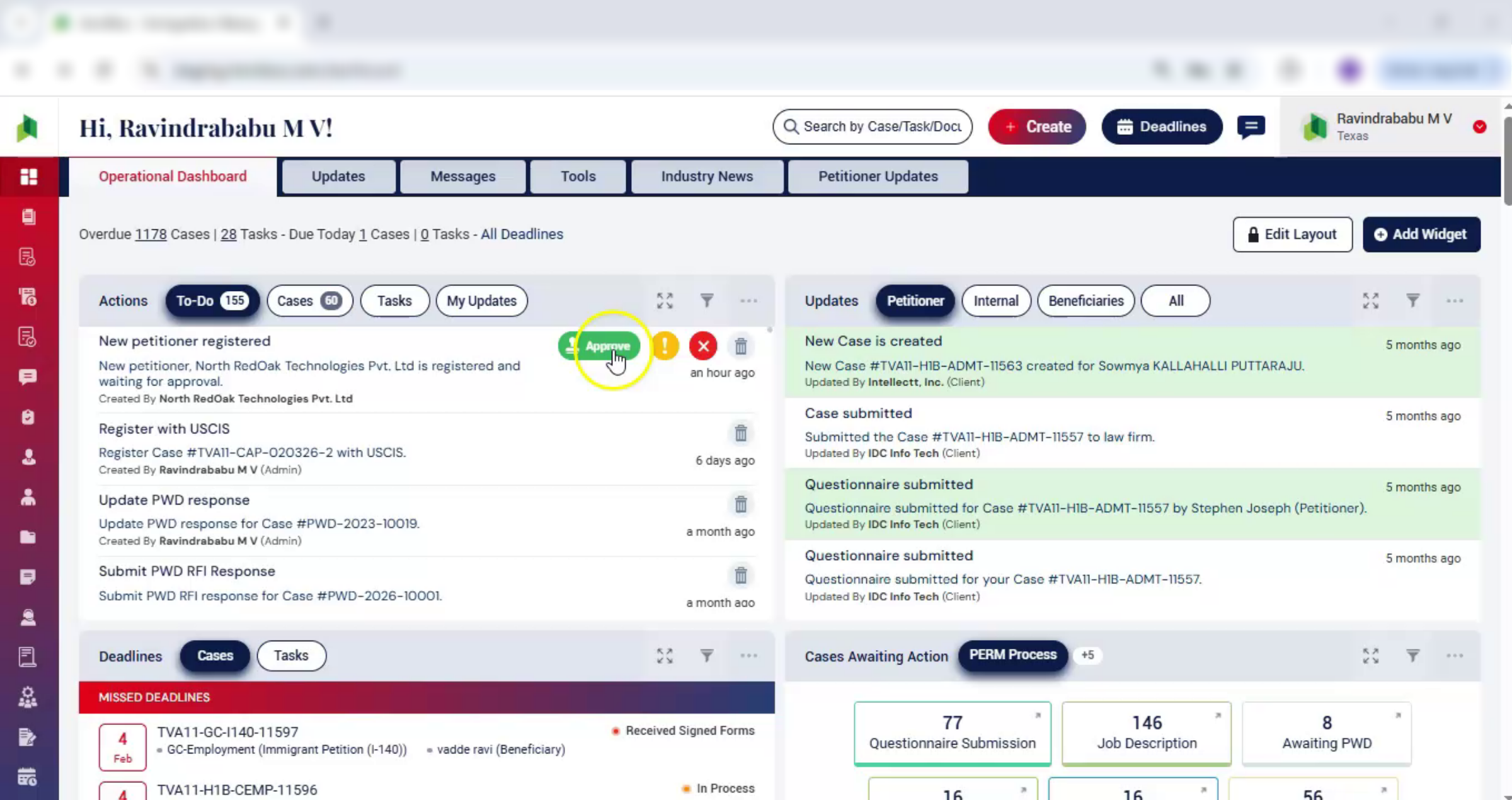
After registration, the petitioner will receive an email to set their password. At the same time, the law firm will receive a notification on the dashboard to approve the petition.
4. Petitioner Registration Request Actions
 * click the image to view enlarged
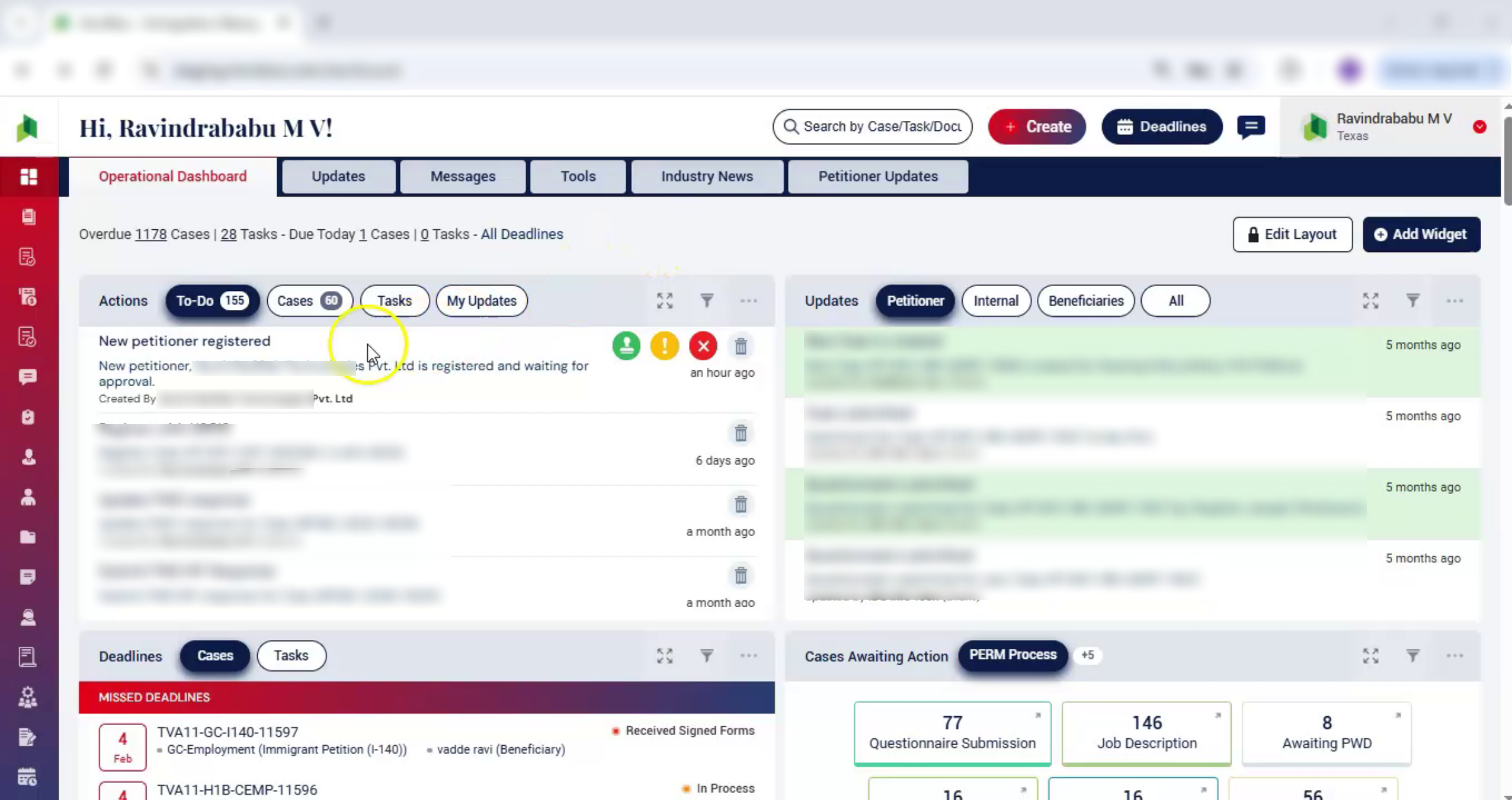
Under Actions, law firm user sees a new petitioner registration request. You can approve, hold, or reject the request.
5. Approving and Editing Petitioner Details
 * click the image to view enlarged
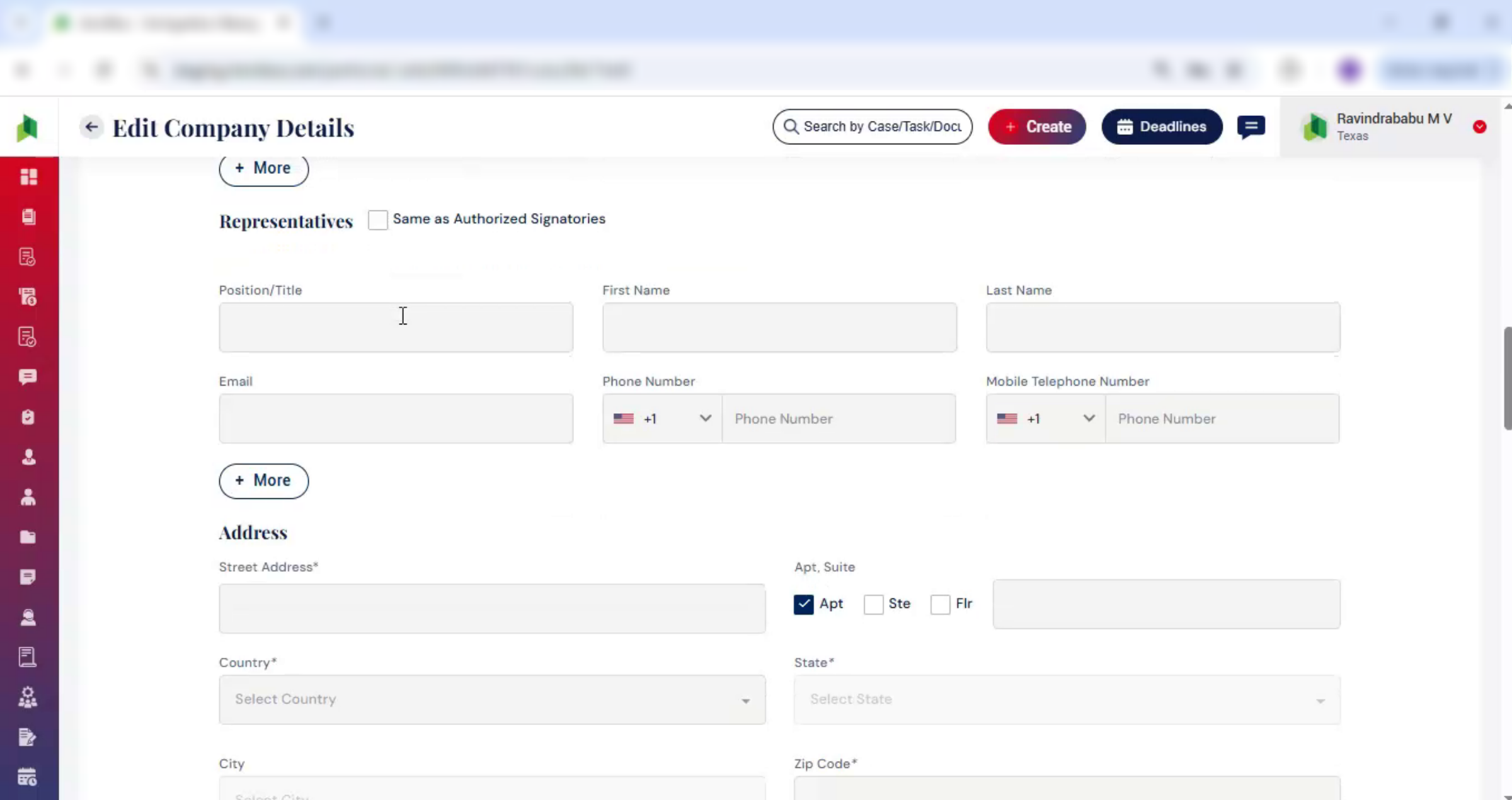
Once approved, the petitioner details page opens. On the right-hand side, click Edit. The Edit Company Details section opens. Fill in all required details.
6. Data Reuse and Error Reduction
 * click the image to view enlarged
These details can be completed either by the law firm or directly by the petitioner.
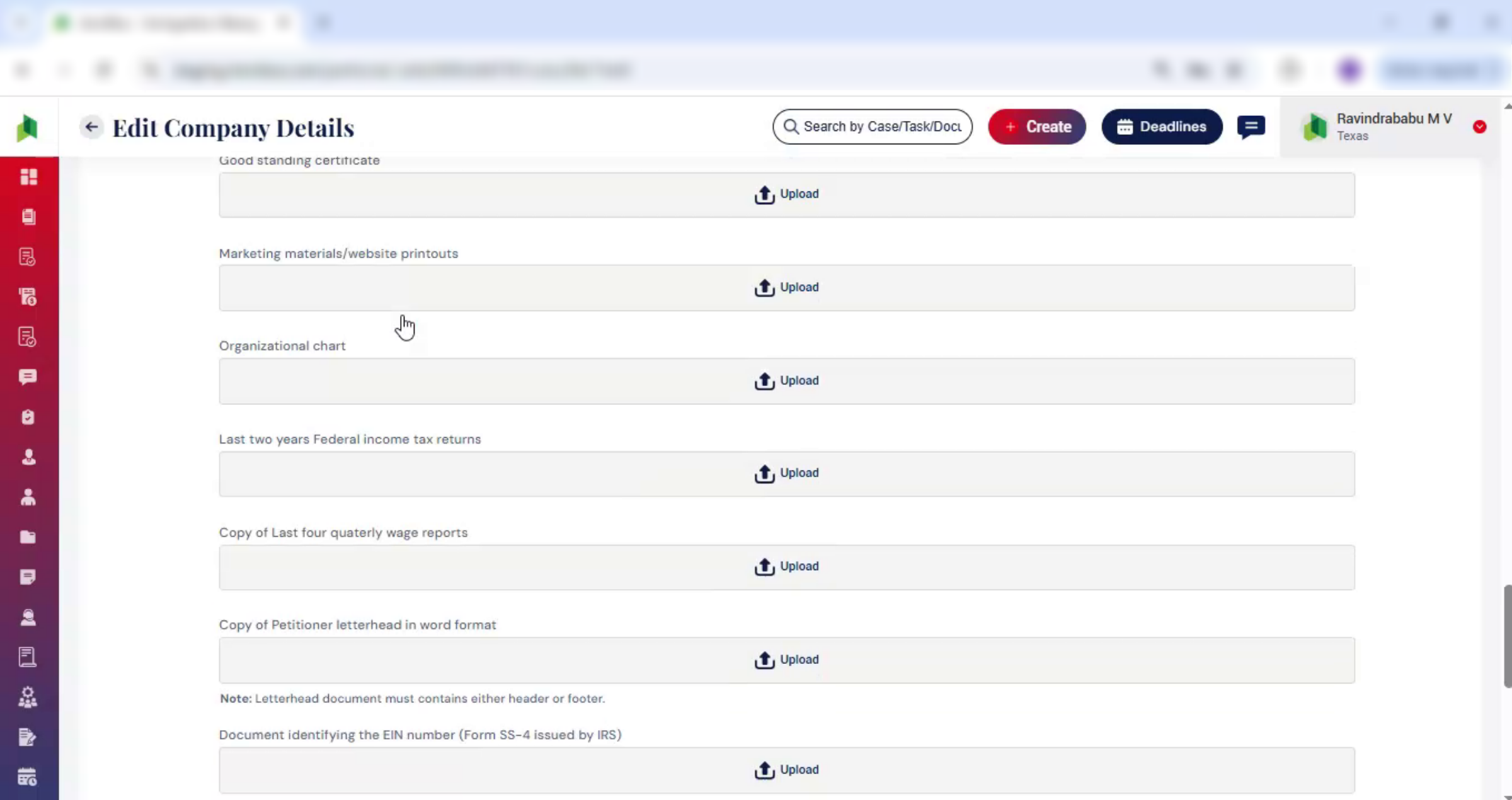
ImmiBox keeps all company information securely stored and centrally available.
7. Ensure Accurate Data
 * click the image to view enlarged
This ensures accurate data is reused across cases, forms, and document generation, helping reduce manual entry, avoid errors, and keep filings consistent throughout the process.
8. Alternative Petitioner Invitation Methods
 * click the image to view enlarged
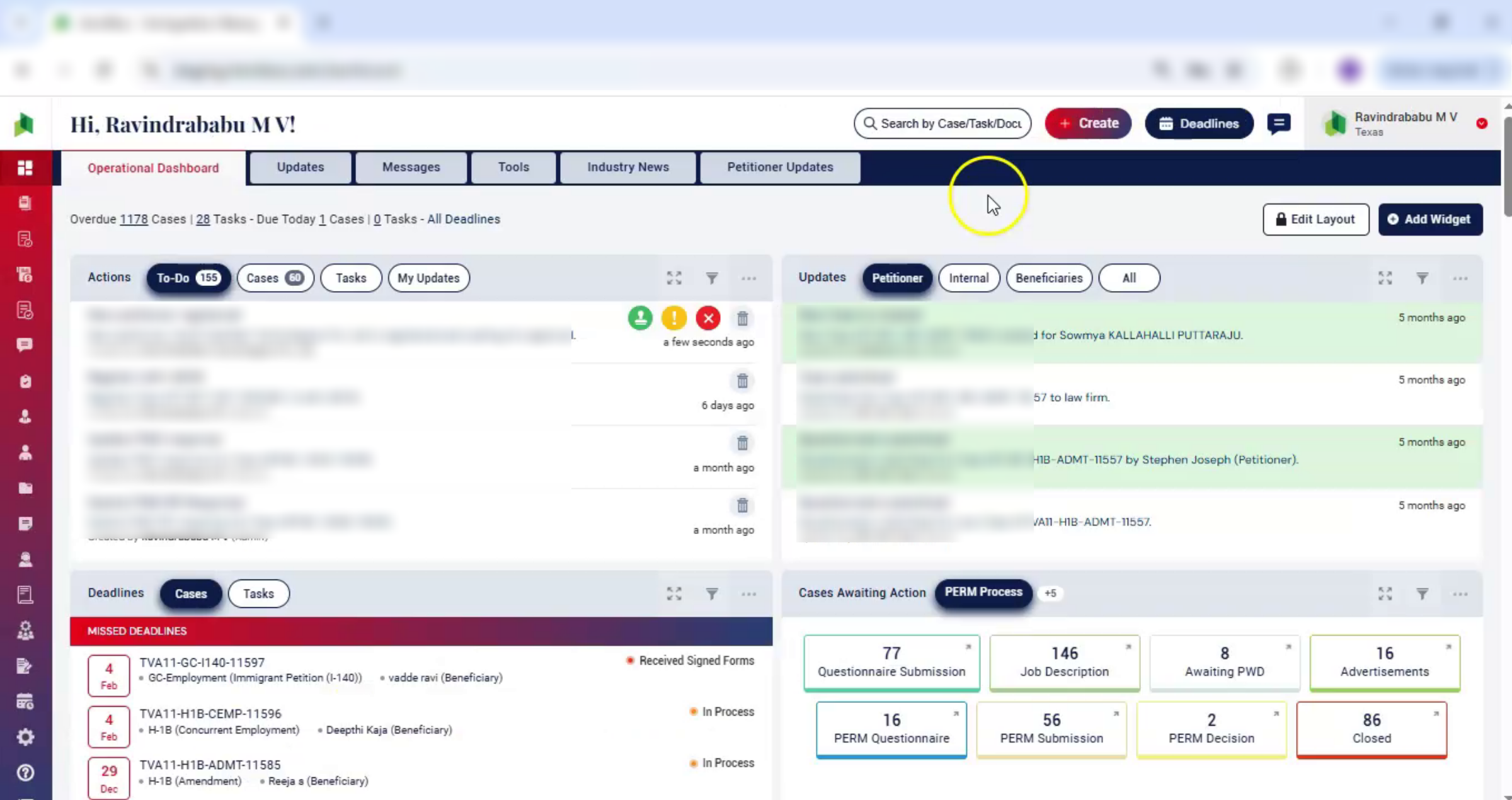
In addition to registering from the login page, you can invite a petitioner in three other ways. No matter which method you choose, the approval process and company details remain the same.
9. Second Invitation Method
 * click the image to view enlarged
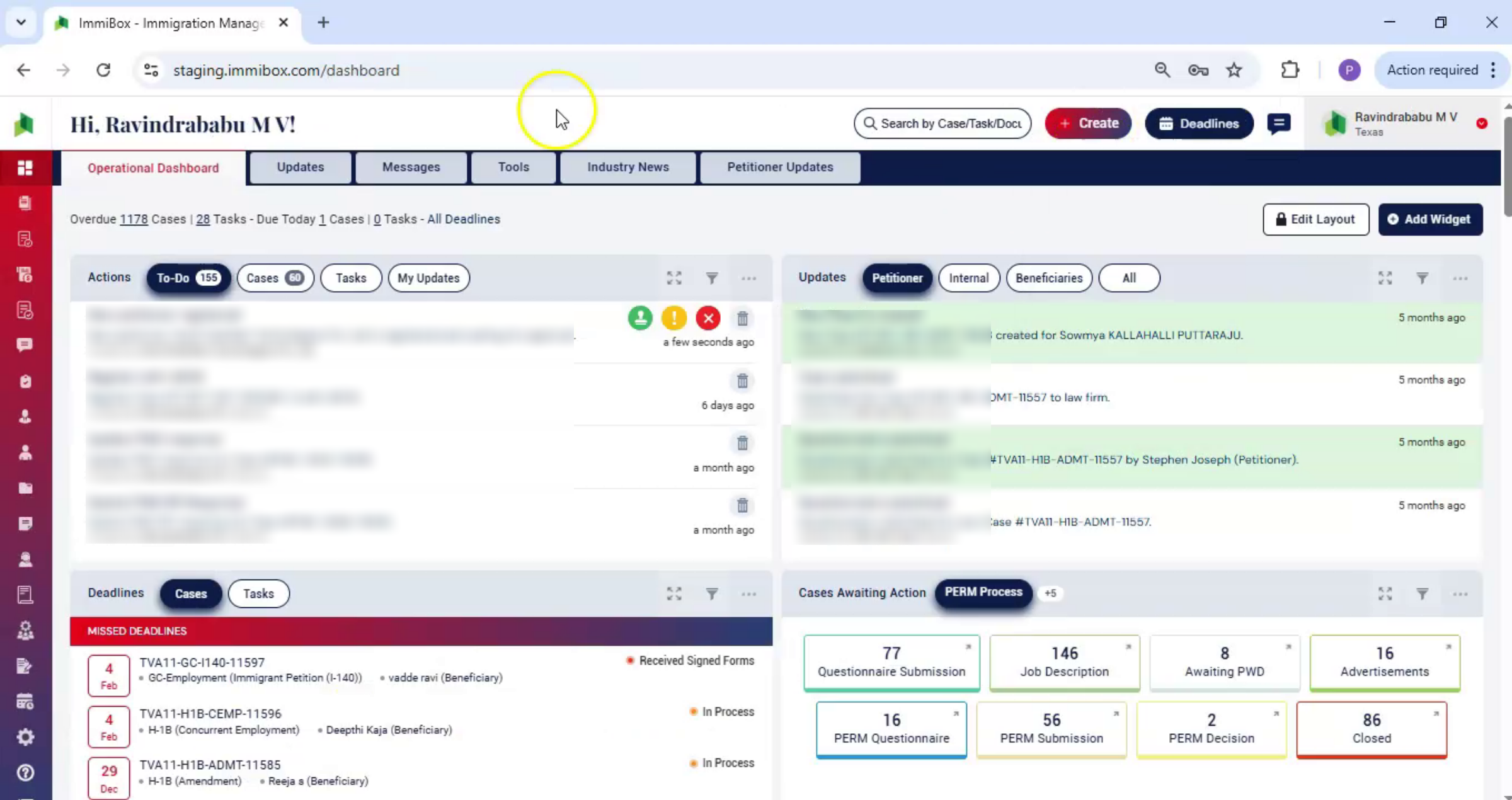
Let's see Second method. From the dashboard, click Create and select New Corporate Client.
10. Filling Invite Client Form
 * click the image to view enlarged
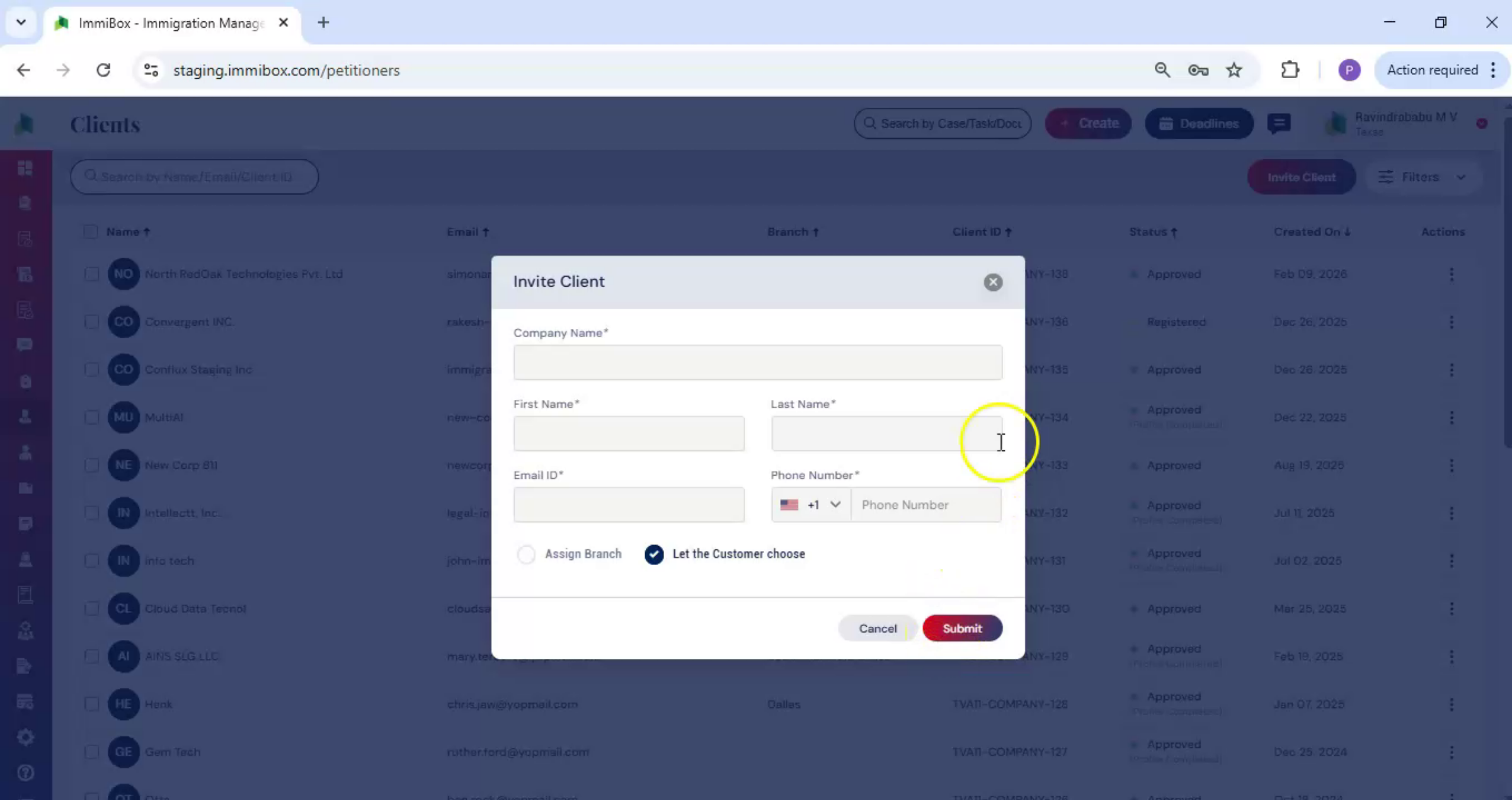
The Invite Client box appears. Fill in the details. At the bottom, choose Assign Branch to assign the branch to the petitioners, Or let the customer choose - means, the petitioner can select the branch. Then click Submit.
11. Third Method: Clients Panel Invitation
 * click the image to view enlarged
For the third method, navigate to Clients from the left-hand panel, click on Corporations option, open the Invite Client box, fill in the form, and Submit.
12. Fourth Method: Case Creation Invitation
 * click the image to view enlarged
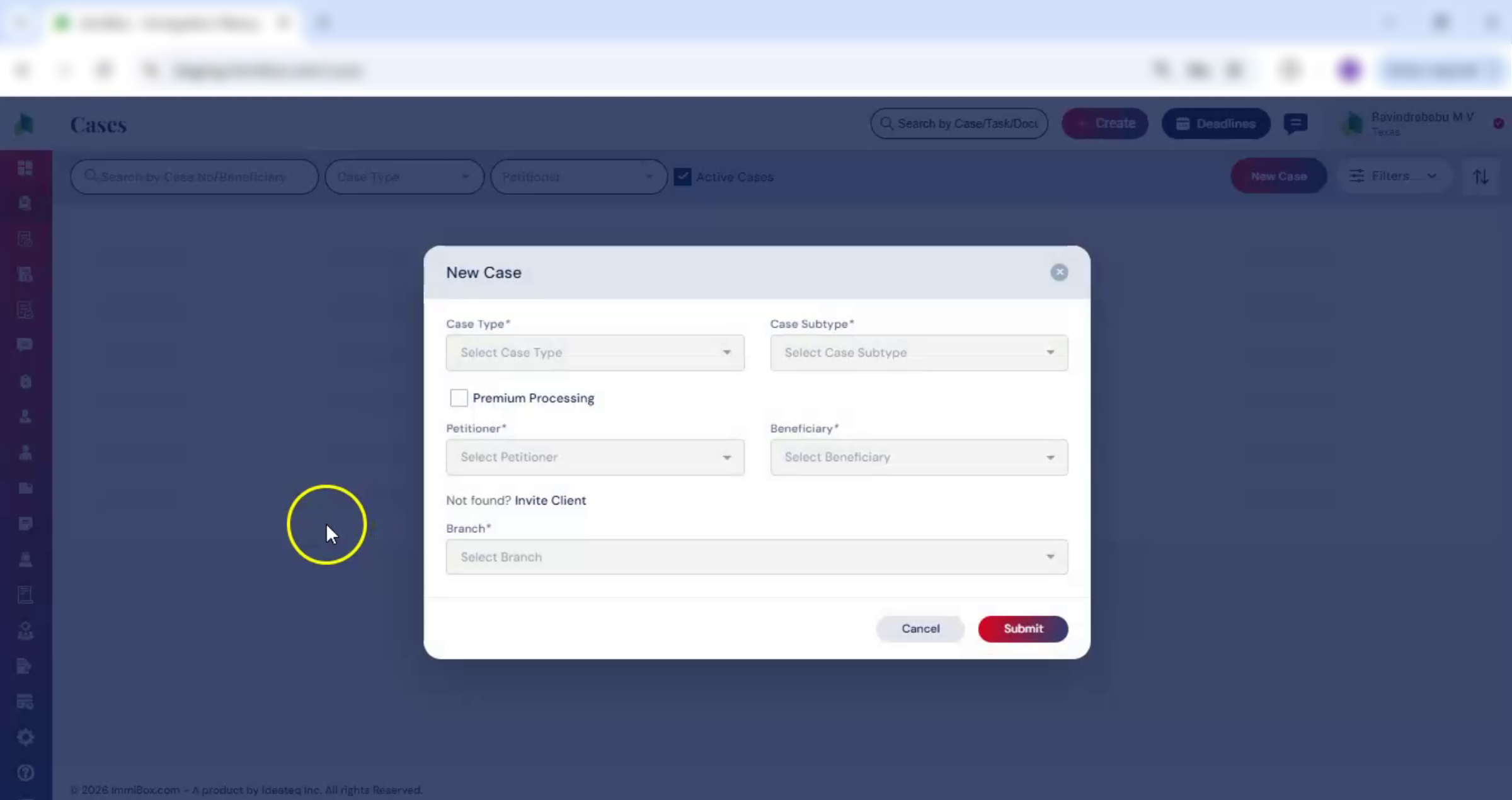
The fourth method is, while creating a new case, if the petitioner isn't added yet, click Invite Petitioner, enter the details, and click Submit.
13. Viewing Newly Added Petitioners
 * click the image to view enlarged
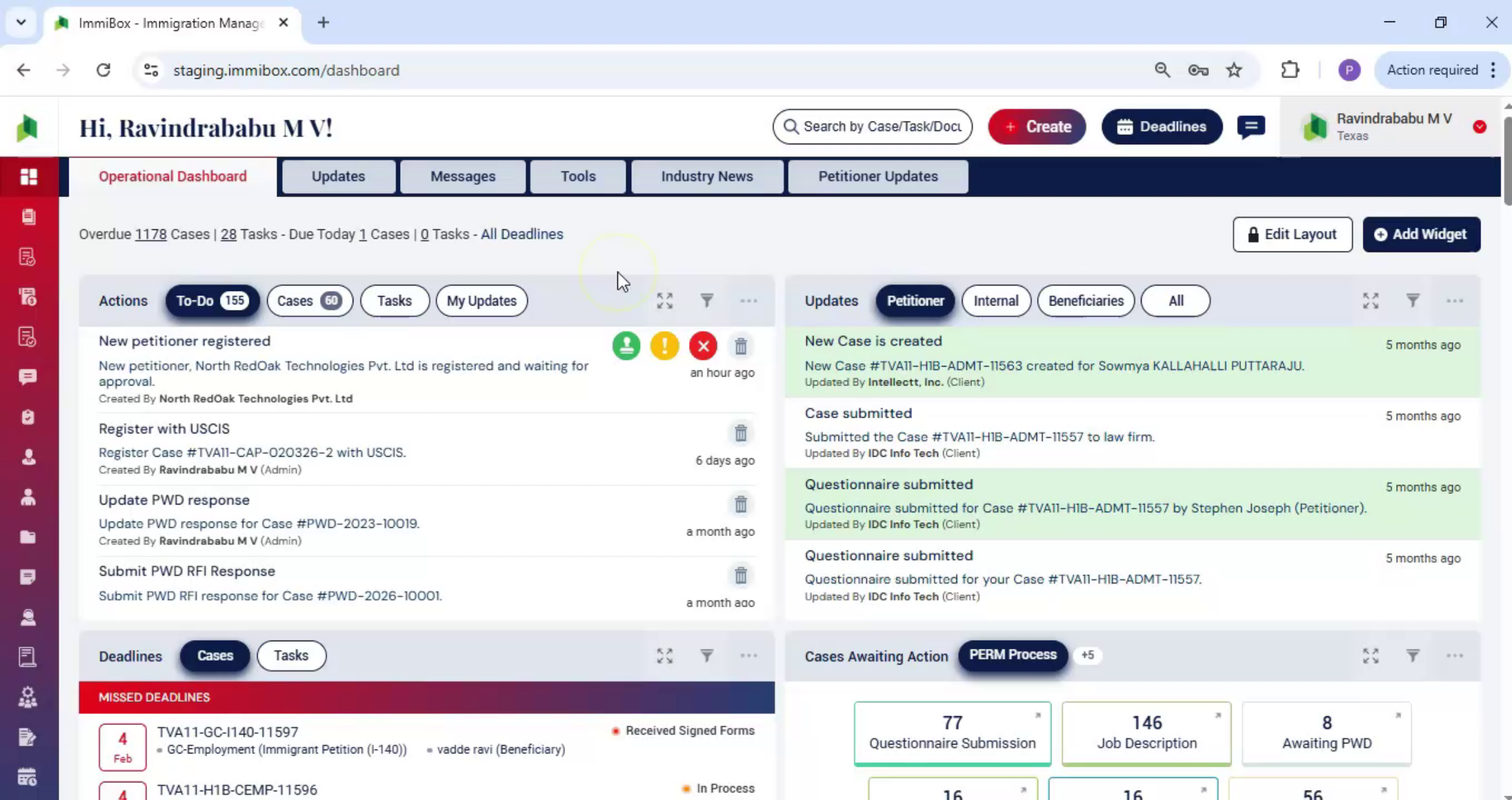
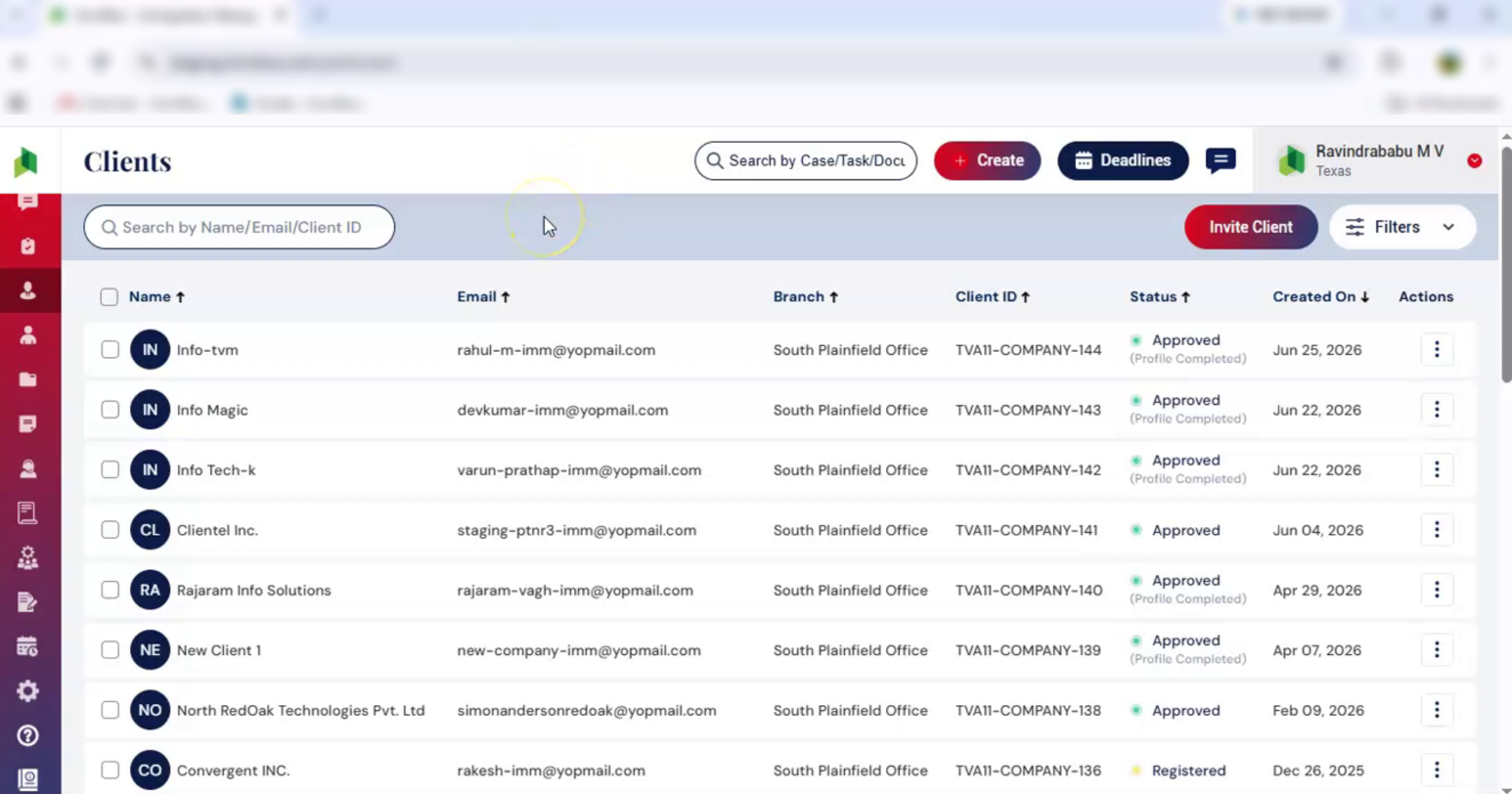
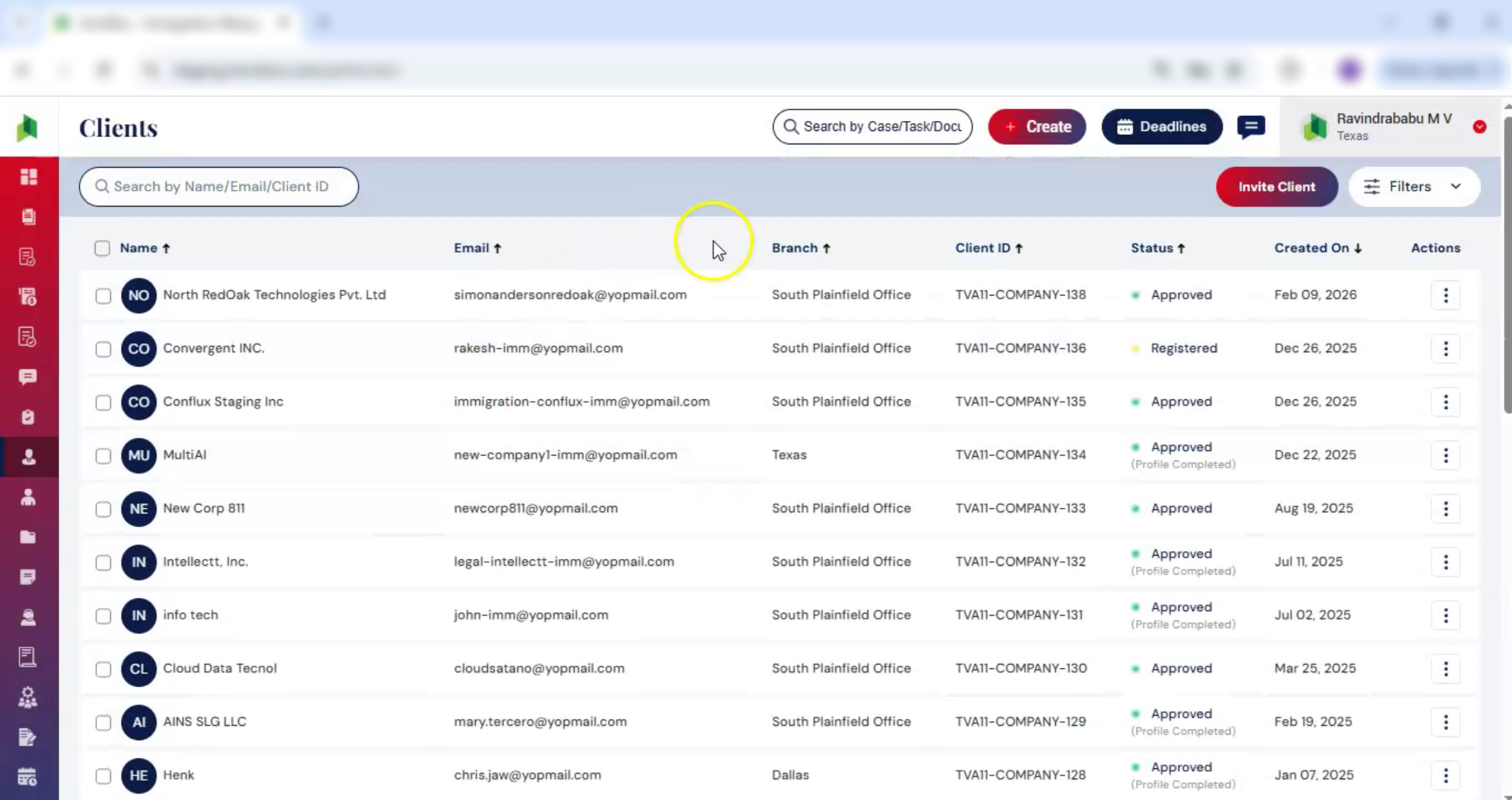
View the newly added petitioner. Go to Clients, click on Corporate, and you'll see the new petitioner listed along with all previously added petitioners.
14. Clients Page Overview
 * click the image to view enlarged
On the Client Details page, you can view and manage all client records.
Under the Actions menu, you can edit client information, reset passwords, view client details, resend activation links, or delete clients.
Use the Search box to quickly locate clients or apply additional criteria using the Filter option.
15. Benefits of Adding Petitioners
 * click the image to view enlarged
Adding petitioners in ImmiBox is simple, secure, and fully integrated, keeping your case management fast, organized, and efficient.

