


Generate & Share Questionnaire Links
Overview
Welcome! This video demonstrates how to generate and share questi links for cases using ImmiBox.
1. Introduction
 * click the image to view enlarged
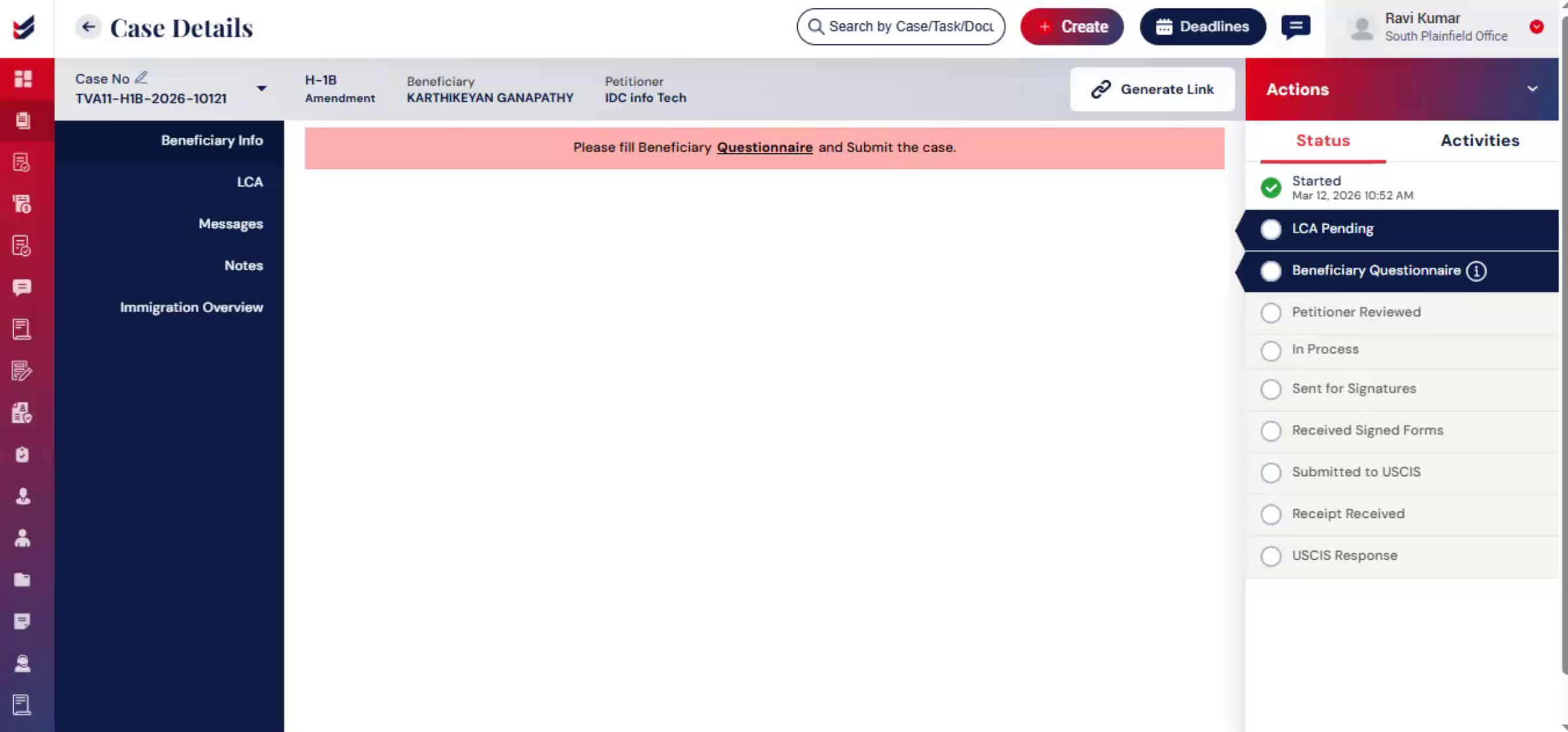
We'll cover two main use cases: sharing the Beneficiary Questionnaire and sharing the LCA Request.
The Generate Link feature in ImmiBox simplifies collaboration by allowing beneficiaries and petitioners to submit required documents and information securely, without needing direct platform access.
2. Navigate to Case Details
 * click the image to view enlarged
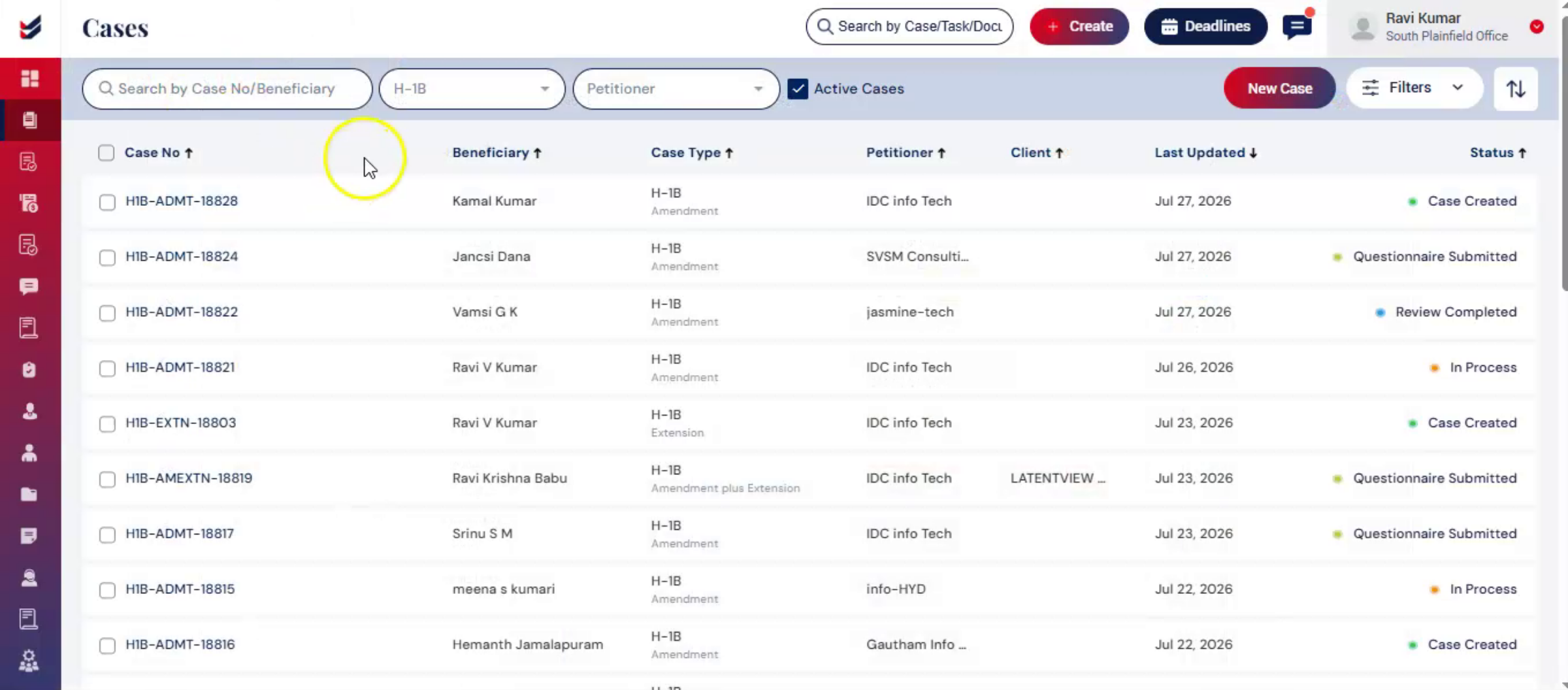
From your Case Library, select the desired case.
You will be redirected to the Case Details page, where all information related to the case is displayed.
3. Generate a Link
 * click the image to view enlarged
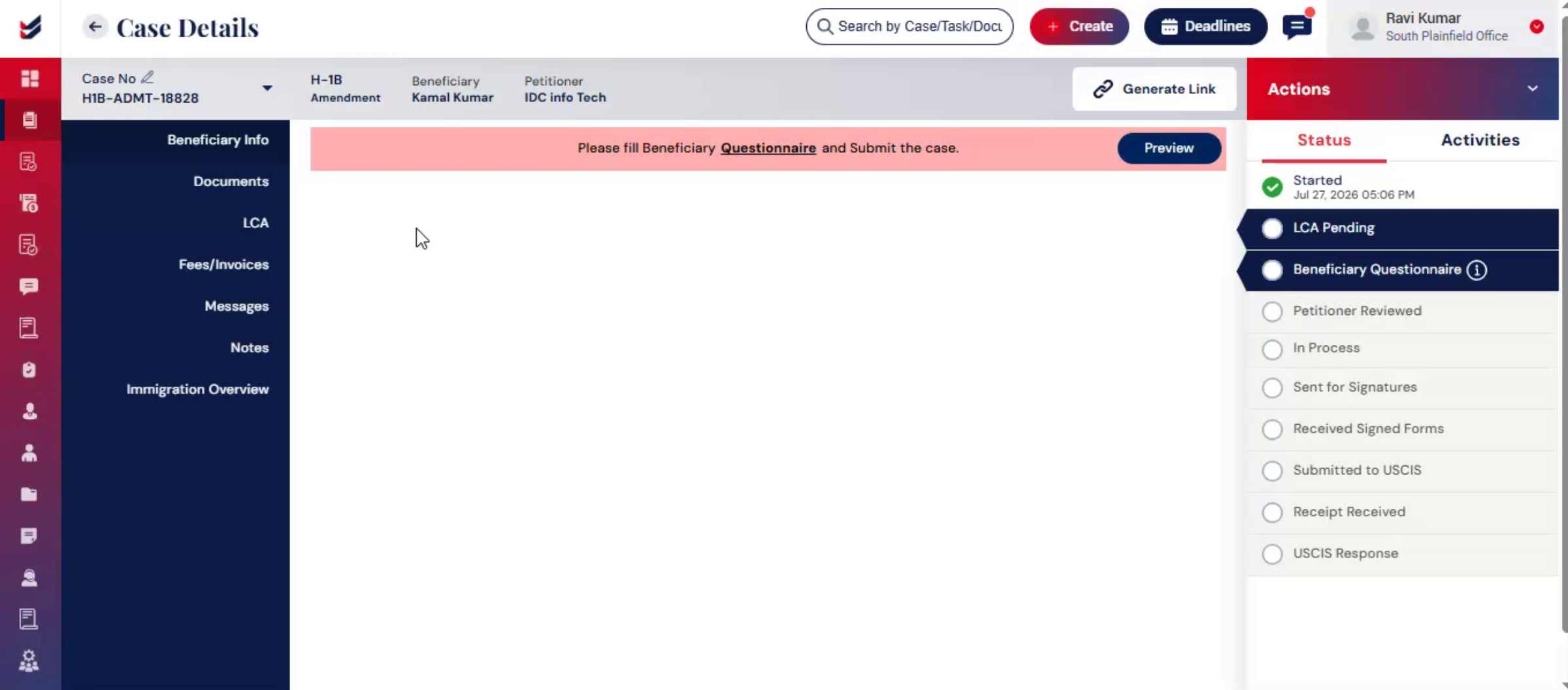
On the Case Details page, click the Generate Link Icon. A popup will appear containing a unique URL for the case.
4. Copy & Share Link
 * click the image to view enlarged
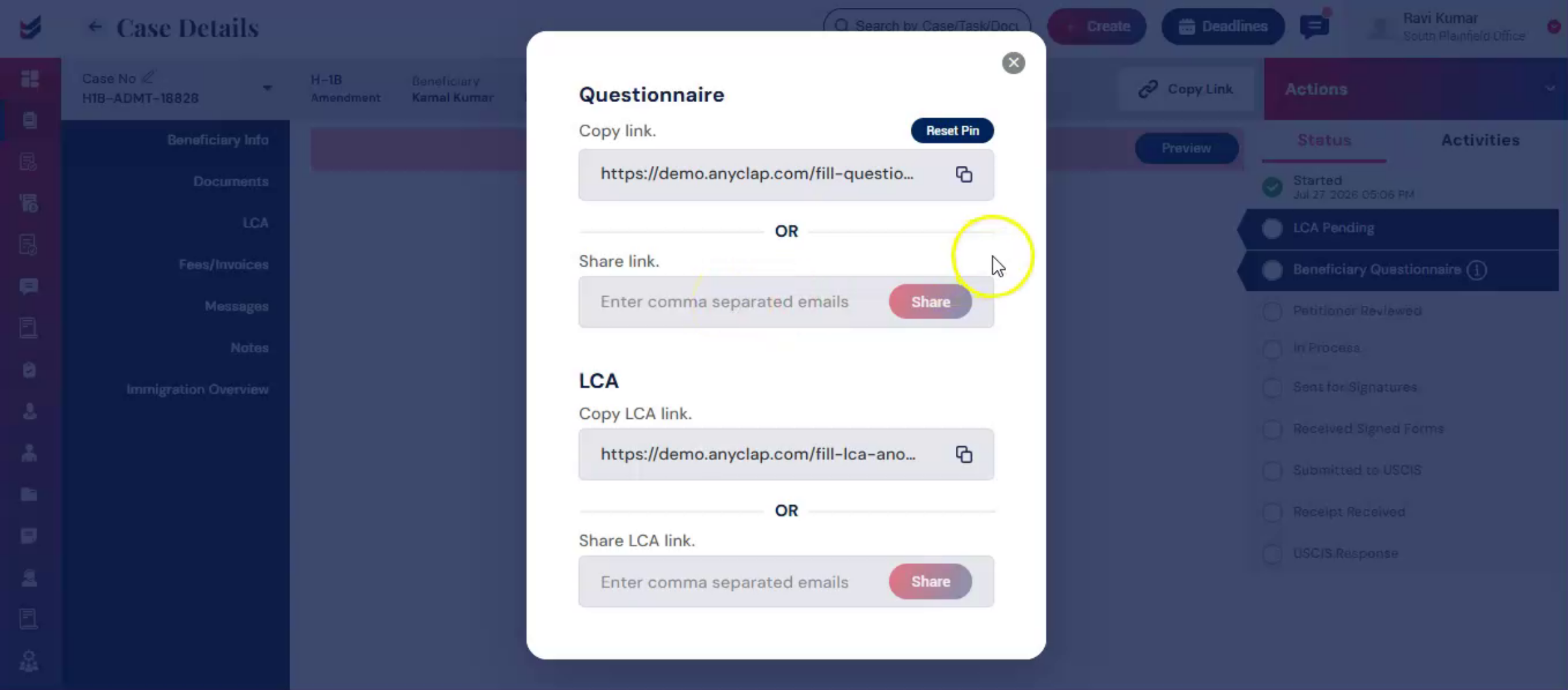
The popup provides the following options: Copy Link to copy the URL to your clipboard. Share via Email by entering the recipient's email address and clicking Share.
This link is particularly useful for beneficiaries without an ImmiBox account and also to petitioner. Once the link is accessed, users can complete the questionnaire and upload any required documents.
After the questionnaire is submitted, the link allows users to view only the submitted details and documents, maintaining full data security.
For additional security, users can establish a PIN for the link.
Once set, the PIN must be verified each time the link is accessed until it is reset.
5. Reset PIN
 * click the image to view enlarged
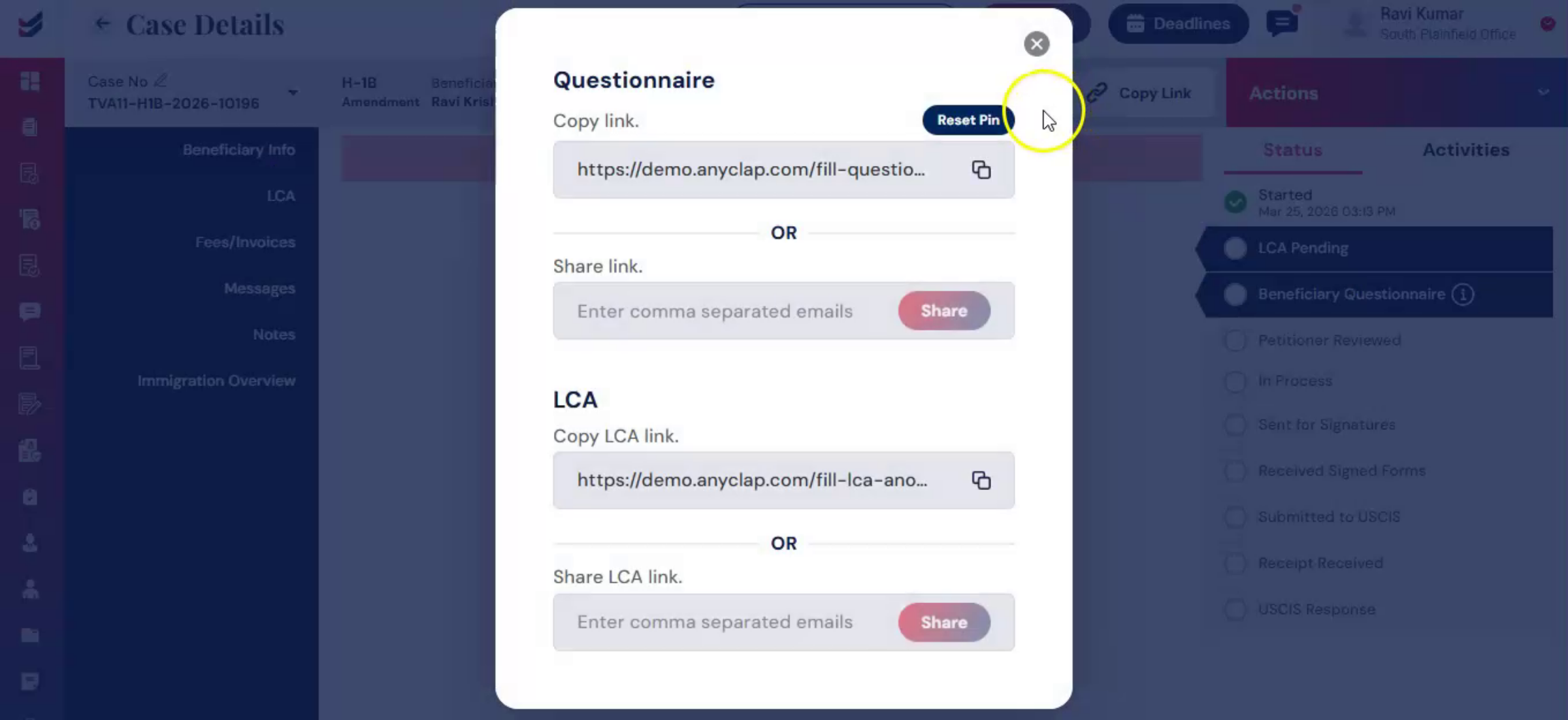
When the law firm shares the questionnaire link with a Petitioner/Beneficiary, the user accessing the link for the first time will be prompted to create a PIN through a dialog box.
This PIN ensures that no unauthorized person can access the questionnaire.
Once the PIN is set, it must be entered every time the questionnaire link is accessed.
If the user forgets the PIN, the law firm can reset it from the Questionnaire Shared Link section by clicking on the Reset option.
After the reset, when the user opens the link again, a dialog box will appear allowing them to create a new PIN.
6. PIN Functionality
 * click the image to view enlarged
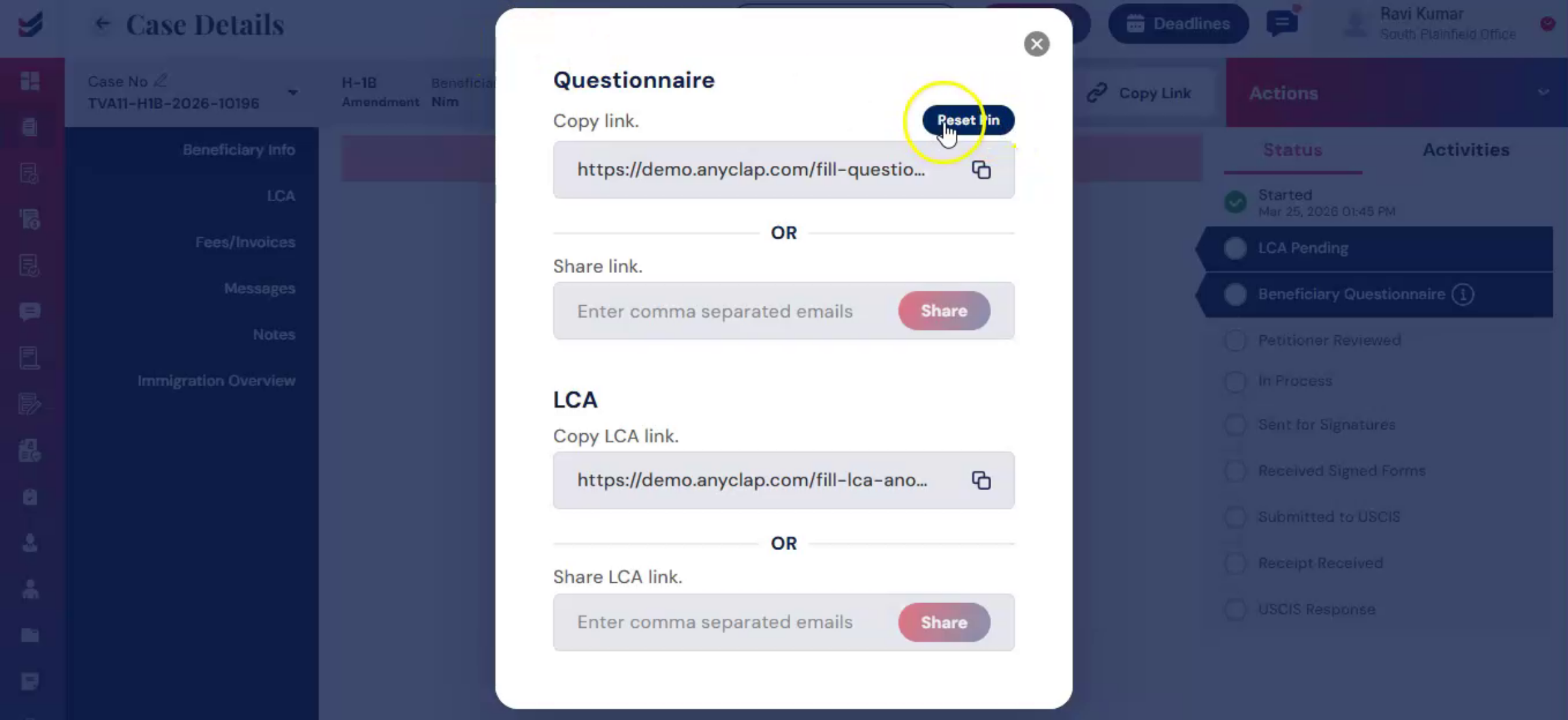
The PIN functionality adds an extra layer of security and may not be available for all law firms, as it is a configurable option.
7. Access PIN Functionality
 * click the image to view enlarged
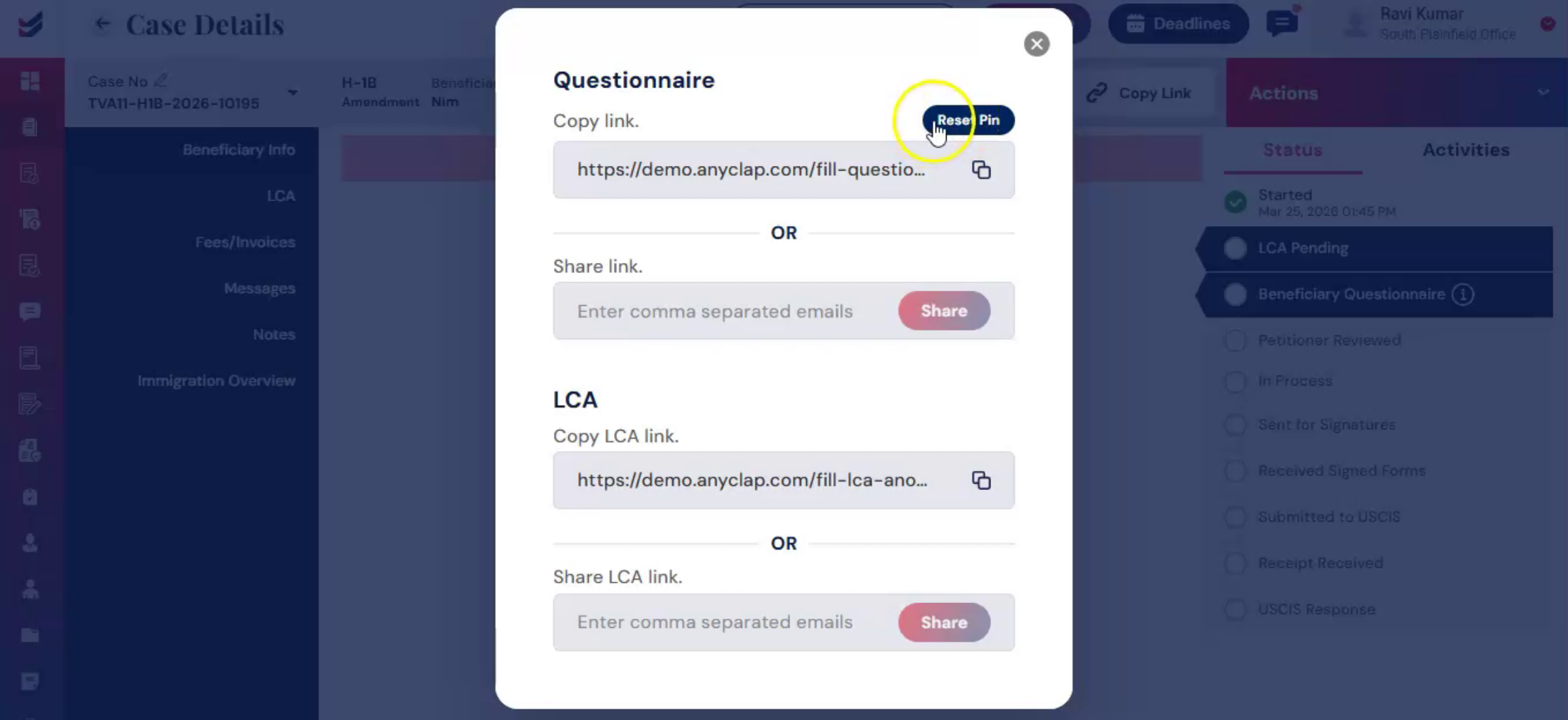
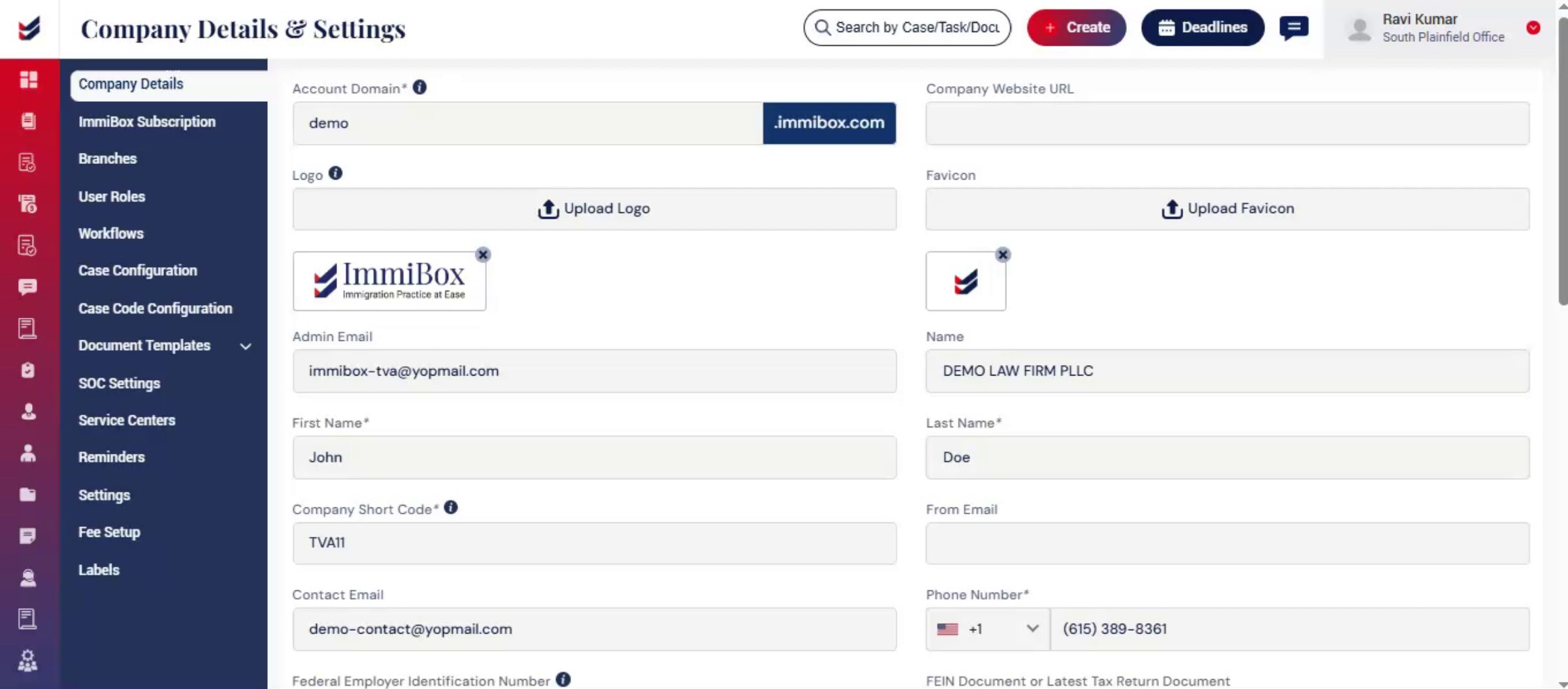
To disable this feature, go to Administration, click on Settings.
8. Reset the Pin Option
 * click the image to view enlarged
Now from the list, click on settings, and select case management.
In the list of options, find "Does PIN required to submit Questionnaire through link?" and turn the toggle OFF to disable the PIN requirement.
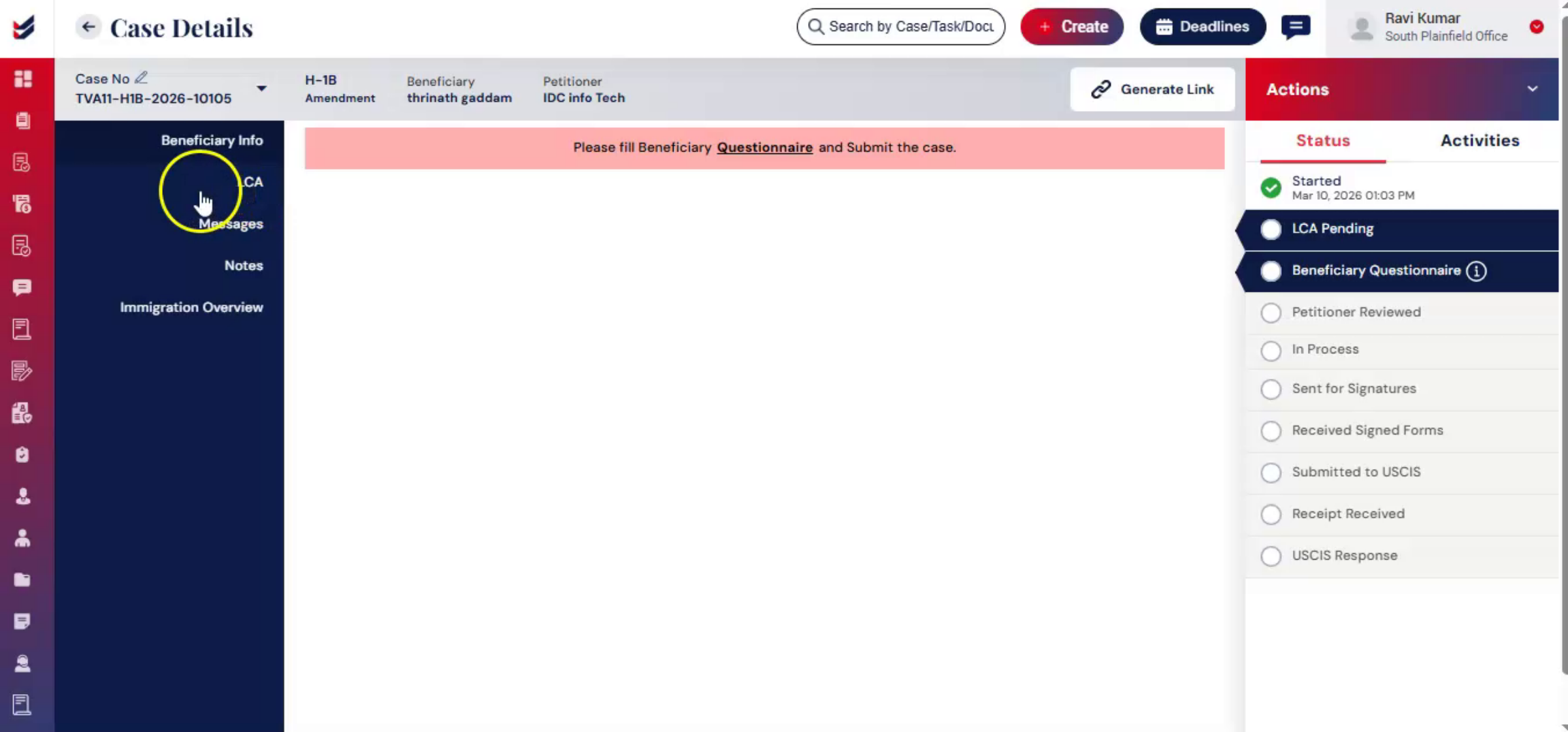
9. Generate a Link for the LCA Request
 * click the image to view enlarged
A Labor Condition Application (LCA) is required by employers who are hiring nonimmigrant workers, specifically under the H-1B, or E-3 visa programs.
For LCA request, Click the Generate Link Icon for the case to generate a unique URL. The popup provides the same Copy Link and Share via Email options.
This link enables individuals to: Request a new LCA, Upload a filed or certified LCA.
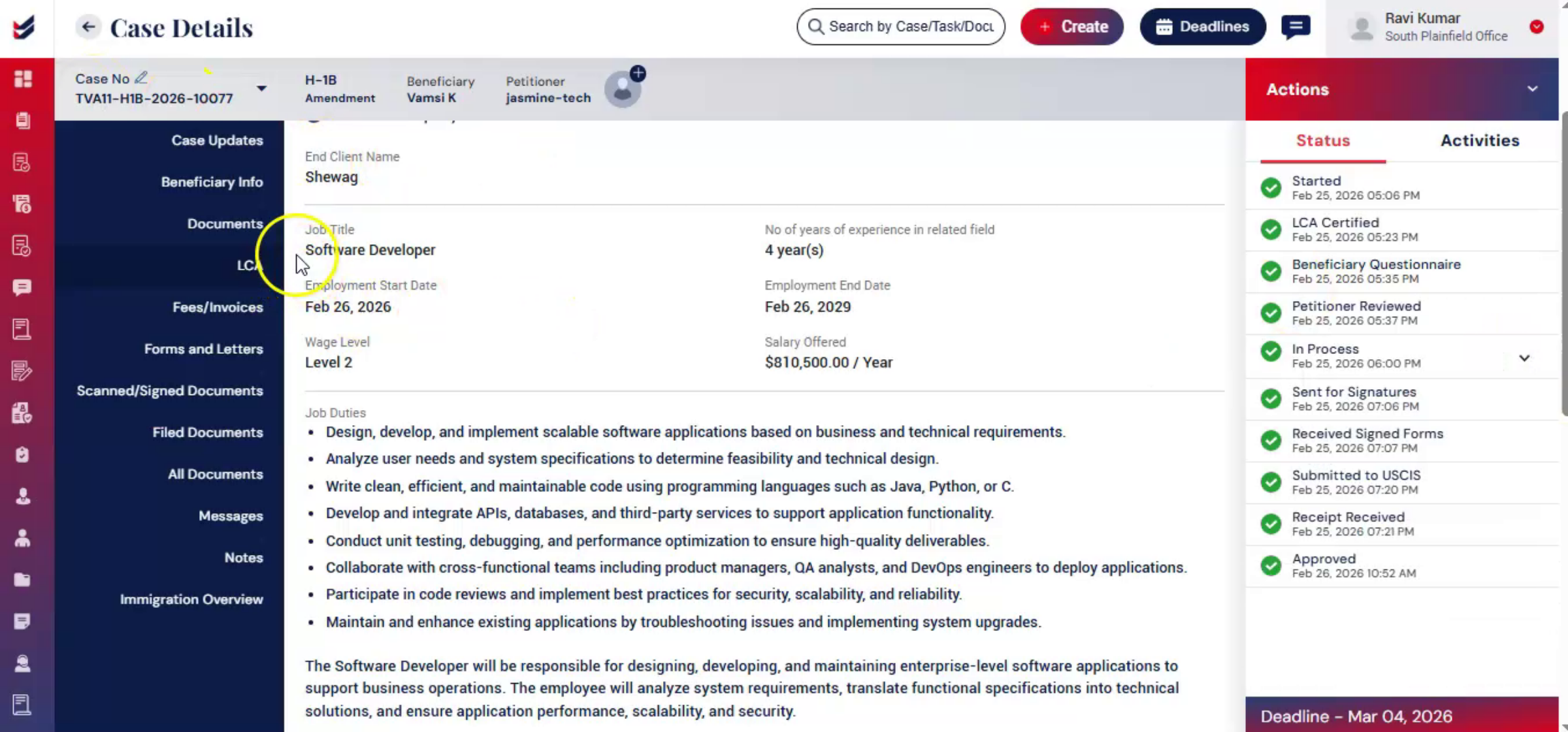
10. Uploaded LCA
 * click the image to view enlarged
The uploaded or requested LCA will automatically reflect in the Case Details page for tracking and review.
If the link is accessed after an LCA is already linked to the case, users can only modify or update the LCA details relevant to that case.
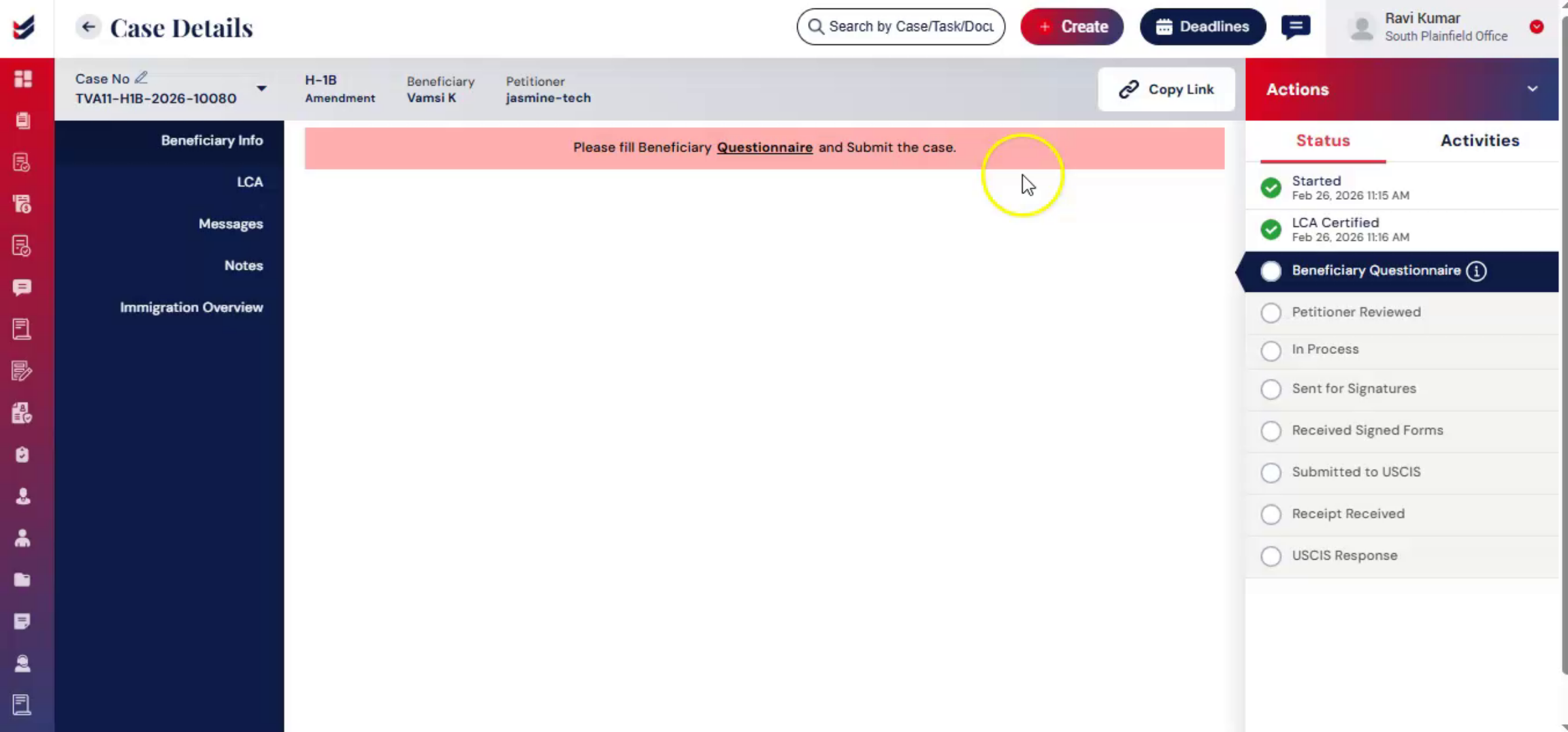
11. Copy Link Button
 * click the image to view enlarged
Note: After the link is created through the Generate Link function, it will be substituted with a button to copy the link. This link can be copied using the "Copy Link" button.
12. Conclusion
 * click the image to view enlarged
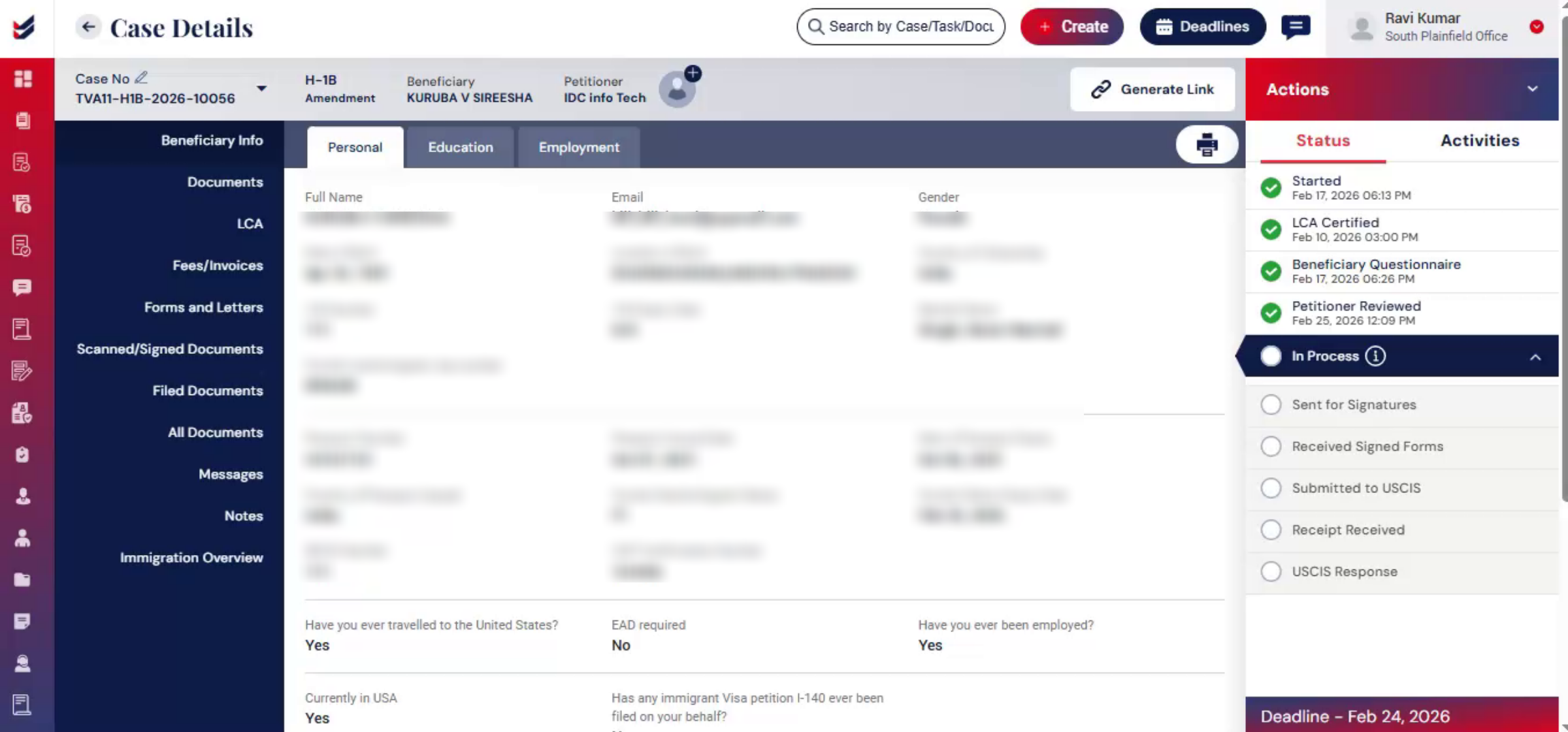
Using this feature, you can securely generate links, share them via email, and allow beneficiaries or employers to submit required information without logging into ImmiBox.

