


Managing Deadlines & Calendar
Overview
Welcome!
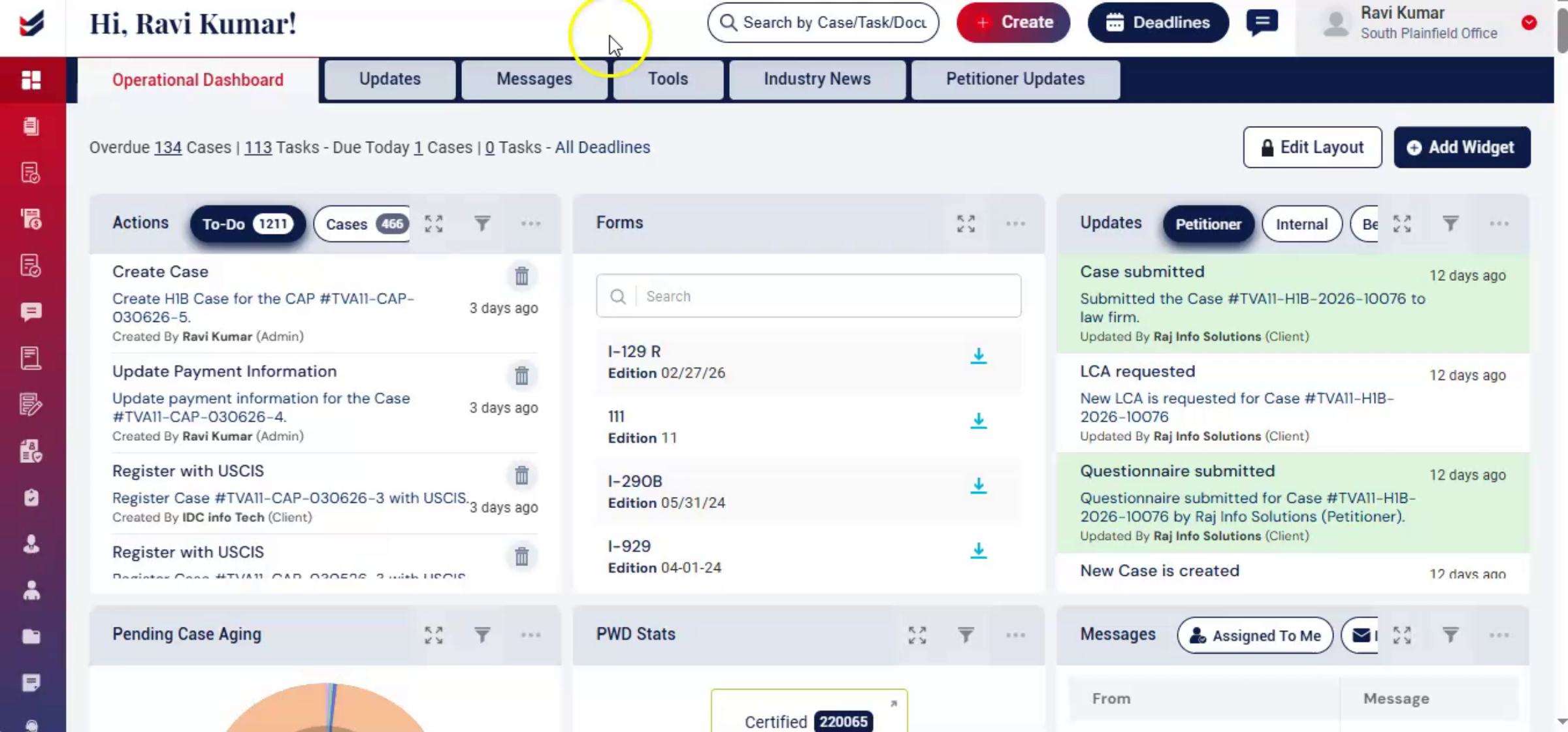
In this video, you will learn how case and task deadlines are managed in ImmiBox, how they are configured, and how they can be tracked through the Deadlines Calendar.
1. Introduction
 * click the image to view enlarged
The default deadlines for a case are determined by the configuration set in Administration. In certain situations, these may be overridden by another date, such as the I-94 expiry date, depending on the system configuration.
Tasks created in the Task Management module also have due dates. The Deadlines Calendar provides a consolidated view of all case and task timelines, making it easy to track upcoming and overdue items in one place.
2. Case Deadlines
 * click the image to view enlarged
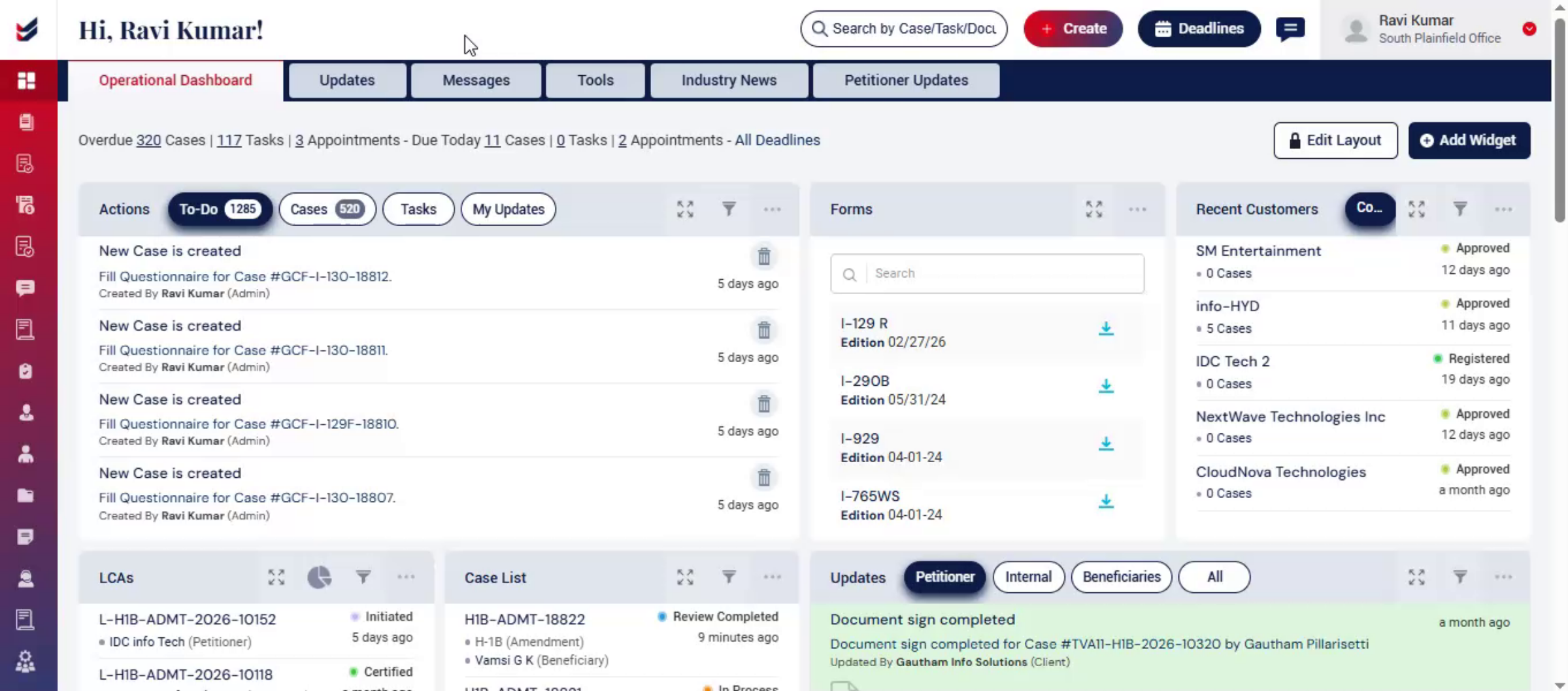
The default deadlines for a case are determined by the configuration set in Administration.
From the left navigation menu, select Administration, then click Settings. From the list, select Settings again and open the Due Dates section.
When a case is created, the system automatically calculates the deadline based on the number of days required to complete the filing, as defined in the configuration.
In some situations, the deadline may be overridden by the expiry date of the I-94, depending on the system configuration.
By default, the deadline for a case is typically set to one month after the submission of the Questionnaire. This timeline can be updated in the configuration settings if needed.
Users can also modify the deadline manually through the Actions menu in the case details.
Note: A deadline refers to the last date of filing the case.
3. Updating Case Deadlines
 * click the image to view enlarged
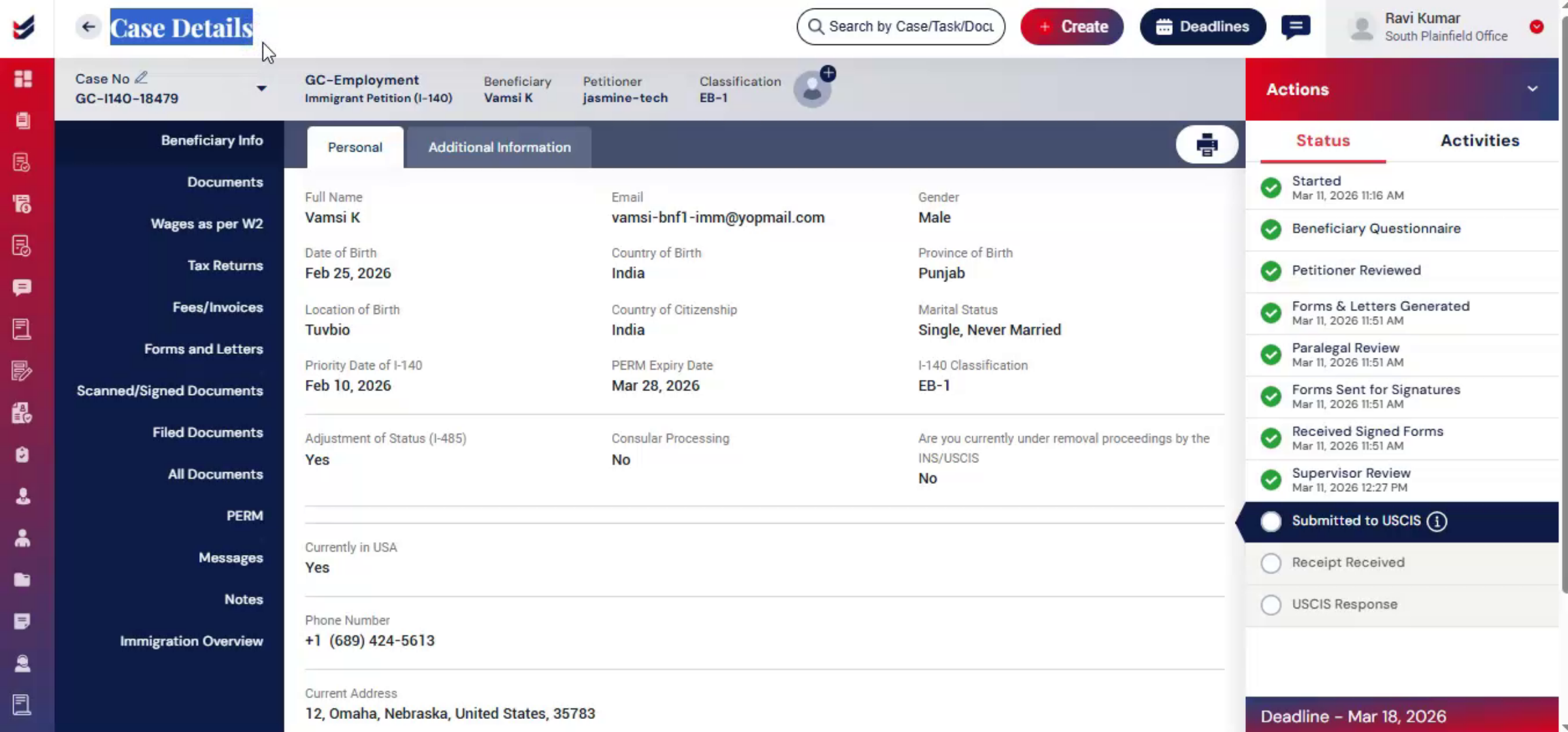
Users also have the option to modify the case deadline manually through the Actions menu in the case details.
In the Case Details page, the deadline is displayed at the bottom-right corner of the screen. To update the deadline, navigate to the Actions dropdown menu on the right side and select Update Deadline. A Deadline Update dialog box will appear. Select the required date and click Submit. The case deadline will then be updated accordingly.
4. Task Deadlines
 * click the image to view enlarged
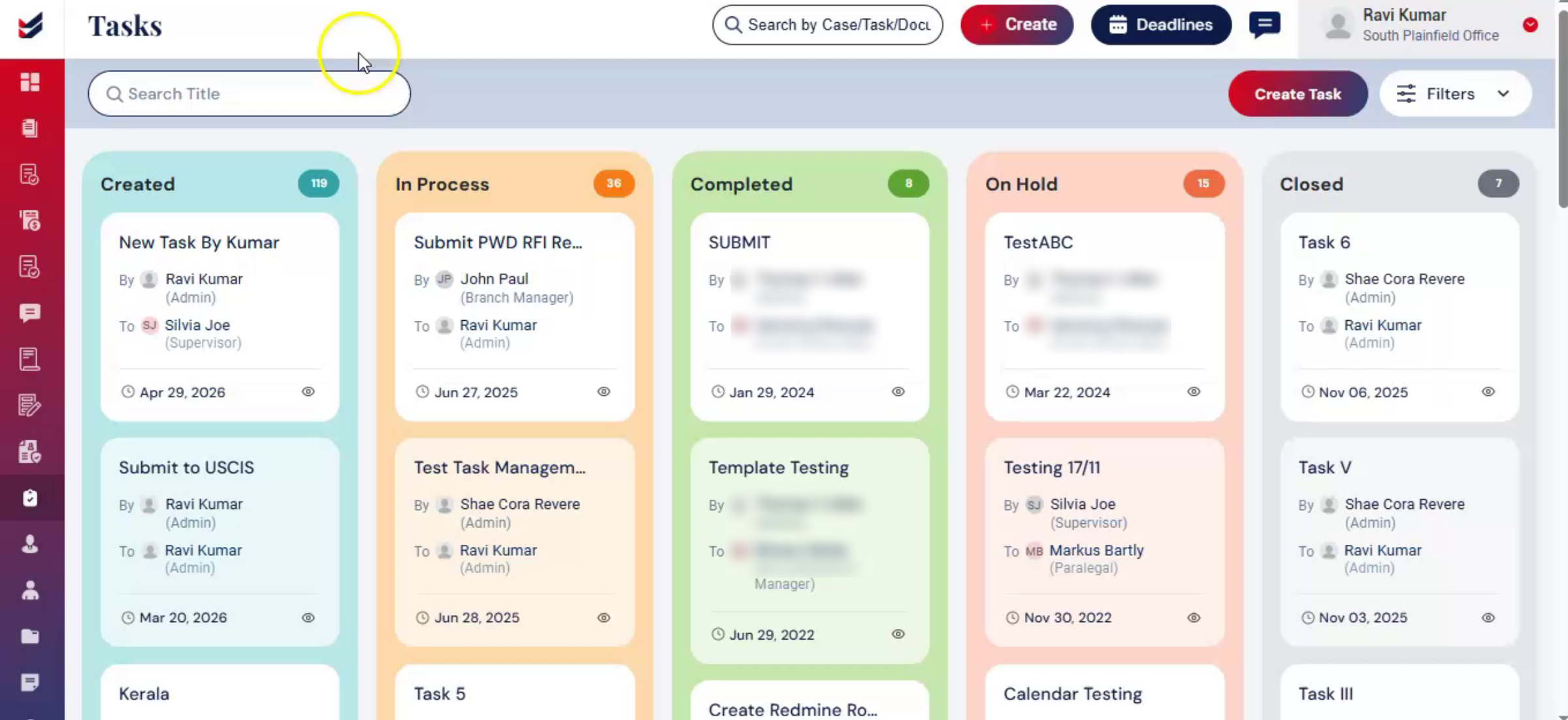
When it comes to Task section, each task created in the Task Management module includes a deadline.
The task creator sets the deadline when creating the task. If required, the deadline can later be updated through the Edit Task screen by the task creator.
To update the task deadline:
Click on the task that you want to update. Select the Edit option.
In the Due Date field, choose the new date. Click Update to save the changes.
Setting deadlines for tasks helps ensure that assigned work is completed within the required timeframe.
5. View Deadlines in Calendar
 * click the image to view enlarged
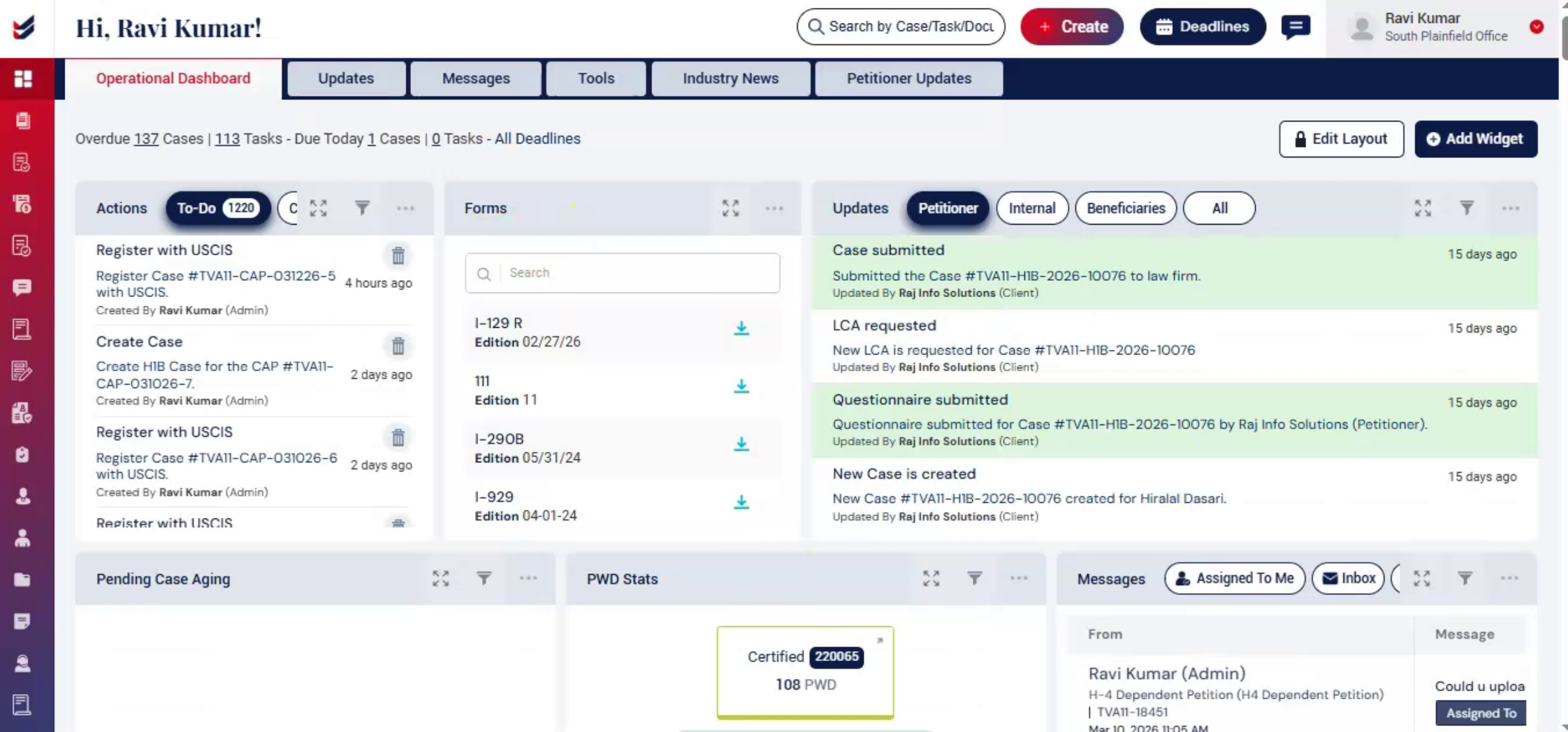
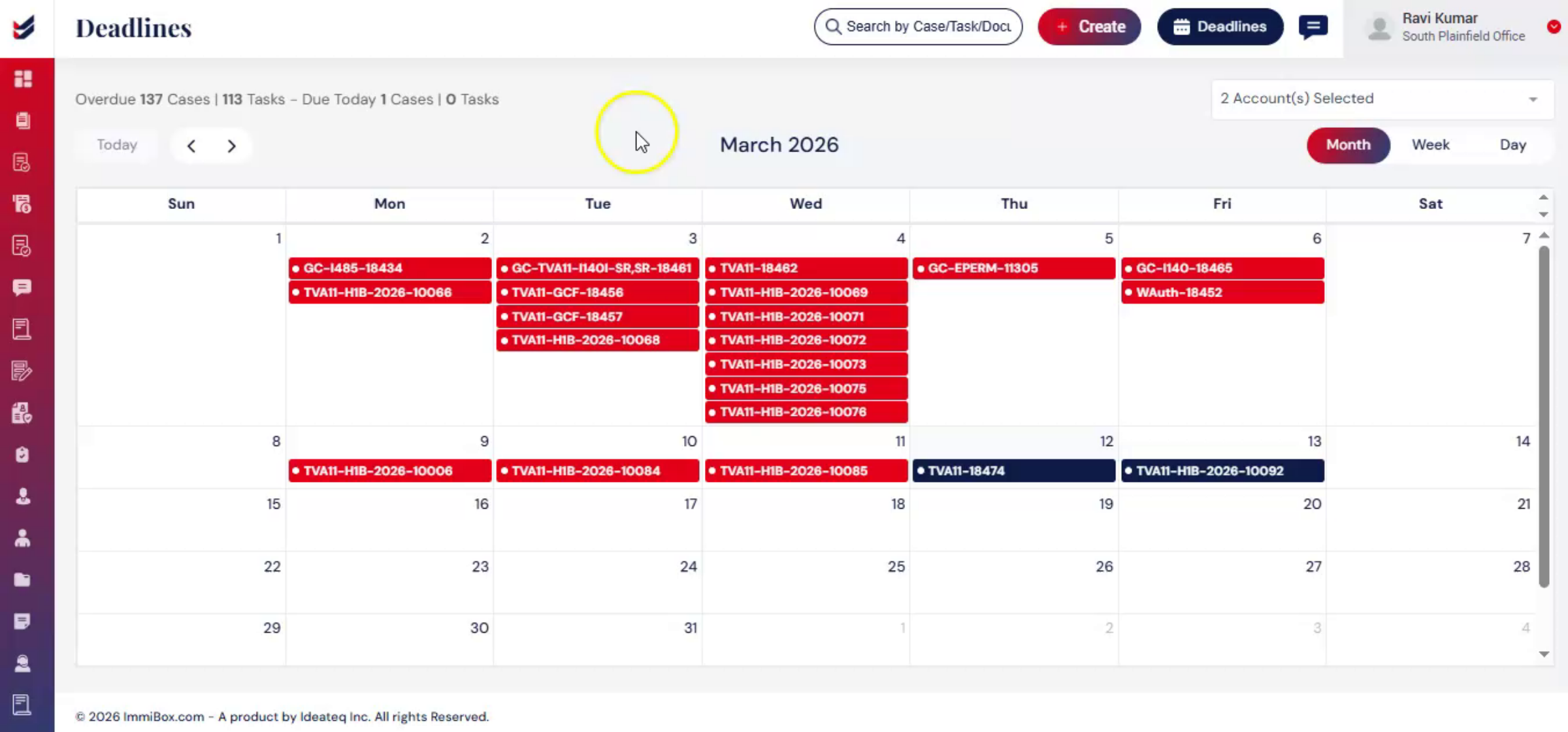
From the Dashboard, users can access the Deadlines Calendar by selecting the Deadlines option at the top of the screen. All deadlines for cases and tasks are displayed in this calendar. The calendar provides multiple viewing options, allowing users to view deadlines by Month, Week, or Day. The status of tasks and cases is indicated by color in the calendar: Blue indicates upcoming deadlines; Red indicates overdue items. Clicking on a task or case within the calendar will navigate directly to its detailed record.
In the Operational Dashboard, a Deadlines widget is also available. This widget provides a quick overview of missed deadlines, today's deadlines, and upcoming deadlines.
6. Conclusion
 * click the image to view enlarged
The Deadlines feature in the portal helps users effectively manage important timelines for both cases and tasks. With configurable deadlines, the ability to update them when needed, and a centralized Deadlines Calendar, users can easily monitor upcoming and overdue activities and ensure that critical actions are completed on time.

