


Managing Labor Condition Applications (LCA)
Overview
Welcome! In this video, we will learn about managing LCAs in ImmiBox.
1. Introduction
 * click the image to view enlarged
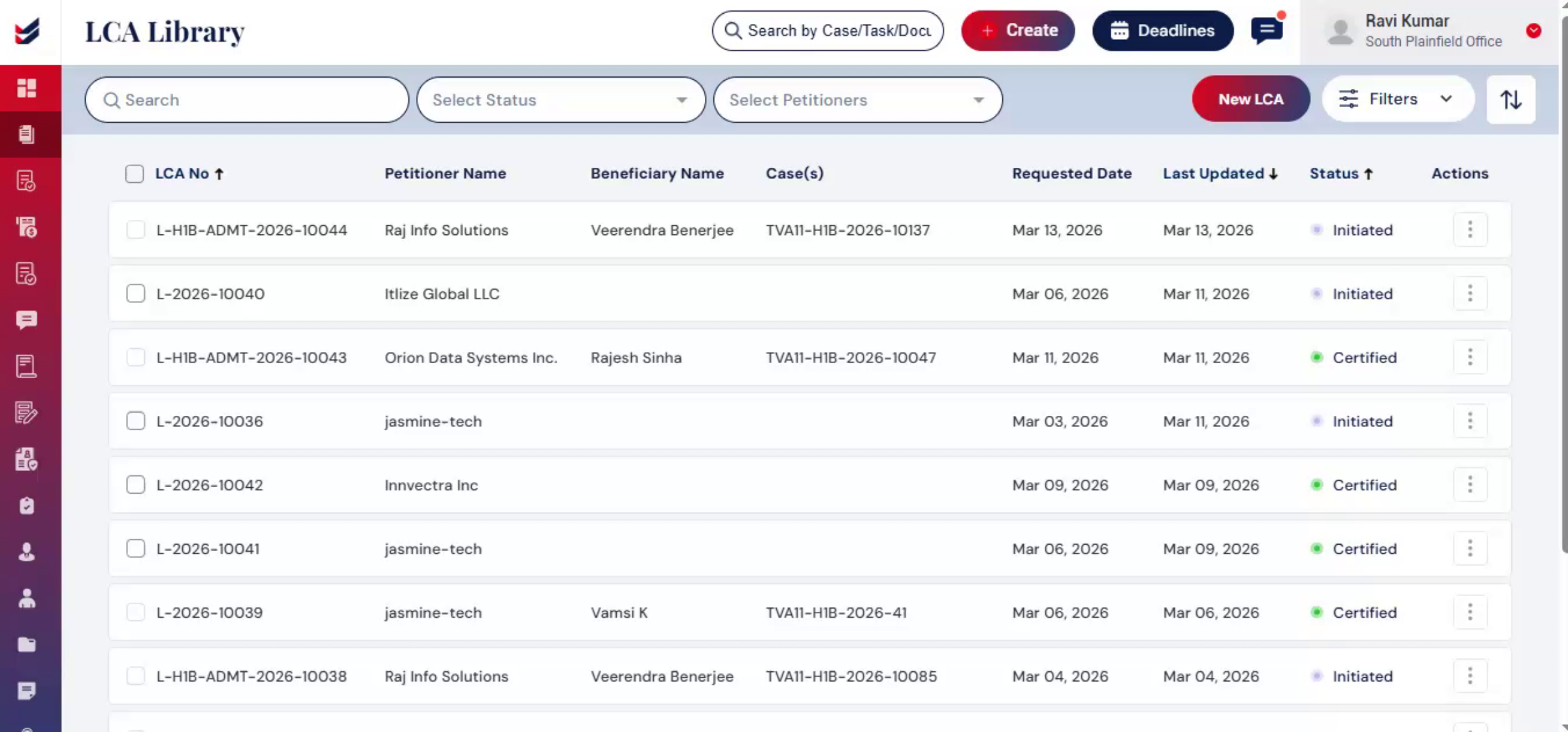
The LCA Library allows users to view, manage, and track all Labor Condition Applications in one centralized location.
All LCAs are organized under their respective Petitioners, making it easy to manage LCA records associated with specific petitioners and cases.
Users can also manage LCAs directly from associated case records within ImmiBox.
2. Access LCA Library
 * click the image to view enlarged
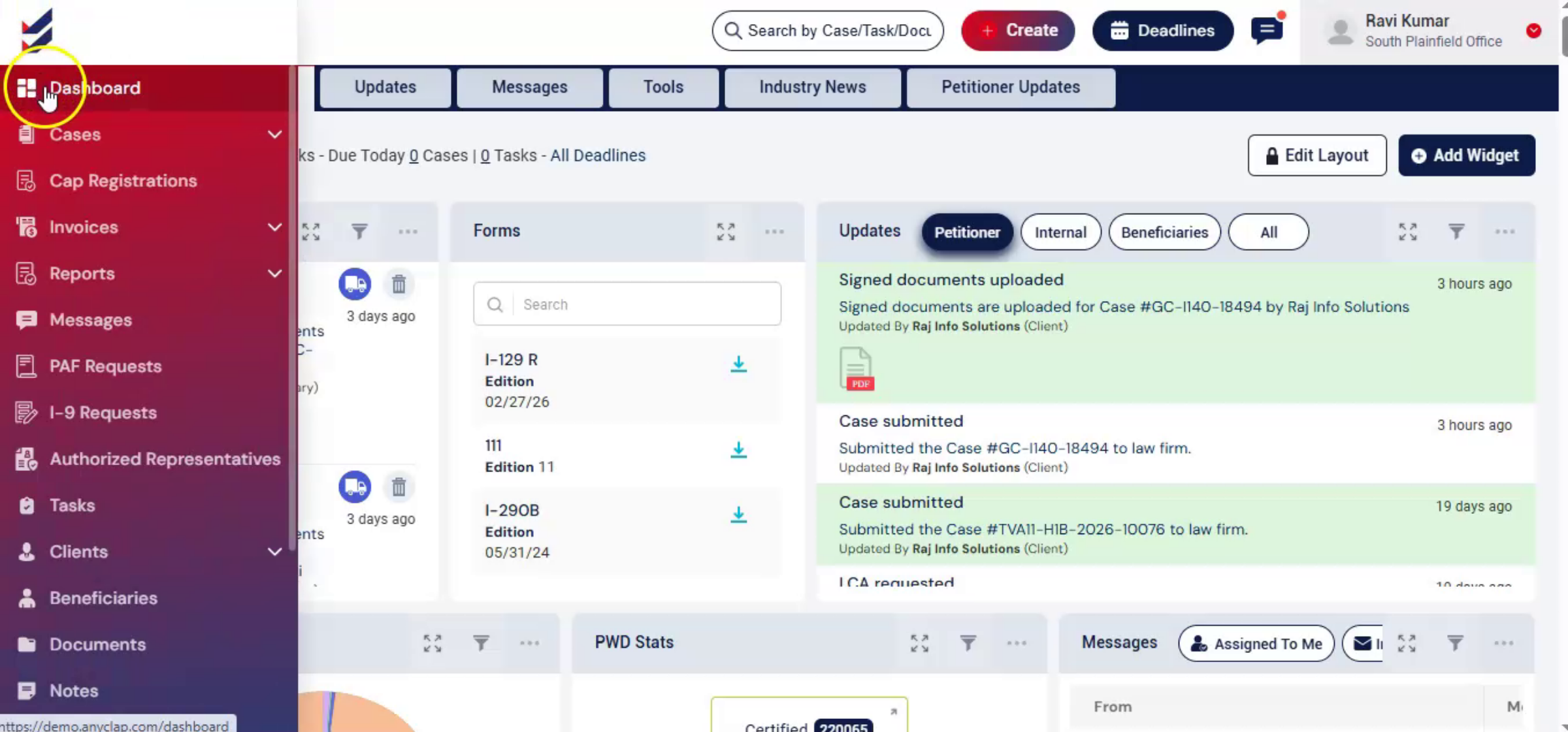
From the Dashboard, navigate to the Cases section and select LCA Library.
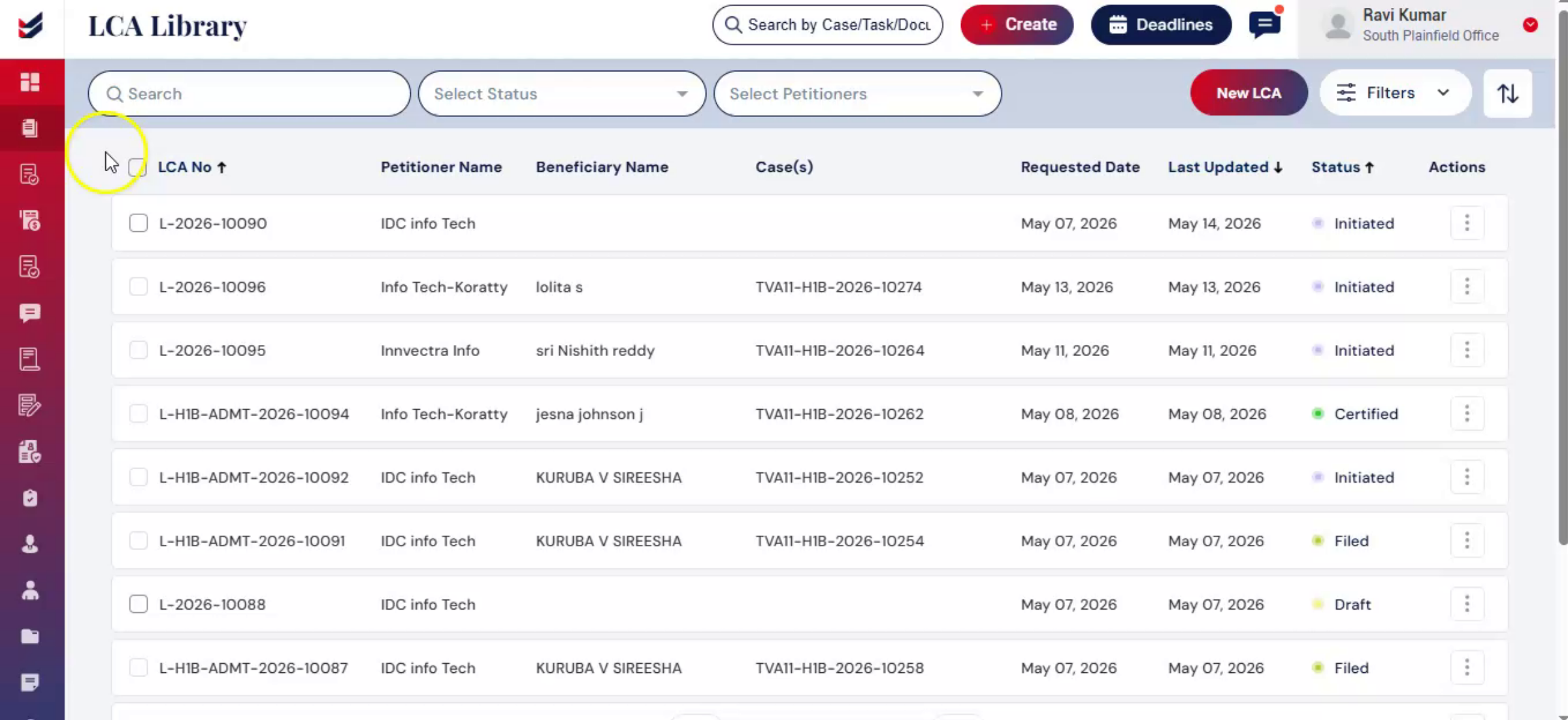
This page displays a list of all LCAs available in the system.
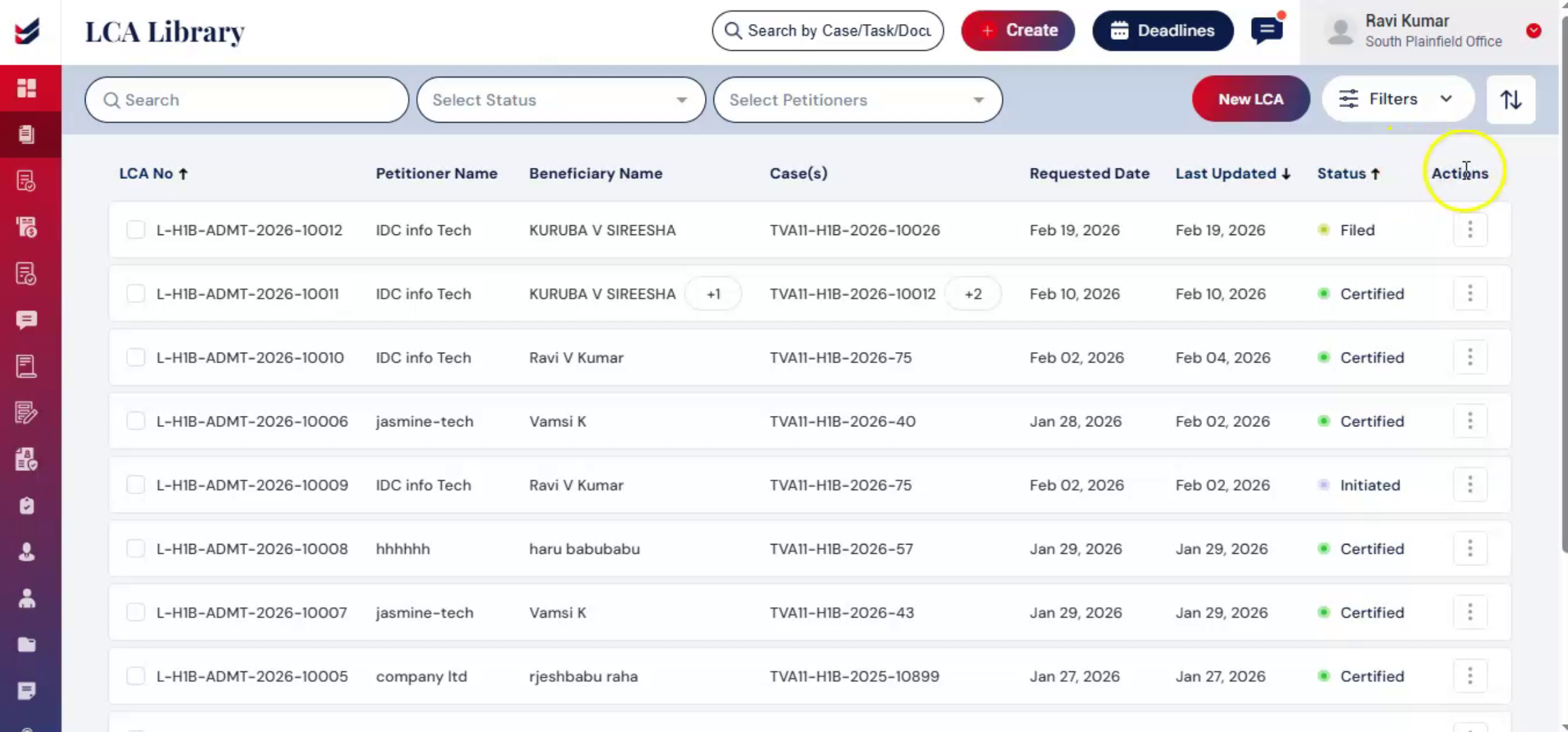
At the top of the LCA Library, you can view key information for each LCA.
3. LCA Library Features
 * click the image to view enlarged
Under the Actions menu, three options are available.
The first option is Link with Case. When selected, the Link LCA dialog box will appear. Enter the Case Number, add any relevant comments, and click Link with Case.
The next option - Update Status. Selecting this will open the Update Status dialog box, where you can choose the appropriate LCA status such as Filed, Certified, Denied, or Received RFE.
Upload the document and enter all the details in the required field such as Preferred SOC Code and add comment. Then Click Submit.
The third option is Edit. Selecting Edit will open the LCA form, update the LCA details and click Update.
4. View and Filter LCA Records
 * click the image to view enlarged
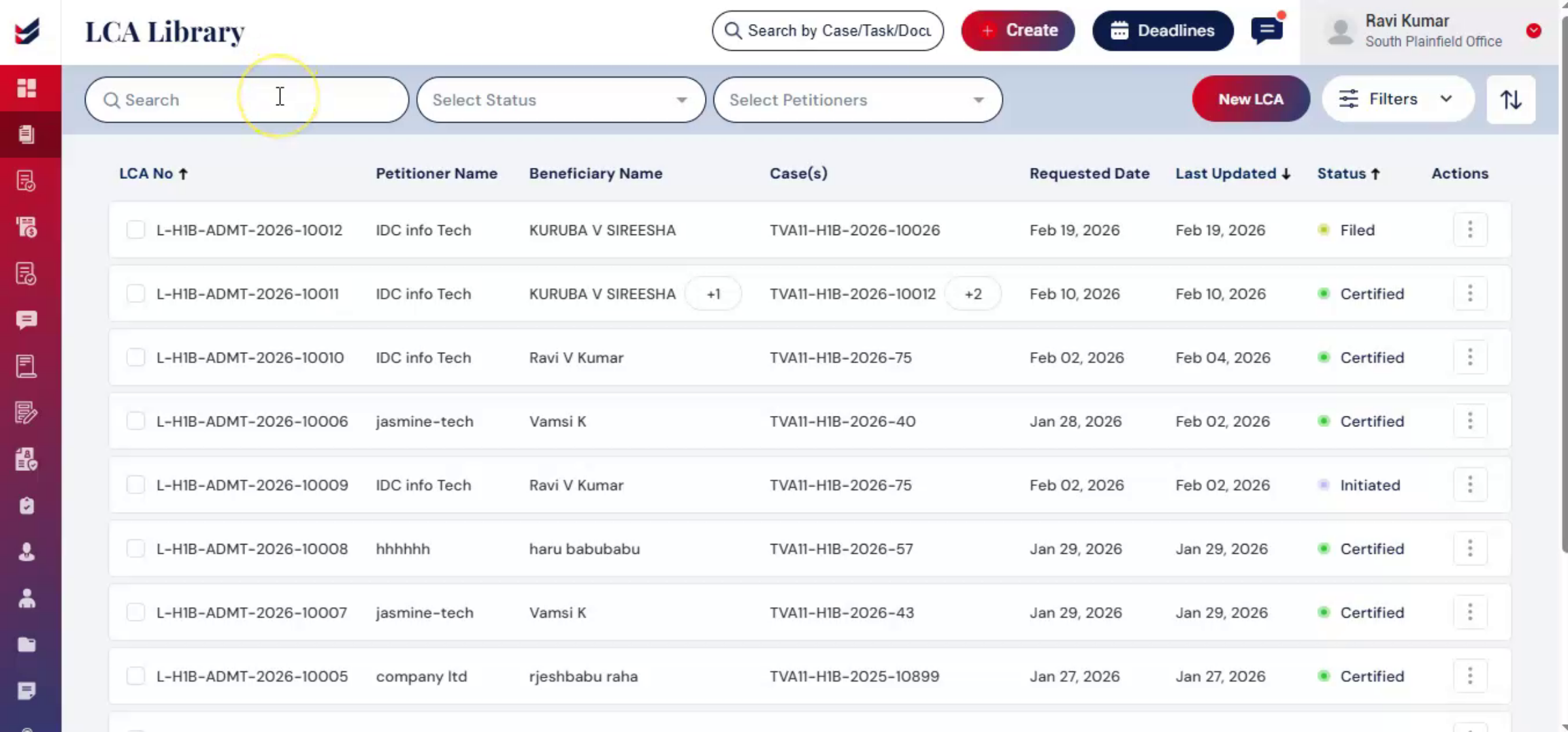
Within the LCA Library, users can quickly search and filter LCAs.
5. Modify LCA Details
 * click the image to view enlarged
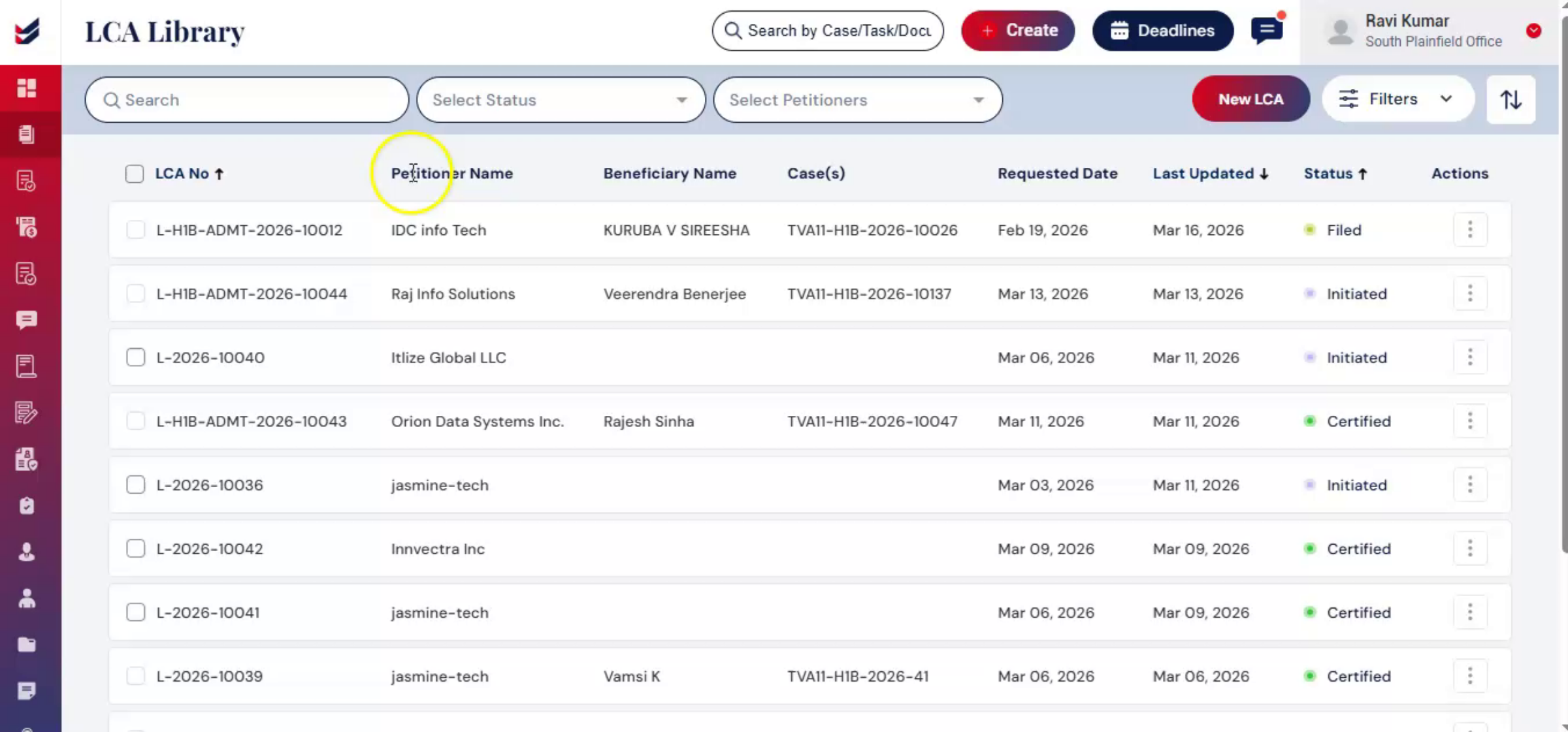
If updates are required, users can open the LCA record directly from the LCA Library.
In the LCA details page, navigate to the top right corner, click Actions, and select the Edit option from the dropdown.
Using this option, users can edit the LCA. From there, users can review the LCA information and make the necessary changes. After updating the required fields, click Update to save the changes.
This allows users to maintain accurate LCA records, update information when needed, and ensure that all LCA documentation remains up to date within the system.
6. E-File LCA
 * click the image to view enlarged
ImmiBox also allows users to electronically file lca's directly through the platform.
Users can access the e-filing process from the LCA record or directly from the associated case.
This helps streamline the filing workflow and maintain centralized LCA tracking throughout the case life cycle.
To learn more about e-filing workflows with DOL and USCIS, refer to the separate e-filing tutorial video.
7. Generate Public Access File
 * click the image to view enlarged
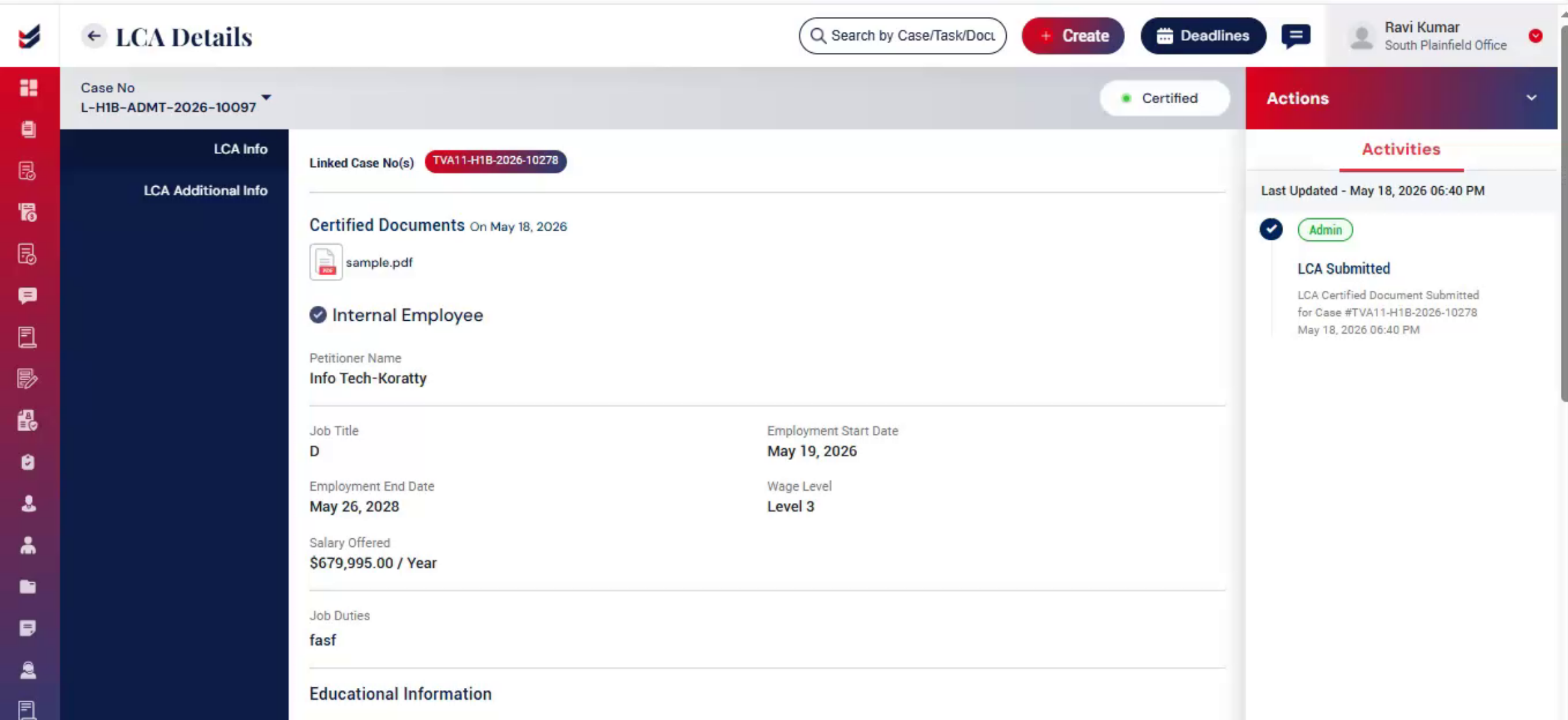
Once the LCA is certified, the P-A-F option becomes active.
Then, click the Action tab. A dropdown menu will appear with the Create P-A-F option. Select this option to begin generating the Public Access File for the certified LCA.
As soon as you click Create P-A-F, the form opens with pre-filled information from the LCA. Review the details, complete the remaining required fields, and click Generate P-A-F to create the Public Access File.
To learn more about the complete Public Access File generation process, refer to the separate Public Access File tutorial video.
8. Manage LCA from Case
 * click the image to view enlarged
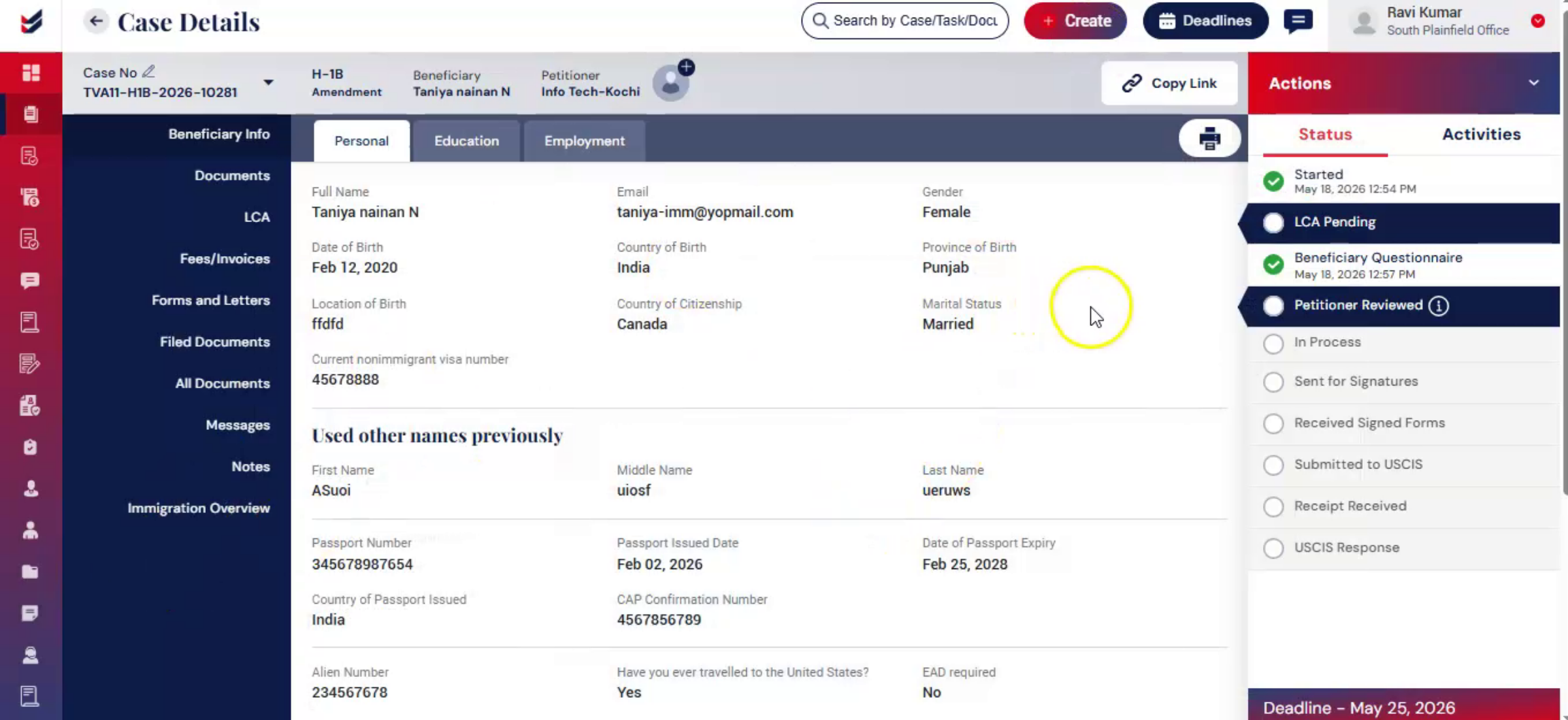
Users can also manage LCAs directly within a case. From the Case Details page, navigate to the LCA section to initiate, create, link, review, update, upload, or e-file associated LCAs.
This allows users to manage both case and LCA workflows from one centralized location, improving visibility and reducing the need to switch between modules.
Any LCA created, uploaded, or e-filed within a case is automatically integrated with the LCA Library, where all related records and activities remain synchronized across the platform.
This integration helps maintain centralized LCA tracking while enabling users to efficiently manage LCA activities directly from the associated case.