


Creating & Managing Cases in ImmiBox
Overview
Welcome!
This video demonstrates how to access and create cases using ImmiBox.
n1. Introduction of ImmiBox
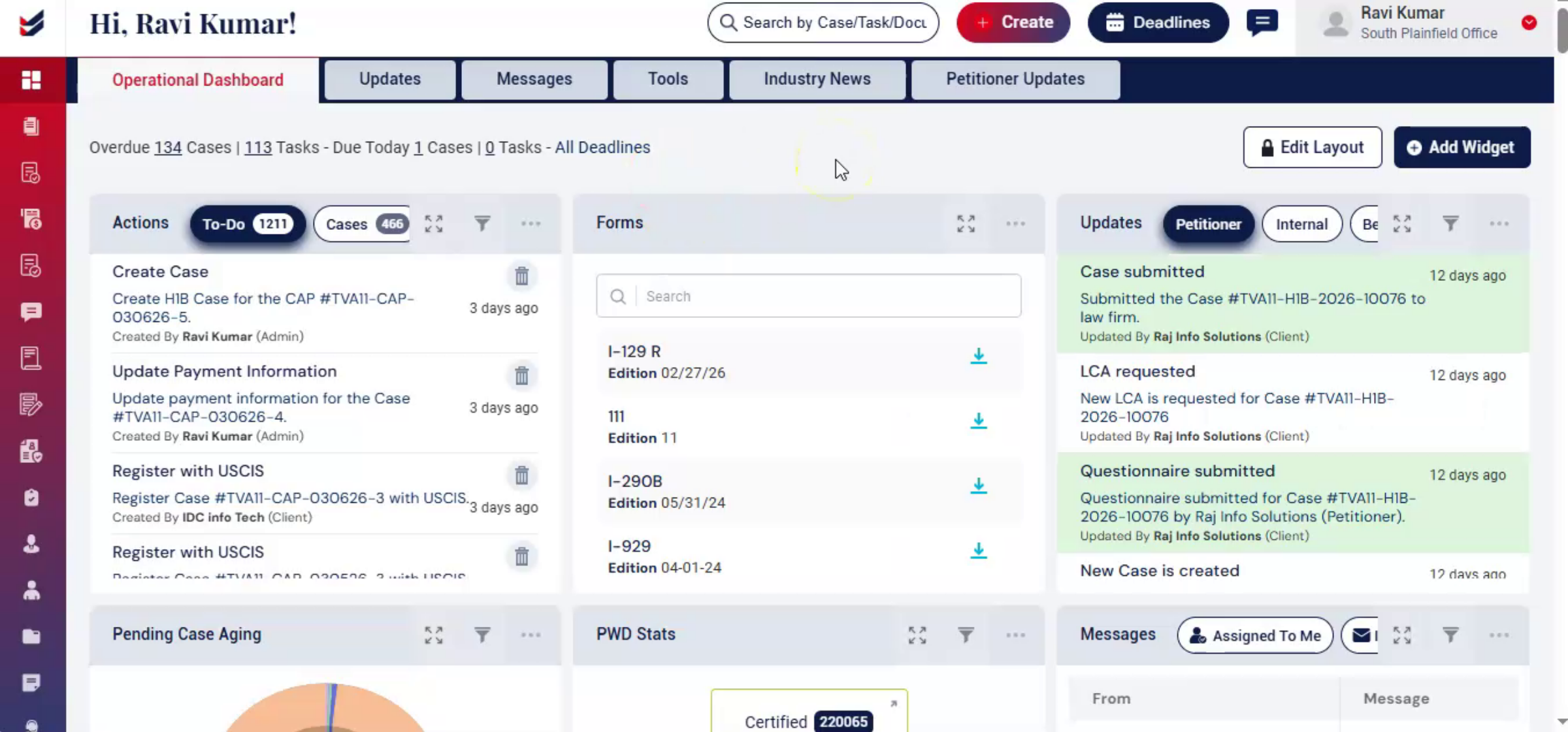 * click the image to view enlarged
ImmiBox helps law firms, to manage cases efficiently while ensuring compliance with USCIS and Department of Labor requirements.
n2. Access the Case List
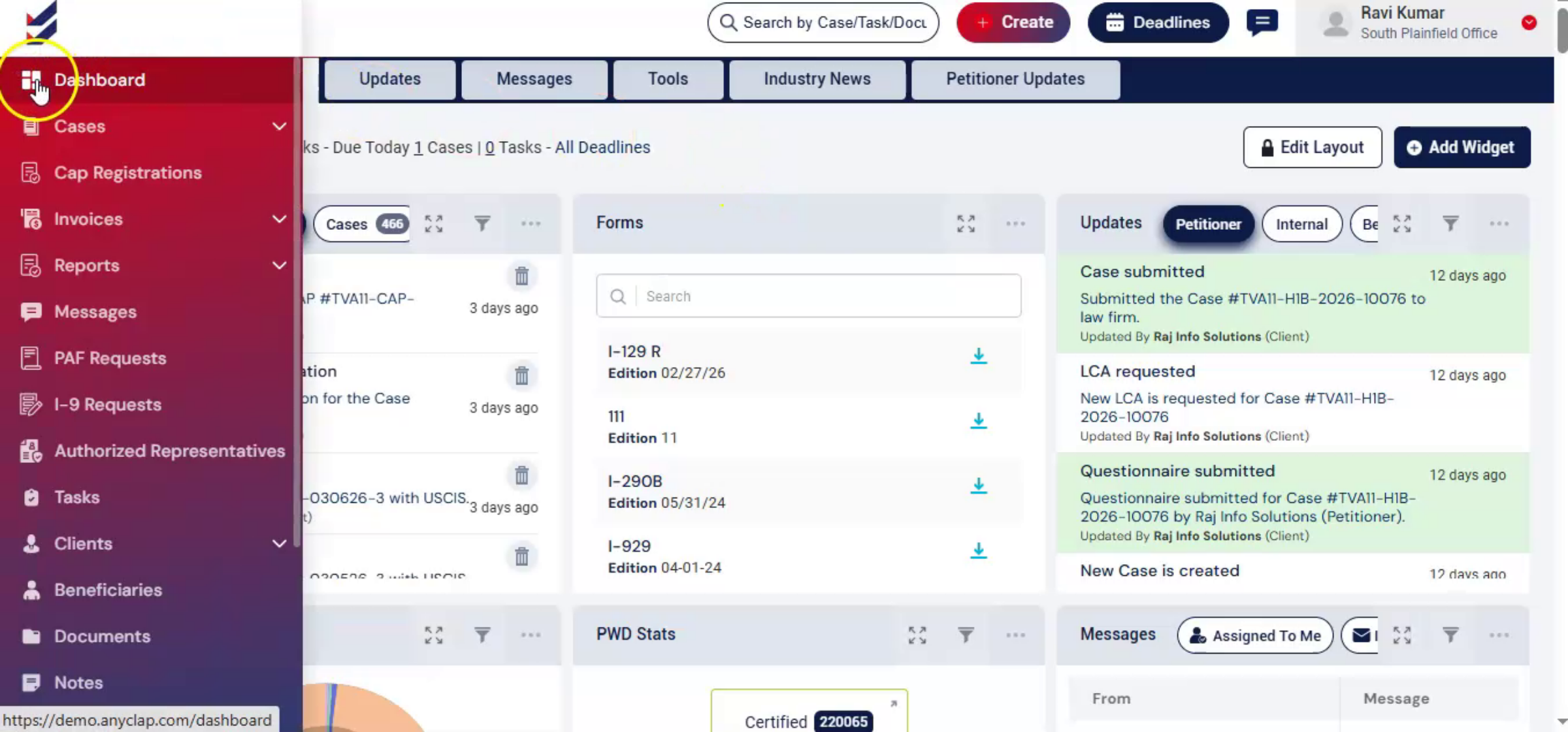 * click the image to view enlarged
To access or create case, select Cases from the left navigation menu, and choose All from the list. You will then be redirected to the All Cases folder, where all cases in the system are listed.
n3. Explore Case Options
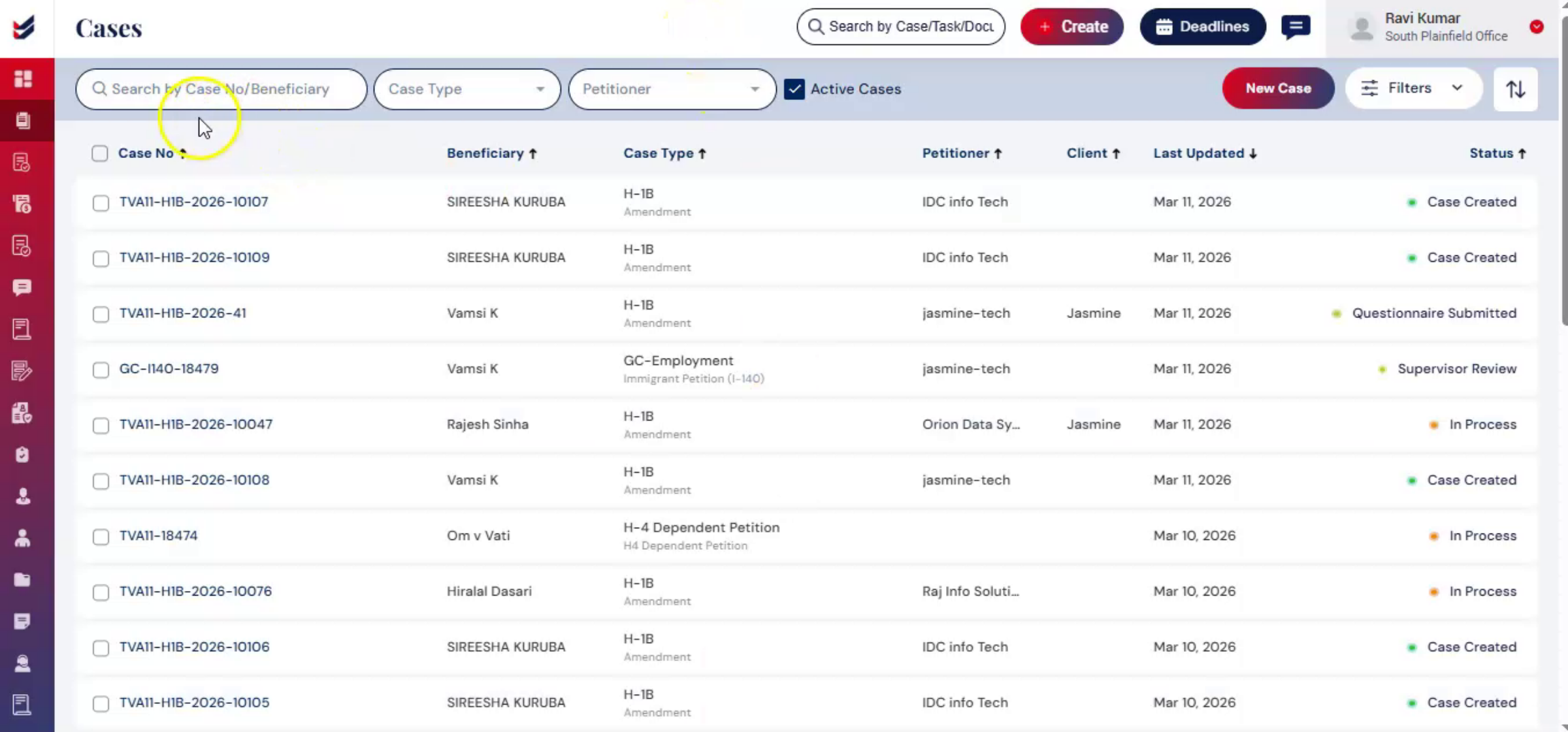 * click the image to view enlarged
On the Cases page, you will see several options:
Search: Locate a case-by-Case Number or Beneficiary.
Case Type: Filter cases by selecting from the Case Type dropdown list.
Petitioner: Select a petitioner to view cases associated with them. Active Cases displays cases that are currently in progress and yet to be filed. Filed or closed cases are hidden by default for easier management.
If you unselect the Active Cases option, the system will display all cases, including filed and closed cases. On the top right, click New Case button to create a case.
n4. Create a New Case
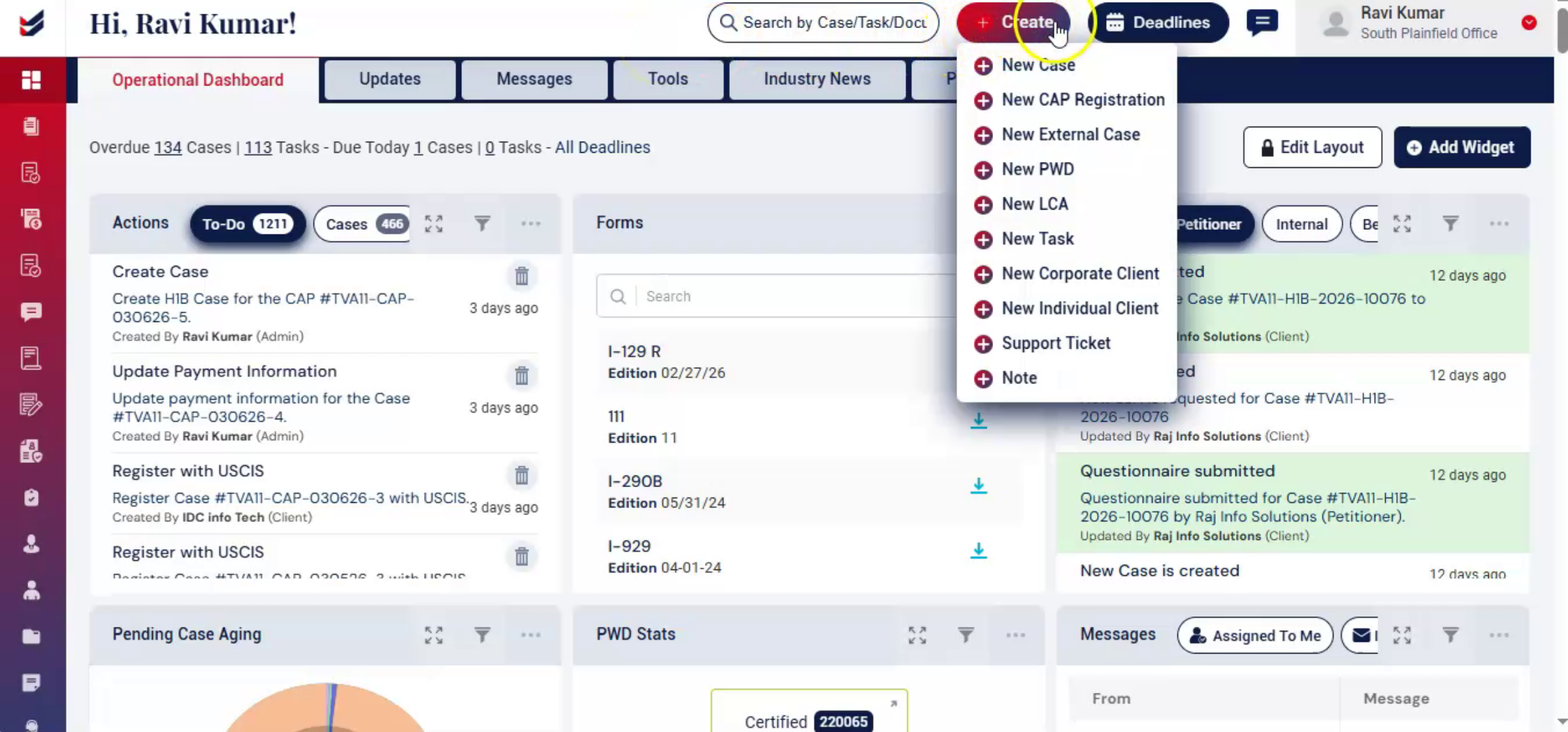 * click the image to view enlarged
Alternatively, from Dashboard, click on Create and select New Case to open then a dialog box will appear. Select the Case Type and Sub Type to proceed. Depending on the case type, Petitioner selection may or may not be required.
ImmiBox automatically defines these requirements to simplify the process.
n5. Assign Petitioner and Beneficiary
 * click the image to view enlarged
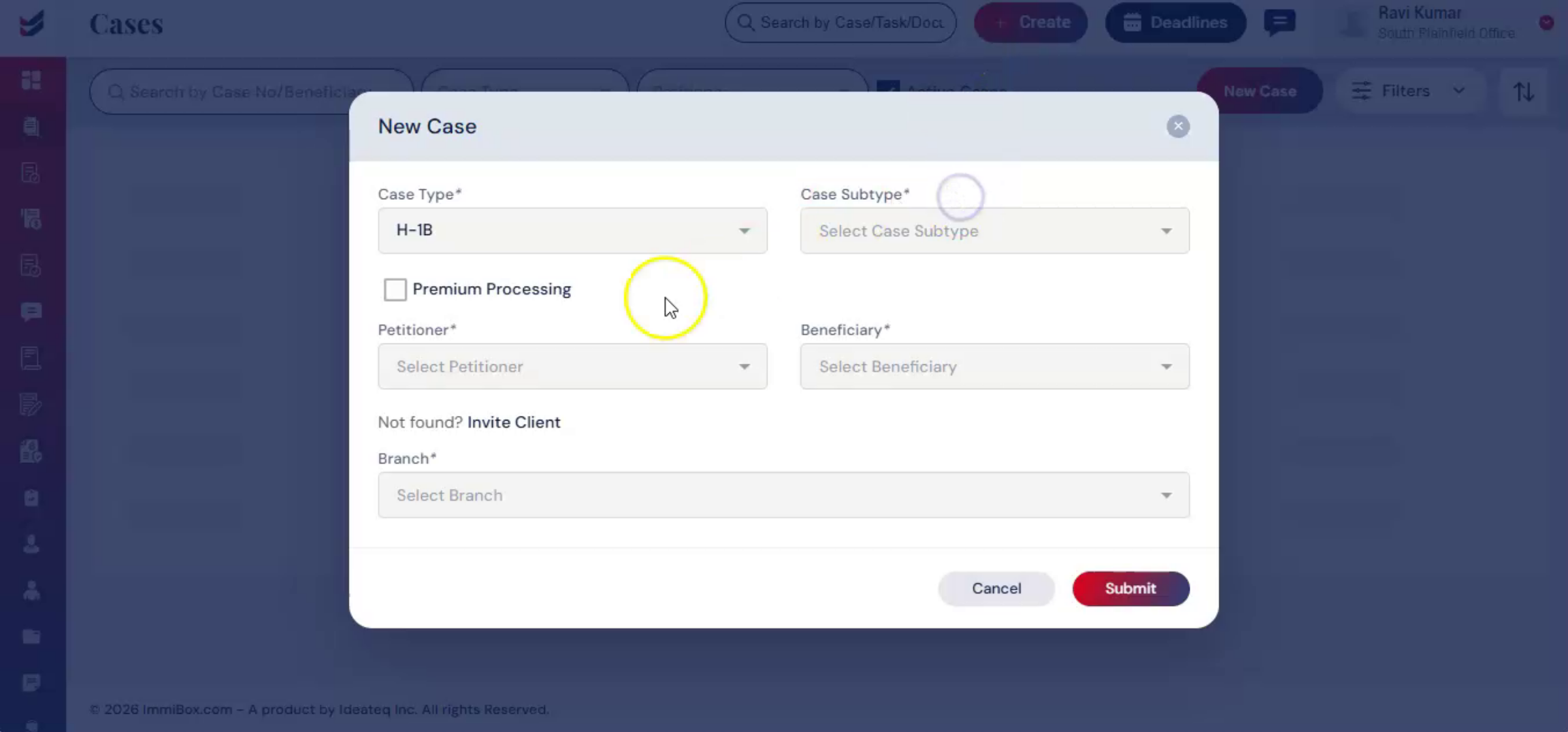
Select the Petitioner and Beneficiary for the case from the dropdown list, if applicable. If the required entity or user is not in the list, use the option to Invite Client and Invite Beneficiary. If the law firm operates multiple branches, choose the preferred branch for case assignment. Click Submit, to create the case.
n6. Access Case Details Page
 * click the image to view enlarged
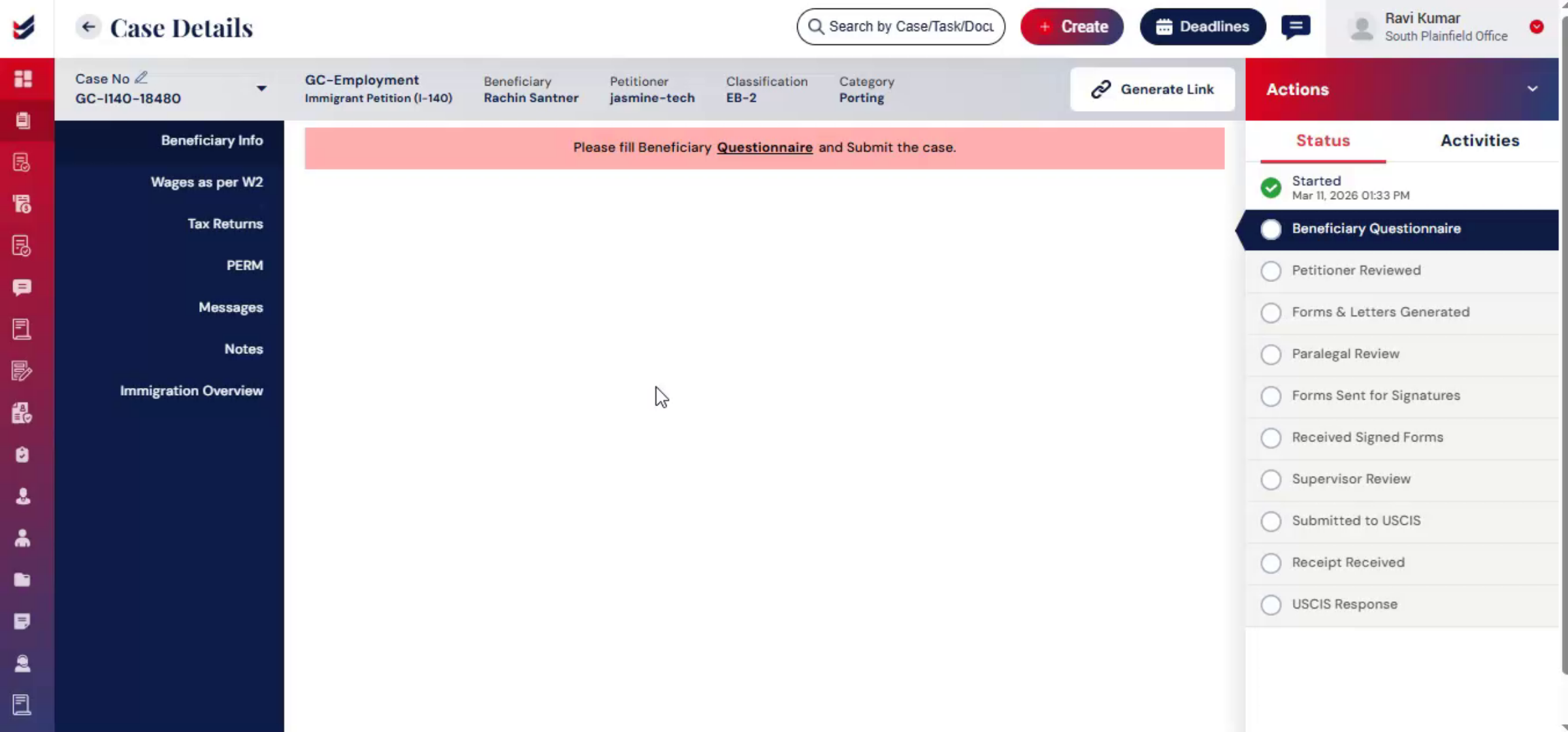
Once the case is created, a link with the relevant questionnaire will be sent to the Petitioner or Beneficiary, depending on the case type.
All further actions can be performed from this single screen.
Users can perform actions, check the case status, review activities, and communicate with the internal team or clients through messages.
You can also generate forms and letters, and organize documents required for filing.
Many useful features are available in the left navigation and the Actions tab, allowing the entire case to be managed within the same window with ease.
n7. Conclusion
 * click the image to view enlarged
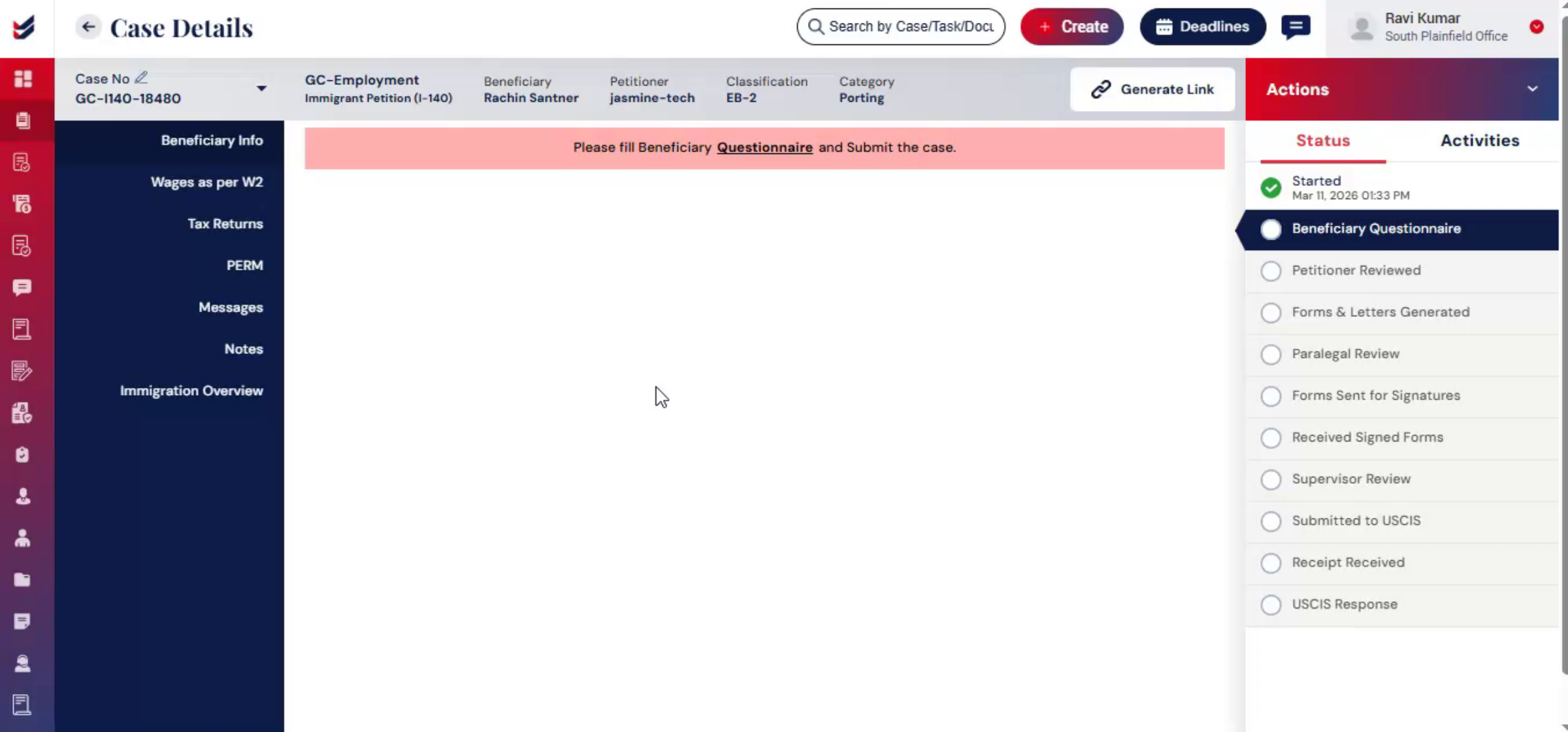
ImmiBox provides a centralized and efficient way to manage all cases, from creation to completion. With organized case details, automated questionnaires, and built-in tools for collaboration and document management, teams can handle cases smoothly within a single interface.
n
