


Manage Share/Upload Forms & Letters
Overview
Welcome! Learn how to Manage Share/Upload Forms & Letters documents, and complete attorney signatures using the workflow in ImmiBox.
1. Introduction
 * click the image to view enlarged
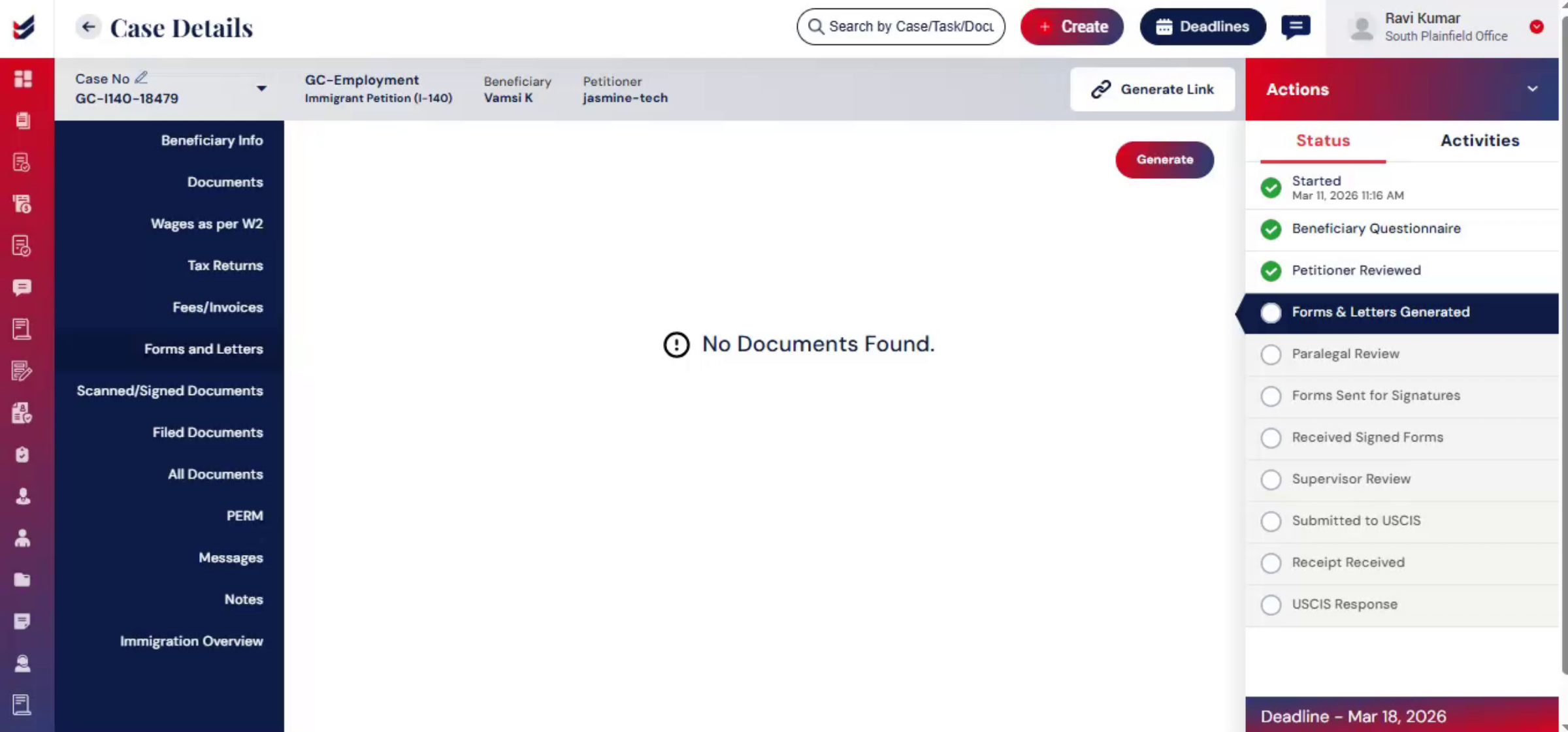
In ImmiBox provides multiple ways to complete this process, including sending documents for generating forms and letters, and uploading scanned signed copies. These features help law firms manage document approvals efficiently while maintaining accurate records within the case.
2. Select Documents from Forms & Letters
 * click the image to view enlarged
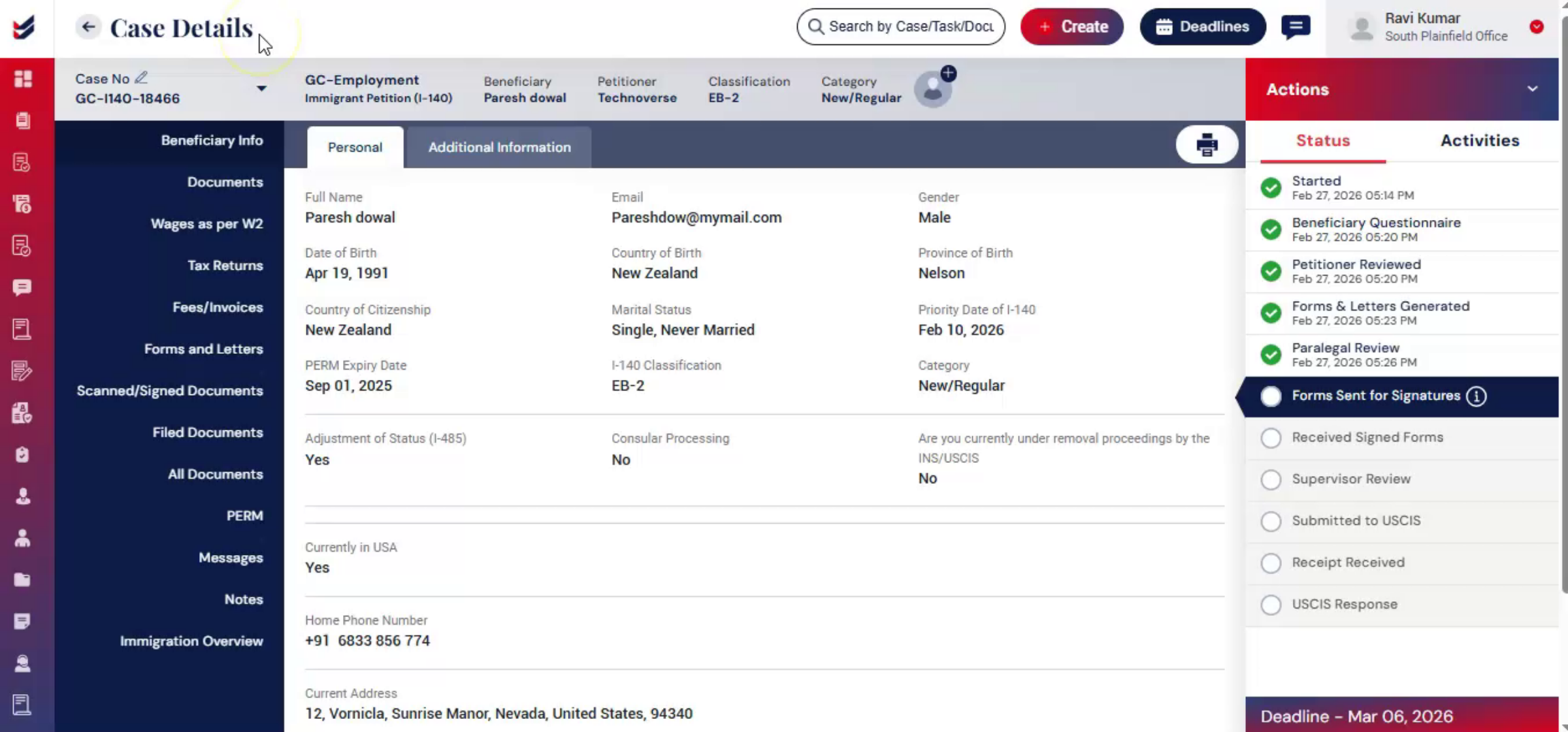
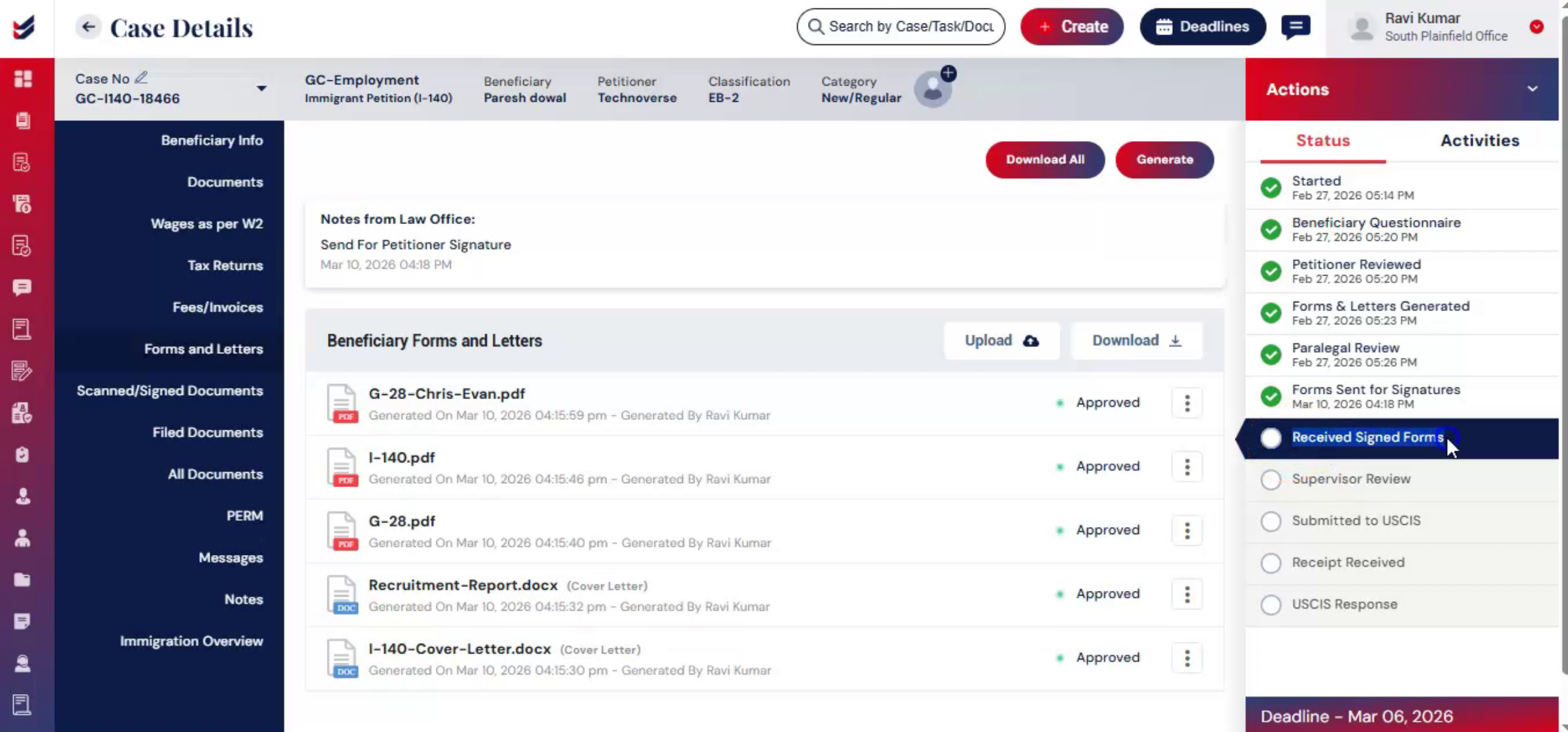
On the Case Details Page, Navigate to the Forms and Letters tab. In this section, you will find Generate button. As you click, fill the details and click the files that need to be generated. Then, you will find the generated forms and letters that require signatures. You can download the files by clicking on Download All.
3. Request Signature from Petitioner or Beneficiary
 * click the image to view enlarged
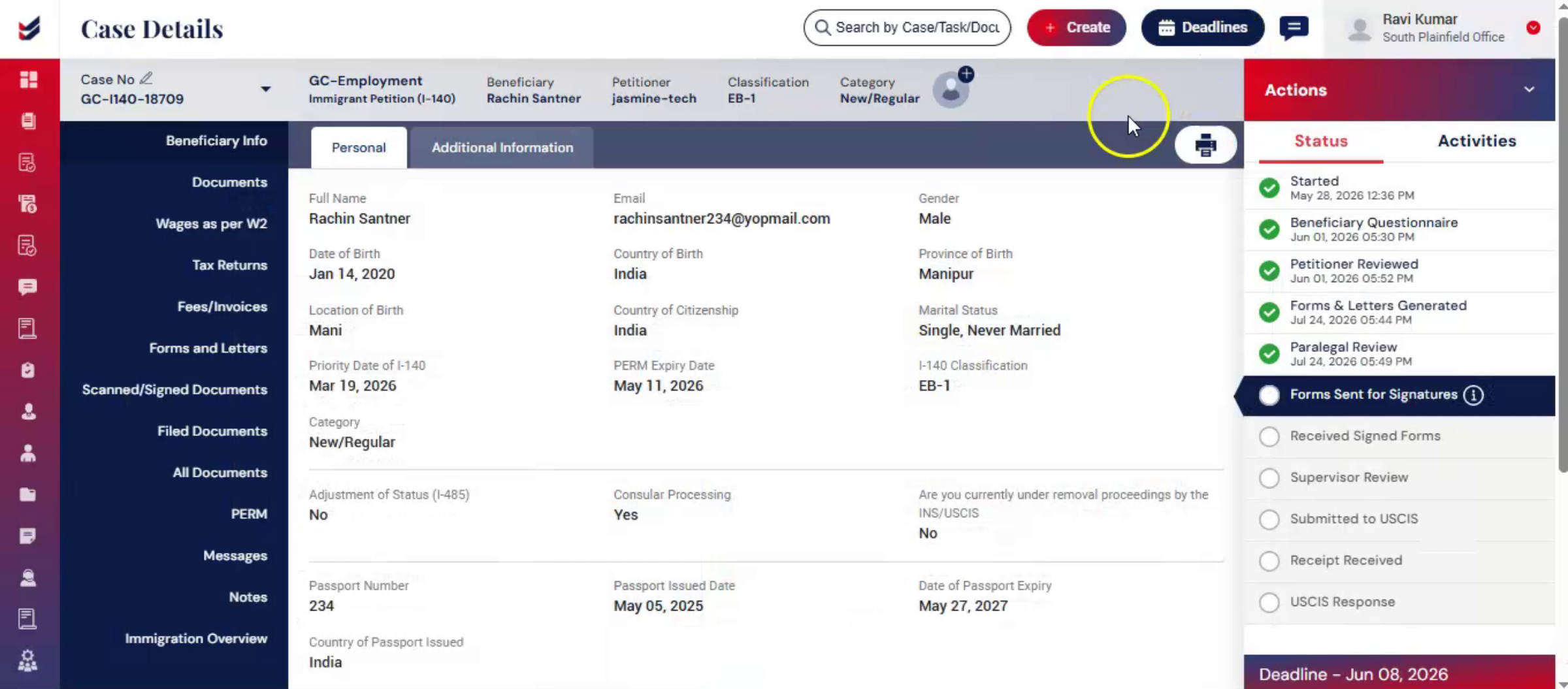
To send the files to signature, Click the Actions button and select either: Send for Petitioner Signature, or Send for Beneficiary Signature.
A popup window will appear allowing you to select the forms that need to be sent for signature.
Choose the documents requiring signature. Next, select a content template.
ImmiBox allows you to manage customized communication templates for consistent and professional messaging. Below the comment box, you will see few option such as Notify option, you can enable this option to send an email alert to the petitioner.
If you want to send the documents directly by email, select Send Documents by Email.
There is also a Send a Copy To option. When enabled, you can choose: Apply to All Cases — the selected recipient will receive signature emails for all future cases. Apply to This Petitioner — the recipient will receive signature emails only for the current case.
After reviewing your selections, click Submit. Once submitted, the user receives the documents electronically.
4. Petitioner Signature
 * click the image to view enlarged
Petitioners have the option to upload the signed the Forms and Letters directly within the system. When signed documents are uploaded in the system, they become automatically available to the Law Firm, eliminating the need to send the documents manually.
5. Access Upload Option
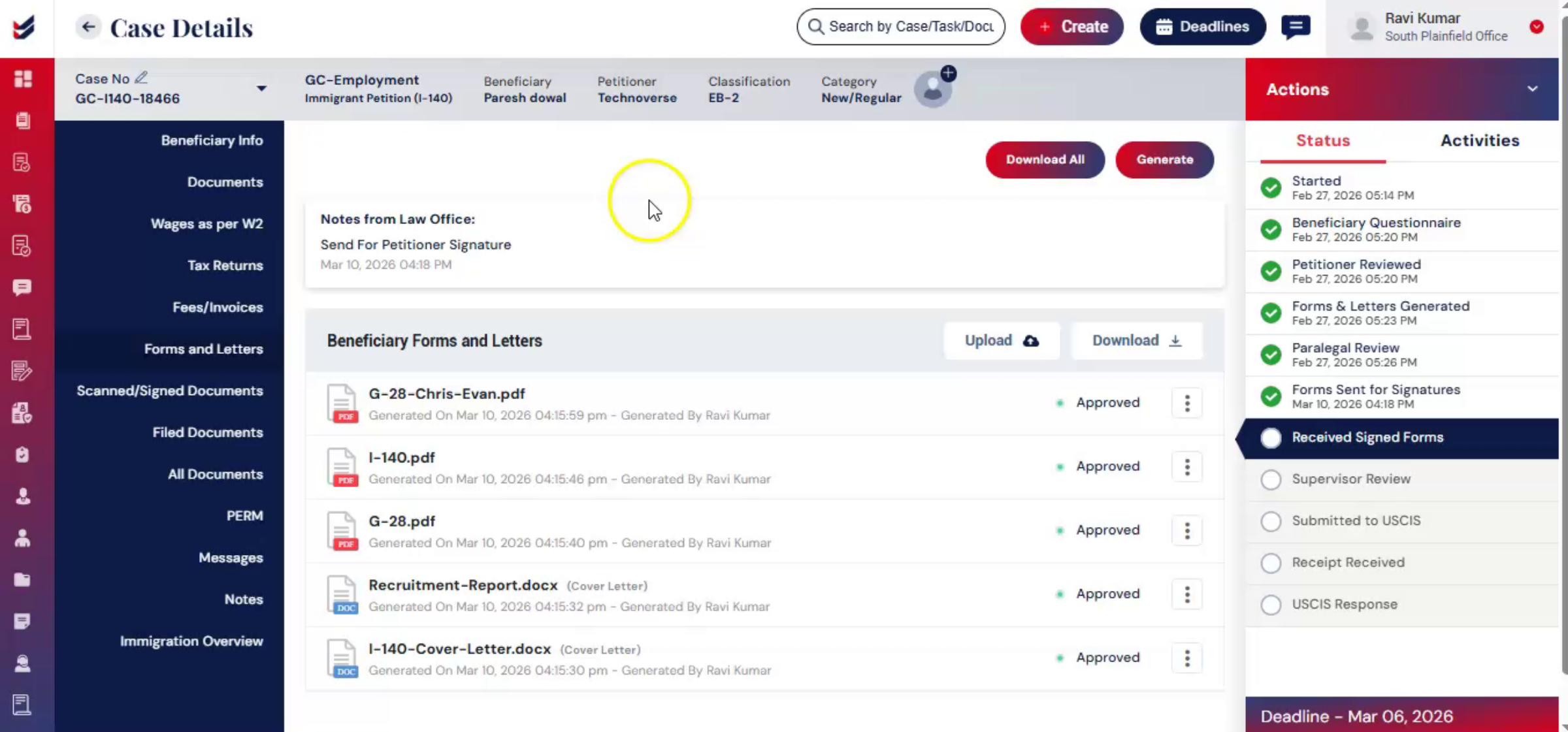 * click the image to view enlarged
Alternatively, law firms can upload the signed documents after receiving the files offline from petitioners. To upload the signed documents, click Actions and select Upload Signed Documents.
6. Upload Scanned or Signed Documents
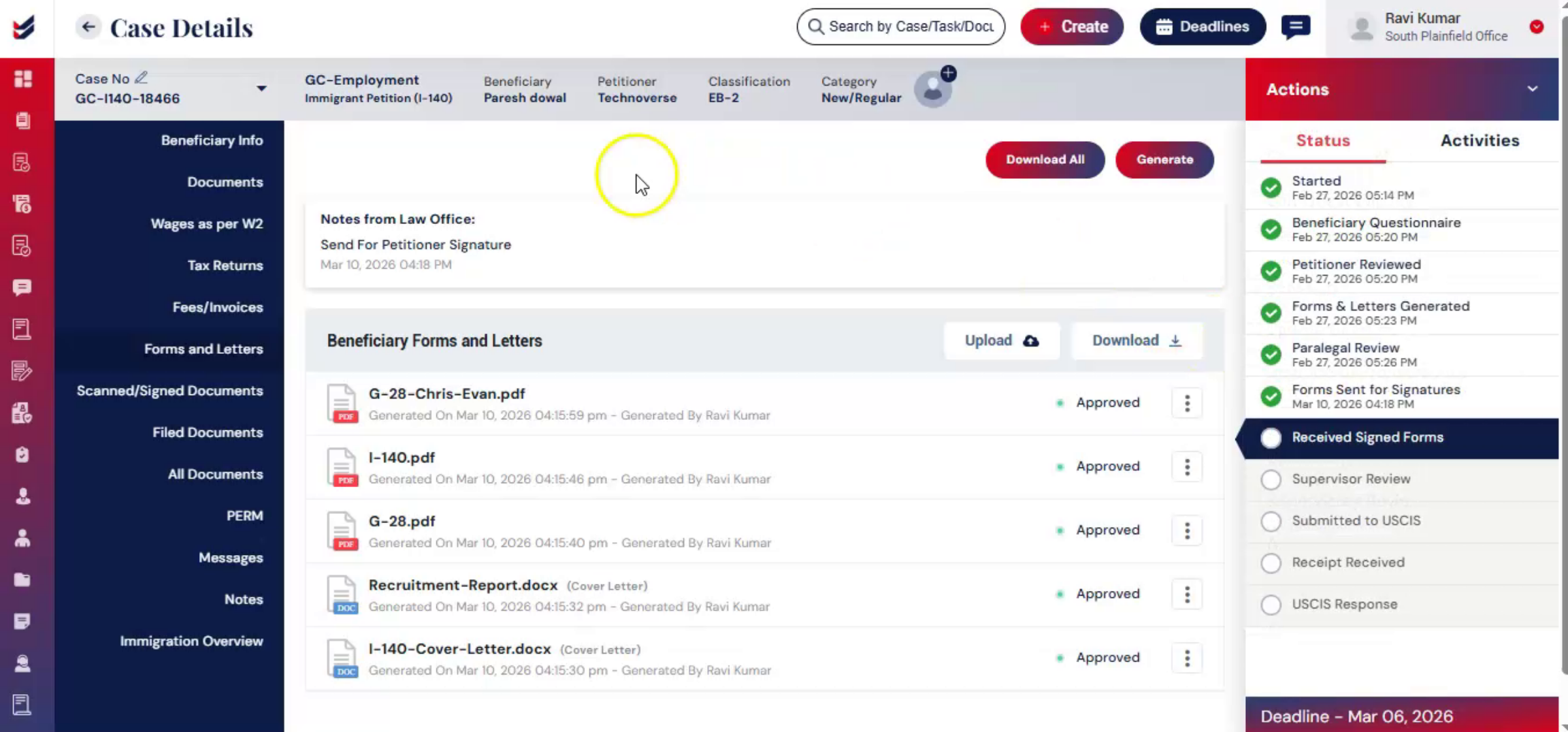 * click the image to view enlarged
Or navigate to the Scanned/Signed Documents section and click the Upload button under the Petitioner.
Select the signed document from your system and upload it to the case.
This allows attorneys to upload signed documents directly within ImmiBox, ensuring a smooth and efficient signing process.
7. Law Firm Documents
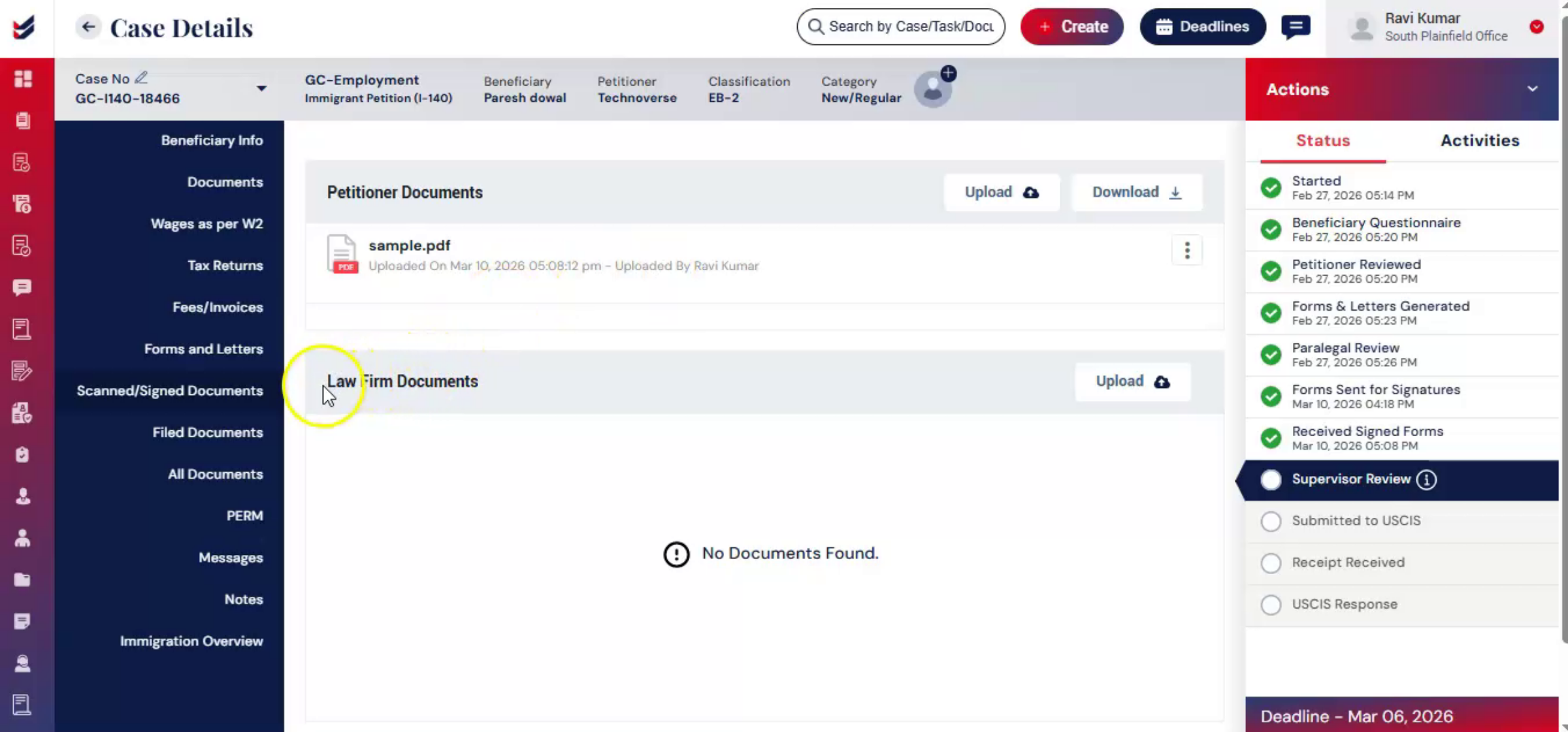 * click the image to view enlarged
ImmiBox also provides a Law Firm Documents Feature area for internal documents that remain visible only to firm staff and are not shared with clients.
This ensures secure separation between client-facing and internal documentation.
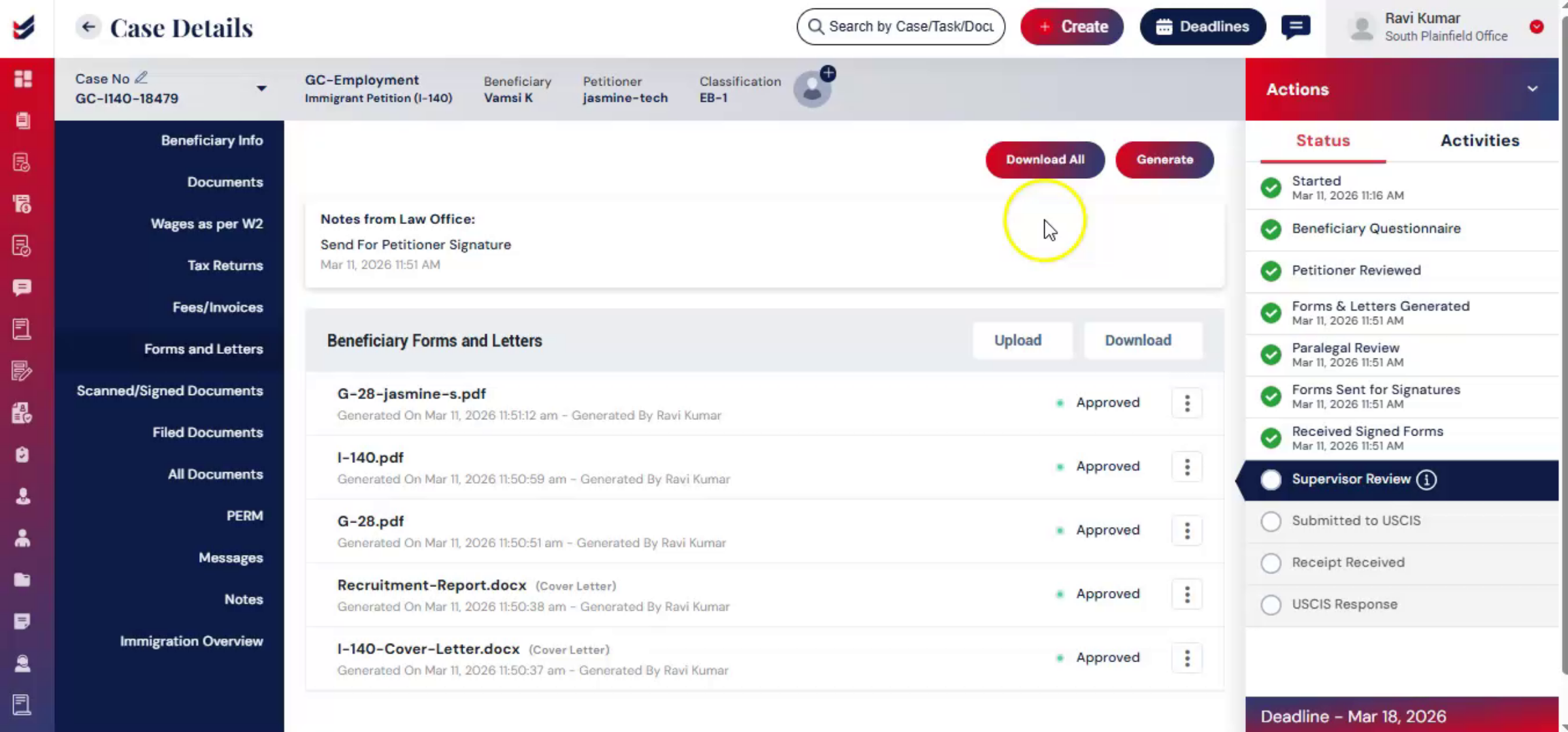
8. Conclusion
 * click the image to view enlarged
This feature enables law firms to efficiently generate forms & letters and document signatures throughout the case process. ImmiBox ensures that all forms and letters are generated based on case & sub case type. It also ensures that required documents are properly signed, recorded, and available within the case. This helps maintain organized documentation, streamlined workflows, and efficient case management.

