


Submit to USCIS & Update Status
Overview
Welcome! Learn how to update the USCIS submission status and receipt number in ImmiBox to track the progress of your immigration case efficiently.
1. Introduction
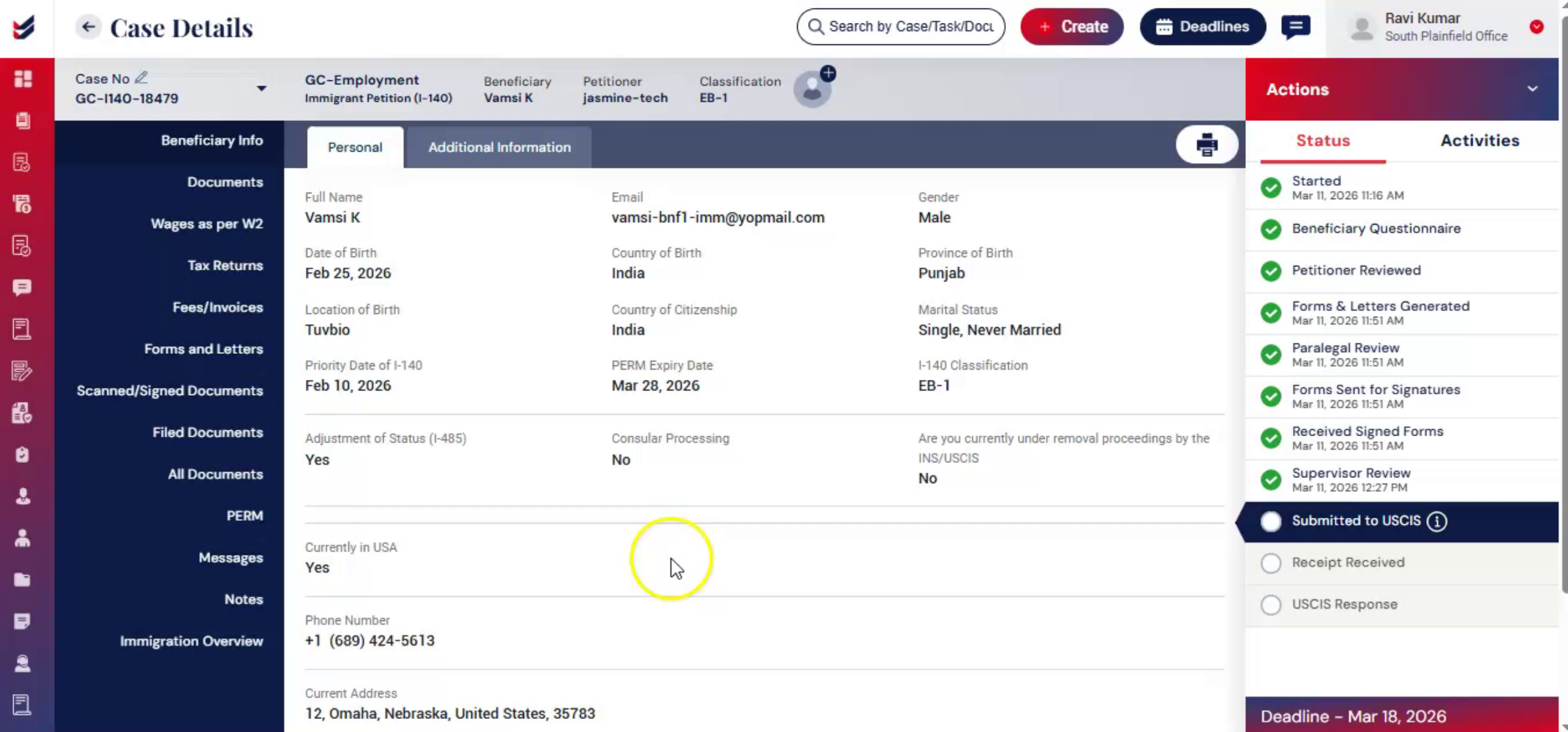 * click the image to view enlarged
Once a case is filed with USCIS, the system allows you to record the submission and update the USCIS receipt number to automatically track the case status. Please note that this process is mainly applicable when the case is paper filed offline, as some steps may not apply to E-Filed cases.
2. Submit the Case to USCIS
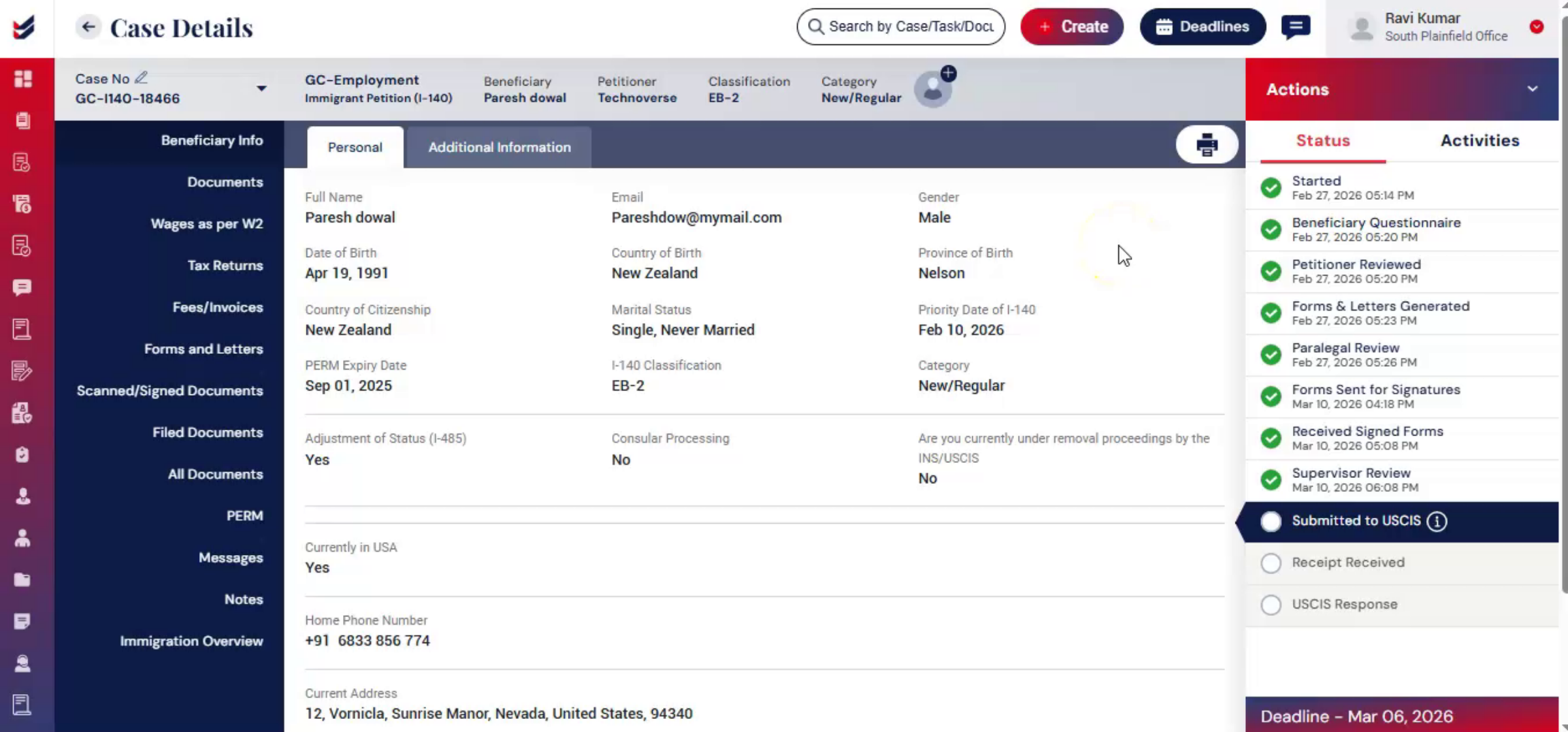 * click the image to view enlarged
After filing offline, navigate to the Case Details page and click Actions.
From the Actions menu, select Submit to USCIS to complete the submission step in ImmiBox. A popup window will appear where you can add comments.
Click Submit to update the case status in ImmiBox .
3. Update Tracking Details
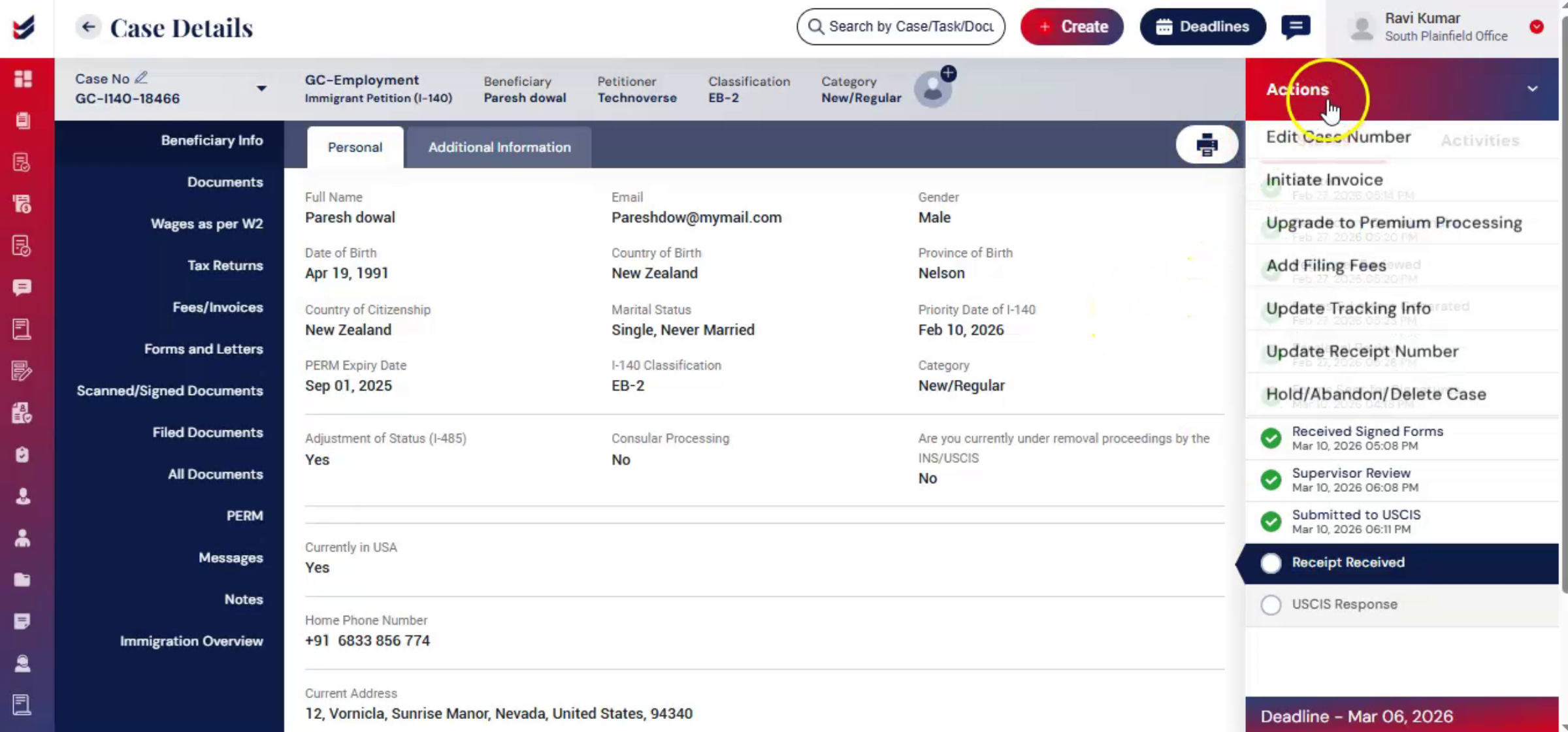 * click the image to view enlarged
To update the Tracking information, From the Actions menu, select Update Tracking Details. Enter the courier tracking number and any related details in the dialog box. You may enable the Notify option to send a notification or update to the petitioner.
Click Submit. As the tracking information is submitted, a new tab called Case Updates appears in the left navigation, where users can view all post-submission updates related to the case.
ImmiBox can track the shipment delivery and update the status dynamically. Once the USCIS receipt number is added, the system will also begin tracking the case status automatically.
If the case includes dependents, the status of each application will be tracked separately.
4. Update Receipt Number
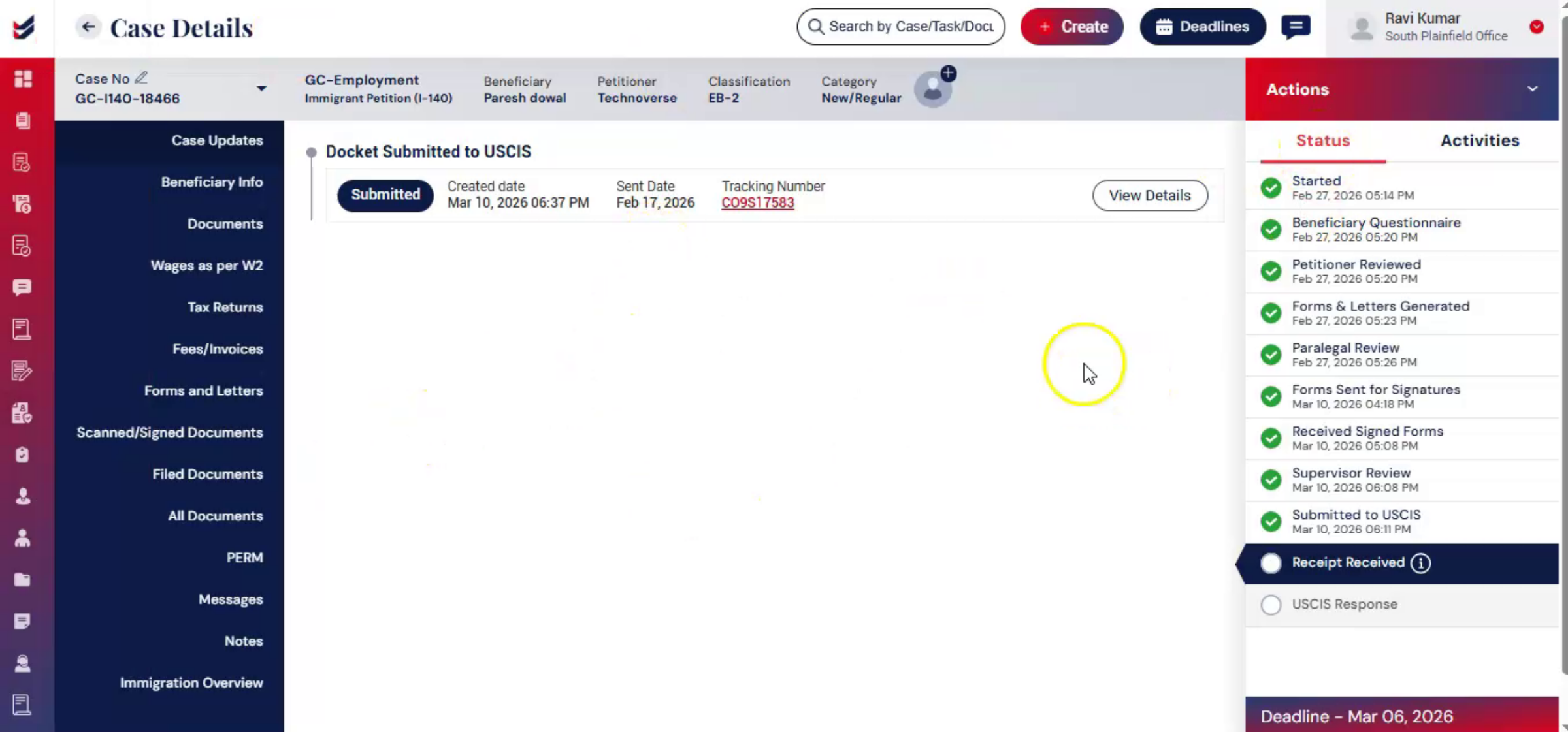 * click the image to view enlarged
From the Actions menu, select Update Receipt Number.
Enter the required details, upload the receipt document, and click Submit.
The receipt information will then be updated in the Case Update section, along with the uploaded receipt document. Additionally, you can upload multiple USCIS notices at once in Tools section on the Dashboard. The system will automatically extract relevant information from each notice and assign it to the corresponding case. For more details, please refer to the Tools Guide. After submitting, the receipt information, is then visible in the Case Update section.
5. Update USCIS Status
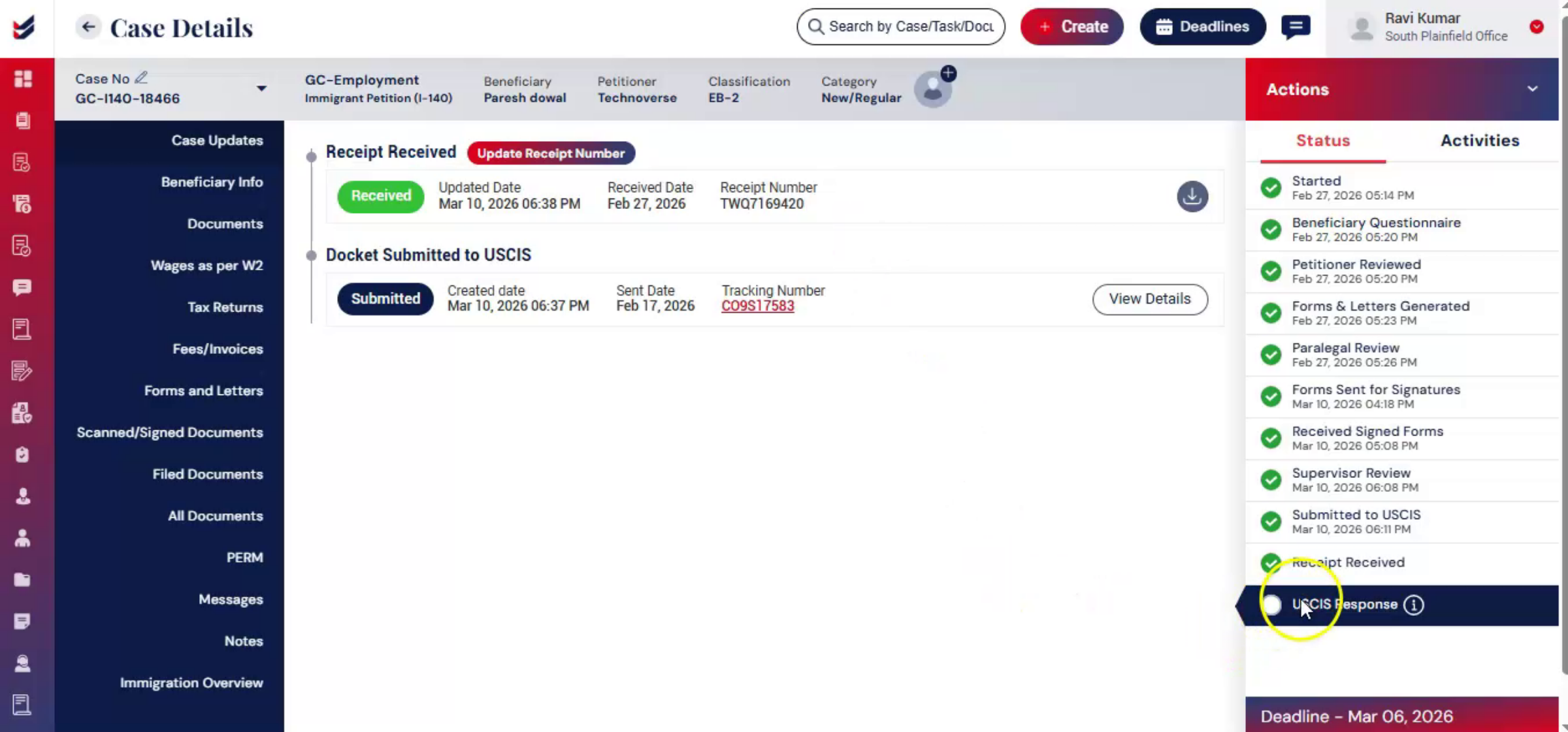 * click the image to view enlarged
As the case progresses, any updates received from USCIS can be recorded within ImmiBox. These updates may also be entered manually when required.
From the Actions menu, select Update USCIS Status.
Choose the appropriate case status, such as Case Approved, RFE Received, Case Denied, or Case Withdrawn. Upload the supporting documents, add comments or information related the case, and click Submit.
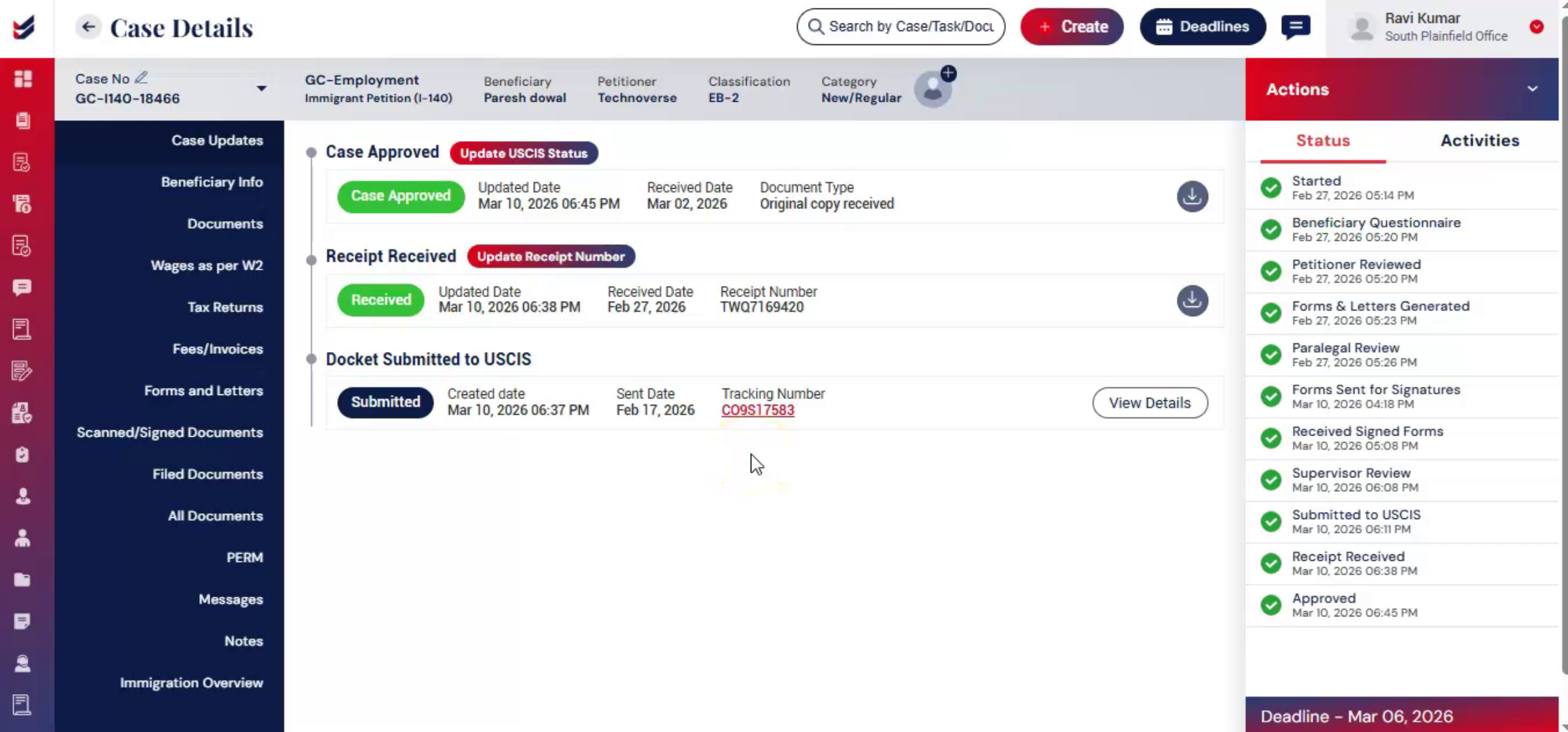
The updated status will then appear in the Case Update section on the left panel of the Case Details page.
6. Conclusion
 * click the image to view enlarged
By updating the USCIS submission details, receipt information, and case status, ImmiBox helps maintain accurate and centralized case tracking.
All updates and documents remain recorded within the Case Update section, ensuring transparency for all stakeholders.

