


Tools Features in ImmiBox
Overview
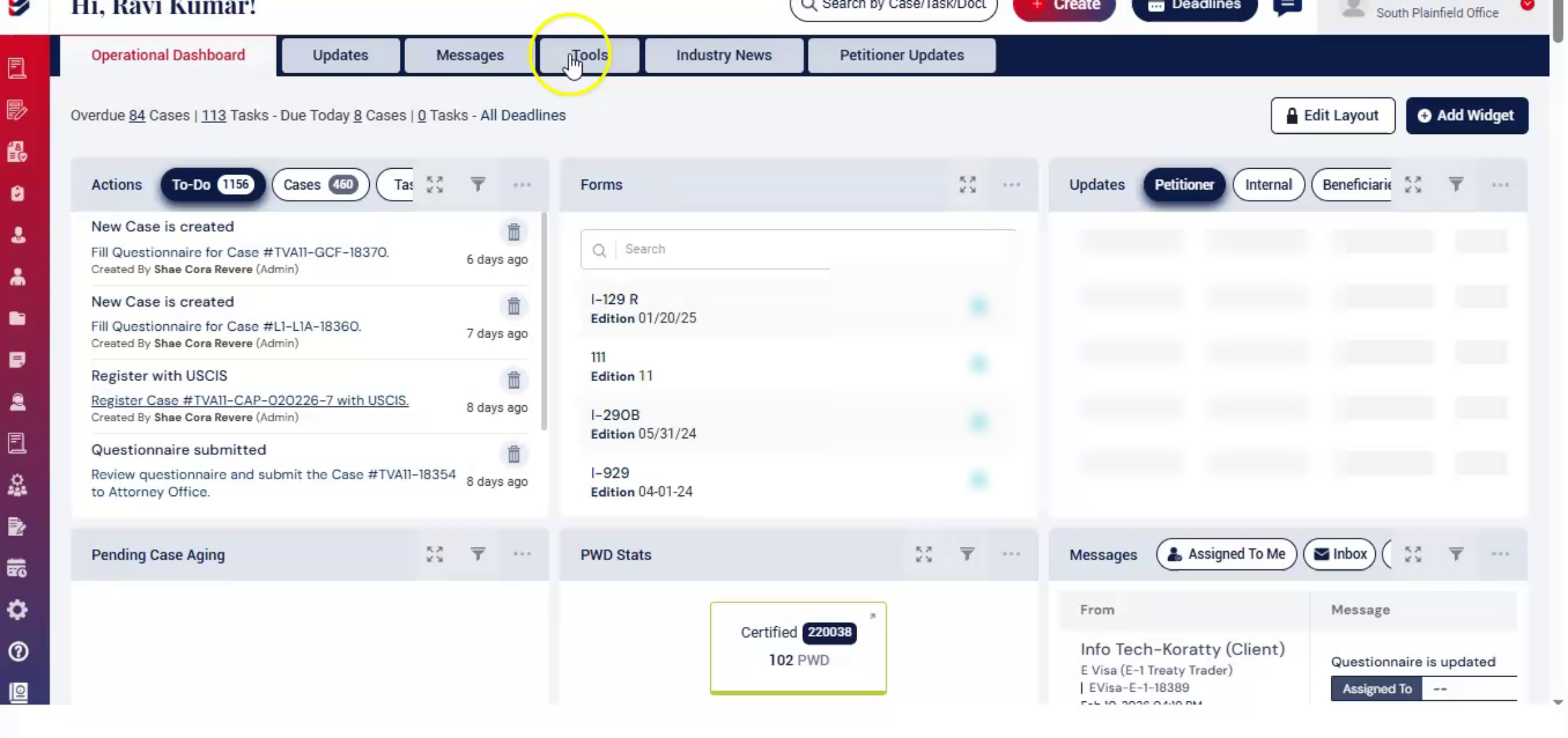
Welcome! Let's learn how to use Tools feature to efficiently upload and manage USCIS notices.
1. Introduction
 * click the image to view enlarged
It is one of the most powerful features in the ImmiBox portal and accessible from the Dashboard.
This feature helps law firms to save time and reduce manual work.
2. Uploading USCIS Notices
 * click the image to view enlarged
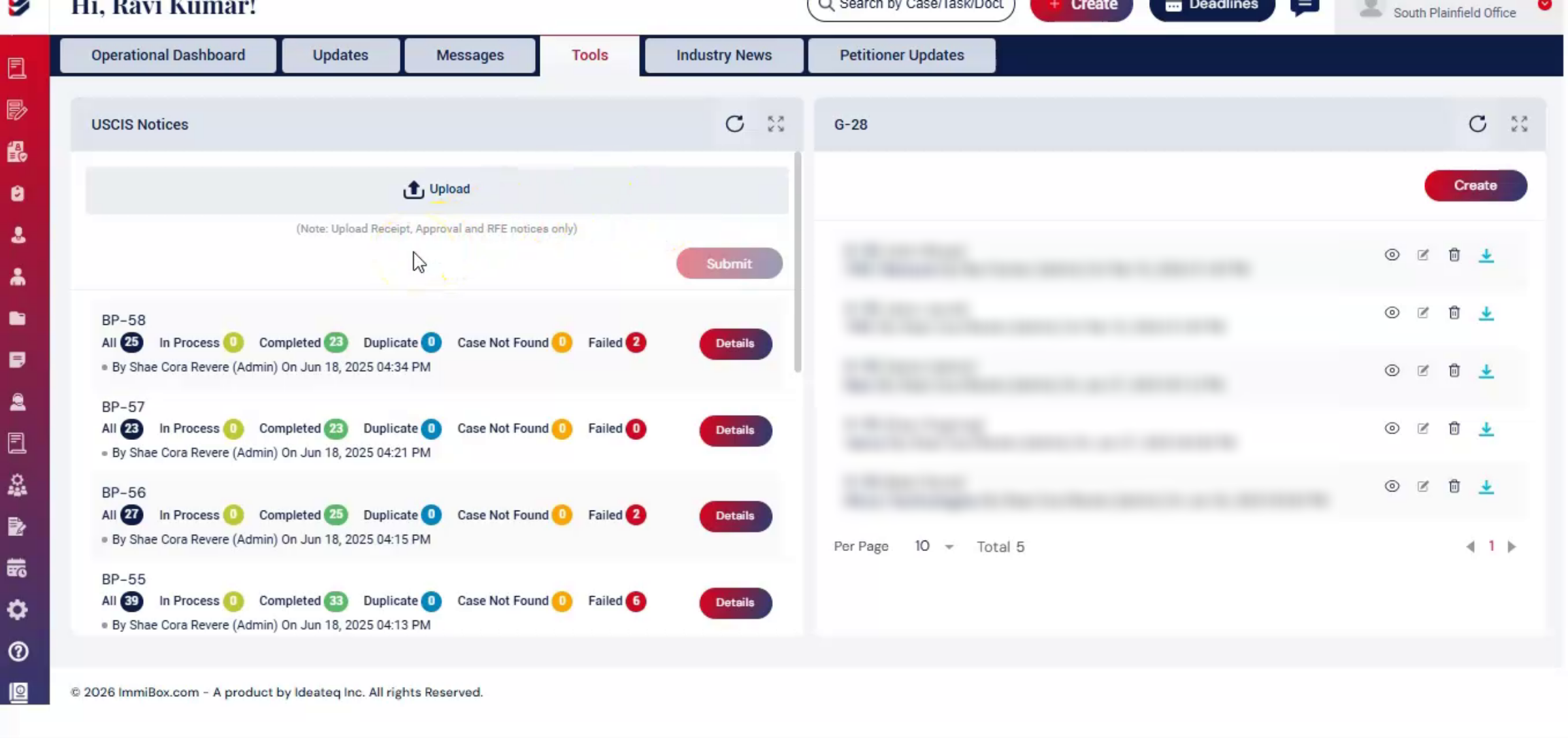
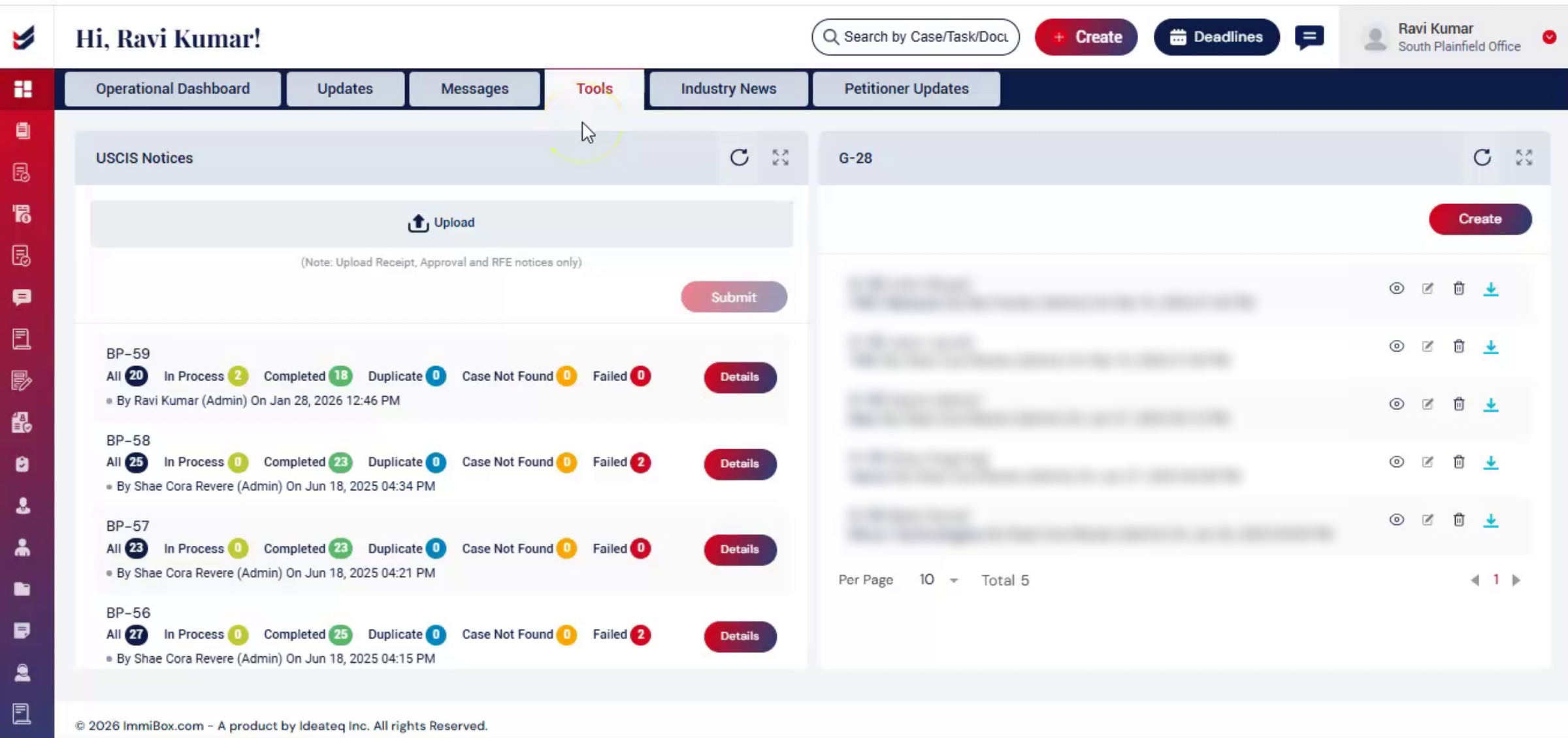
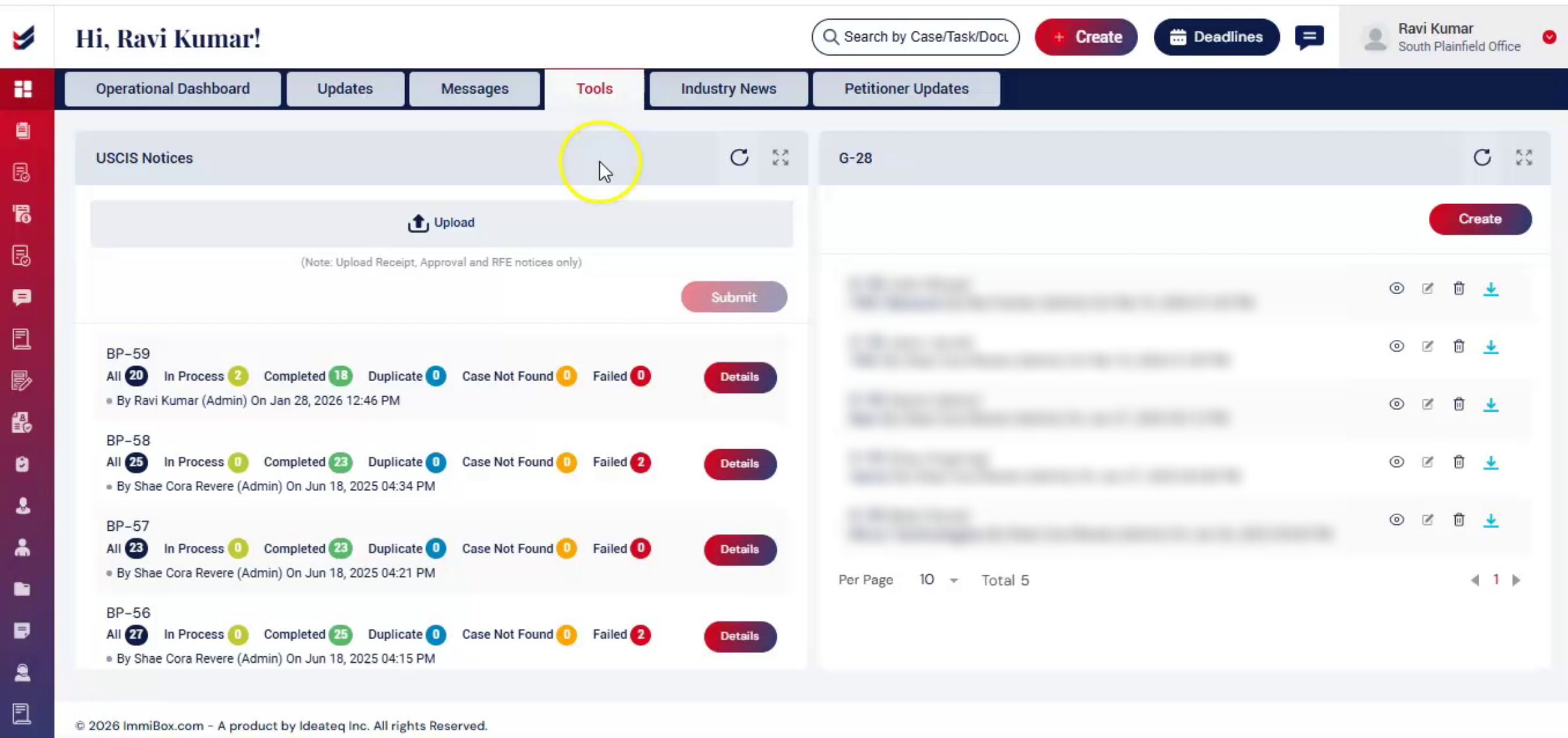
With Tools section, you can upload USCIS notices, such as receipt, approval, RFE, and others in bulk.
3. Automatic Case Matching
 * click the image to view enlarged
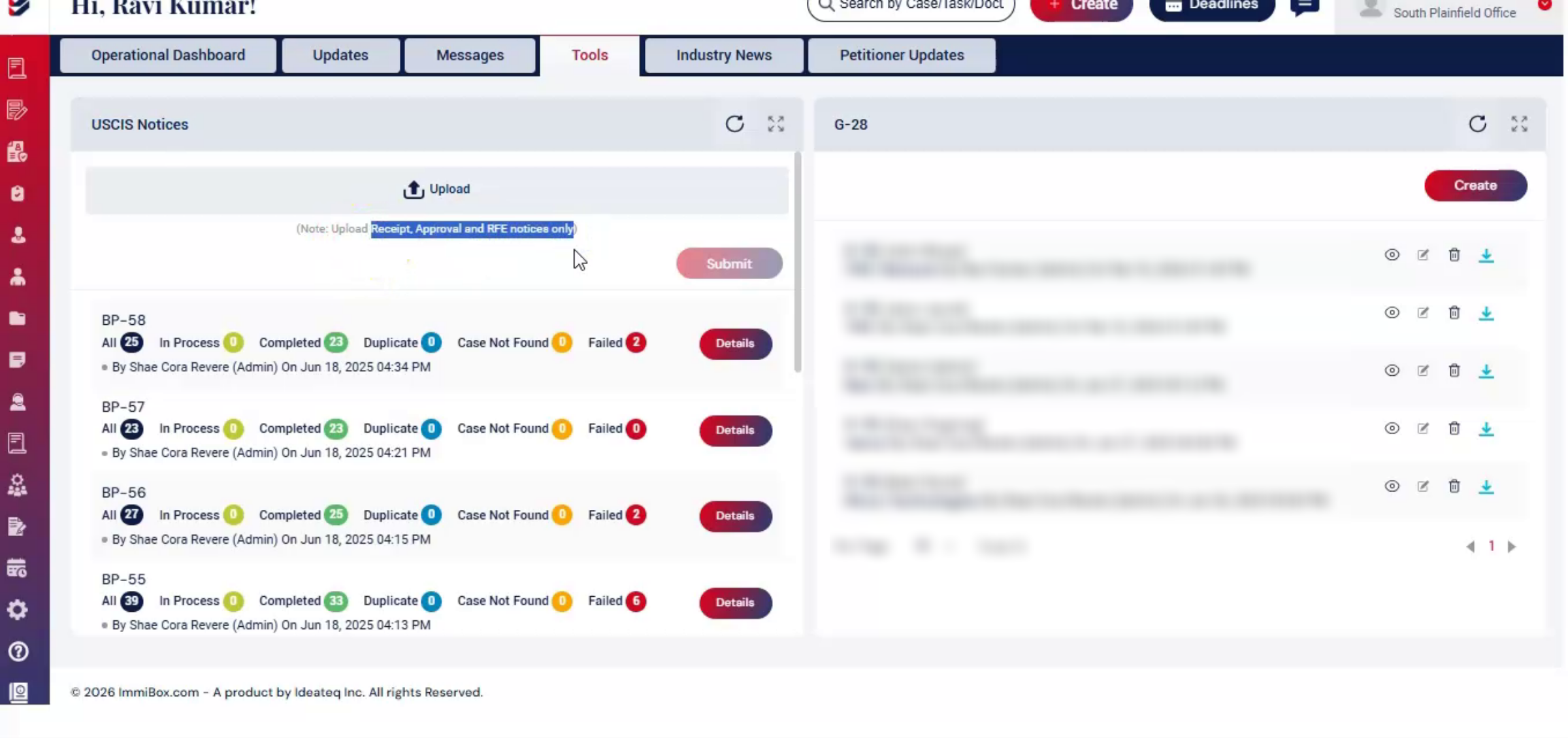
Once uploaded, ImmiBox automatically reads each USCIS notice, identifies the case details, and matches it to the correct case. There's no need to update cases manually.
4. Automatic Case Status Updates
 * click the image to view enlarged
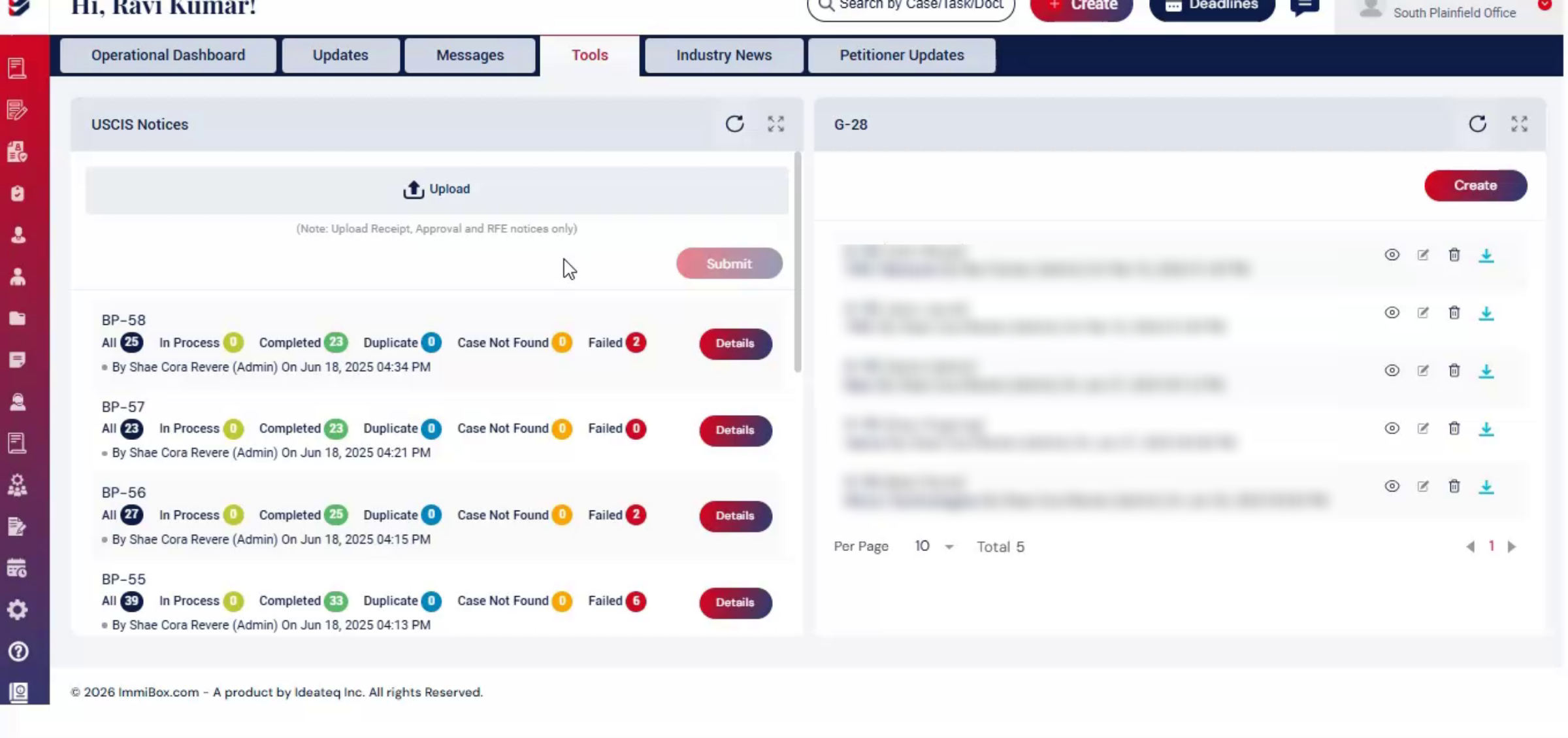
As the notices are processed, case statuses are updated automatically, and the information appears in the Case Update section. This makes it easier to track progress while keeping everything organized in one place.
5. Upload Process Introduction
 * click the image to view enlarged
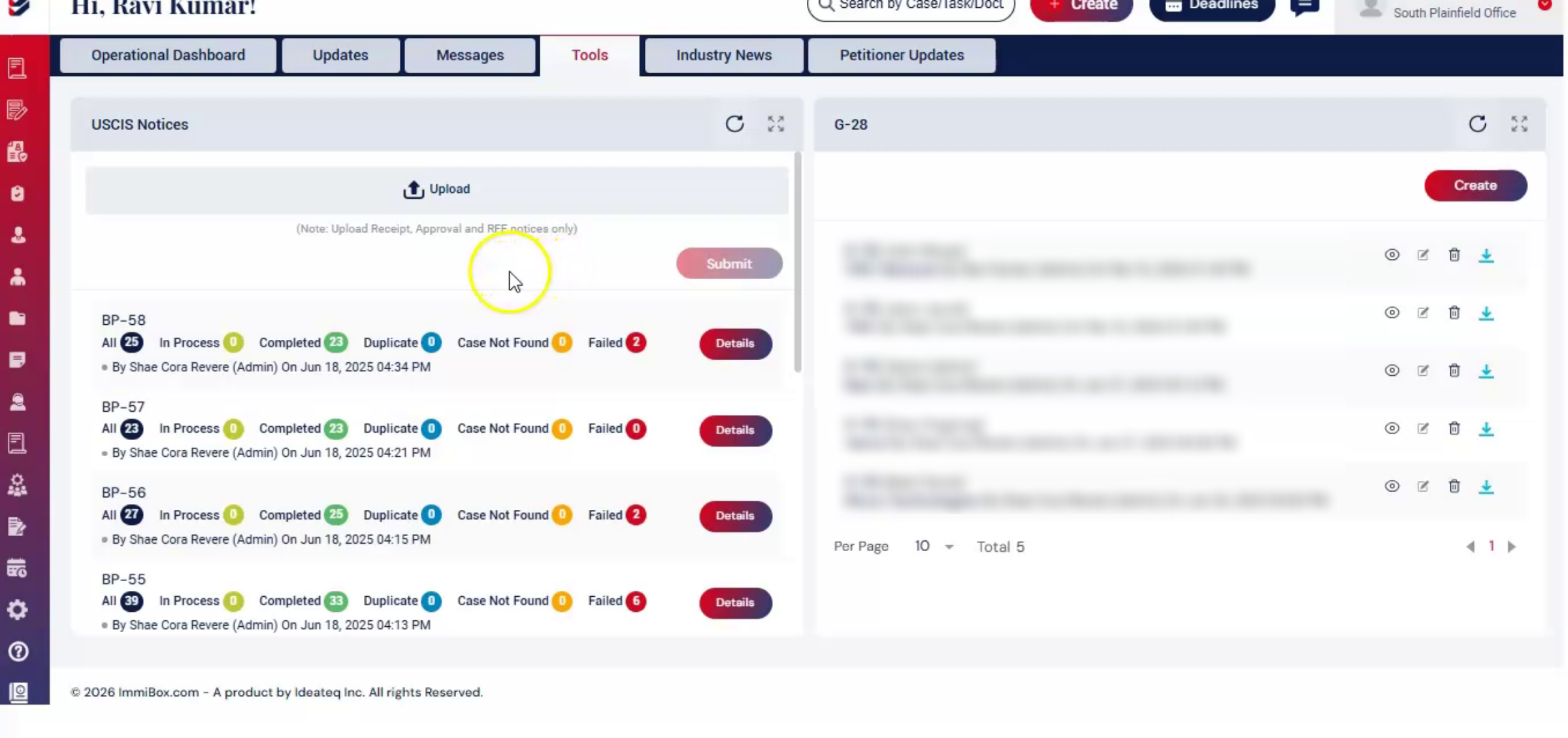
Now, let's see how the upload works.
6. Uploading Notices Steps
 * click the image to view enlarged
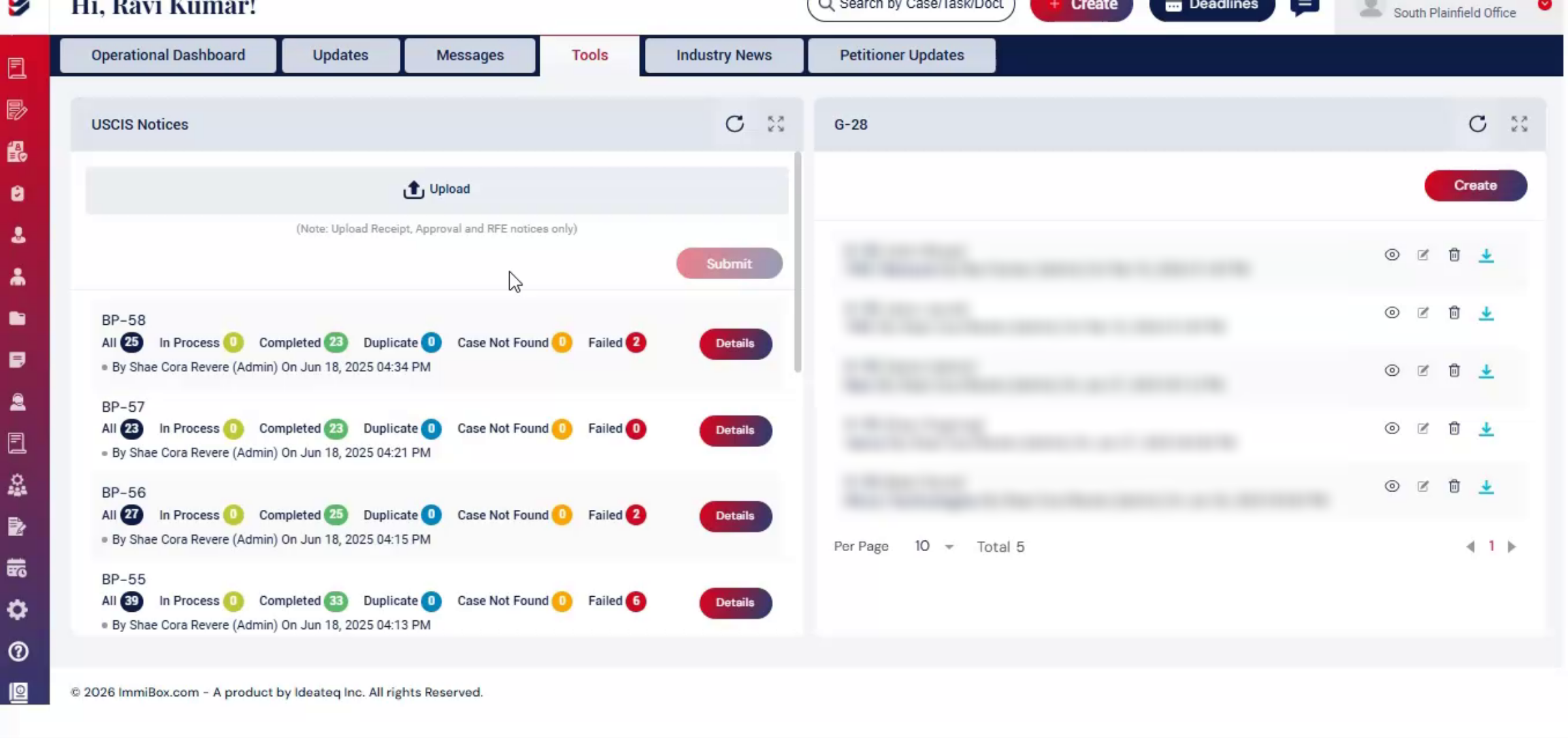
In the Tools page, at the top of the screen, click Upload.
A window opens. Then select multiple USCIS notices and click upload. After the files get uploaded, click Submit.
7. Processing Progress Tracking
 * click the image to view enlarged
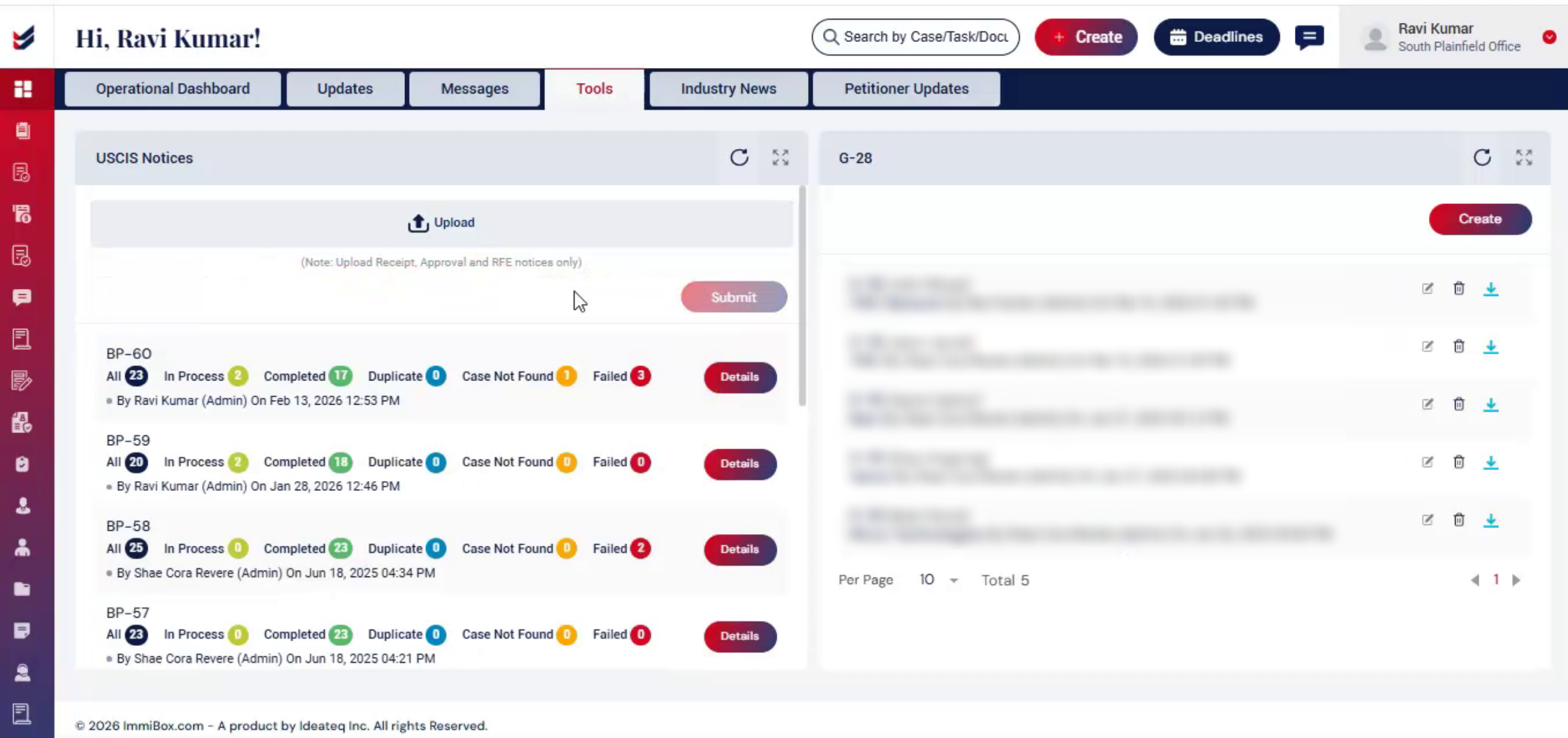
ImmiBox begins processing the documents immediately.
Once processing is completed, you can track the progress of each USCIS notice in the Bulk Process section.
8. Bulk Upload Status Definitions
 * click the image to view enlarged
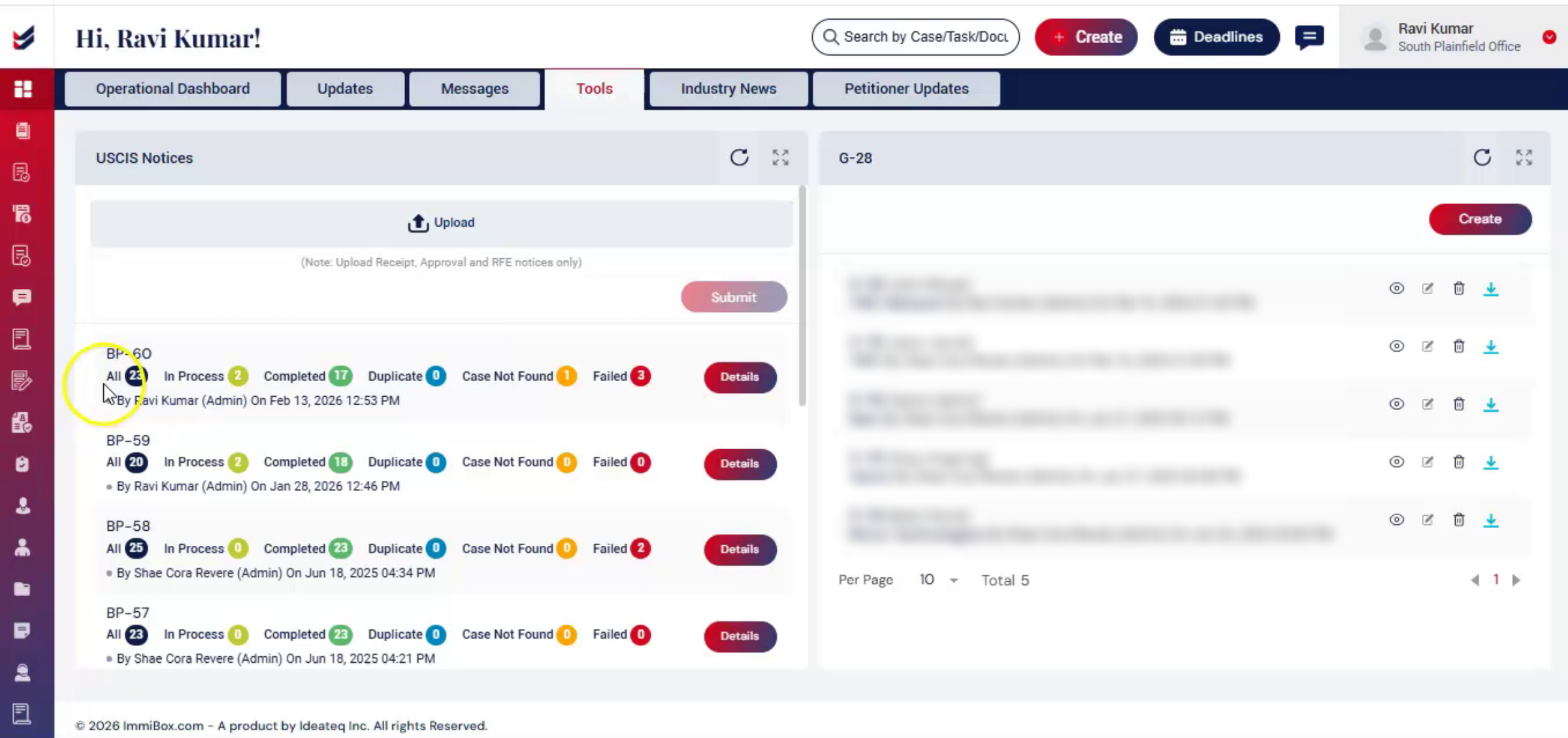
In Bulk Section:
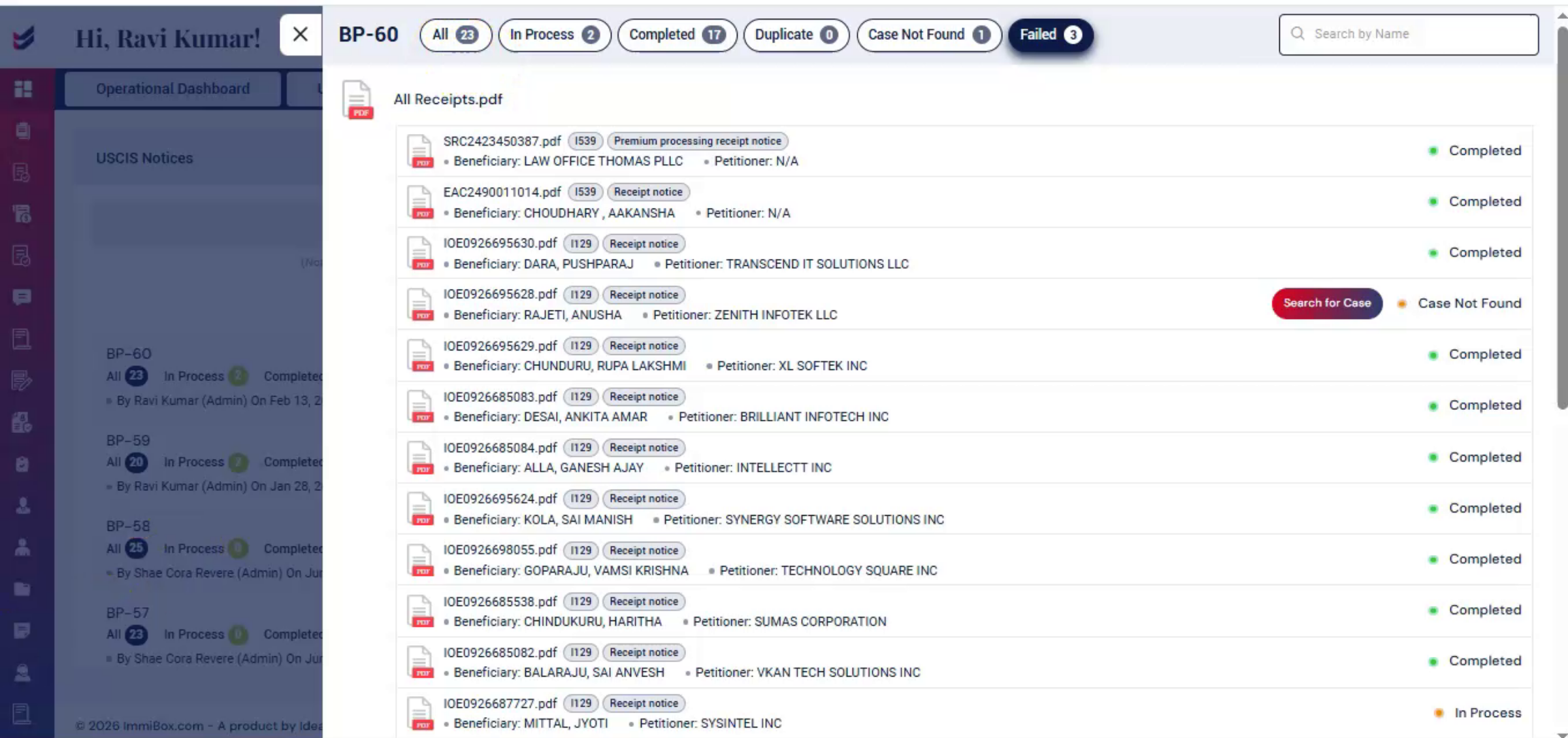
All - means the count shows the total number of uploaded notices.
In Process - shows notices that are currently being reviewed.
Completed - confirms notices that were successfully added to their cases.
9. Upload Error Types Explained
 * click the image to view enlarged
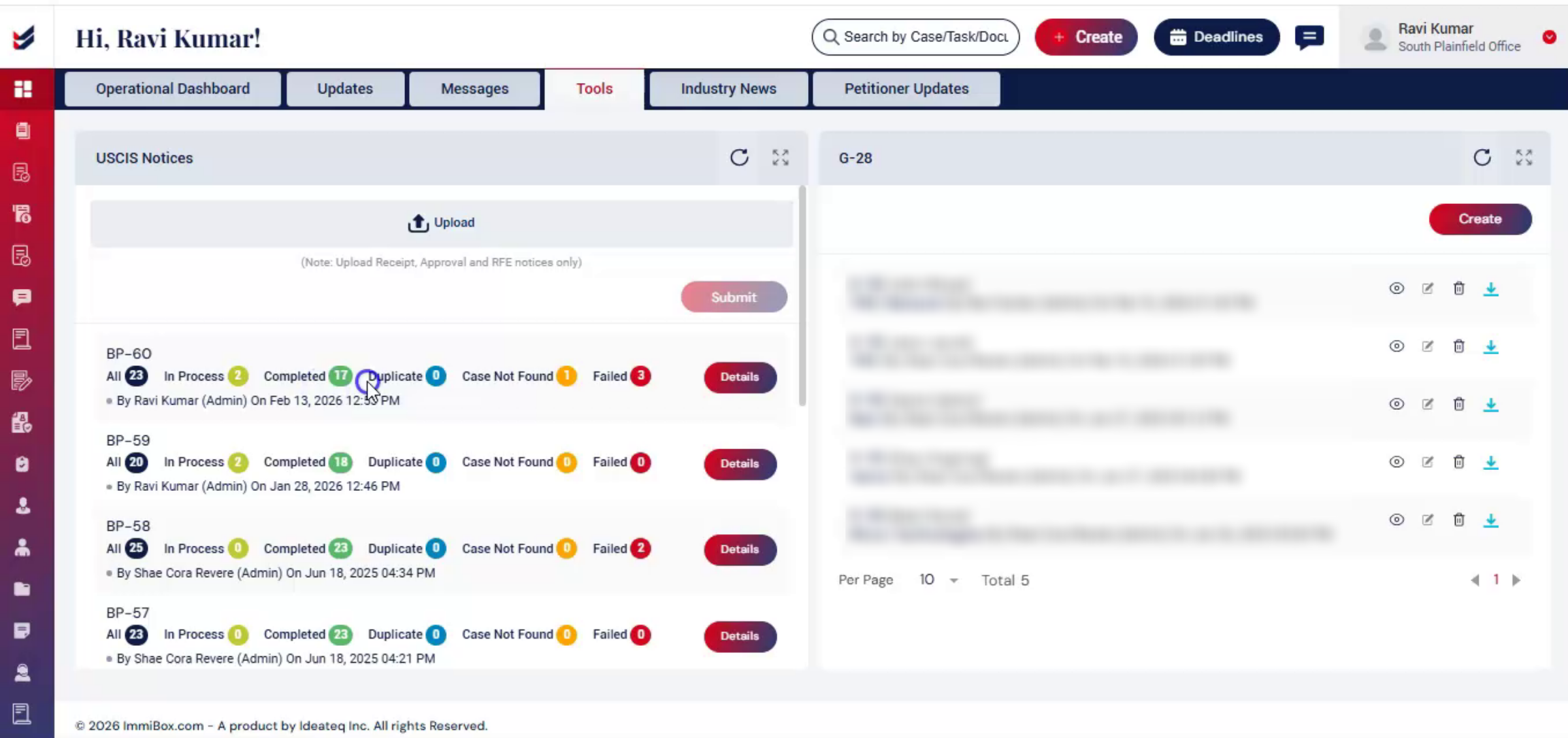
Duplicate means the notice was uploaded before. Case not found means no matching case was identified.
10. Failed Notice Attention
 * click the image to view enlarged
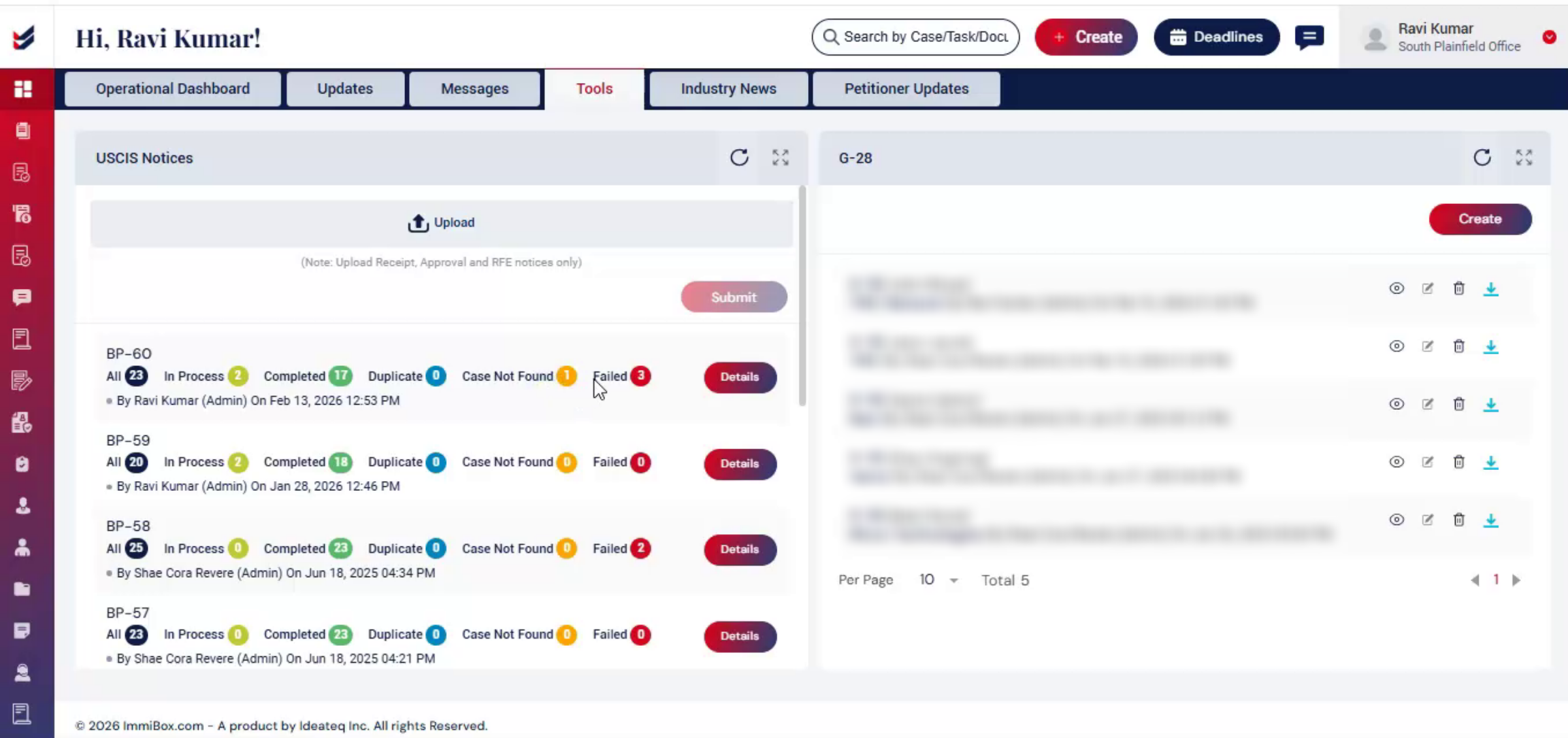
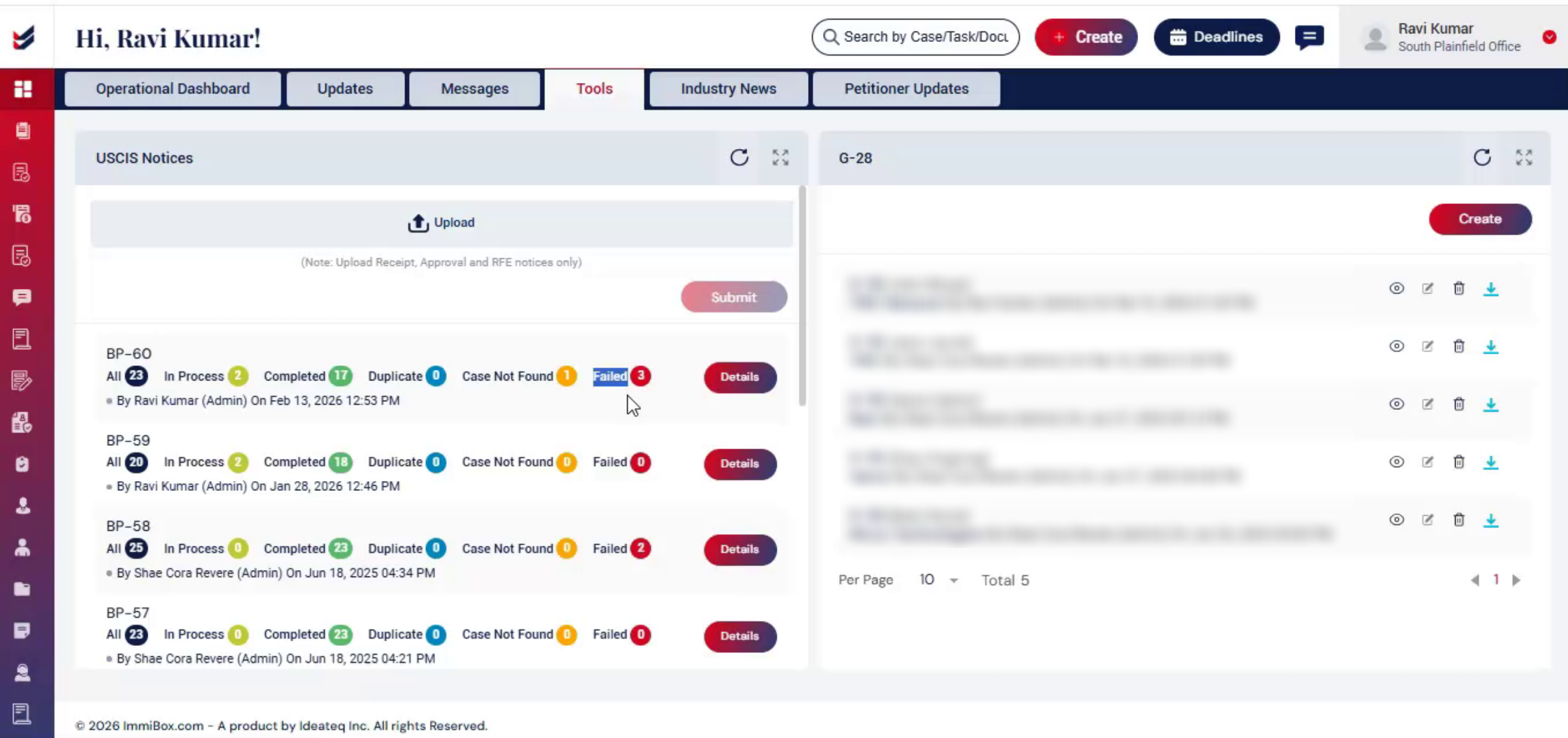
And failed means the notice needs attention due to missing or unclear information.
11. Viewing Failed Notice Details
 * click the image to view enlarged
For failed notices, click View Details.
12. Manual Case Search
 * click the image to view enlarged
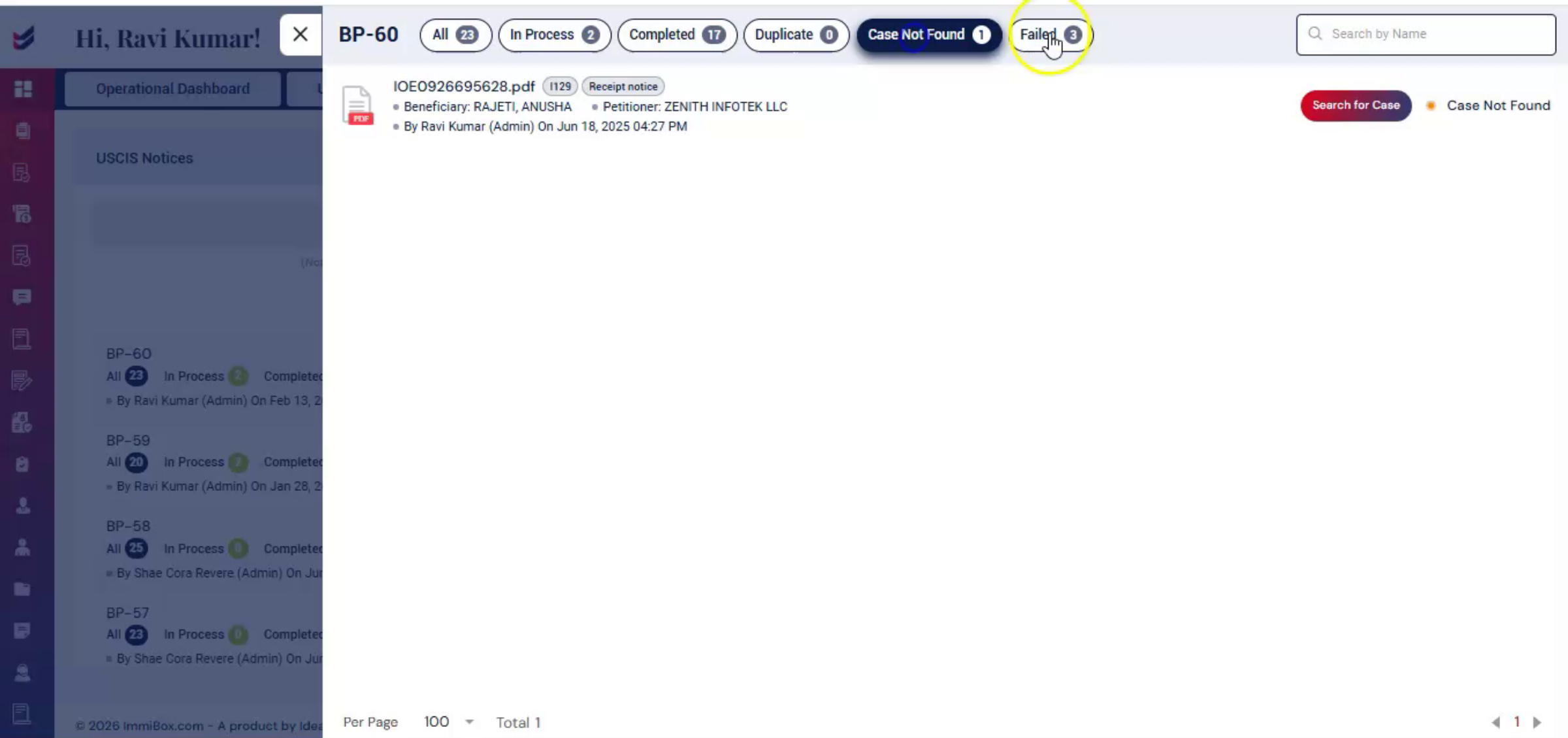
From here, you can search for the correct case and complete the update manually.
13. Organizing USCIS Notices
 * click the image to view enlarged
By organizing USCIS notices in a structured and automated way,
14. Benefits Of ImmiBox Automation
 * click the image to view enlarged
ImmiBox reduces manual effort, improves accuracy, and saves valuable time.
15. Law Firm Efficiency Gains
 * click the image to view enlarged
This is how ImmiBox helps law firms work smarter and manage cases with confidence.

