


Prepare Docket for Filing
Overview
Welcome! In this video, learn how to quickly prepare a complete docket for submission.
1. Cover
2. Introduction
In ImmiBox, you can download all case documents in a single file, organized in the sequence you need.You can also add headers to separate sections and save the configuration for future use, making docket preparation fast and easy.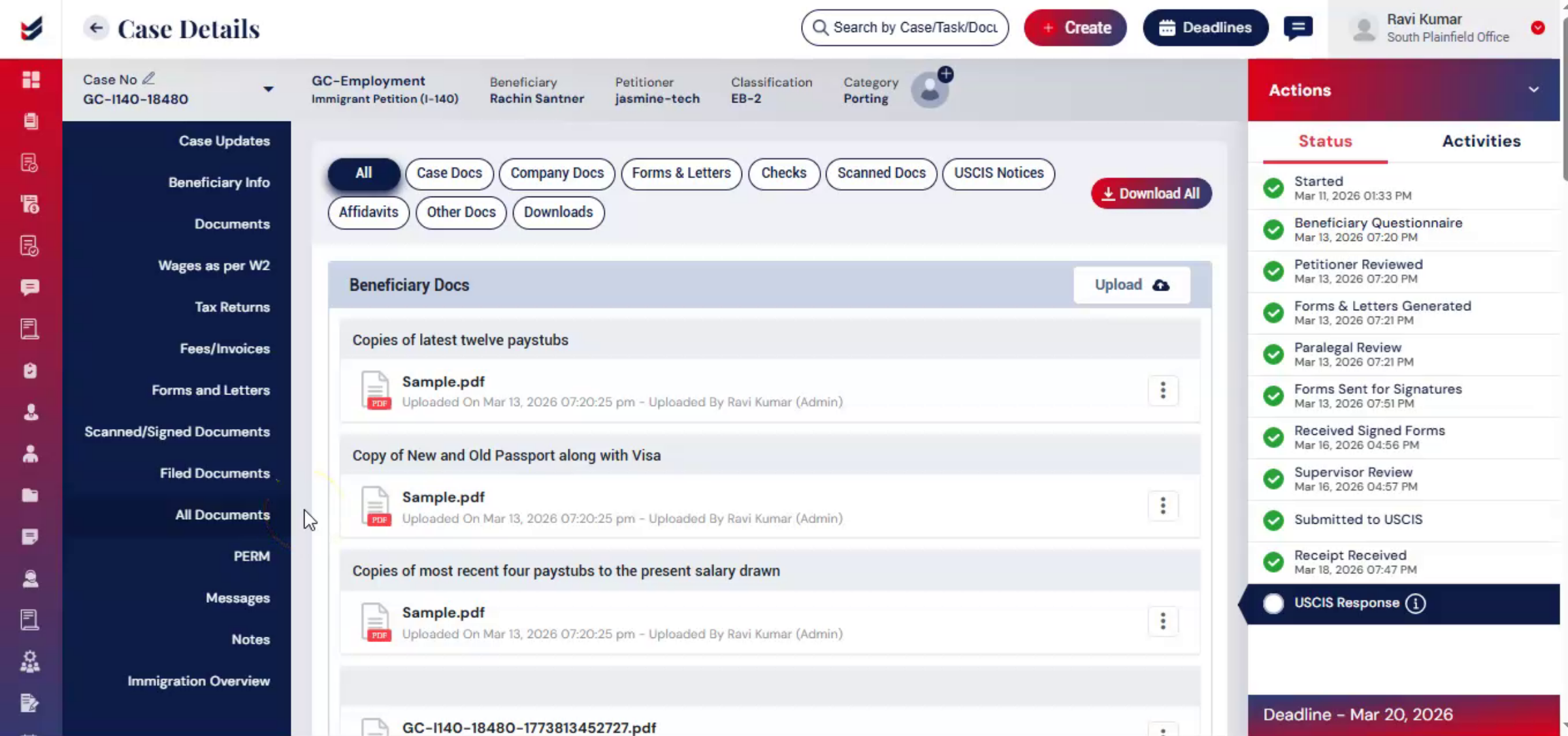 * click the image to view enlarged
3. Document Tab
Navigate to the Case Details page and click on the All Documents tab from left hand side.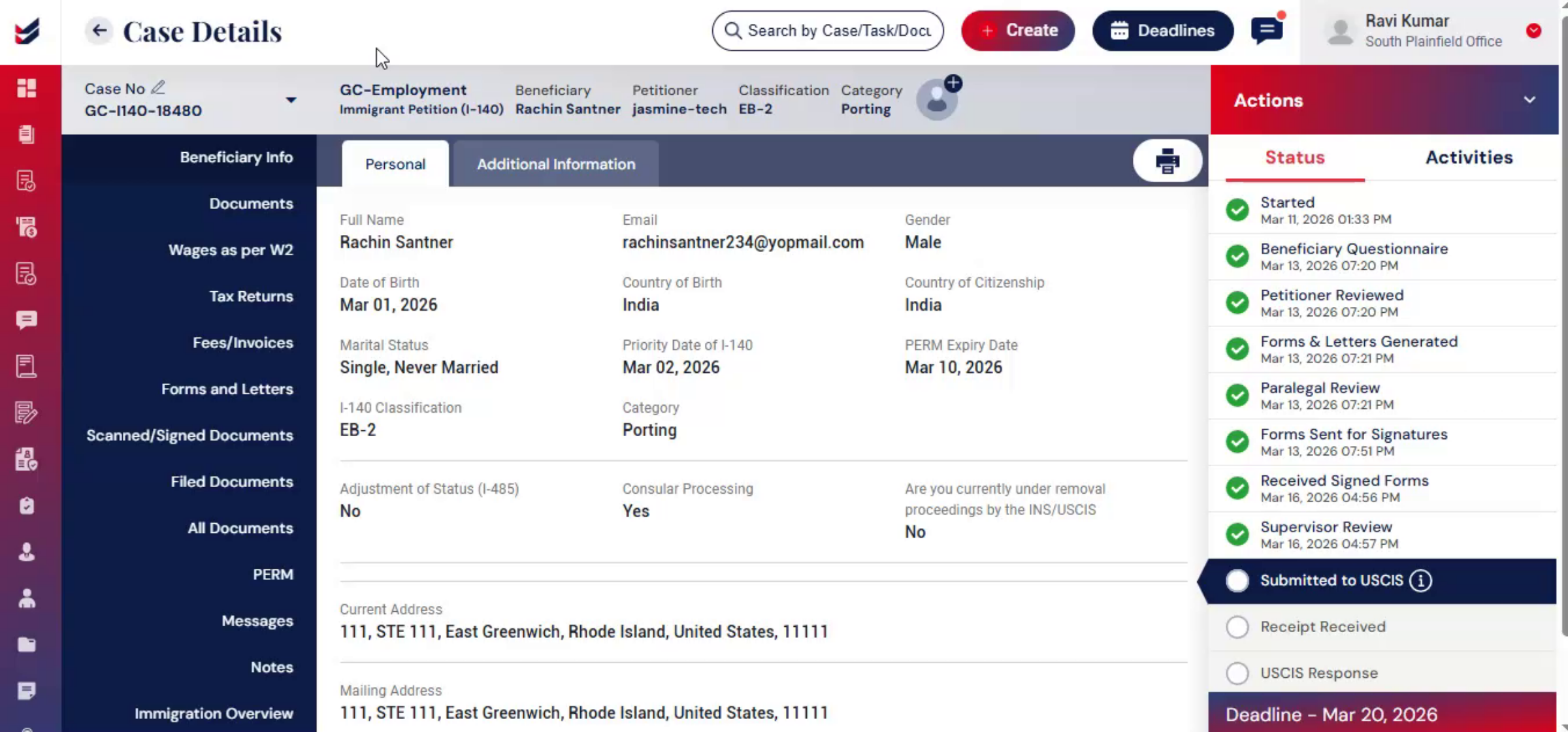 * click the image to view enlarged
4. Access All Document
You will see a list of all documents, organized by categories, such as:All u2013 It shows all documents.Case Docs u2013 Documents related to the case.Company Docs u2013 Documents related to the petitioner and company.Forms & Letters u2013 Relevant forms and letters for the case.Checks u2013 documents related to Payment. Scanned Docs u2013 Signed and scanned copies of petitioner or law firm documents.USCIS Notices u2013 Notices, receipts, and response documents from USCIS, when uploaded.Affidavits u2013 Documents related affidavits.Other Docs u2013 Miscellaneous uncategorized documents.Downloads u2013 Recently downloaded files. In All Documents section you can view and manage all the files related to your case.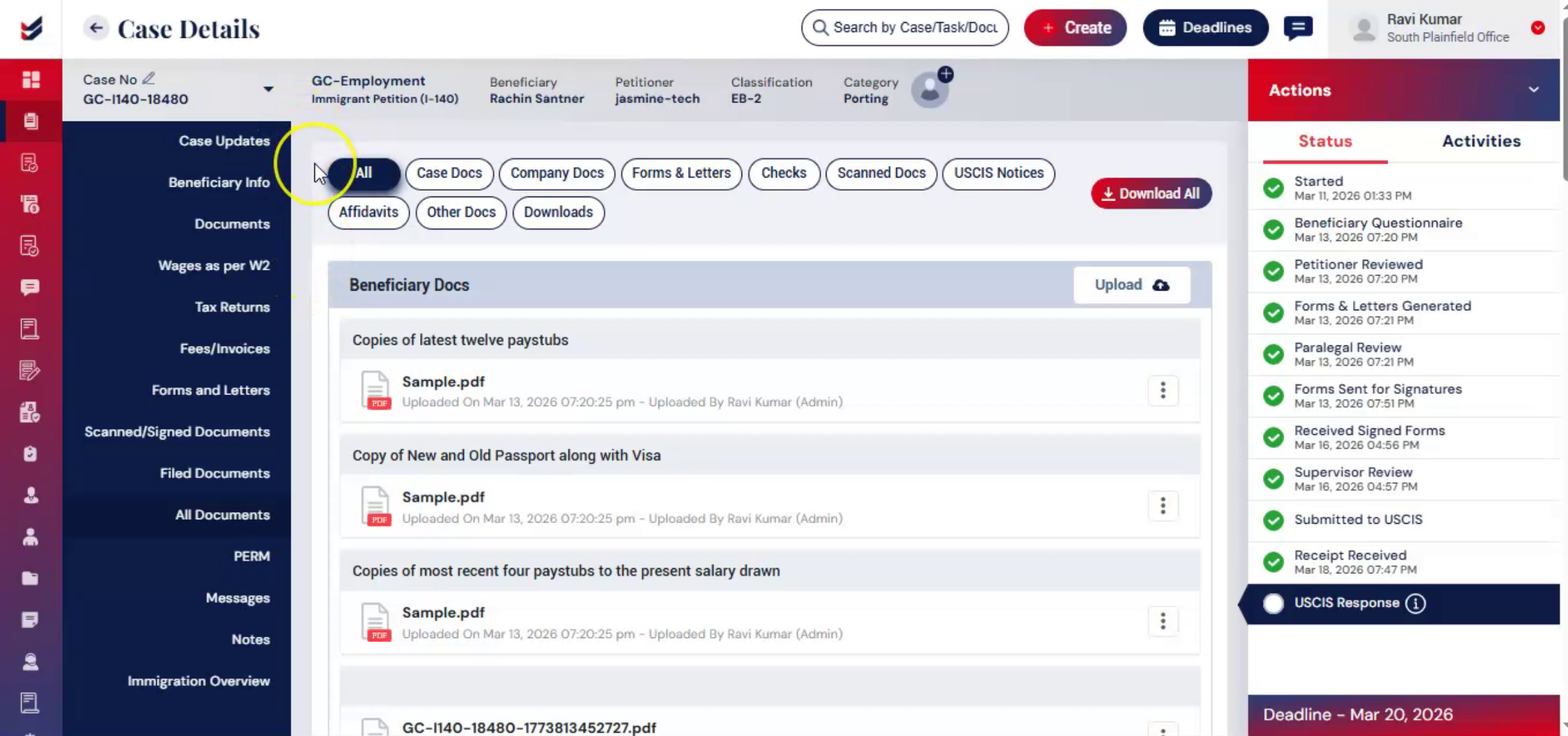 * click the image to view enlarged
5. Access Download All
Download all button to open the download documents window.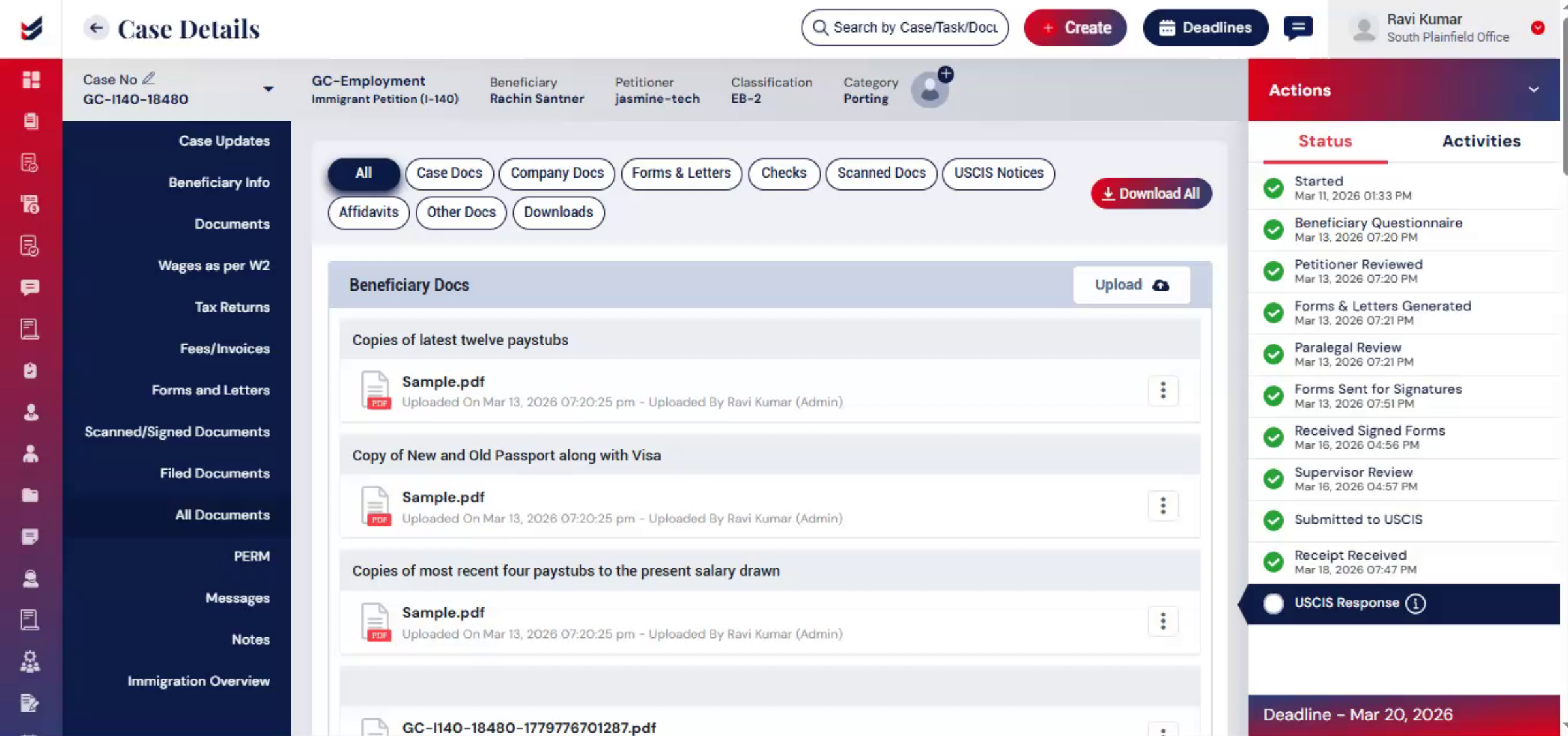 * click the image to view enlarged
6. Download All Option
Here, you will see all case-related documents, including petitioner documents and beneficiary Forms & Letters.You can reorder sectionsu2014such as petitioner documents, case documents, or othersu2014by dragging them to the desired sequence.If you want to reset the order to the original sequence, use the Reset option above the list.The Add Headers option is also available to separate sections or categories.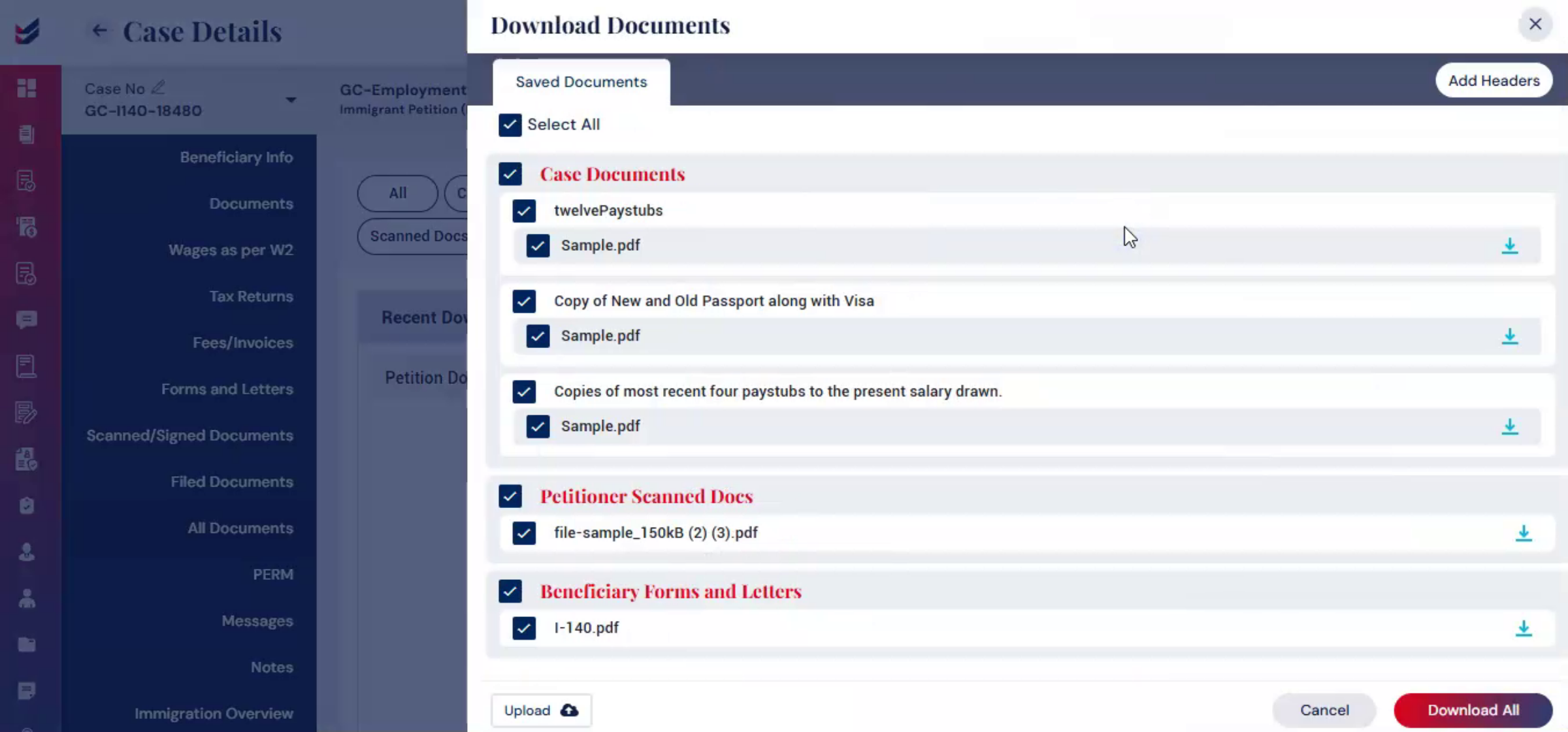 * click the image to view enlarged
7. Add Headers Option
Headers help organize and structure the merged PDF by separating documents into different sections or categories, making the final docket easier to review and navigate.To add a header, click on Add Headers. Enter the appropriate title for the section, such as Forms, Supporting Documents, Client Documents, or any other category required for the filing package.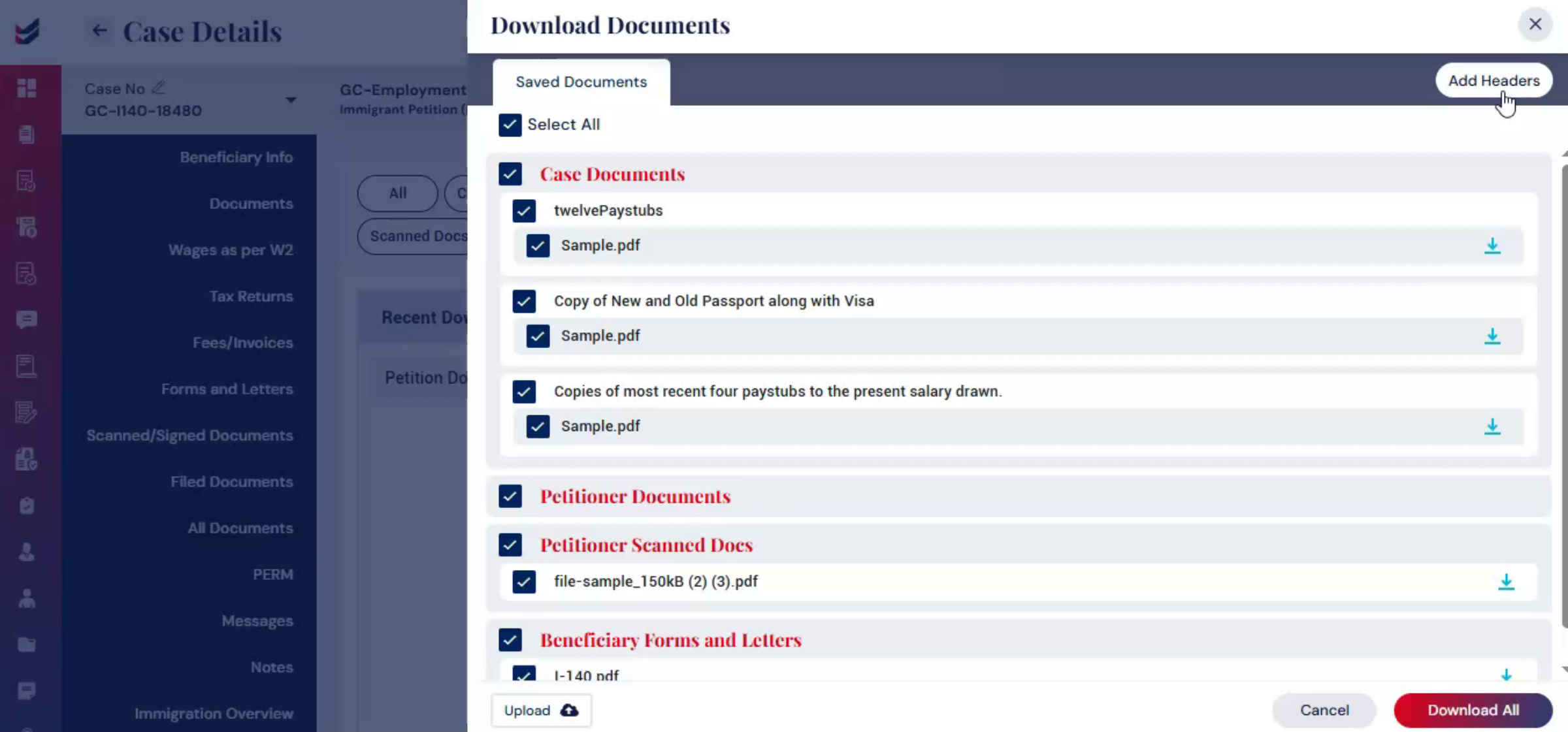 * click the image to view enlarged
8. Headers Option
Once added, a blank document page will open. You can: Add text to create a title or section cover page or Leave the page blank to use it as a separator between document sections.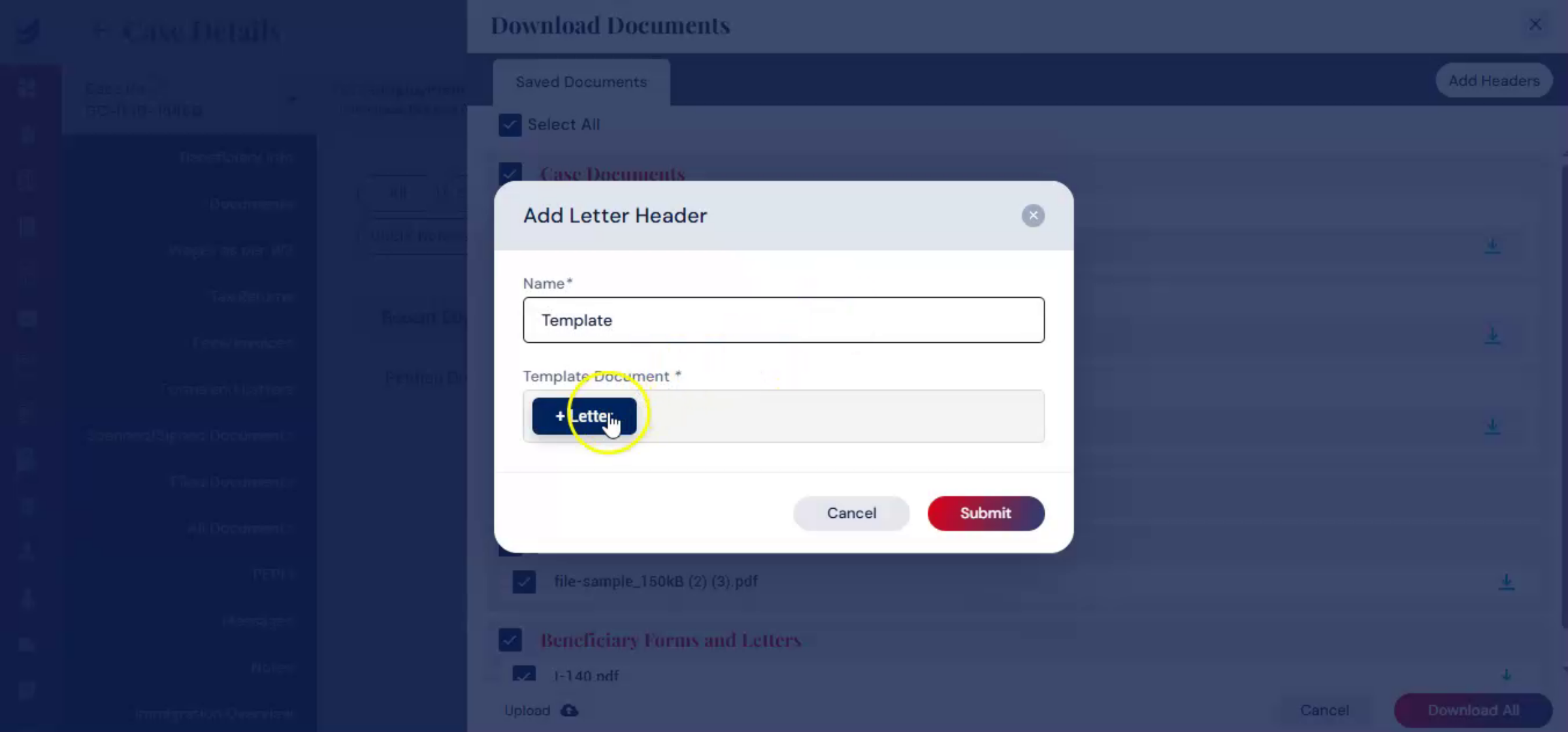 * click the image to view enlarged
9. Use of Headers
If you want to create a dedicated section for supporting documents, you can insert a header with the title, supporting documents and place it before those files in the merged PDF.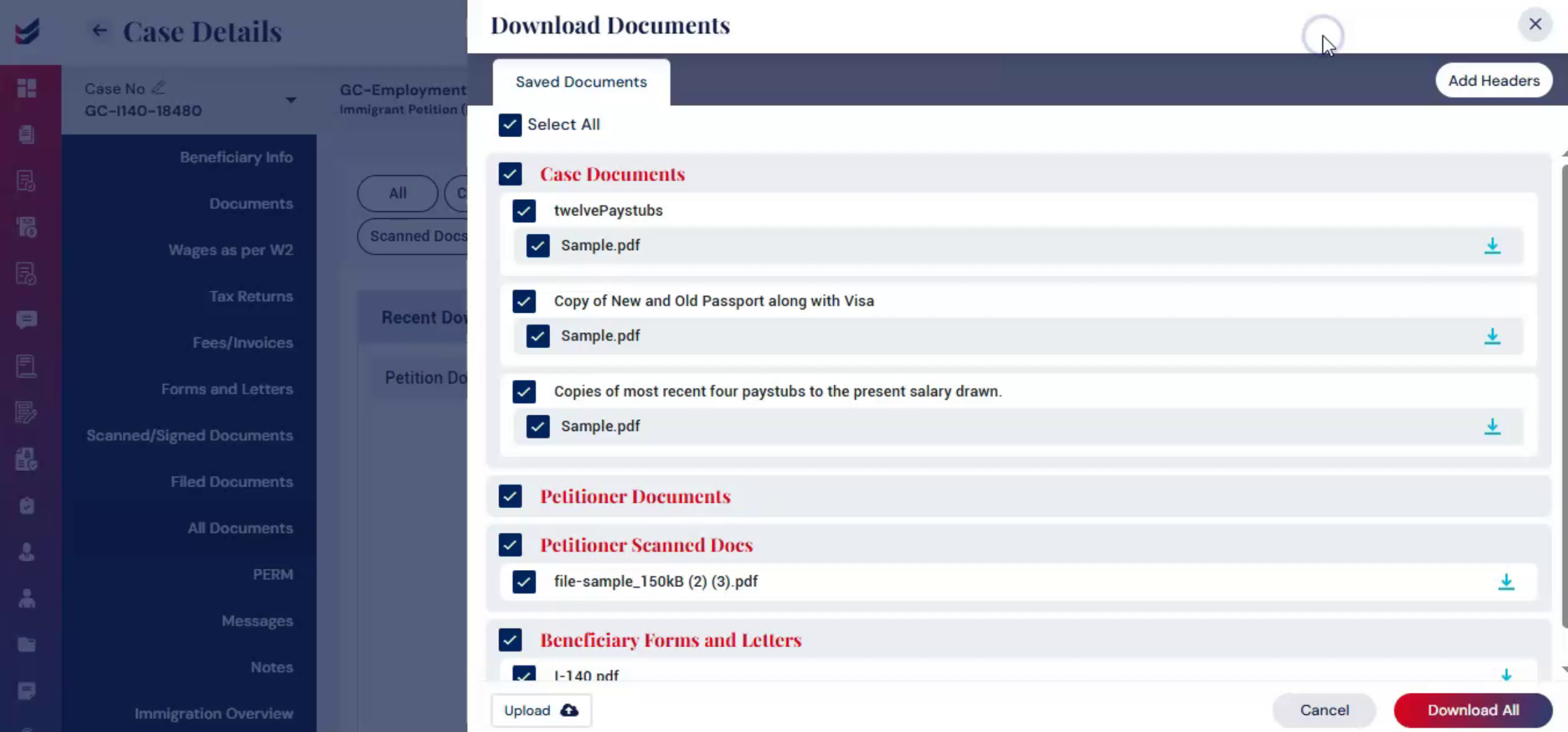 * click the image to view enlarged
10. Reposition Header
Headers can be repositioned anywhere within the document lists to organize, the filing package in the preferred order. Multiple headers can also be added as needed to create a well-structured and professionally organized docket.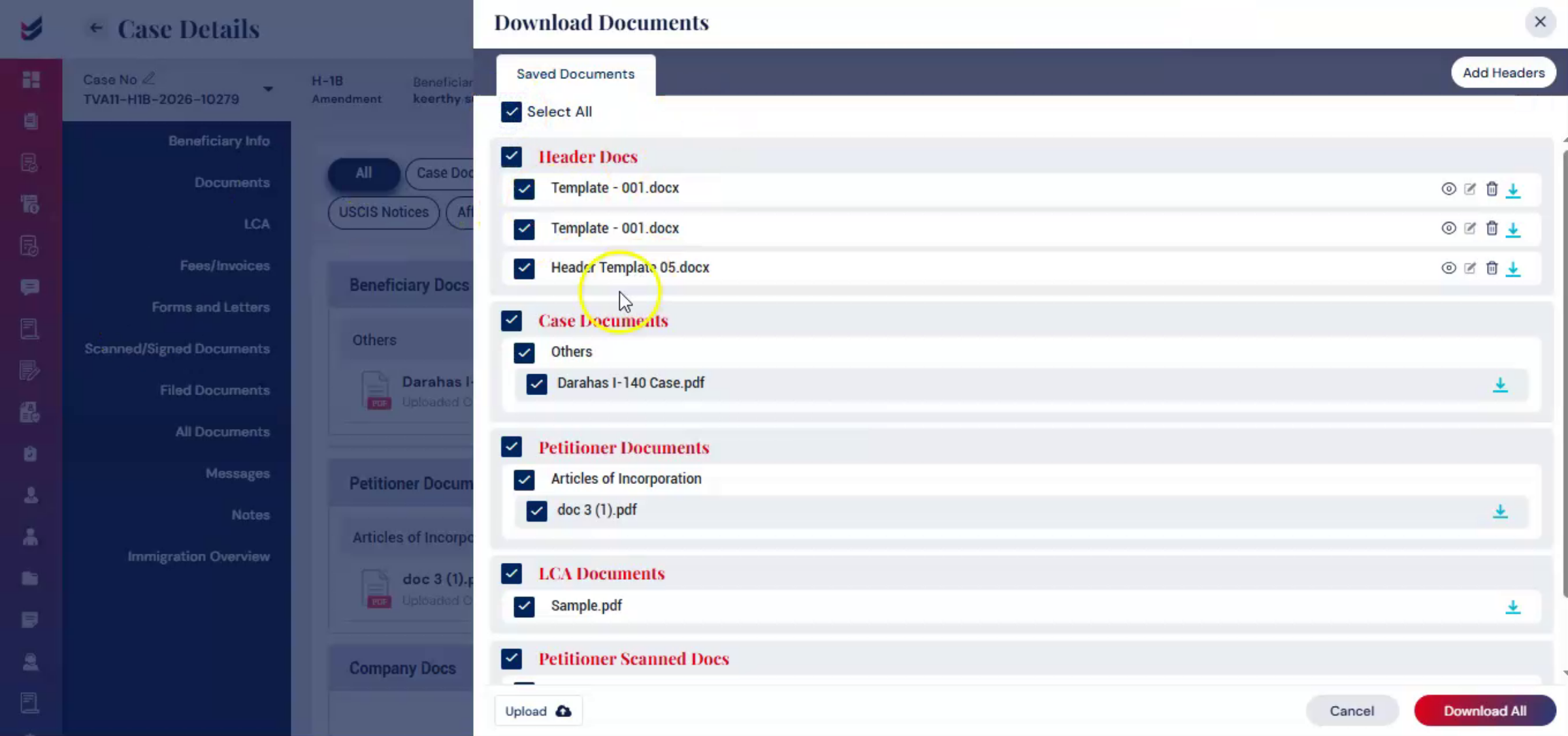 * click the image to view enlarged
11. Save Configuration & Download
After selecting and organizing all documents and adding headers, click the u2018Download Allu2019 button to generate a single merged PDF.Now the file is ready to prepare the docket for filing.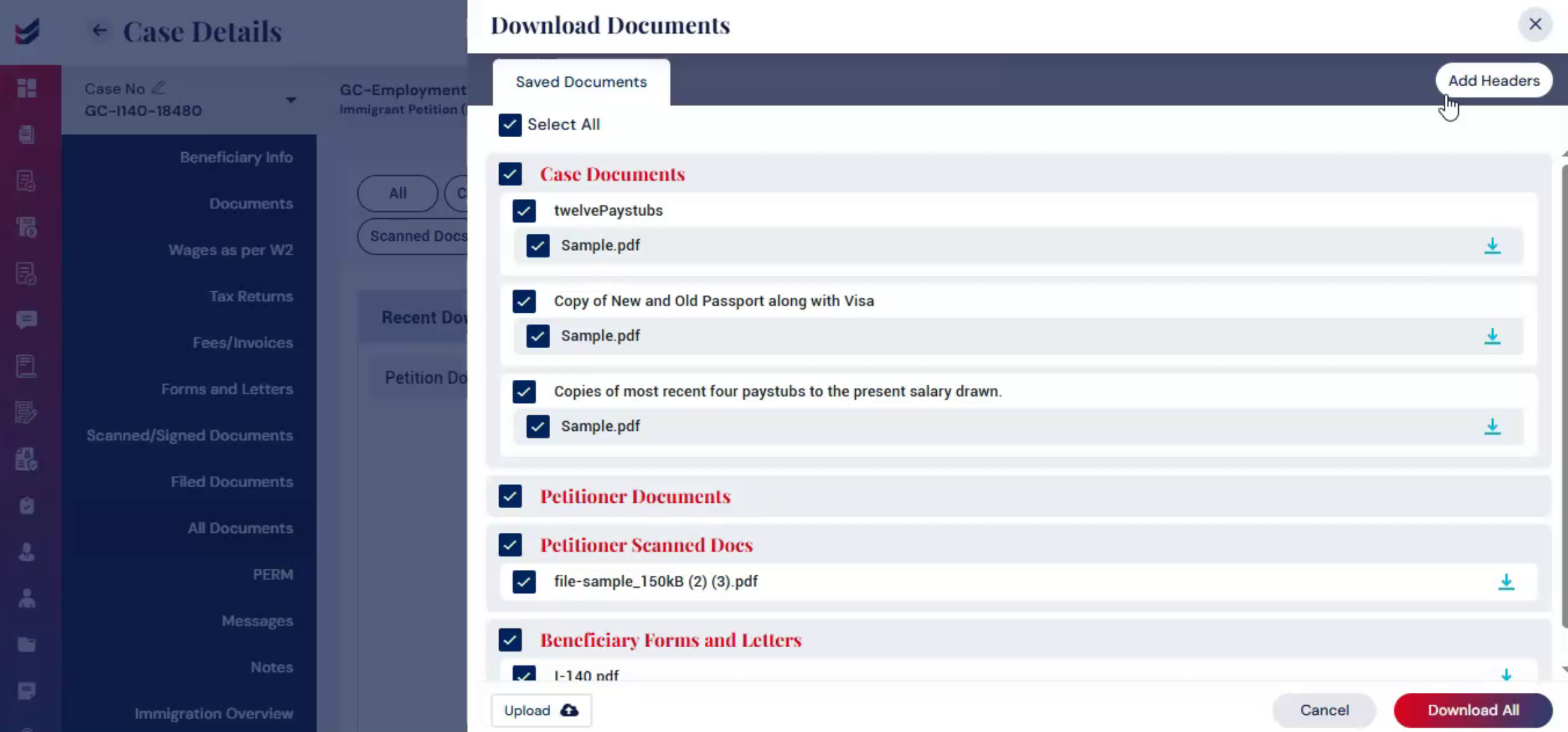 * click the image to view enlarged
12. File is Ready
The configuration you createdu2014including file selection, order, and headersu2014will be saved automatically for future use.You can access the downloaded PDF anytime from the u2018Downloadsu2019 tab in the case.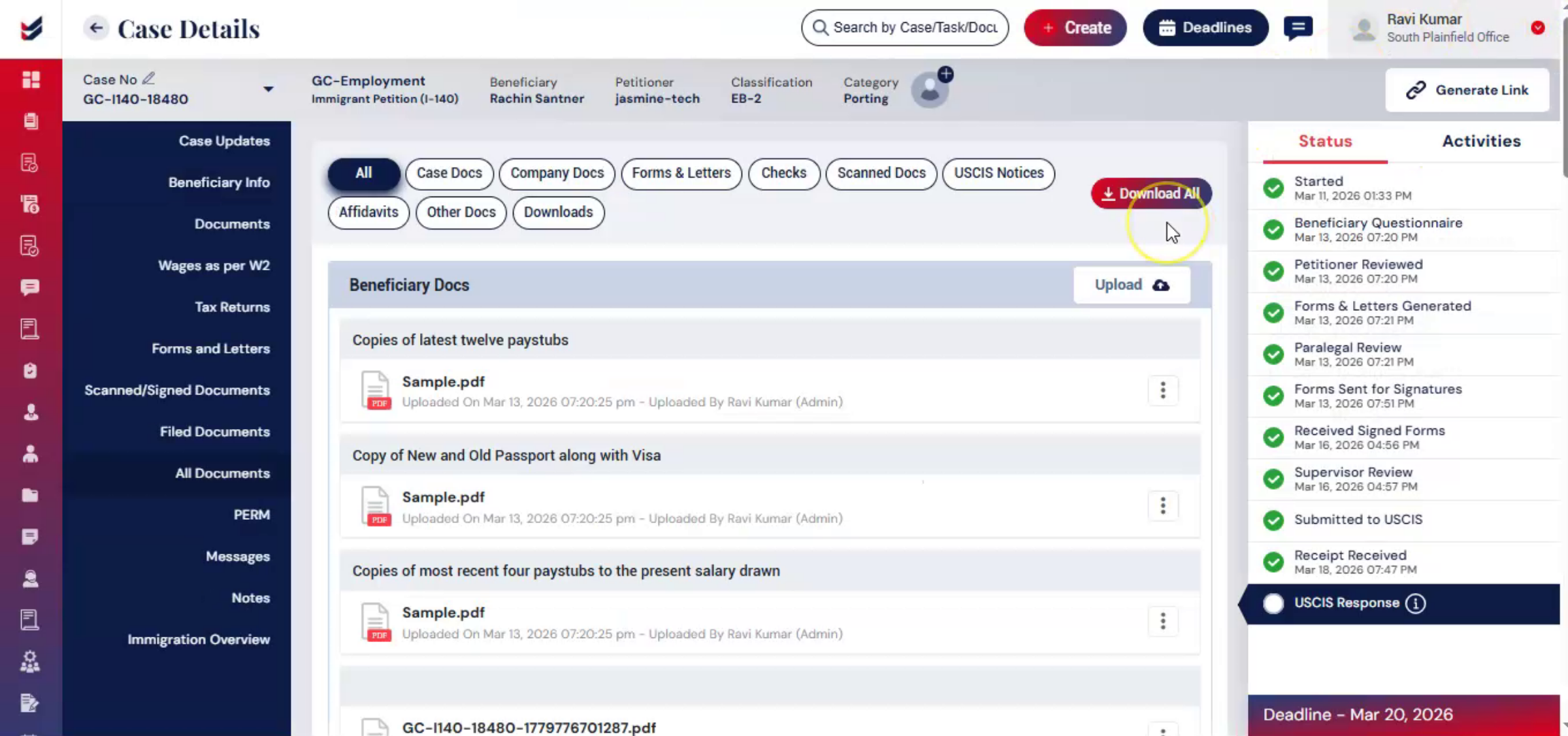 * click the image to view enlarged
13. Conclusion
Downloading all case documents as a single merged PDF in ImmiBox helps simplify and streamline docket preparation.By organizing documents, adding headers, and saving the configuration for future use, users can create a professional, well-structured filing package quickly and efficiently.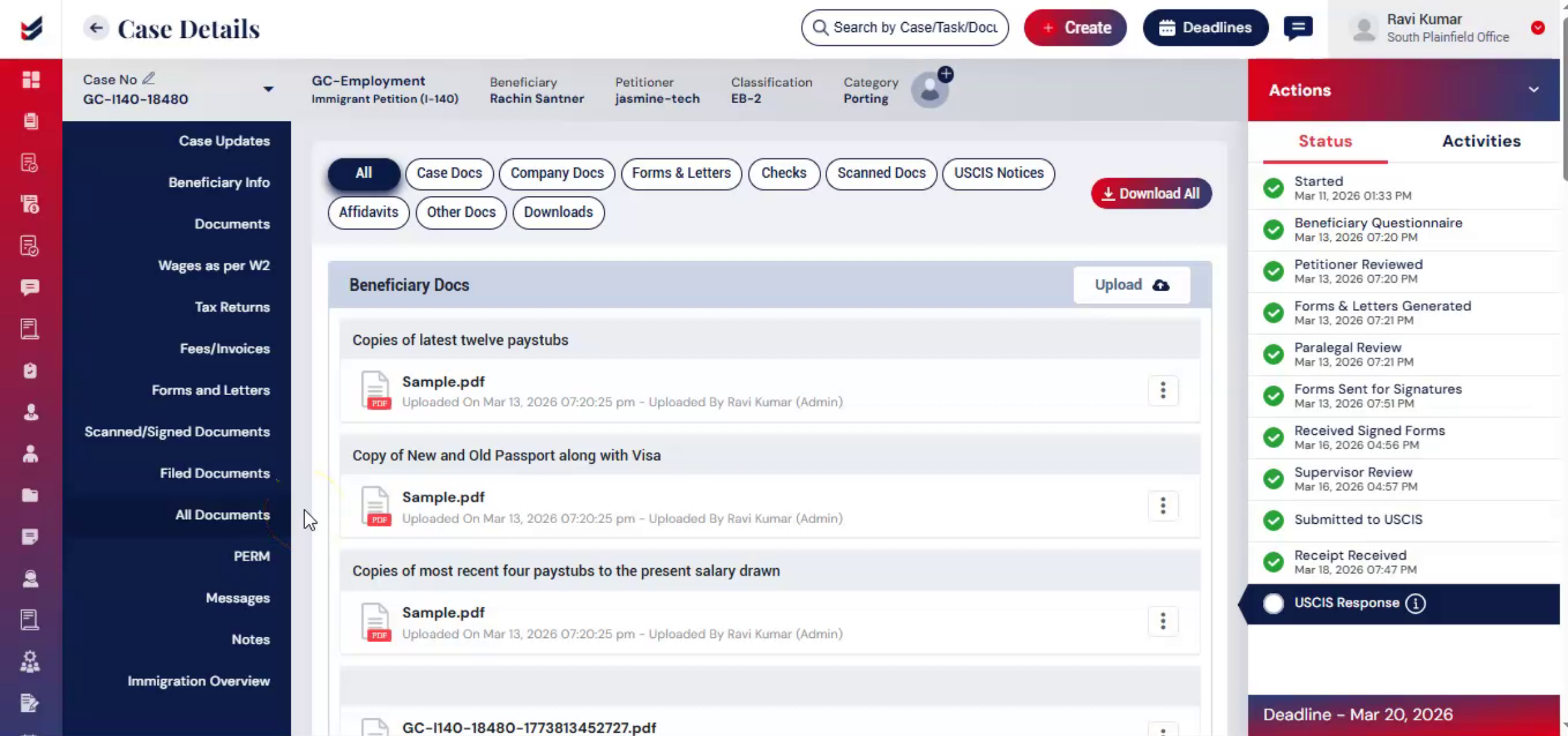 * click the image to view enlarged