



Track a Ticket
By default, a list of all available tickets, accompanied by a brief description of each, is displayed as illustrated below.
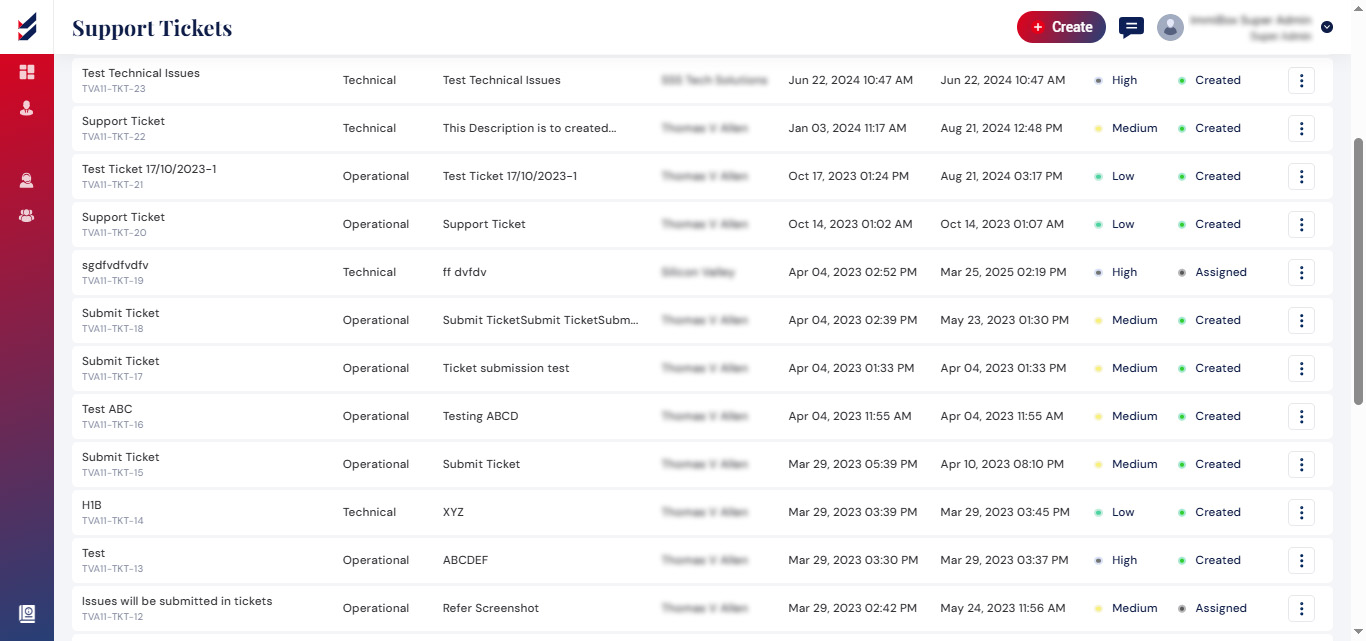
Tickets can be sorted by status, date, and other criteria using the ‘Filters’ option located at the top right corner of the page.
Selecting a Ticket will direct you to the Ticket Details section, where you can examine the activities conducted within the Ticket, as well as the various updates and comments contributed by different users in their efforts to resolve the reported issue.
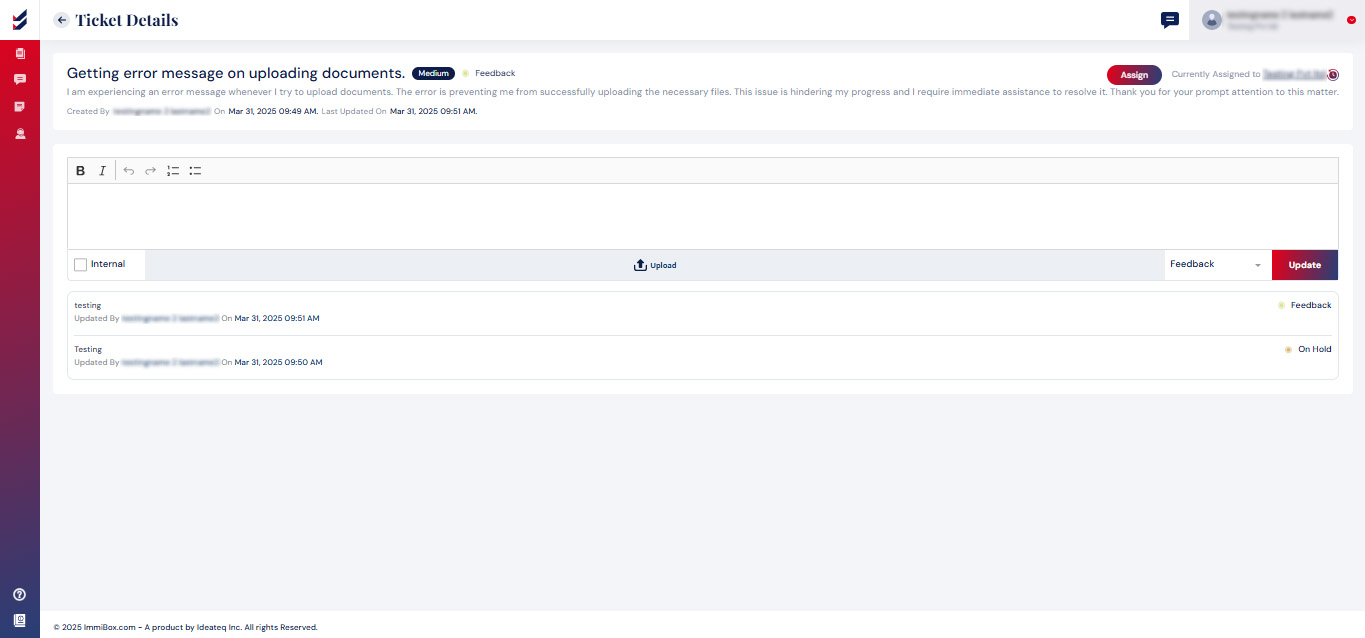
Users can Assignthe ticket to any of the internal users within the Law Firm, if the Ticket is marked as Operational.
All tickets that are marked as ‘Technical’, will normally be taken care of by ImmiBox Tech Support Team.
Any updates made by the Assignees shall be seen below in chronological order.Users can modify the ticket details by selecting the ellipsis icon “(⋮)” and then choosing the Edit option.
The status can be altered by both the one who created the ticket and the one who responded with relevant comments. Until the ticket is marked as ‘Closed’, both users can add comments/updates and update the status accordingly.
Please be advised: The content/description created in the original ticket remains editable while its status is set to “Created.” However, once the status is altered, the user loses the ability to modify the original ticket’s details.

