



Register with ImmiBox as a Customer of Law Firm
Overview
Clients can register with your Law Firm directly by accessing the URL either directly or if they have received the link from the Law Firm.
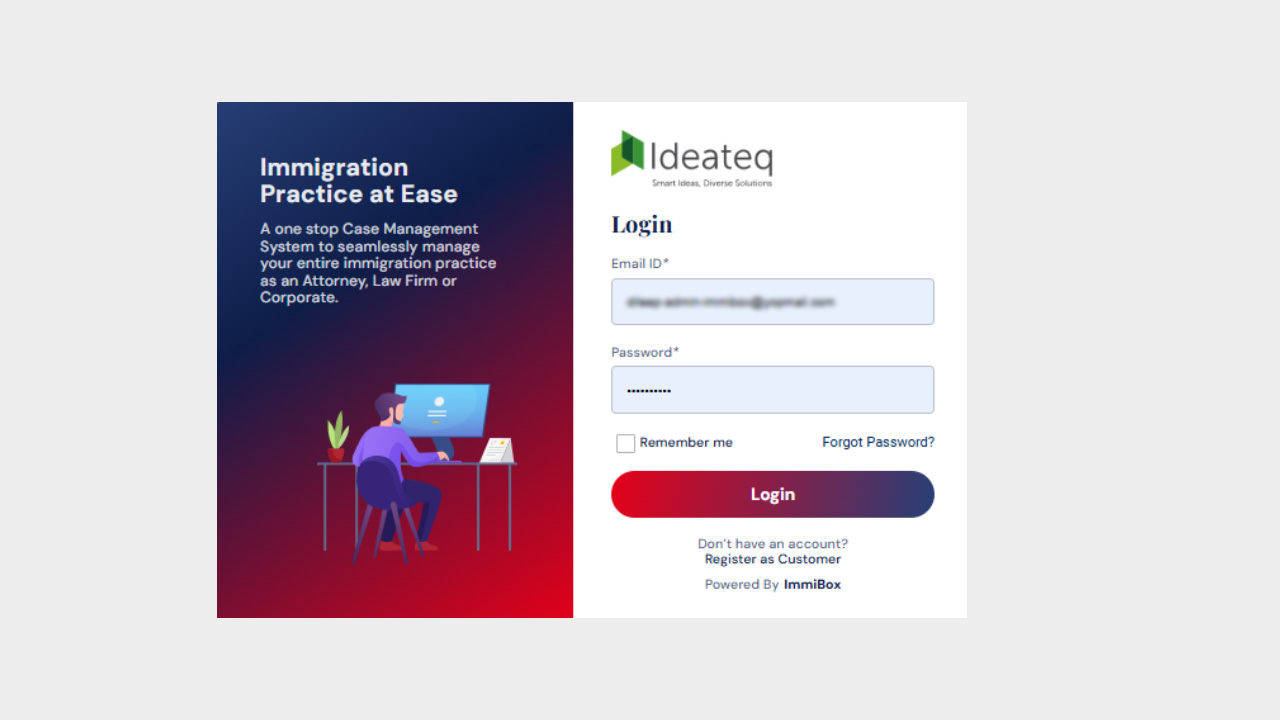
Register as a Client
Clicking "Register as Customer" will direct the client to the registration page, where client will need to provide brief details about the company, including the Company Name, First Name, Last Name, Phone Number, and Email. It is important to enter the Name, Phone Number, and Email of the Administrator/Owner/Authorized Representative of the Company.
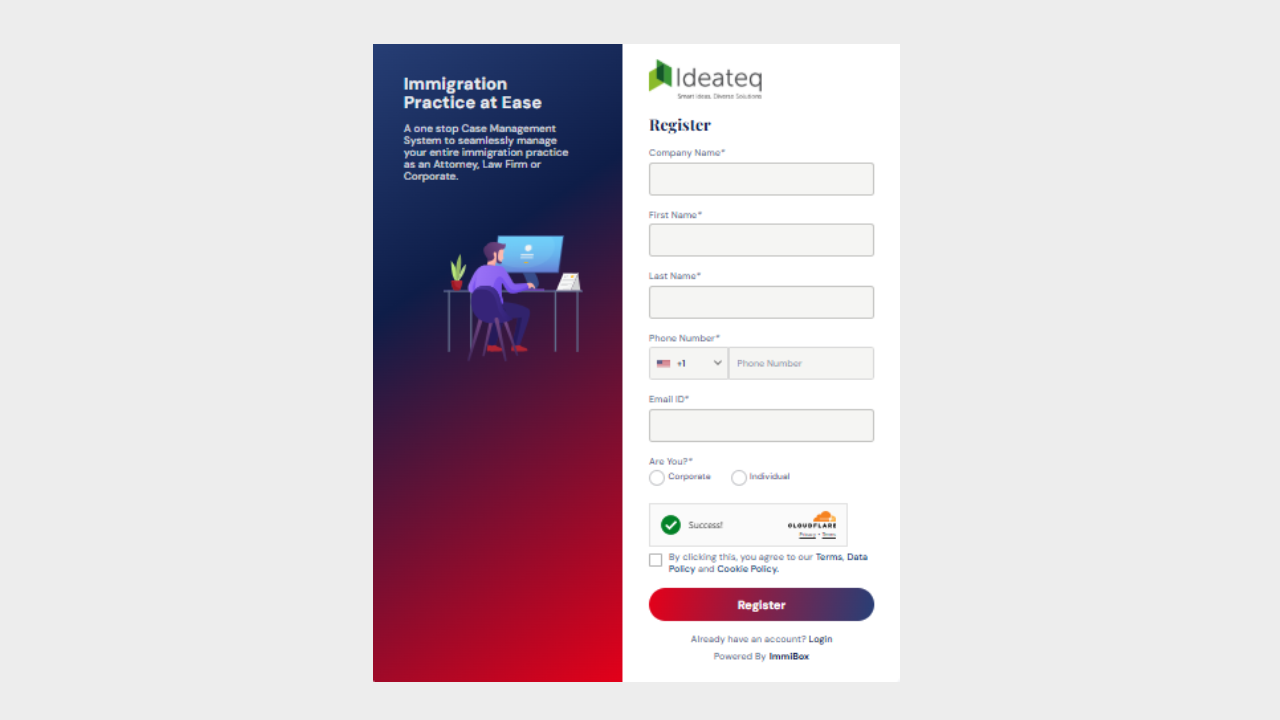
Additionally, the clients must read, comprehend, and agree to the Terms and Data, as well as the Cookie Policy, prior to clicking the “Register” button. Shortly thereafter, the client will receive an email prompting them to set up a password.
Setup Password for the account
Upon clicking the register button, a pop-up will appear to provide the customer with additional instructions.
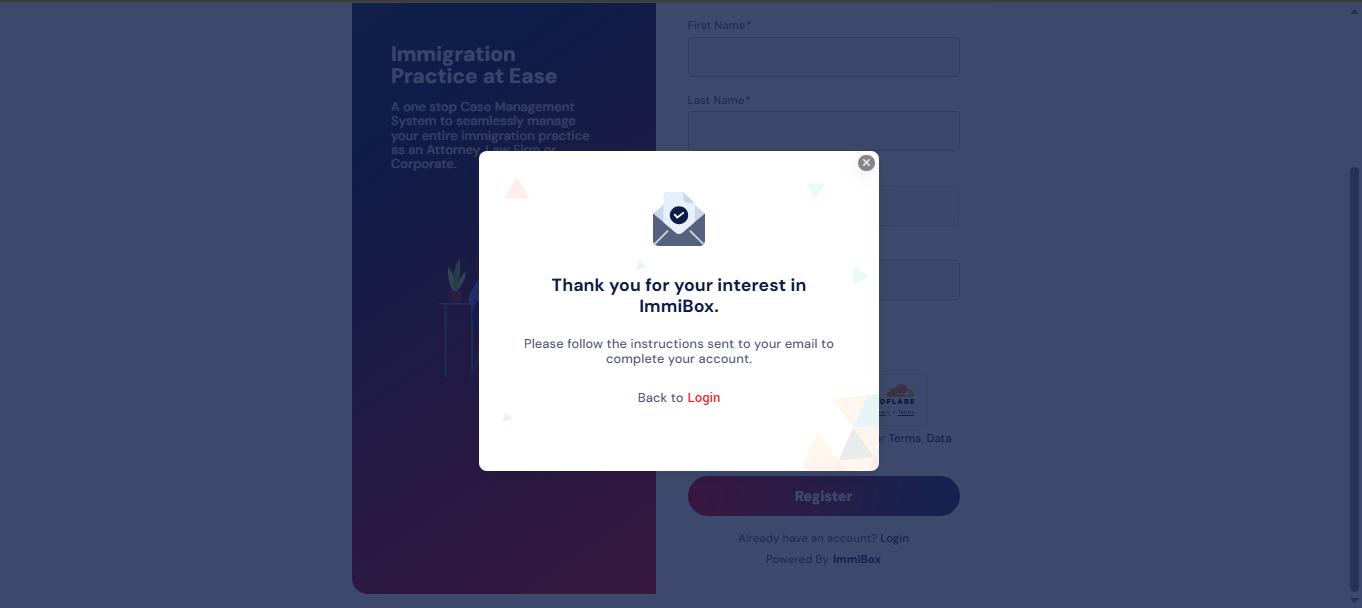
To establish a customer account, it is necessary to click the “Set Password” button found in the email received, following registration.
The format of the email is illustrated in the image below.
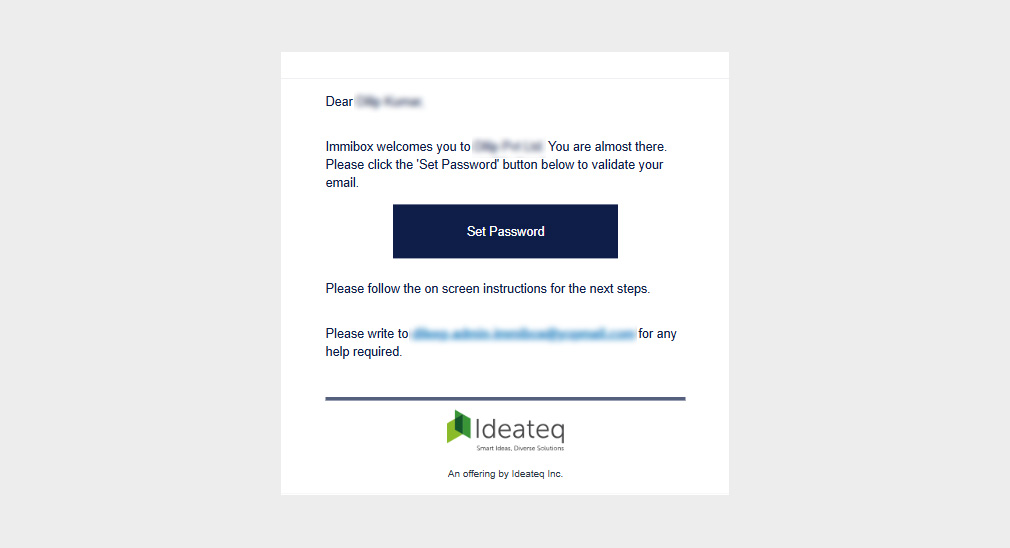
By clicking this button, the user will be directed to the ImmiBox password setup page, where they can create their Password.
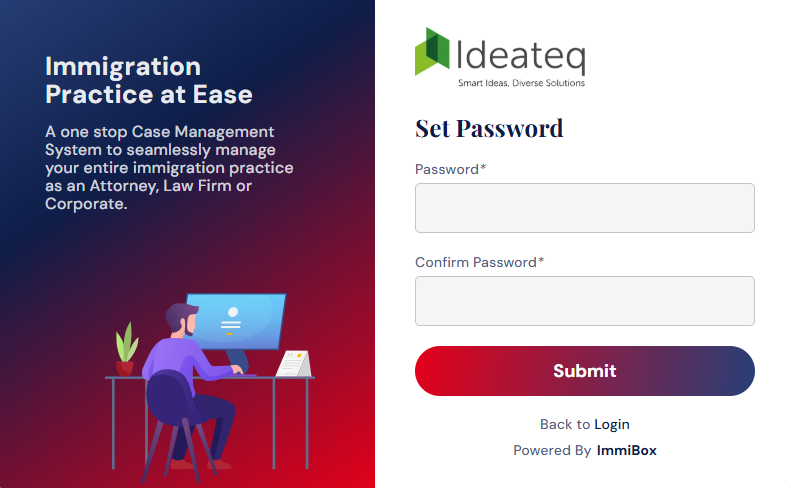 Your registration and password setup process are now complete.
However, you will only gain access to your account after the Law Firm has completed their verification process.

Invite Client
The law firm is also able to extend an invitation to any client to access the Immibox. This invitation can be dispatched by the members of the law firm.
Click here to discover "How to invite a client."
Approval from Law Firm
If your account has not received approval from the Law Firm, please contact them promptly for immediate assistance.
Upon receiving approval from the Law Firm for your account, the customer will be notified via email. The customer can then log in to complete the account setup process.
Complete Setup
After your account receives approval from the Law Firm, the customer will gain access to login and encounter a form requesting further information.
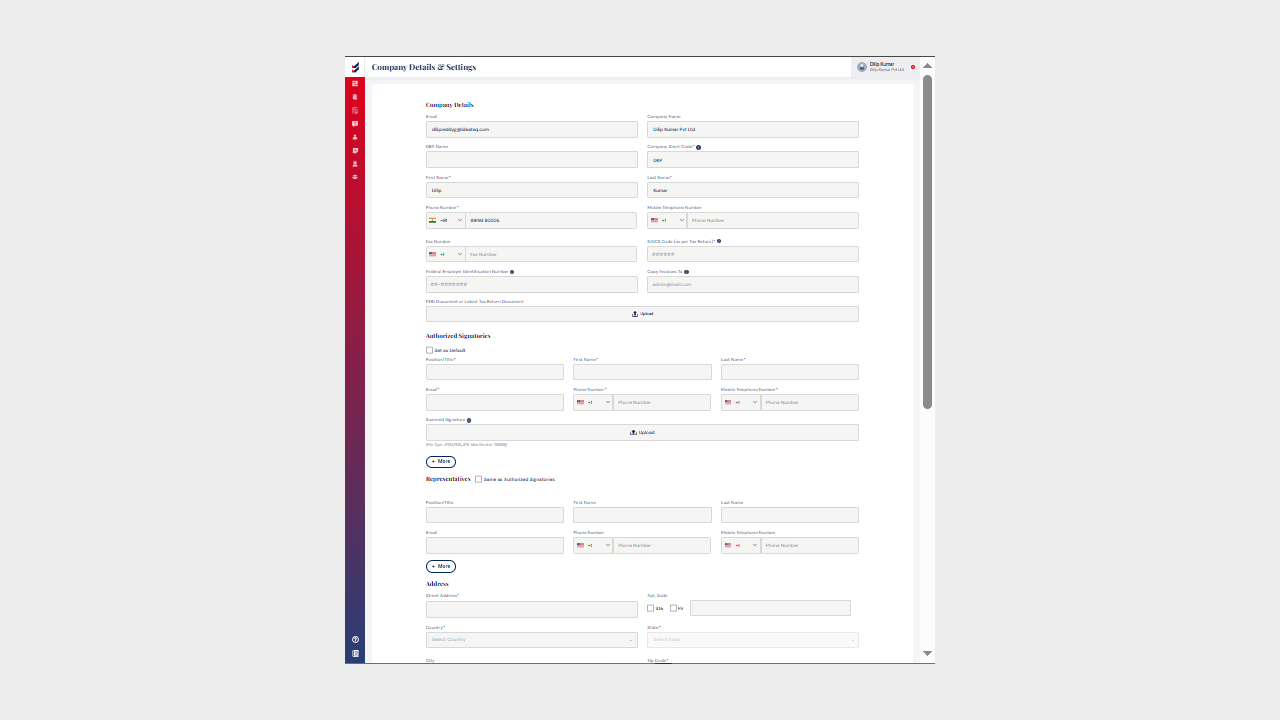
Make sure to fill in all the required details concerning your company and submit the form to finish the setup. This information will be important for the Law Firm while processing the cases.
Access to Dashboard
Shortly after finishing the setup process, you will be taken to the Dashboard, which features various widgets. Initially, you might not see any information in the widgets, and they will look empty. Data will populate over time as your usage grows.
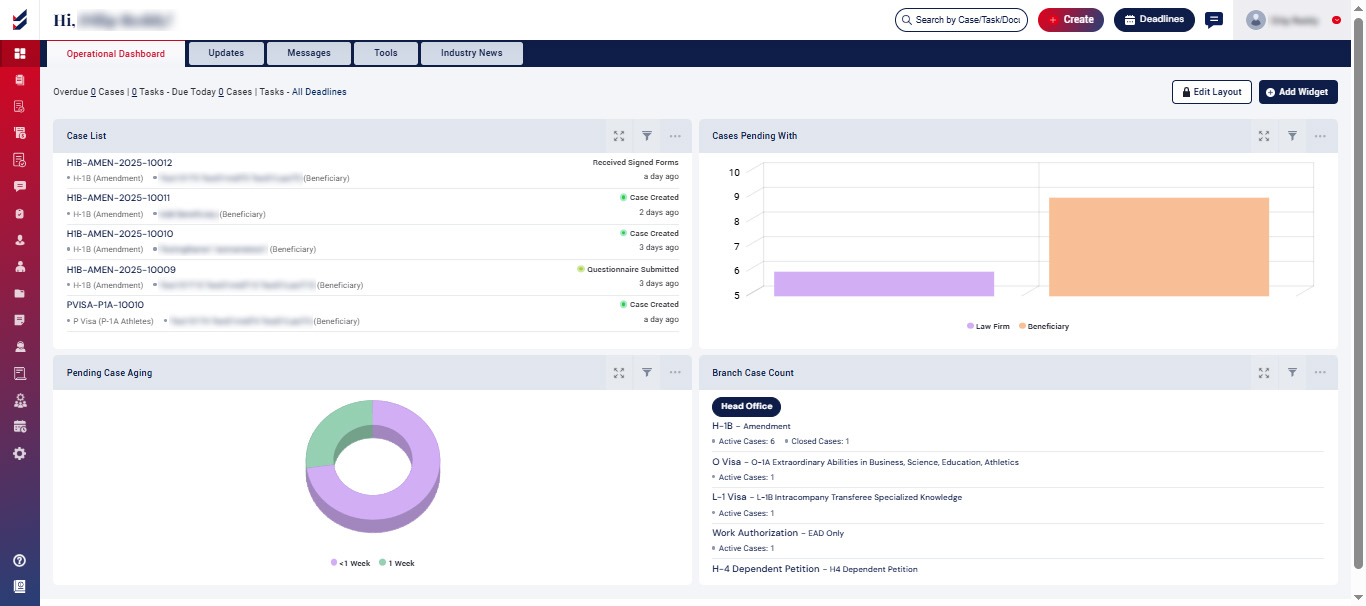
The left navigation bar is available for you to engage in a variety of activities as a customer.

