



Operational Dashboard
Operational Dashboard will be the default home screen the user will see on login. Users can see various widgets displaying information such as case lists, messages, tasks, and updates. Users have the ability to customize the layout, include different widgets, and apply filters to display specific data.
Any changes the user makes will be completely personalized. No other users will see the changes applied to their layout, widgets, filters, or data.
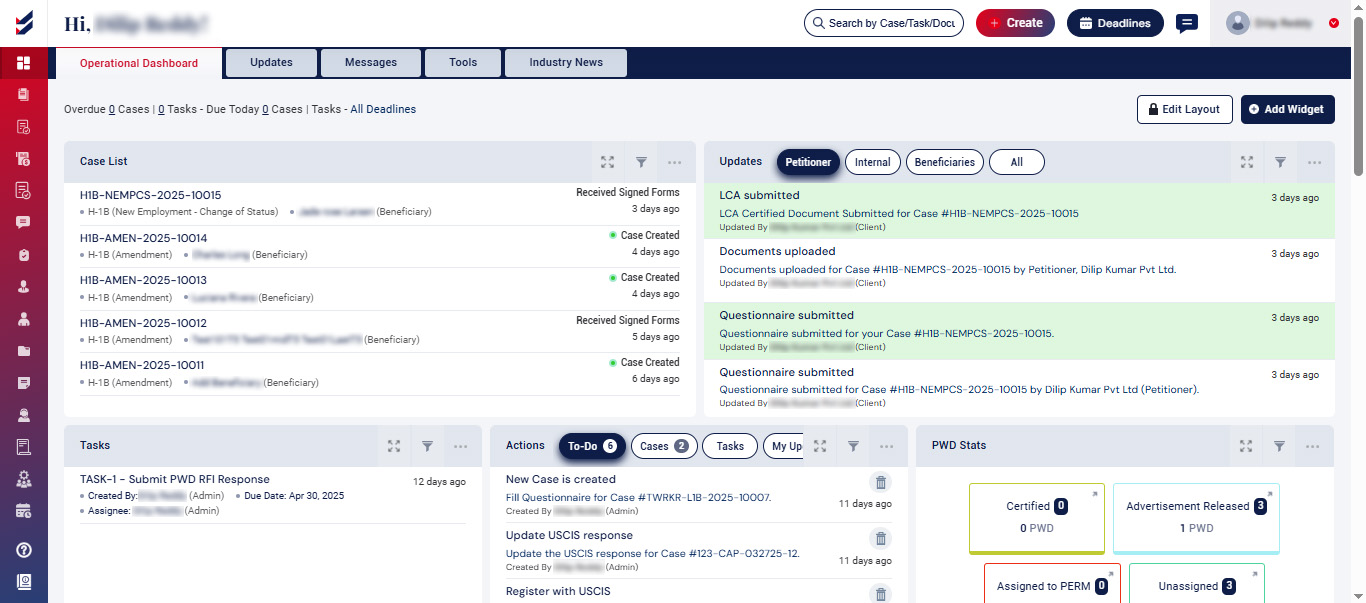
Users can
- Edit Layout
- Apply Filters for Widget
- Add Widget
- Duplicate a Layout
- Apply Filters to the data displayed
Edit Layout
By default, the edit layout button is locked to avoid unintentional user actions. Users must unlock it to make changes to the layout. However, users can still perform some updates to the Dashboard widgets without unlocking like Adding new widget and updating the filters of individual widgets.
Clicking on the ‘Edit Layout’’ button will unlock the layout and enable edit options such as
- Increase the height of the individual widgets
- Change the layout of the widget groups
- Delete a Widget
- Move the placement of individual Widgets or the group of Widgets
- Rename the Titles of individual Widgets
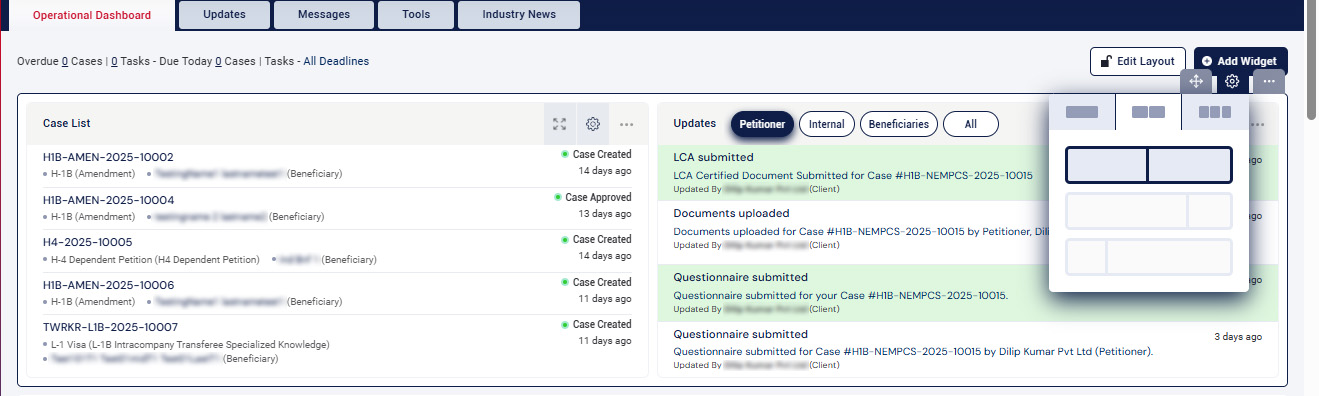
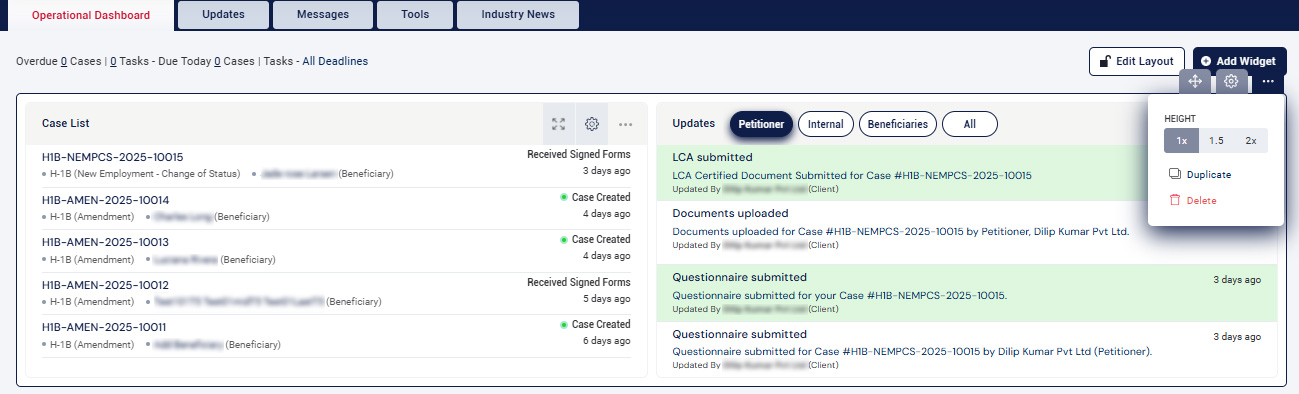
Apply Filters for Widget
Select the Edit Layout button, followed by clicking on the settings button of the widget.
A settings popup page will appear for filters, allowing users to apply the necessary filters for the corresponding widgets.
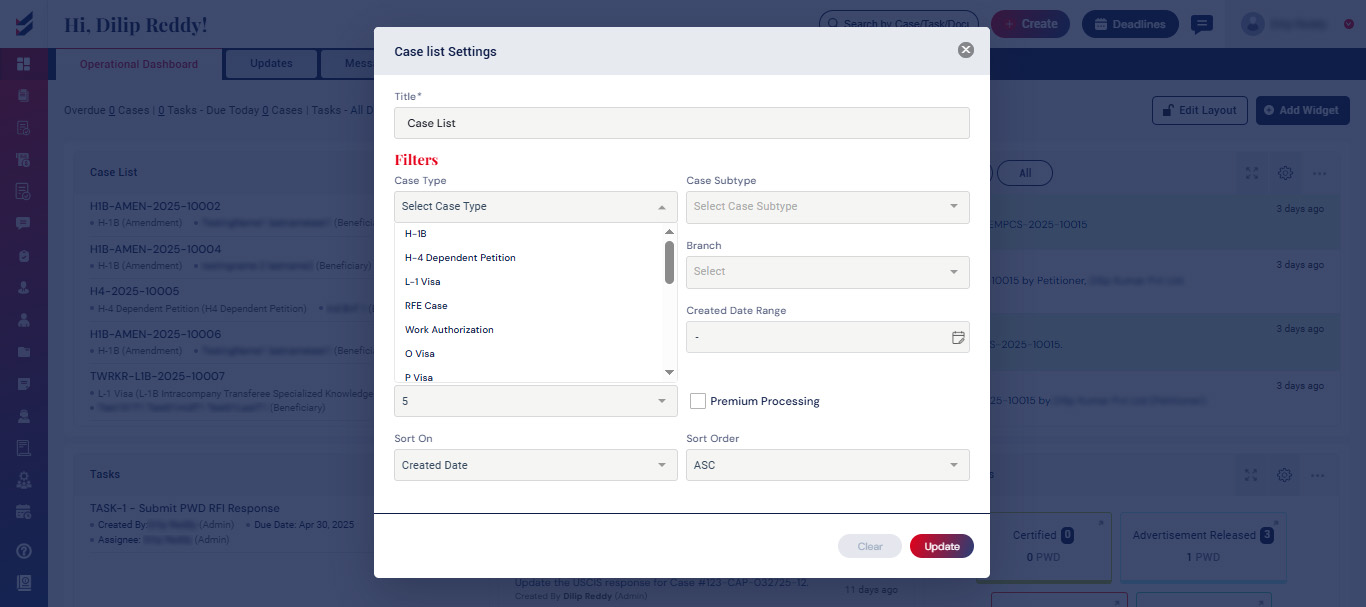
The widget will exclusively display information relevant to the filters that have been applied. Additionally, you have the option to rename the widget here.
Add Widgets
Users can explore different types of widgets ImmiBox has by default. Each of them provides details of various activities without navigating to all individual sections of the application. Some of them are cases list, updates, tasks, actions, deadlines, invoice statuses, beneficiaries, messages, support tickets, and a graphical representation of pending cases, aging, and their status. This information will be easily accessible from the Dashboard once it is configured as needed.
To add a widget, just click the “Add Widget” button. Users can browse or search among the wide range of widgets available. Each Widget brief has information that explains the purpose and use of the Widget.
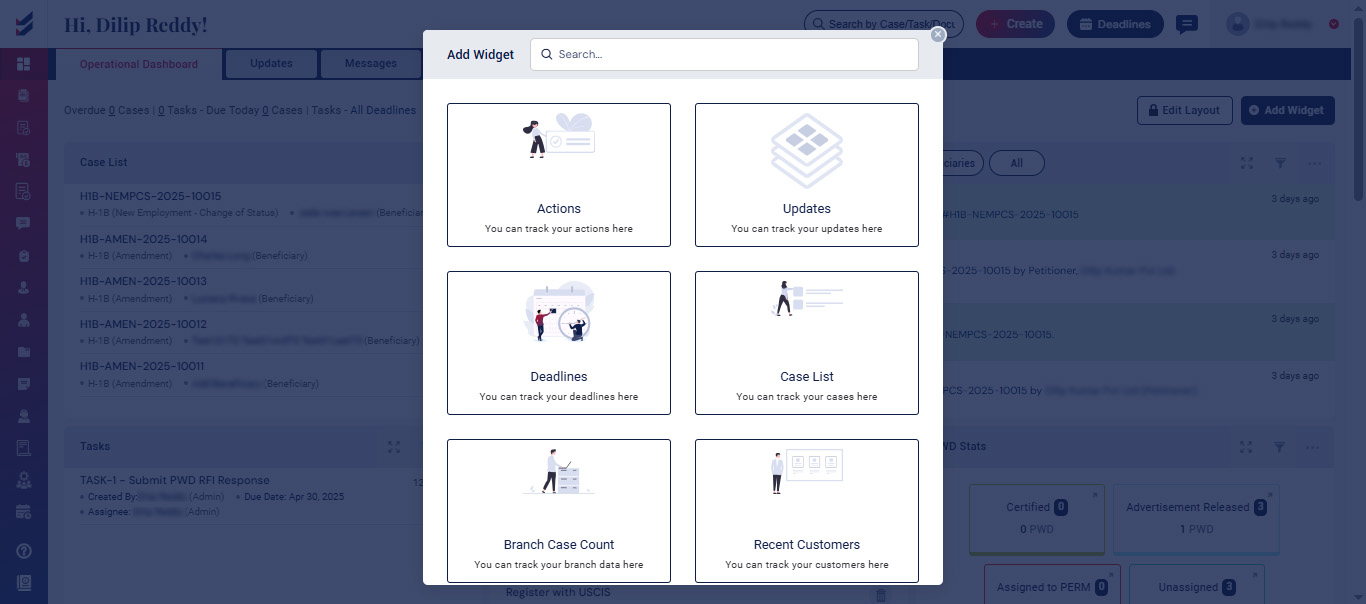
Data displayed in each of the Widget has references and links to their corresponding sections. Users can just click on it to access more detailed information or take appropriate action.
Duplicate a Layout
Click on the Edit Layout button, then select the Settings button for the added layout.
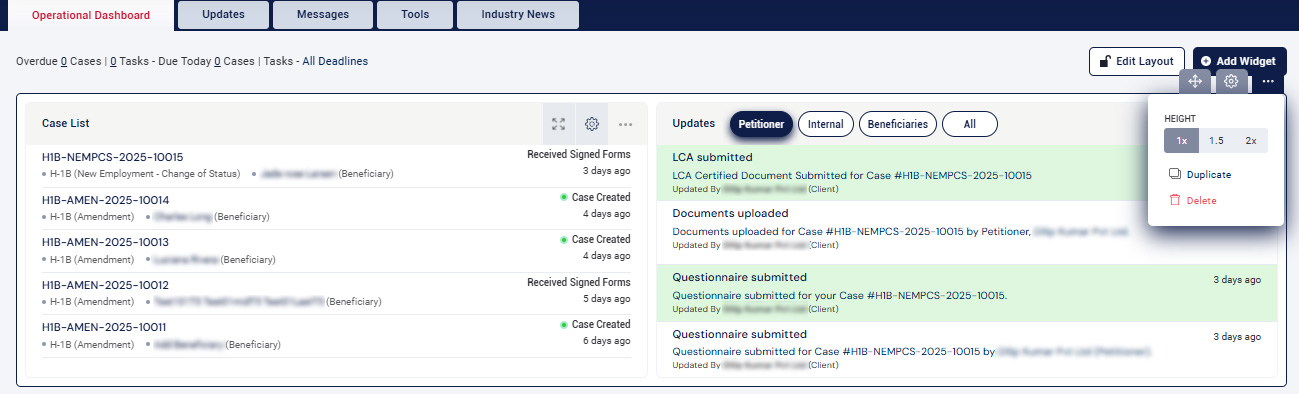
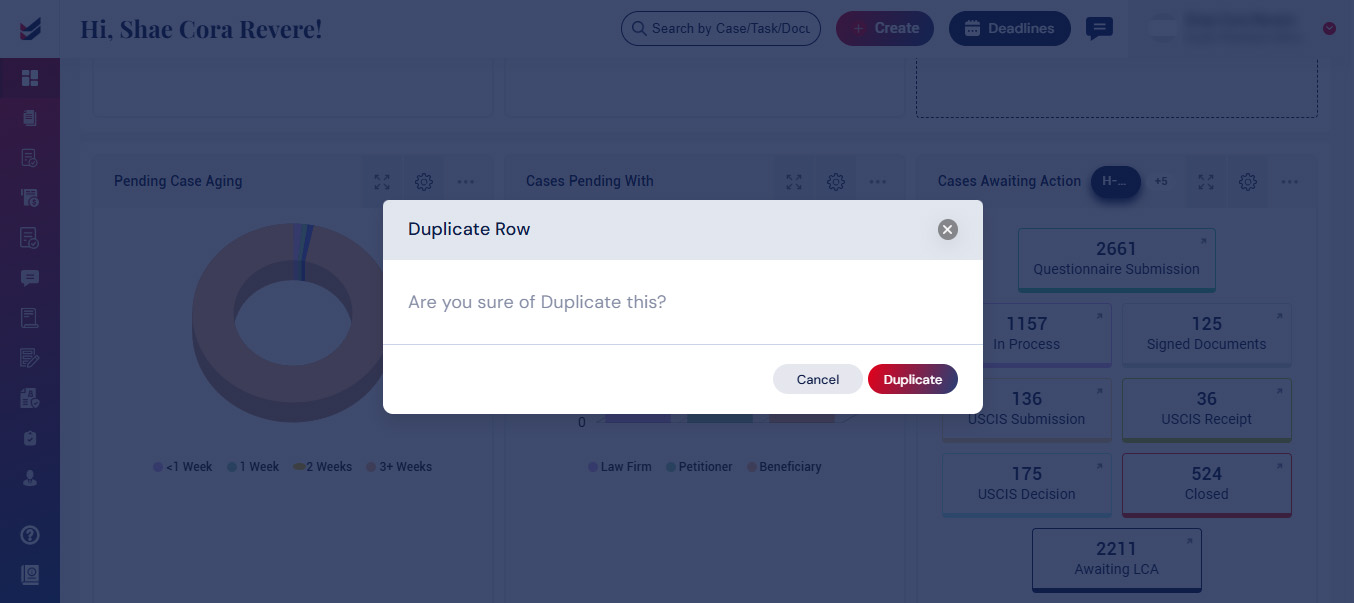
Next, press the Duplicate button to create an additional layout featuring the same widgets.
Apply Filters to the data displayed
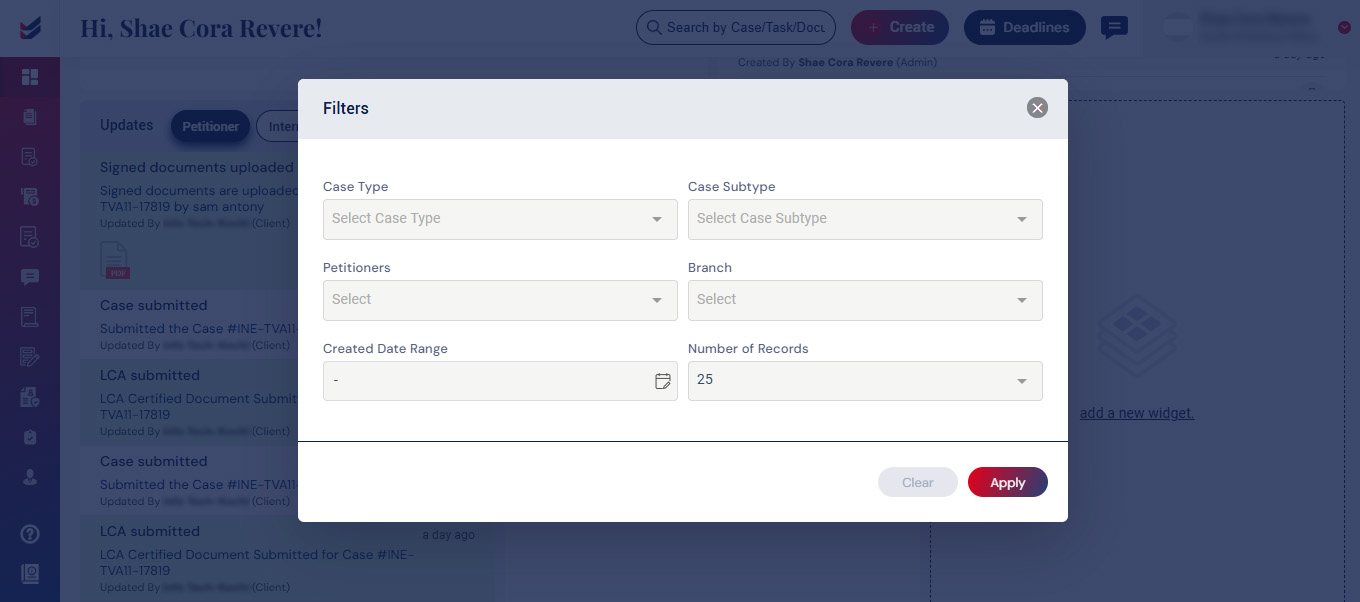
Filters for the widgets can be applied by clicking the filter button and selecting the available options. Please note that these filters will be reset if we navigate to a different page or refresh the current one.

