Create and Customize a Workflow
Overview
A workflow may be established through the Administration settings, specifically within the Workflow tab. This workflow can be structured to allocate the tasks of a case to the Petitioner, Beneficiary, and members of the Law firm. We have the capability to designate the pre-defined tasks to the Petitioner, Beneficiary, and Law firm members as "Editors" and "Watchers".
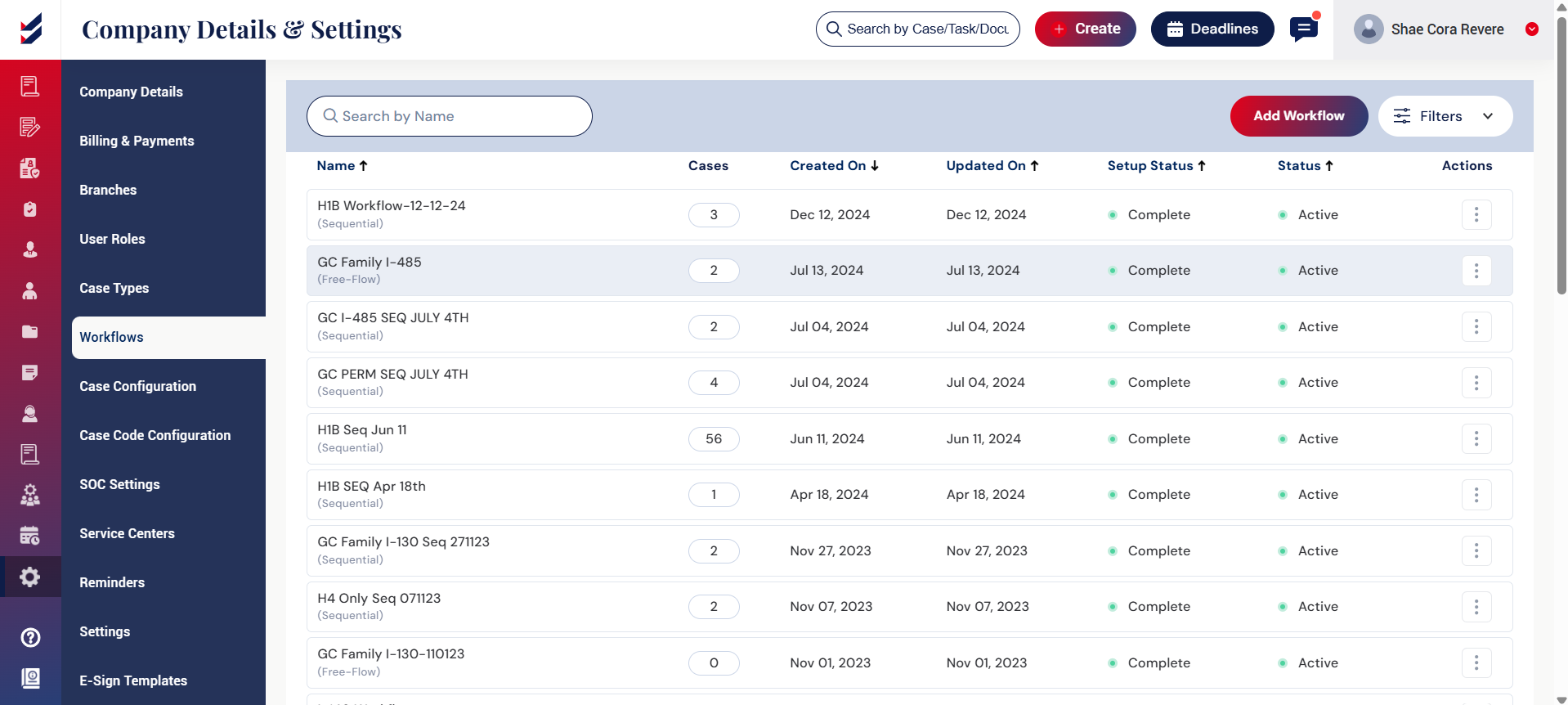
On the workflow page, all created workflows will be shown alongside the corresponding number of cases associated with each workflow. After a workflow has been established, we have the options to View, Edit, Clone, and Inactivate it through Actions.
Create a Workflow
To initiate a workflow, click on "Add Workflow". A pop-up box will then appear, prompting us to choose the workflow template, enter the Workflow name, and select the flow type as either Free-Flow or Sequential before clicking on save.
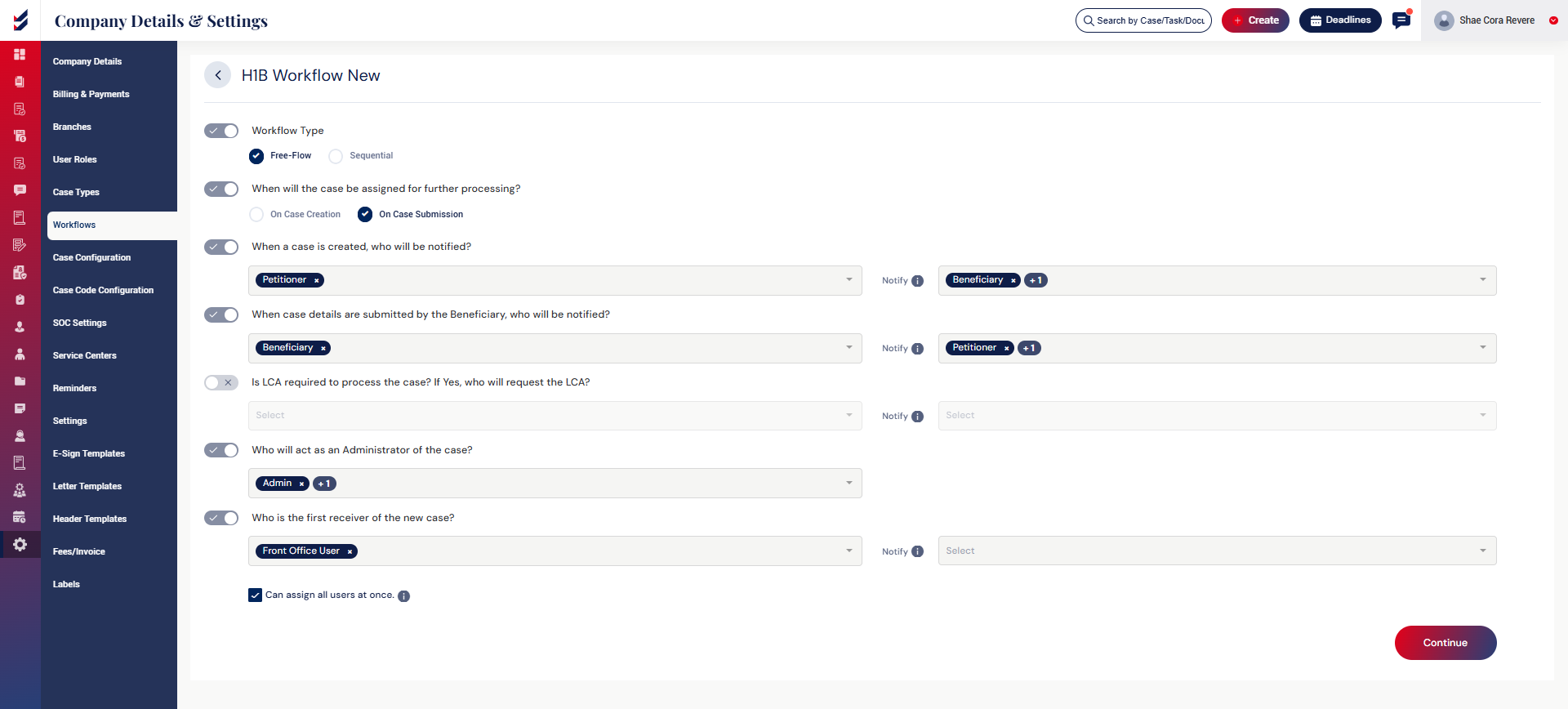
After saving, we can assign Editors and Watchers for the activities related to the case. Once we have selected all the editors and watchers and clicked on the "Continue" button, the workflow will be finalized and activated. After the workflow is finalized and activated, we can configure this workflow within the case configuration for a specific case.
Click here to learn How to configure a workflow for a case.
Customize a Workflow
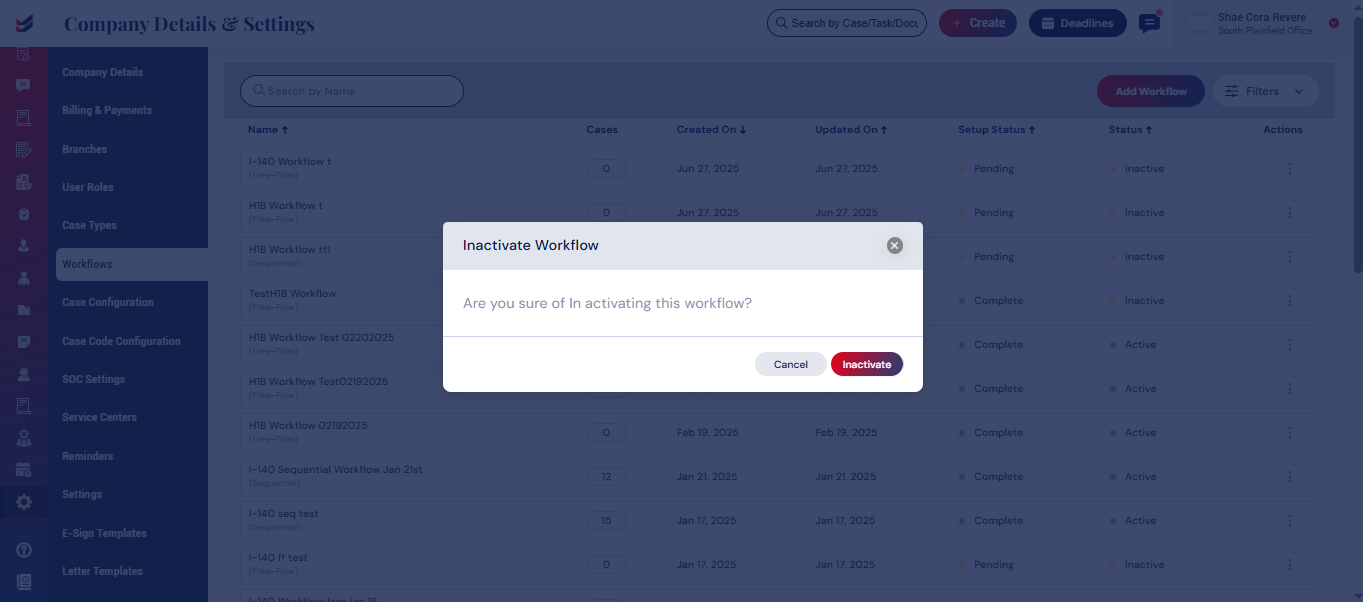
We have the ability to View, Edit, Clone, and Inactivate the workflow from the Actions.
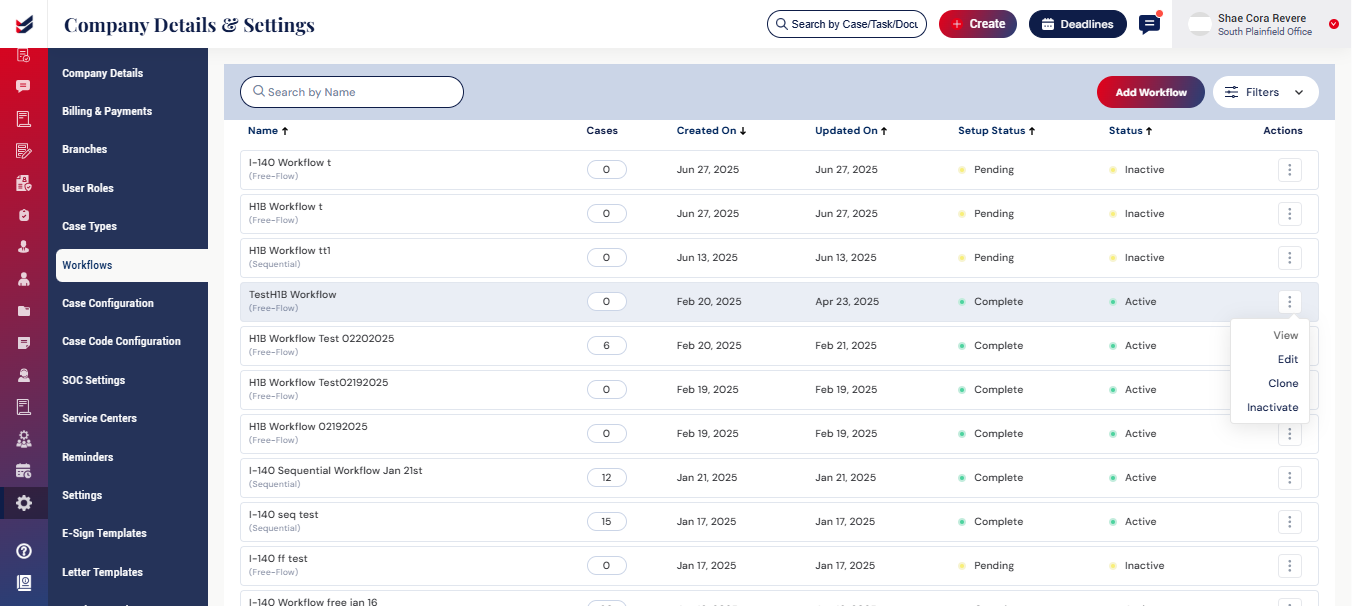 View Workflow
We can use the View option to see the complete structure and details of the workflow assigned to a case.
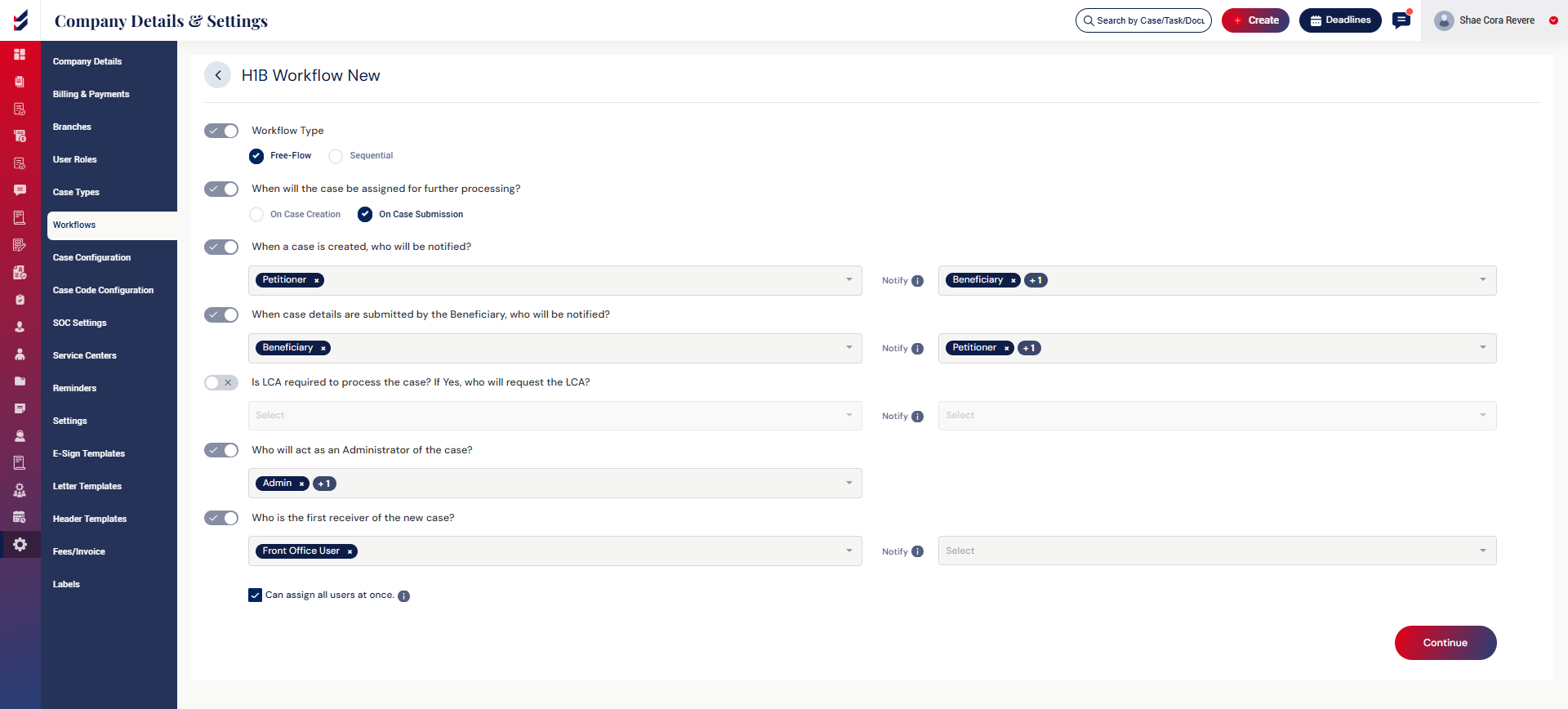
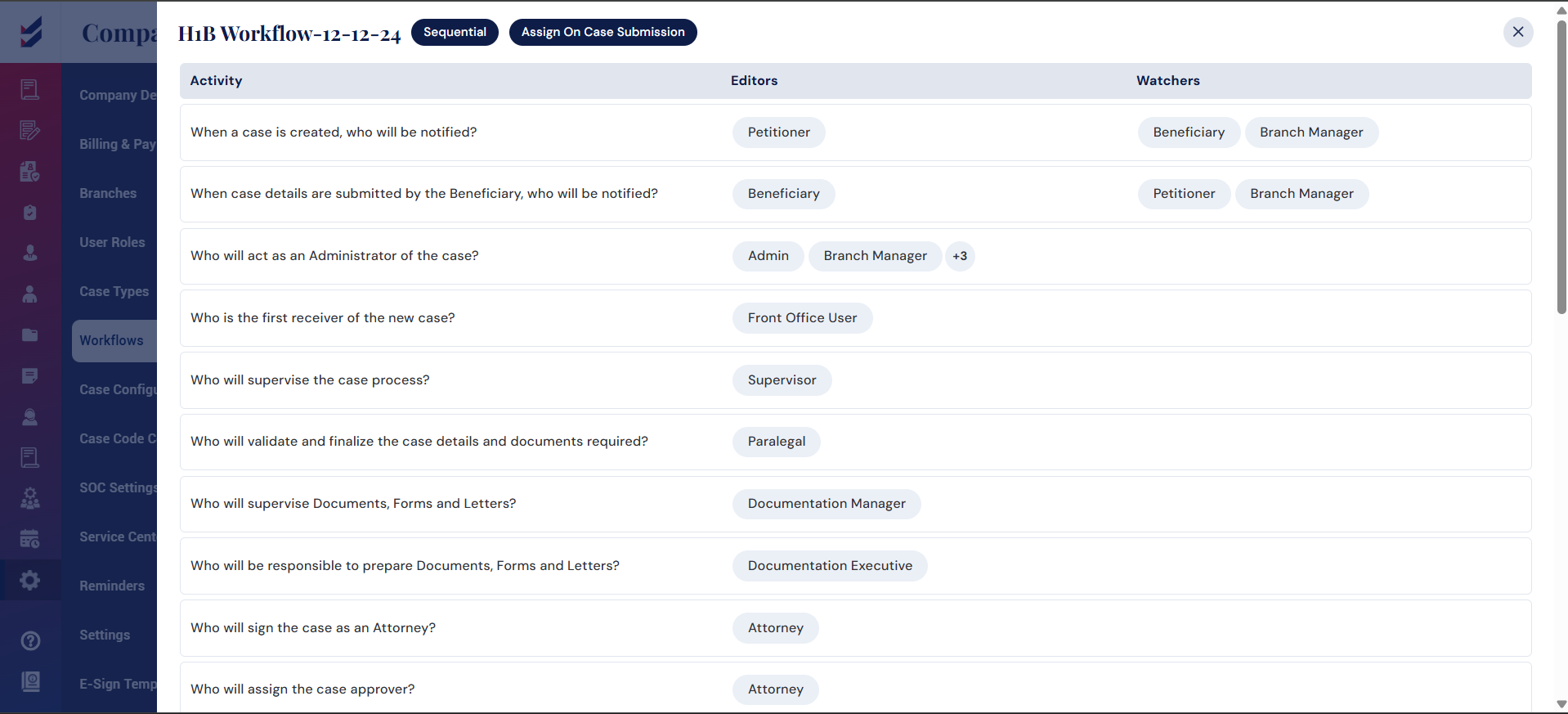 Edit Workflow
Click Edit to modify the existing workflow.
We can update the Editors and Watcher for each activity.
Note: Only the workflows that are not linked to any case are Editable. The condition is that the cases created for that workflow should be Zero.
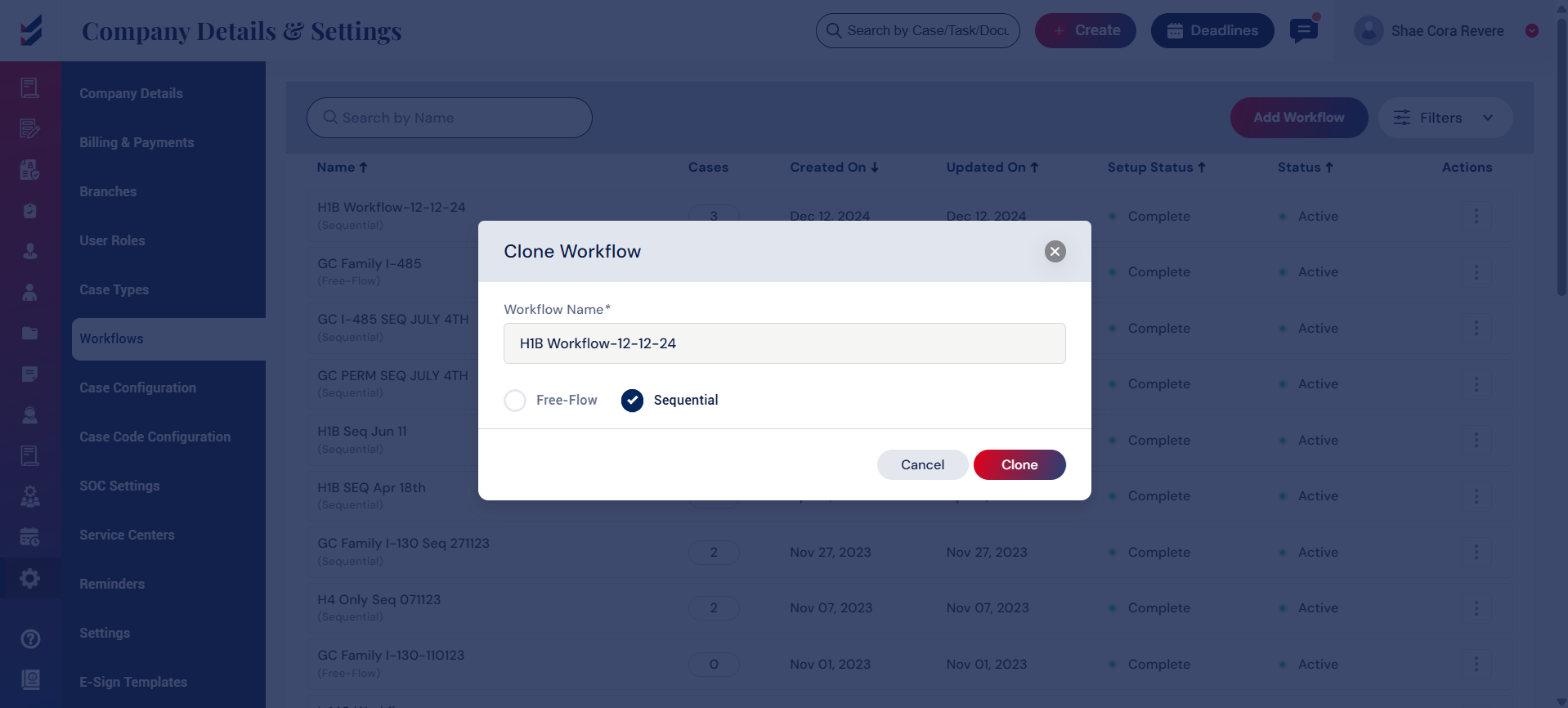
 Clone Workflow
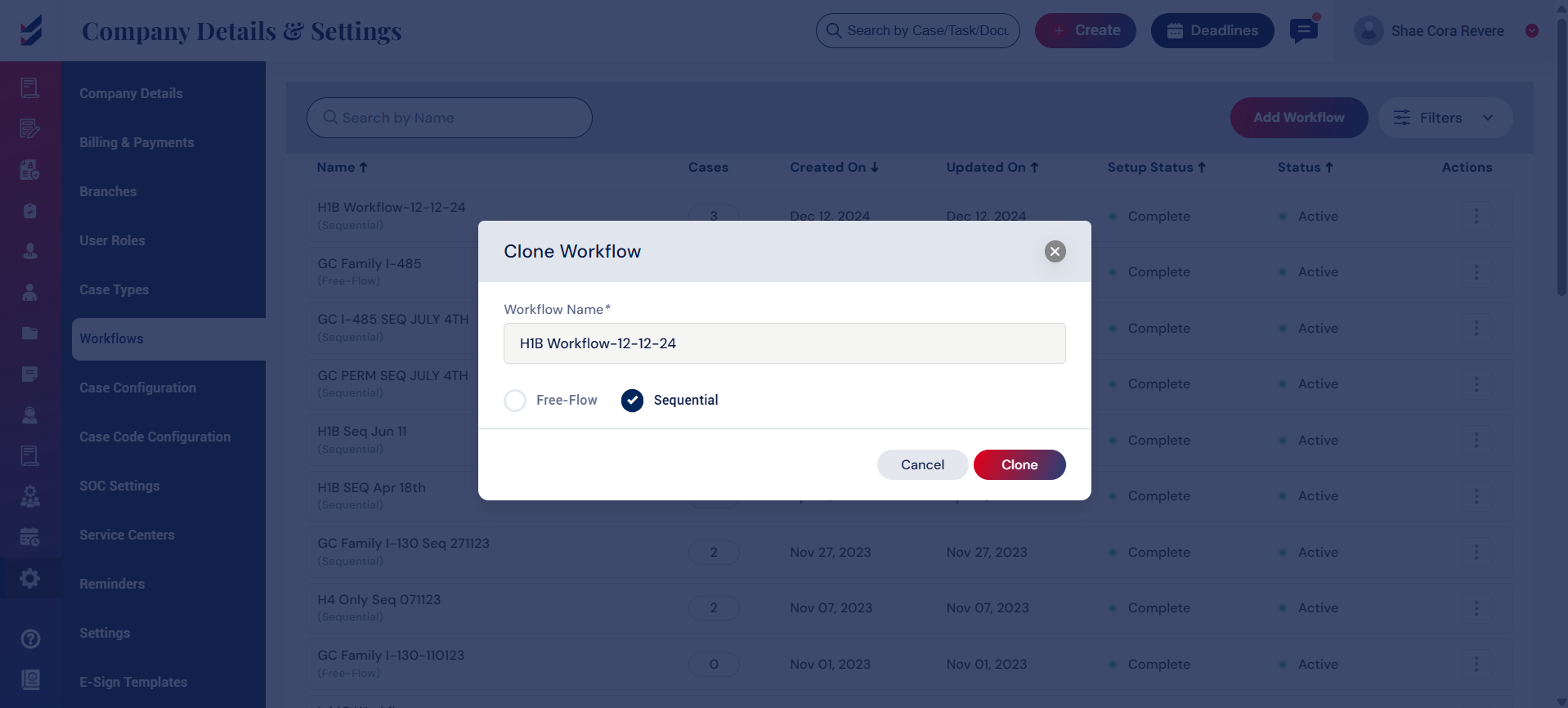
The Clone option lets you duplicate an existing workflow.
This is helpful when creating a similar process for any case without creating it from scratch. You can then edit the cloned version as needed.
 Activate/Inactivate Workflow
Use Inactivate to disable a workflow that is no longer in use.
This prevents the workflow from being configured for a case in case configuration. Note: Only the workflows that are not linked to any case can be inactivated. The condition is that the cases created for that workflow should be Zero.