Reports
Overview
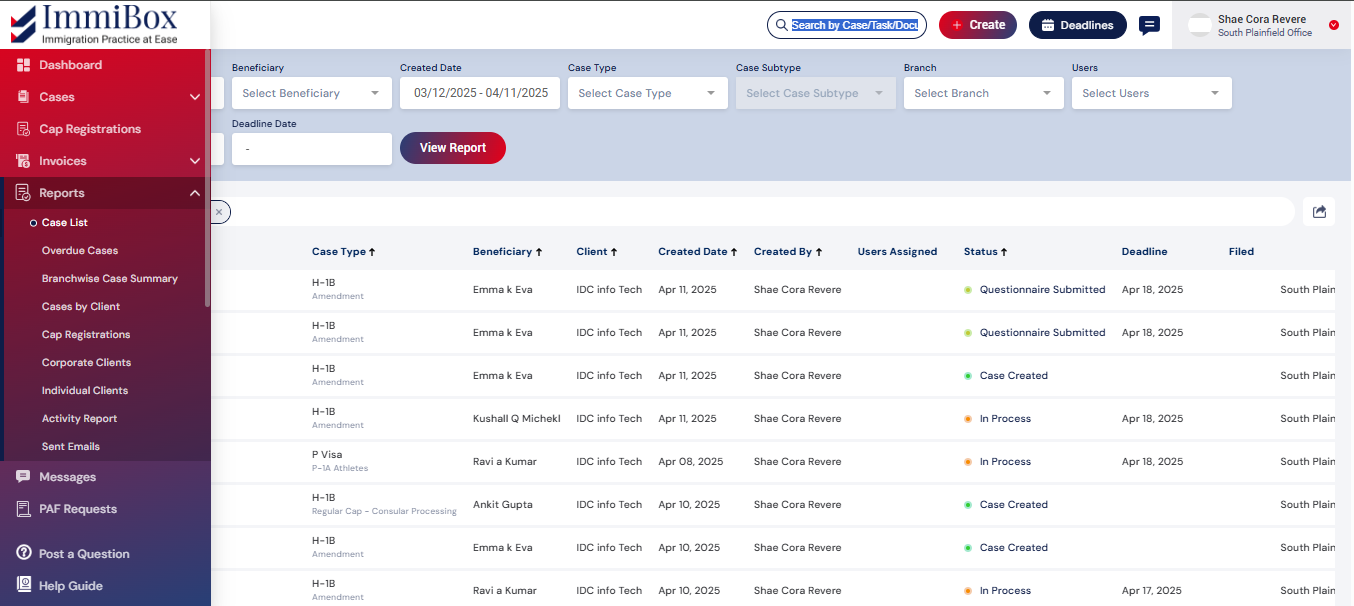
All reports concerning cases, clients, activities, and correspondence can be found on the reports page. Each category features distinct reports. Users have the ability to view reports according to the categories listed on the reports page.
Case List
Case list reports contain information pertaining to the cases. Users have the ability to filter the cases based on various criteria, including client, beneficiary, creation date, case type, case subtype, branch, users, status, and deadline date.
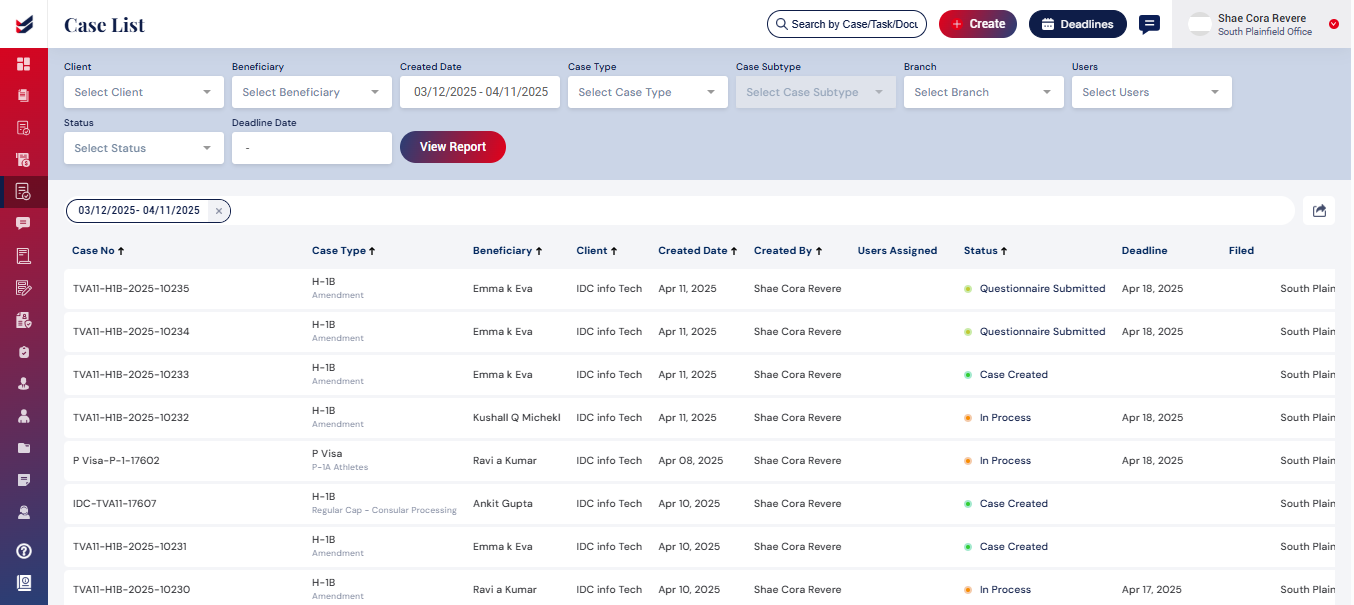
By default, the report will display all the cases.
Clicking on a case will redirect the users to the case details
Overdue Cases
Reports related to the overdue cases can be found in Overdue cases reports. Users can filter out the required cases with regard to the clients, Beneficiaries, created date, case type, case subtype, Branch, users, status and deadline date.
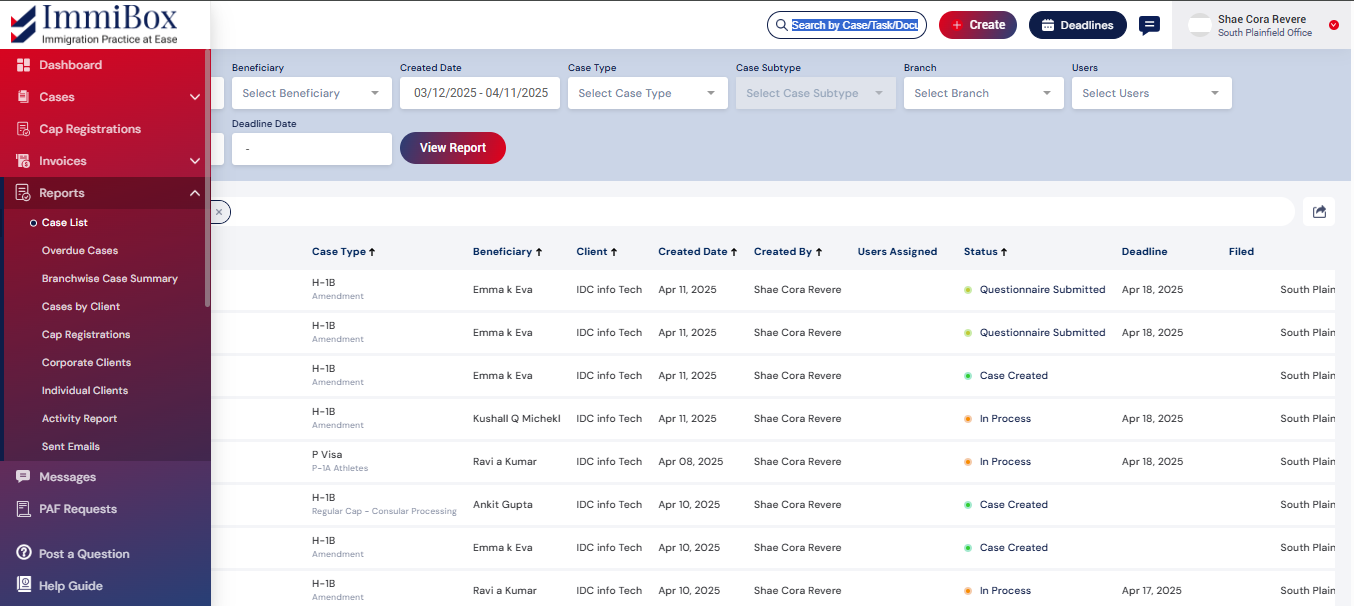
By default, all the overdue cases will be displayed in the overdue cases report.
Clicking on a case will redirect the users to the case details.
Branch wise Case summary
Reports concerning cases categorized by branch are available in the Branchwise Cases reports section. Users have the ability to filter cases based on various criteria, including client, beneficiary, creation date, case type, case subtype, branch, users, status, and deadline date.

By default, the Branchwise Cases report will show all the cases per Branch.
Cases by client
Reports pertaining to client cases are available in the Client Cases reports section. Users have the ability to filter cases based on various criteria, including client, beneficiary, creation date, case type, case subtype, branch, users, status, and deadline date.
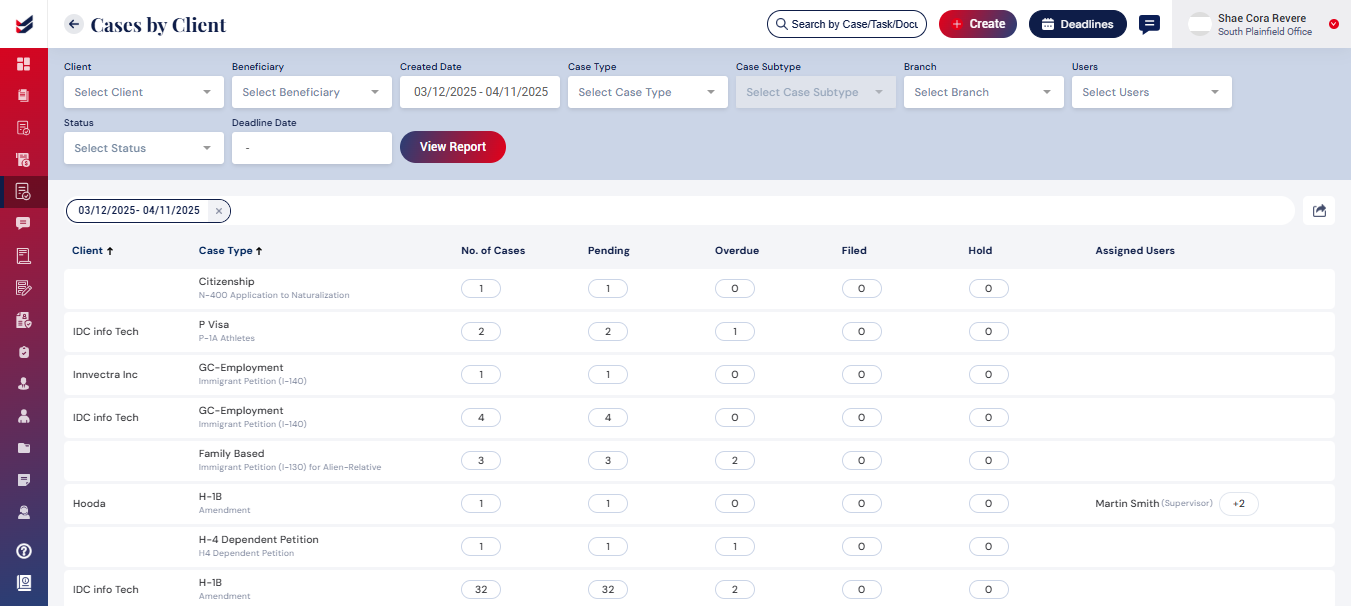
By default, all client cases per client will be shown in the client cases report.
Cap Registration
Reports concerning Cap Registration cases are available in the Cap Registration reports section. Users have the ability to filter cases based on various criteria, including client, beneficiary, creation date, case type, case subtype, status of the case, and client default user.

By default, all Cap Registration cases will be shown in the Cap Registration report.
Clicking on a case will redirect the users to the Cap Registration details.
Corporate Clients
Reports concerning Corporate clients are available in the Corporate Clients reports section. Users have the ability to filter cases based on various criteria, including status, Country, state, City and Created date.
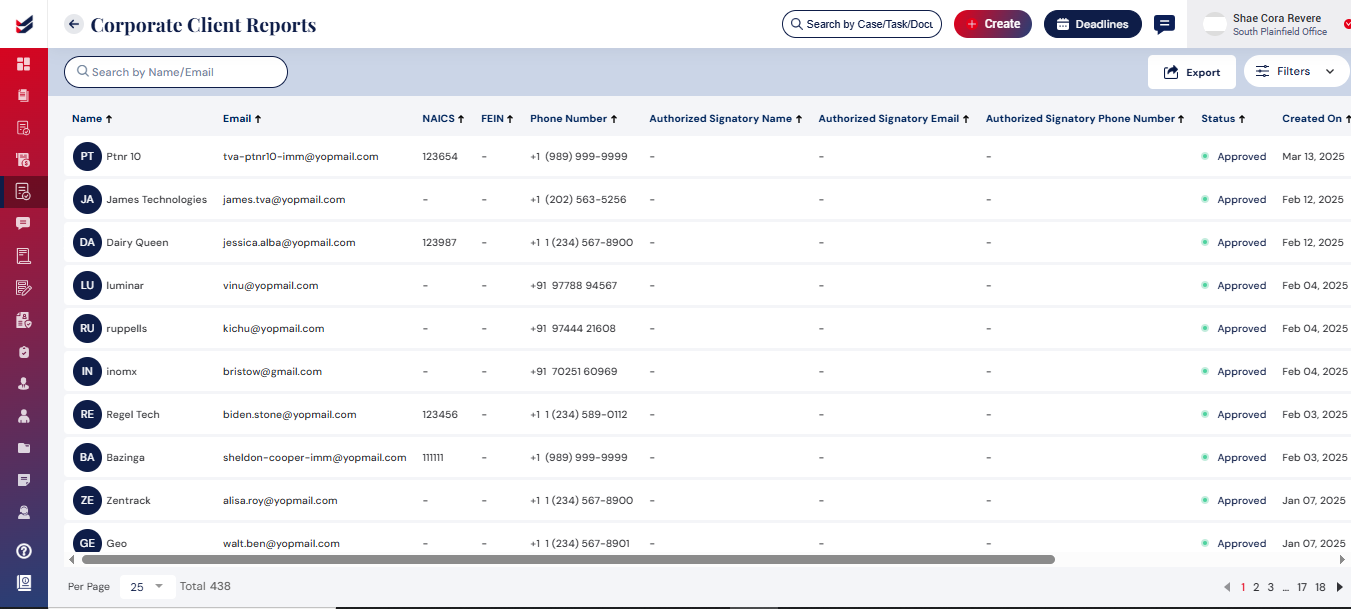
By default, all Corporate clients will be shown in the Corporate Clients report.
Clicking on the clients will redirect the users to Petitioners info.
Individual Clients
Reports related to individual clients can be found in the Individual Clients reports section. Users can filter cases using several criteria, such as status, country, state, city, and creation date.
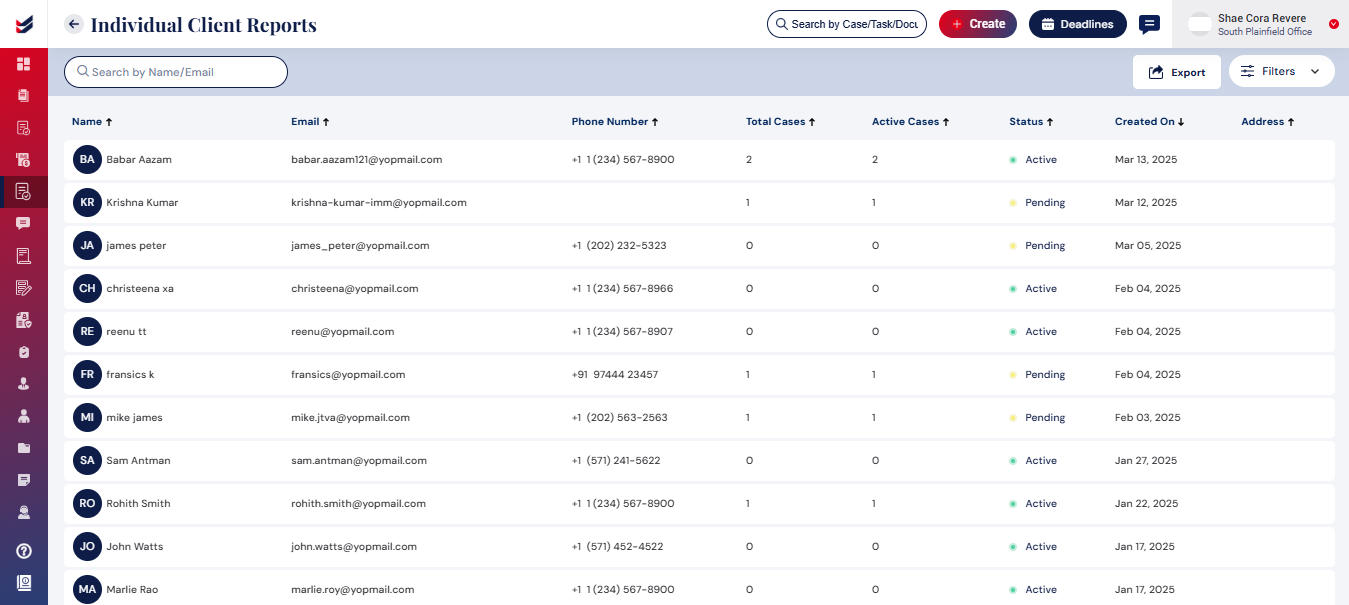
By default, the report will display all individual clients.
Selecting a client will take users to the individual information page.
Activity Report
Information regarding Activities can be found in the Activity Report section. Users can filter cases using several criteria, such as Case Type, Case Subtype, Client, activity date, branch, and internal users.
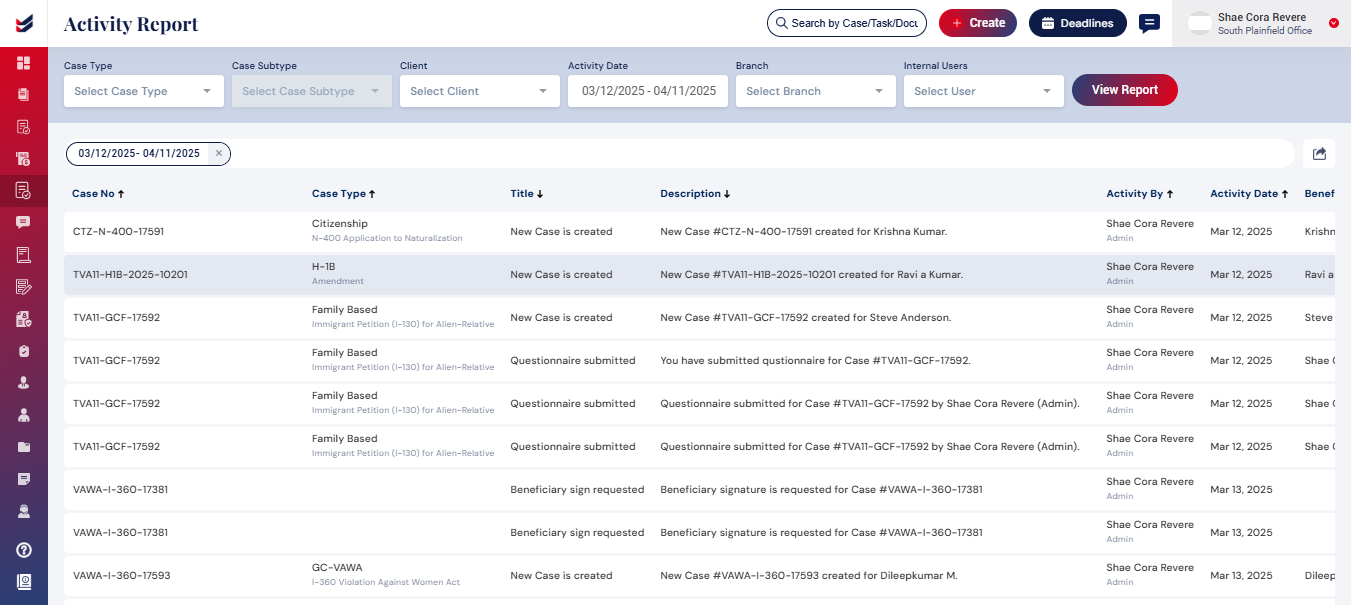
By default, the Activity report displays all Activities associated with a case.
Selecting an activity will take users to the corresponding case details.Sent Emails
Reports related to sent emails can be found in the Sent Email Reports section. Users can filter cases by categories and the date they were sent.
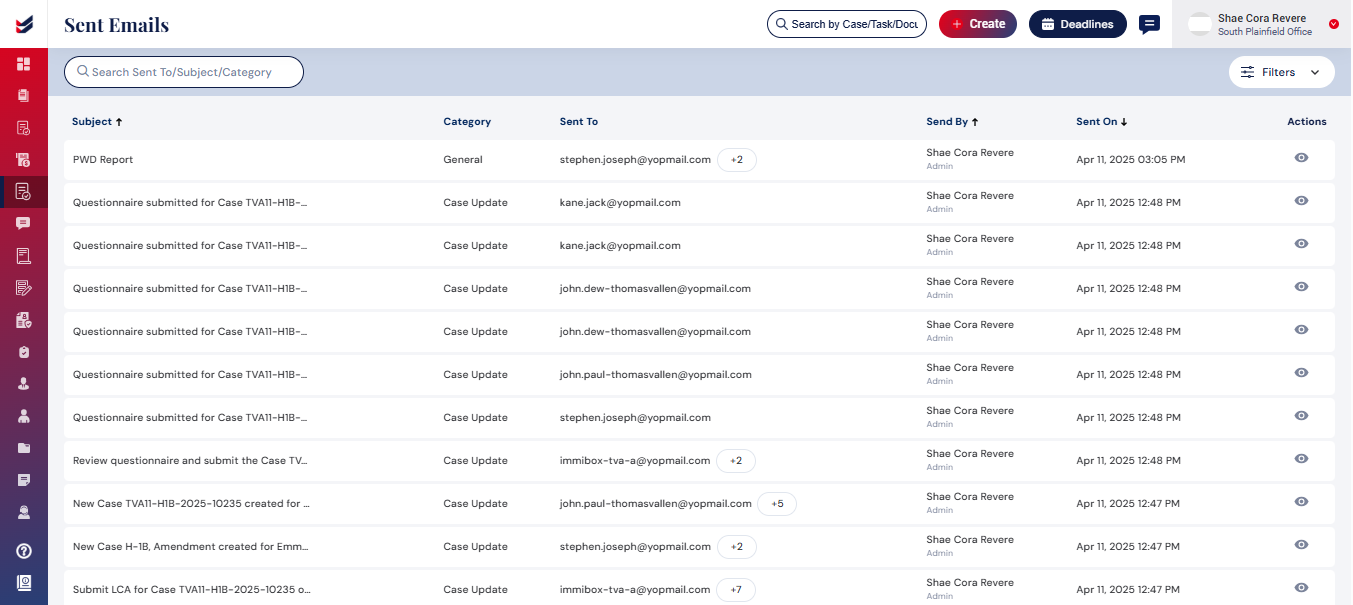
By default, the Sent Email report will display all emails sent concerning the cases.
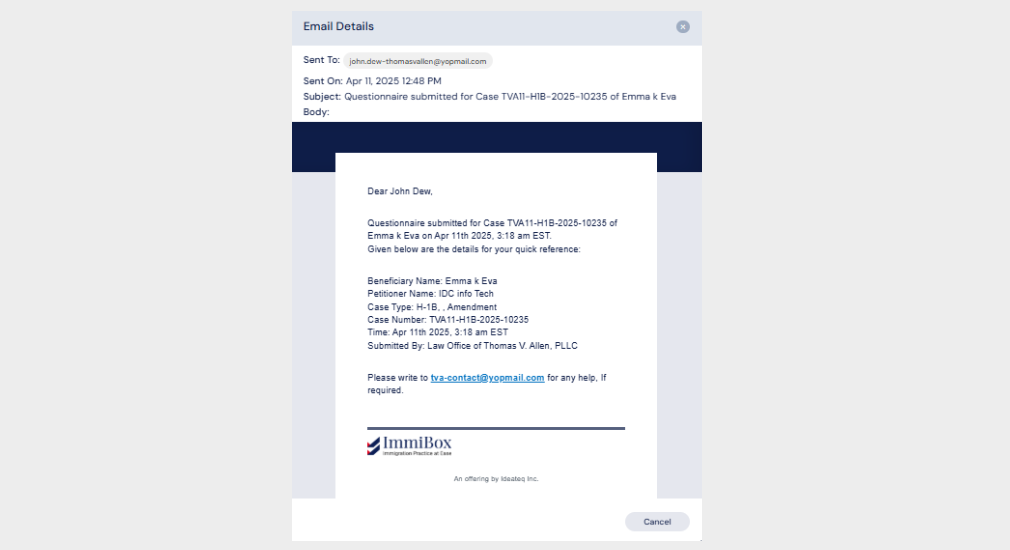
Clicking on the data will reveal the details of the emails sent to users.