



Messages
Overview
A feature is included in the Case Details to enhance and expedite communication among all parties involved in the case.
With this feature:- Users can send messages to individual users or to all team members assigned to the case.
- Messages can be directed to specific users by tagging them directly.
- Users can post questions or requests for clarification for quick and easy reference.
Send a Message
Users have the option to send messages either to all users or to specific individuals regarding case details. You need to add a description and select the users and click on “submit”.
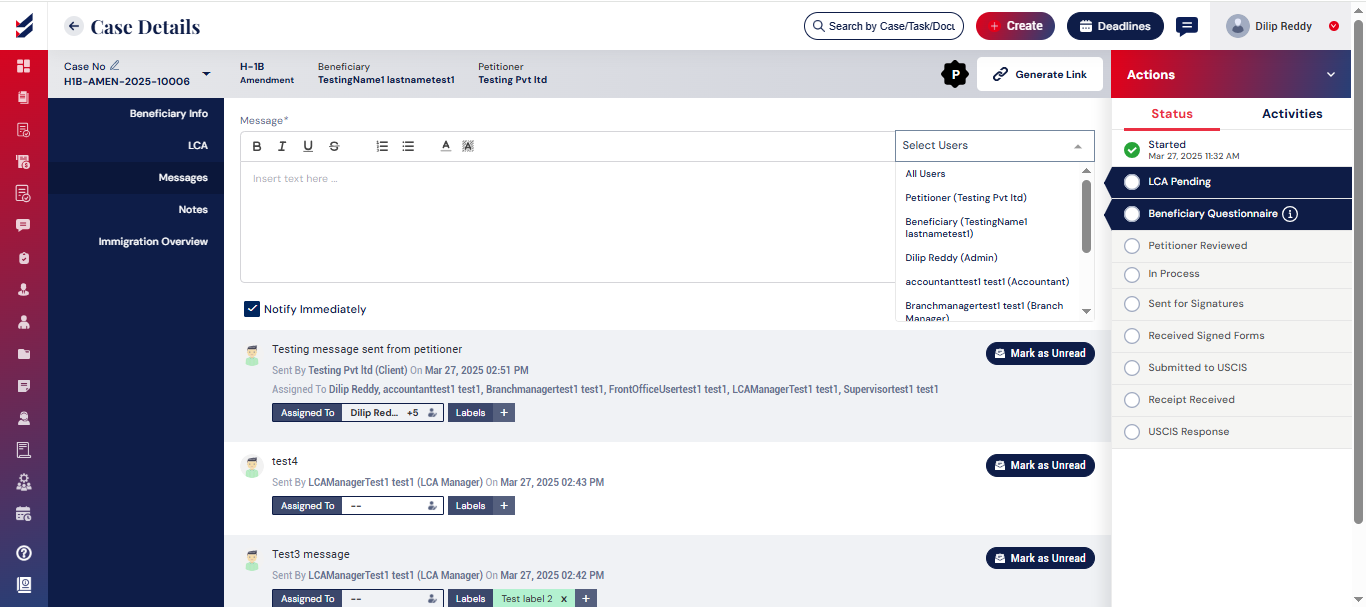
Once a message is assigned to other users, they will receive a notification, and it will appear in their respective message threads. You can view all sent and received messages on the messages page, which is accessible via the left navigation bar.
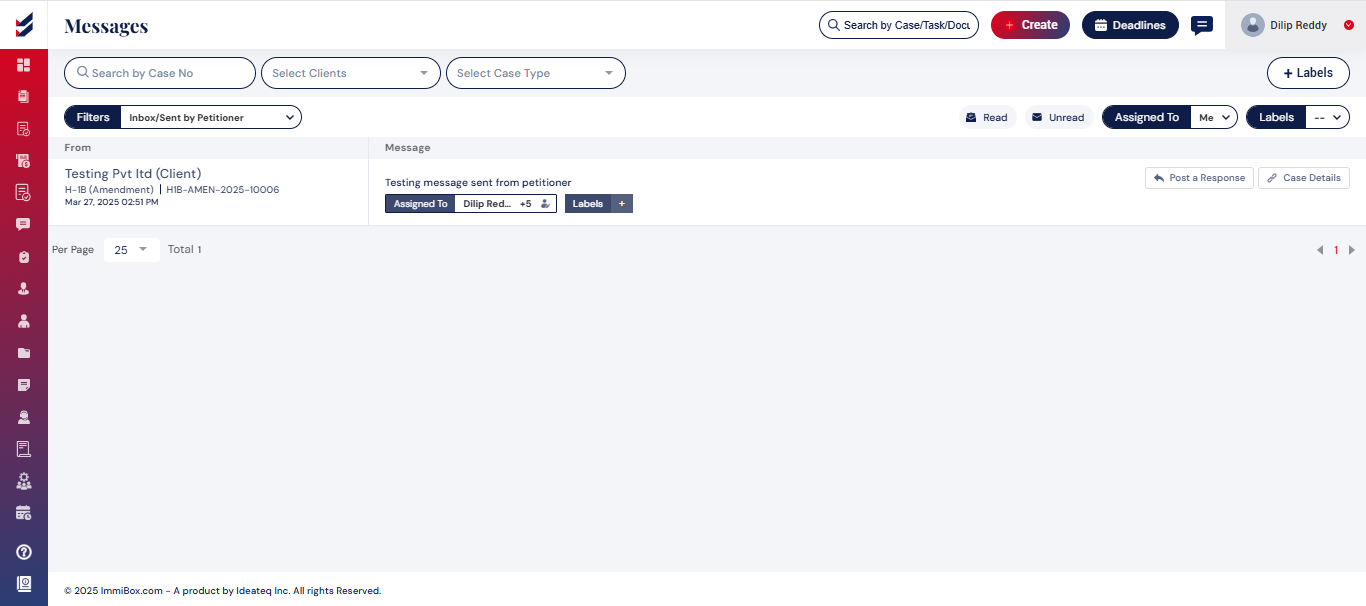
We can apply filters based on sent, received, assigned and Labels.
Create Labels
Users have the ability to organize their messages by creating a label and assigning it to a particular message.
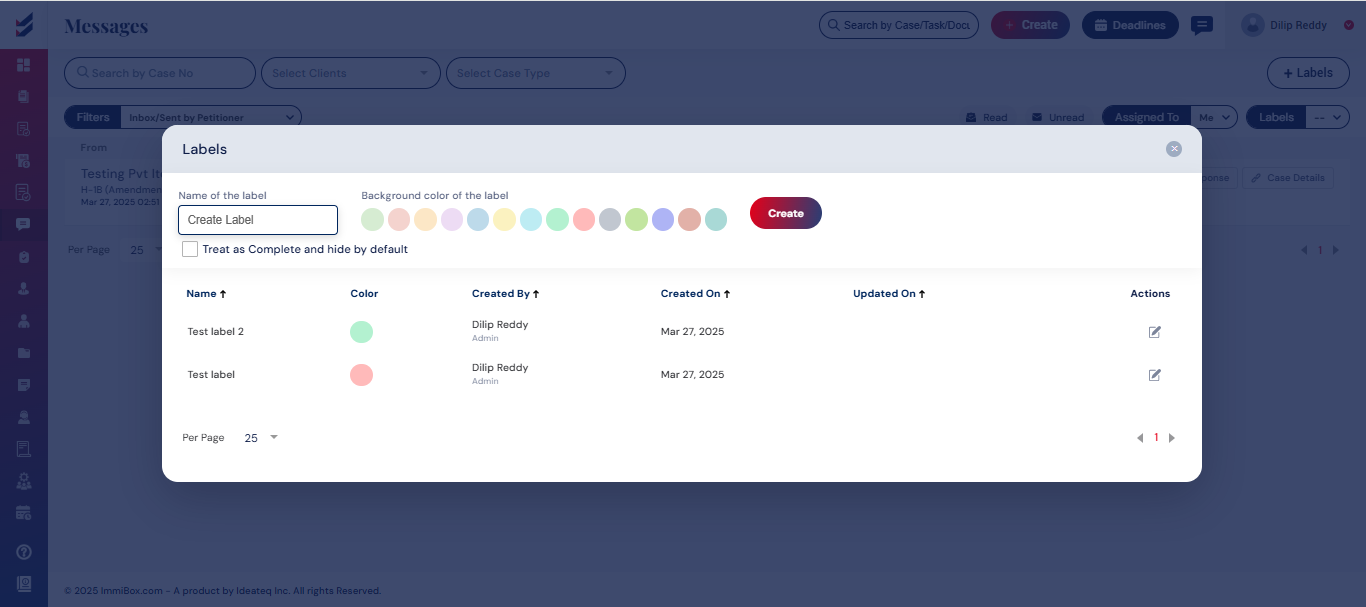
To create labels, navigate to the messages page and click on labels page. A popup will be displayed for which name and background color are required to create a label. Once the user clicks on the “create” button, the label is created.
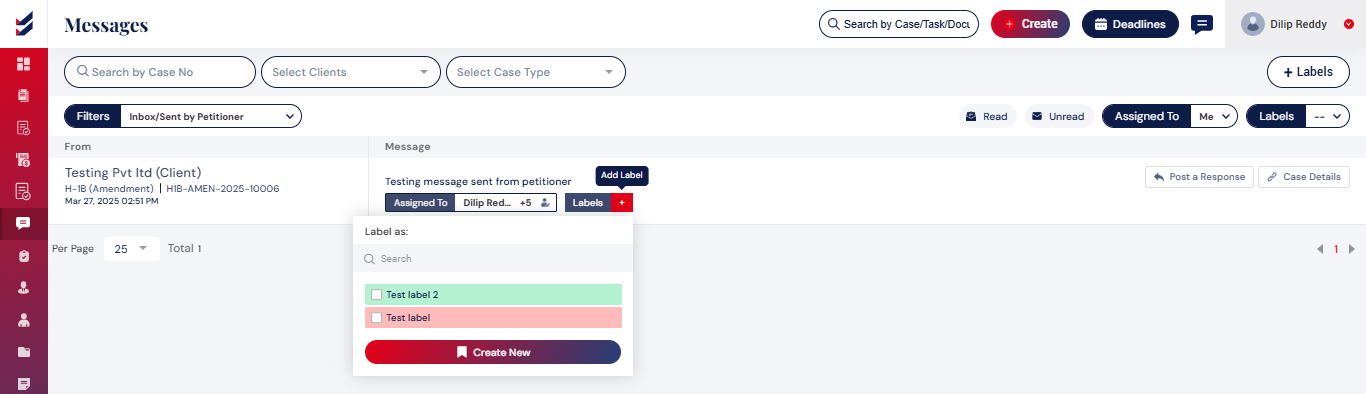
You can now attach the created label to the message by clicking on the "Add Label" option and selecting the appropriate label from the list.
Access messages
These messages are accessible via the home page, the case details section, and the message icon located in the top right corner as well.
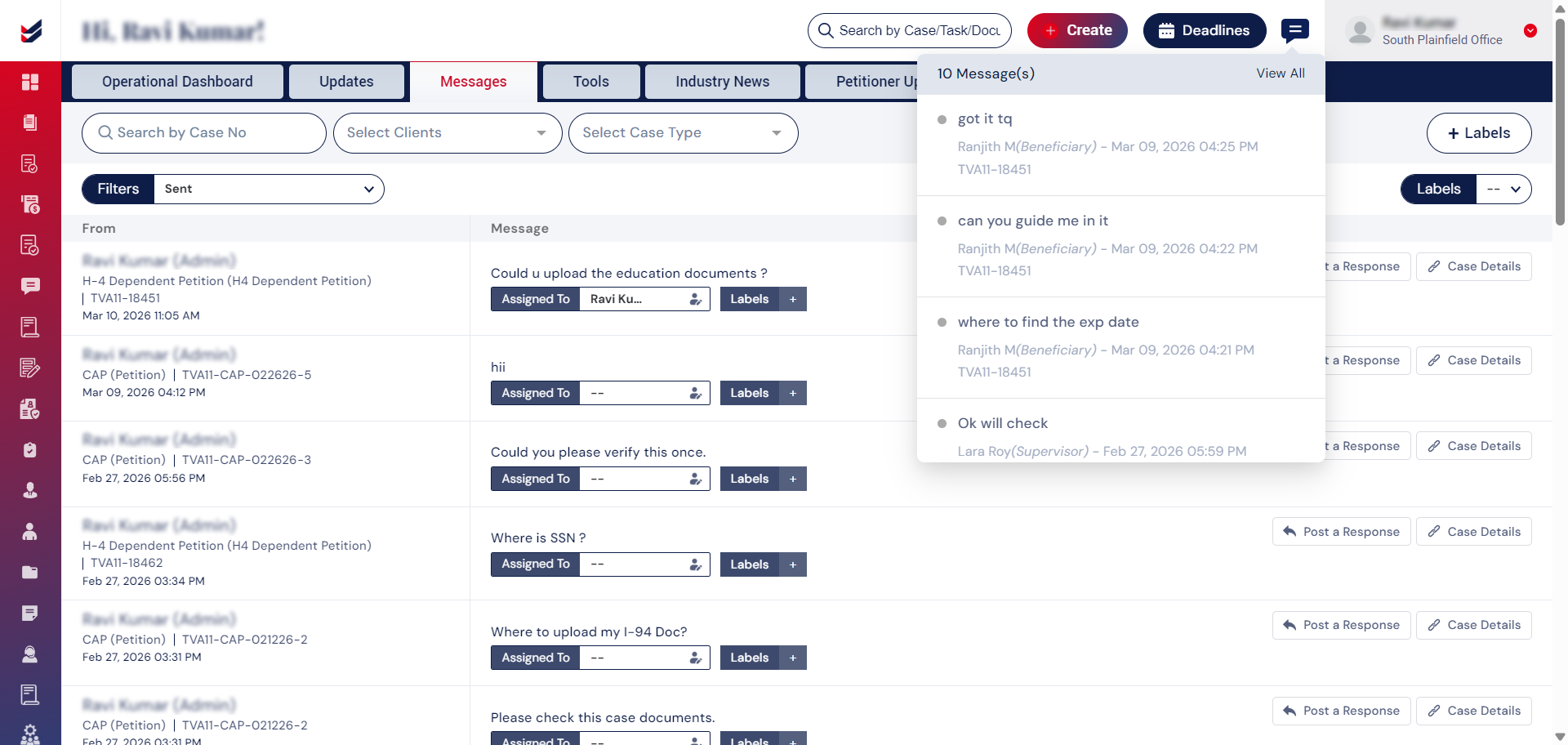
This serves as a communication, messaging, and collaboration tool for users engaged in a particular case.
Please be aware that any messages left unanswered for one hour will prompt an email notification to the recipients.

