



Assign Internal Users to a case
Overview
The case must be handled with the assistance of the Law Firm’s internal personnel. Each internal team member will have specific responsibilities related to the case. After the questionnaire is submitted and the necessary documents are uploaded, these internal users will engage in validating and verifying the information.
This process may involve the Paralegal, Supervisor, Documentation Manager, Documentation Executive, and Attorney, each contributing to the actions required for the case details.
Note: Engagement of these users to the case will strictly depend on the workflow configuration for your Law Firm and the selected Case Type.
Assignment of these users and roles shall be performed by the users who have such rights given in the workflow configuration.
Click Here to see How to manage and configure workflow for a Case Type.
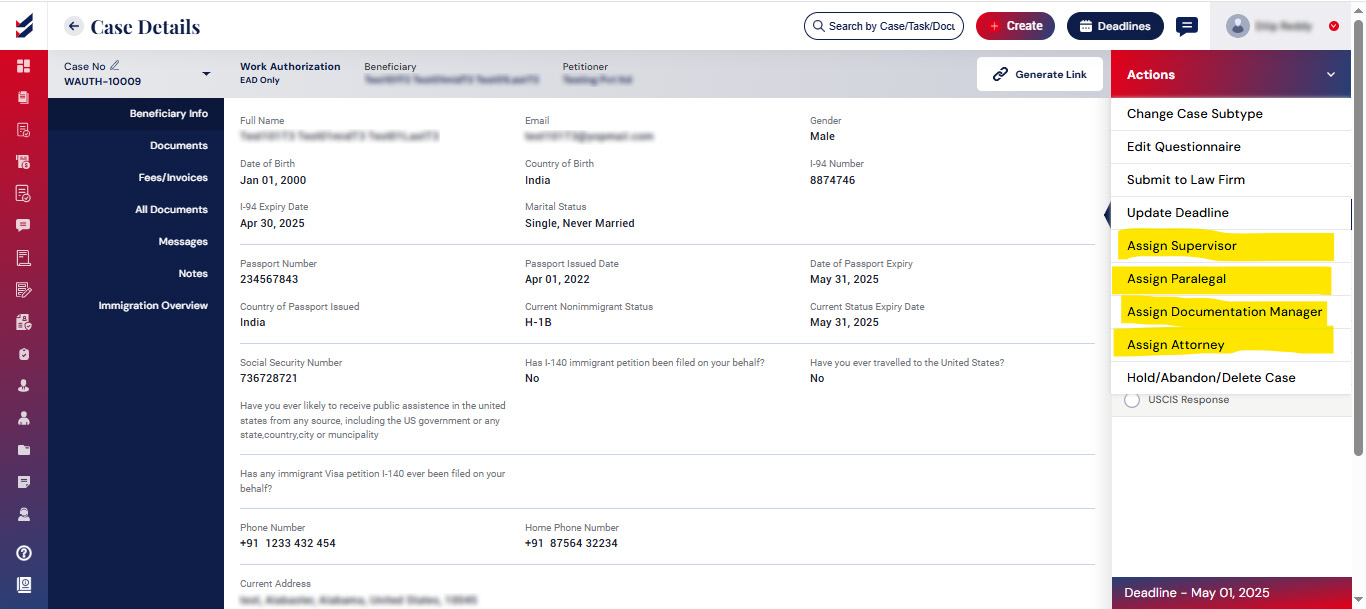
Select the Actions menu within the case details to see the internal users available for assignment to the case.
Assign Paralegal
To designate a Paralegal, the user should click on the actions button and choose the option to Assign Paralegal. This action will open a popup window where users are required to select a Paralegal from the user dropdown menu and enter a comment.
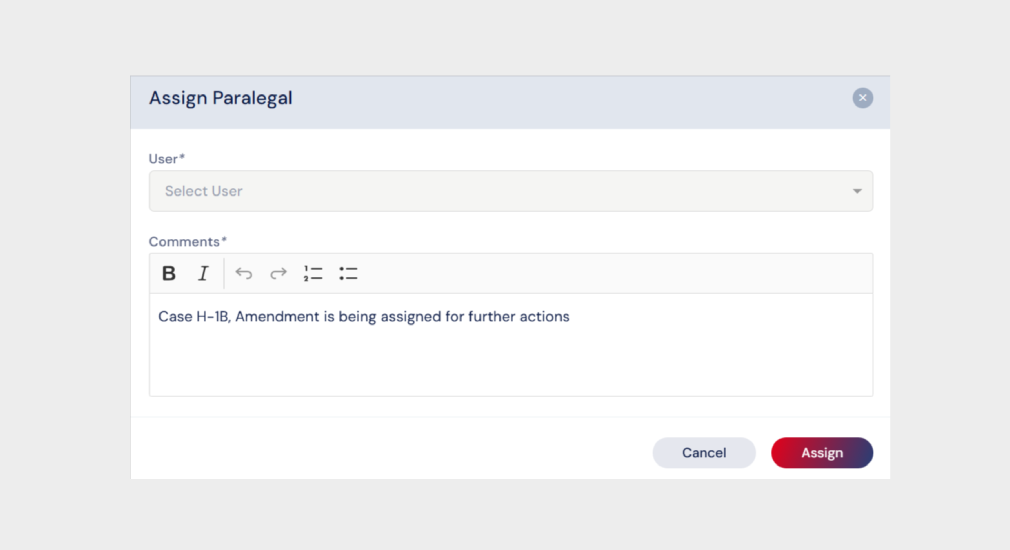
By clicking the Assign button, the chosen paralegal will be assigned to the case and a notification will be sent to the Paralegal intimating the same.
Assign Supervisor
To designate a Supervisor, the user should click on the actions button and choose the option to Assign Supervisor. This action will open a popup window where users are required to select a supervisor from the users dropdown menu and enter a comment.
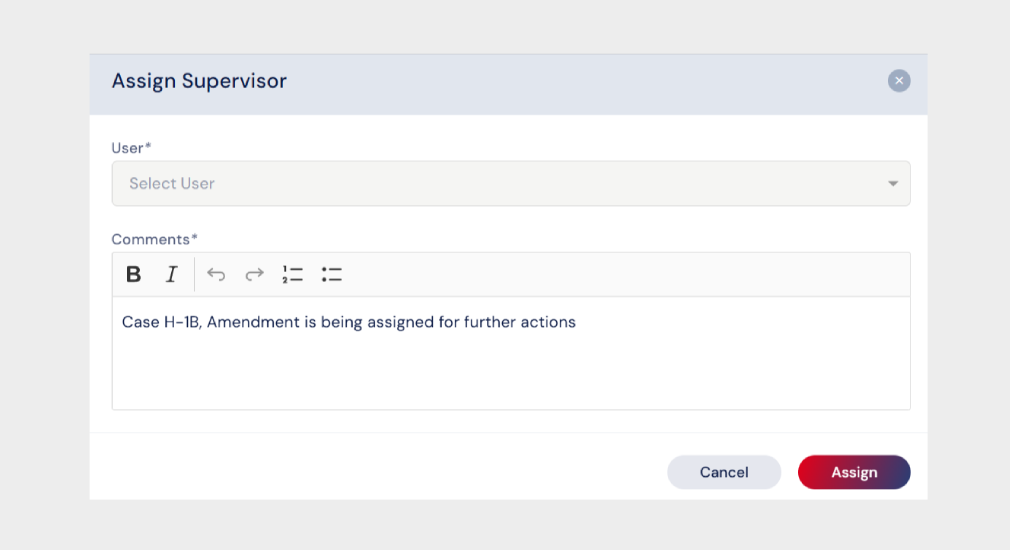
By clicking the Assign button, the chosen Supervisor will be assigned to the case and a notification will be sent to the Supervisor intimating the same.
Assign Documentation Manager
To designate a Document Manager, the user should click on the actions button and choose the option to Assign Documentation Manager. This action will open a popup window where users are required to select a Documentation Manager from the users dropdown menu and enter a comment.
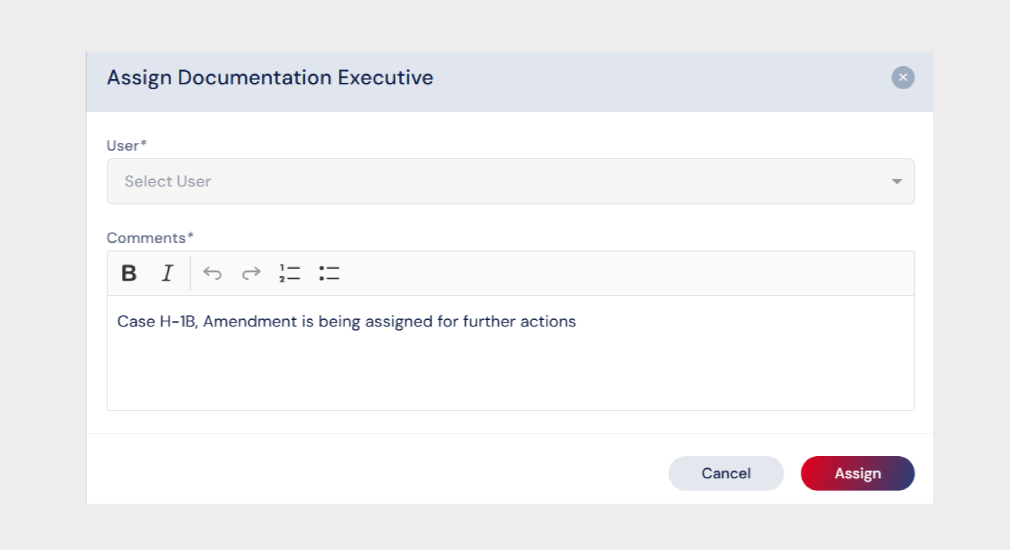
By clicking the Assign button, the chosen Documentation Manager will be assigned to the case and a notification will be sent to the Documentation Manager intimating the same.
Assign Documentation Executive
To designate a Document Executive, the user should click on the actions button and choose the option to Assign Documentation Executive. This action will open a popup window where users are required to select a Documentation Executive from the user dropdown menu and enter a comment.
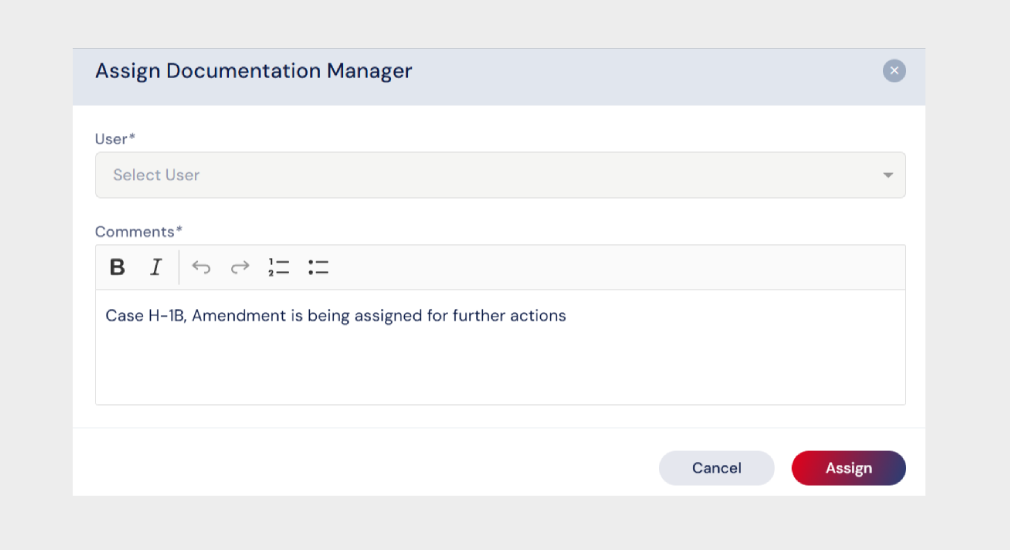
By clicking the Assign button, the chosen Documentation Executive will be assigned to the case and a notification will be sent to the Documentation Executive intimating the same.
A Documents Executive can only be assigned to a case after the Document Manager has been assigned.
Assign Attorney
To designate an Attorney, the user should click on the actions button and choose the option to Assign Attorney. This action will open a popup window where users are required to select an Attorney from the user dropdown menu and enter a comment.
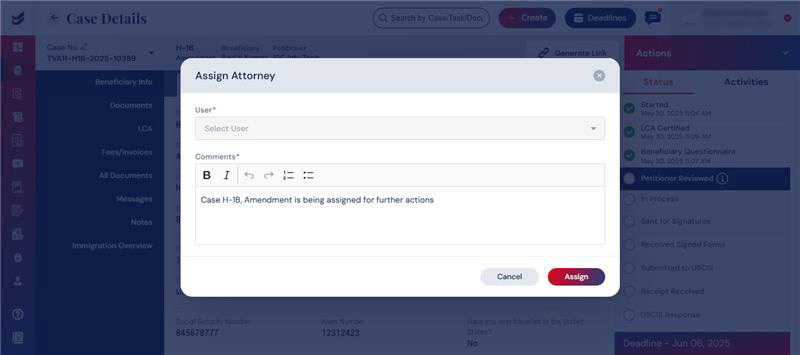
By clicking the Assign button, the chosen Attorney will be assigned to the case and a notification will be sent to the Attorney intimating the same.

